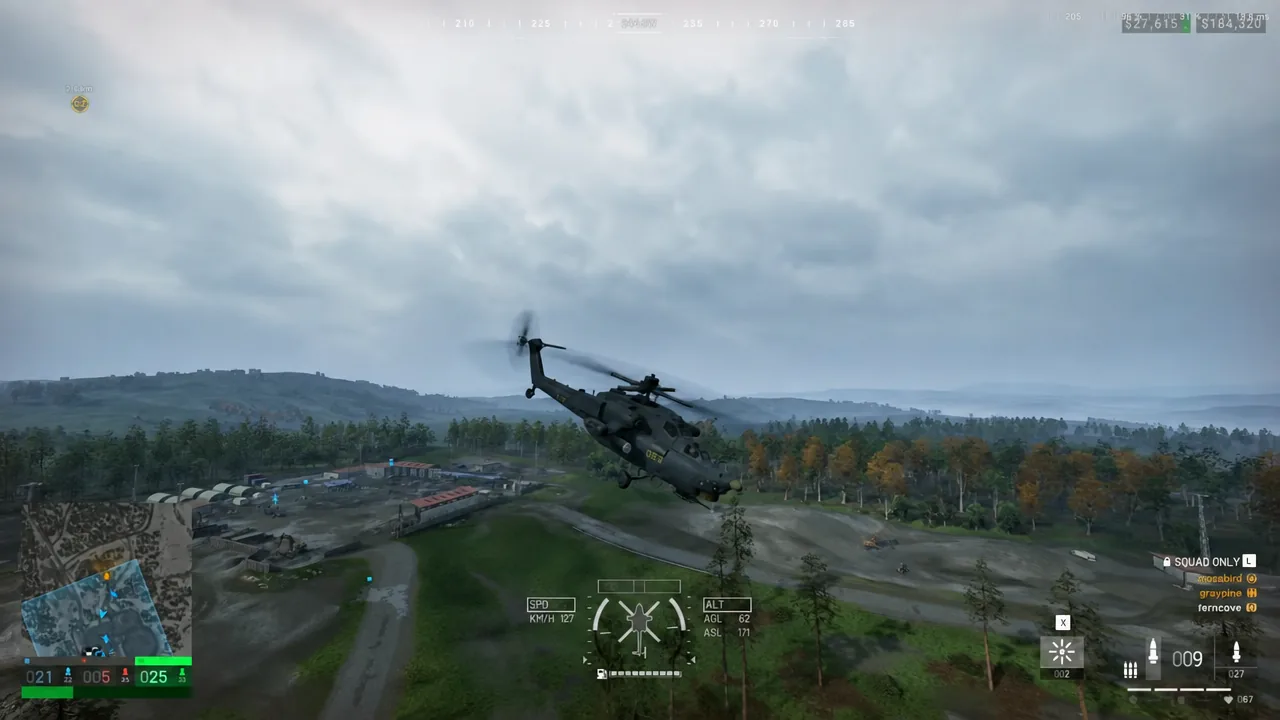
WARDOGS reads flight sticks and throttles as real analog devices, not as a generic gamepad, and it hands control over to them the moment you drop into a pilot seat. The catch is that none of it is documented anywhere official, and the default axis behavior will fight you until you go into the menus and fix a few numbers.
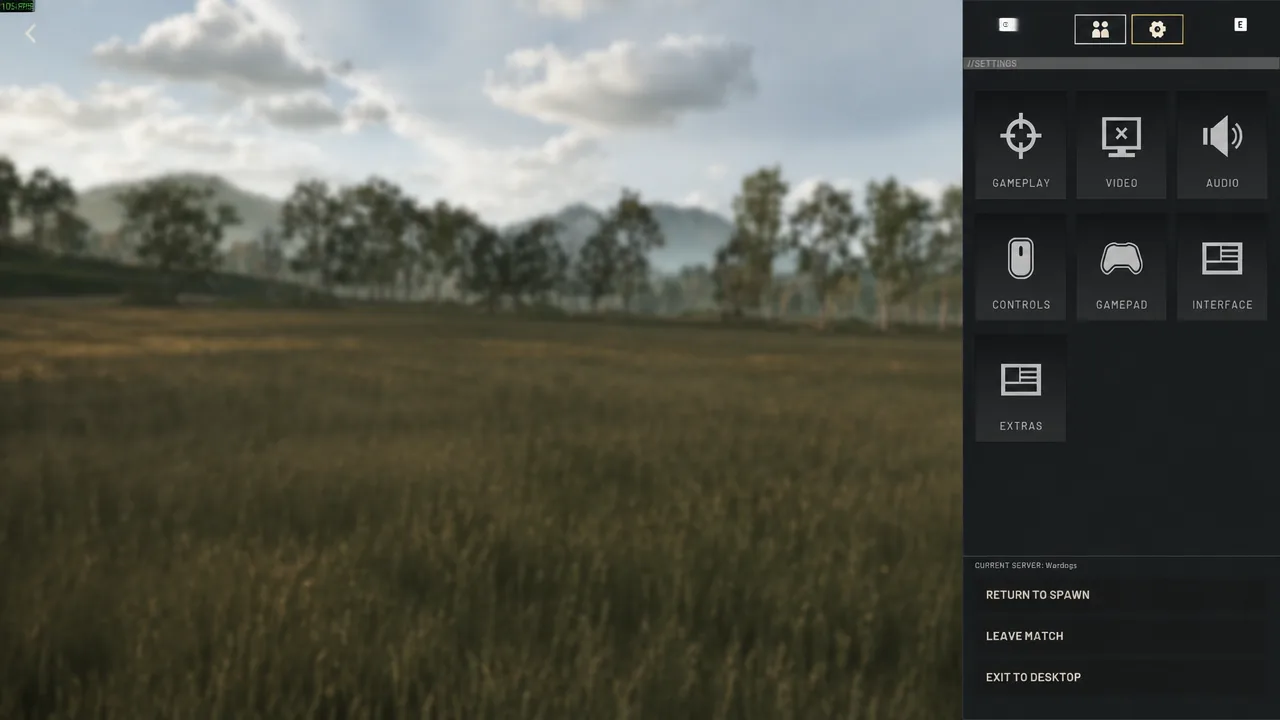
Quick answer: Open Settings, go to Gamepad, select the HOTAS sub-tab, set Enable HOTAS to Enabled, then bind roll, pitch, yaw and collective to your physical axes. The game swaps to your stick automatically when you enter a helicopter and back to mouse and keyboard when you get out.
Turn on HOTAS support and bind your axes
Do all of this in the Firing Range. You get a helicopter on demand, nobody shoots at you, and you can jump in and out of the settings menu between test flights.
How WARDOGS reads joystick axes
This is the part that surprises people coming from flight sims. WARDOGS treats an analog axis much like a key that is being held down. Deflect the stick and the helicopter keeps rotating in that direction for as long as the axis stays off center. It does not settle at an angle proportional to how far you pushed.
The practical consequence is that stopping a roll or a pitch change means physically returning the stick to true center, not just easing off. If your stick reports even a tiny nonzero value at rest, the helicopter will keep drifting. That is why a small deadzone is not optional here — it is what gives the game a reliable neutral.
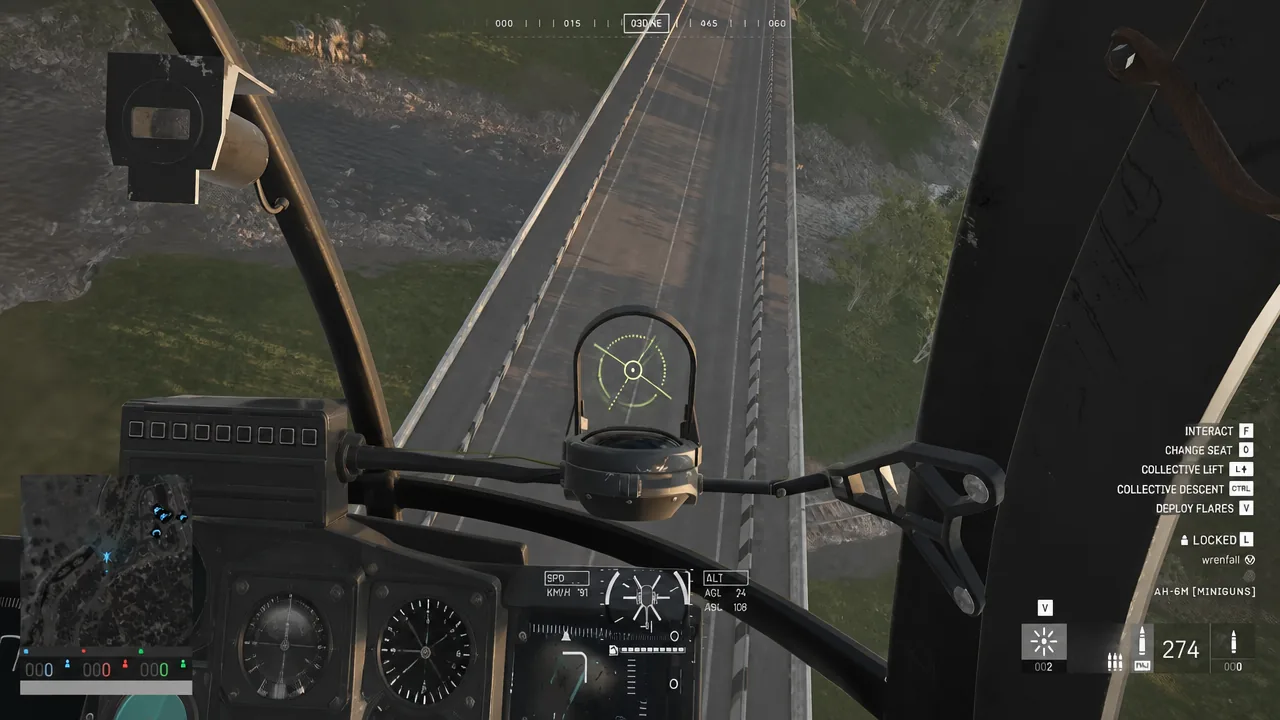
Roll and pitch deadzone values that work
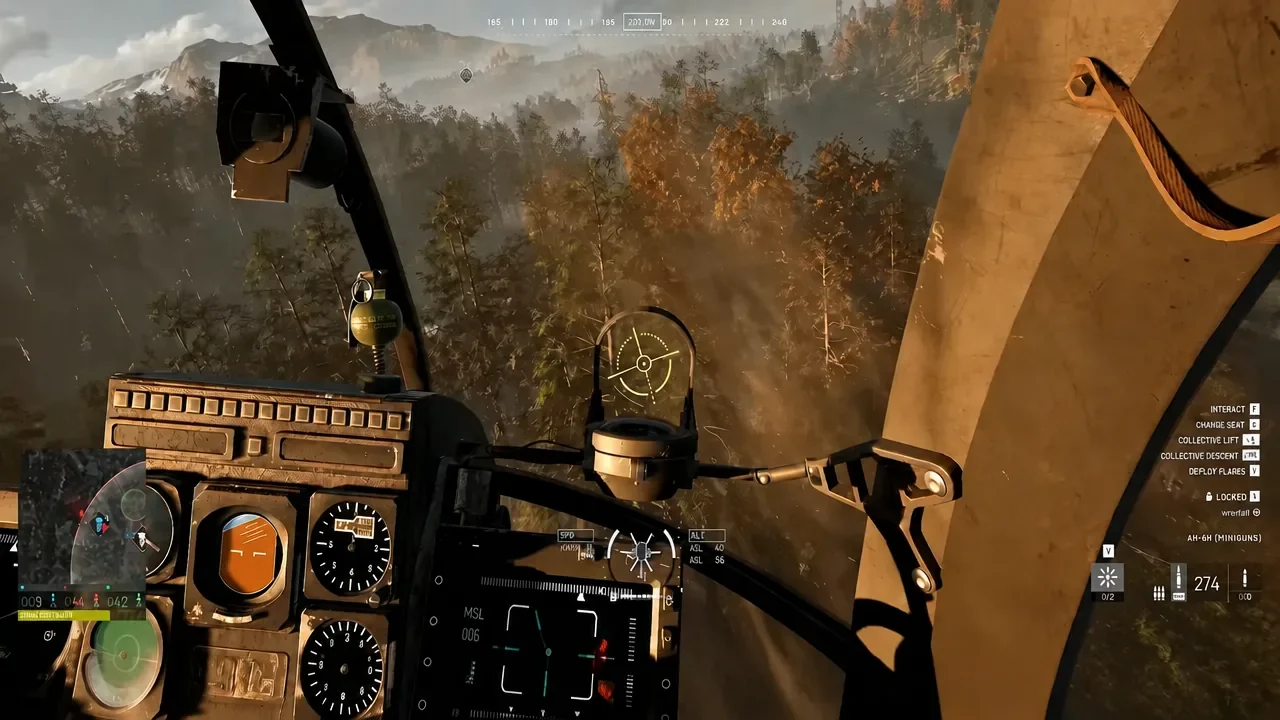
Deadzone settings for air vehicles live in the Gamepad menu. Keep them as small as you can while still getting a genuine zero when you let go. Values in the low hundredths are enough for a decent stick.
| Setting | Working value | What it does |
|---|---|---|
| ROLL DEADZONE | 0.02 | Ignores tiny left/right sensor noise so the helicopter stops rolling at center |
| PITCH DEADZONE | 0.03 | Same for fore/aft, slightly larger because pitch tends to sit noisier at rest |
Hardware matters here too. Removing the centering springs from a stick and running it on a tightened clutch instead gives you a control that stays where you put it, which suits a helicopter — but it also means there is no mechanical snap back to zero, so the deadzone is doing all the work. Sticks that self-center hard have the opposite problem: some pilots find the stick returns to middle physically while the game does not fully re-center, forcing a nudge the other way to cancel the input. A throttle with center detent return is the commonly recommended answer for that.
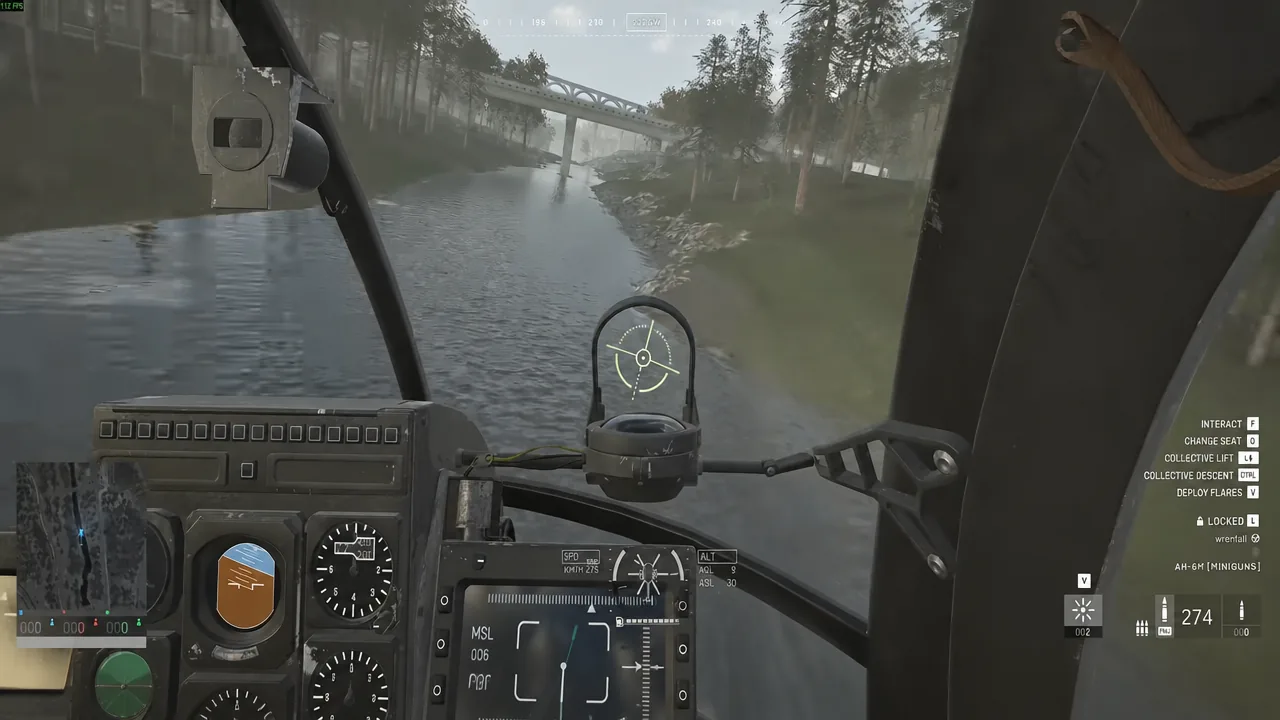
Pitch and roll sensitivity caps your rotation rate
The instinct when a helicopter feels twitchy is to pull the sensitivity slider down. In WARDOGS that does something different from what you want. Lowering pitch or roll sensitivity does not soften the area around center while leaving full authority at the edges — it reduces the maximum rotation speed across the whole range.
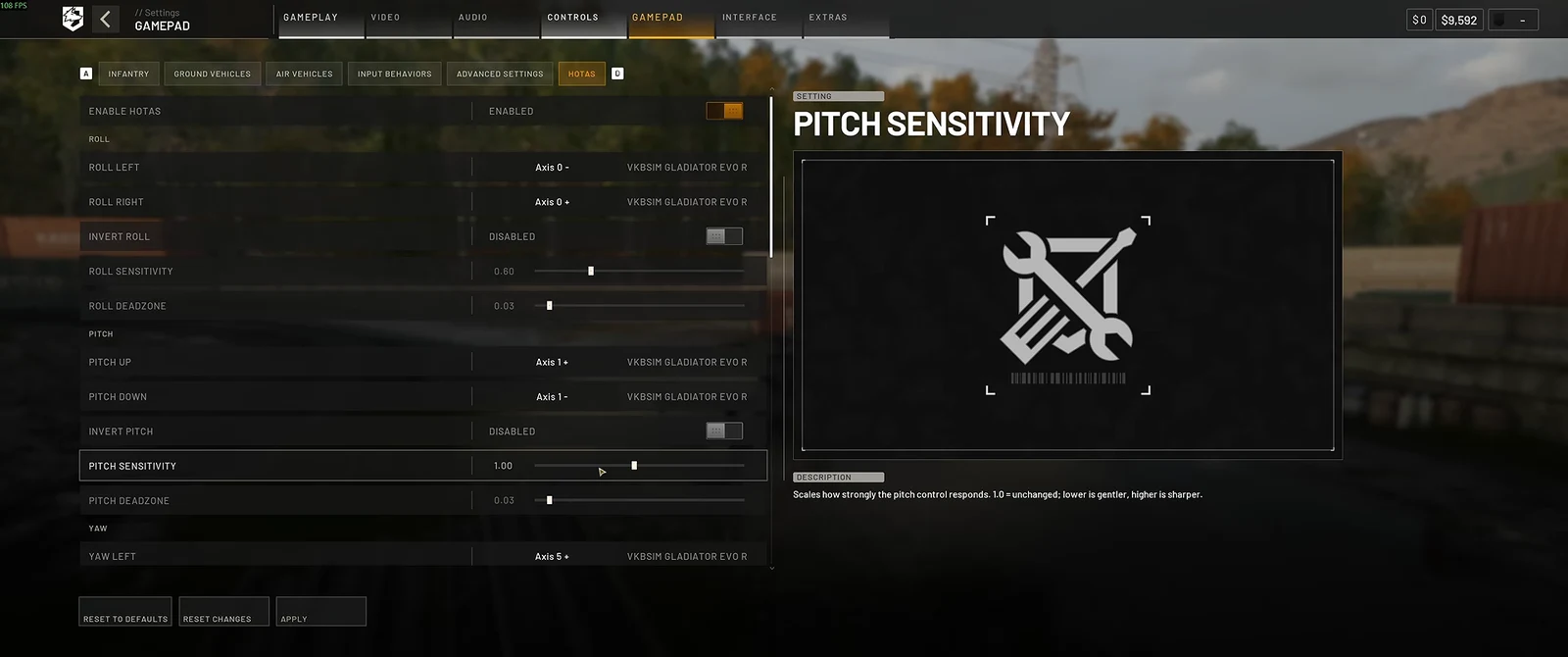
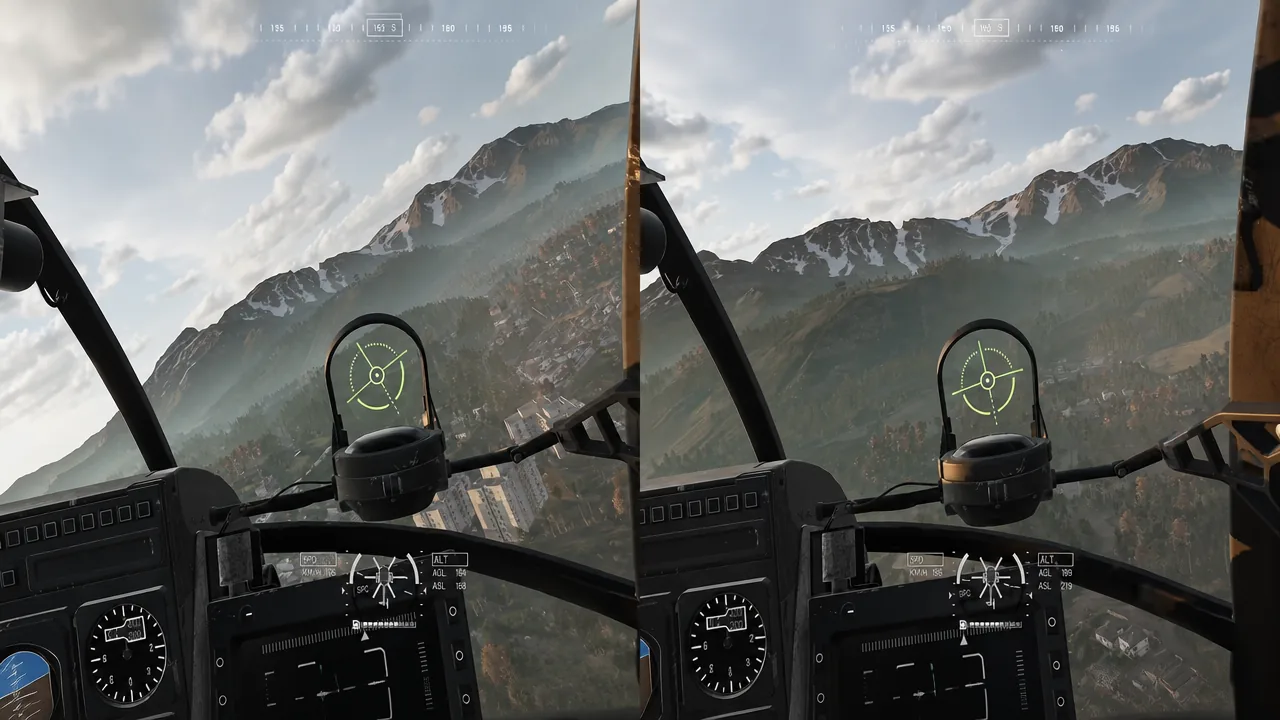
Side by side, 0.5 sensitivity visibly limits how fast the helicopter can roll compared to 1.0. Push it down to 0.1 and the aircraft becomes so sluggish it stops responding usefully to emergency inputs, which ends in a crash rather than a gentle landing. Leave these near 1.0.
Tip: If you want fine control near center without giving up full deflection authority, do it in your stick’s own software instead. A custom response curve applied to the pitch and roll axes — set in VKB Device Config or the equivalent tool for your hardware — flattens the middle of the travel while still reporting 100 percent at the stops. The game keeps its full rotation rate, your small corrections get smaller.
Calibrating collective sensitivity to your throttle travel
Collective is the one axis worth tuning by feel rather than by a recommended number. The goal is simple: the full physical travel of your throttle lever should map to the full range of the in-game collective gauge, with nothing left over at either end.
Adjust Collective Sensitivity in the Gamepad menu, then hover and watch the gauge as you run the lever from stop to stop. If the gauge maxes out before your throttle does, sensitivity is too high and you are wasting the top of your travel. If it never reaches the top, it is too low and you will not have full power available when you need to climb out of trouble.
Bind the rest of the cockpit from the pilot seat
The HOTAS sub-tab covers flight axes and a set of vehicle functions, but there is a wider trick: while you are sitting in the pilot seat, the normal Controls and Keybinding menu will accept stick and throttle buttons for almost anything. It will not accept them from the main menu or on foot — you have to be in the seat.
That is what lets you stop reaching for the keyboard mid-flight. Interact goes on a stick button so you can start and stop the engine, open your inventory or leave the aircraft. An encoder wheel mapped to mouse wheel in your stick’s config software scrolls the interact options. Bind Garage/Vendor to a button, set a thumb hat to left click, right click and Escape in the device software, and the purchase menu becomes usable without letting go. Push-to-talk bound directly to a button is also cleaner than cycling a comms wheel.
Useful things to get under your fingers: flares, guns, camera toggle and camera rotation, map, voice comms, cargo drop and the horn. Flares first — everything else is convenience, that one is survival.
Known HOTAS problems in WARDOGS
Support is real, but it is rough in specific and repeatable ways. None of these are documented on the store page, and there is no official channel committing the studio to keeping any of it working.
| Problem | What to expect |
|---|---|
| Bindings do not persist | You remap the full set at the start of every session. It takes a few minutes once you know the order. |
| Axis sticks after remapping | Reported on at least one setup, where the game read a constant yaw input after rebinding. Re-enter the vehicle or redo the bind. |
| Freelook is slow | Camera panning on a hat switch moves far slower than mouse or gamepad look, and there are no sensitivity sliders for view control. |
| Freelook on an axis can hijack the stick | With permanent freelook enabled through virtual-joystick software, the stick may pan the camera instead of flying the aircraft. |
| Map is awkward | Navigating and zooming the map on stick buttons is clumsy compared to mouse. |
| Flight assists on the Lakota | Reported as not applying when flying with a stick, which makes landing that airframe noticeably harder. |
| Input delay | Some pilots report a lag between stick movement and aircraft response that deadzone and sensitivity changes do not remove. |
Head tracking sits outside the game’s own settings. Pilots pair always-on vehicle freelook with TrackIR, Beam Eye Tracker or OpenTrack rather than waiting on native support.
Set the deadzones low, leave pitch and roll sensitivity near 1.0, shape the center response in your stick’s software rather than the game’s, and match collective travel to the gauge. Then spend a session in the Firing Range learning that the stick commands rotation rate, not attitude — that single mental adjustment does more for your landings than any slider in the menu.