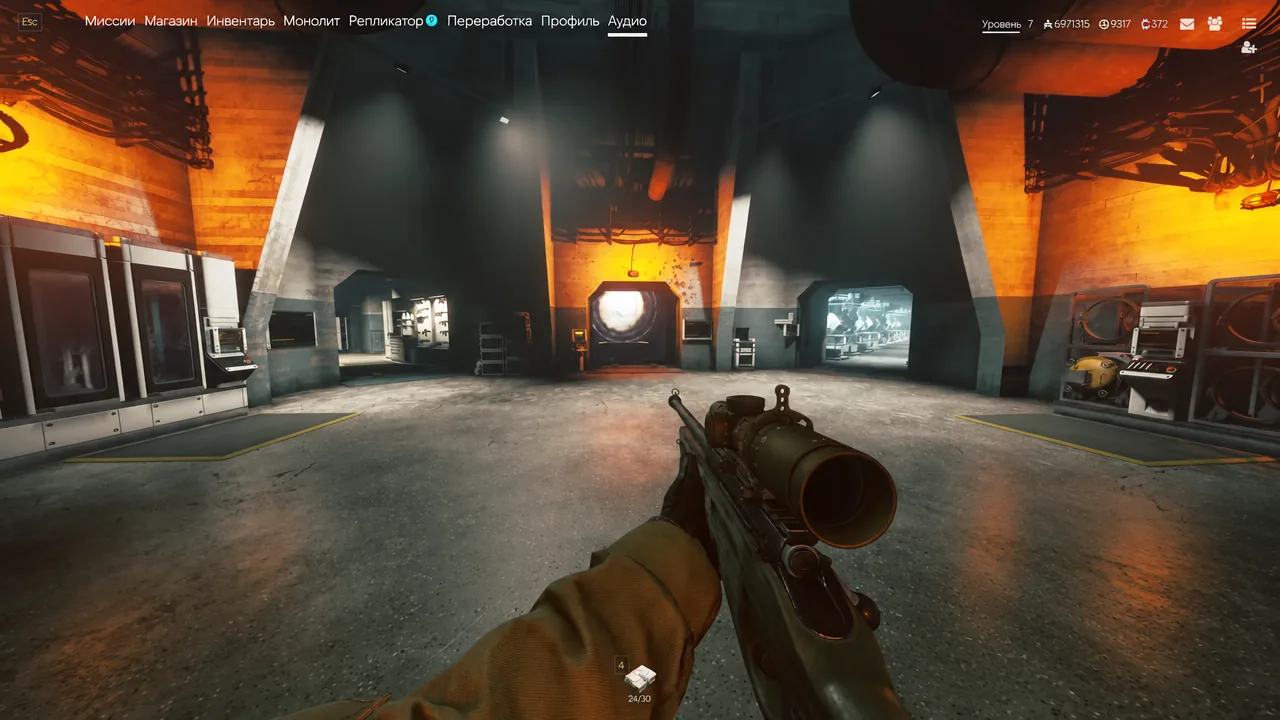
Active Matter runs on PC with a deep graphics menu, and the default presets rarely give you the cleanest frame rate for a competitive extraction shooter. The fastest way to stabilize performance is to build a custom profile that cuts expensive lighting and effects while keeping the settings that help you see and react.
Quick answer: Set Quality to Custom, use your monitor’s native resolution in Fullscreen, enable NVIDIA Reflex Low Latency (Boost), cap FPS at 60, and drop shadows, reflections, and effects to Low while leaving textures at Medium.
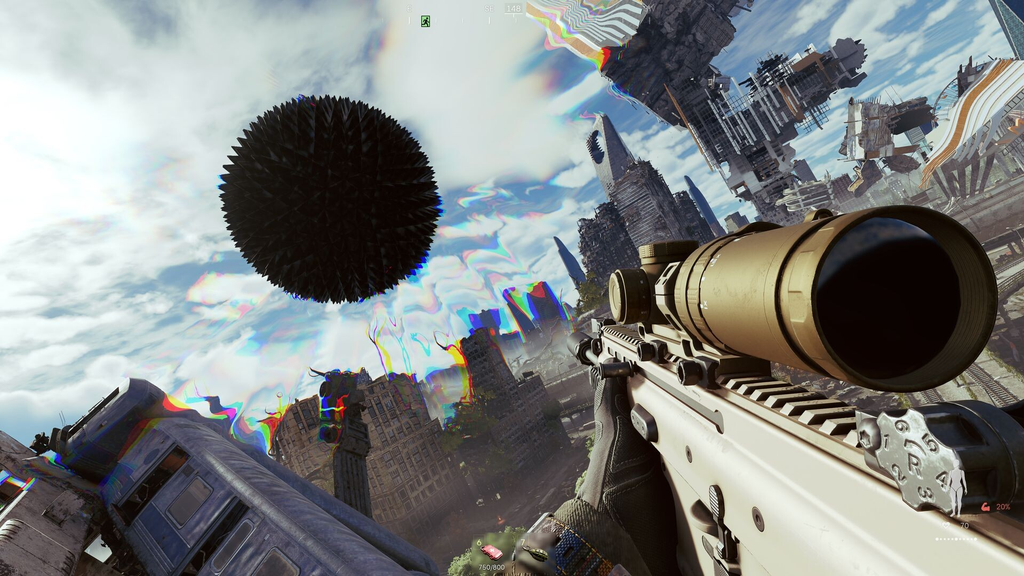
Full performance profile for Active Matter
This profile favors frame rate and visibility over cinematic detail. It works well on mid-range hardware and gives lower-end machines the biggest gains, since the heaviest cuts land on lighting, reflections, and post-processing rather than on the parts of the image you actually read during a fight.
| Setting | Value |
|---|---|
| Quality | Custom |
| Resolution | Native monitor resolution |
| Mode | Fullscreen |
| NVIDIA Reflex Low Latency | Boost |
| VSync | Off (turn on only if lag persists) |
| FPS Limit | 60 (raise and test) |
| Anti-Aliasing mode | Off |
| Super Resolution | Performance |
| Shadow Quality | Low |
| Shadows Form Effects | Off |
| Global Illumination Quality | Low |
| Atmospheric Scattering Quality | Low |
| Ambient Occlusion Quality | Low |
| Reflection Quality | Low |
| High Quality Indoor Reflections | Off |
| Improved Subsurface Scattering | Off |
| Texture Quality | Medium |
| Anisotropy | 4X |
| Clouds Quality | Default |
| Fog Quality | Close |
| Water Quality | Low |
| Water Ripples Quality | Low |
| Environment Detail Quality | Low |
| Terrain Tessellation Quality | Low |
| Object Tessellation | Off |
| Resolution of Visual Effects | Low |
| Realistic Magnification in Scopes | Off |
| Screen-Space Weather Effects | Off |
| Lens Flare | Off |
| Chromatic Aberration | Off |
| Film Grain | Off |
| Motion Blur | 0 |
Display, resolution, and latency settings
Start by locking the display basics, because they set the baseline for everything else. Run the game in Fullscreen for the most responsive input, and keep the resolution at your monitor’s native value. Lowering resolution below native only helps if your GPU is severely overloaded, and it usually costs more clarity than it returns in frames.
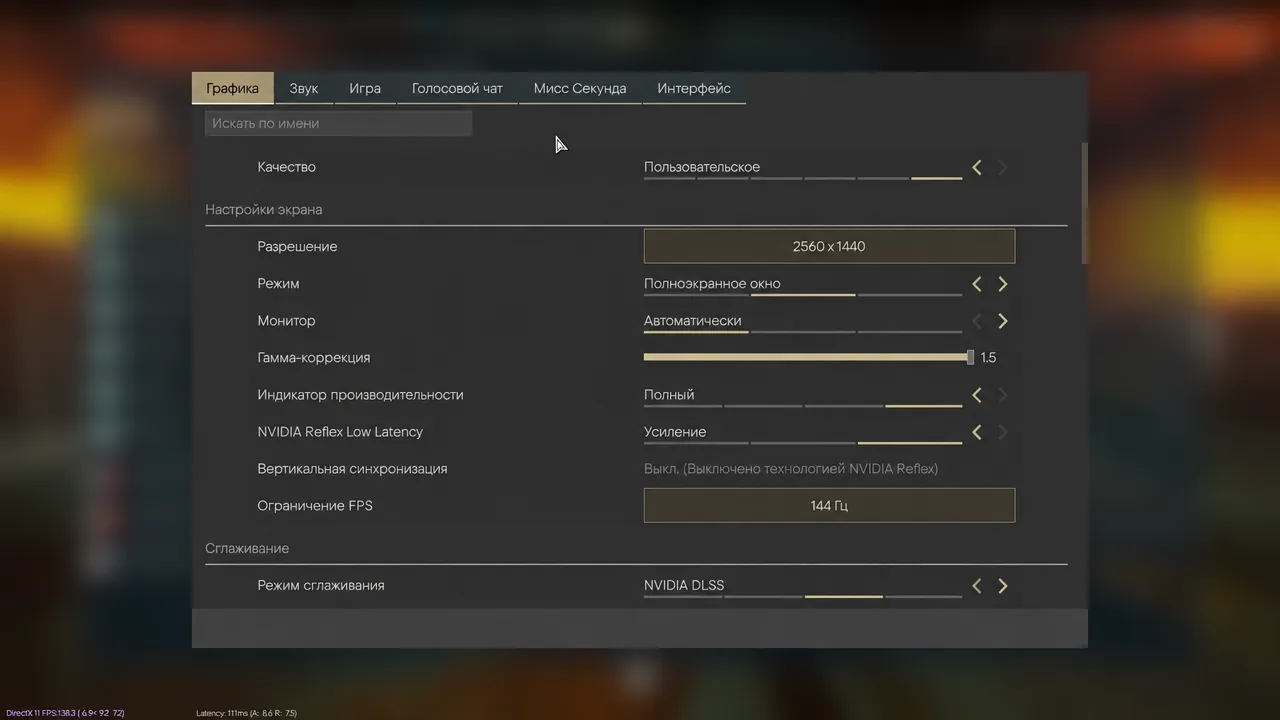
For latency, set NVIDIA Reflex Low Latency to Boost. This trims the delay between your input and what appears on screen, which matters most when another player has already heard you. Leave VSync off to keep that latency low, and only enable it if you are seeing lag or screen tearing. Turning VSync on will automatically disable Reflex Low Latency.
Cap your frame rate to keep pacing steady. A limit of 60 FPS is a comfortable starting point that avoids stressing the system, and it smooths out frame delivery. If your hardware has headroom, raise the cap toward your monitor’s refresh rate and test whether the higher number stays stable during firefights.
Match the FPS cap to the frame rate you can hold consistently, not the peak you can hit. A steady 55 to 60 FPS feels better than a counter that swings between 90 and 30 when combat starts.
Upscaling and anti-aliasing
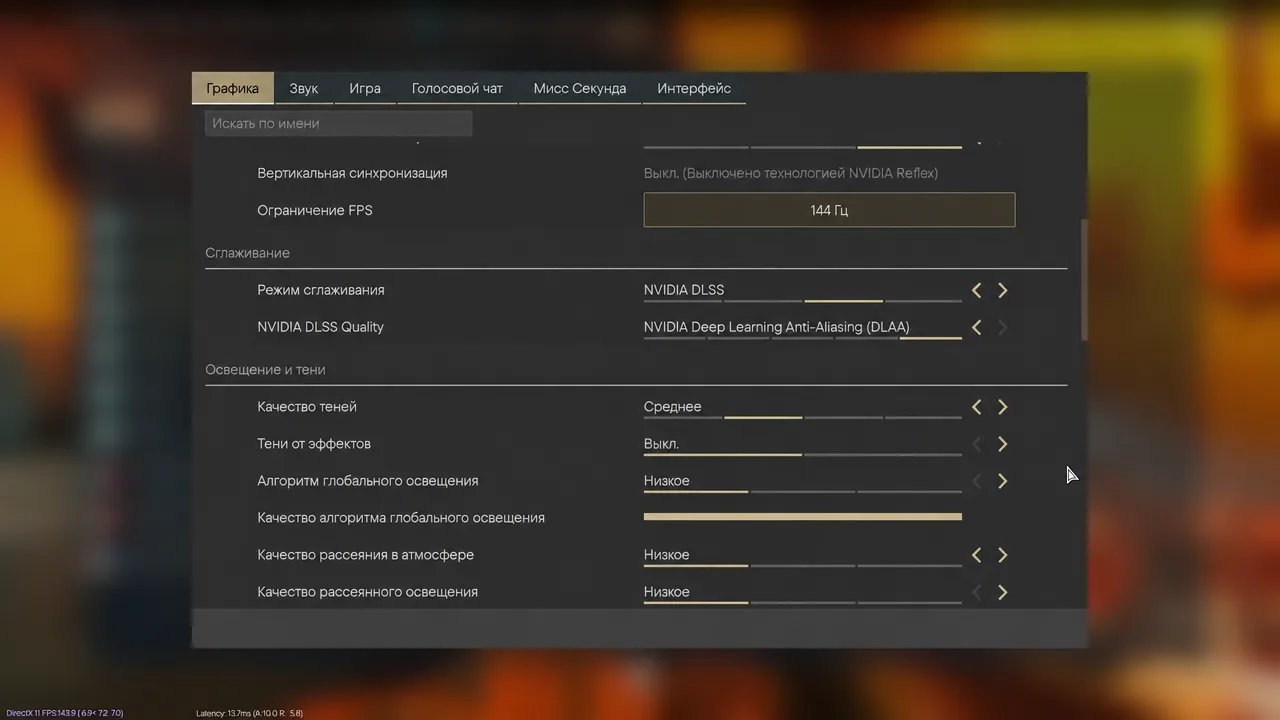
Super Resolution is where you recover the most performance for the least effort. Set it to Performance so the game renders internally at a lower resolution and reconstructs the final image. Distant objects can soften slightly at this mode, so if you notice too much shimmer or blur, step it up to Balanced.
Keep the Anti-Aliasing mode off to save frames. It does not cost much visibility with upscaling already active, and edges stay readable. If you run into distracting jagged edges or flicker, turn it back on rather than leaving it on by default.
Lighting, shadows, and reflections
These settings carry most of the performance cost in Active Matter, so they are the first place to cut. Set Shadow Quality to Low and turn Shadows Form Effects off. The visual loss is small during actual play, while the frame-time stability you gain is significant on weaker GPUs.
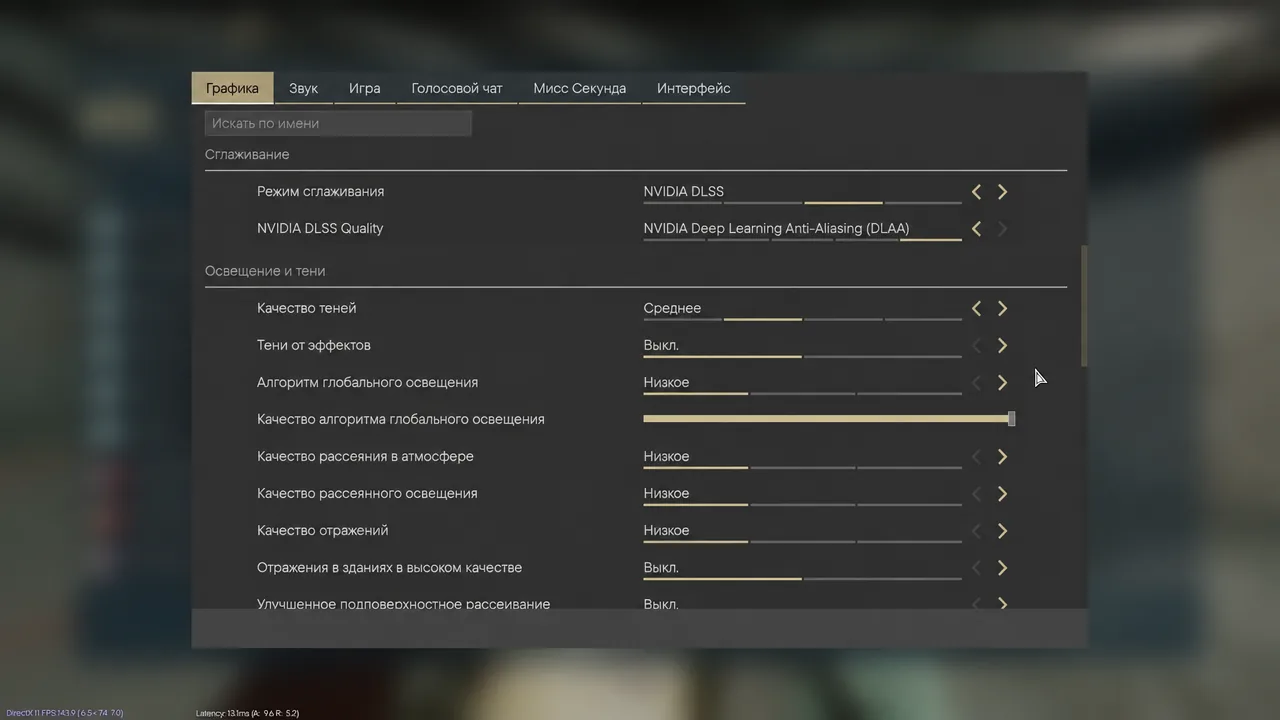
Push the rest of the lighting stack down as well. Global Illumination Quality, Atmospheric Scattering Quality, Ambient Occlusion Quality, and Reflection Quality all go to Low. Turn off High Quality Indoor Reflections and Improved Subsurface Scattering. These effects add atmosphere but rarely help you identify a target, and they load the GPU exactly when scenes get busy.
Textures and filtering
Textures are the one place where dropping to the absolute minimum hurts more than it helps. Keep Texture Quality at Medium, which keeps walls, weapons, and environmental objects readable without the memory pressure of higher settings. If you have 4 GB or more of VRAM, Medium is a better compromise than Low.
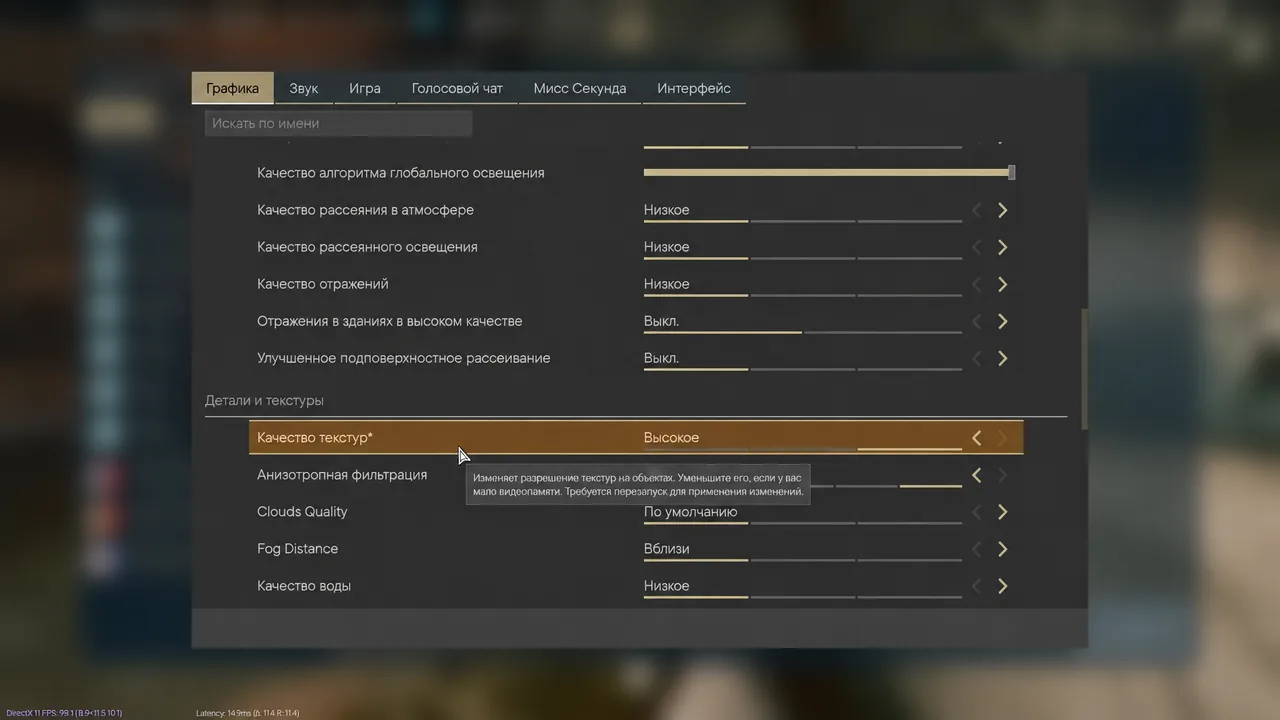
Set Anisotropy to 4X. It sharpens surfaces viewed at an angle, such as floors and long walls, for a very small performance cost. Higher levels give diminishing returns, so 4X is the practical stopping point for a performance profile.
Environment and world detail
World geometry and water can quietly drain frames in dense areas. Set Environment Detail Quality, Terrain Tessellation Quality, Water Quality, and Water Ripples Quality to Low, and turn Object Tessellation off. Drop the Resolution of Visual Effects to Low so explosions and particles stop tanking your frame rate mid-fight.
For atmosphere, leave Clouds Quality at Default and set Fog Quality to Close. Keeping fog short reduces the volume the GPU has to render while still preserving the game’s look at the distances that matter.
Post-processing and visibility
Cinematic effects work against you in an extraction shooter. Turn off Screen-Space Weather Effects, Lens Flare, Chromatic Aberration, and Film Grain, and set Motion Blur to 0. Removing these keeps the image sharp when someone crosses your screen, and it strips out unnecessary rendering work at the same time.
Turn Realistic Magnification in Scopes off as well. It adds a rendering pass through optics that costs frames when you aim down sights, which is the worst moment to lose performance. With it disabled, scoped targets stay clear and your input stays responsive.
How to confirm the profile is working
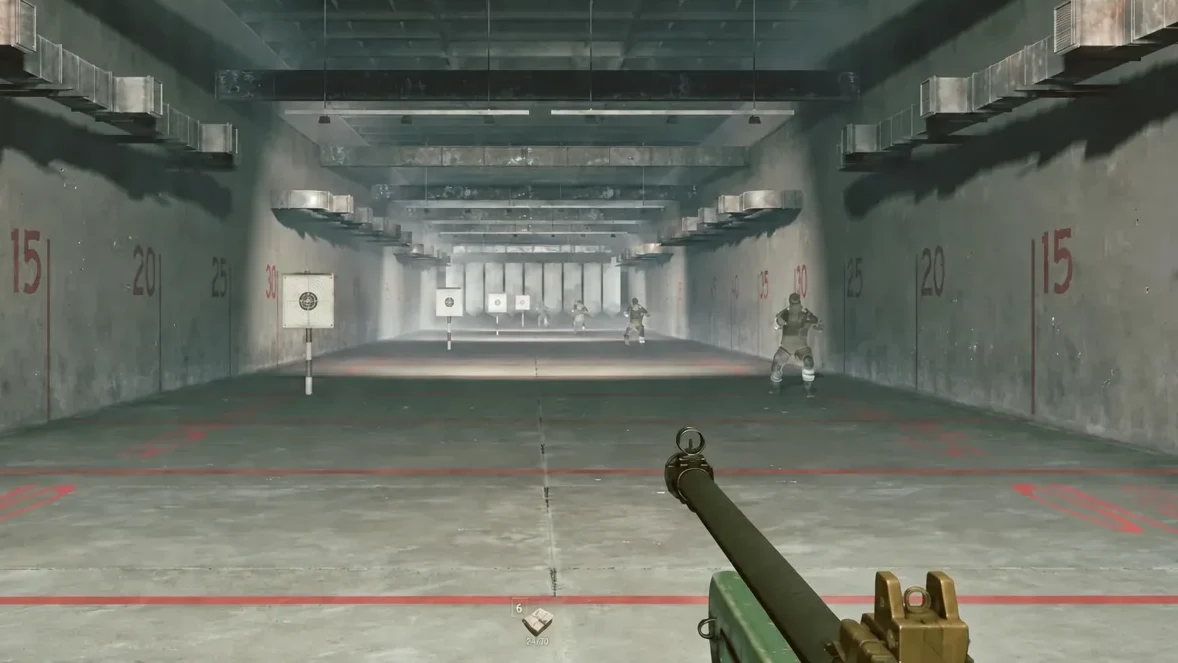
Apply the settings, drop into a match, and watch the frame rate during a firefight rather than in an empty lobby. If the counter holds near your cap while explosions and multiple players fill the screen, the profile is doing its job. Movement should feel smooth, and aiming should respond immediately.
Active Matter is an online game, so graphics settings only control your local performance. If your internet connection is unstable, you can still experience lag no matter how the graphics are tuned, so a wired connection helps as much as any in-game option here.