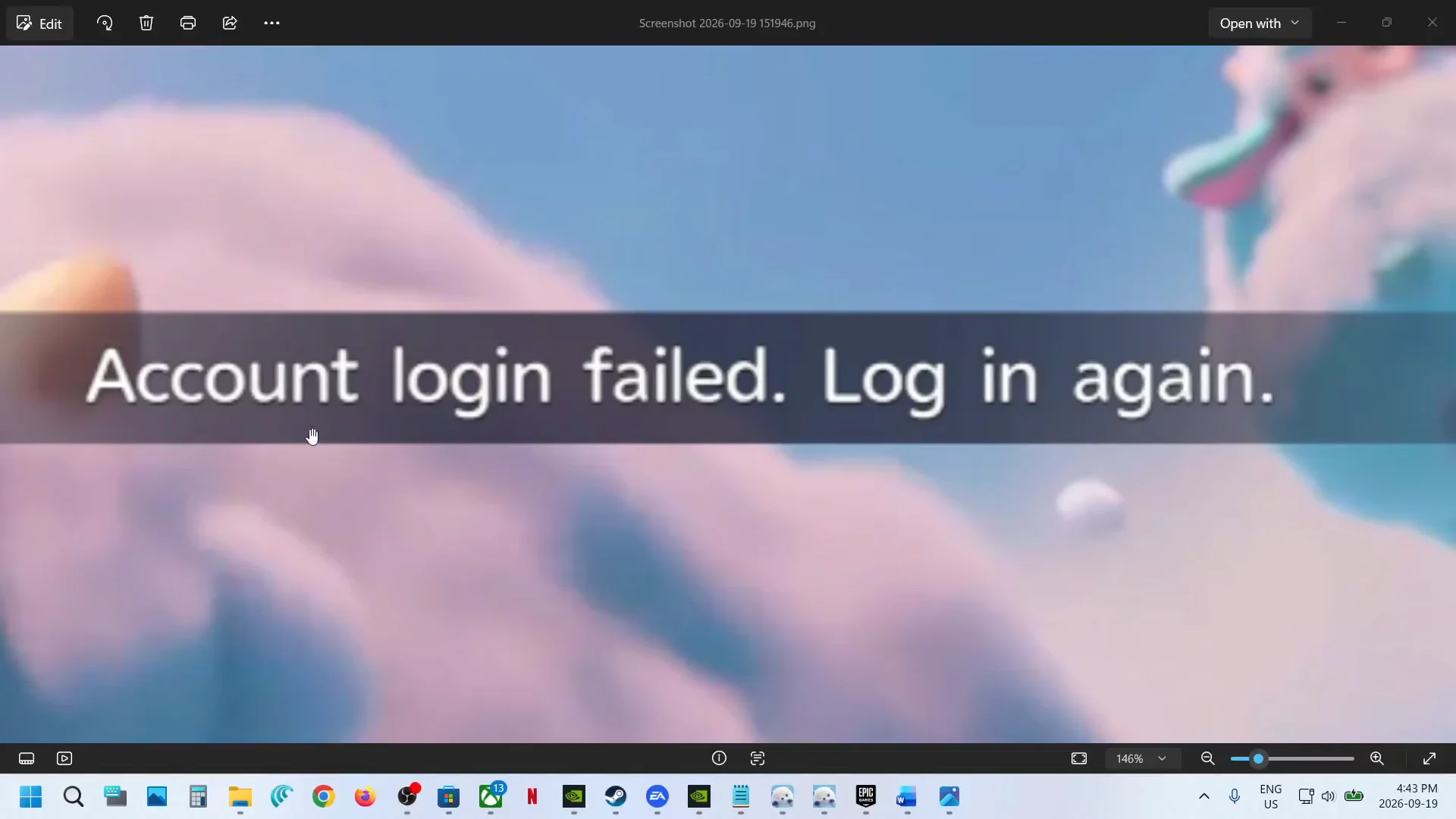
The “Account login failed. Log in again.” message stops you at the door of Aniimo, usually before any real problem exists on your PC. Most cases come down to server load right after launch, clicking through the login screen too fast, or an install path the client cannot read. The fixes below run from the quickest to the most involved, and the first few clear the majority of failures.
Quick answer: Wait 5–10 seconds on the login screen, then press Start Adventure. If it still fails, fully close and relaunch the client (repeat 2–3 times), and confirm the servers are not down for your region.
Fix the Account Login Failed error: first checks
Start here. These steps cost nothing, take seconds, and resolve the error for most players without changing any system settings.
If the game lets you in but drops you into a queue with a moving number, your account is fine and the server is just busy. Leave the queue running instead of restarting, and do not unlink or recreate any account.
Check Aniimo server status
A high number of players can leave the Aniimo servers unstable, and a login error is expected when your regional server is under maintenance or has not opened yet. In the days right after the September 16, 2026 launch on PC and console, concurrent players climbed past 120,000 and the servers were overloaded, which produced login queues and intermittent connection failures even on a stable network.
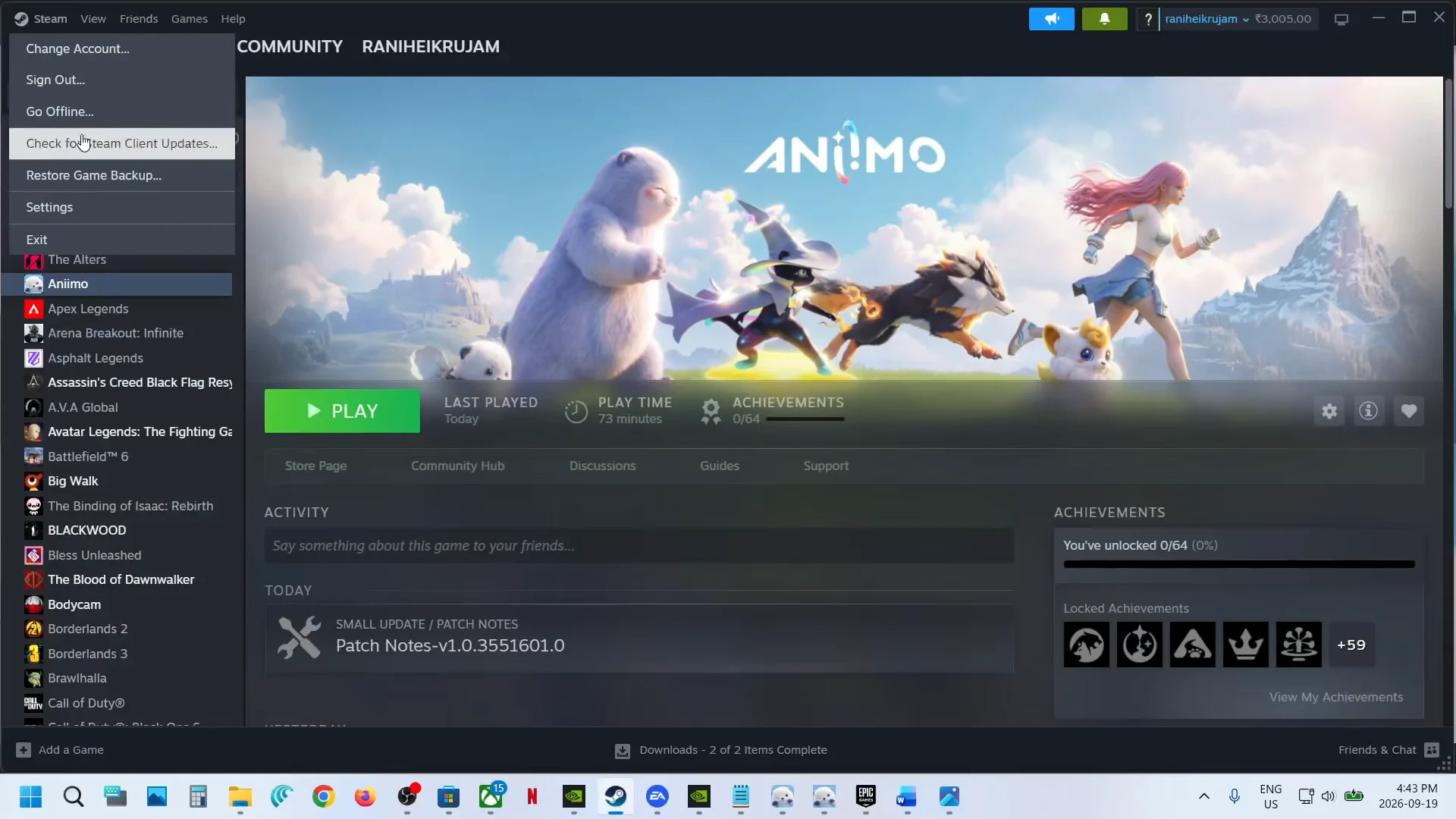
The game runs on regional servers, including Aniimo-America, Aniimo-Europe, and Aniimo-APAC. A version mismatch between the client and the service can also block login, so make sure the client has finished every update before you press Play. When many players report the same failure at once, wait and retry rather than changing account or system settings.
Move Aniimo to an all-English install path
This is an official remedy, particularly important for PC users. A non-Latin character in Aniimo’s folder path—including Cyrillic or Chinese characters—may prevent the client from reading its configuration and authenticating with the server. It can also interfere with in-game purchases, so check the installation path if payments fail as well.
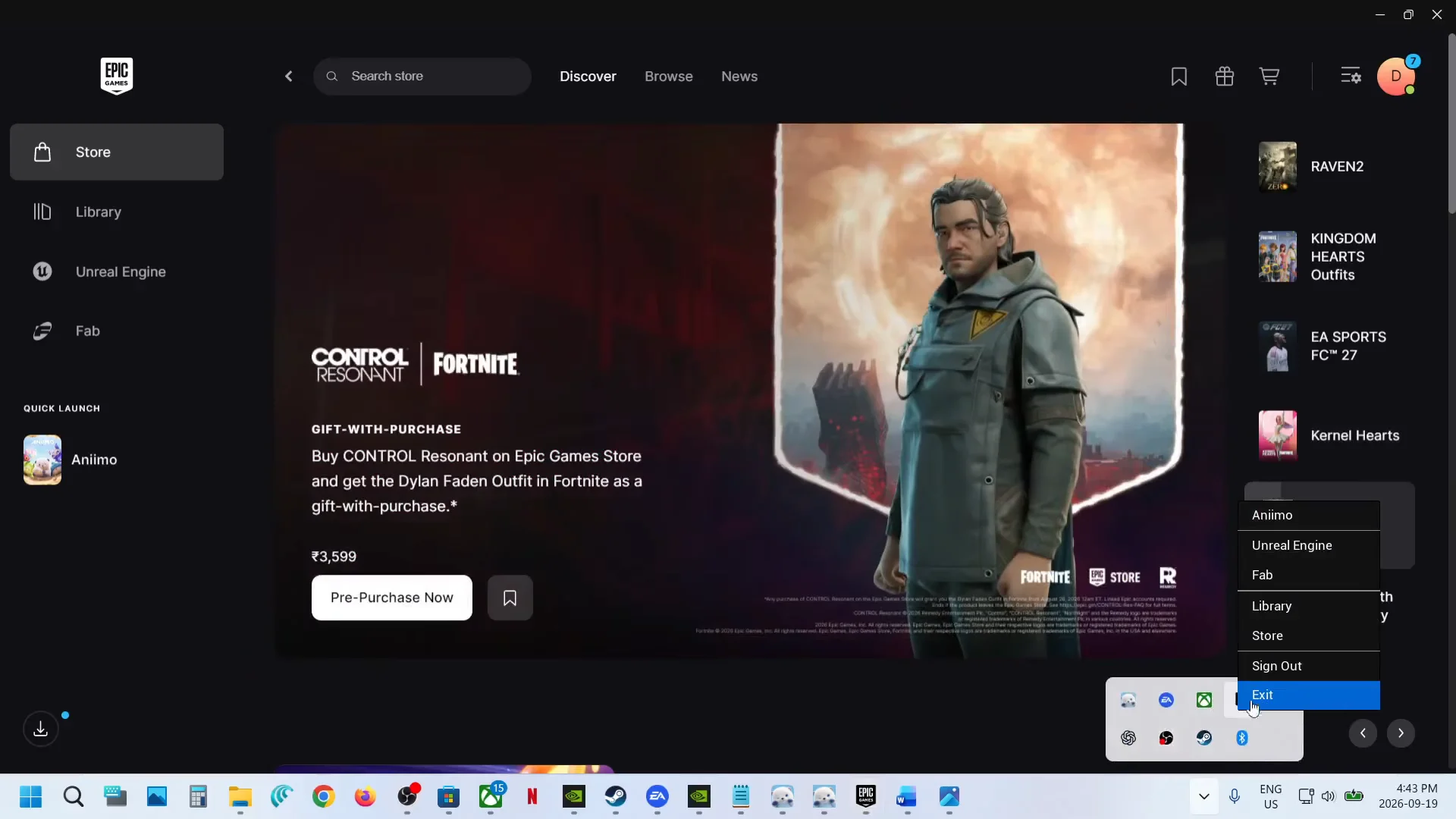
C:\Games\Aniimo.Verify and repair Aniimo game files
Damaged or incomplete files after a preload or interrupted update can stall authentication. Each storefront has its own repair tool.
- Steam: Right-click Aniimo, open Properties, choose Installed Files, then Verify integrity of game files.
- Epic Games: Open Aniimo’s three-dot menu, select Manage, and choose Verify.
- Xbox App: Open Aniimo, click the three dots, choose Manage, open the Files tab, then Verify and repair.
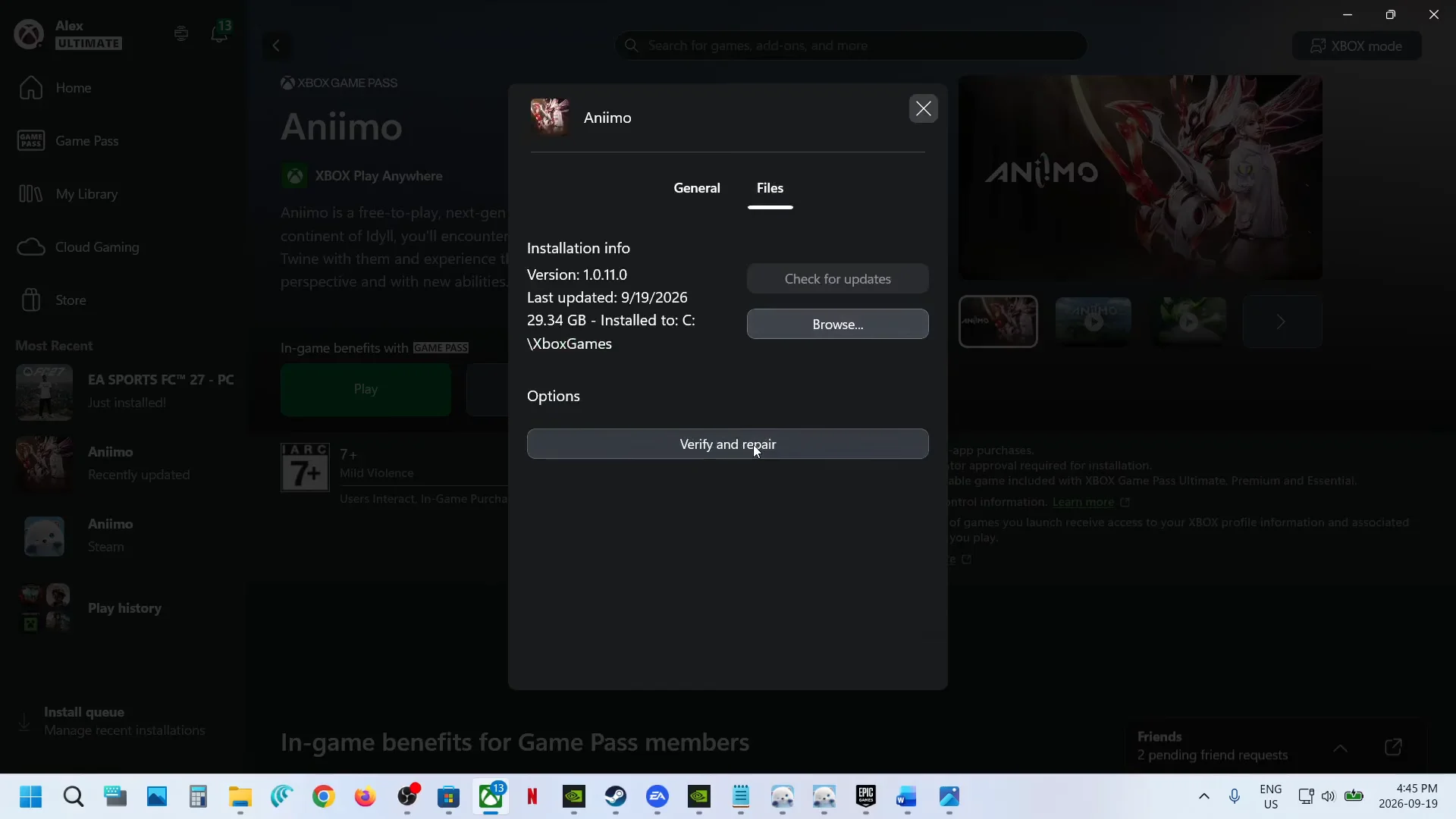
Verify and repair on Xbox resets the game to its original settings, and any saves or mod files that are not backed up may be lost. Read the confirmation prompt before continuing.
On Windows you can also repair the app itself. Search for Aniimo in the Start menu, open App settings, click Terminate, then Repair. Use Reset only if Repair does not help.
Fix login failures tied to your platform account
Steam, PlayStation, and Xbox users can encounter a problem with the platform identity instead of the game itself. Authentication may fail when the display name contains emojis, brackets, decorative marks, or unusual Unicode characters. Change it temporarily to ordinary Latin letters and digits—for example, PathFinder2026—then restart the platform client and attempt the login again.
Account linking is the other common trap. The first time a Steam, PSN, or Microsoft account signs into Aniimo, a prompt appears to link an existing Aniimo Pass. If you already have one, do not skip that prompt, because the game may create a fresh Aniimo Pass and attach it to your platform identity. On Steam you can still link later through Settings, Account, Email Link if you missed the prompt. If you see “This account has been linked to another account,” stop creating new accounts and confirm which email is already attached before doing anything else.
Network and DNS fixes for persistent login errors
If simple methods fail and friends can log in while your PC cannot, the problem may be your local network stack. Run these only when the issue is clearly limited to your machine.
Open Command Prompt or Terminal as Administrator and flush the DNS cache, then reset Winsock and reboot:
ipconfig /flushdns
netsh winsock reset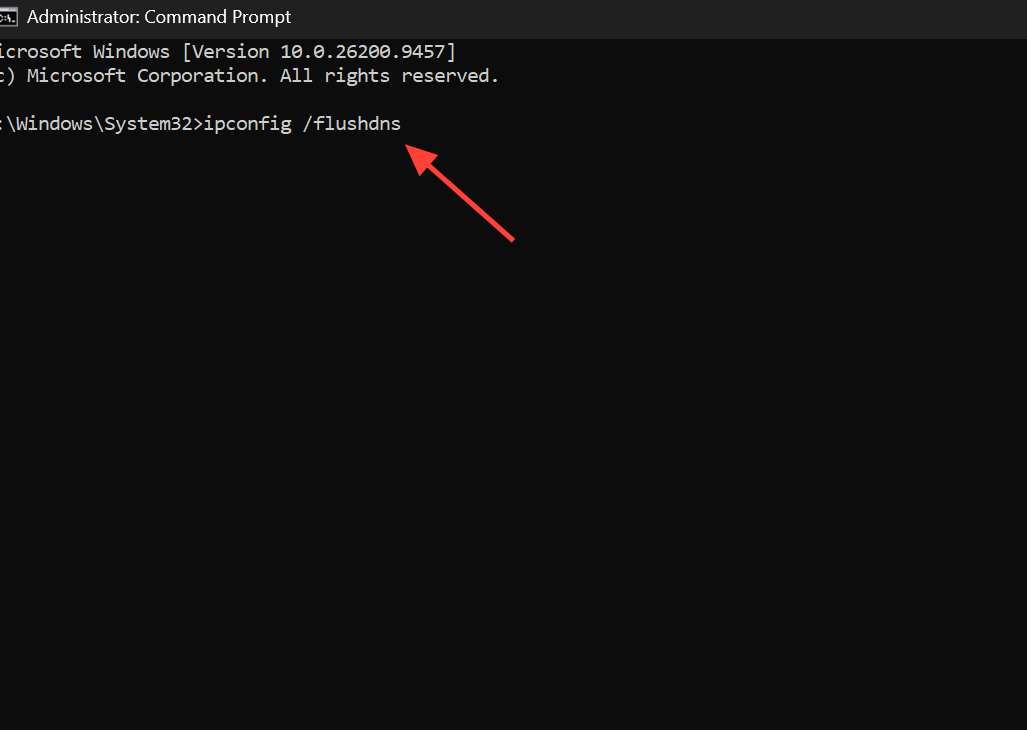
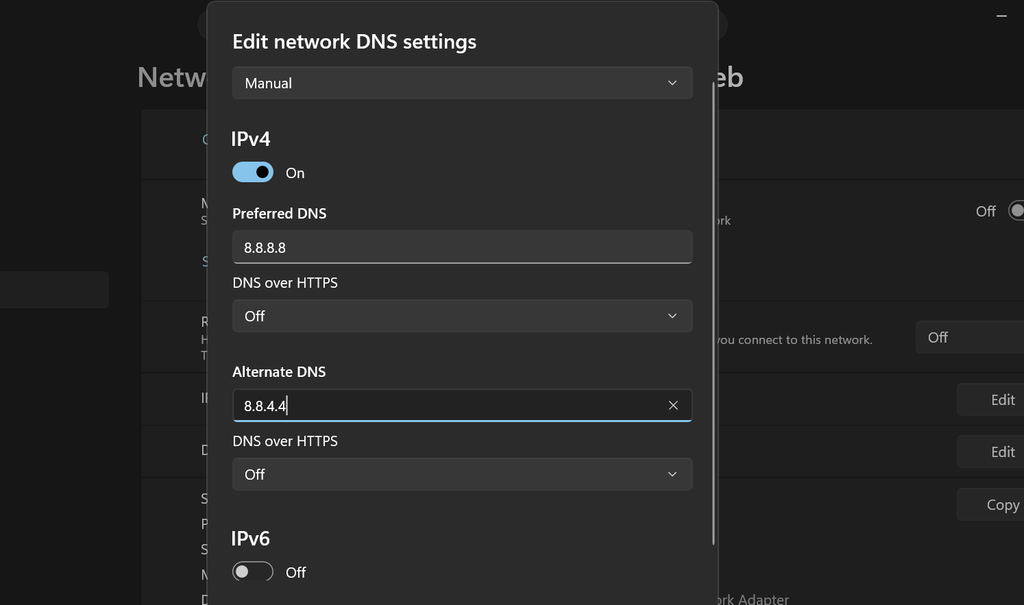
- Set public DNS servers manually if the error continues, such as Google’s
8.8.8.8and8.8.4.4.
- For one test login, turn off your VPN or proxy, as an unreliable route may be responsible for the failure.
- In Windows Firewall, grant Aniimo and its launcher access on the network profile you are using.
- Try disabling IPv6 in your adapter settings if an IPv6 conflict is interfering.
- Test with an Ethernet cable if you are on Wi-Fi, since short dropouts can break a login.
Steam Deck and Linux launch issues
Aniimo does not officially support Steam Deck and has no native Linux client. If startup fails, open the game’s Steam compatibility options and select Proton 10.0.0-4 manually instead of using Steam’s automatic choice, then leave the graphics options low. Also install the newest GPU driver. On the login screen, switch off DLSS and Frame Generation; either feature may produce a black screen or prevent the connection.
Reinstall from the official launcher or switch storefront
When one client keeps failing, the standalone PC launcher is a clean route back in. Download the official installer, aniimo-global.exe, from the official Aniimo website and install the game directly.
If the error still appears, install through a different available platform, such as Steam, the Epic Games Store, the Xbox App, or the Microsoft Store, and log in from there.
How to confirm the fix worked and when to contact support
You know the login succeeded when Start Adventure moves past the error into server selection and then into your character and the open world, rather than returning you to the “Account login failed. Log in again.” prompt.
If none of these steps work, the cause is likely server-side. Check the official Aniimo channels for maintenance or outage notices, try logging in from another device or network to rule out local causes, and if the problem points at your account, email [email protected] with your UID, login email, and region. Aniimo is a new game, and stability and login patches have been landing quickly, so an error that appeared right after an update is often cleared by a follow-up fix.