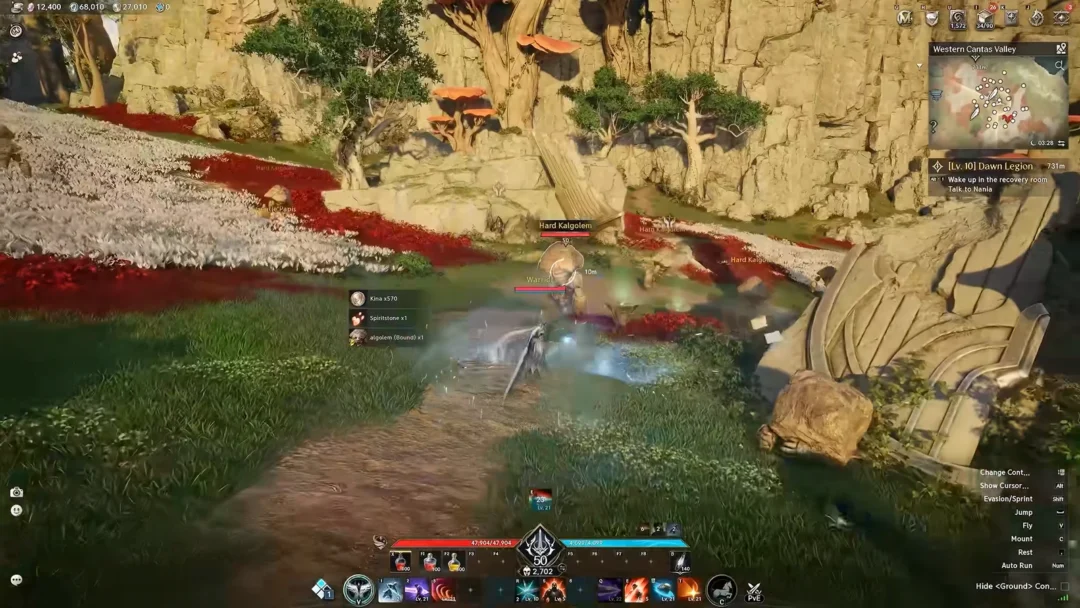
The look of your character in AION 2 does not have to match the gear you actually wear. Every equipped armor piece and accessory carries a visibility toggle, so you can keep a helmet’s defense while removing the helmet from view. The controls live in the Closet, a menu separate from your inventory.
Quick answer: Open the main menu, select Closet, pick the Armor or Decoration tab, and click the eye icon next to any piece to hide it. The change is cosmetic only and leaves stats untouched.
Hide your helmet and other armor pieces in the Closet
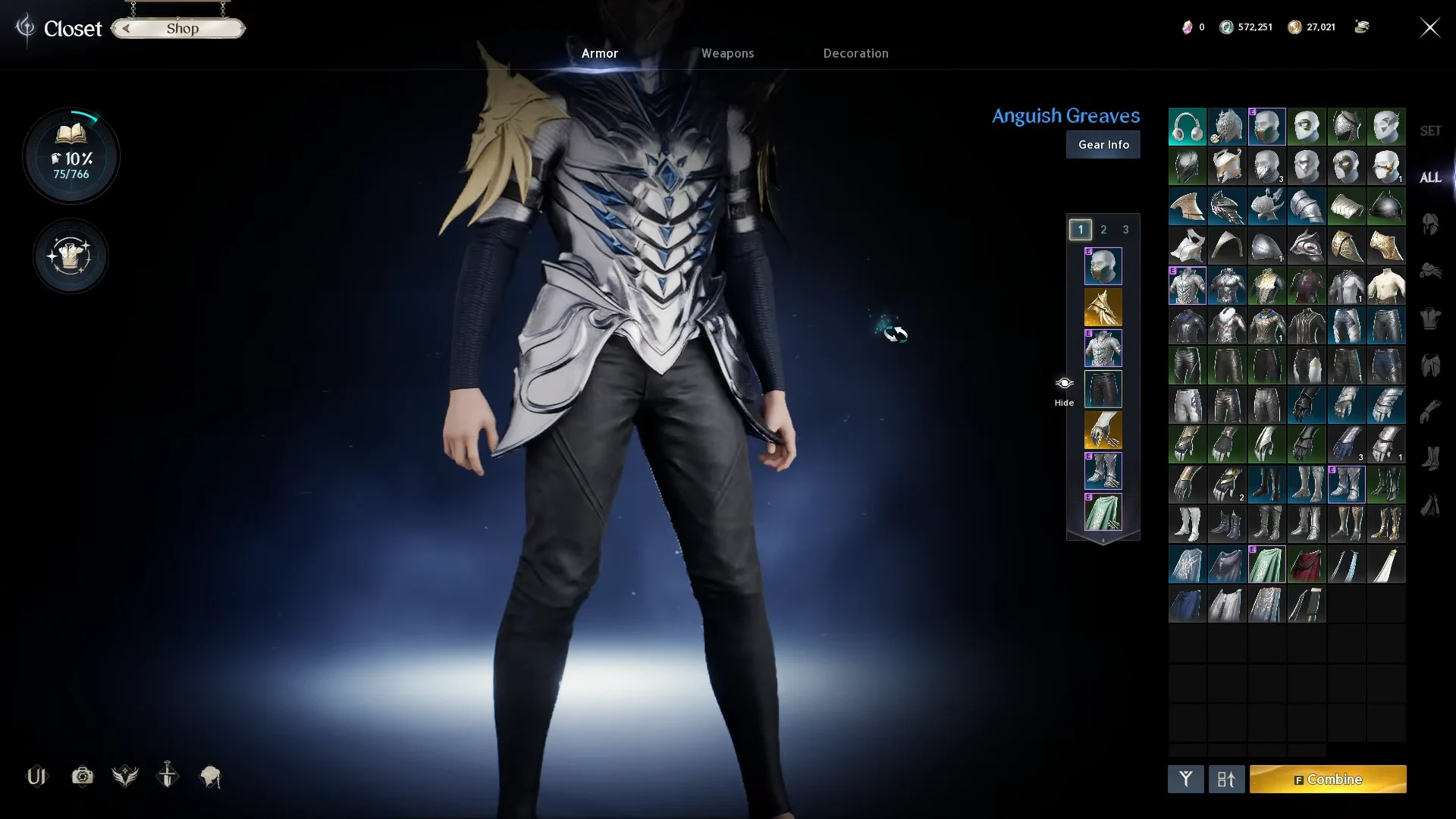
Armor visibility is handled per slot. You can hide the helm, breastplate, pauldrons, greaves, gloves, boots, and cloak independently, so mixing visible and hidden pieces is allowed.
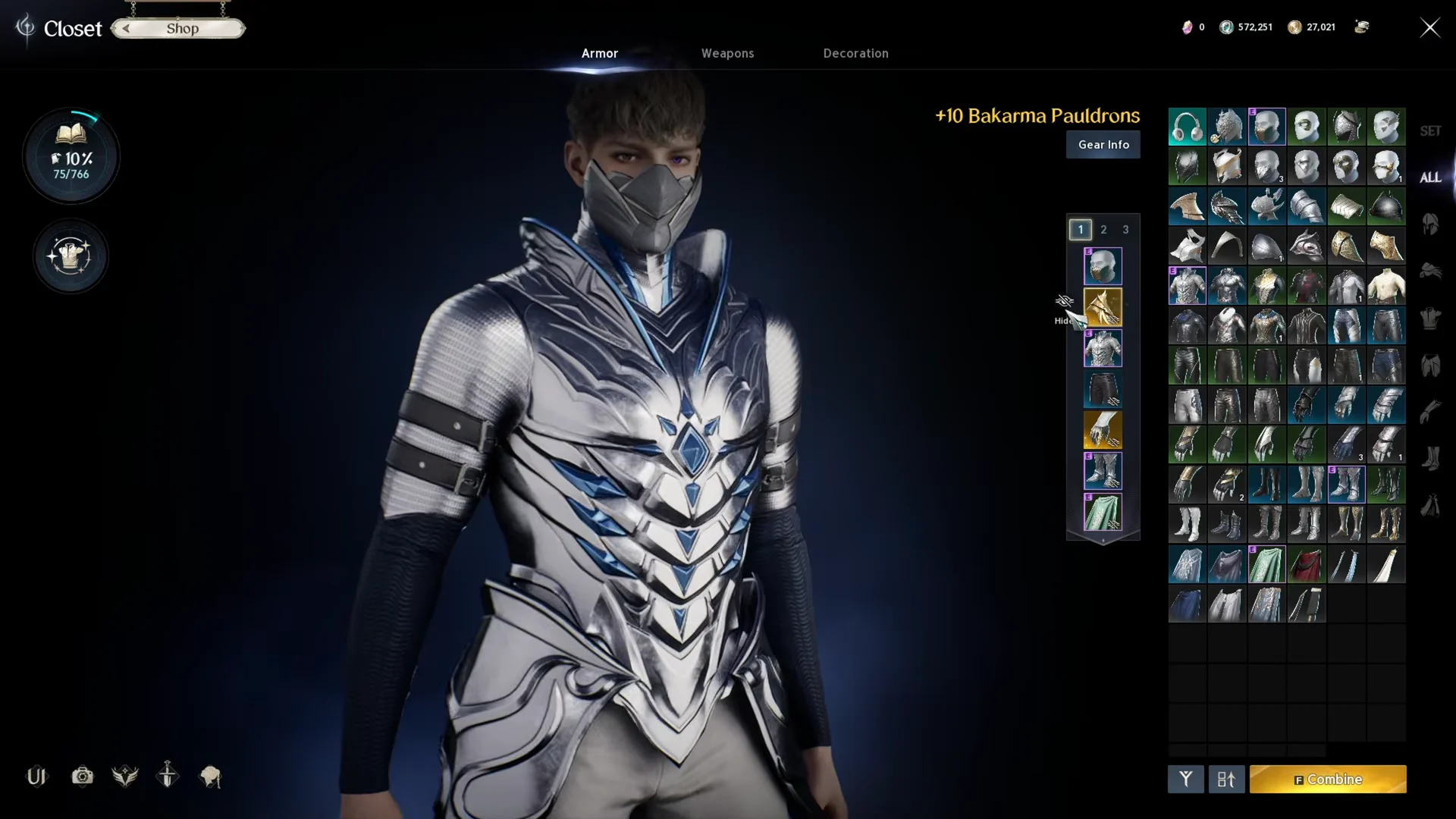
Repeat the toggle for any other slot. The same eye icon controls the cloak, gloves, and shoulder pads, so you can strip the whole look down to a single visible piece if you want.
Hide accessories on the Decoration tab
Earrings, necklaces, and similar cosmetic pieces sit under the Decoration tab rather than Armor. The toggle works the same way. Open Decoration, locate the accessory such as the Pilgrim Earrings or the Steel Wings necklace, and click its eye icon to turn the visual on or off.
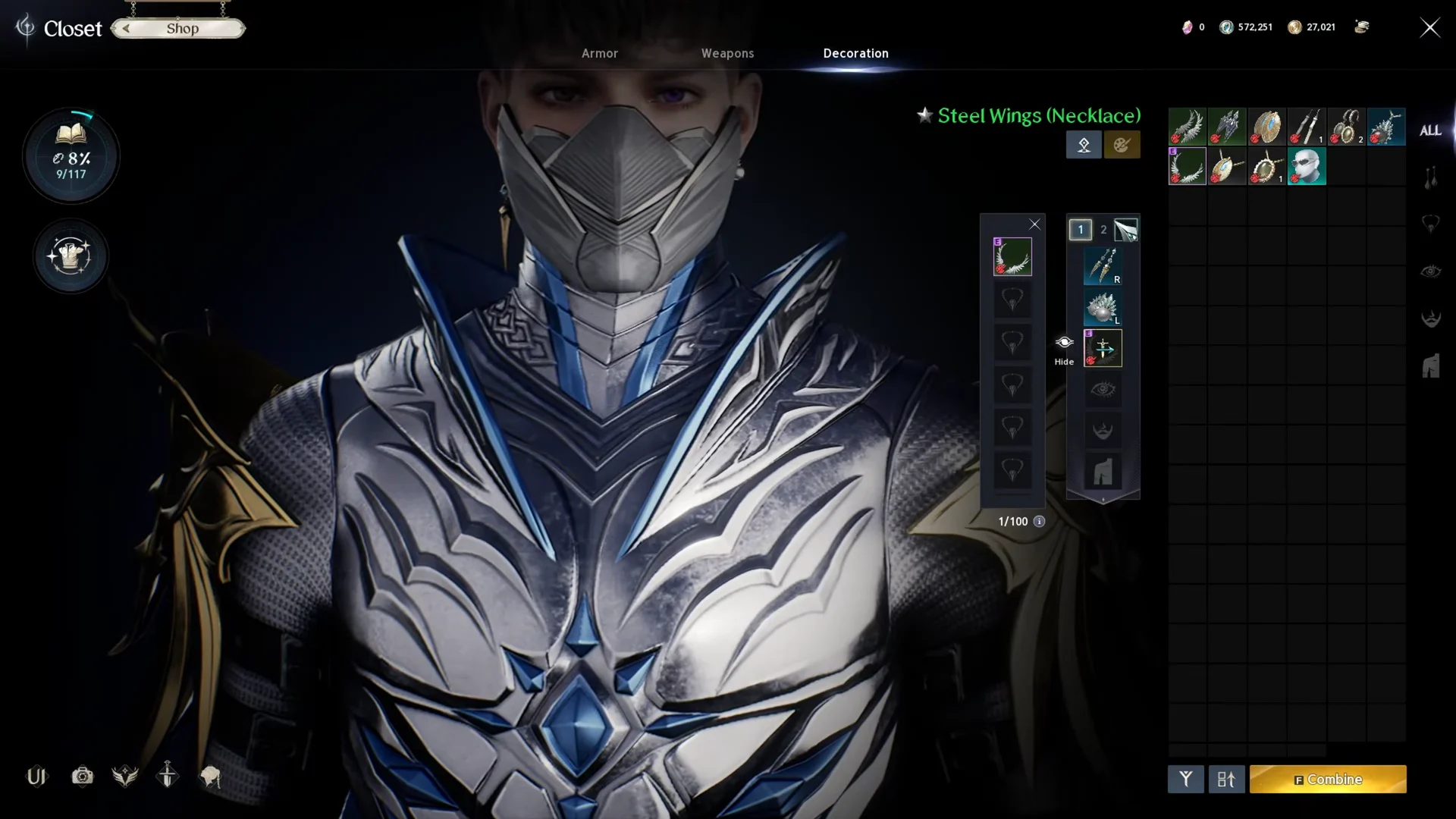
Weapons: you can only hide the effects, not the weapon
A weapon cannot be removed from view the way armor can. What you can turn off are its visual effects. Open the Weapons tab in the Closet, select the weapon, and use the effect icons beneath the slot. Three separate toggles are available.
- Hide Weapon Enhance effects removes the glow tied to enchant level.
- Hide Weapon Theostone effects removes the effect added by a socketed theostone.
- Hide Weapon basic effects removes the weapon’s standard visual effect.
Turning all three off strips the weapon down to its plain model, which is as close to hidden as a weapon gets.
What hiding gear does and does not change
Every one of these toggles is purely cosmetic. Hiding a helmet, a cloak, or a weapon effect does not reduce defense, HP, attack, or any other value, and it does not unequip the item. You keep the full benefit of whatever is equipped while choosing what shows on your character.
You will know it worked the moment you apply the change, because the character model in the Closet updates on the spot and the hidden piece disappears from your character in the world once you close the menu. Click the same eye icon again at any time to restore the piece.