Hair and lashes in Makeup Mania are not painted with the vanity brush. They are items you equip inside a separate panel called Style Studio, where every style can be tried on for free before you commit to a look. The same panel also holds face extras, so one window covers almost everything you wear on the head.
Quick answer: Open Style Studio with the Hair & Lashes button at the bottom or the Hair button on the left menu, pick the Hair or Lashes tab, then click Try on: Free under any style to equip it.
Open Style Studio from either control
Two controls open the same styling panel. On the bottom toolbar, the Hair & Lashes button opens Style Studio directly. On the left sidebar, the Hair and Lashes buttons also open it, landing on the matching tab. Either route brings up the same window, so use whichever is closer to your hand.
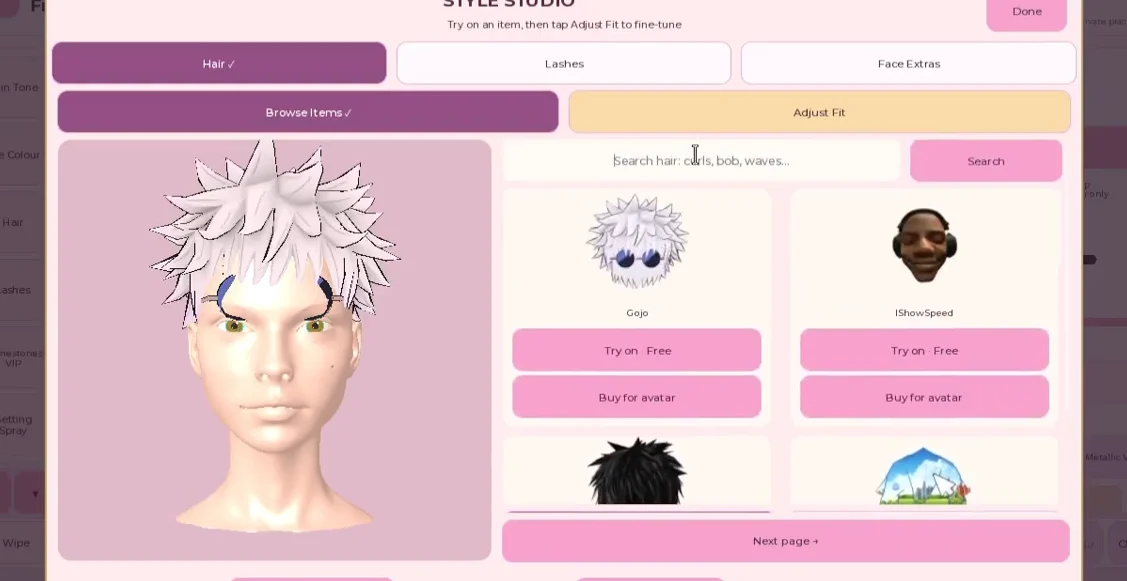
Once it opens, the window is headed STYLE STUDIO and carries three category tabs across the top: Hair, Lashes, and Face Extras. A search box and an Adjust Fit toggle sit above the item list, and a Done button in the top-right corner closes the panel.
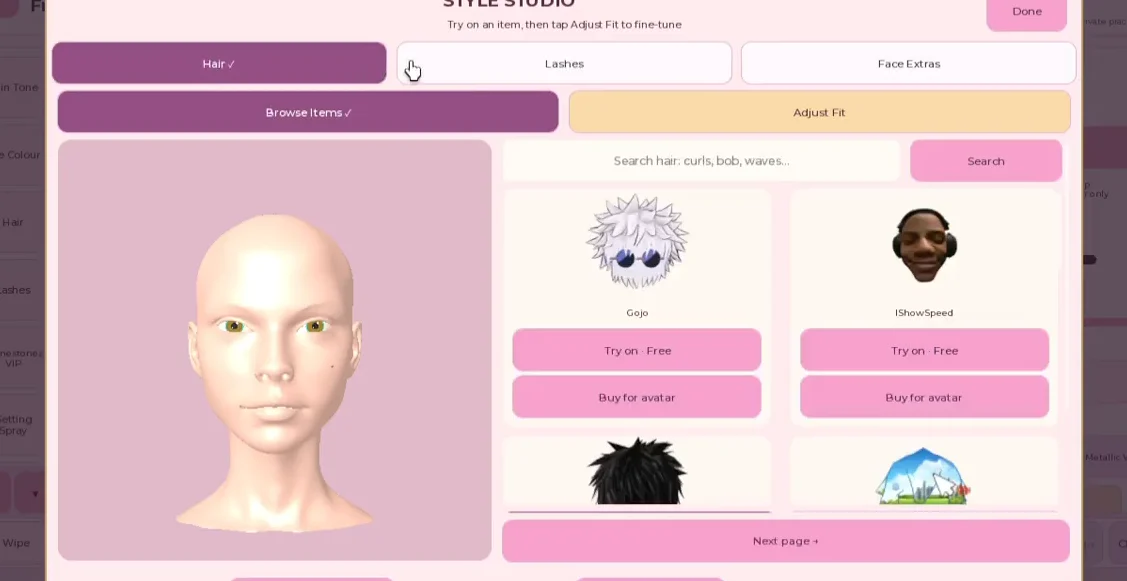
Add a hairstyle
waves or long filter the list down to matching styles, which is faster than scrolling through every page.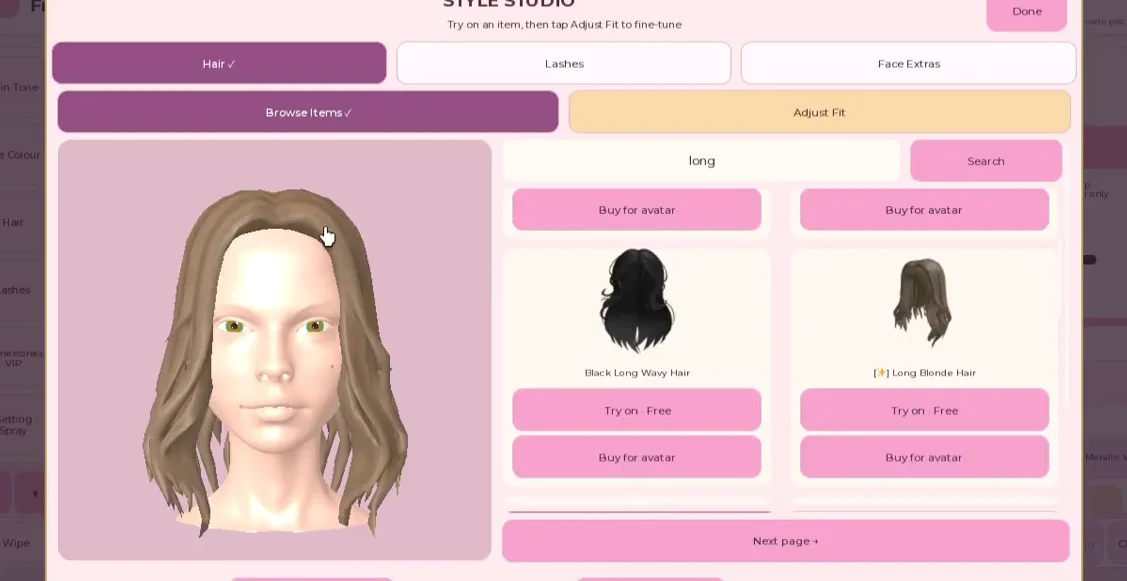
Add lashes
natural or lashes. Styles range from Cute Cat Eyelashes and Soft Glam Lashes to Oversized MINK and feather designs.Fine-tune placement with Adjust Fit
Once equipped, select Adjust Fit and reposition the item. Its settings let you alter size, left and right placement, height, and depth toward or away from the face, preventing the lash band from disappearing into it. Make one change, inspect the result, then adjust another setting so you can identify what improved the fit.
- Size scales the item up or down.
- Left / Right and Height move it across and up the face.
- Dist from Head pushes hair or lashes outward so they sit on the surface, not inside it.
- Reset to default fit returns the item to its starting position, and Remove hair takes a style off without scrolling back through the list.
If a lash band floats off the eye or vanishes when you zoom out, open Adjust Fit and nudge it one step closer with the in-and-out control so it rests outside the face.
Brows and lashes share one slot
Brows worn as a Face Extras accessory and lashes share a single accessory slot, so equipping a brow item takes the lashes off, and the reverse is also true. Keep whichever one the round theme calls for. If a theme needs both defined brows and visible lashes, draw the brows with the eyebrow brush instead of wearing them as an accessory, then equip the lashes.
Roblox’s layered rendering may cause 3D lashes to intersect with heavy bangs that hang low over the forehead. Choose a high ponytail, half-up bun, or parted curtain bangs to leave the eye area clear.
Confirm the look and practise without a timer
The hair and lashes applied correctly when you click Done and the makeover screen shows them on your character with no gap or clipping. Each equipped slot reads as filled in the panel, for example Hair 1 as Equipped rather than Empty, so you can confirm the item took before leaving Style Studio.
To get familiar with the controls, start in Freeplay. With no timer, runway, or reward, you can enter Style Studio, test styles, and practise Adjust Fit without pressure. When the panel feels familiar, follow the same process during a timed Competition round; its styling period lasts about 300 seconds, after which the runway opens.