Gaming Guide

Dragon’s Dogma 2: How to Set a Priority Quest and Get Its Map Marker

Use the Quest List to pick the one quest the game tracks and pin its yellow diamond to the minimap.

Use the Quest List to pick the one quest the game tracks and pin its yellow diamond to the minimap.

Quest List after Set as Priority, with the yellow diamond icon now beside Where There's a Will, There's a Way

In Dragon’s Dogma 2 one quest at a time is the priority quest, and that is the quest the minimap points to. The other active quests show no marker. With “Soul Searching” set as the priority quest, “Where There’s a Will, There’s a Way” had nothing pointing to it on the minimap. If a quest you want to follow has no arrow or diamond, you need to make it the priority quest yourself.

Quick answer: Open the Map (Tab), press Y for the Quest List, highlight a quest, then press Y to Set as Priority. Its yellow diamond appears on the minimap rim.


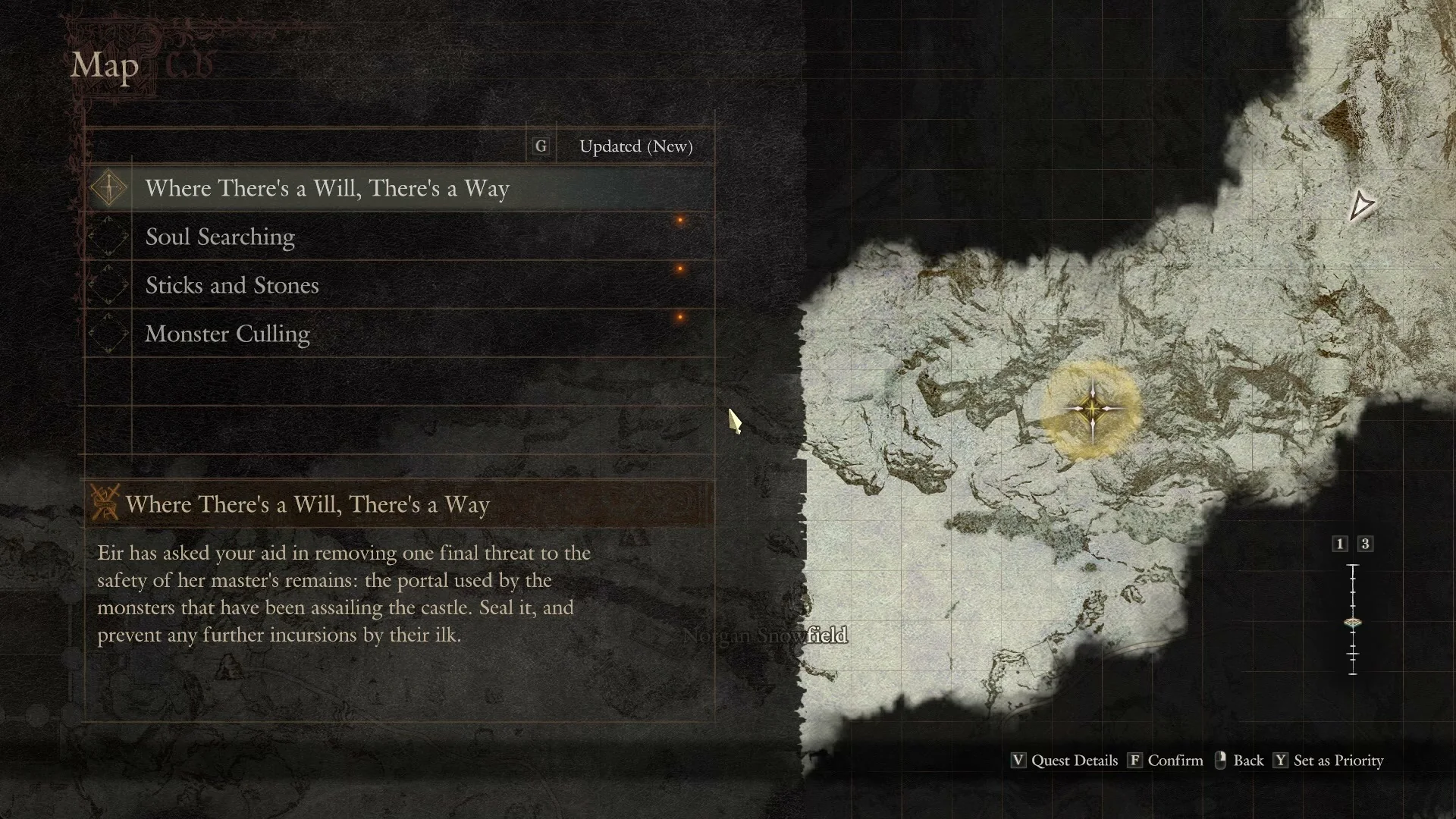
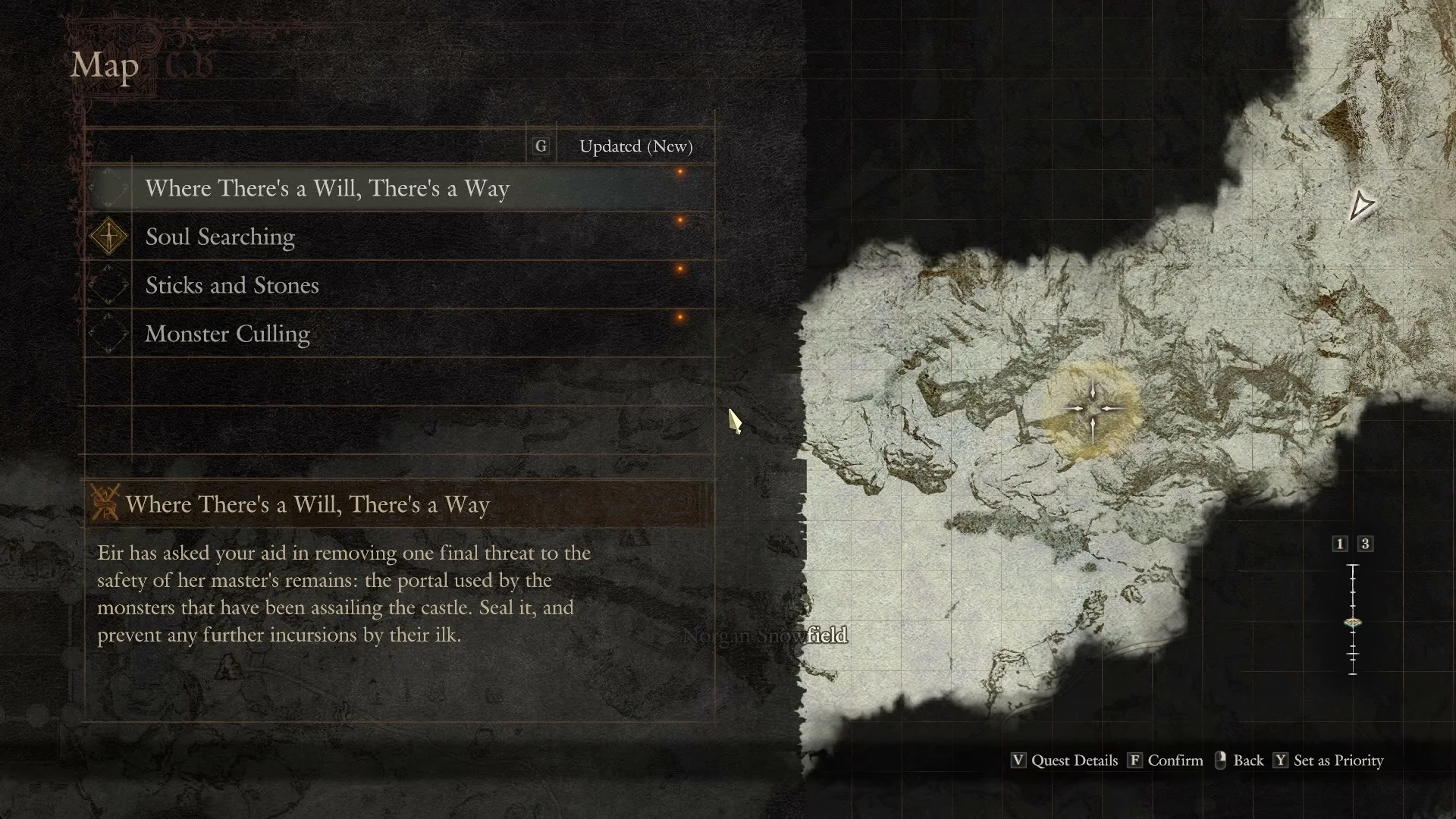
On the Map, Y opens the Quest List; with the cursor on “Where There’s a Will, There’s a Way” a yellow circle marks its area, Y (“Set as Priority”) moves the diamond marker to that quest, and back in play a yellow diamond sits at the rim of the minimap.

Set a priority quest from the Quest List

The Quest List lives on the world map. The game teaches this early with a tutorial named “Setting a Priority Quest” in Melve, but you can change your tracked quest at any point from the map.
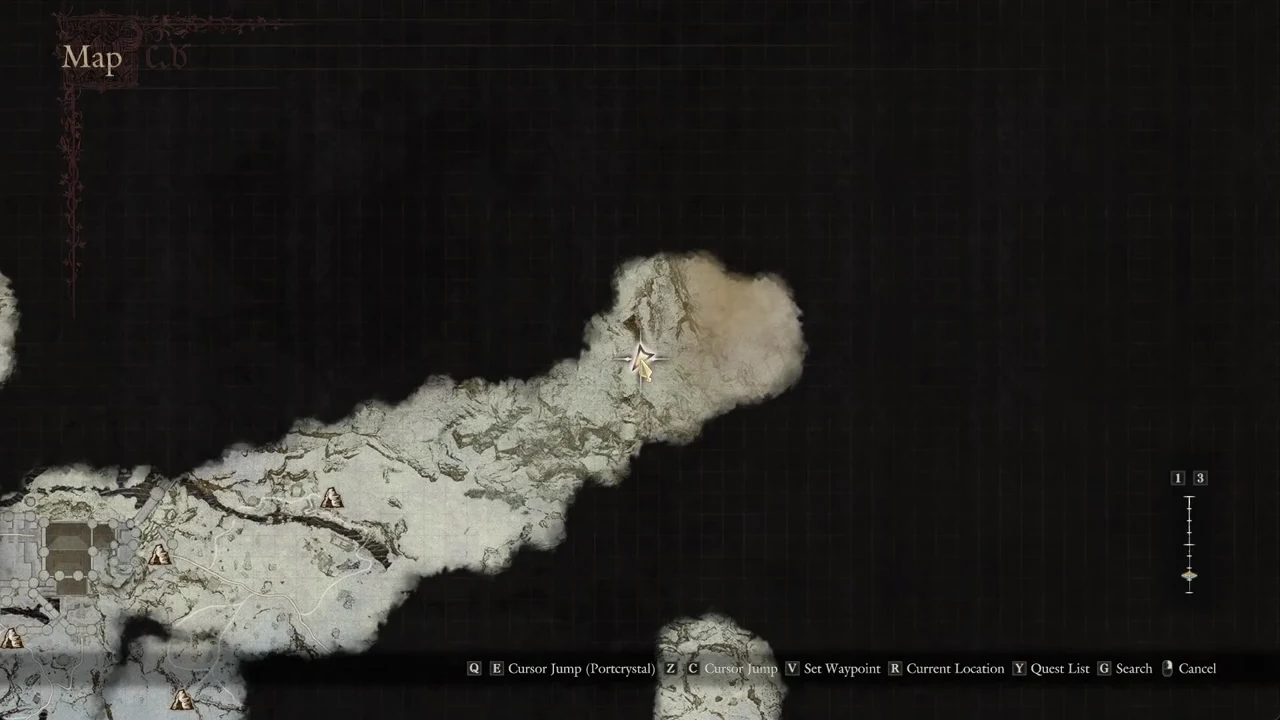
Open the Map with Tab. Along the bottom of the world map you will see the key hints “Q E Cursor Jump (Portcrystal)”, “Z C Cursor Jump”, “V Set Waypoint”, “R Current Location”, “Y Quest List”, “G Search”, and “Cancel”.
World map open with the cursor over northern snowfield terrain and map key hints along the bottom
The world map with the cursor over the northern terrain, ready for the Quest List.
Press Y to open the Quest List. It appears as a panel down the left side of the map with your active quests in a column, for example “Where There’s a Will, There’s a Way”, “Soul Searching”, “Sticks and Stones”, and “Monster Culling”. A sort label “G Updated (New)” sits above the column, and the highlighted quest’s description shows below the list.
Move the cursor onto the quest you want to track. Before you press anything else, that quest’s area shows on the map as a glowing yellow circle. The yellow diamond icon in the box to the left of a quest’s name marks whichever quest is currently the priority.
Quest List on the Map with the cursor on Where There's a Will, There's a Way, a yellow circle on the map and the diamond icon beside Soul Searching
The highlighted quest’s area shows as a yellow circle; the diamond icon still sits beside the old priority quest.
After highlighting the quest, press Y to choose “Set as Priority”. The yellow diamond leaves the former priority’s box and appears in the box for the selected quest. The Quest List controls are “V Quest Details”, “F Confirm”, “Back”, and “Y Set as Priority”; press Y for this action, not F.
Quest List after Set as Priority, with the yellow diamond icon now beside Where There's a Will, There's a Way
After “Set as Priority” the diamond icon sits beside the chosen quest.
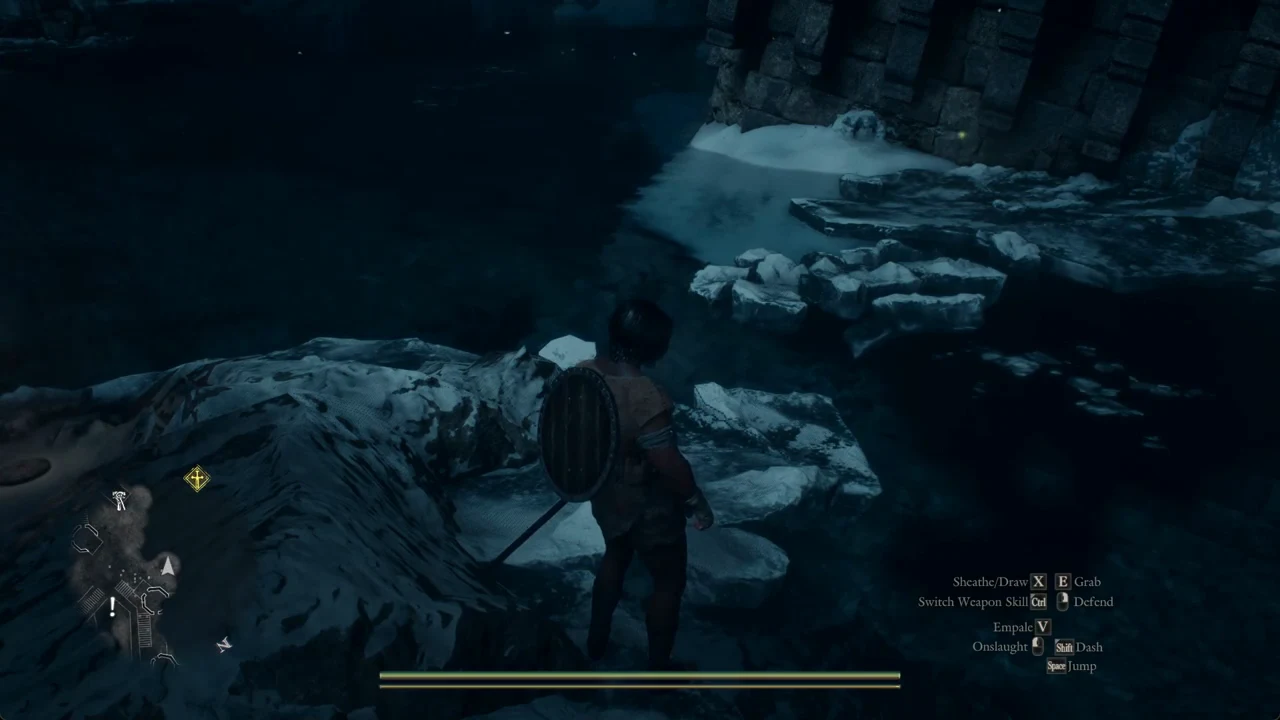
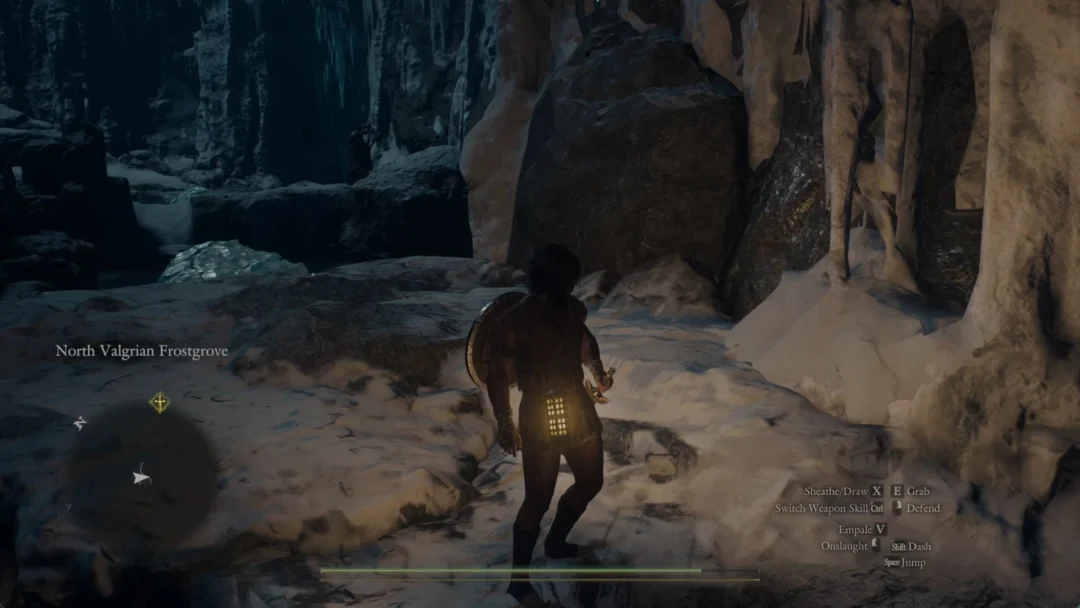
Exit the map and resume playing. At the minimap’s edge, a yellow diamond indicates the direction of the quest area.
Character on snowy rocks beside dark water facing a yellow waypoint marker with the gameplay HUD
Back in third-person play, the yellow priority quest icon shows on the minimap HUD in the bottom left.

The “Set as Priority Quest” banner

When a quest is added or moves to a new task, a banner appears at the top left showing the quest’s name and task, with the hint “Tab Set as Priority Quest” under it. This showed on “The Stranger in the Snowfield / Track down Amos’s savior.” and on “Where There’s a Will, There’s a Way / Speak with Eir.” You can also switch at any time, including to an older quest, from the Quest List described above.
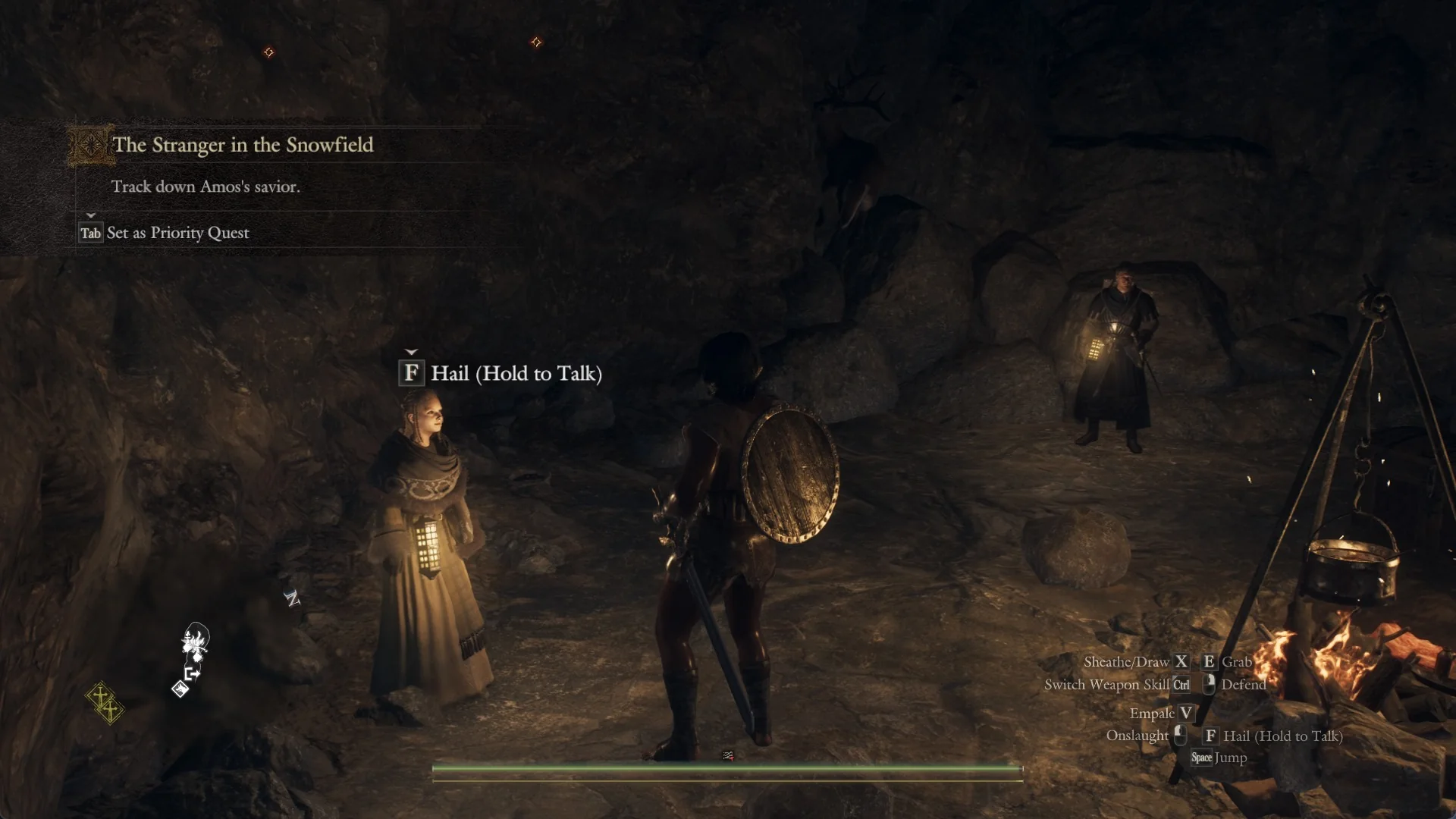
Quest banner The Stranger in the Snowfield, Track down Amos's savior, with the hint Tab Set as Priority Quest under it
A new quest’s banner carries the hint “Set as Priority Quest”.

Setting priority inside caves and castles

Inside a cave or castle the Map opens on the local map first. For example, “Snowfall Valley Cavity” shows floors 1F, B2F, and B1F that you switch with Q and E, with “Return to the World Map” at the top left. Only the parts you have already walked are drawn.
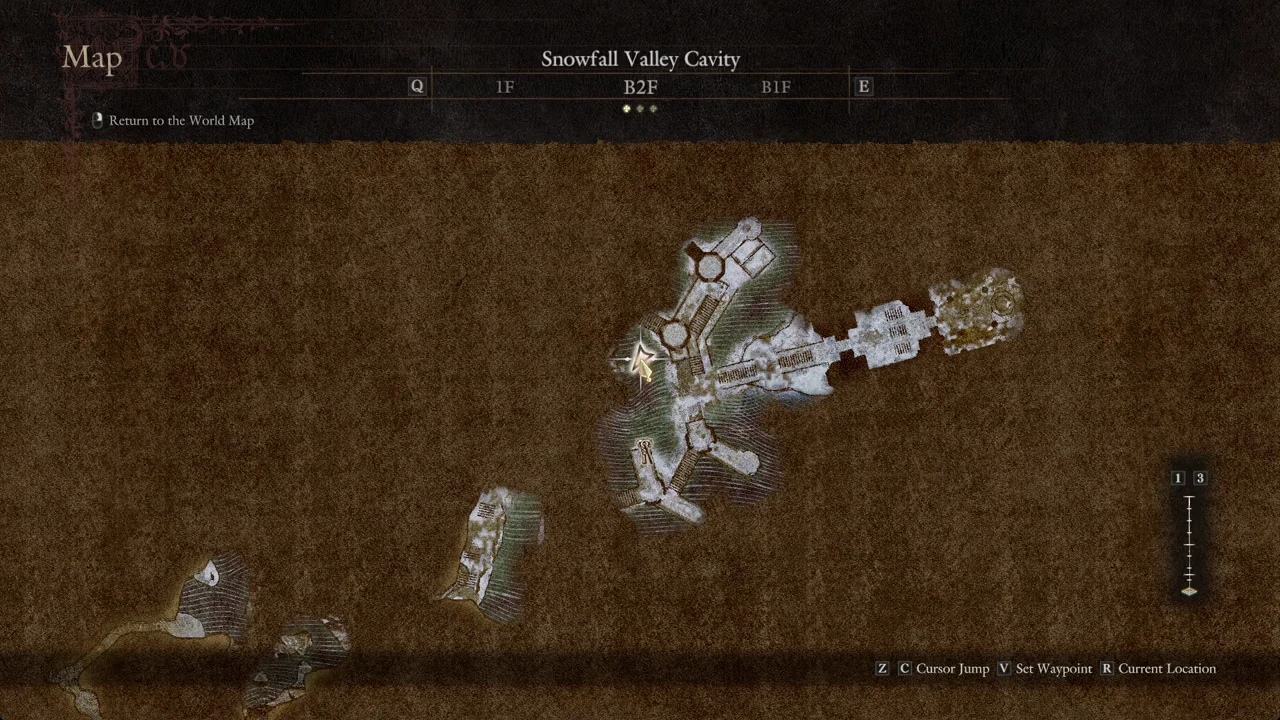
Snowfall Valley Cavity local map with B2F selected and the cursor over a location
The Snowfall Valley Cavity local map with B2F selected; use “Return to the World Map” to reach the Quest List.

You won’t find the Quest List hint on the local map. First select “Return to the World Map”; then press Y to open the Quest List and choose your priority quest.


Common mistakes to avoid

  • Expecting every active quest to have its own world marker. Only the priority quest shows one.
  • Pressing F (“Confirm”) to set priority. The hint for setting priority is Y.
  • The local map doesn’t show the Quest List hint; find it on the world map.

You know the change worked the moment the yellow diamond jumps to your chosen quest’s box in the Quest List, and again when that diamond appears at the edge of the minimap once you close the map. Follow it to reach the quest’s area.