On the Steam version of Valor Mortis for Windows, your saved game and your graphics settings live in two separate folders under your Windows user profile, not inside the Steam install directory. Both are created the first time you launch the game.
Quick answer: Saves are in %LOCALAPPDATA%\ValorMortis\Saved\SaveGames\ and the graphics config is %LOCALAPPDATA%\ValorMortis\Saved\Config\Windows\GameUserSettings.ini.
Valor Mortis save file location on PC
After the first launch, the folder holds three files:
Identity.savUserSettingsSaveGame.sav, which also stores the choices you make in the menussteam_autocloud.vdf
The presence of steam_autocloud.vdf shows that Steam Cloud (Auto-Cloud) handles syncing for this folder. Enable Steam Cloud for the game, and your saves will be available through your Steam account on another PC.
You won’t find the saves at Steam\userdata\<id>\2828710; this game has no such directory. Their only location is the AppData path given above.
How to open the save and config folders
%LOCALAPPDATA%\ValorMortis\Saved and hit Enter; Windows automatically supplies your user folder.Back up and restore a Valor Mortis save
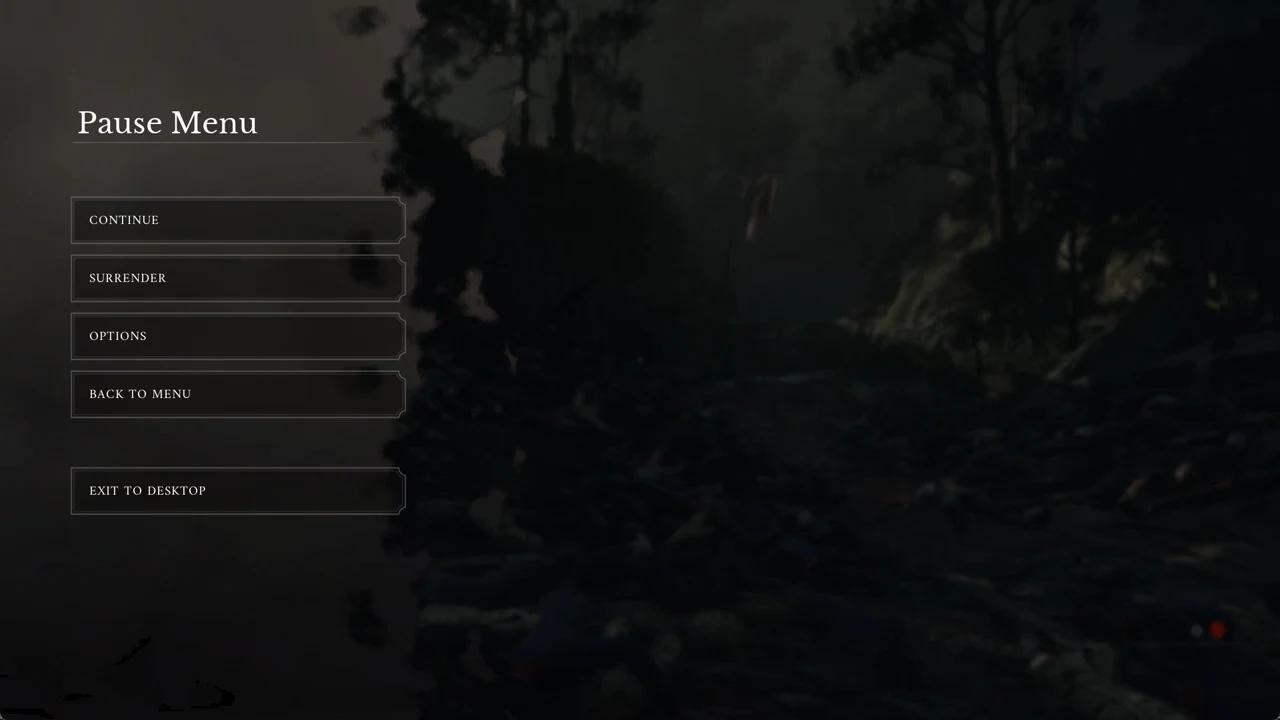
With Steam Cloud on, the cloud copy can overwrite your files on the next launch if it is newer than your backup. Before restoring an older save, turn Steam Cloud off for the game under Steam > Valor Mortis > Properties > General.
GameUserSettings.ini config file location and contents
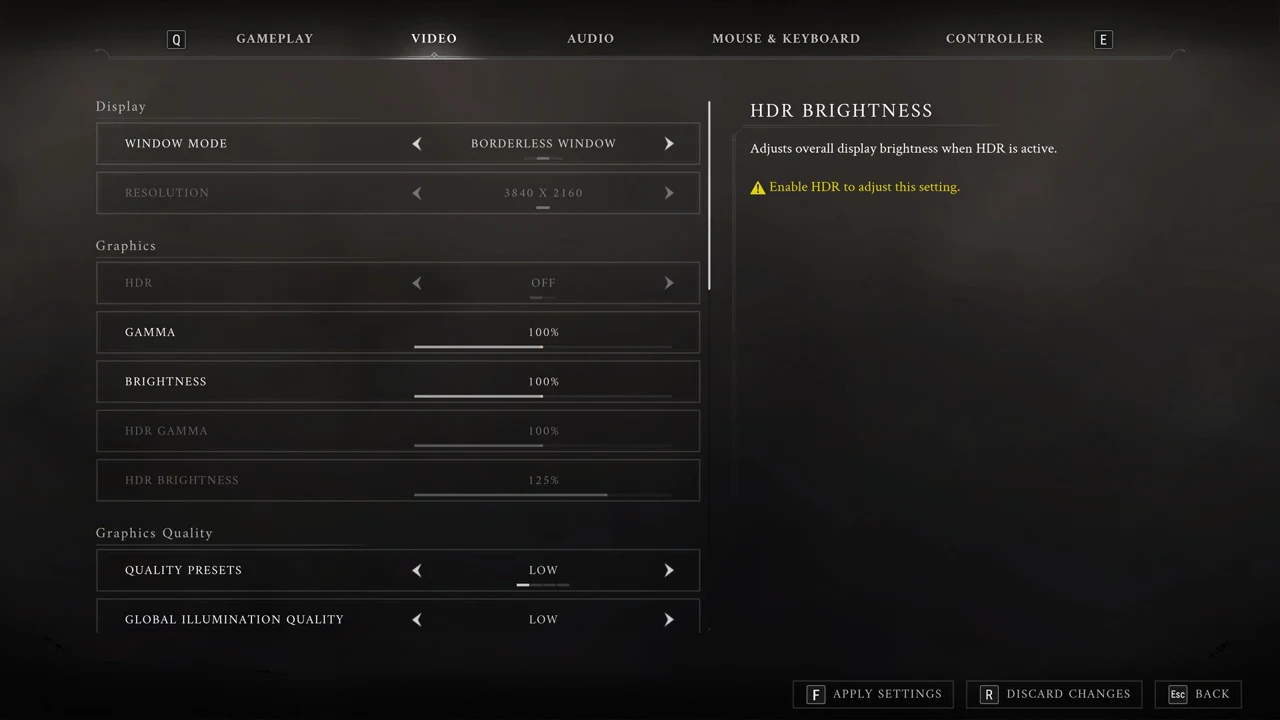
These values come from a PC with an RTX 2060 and a 4K desktop, so your own numbers will differ. They show the kind of lines the file holds:
| Setting | Value |
|---|---|
| ResolutionSizeX / ResolutionSizeY | 2194 / 1234 |
| DesiredScreenWidth / DesiredScreenHeight | 1280 / 720 |
| FullscreenMode / PreferredFullscreenMode | 1 / 1 (Borderless Window) |
| bUseVSync | True |
| FrameRateLimit | 0 |
| bMotionBlurEnabled | True |
| UpscalerIndex | 4 |
| bDLSSEnabled / DLSSMode | True / 6 |
| ResolutionScale | 0.5 |
| bFSREnabled / bXeSSEnabled | False / False |
| ActiveFrameGen / DLSSFGMode | 0 / 0 |
| bFSRFGEnabled / bXeSSFGEnabled | False / False |
| DLSSReflexMode / bAntiLag2Enabled | 0 / False |
| bUseHDRDisplayOutput | False |
| HDRDisplayOutputNits / DisplayGamma | 1000 / 2.2 |
| sg.ResolutionQuality | 50 |
The file also carries scalability lines starting with sg., with the quality groups set to 0 (Low) on that PC, plus LastCPUBenchmarkResult and LastGPUBenchmarkResult holding the first-launch benchmark scores.
Make a copy of GameUserSettings.ini before changing anything, and only edit it while the game is closed.
Install folder and Verify Integrity
Steam installs the game under steamapps\common\Valor Mortis in whichever Steam library you chose at install. Because the save and config folders sit elsewhere in AppData, Steam’s Verify integrity of game files does not touch your saves, so you can run it without losing progress.