
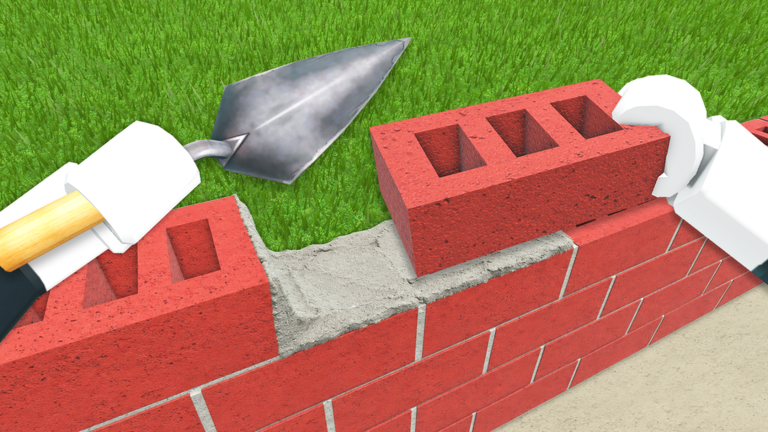
Build a Real House is a Roblox construction game where you work through a house one job at a time, from the groundwork up. The game has no tutorial voiceover. The HUD shows what you’re working on, how far along you are, and how much material you’re carrying. Once you can read those counters, the rest of a build is mostly repetition.
Quick answer: Press Tab to open the objective notebook. Fill up on BCA blocks until BCA FULL! (10) appears, then place them until the WALLS counter reaches its target. The Objective counter tracks your overall progress.
Build a Real House controls and shortcut keys
Five shortcuts sit along the right side of the screen. Each one has its key printed next to its icon, so you can check them in-game at any time. You don’t need to memorize them before you start.
| Key | Opens |
|---|---|
| Tab | Objective / quest notebook |
| Y | Shop |
| Q | Ladder |
| I | Friends / players |
| P | Settings |
You’ll use the notebook on Tab most often. It holds your current task and the quest list. When it shows a red exclamation badge on its notepad icon, the notebook has something new for you, so open it.
The ladder is on Q. It helps on any job where part of the structure sits above your reach. The shop on Y is where you buy upgrades.
What each HUD counter means
The game uses a first-person view with a small dot in the center of the screen. The dot is your aim point for placing material, and short prompts appear just above it. The other readouts are placed around the edges of the screen. Each one answers a different question about your build.
| Readout | Example | What it tracks |
|---|---|---|
| Objective | Objective 7/22 | Your stage in the build |
| Task counter | WALLS 134/240 | Progress on the current job |
| Carry prompt | BCA FULL! (10) | You’re at the block limit |
| Wheelbarrow | WHEELBARROW 30/30 | Wheelbarrow load |
| Cash | $780 (bottom-left) | In-game money |
| Timer | 00:09:33 (bottom-right) | Elapsed time on the build |
Read the two progress counters as a pair. The Objective counter covers the whole build. For example, 7/22 means you’re on the seventh of 22 objectives. The task counter below it covers only the current job.
A wall stage reading 134/240 needs 240 blocks in total, and 134 of them are already placed. When the task counter fills, that job is finished.
The timer keeps counting while you work. It’s the number to watch if you want to finish faster.
How to build walls with BCA blocks
Walls are made from white concrete blocks labeled BCA. You can only carry a limited number at once. The wheelbarrow holds more, so wall stages are a loop: load up, place blocks, and repeat. The steps below follow that loop.
WALLS and show a target number. That number tells you how many blocks the stage needs.BCA FULL! (10) prompt appears above your crosshair. The prompt means you’re holding the maximum of 10 blocks. You can’t carry any more until you place some.WALLS counter. Keep going until your hands are empty.WHEELBARROW 30/30 means it’s full at 30.You’ll know the wall stage is done when the WALLS counter matches its total, such as 240/240. At that point, the Objective counter moves on to the next stage. A red badge on the notebook is your cue to open it with Tab and check the new task.
Robux upgrades: Bricky Helper and Capacity
Two paid upgrades are shown directly on the HUD. Both are tagged [PERMANENT], so you buy them once and keep them. They’re priced in Robux, not in the dollar cash shown in the bottom-left corner.
| Upgrade | Price | Type |
|---|---|---|
| Bricky Helper | 19 R$ | Permanent |
| Capacity | 30 R$ | Permanent, marked NEW |
Bricky Helper costs 19 R$, which makes it the cheaper of the two.
Capacity costs 30 R$ and has a NEW tag. Its name points to the carry limits you run into on every material run.
Robux purchases are real-money transactions. Don’t mix them up with the $ cash counter, which tracks the game’s own money.
Every later stage works the same way as the walls. The notebook tells you what to do, a task counter shows how much is left, and the Objective counter moves forward when each job is done. If you keep an eye on those three things and the carry prompts, you’ll always know where you are in the build.