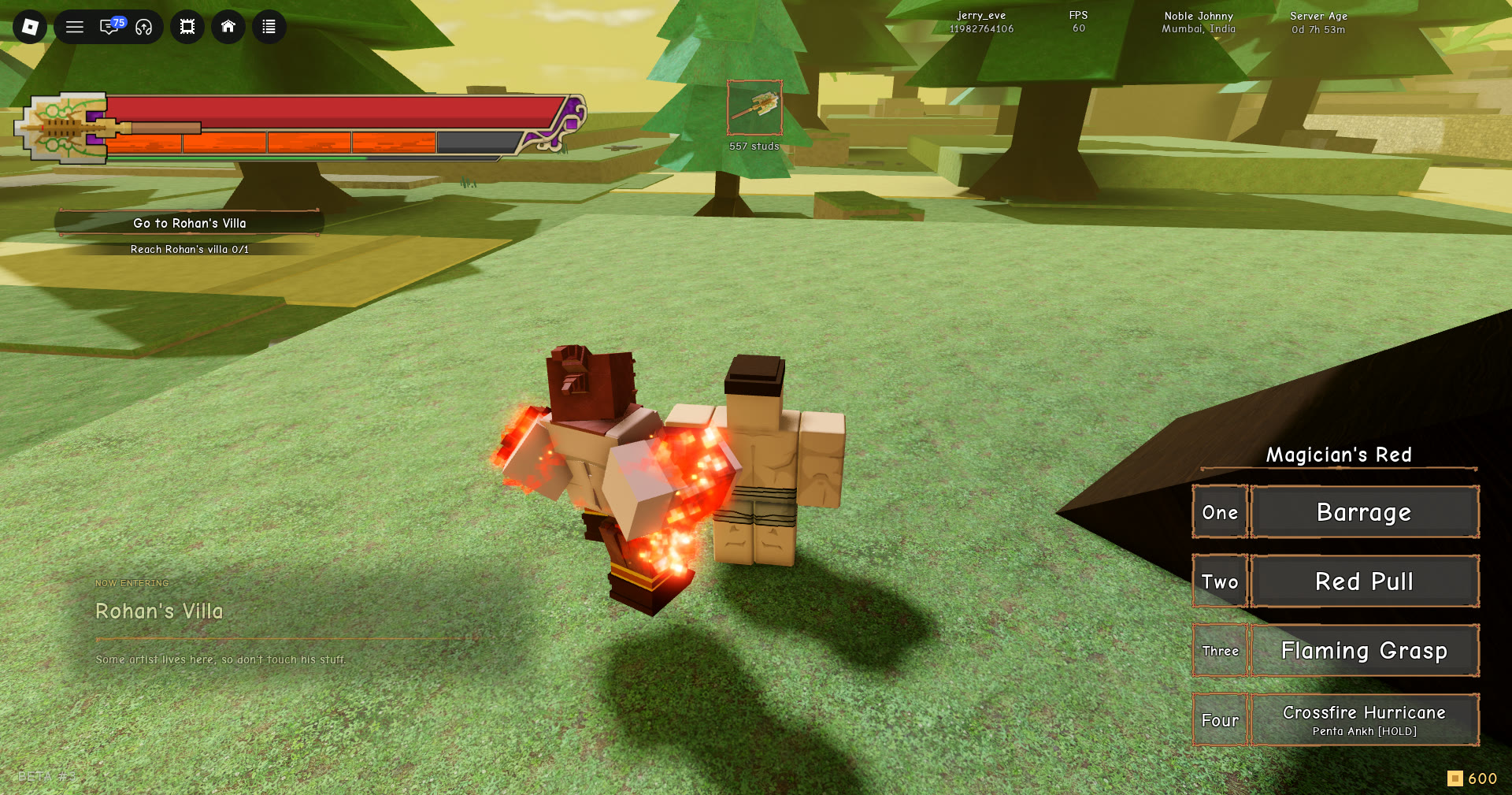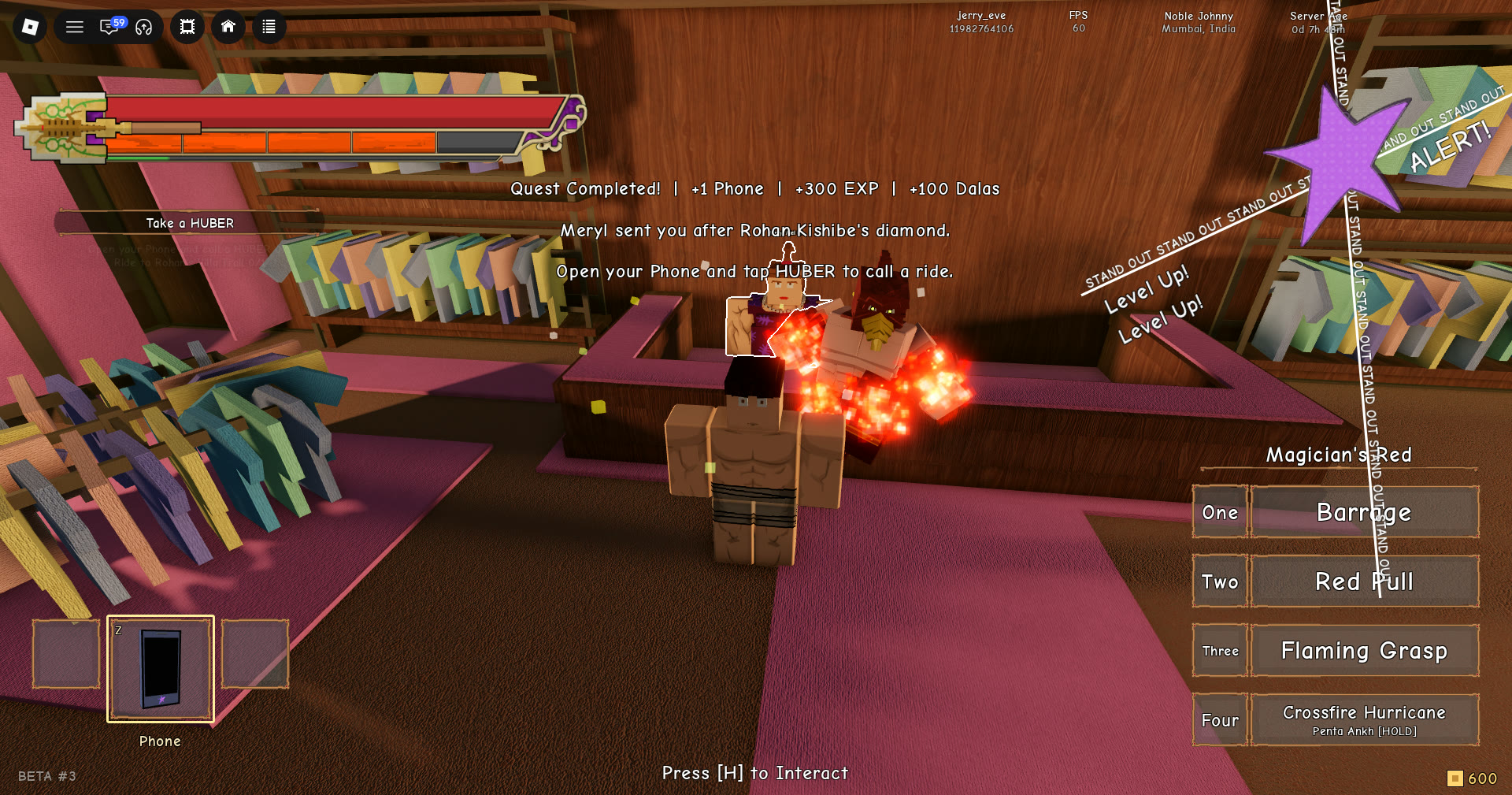

Stand Out gives you stat points in batches as the story moves forward, and it is easy to let them pile up. You spend them from a small panel with three stats on it. A separate window, THE ARCHIVE, sits one card over and holds the written reference for every stand, ability, item, status effect and quest.
Quick answer: Press M, click the STATS card, set the number box to how many points you want to spend, then click ABILITY, HEALTH or STRENGTH. AVAILABLE POINTS drops by that amount.
How to get stat points in Stand Out
The game does not ask you to buy or grind them. Each time a story step pays out, a toast pops up with the same sentence and an updated count of what you have not spent yet: “You have N unspent stat points, spend them in the Stats menu.”
| Story step | Toast shown |
|---|---|
| Opening the tutorial | “You have 3 unspent stat points, spend them in the Stats menu.” |
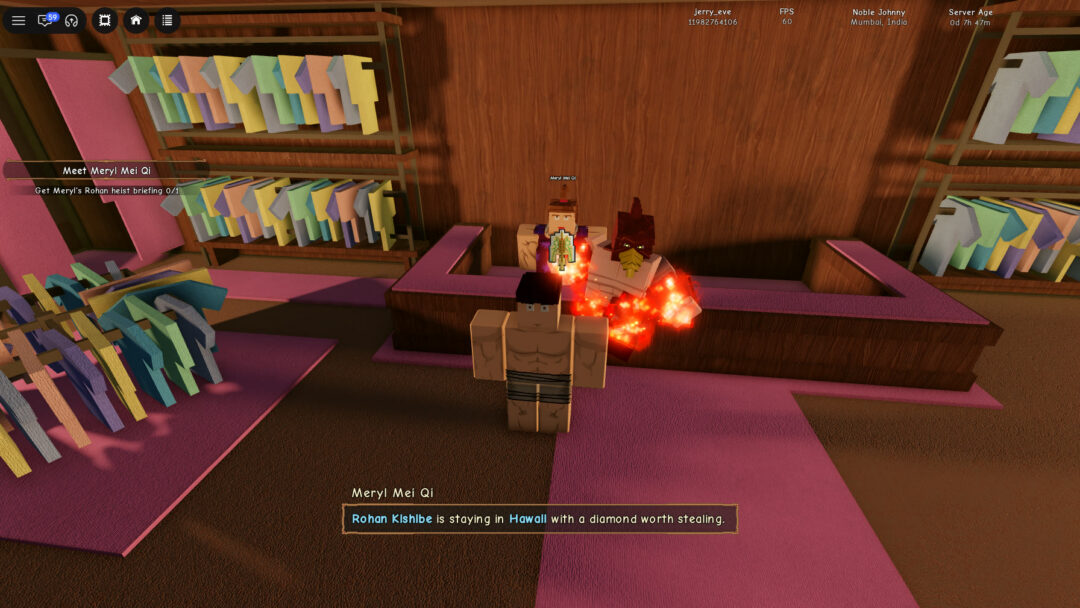
| After Meryl’s heist briefing | “You have 8 unspent stat points, spend them in the Stats menu.” |
| After opening Rohan’s vault | “You have 14 unspent stat points, spend them in the Stats menu.” |
The number in the toast is a running total of unspent points, so it climbs with each step if you leave the earlier ones alone. Spending points before the next toast lowers the starting figure, which is expected.
How to spend stat points in the STATS panel
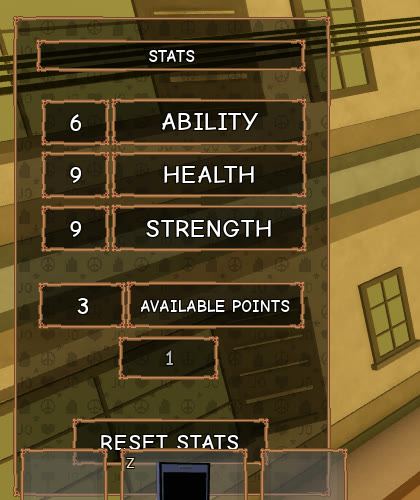
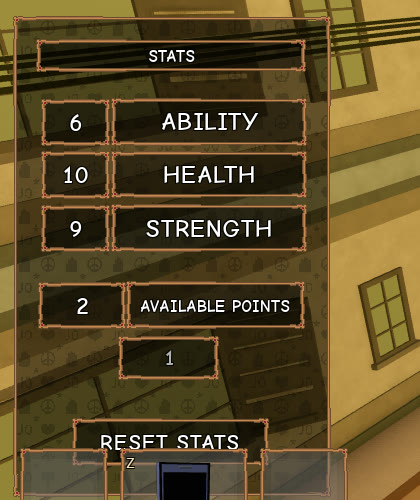
You can tell it worked by watching two numbers. With 1 in the box, a single click on HEALTH takes the panel from HEALTH 9 and AVAILABLE POINTS 3 to HEALTH 10 and AVAILABLE POINTS 2. The chosen stat goes up, the pool goes down by the same amount, and nothing else on the panel changes.
What each row on the STATS panel is
| Row | What it is | Example value |
|---|---|---|
| ABILITY | Stat | 6 |
| HEALTH | Stat | 9 before spending |
| STRENGTH | Stat | 9 |
| AVAILABLE POINTS | Unspent points | 3 |
| Unlabelled number box | Points per click | 1 |
| RESET STATS | Button at the bottom | — |
Each stat’s number sits in a box on the left of its row. The panel carries no description and no tooltip, and resting the cursor on ABILITY, HEALTH or STRENGTH shows nothing. RESET STATS sits at the bottom of the panel. What it does is not shown until you press it, so treat each spend as final until you have tried it.
How to use THE ARCHIVE in Stand Out
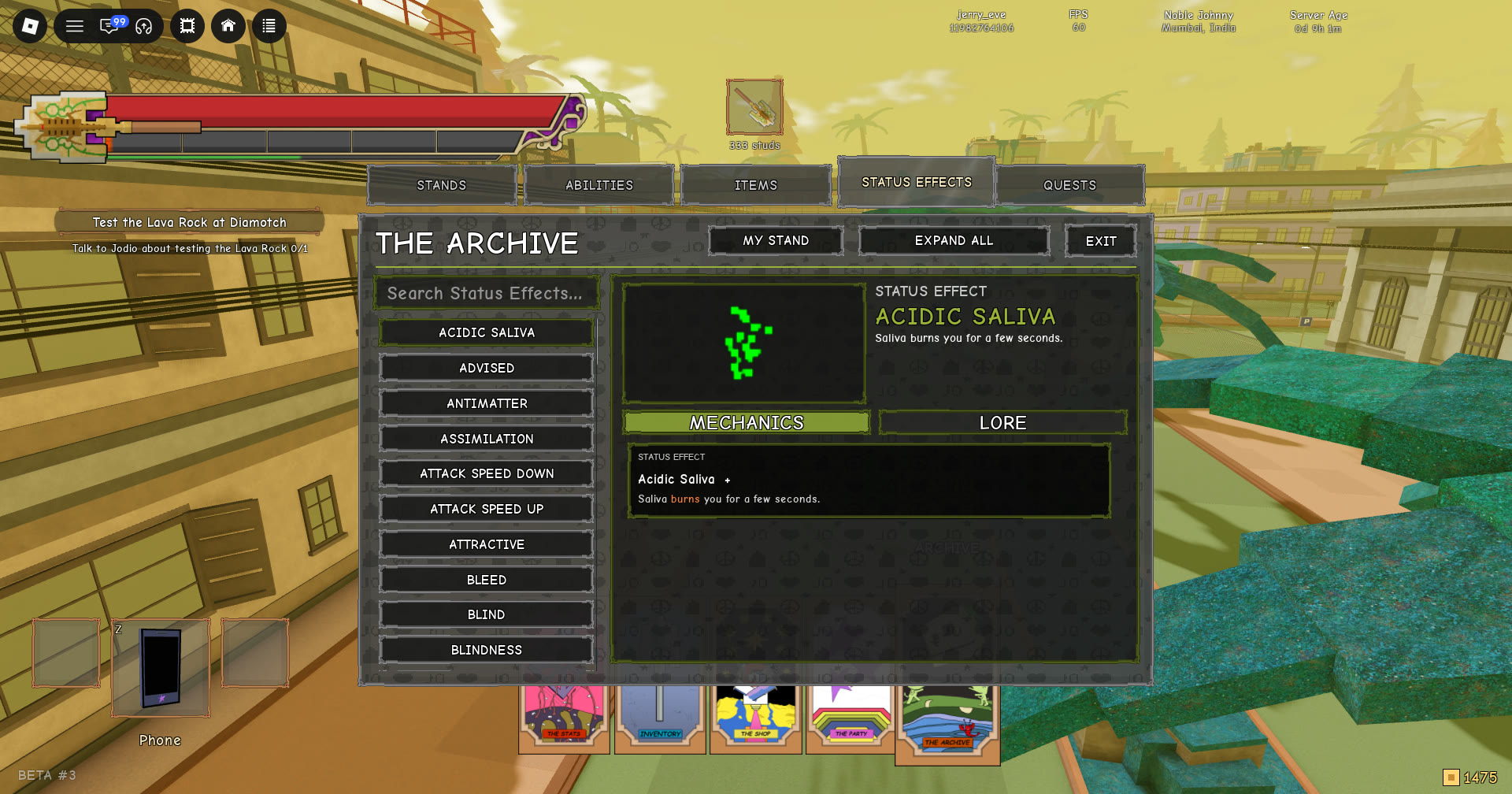
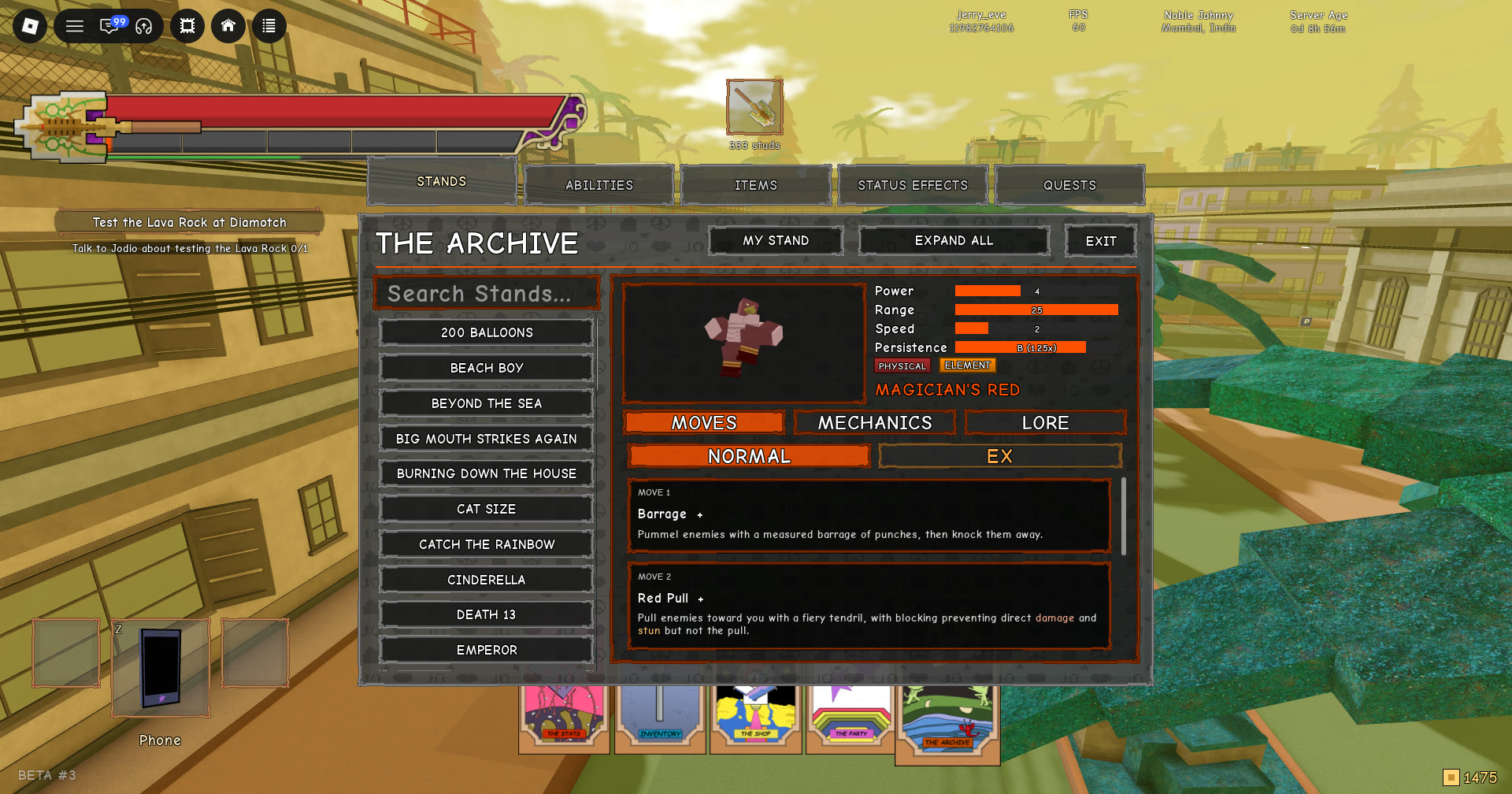
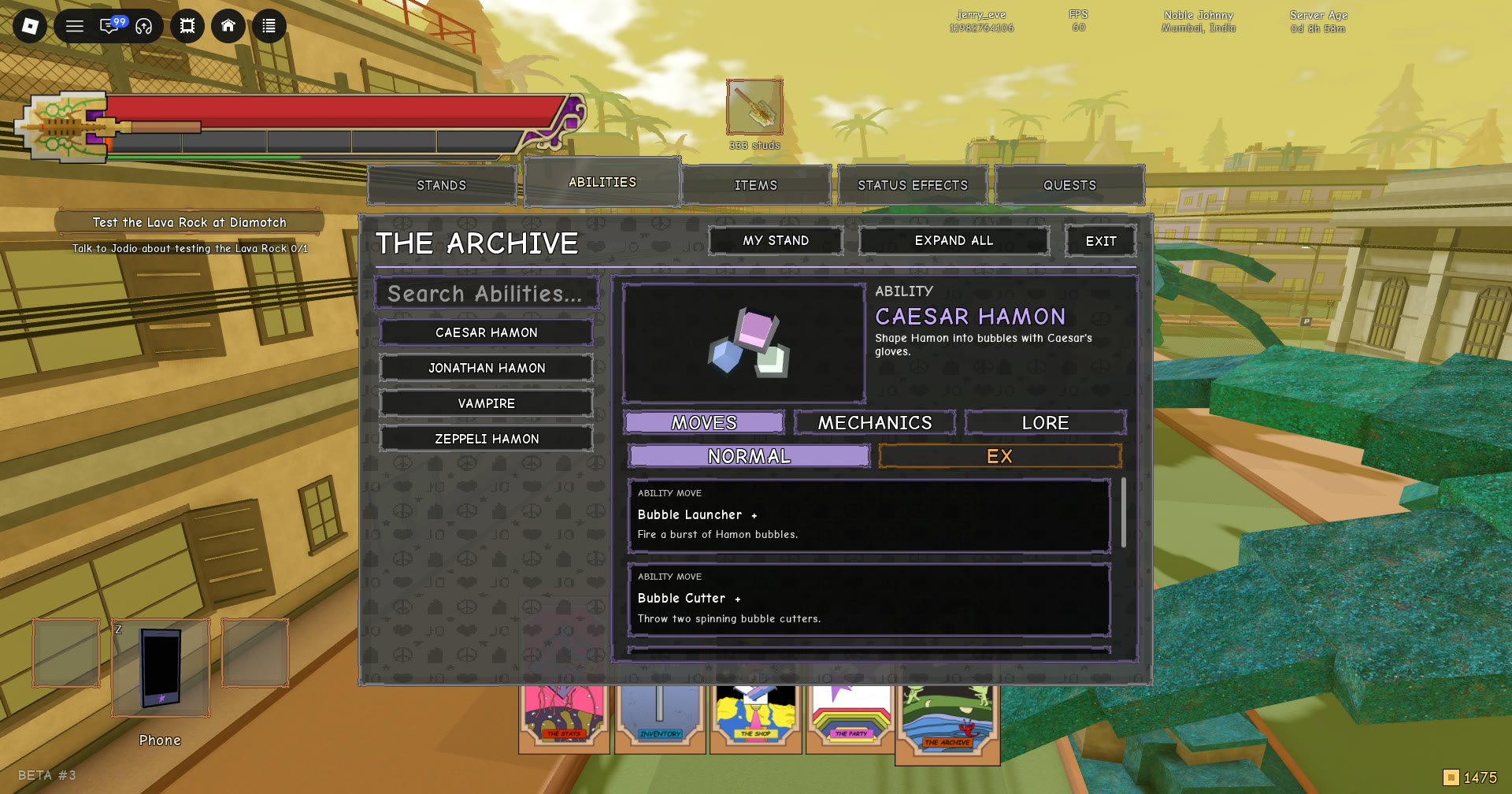
THE ARCHIVE is a reference window, not a place to spend anything. It lives on the fifth card in the same hand as STATS.
Moves pages include a NORMAL/EX switch; the lists below cover NORMAL.
ABILITIES file: Caesar Hamon and the other entries
The ABILITIES file contains four abilities. In order, they are CAESAR HAMON, then JONATHAN HAMON, followed by VAMPIRE and ZEPPELI HAMON. CAESAR HAMON is listed as an ABILITY, with the summary “Shape Hamon into bubbles with Caesar’s gloves.” Its NORMAL moves are:
| Move | Type | Summary |
|---|---|---|
| Bubble Launcher | ABILITY MOVE | “Fire a burst of Hamon bubbles.” |
| Bubble Cutter | ABILITY MOVE | “Throw two spinning bubble cutters.” |
| Ripple Hypnosis | ABILITY MOVE | “Infuse an enemy with Hamon and make them follow your cursor.” |
| Bubble Lenses | ABILITY MOVE | “Place a lens, or hold to breathe.” |
| Seated Jump | EVASIVE | “Spring away in a seated leap.” |
STANDS file: reading a stand page (Magician’s Red)
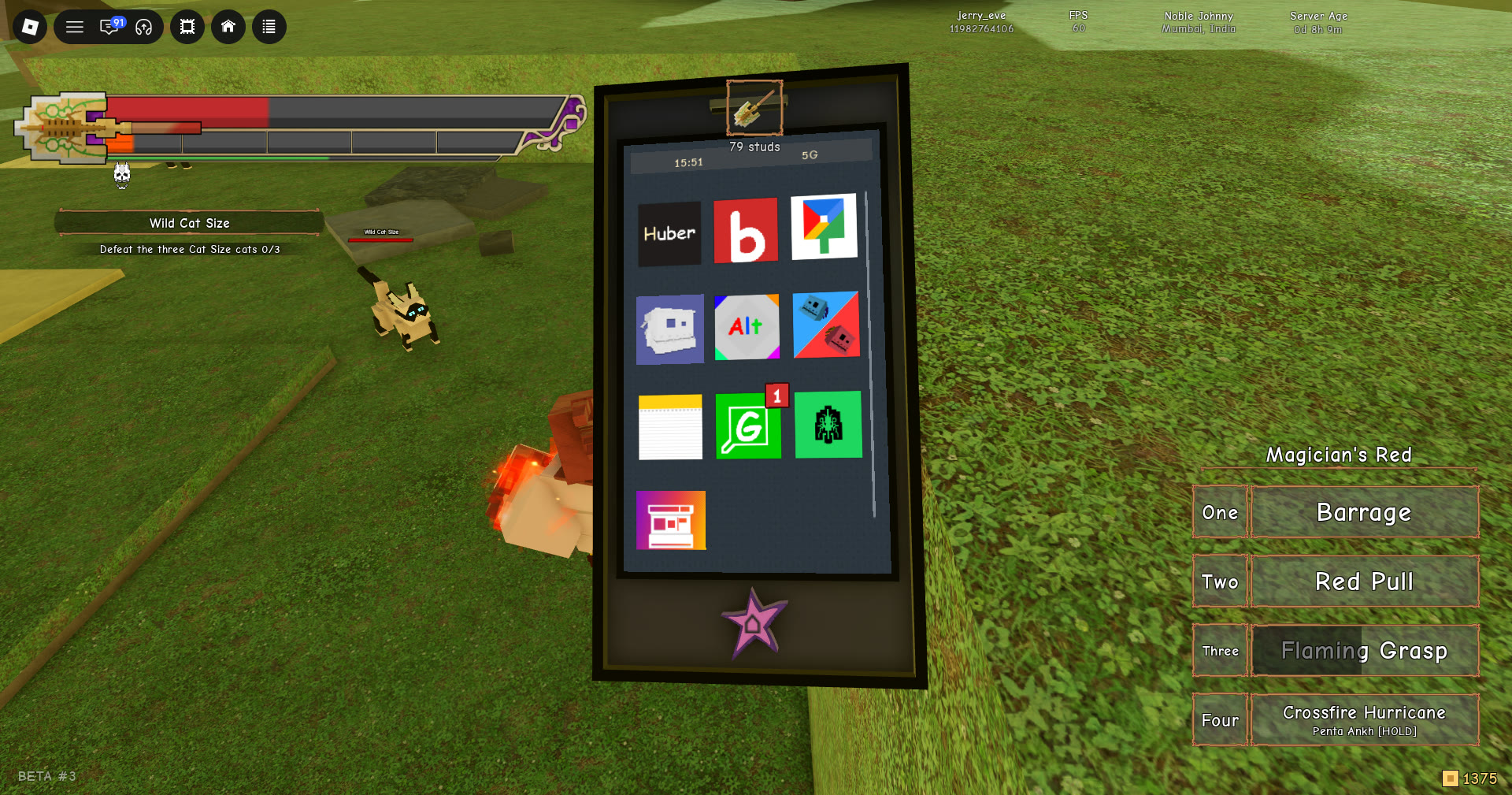
Stand pages add ratings down the right side. MAGICIAN’S RED shows Power 4, Range 25, Speed 2 and Persistence B (1.25x), with PHYSICAL and ELEMENT badges beneath them and the name under those. A stand page never states the stand’s rarity; that only appears on the shop’s arrow chances. Its four NORMAL moves each get a line of their own:
- Barrage: “Pummel enemies with a measured barrage of punches, then knock them away.”
- Red Pull: “Pull enemies toward you with a fiery tendril, with blocking preventing direct damage and stun but not the pull.”
- Flaming Grasp: “Grab through normal blocks and throw the enemy away in flames, burning low-health targets to ashes unless perfect blocked.”
- Crossfire Hurricane: “Fire one flaming ankh or hold for five smaller ones, staying near Life Detector for extra range and tracking toward the marked enemy nearest your aim.”
STATUS EFFECTS and ITEMS files
Status effect pages are short, with one line each. ACIDIC SALIVA, at the top of that list, reads “Saliva burns you for a few seconds.” ITEMS entries are tagged by category, such as CONSUMABLE or CRAFTING. 2X DALAS BOOSTER is a CONSUMABLE with the line “Use it to add its 2X Dalas time to your booster timer, on top of any time already running.” The 2X Coins Booster crafting entry under it simply says “Used at the workbench.”