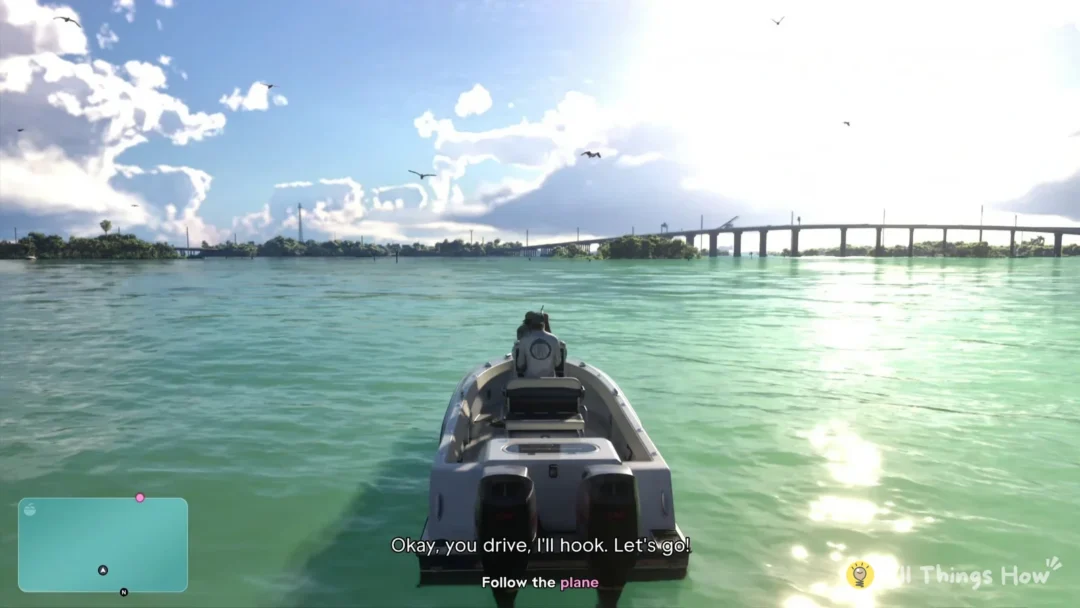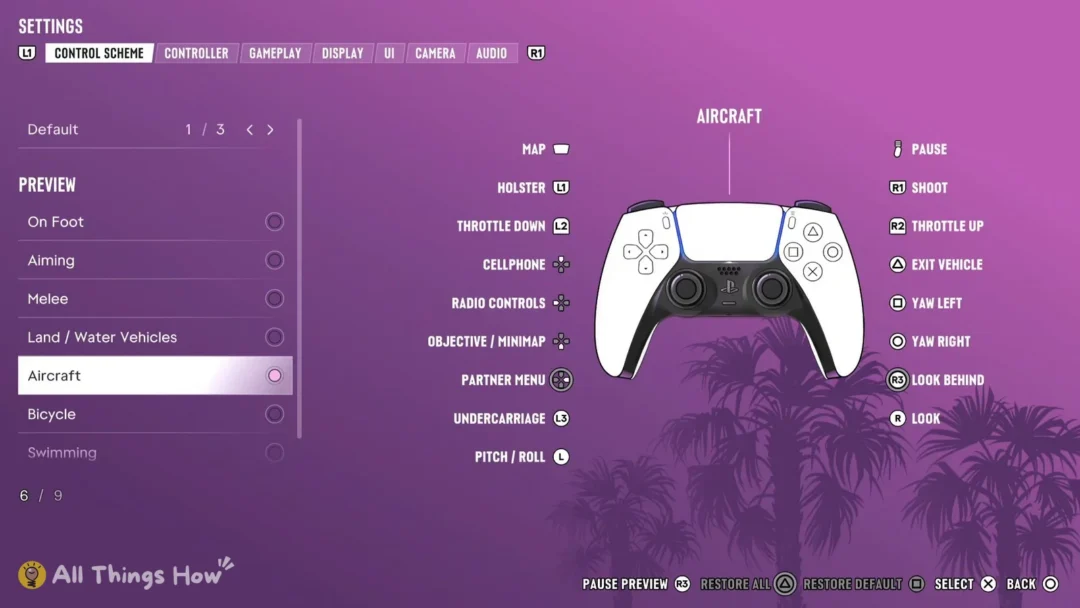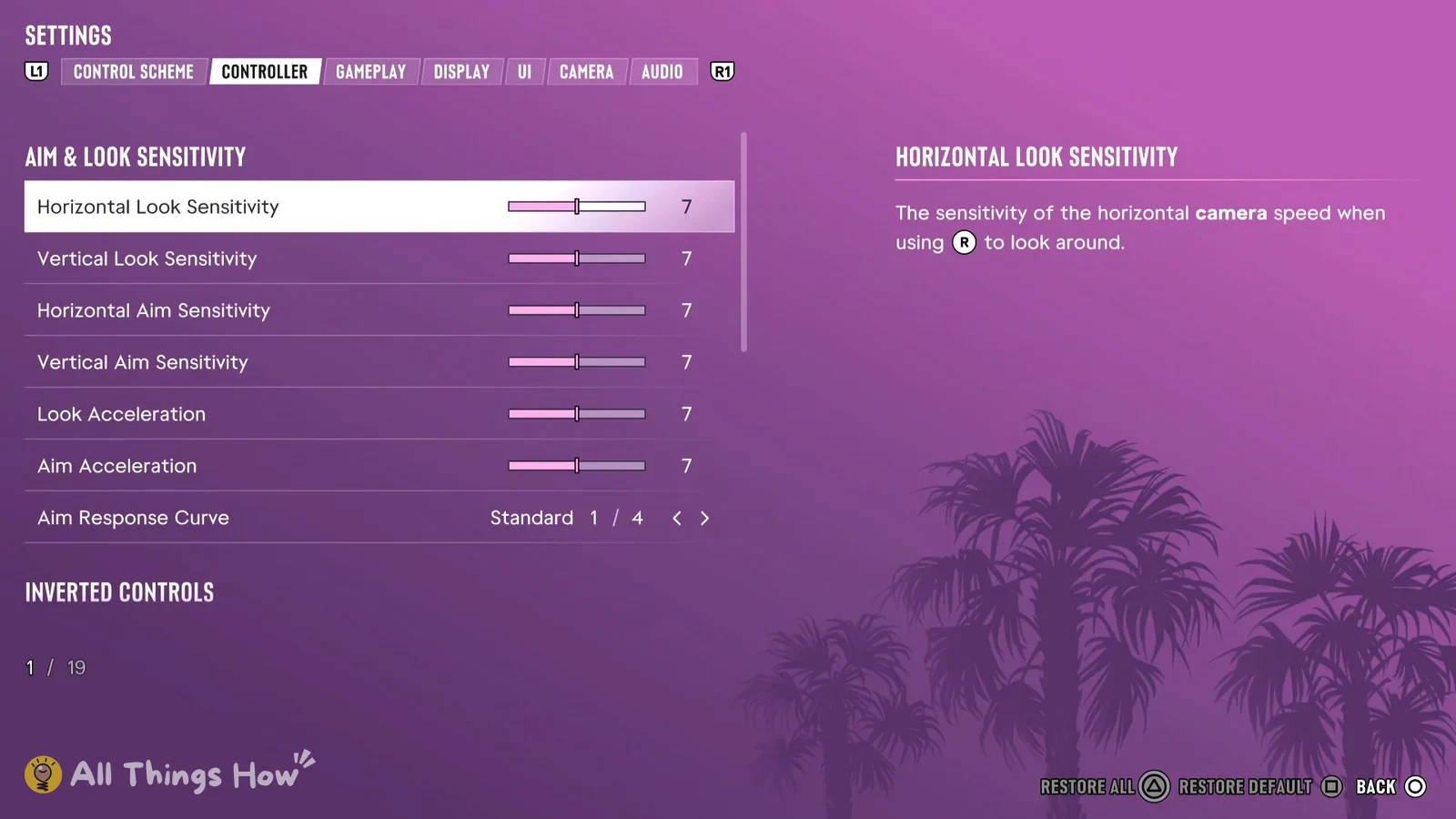

GTA 6 hands out a lot of information in passing. A character mentions where someone’s hiding, a tip about crouching flashes up during a stealth section, or the objective text fades before you’ve read it. You can bring all of that back from the pause menu without restarting anything.
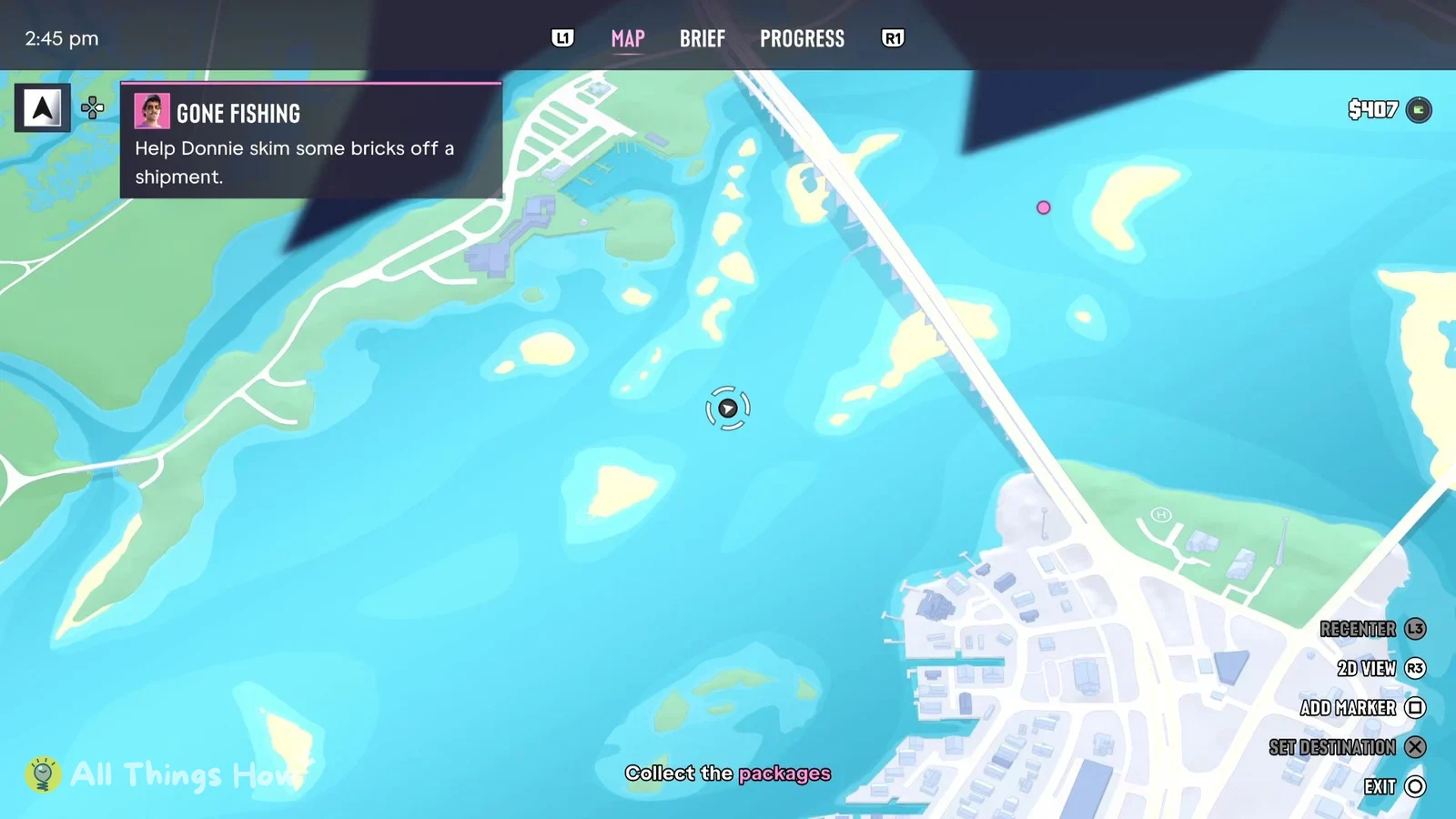
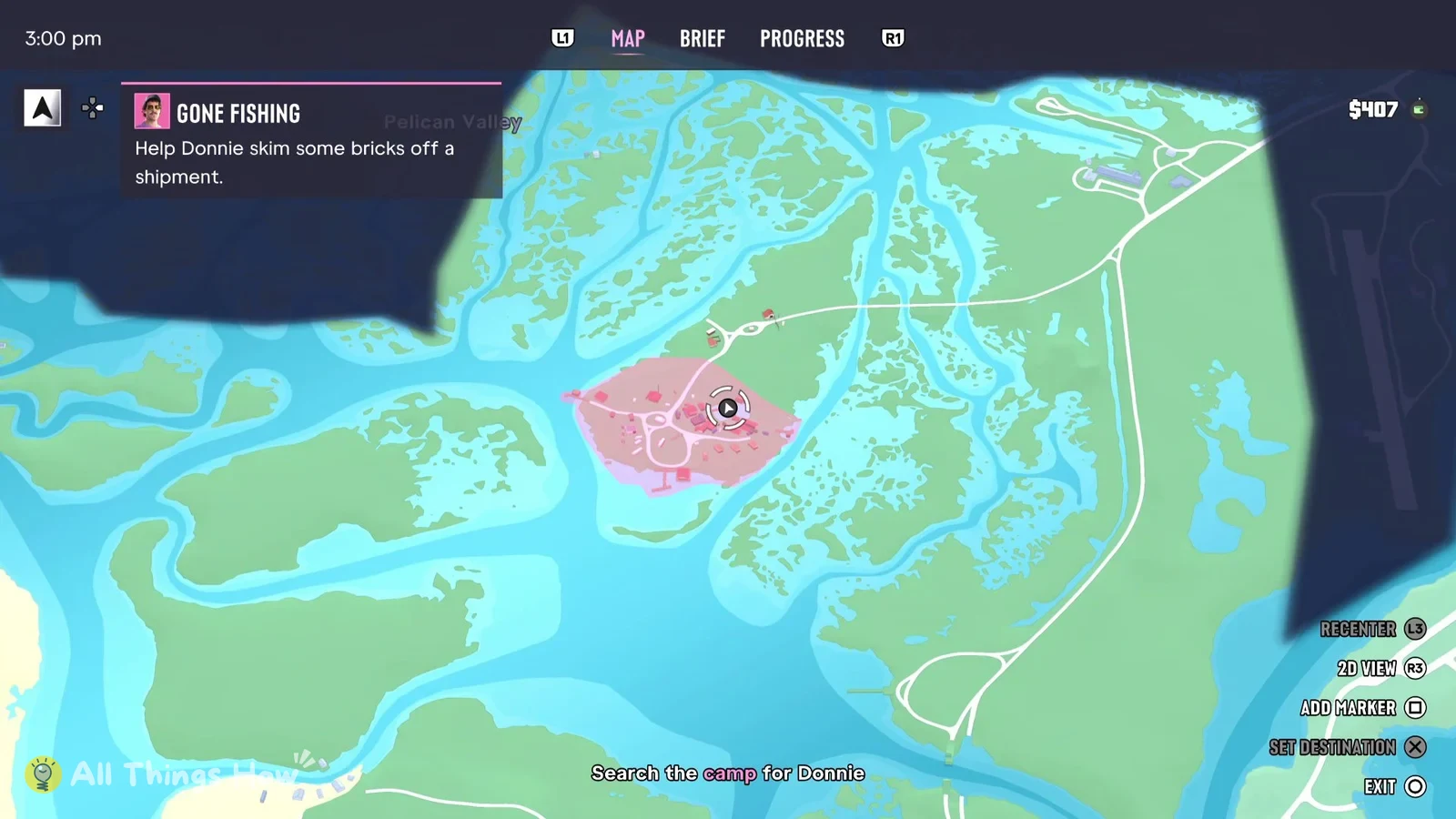
Quick answer: Open Options, choose Map, and press R1 for the BRIEF tab. Set the filter to Dialogue, Help Text, or Objective Text. Your active objective is also shown along the map’s bottom edge.
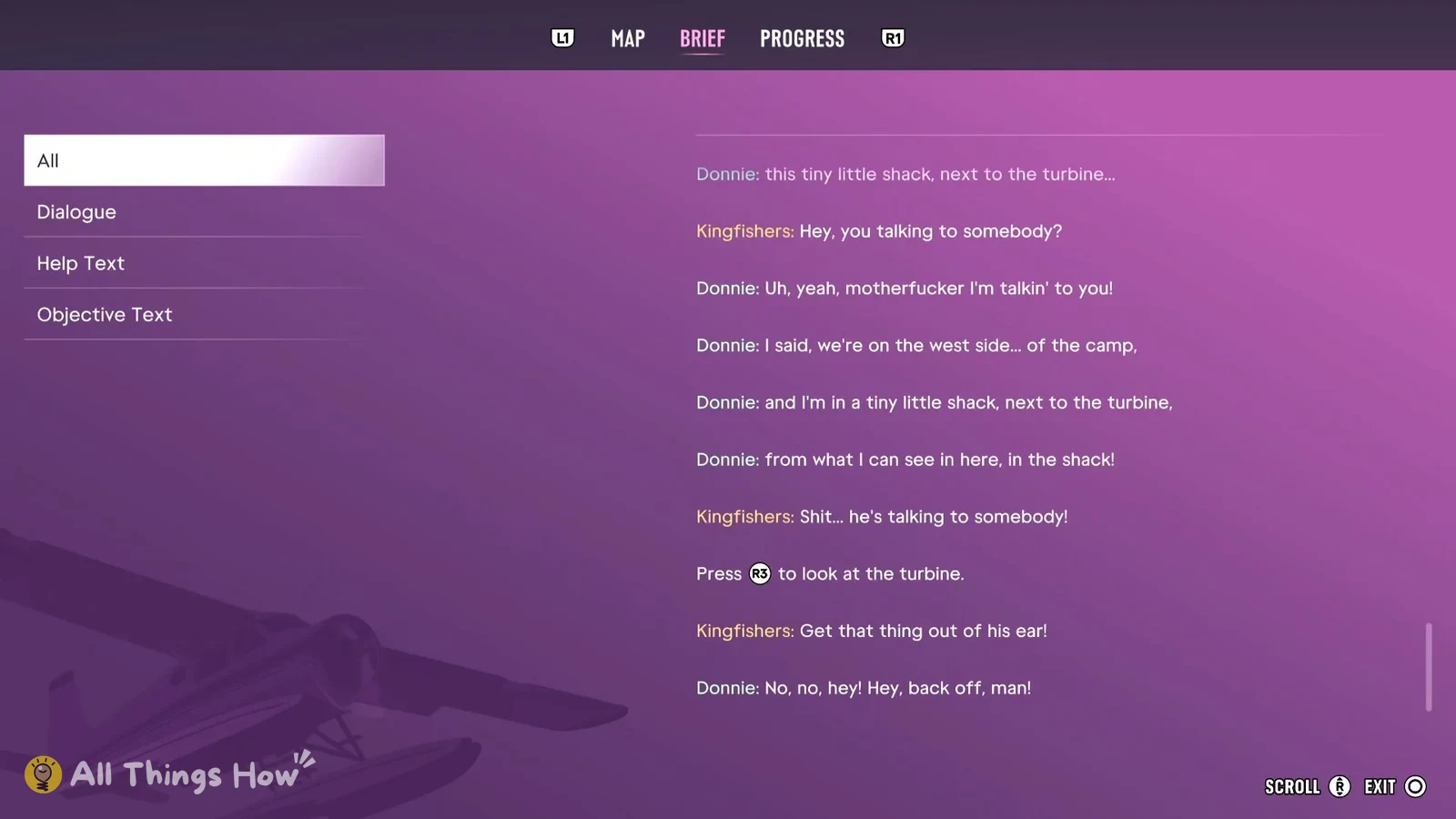
Open the BRIEF log in GTA 6
These buttons are for the PS5 version on default controls.
What each BRIEF filter shows
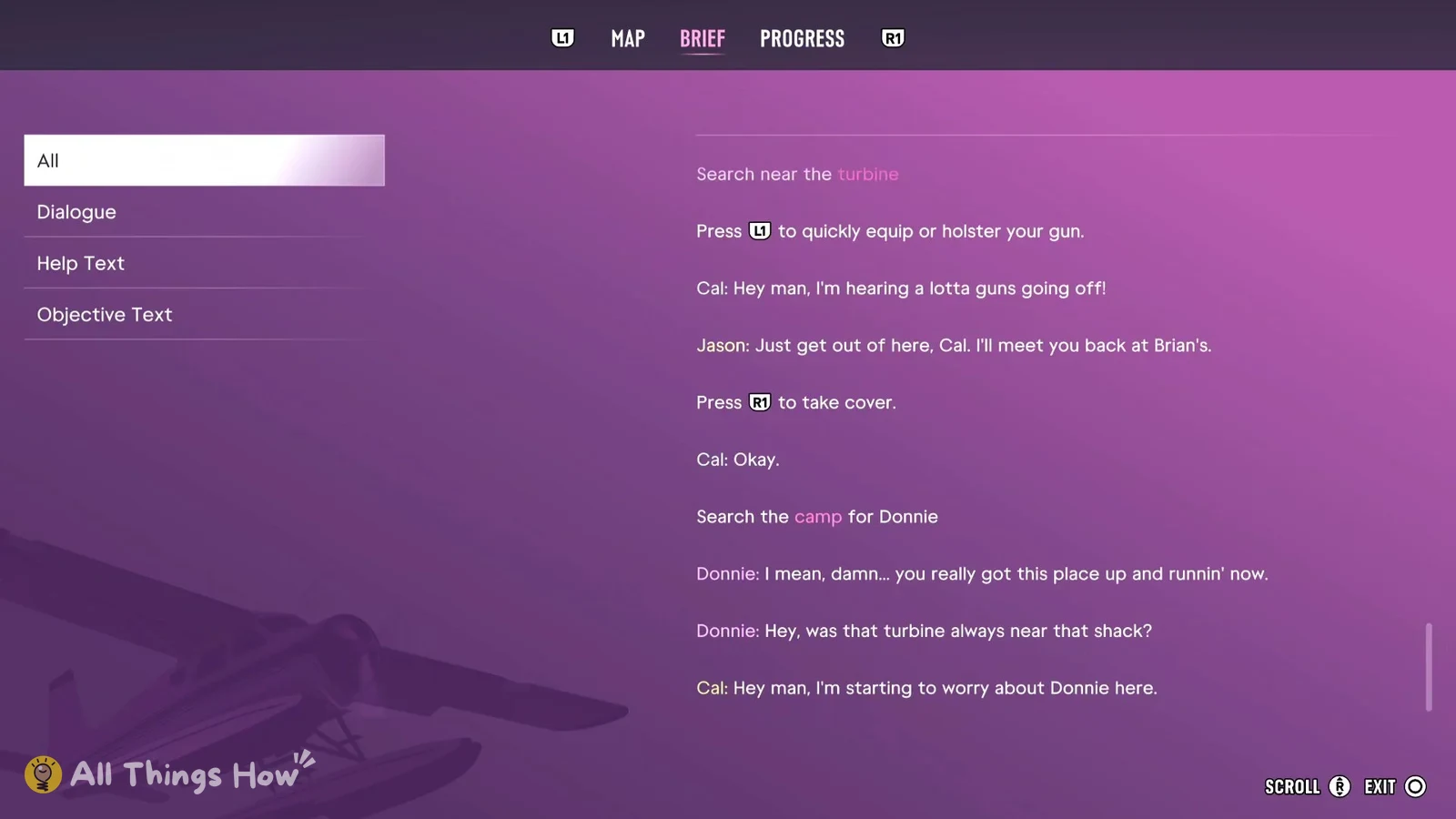
- All: everything in the order it happened. Spoken lines start with the speaker’s name in color (Cal, Donnie, Jason, Kingfishers), objectives have their key word in pink, and help tips keep their button icons.
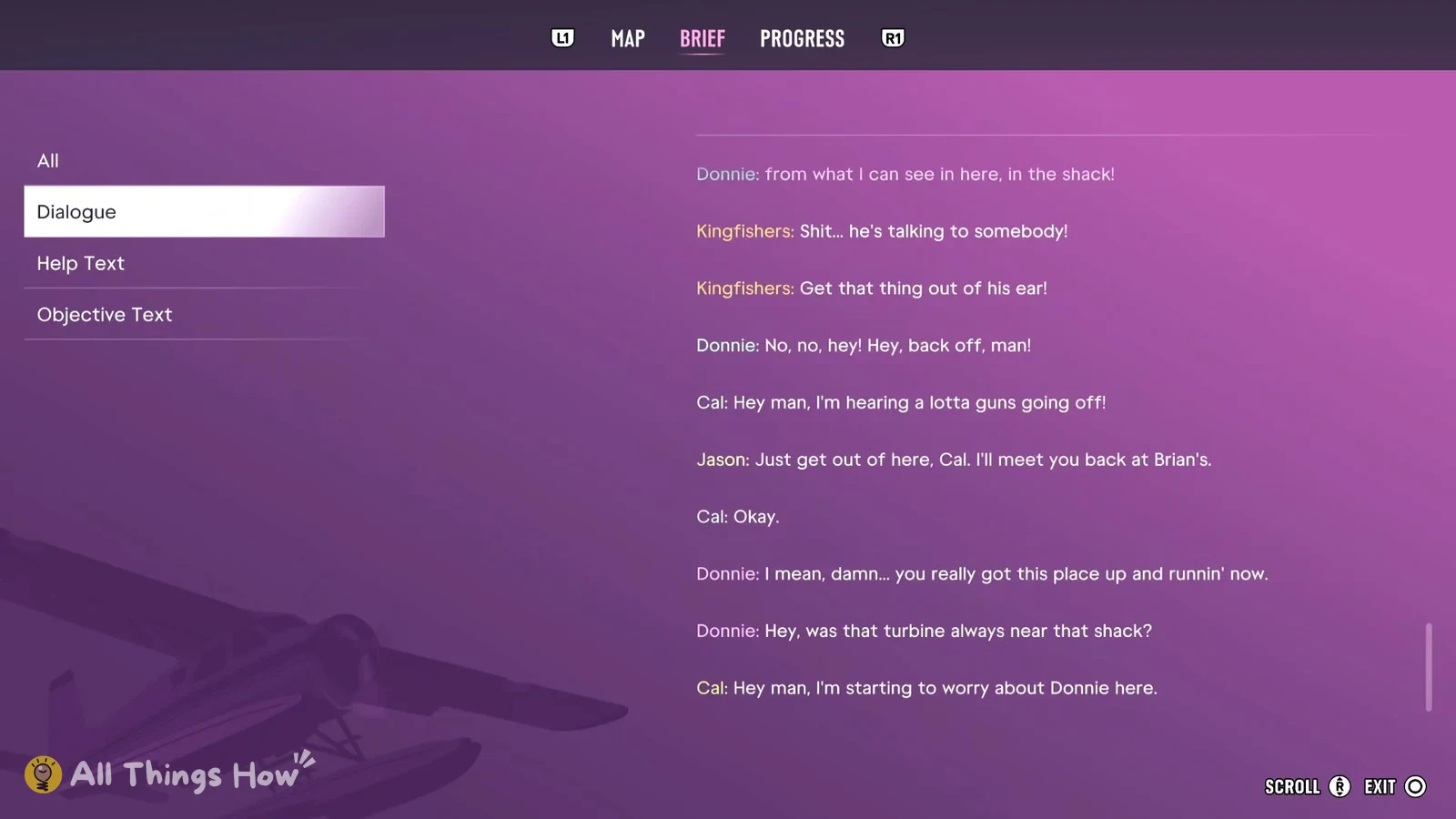
- Dialogue: spoken lines only, like “Donnie: from what I can see in here, in the shack!”
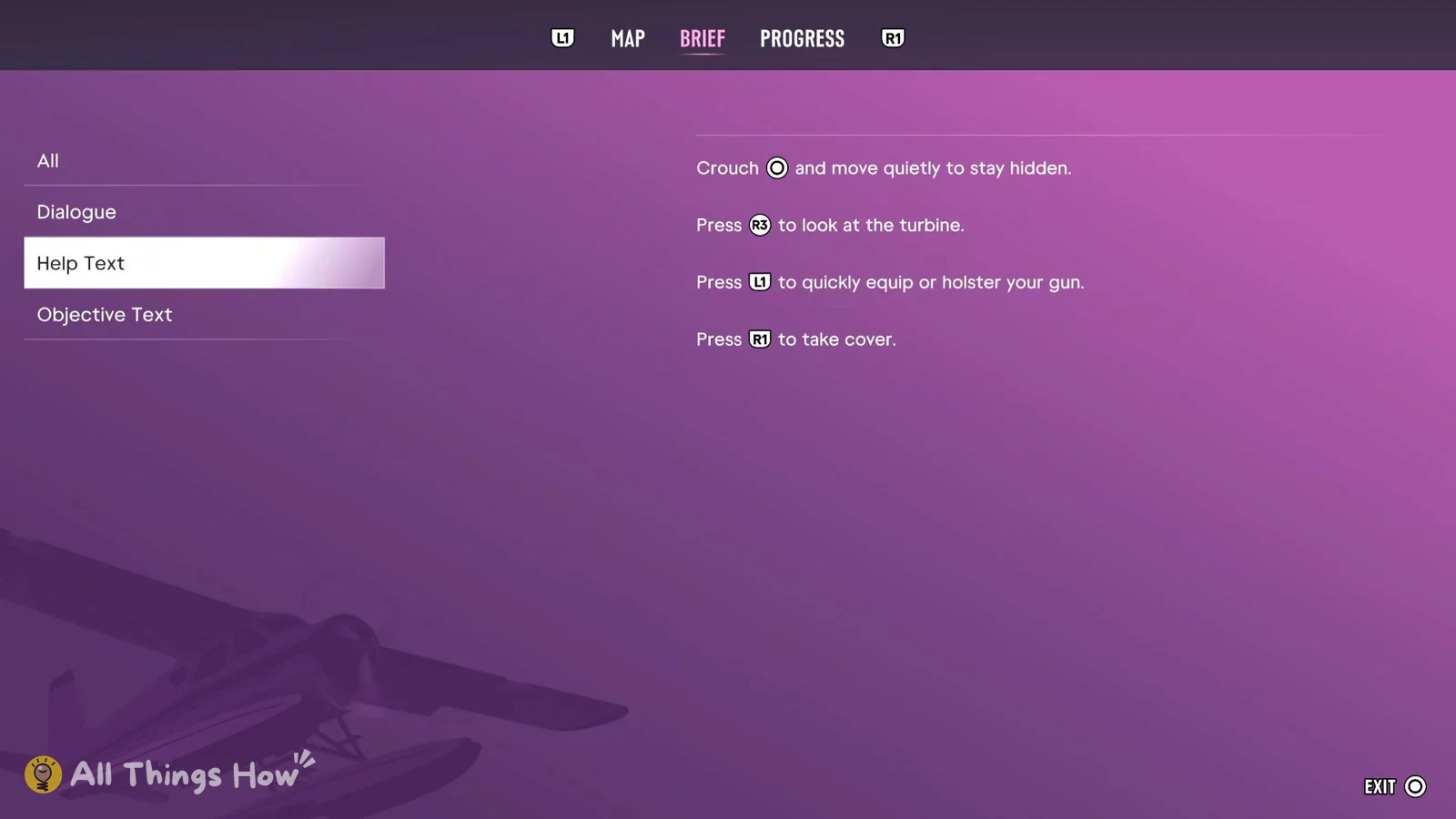
- Help Text: control tips only, like “Crouch (Circle) and move quietly to stay hidden.” and “Press R1 to take cover.”
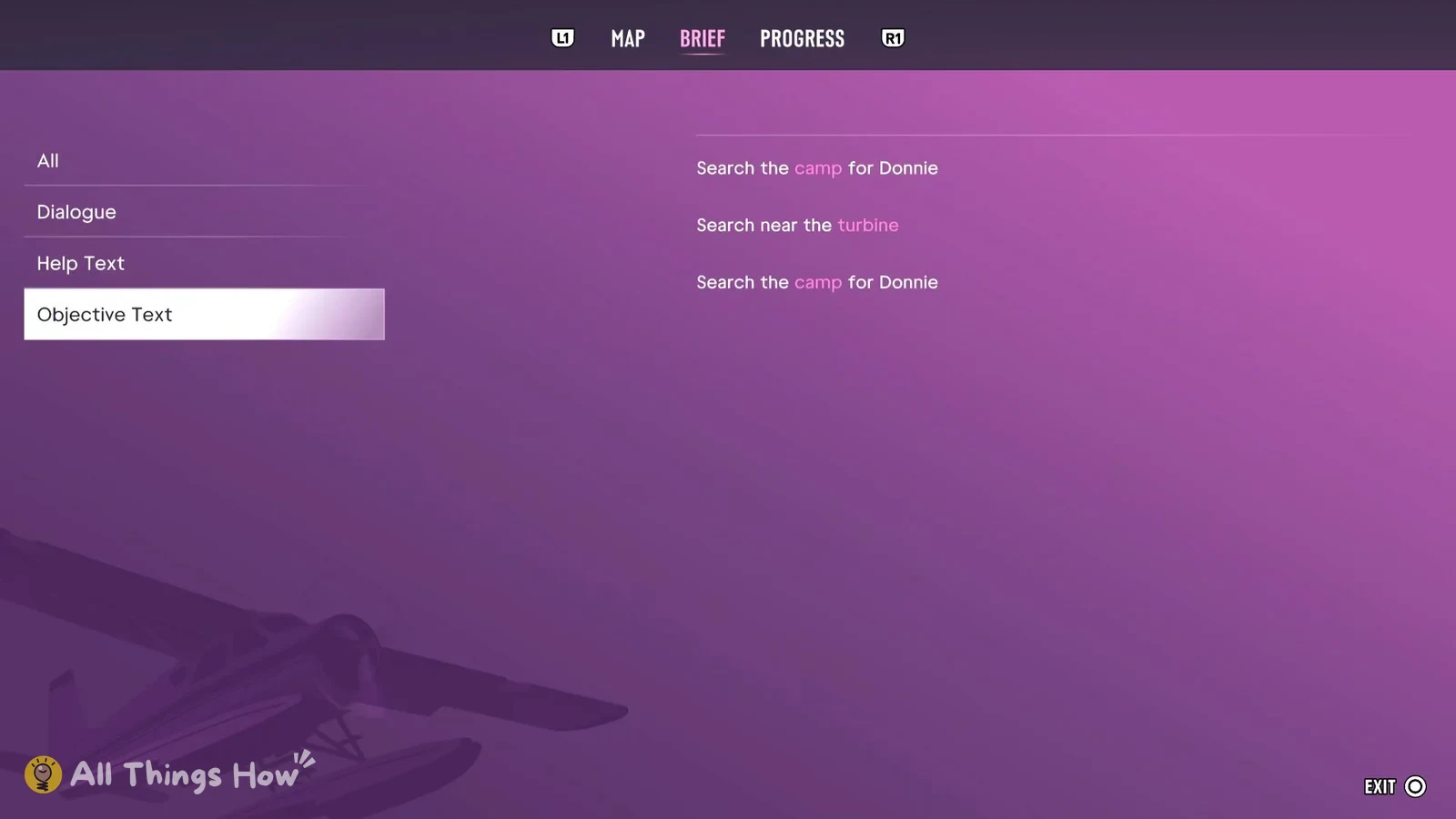
- Objective Text: objectives only, like “Search the camp for Donnie” and “Search near the turbine”.
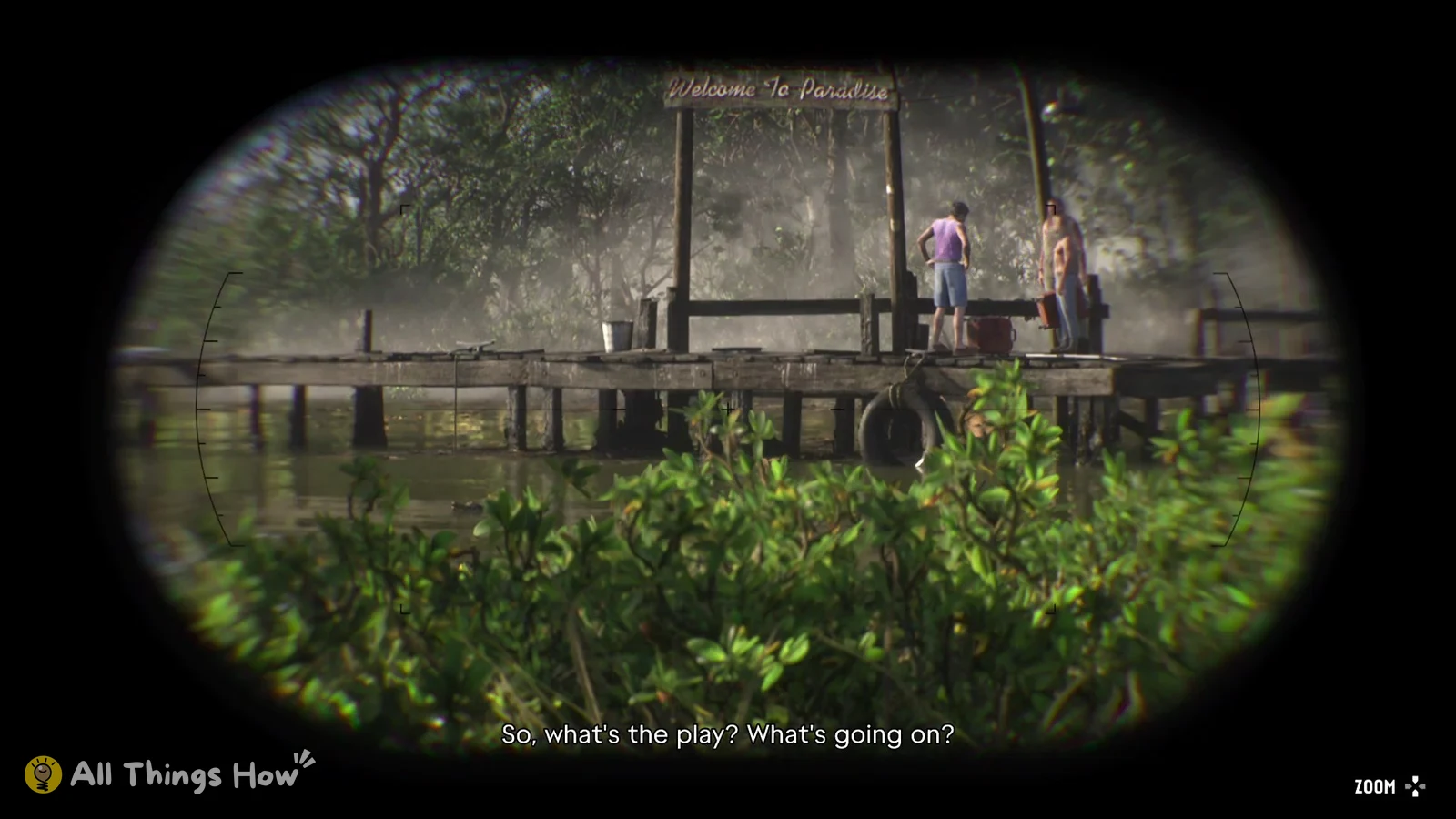
Dialogue is the filter to check when you’ve lost track of a clue. In Gone Fishing, Donnie’s lines say he’s “on the west side of the camp” in “a tiny shack, next to the turbine”, which points you in the right direction when the objective only says to search the camp.
Help Text is where to find a tip that disappeared mid-fight or mid-sneak, like the crouch prompt in a stealth section. It also keeps prompts such as “Press R3 to look at the turbine.” and “Press L1 to quickly equip or holster your gun.” so you don’t have to wait for the game to show them again.
Dying and retrying from a checkpoint doesn’t wipe the log. Lines from before you died stay put, and the retried section’s lines get added below them, so the same conversation can show up twice in a row.
Check your GTA 6 objective without pausing
If you just want a reminder of the objective while you play, one of the game’s own help tips covers it: pressing the D-pad brings up the HUD along with your current objective. The tip shows the whole D-pad as its icon rather than one direction, and in our game it was still listed in the BRIEF log afterwards.