
If the camera in GTA 6 seems to speed up the longer you hold the right stick, that’s camera acceleration. You can lower it in the settings on PS5. It isn’t on the Camera tab, though. It’s split into two sliders on the Controller tab, one for looking around and one for aiming.
Quick answer: Go to Settings > Controller, then find Look Acceleration and Aim Acceleration under AIM & LOOK SENSITIVITY. Both sit at 7. Push each slider left to 0, the lowest value.
Where camera acceleration is in GTA 6 settings
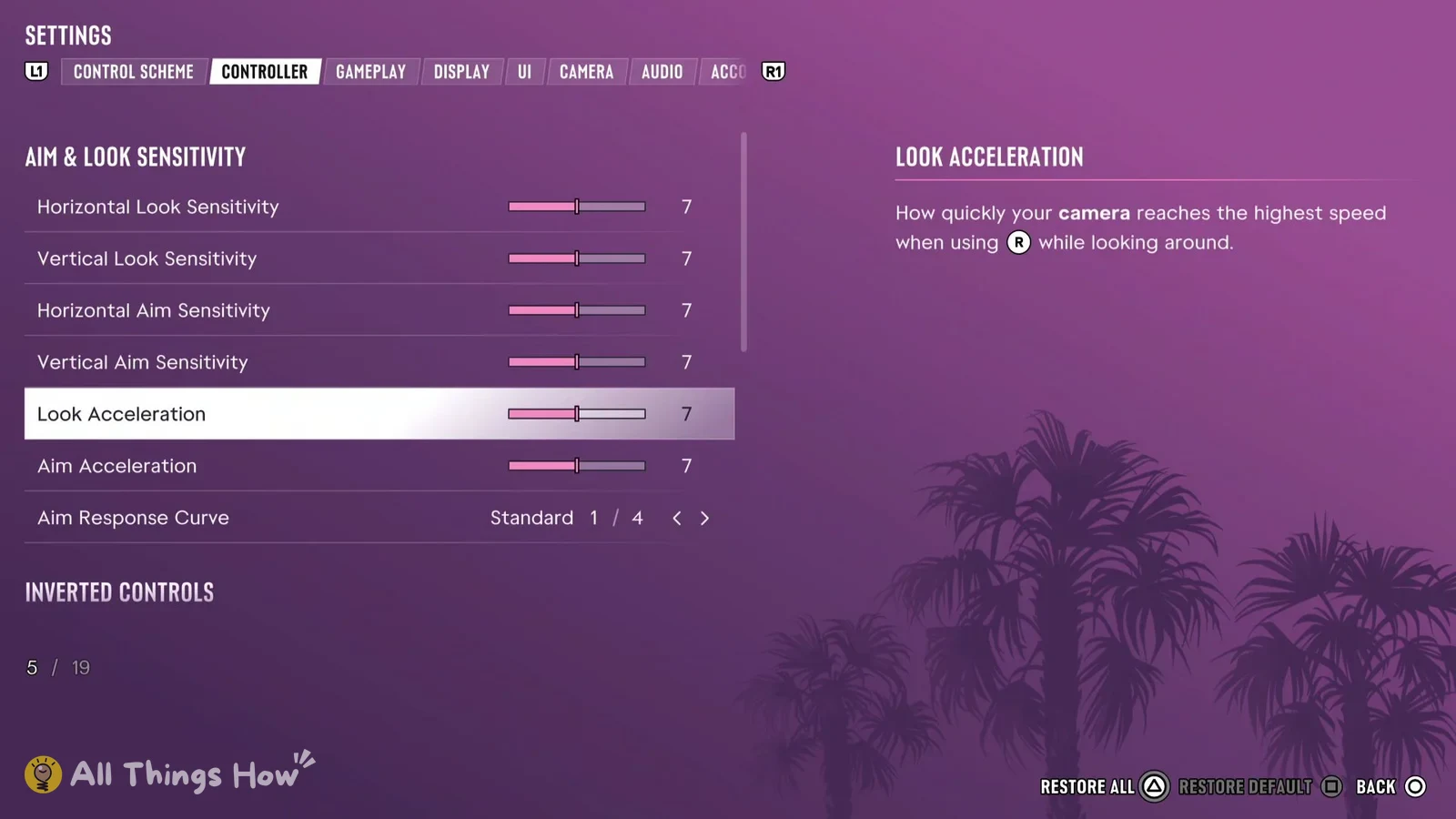
Pause the game and open Settings. The tabs run along the top of the screen and include CONTROL SCHEME, CONTROLLER, GAMEPLAY, DISPLAY, UI, CAMERA and AUDIO. You switch between them with L1 and R1.
Both acceleration sliders sit in the Controller tab’s opening section, AIM & LOOK SENSITIVITY. The rows appear in this order:
- Horizontal Look Sensitivity
- Vertical Look Sensitivity
- Horizontal Aim Sensitivity
- Vertical Aim Sensitivity
- Look Acceleration
- Aim Acceleration
- Aim Response Curve
The tab has a row counter. It reads 5 / 19 when Look Acceleration is selected and 6 / 19 on Aim Acceleration, so you can check you’re on the right row before you move a slider.
Look Acceleration vs Aim Acceleration
Both sliders control how quickly the camera gets up to full speed when you push the right stick. Look Acceleration applies when you’re just moving the camera around, and Aim Acceleration applies while you’re aiming. Each row shows a short description when you select it. In the game, a right-stick icon appears where the quotes below say [right stick].
| Setting | What the game says | Lowest value | Value it sits at |
|---|---|---|---|
| Look Acceleration | “How quickly your camera reaches the highest speed when using [right stick] while looking around.” | 0 | 7 |
| Aim Acceleration | “How quickly your camera reaches the highest speed when using [right stick] while aiming.” | 0 | 7 |
The Look Acceleration slider goes from 0 to 14. At 7 its handle sits in the middle of the bar, at 0 it’s at the far left end, and at 14 it’s at the far right. Aim Acceleration’s handle also moves to the far left end at 0. Both rows are sliders with no On / Off switch, and 0 is as low as either one goes.
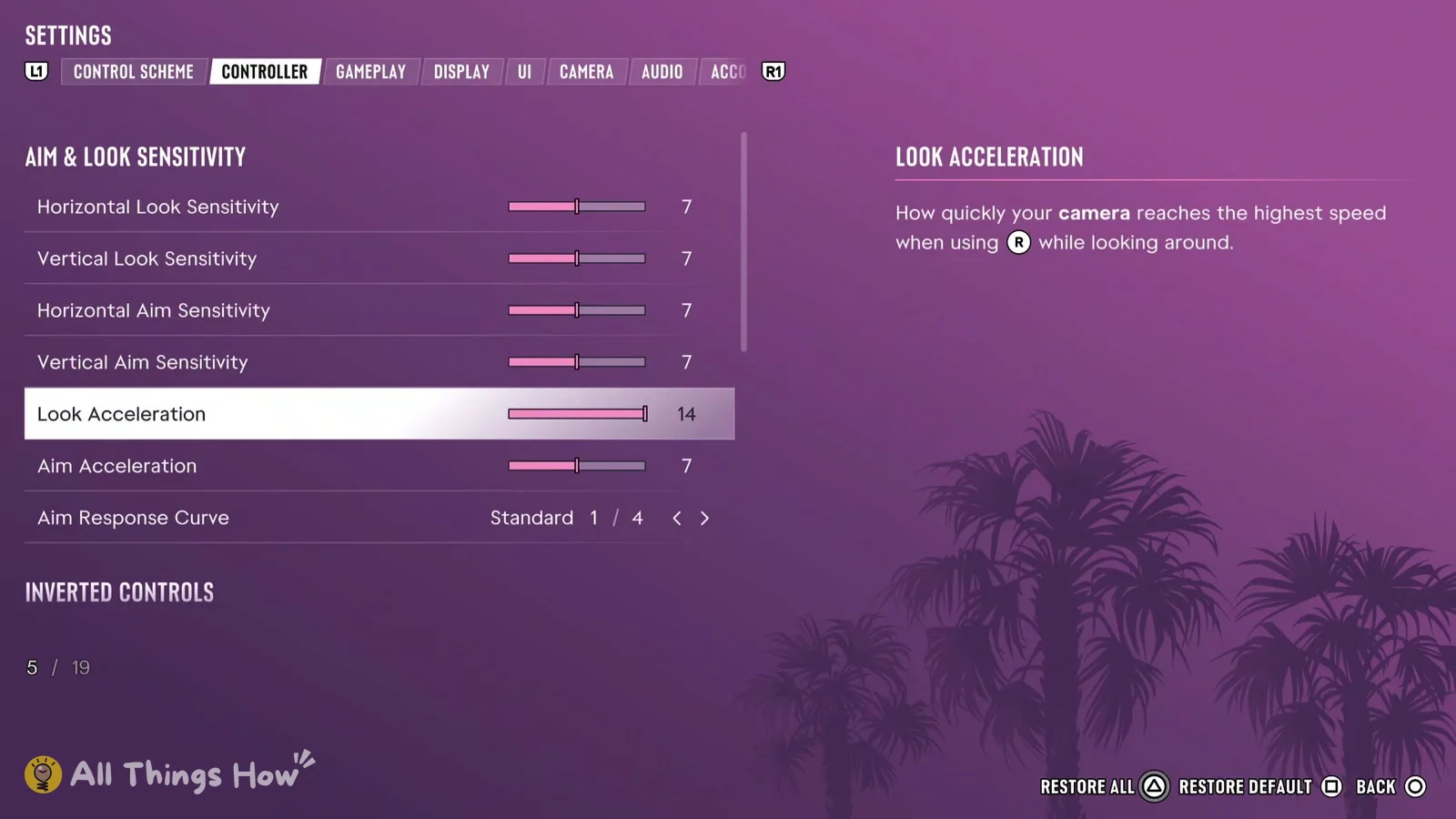
How to turn camera acceleration down
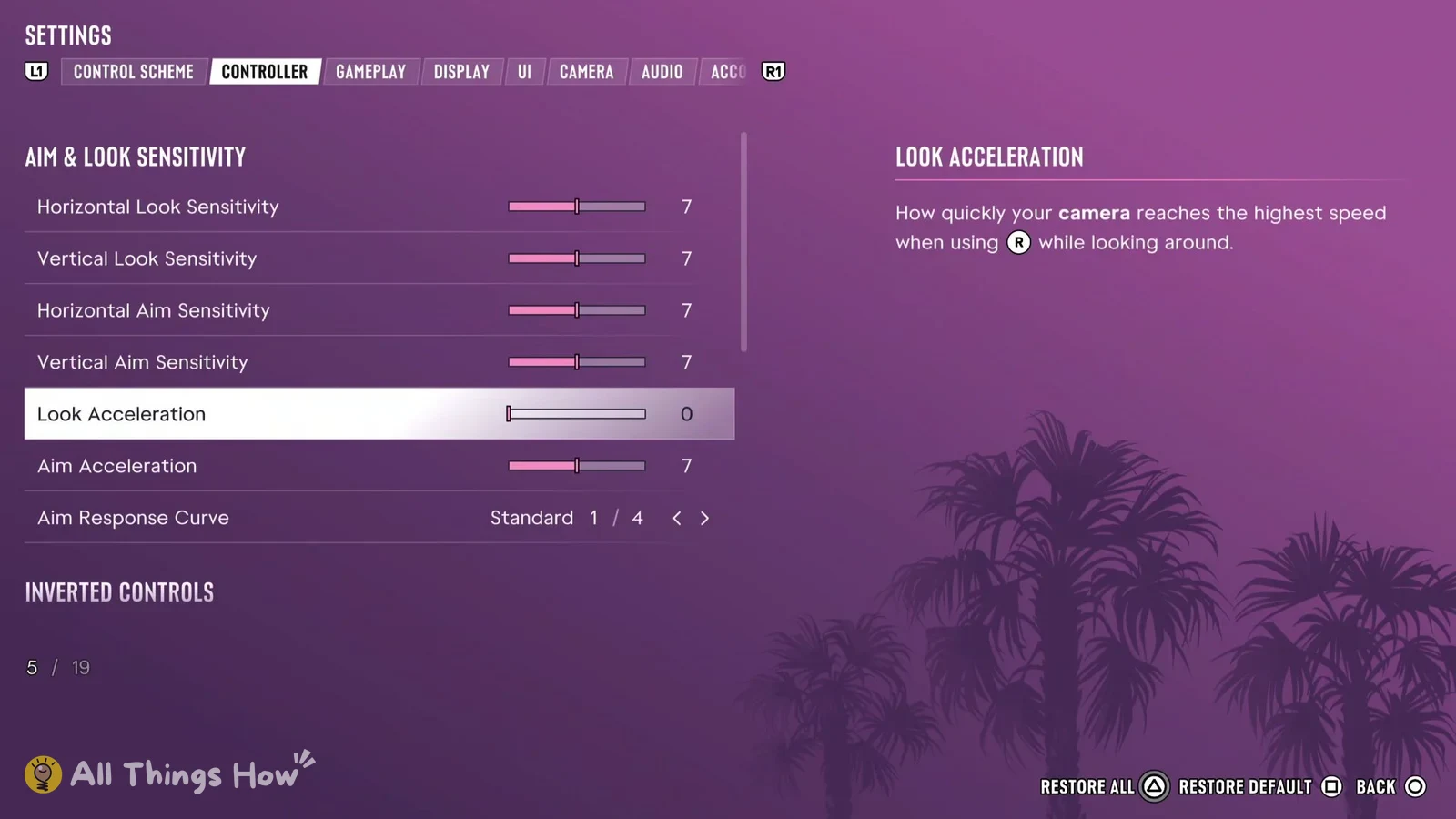
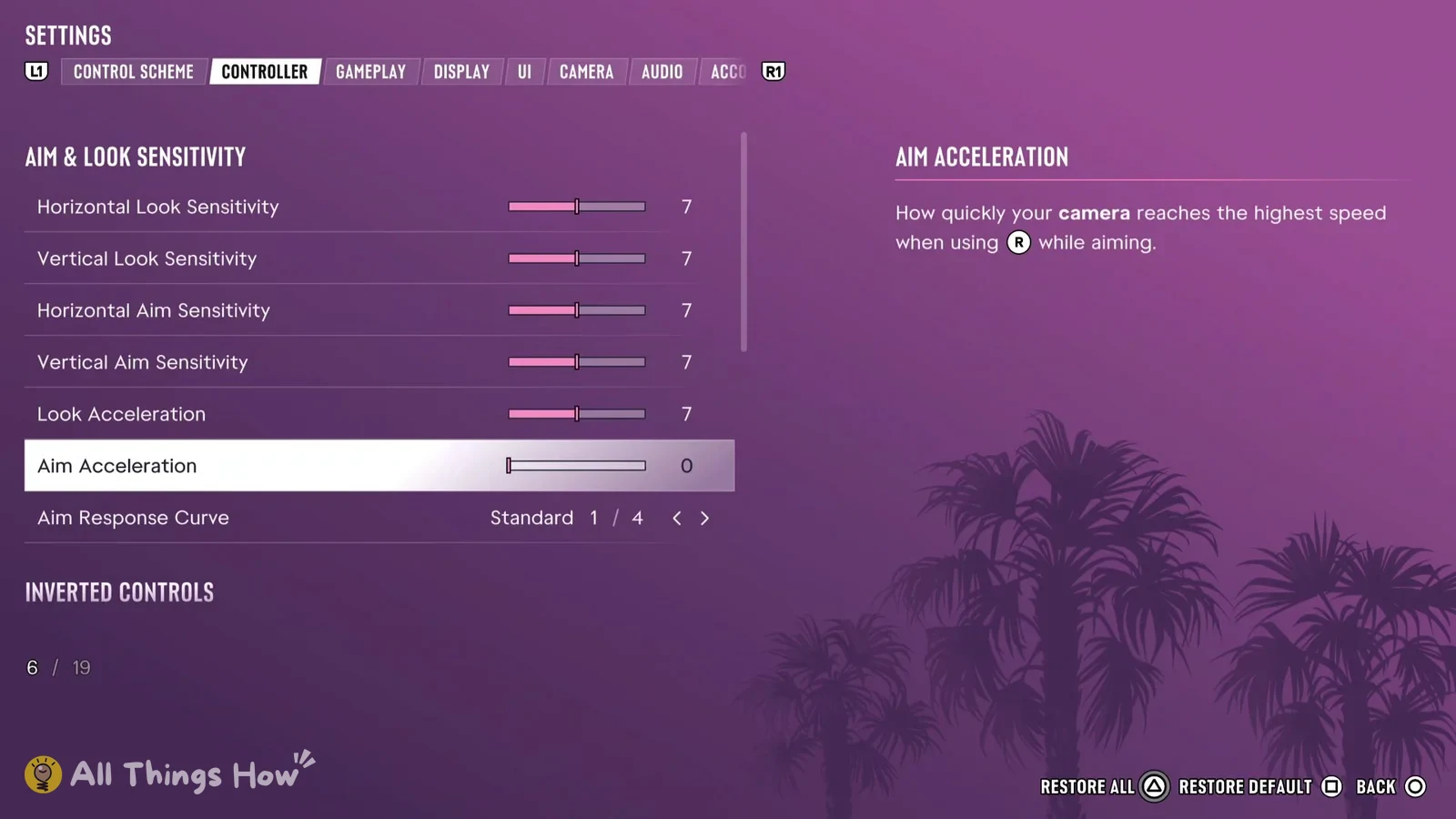
The row right below Aim Acceleration is Aim Response Curve, which reads “Standard 1 / 4” and uses left and right arrows. If you go one row too far and press left or right, you’ll change the response curve instead of acceleration.
How to put camera acceleration back
At the screen’s bottom right, the prompts map Triangle to RESTORE ALL, Square to RESTORE DEFAULT and Circle to BACK. To reset only one slider, select Look Acceleration or Aim Acceleration, then press Square for RESTORE DEFAULT. Press Circle to leave the menu when you’re done.