
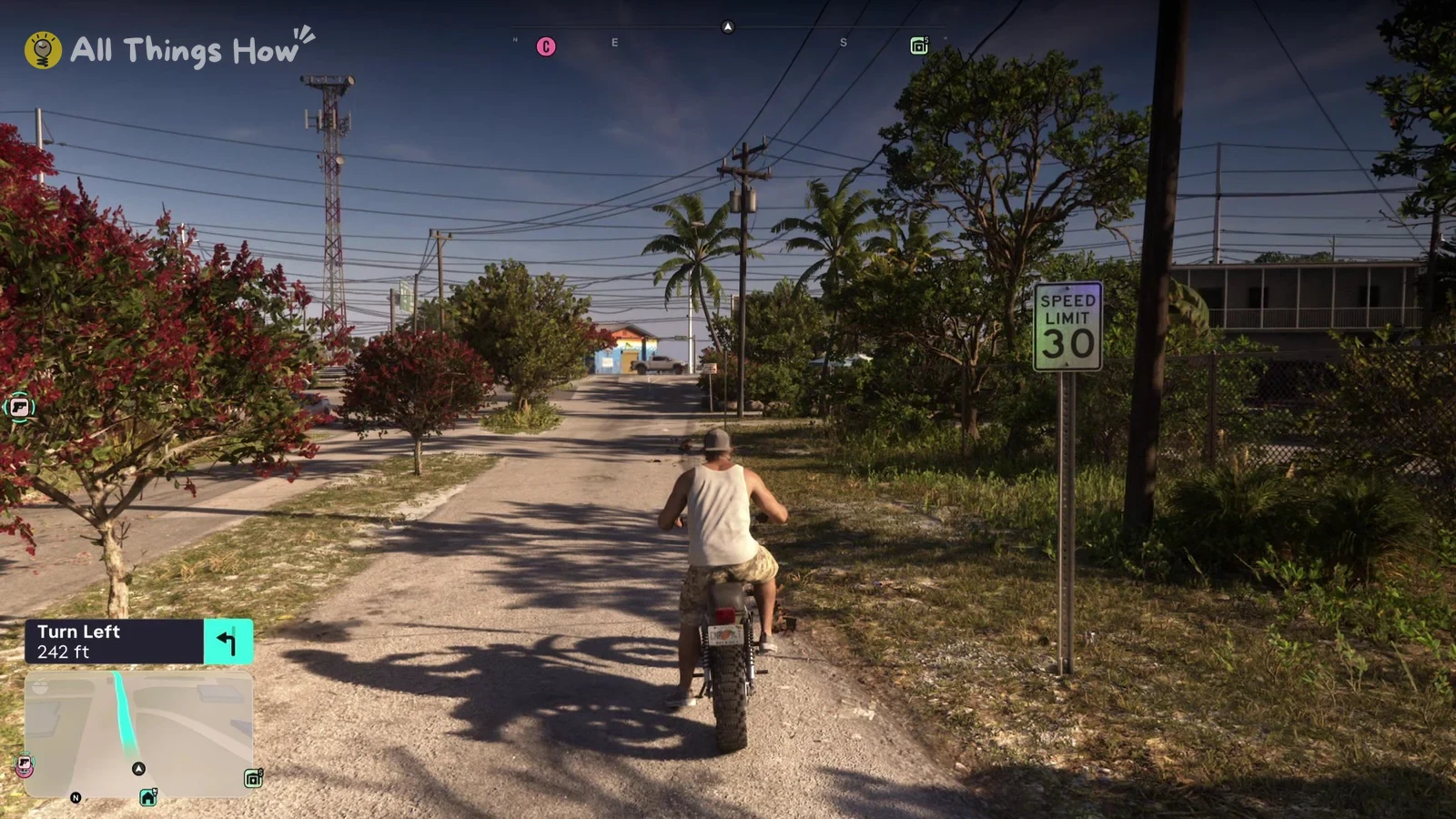
Grand Theft Auto VI on PS5 has a driving option called Adaptive Speed Limiter. It’s tied to the DualSense controller’s R2 trigger and is switched on by default, so it’s working whether or not you’ve ever opened the settings menu.
Quick answer: Go to Pause > Settings > Controller, scroll to “Adaptive Speed Limiter,” and switch it from On to Off.
What the Adaptive Speed Limiter does in GTA 6
Here’s how the game describes the setting:
“Maintains the vehicle at a reasonable speed for the road you’re on when you hold R2 to the resistance point.”
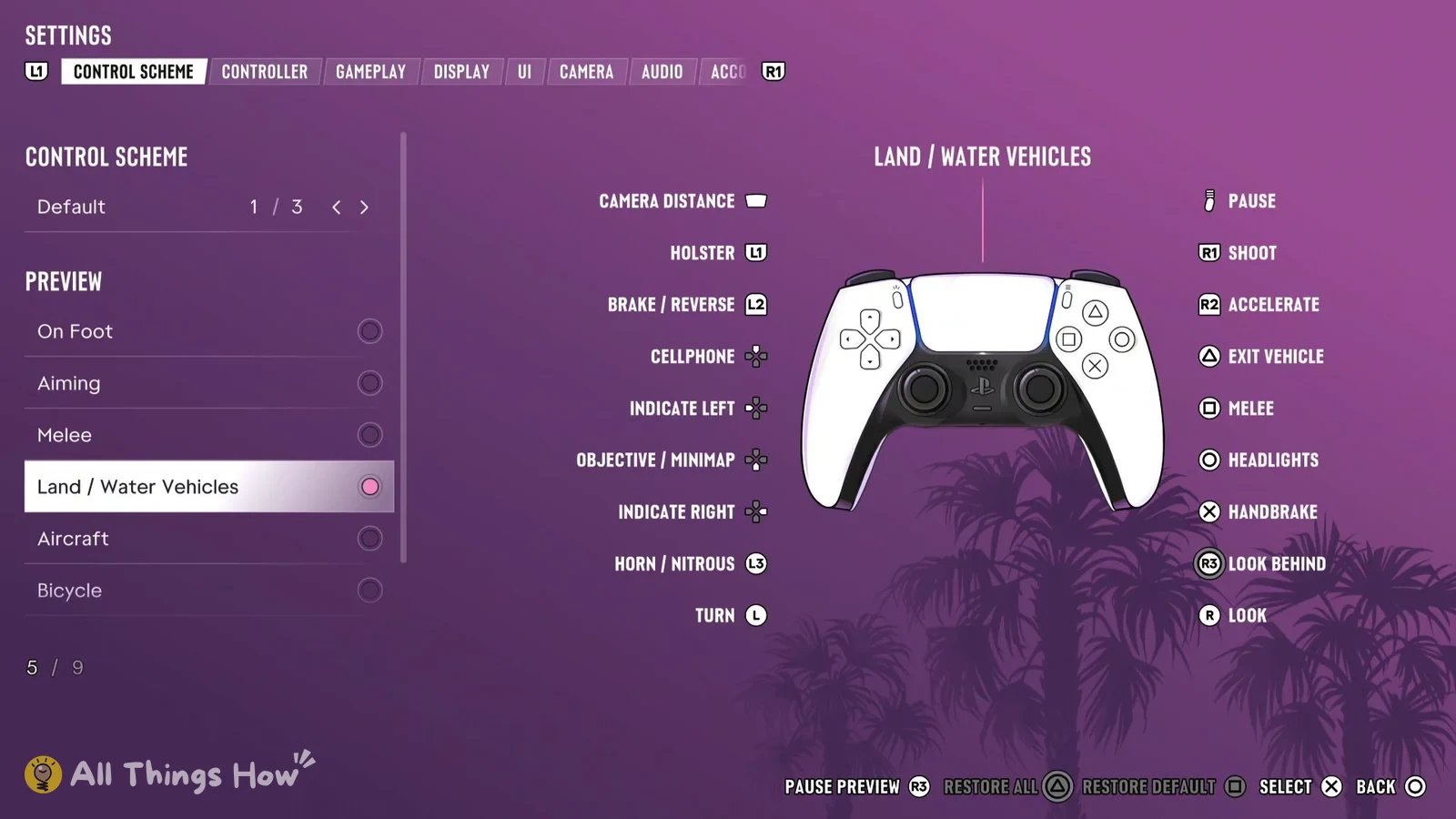
R2 is the accelerate button. On the Default control scheme, the Land / Water Vehicles layout maps R2 to ACCELERATE and L2 to BRAKE / REVERSE. The limiter works on the gas trigger: hold R2 down to the resistance point and the game keeps your vehicle at a speed that suits the road you’re driving on.
You’ll find it alongside the controller’s other trigger and haptics options in the “DUALSENSE® WIRELESS CONTROLLER FEATURES” group. It’s a DualSense feature.
How to turn off the Adaptive Speed Limiter
- Vibration & Haptics Strength
- Deadzone (Left Stick)
- Deadzone (Right Stick)
- Adaptive Triggers Resistance
- Adaptive Triggers Vibration
- Adaptive Speed Limiter
- Touch Pad Button
- Light Bar Effect
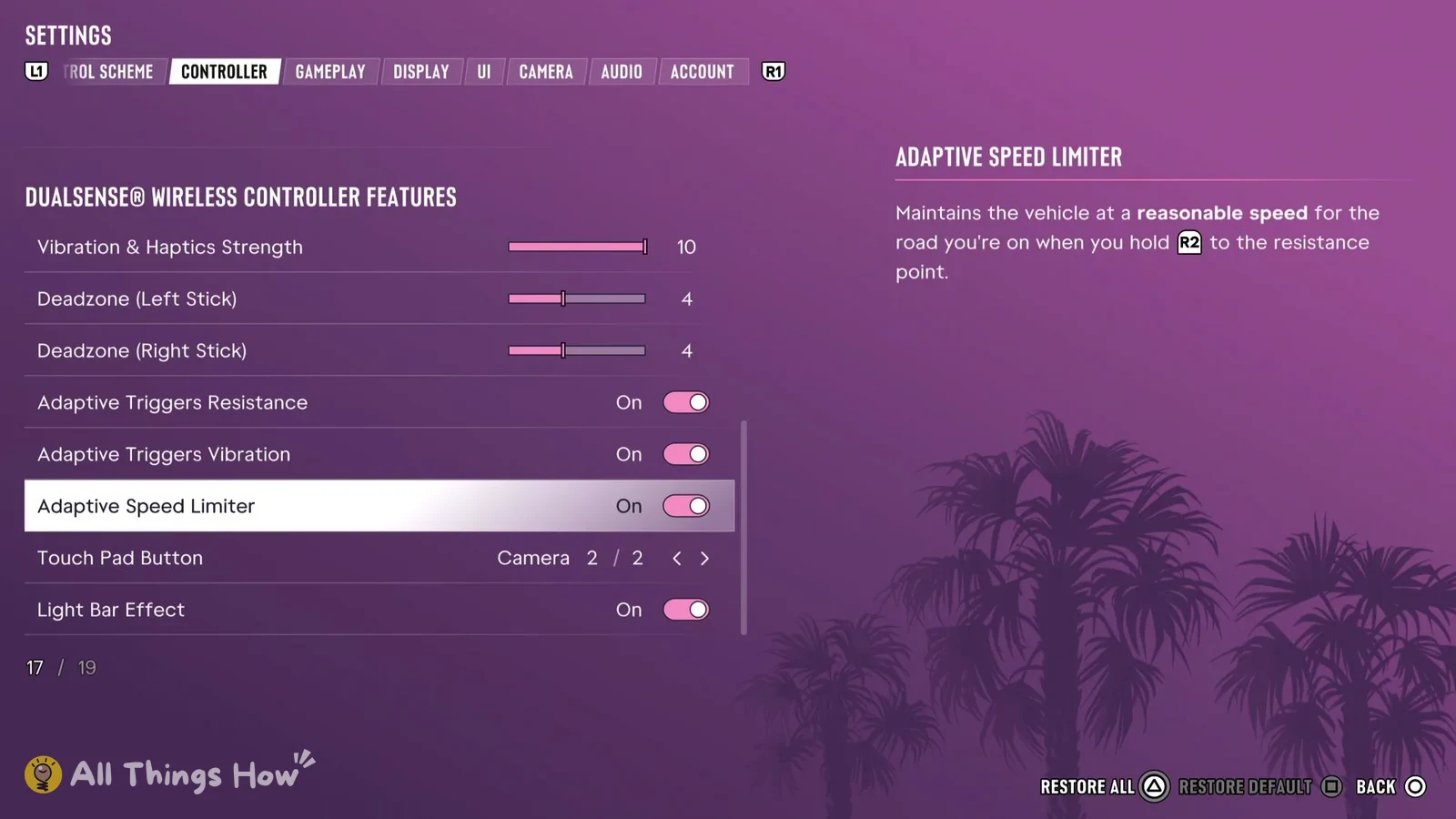
Since On is the default, RESTORE DEFAULT (Square) at the screen’s bottom is greyed out whenever the row shows On. To enable the limiter again later, select its row and press Square for RESTORE DEFAULT, or change the setting manually. RESTORE ALL (Triangle) resets all settings in the Controller tab, so it affects more than this limiter.
Adaptive Triggers Resistance and Vibration are separate settings
The two rows just above the limiter also deal with L2 and R2, but each one is its own switch. Turning off Adaptive Speed Limiter doesn’t change either of them.
| Setting | In-game description |
|---|---|
| Adaptive Triggers Resistance | “Applies simulated resistance to L2 and R2 on your DualSense® wireless controller for actions that use the adaptive triggers, such as shooting and driving.” |
| Adaptive Triggers Vibration | “Applies a vibration response to L2 and R2 on your DualSense® wireless controller for actions that use the adaptive triggers, such as shooting and driving.” |
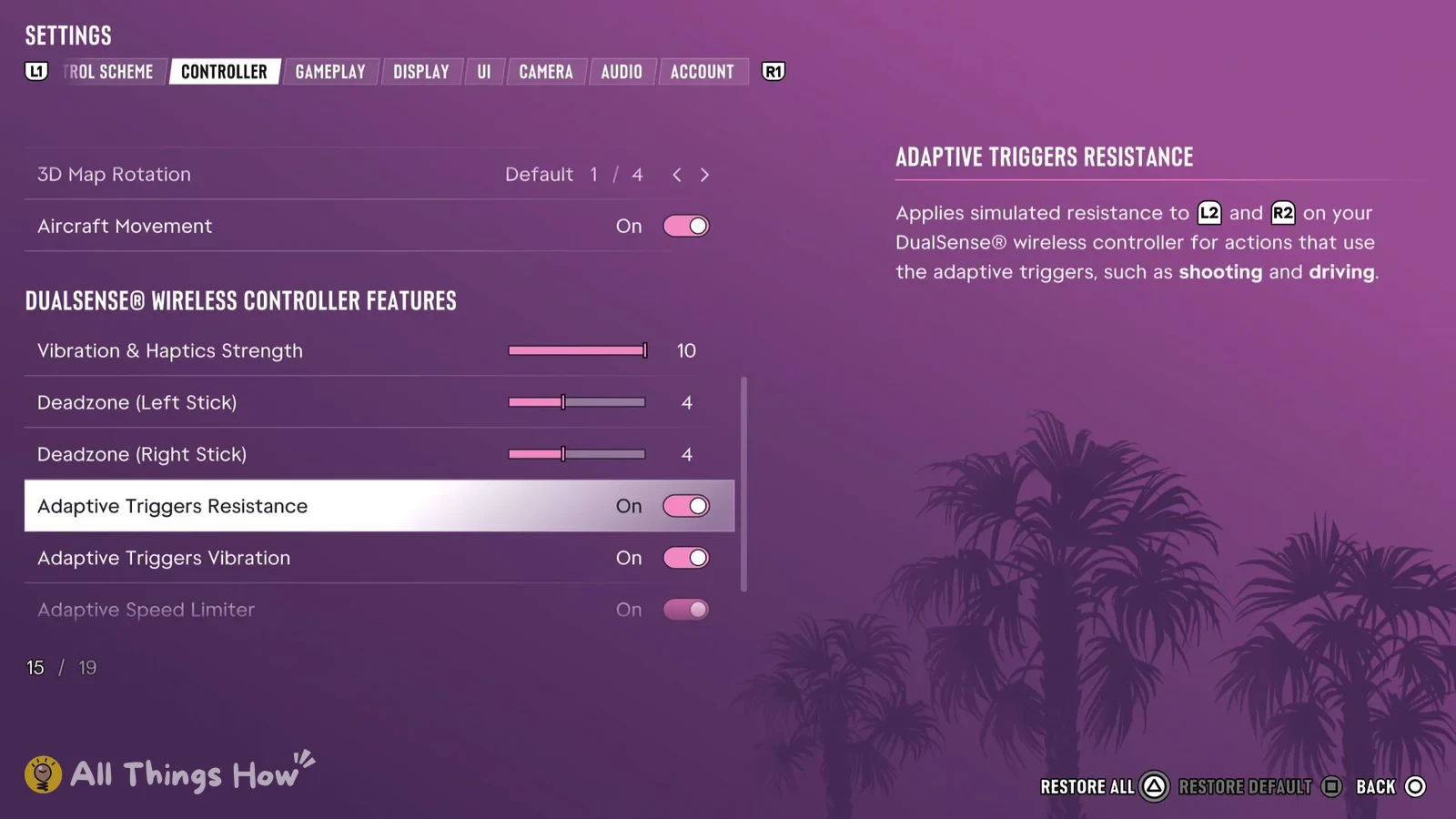
If what bothers you is the trigger’s stiffness or buzzing rather than the speed cap, those are the rows to change. You’ll find them on the same Controller tab, in the same DualSense group as Adaptive Speed Limiter.