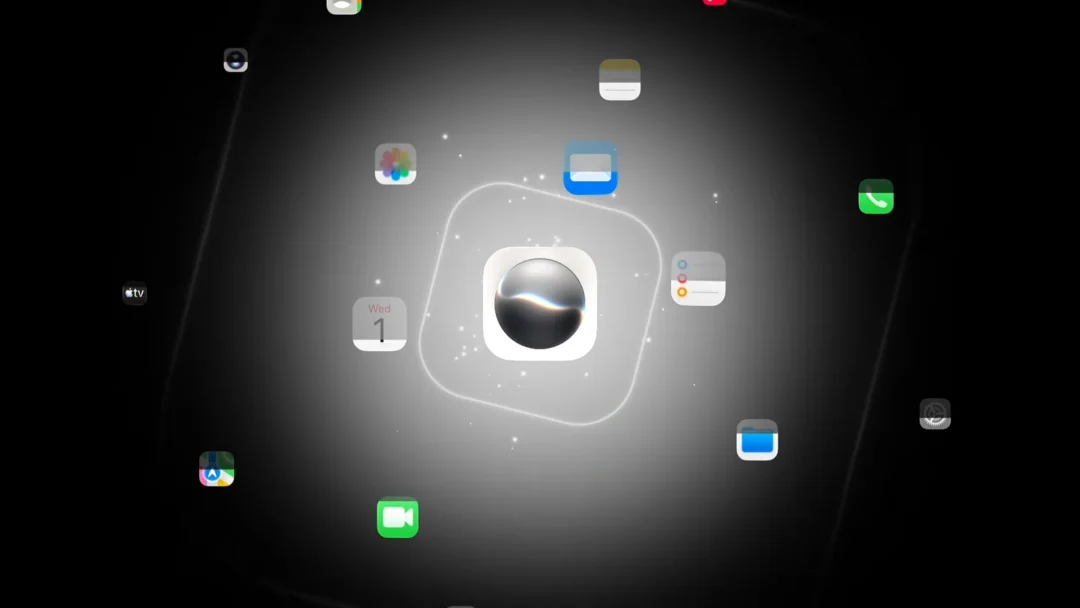
Installing the iOS 27 developer beta does not switch on the rebuilt Siri AI right away. Access rolls out behind a waitlist, the same approach Apple used when it first shipped Apple Intelligence on iOS 18. You opt in, your device joins a queue, and approval arrives whenever Apple’s phased rollout reaches your iPhone.
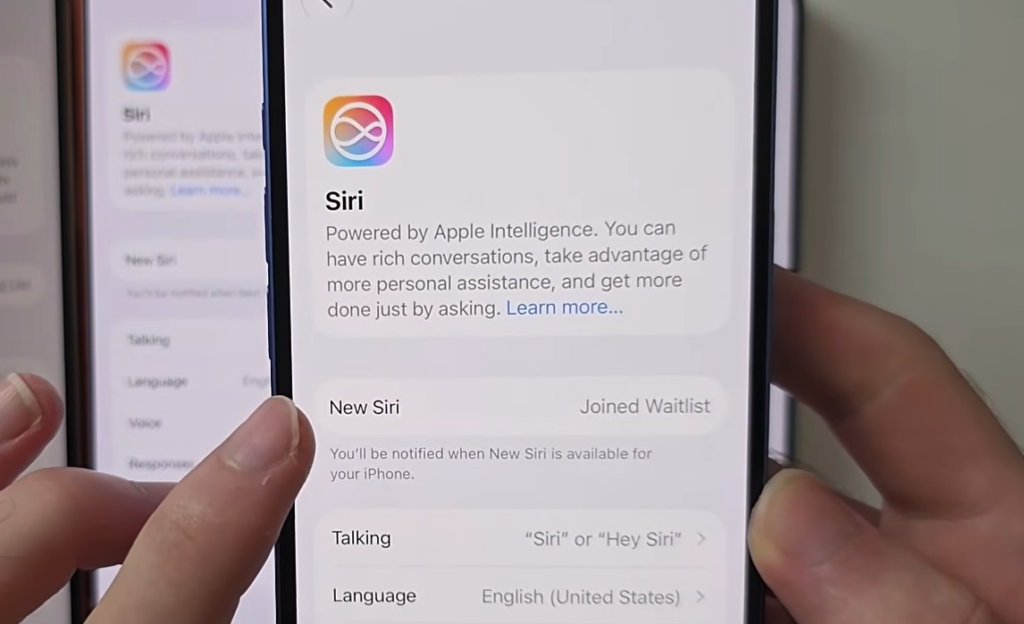
Quick answer: Update to the iOS 27 beta on an iPhone 15 Pro or iPhone 16 or newer, open Settings, go to Apple Intelligence (or tap “Try the new Siri” under the Siri listing), and tap Join Waitlist. Keep the phone on Wi-Fi and wait for the approval notification.
Requirements to join the Siri AI waitlist
Before the Join Waitlist option appears, your device and account have to qualify. An older iPhone can run iOS 27, but it will never receive the new Siri no matter how long you wait.
| Requirement | Detail |
|---|---|
| Device | iPhone 15 Pro, iPhone 16, or newer (Apple Intelligence-capable) |
| Software | iOS 27 developer beta installed |
| Language | Siri set to a supported language; English launches first |
| Region | Available regions only; EU iPhones are excluded at launch |
| Account | Apple ID signed in correctly |
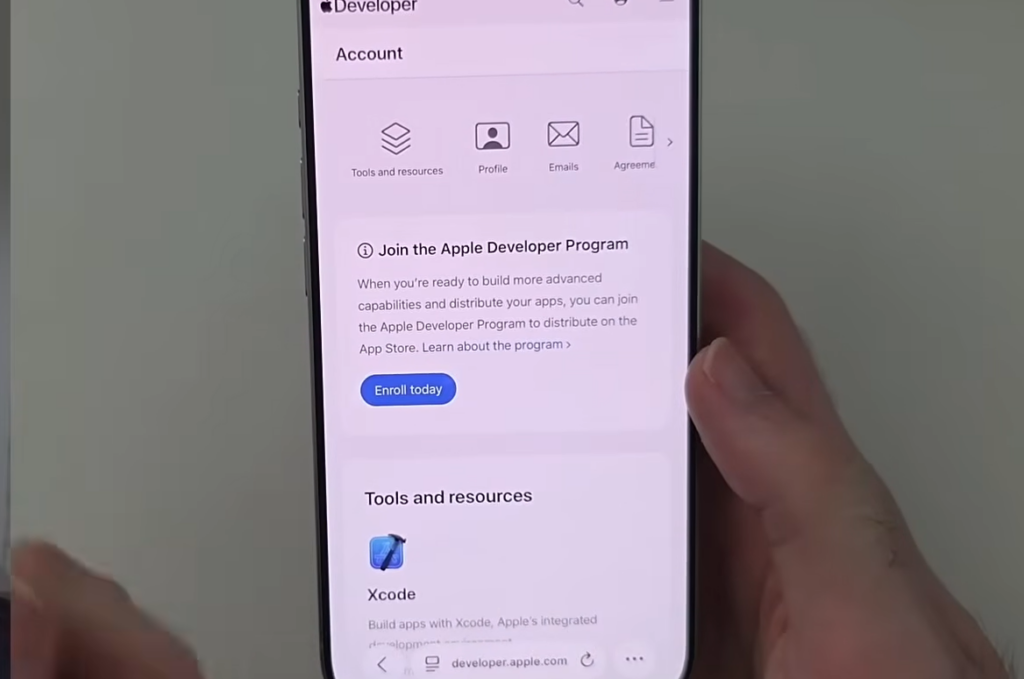
The iOS 27 developer beta is now free to install. You no longer need a paid $99 developer membership, just a regular Apple ID enrolled through Apple’s free developer agreement at developer.apple.com.
How to join the Siri AI waitlist
How long the Siri AI waitlist takes
Apple has not published a fixed wait time. For some devices, approval comes within minutes, while others sit in the queue for hours or longer. The pace depends on Apple’s phased rollout, server load during beta testing, and whether your device, language, and region are eligible.
A “Waiting” or “Joined Waitlist” status that lasts a few hours is normal. Some users have also been briefly bounced back to the old Siri while the system finished indexing, and access settled on its own afterward. As long as the page opens normally and the phone behaves, the answer is simply to keep waiting.
Why the Join Waitlist button is missing
If the button never appears, the cause is usually eligibility rather than a queue. The most common reasons are listed below.
- The iPhone is older than an iPhone 15 Pro and cannot run Apple Intelligence.
- Your region does not have access yet.
- Siri is set to an unsupported language.
- Your Apple ID is not signed in correctly.
- The iOS 27 beta Settings page is failing to load properly.
To rule out the account and region causes, open Settings, then General, then Language & Region, and confirm your region. Then check that Siri uses a supported language, and your Apple ID is active. A restart can clear a Settings page that refuses to refresh, after which you can check for the waitlist option again.
Siri AI in the EU: a regional block, not a waitlist
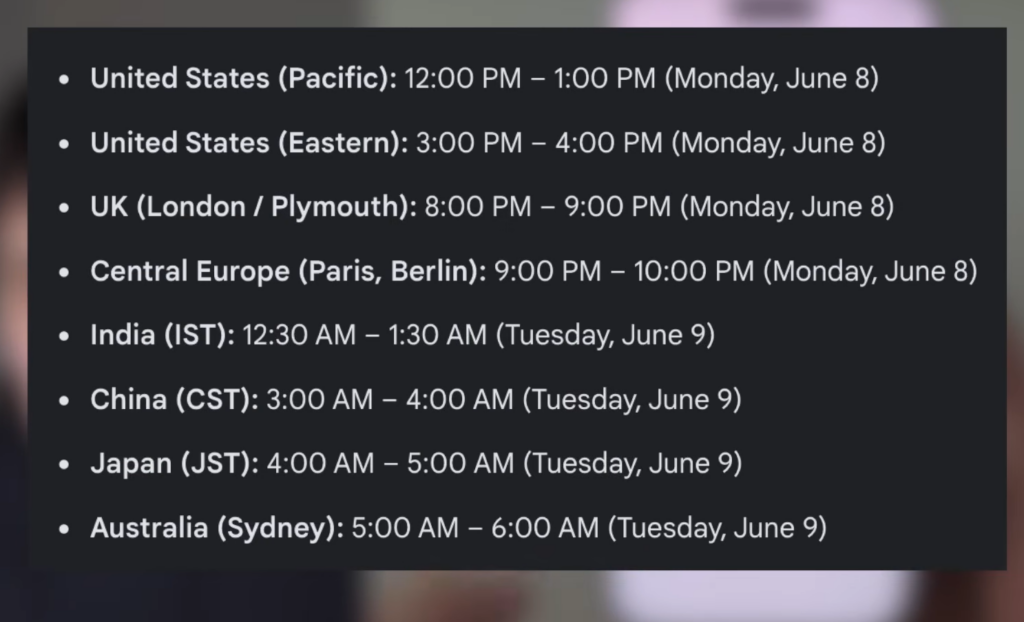
If your iPhone is in the European Union, Siri AI will not appear on iOS 27 or iPadOS 27 at launch. Apple has delayed the feature in the EU because of Digital Markets Act requirements. This is a regional rollout limit, so restarting the phone, switching networks, or repairing the system will not unlock it. The only fix is to wait for Apple to expand availability in the region. Some EU users set up ChatGPT or Claude as the assistant instead in the meantime.
How to confirm Siri AI is active
You will get an approval notification once access lands. After that, say “Hey Siri” and the new Siri logo animates out of the Dynamic Island. Swiping down from the center of the screen brings up a “Search or Ask” prompt where you can type a request. A dedicated Siri app also shows up in the App Library, listing past conversations with a search icon and an option to type your question.
Once the new assistant is live, it can answer questions, handle some follow-ups, read on-screen content, and pull from personal context such as calendar entries, though early behavior during the beta can be uneven. If you decide the beta is too rough for your daily phone, rolling back to iOS 26 erases the device, which is why the pre-upgrade backup is worth making before you ever join the queue.