
GTA 6 Walkthrough & Guides More guides
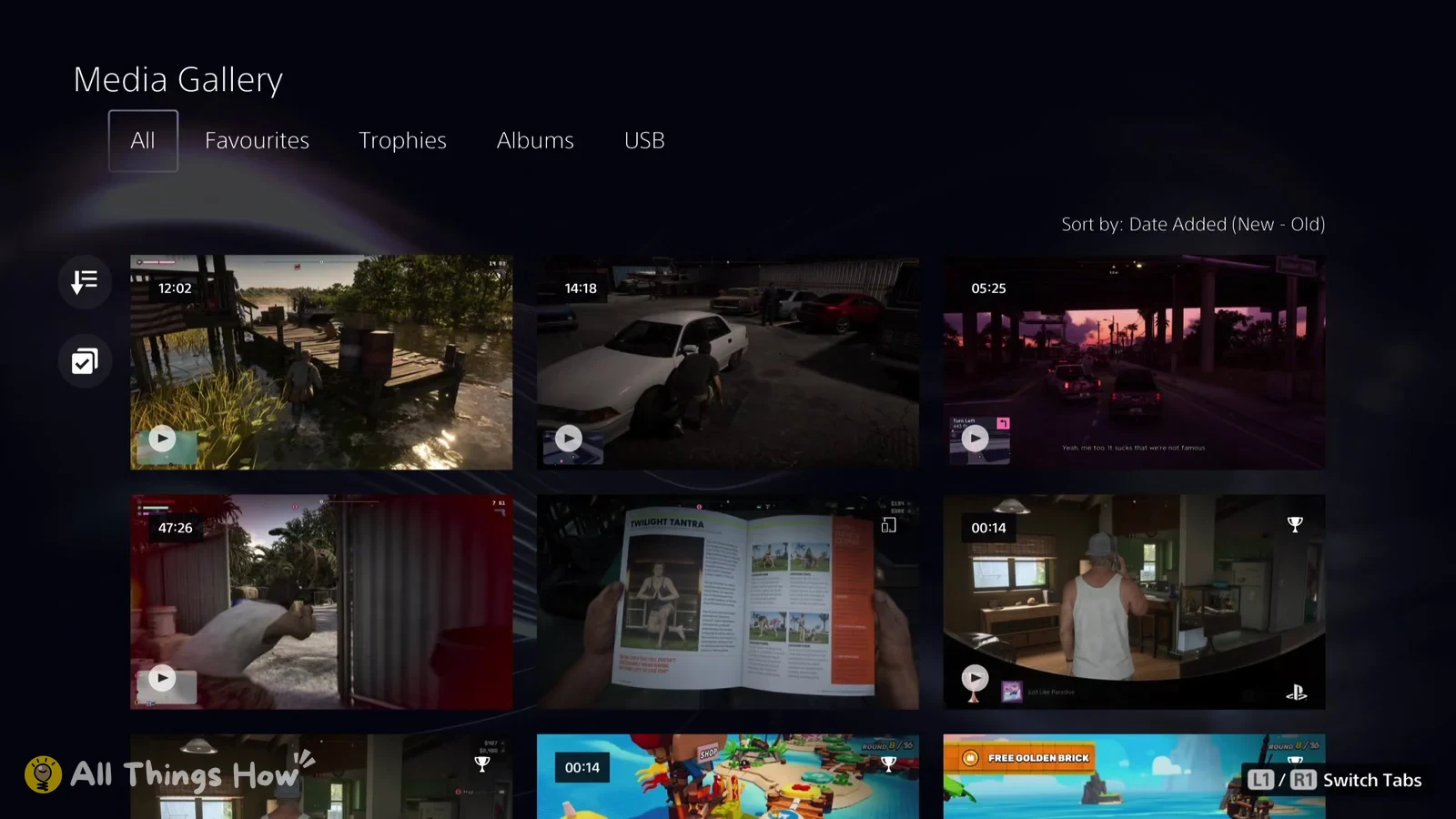
The PS5 can send a Grand Theft Auto VI clip straight to YouTube from the Media Gallery, so you don’t have to copy anything to a PC first. It all runs through the clip’s Share option, and the upload keeps going in the background once it starts.
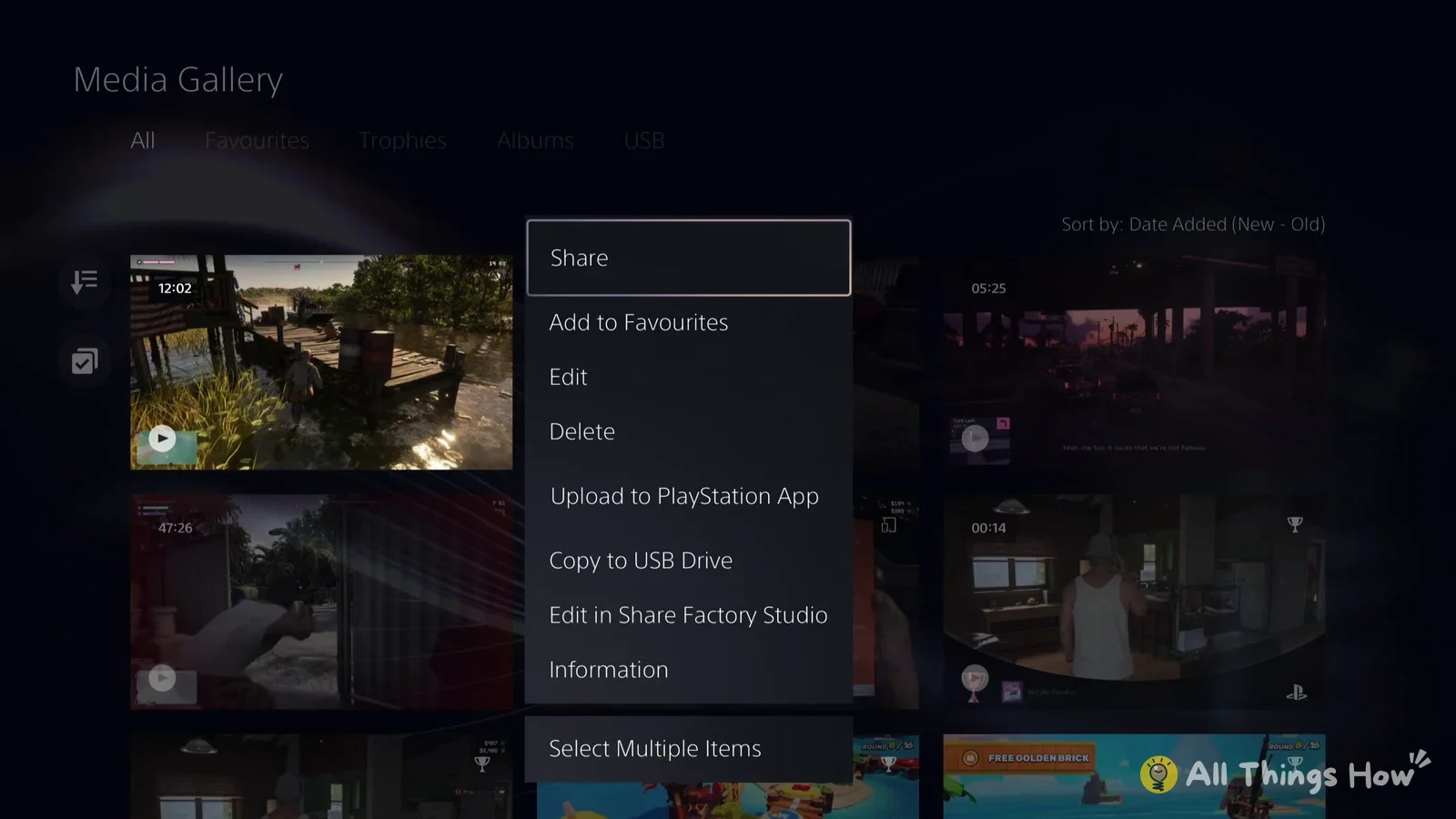
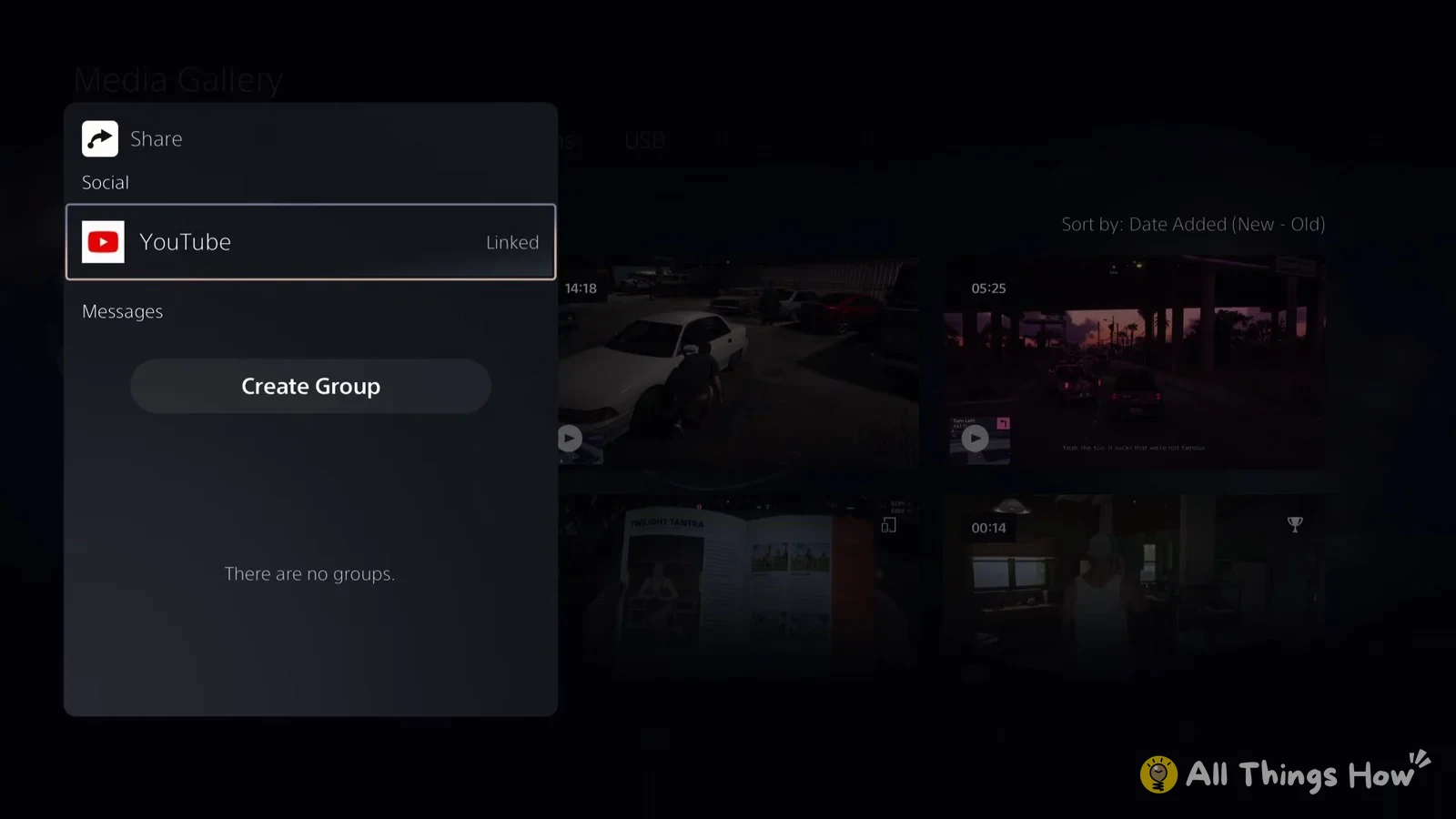
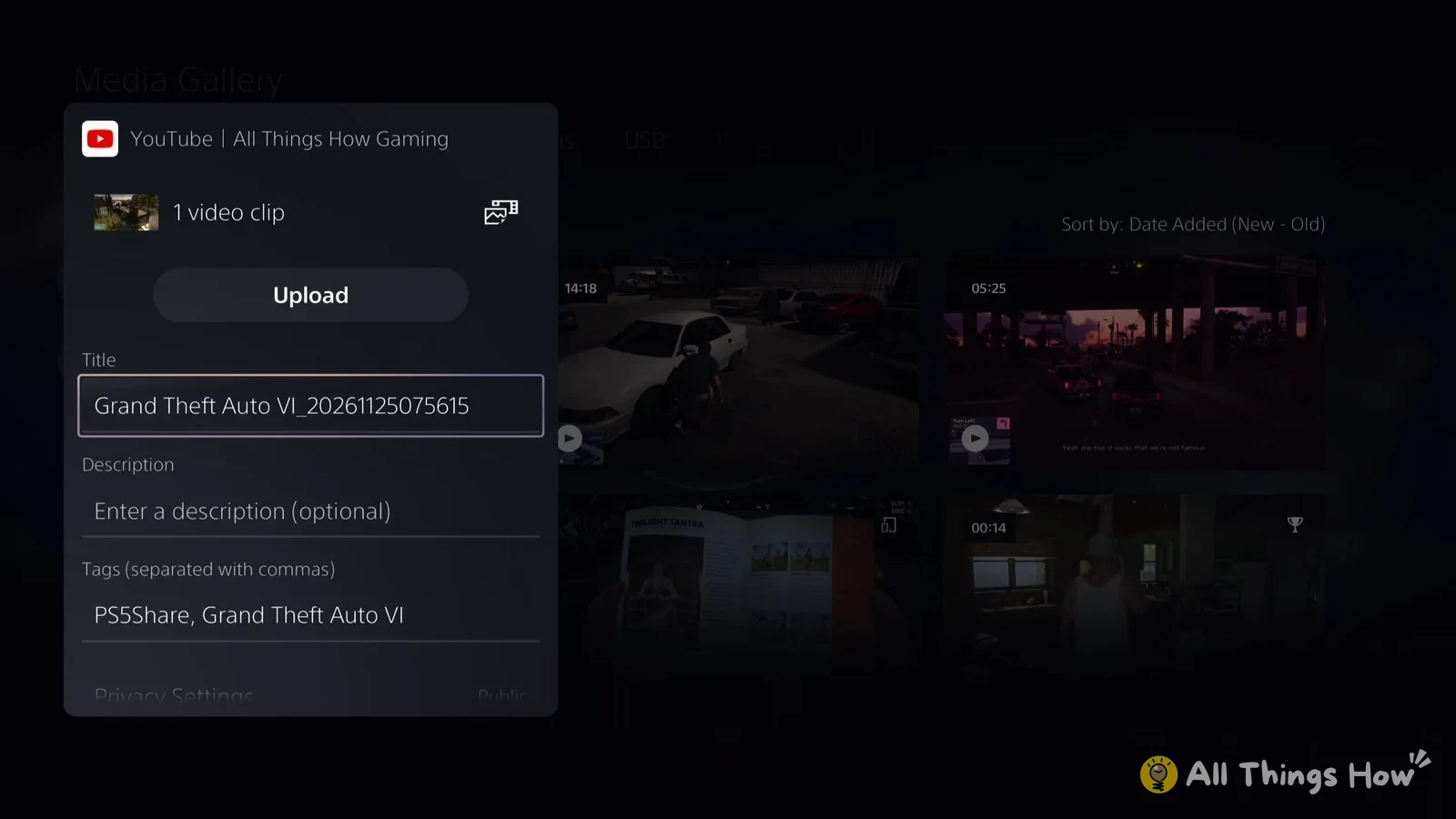
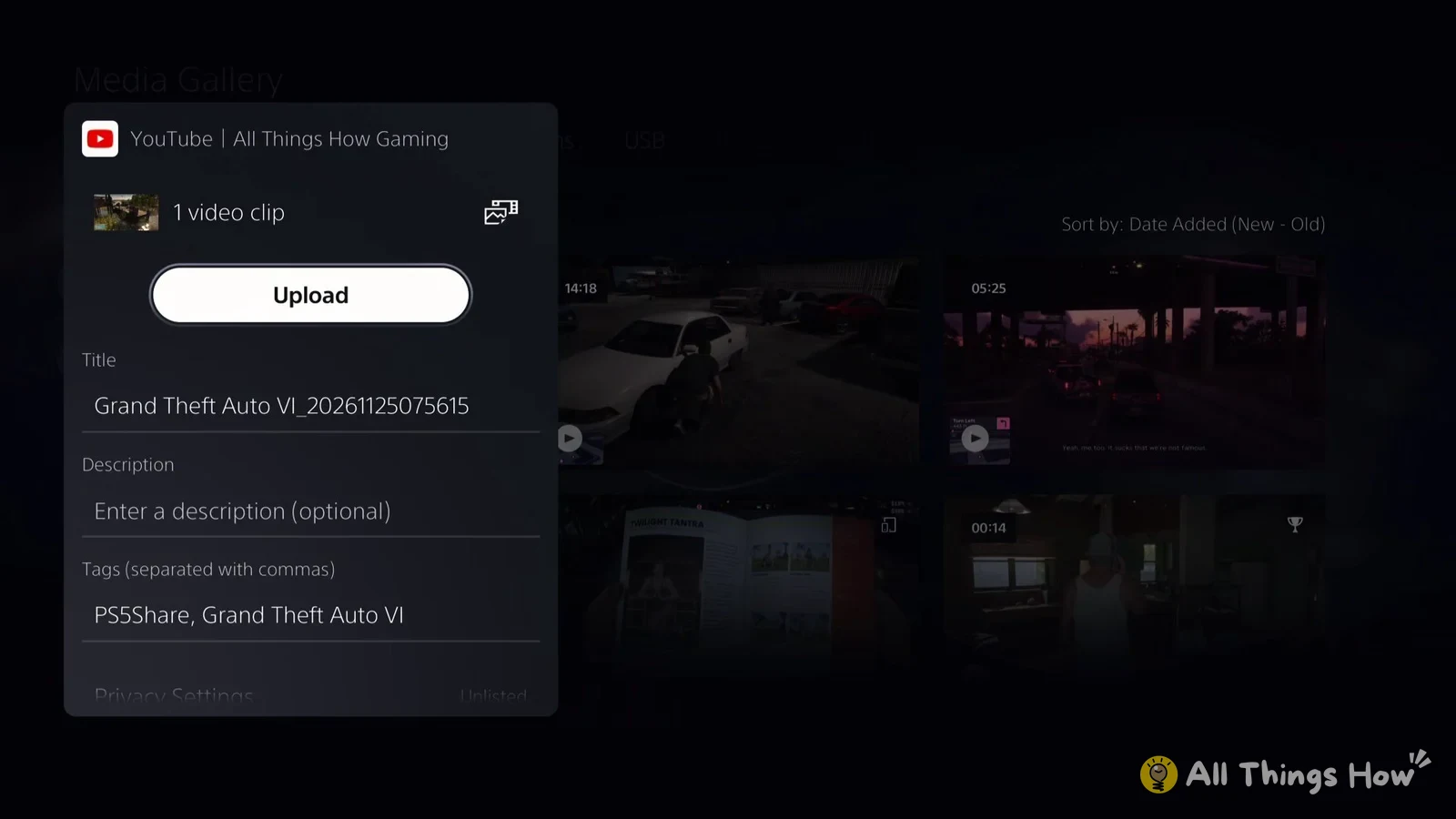
Quick answer: Go to Media Gallery and select the GTA 6 clip. Press [Options], choose Share, then YouTube, enter the title, description, tags and privacy setting, and select Upload.
How to upload a GTA 6 clip to YouTube on PS5
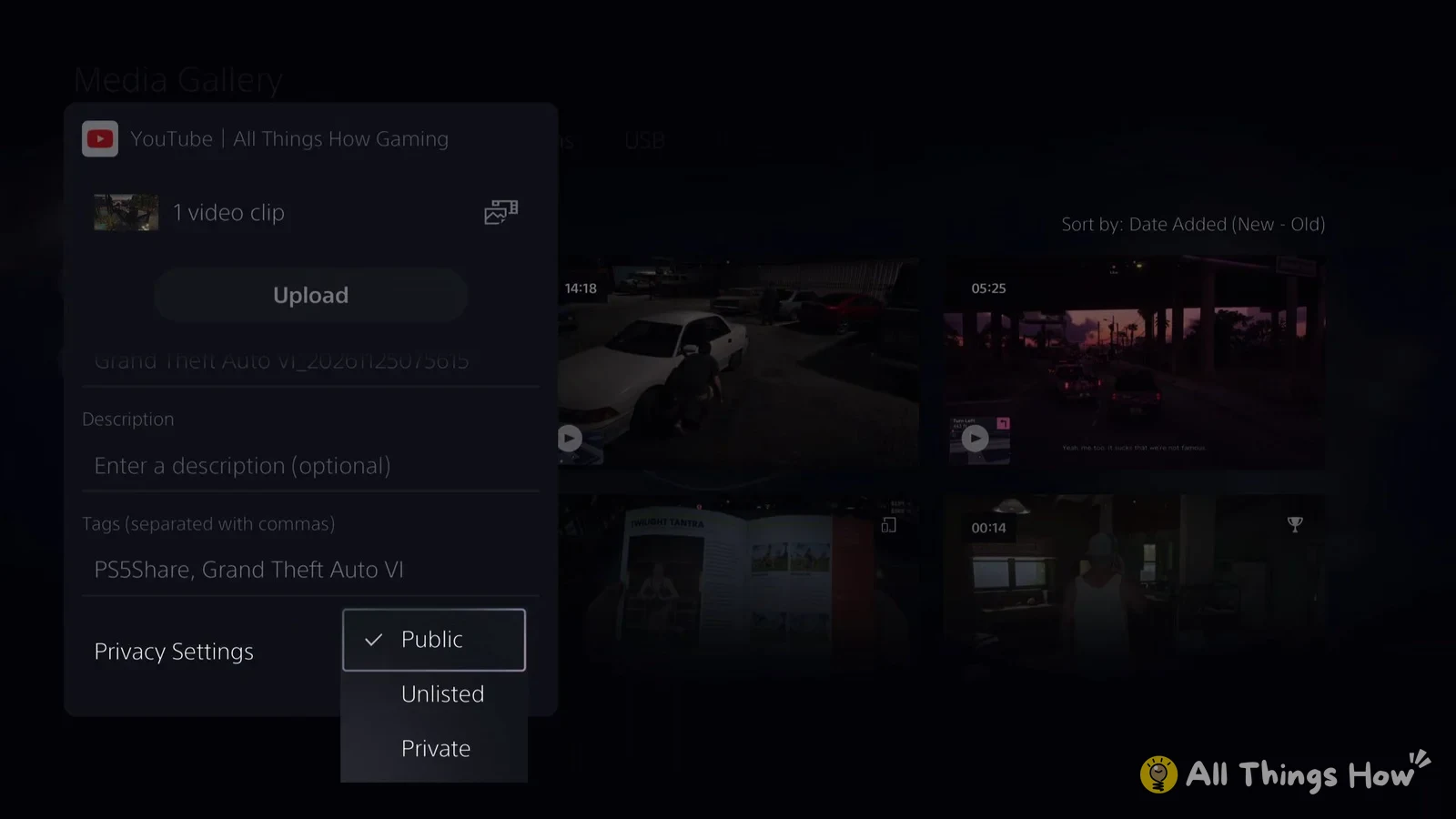
The YouTube upload form explained
| Field | What it holds |
|---|---|
| Title | Game name plus a date-time stamp, editable |
| Description | Optional text you add |
| Tags (separated with commas) | “PS5Share, Grand Theft Auto VI” by default |
| Privacy Settings | “Public”, “Unlisted” or “Private” |
A default title looks like “Grand Theft Auto VI_20261125075615”, which isn’t much help on a channel, so it’s worth typing your own. The description box just reads “Enter a description (optional)” until you fill it in.
Privacy starts on “Public”. Switch to “Unlisted” if you only want people with the link to watch it, or “Private” to keep it to yourself.
Check that the upload finished
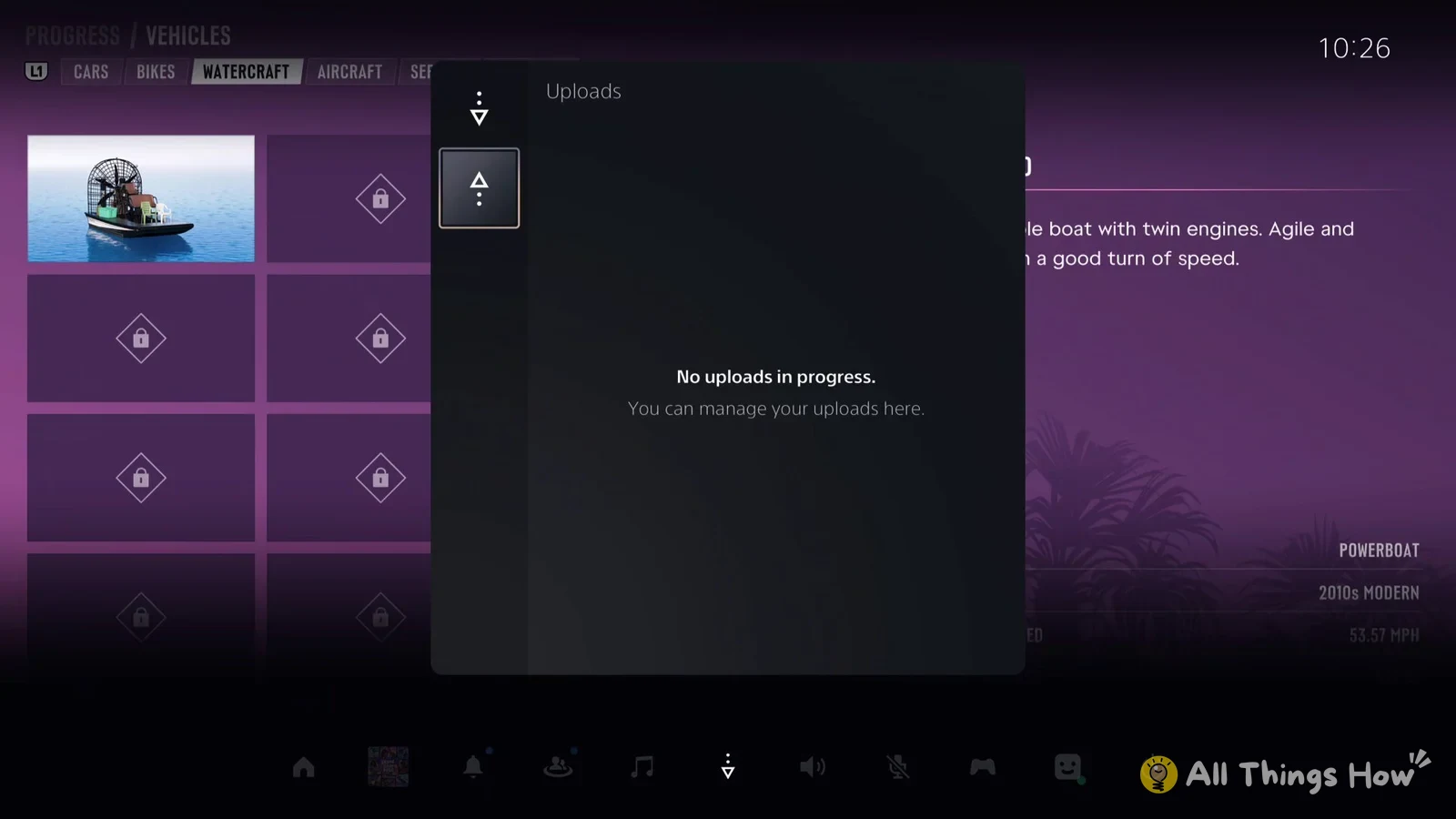
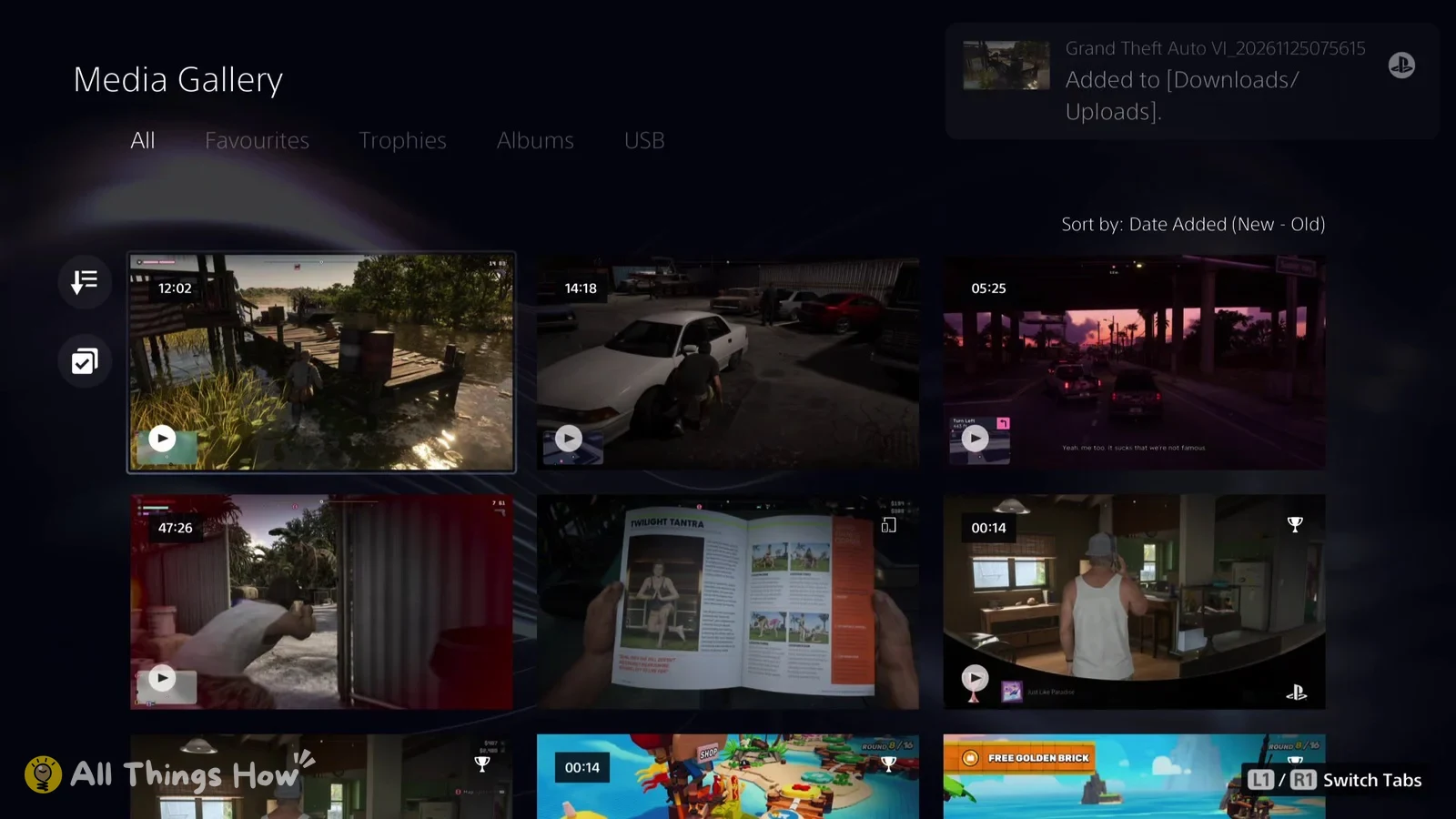
Check the upload status in the PS5 Downloads/Uploads panel. Once the clip finishes, you’ll see “No uploads in progress. You can manage your uploads here.” That “Added to [Downloads/Uploads].” alert remains in the PS5 notifications list, where you can find it later.
Tip: Check the clip length first
GTA 6 clips in the gallery can be as short as 00:14 or as long as 47:26, and the form sends whichever single clip you highlighted (“1 video clip”). Glance at the length on the tile before you press Share. The same Options menu has “Edit” and “Edit in Share Factory Studio”. For stills rather than video, use the GTA 6 Photo Studio.