


Numbering paragraphs is handy when you need reference points for a contract, a script, a reading passage, or a research paper. Neither Word, Google Docs, nor Word Online has a dedicated “number paragraphs” tool, but the built-in numbered list does the job once you tweak the spacing so it stops looking like a list.
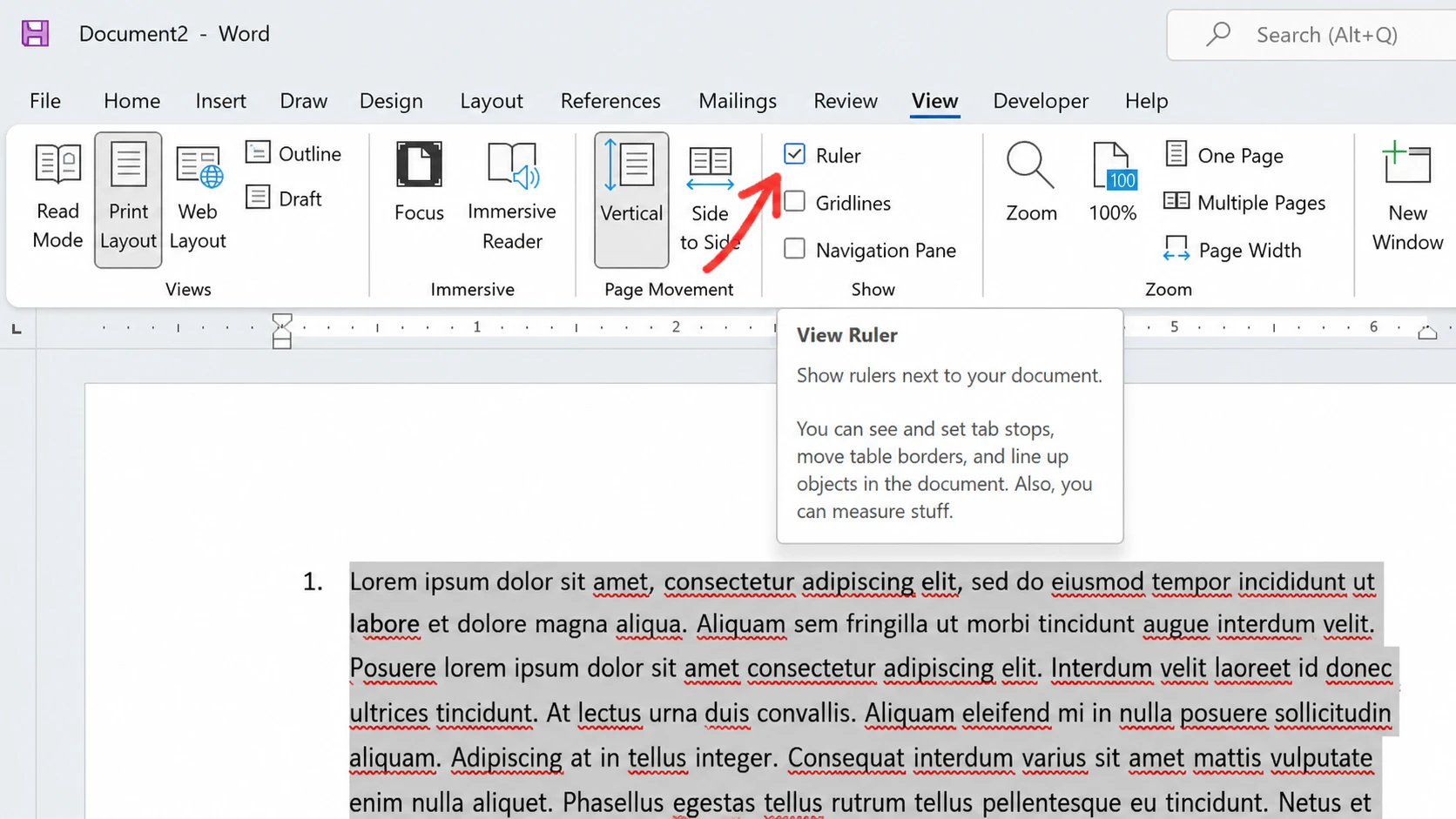
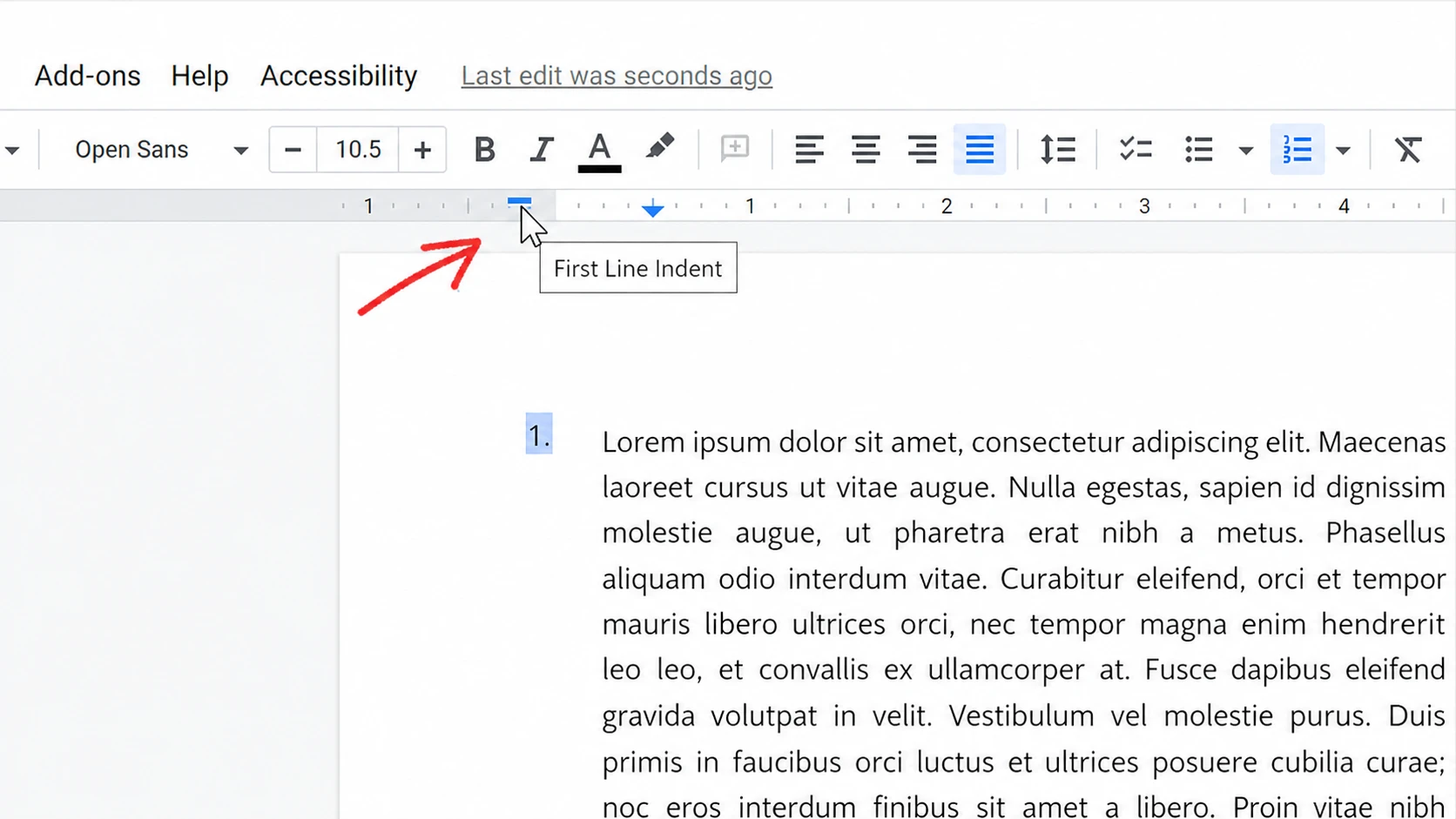
Quick answer: Select your paragraphs, click the Numbering button on the Home tab (or the toolbar in Google Docs), then turn on the ruler and drag the First Line Indent marker to the left to pull the numbers away from the text.
Number paragraphs in Microsoft Word
The numbered list feature applies a sequence to whatever paragraphs you highlight. After that, you adjust the indents so the number sits apart from the body text.
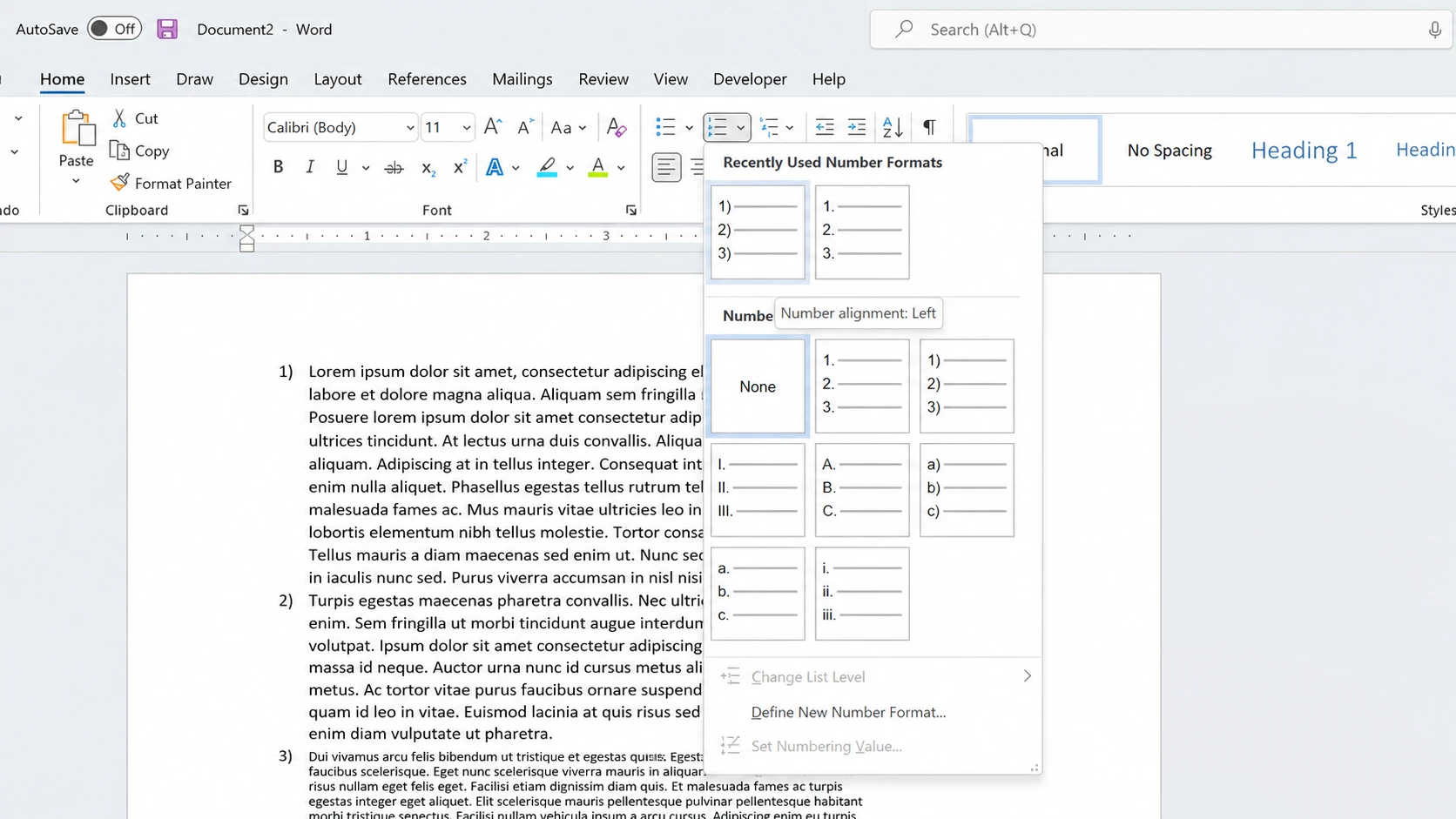
At this point the paragraphs carry numbers but still read like a list. The next part separates the number from the text so it works as a reference marker instead.
Reposition the numbers with the ruler
Moving the numbers away from the body text is the change that makes a numbered list look like proper paragraph numbering.
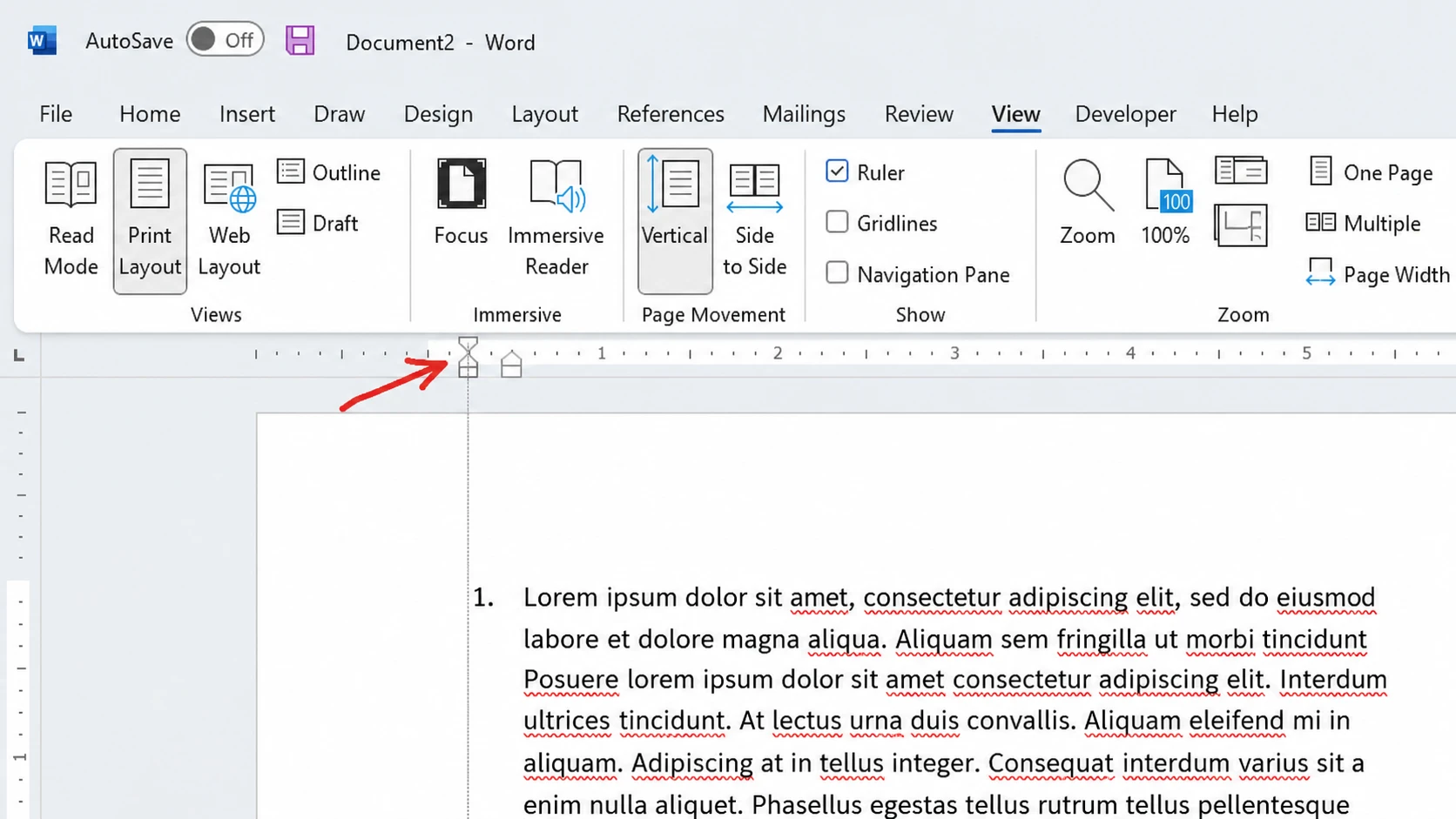
You can get the same control without the ruler. Right-click one of the numbers and choose Adjust List Indents to set the Number Position, the Text Indent, and what follows the number with a tab, a space, or nothing.
Change the number font, size, and color in Word
Once the spacing is right, you can style the numbers on their own. Double-click any number to select the full set, then use the Home tab to change the font family, the font size, and the color. The numbers behave separately from the paragraph text, so these changes do not touch your writing.
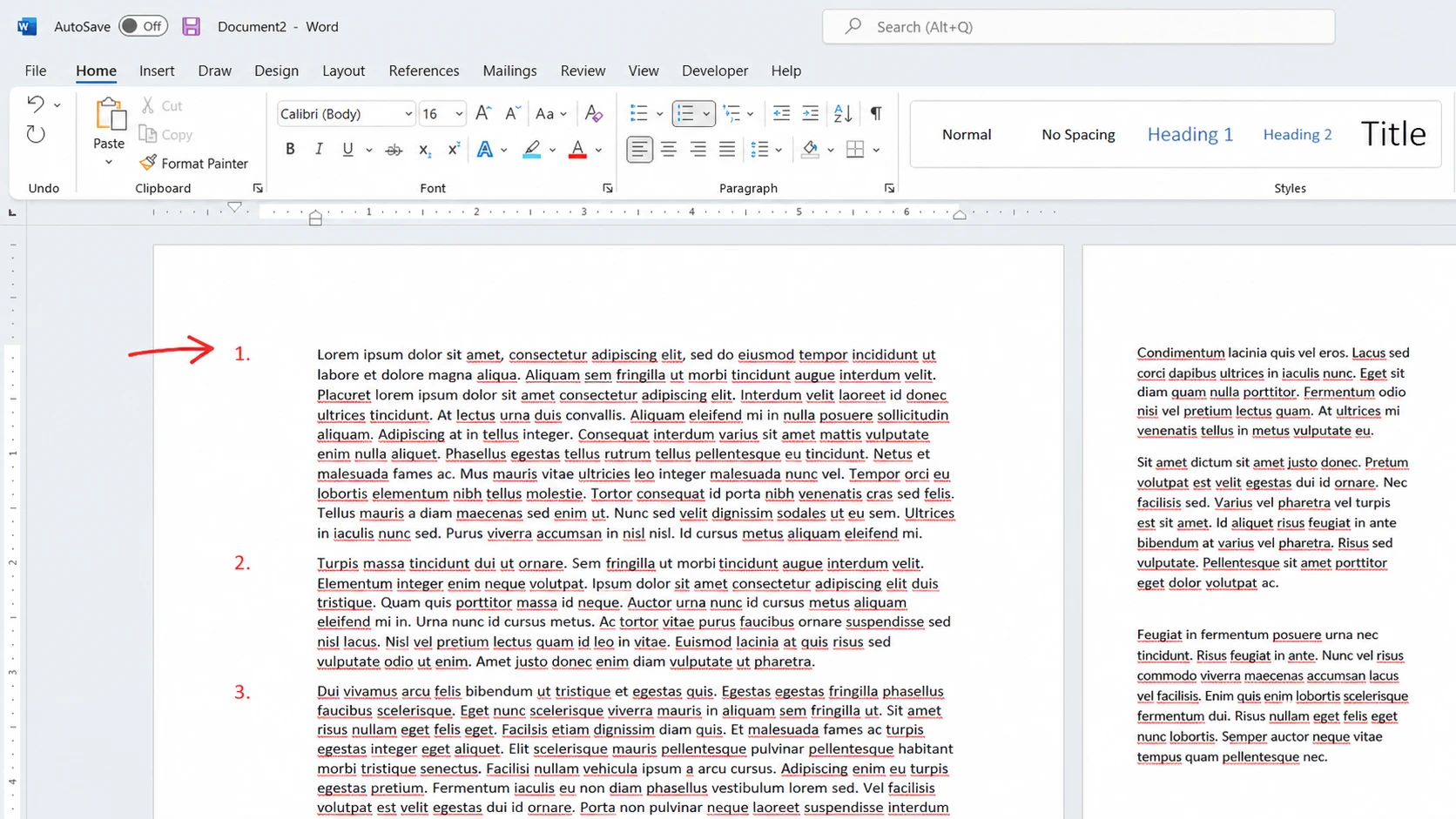
Note: Bold and italic do not apply to the numbers selected this way, but font, size, and color all work.
Number paragraphs in Google Docs
The method is the same idea in Google Docs, with the advantage that the ruler is already on.
Number paragraphs in Word Online
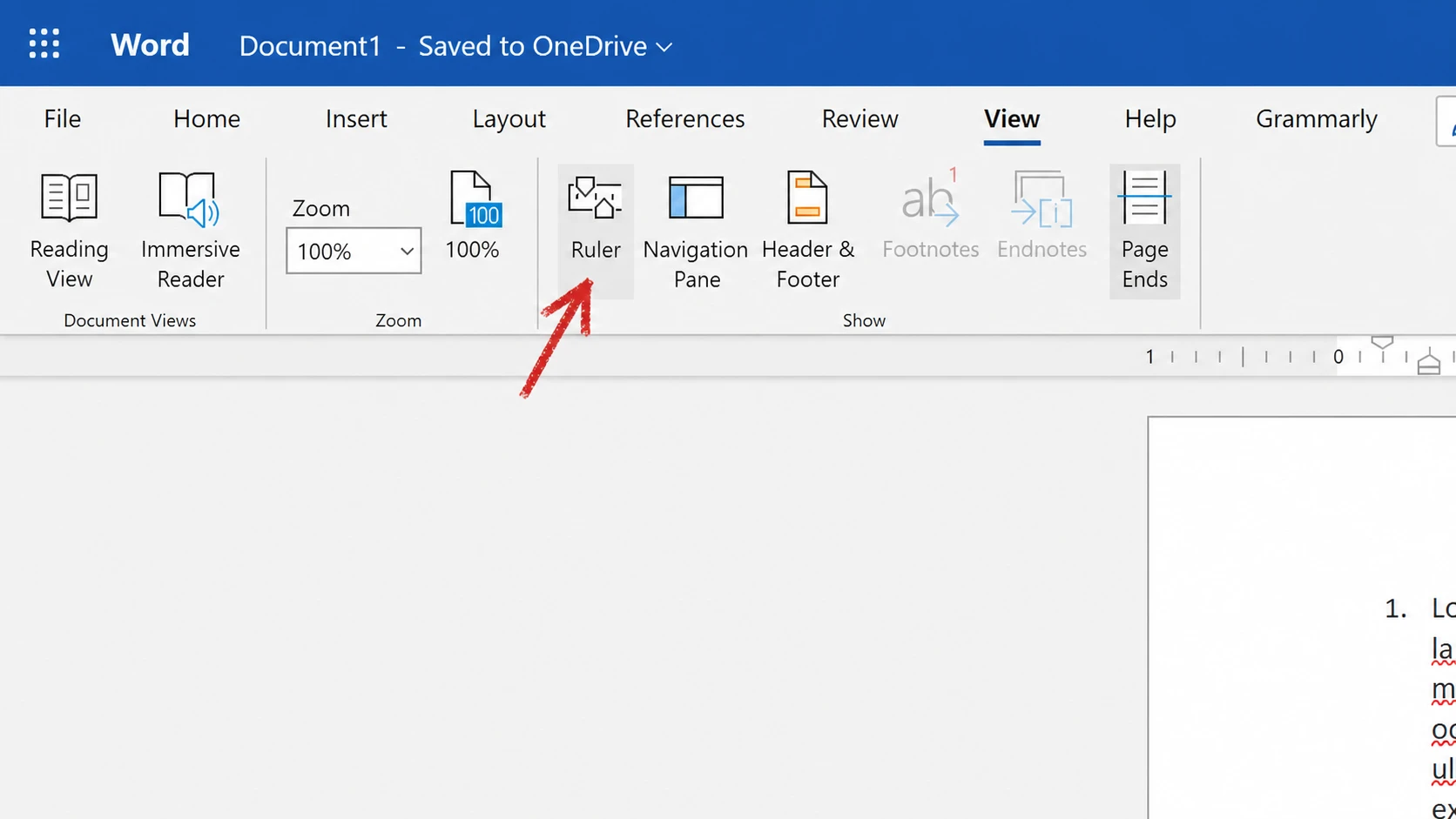
Word Online follows the same flow, but you have to turn the ruler on first.
Where the controls live in each app
| App | Add numbers | Show ruler |
|---|---|---|
| Microsoft Word | Home tab, Numbering button | View tab, tick Ruler |
| Google Docs | Toolbar, Numbered list icon | On by default |
| Word Online | Home tab, Numbering button | View tab, select Ruler |
Continue numbering and fix sequences in Word
If the count restarts or skips, right-click a number and choose Continue Numbering to connect a paragraph to the previous sequence, or Set Numbering Value to start at a specific number. This is also how you keep the order going after inserting an unnumbered paragraph in the middle.
When a paragraph refuses to respond to Continue Numbering, place your cursor inside a correctly numbered paragraph, click Format Painter on the Home tab, then click the stubborn paragraph to copy the numbering across.
For multilevel paragraphs, apply a numbered list to the main paragraphs first, then select the sub-paragraphs and apply another numbered list to create the nested level. Once the spacing and font match your document, the numbers read as reference markers rather than a plain list.