

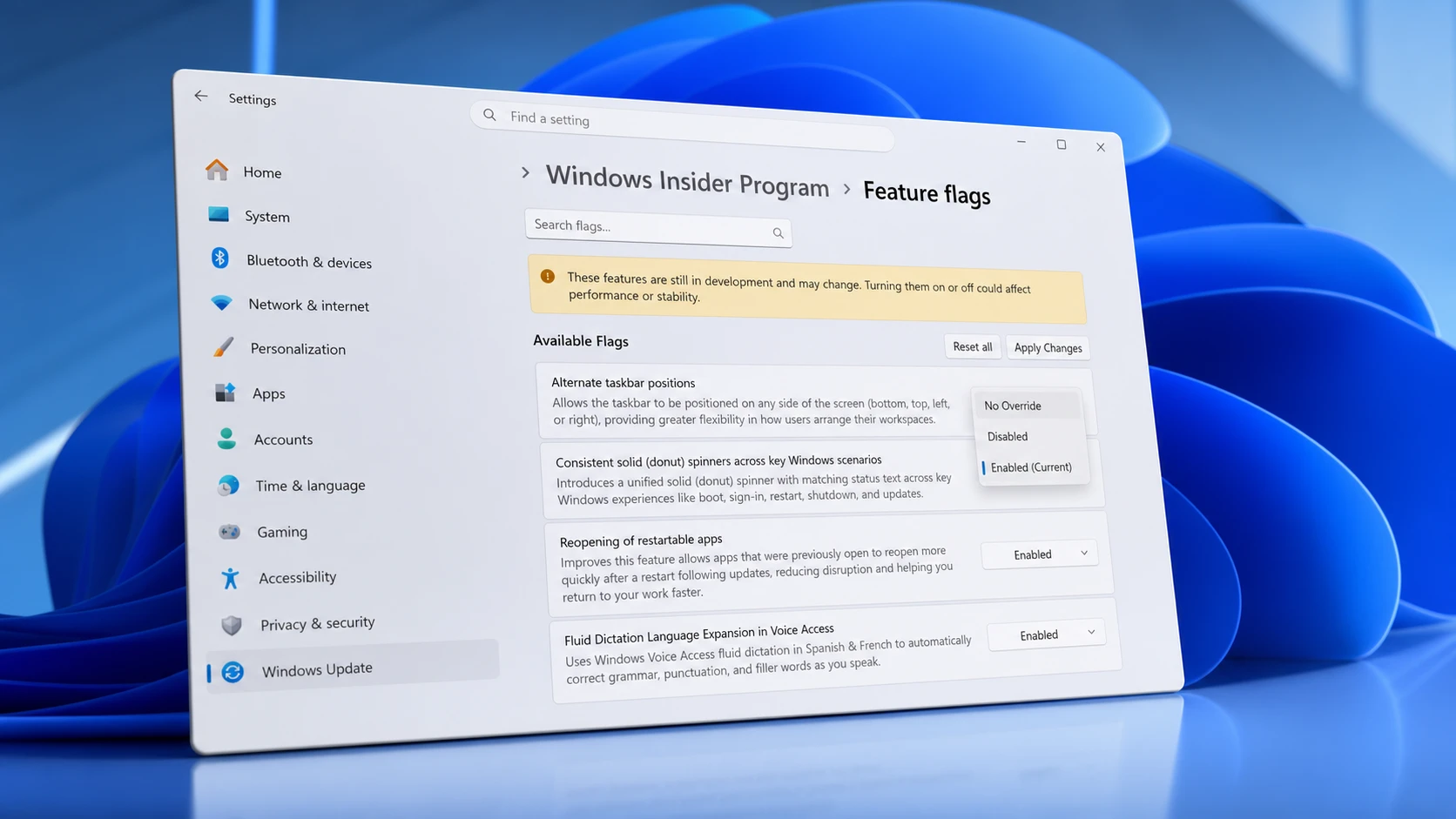
The Experimental channel of the Windows Insider Program now ships with a built-in Feature flags page, letting testers turn specific preview features on or off without reaching for third-party tools. The flags shift with almost every build. Microsoft adds, renames, and removes them as features move through testing, and a flag usually disappears from the page once its feature becomes a permanent part of Windows 11.
Quick answer: Open Settings > Windows Update > Windows Insider Program > Feature flags, set a feature to Enabled, click Apply Changes, then restart. You must be on the Experimental channel and signed in as an administrator for the page to appear.
What the Feature flags page covers
The page exists because of Controlled Feature Rollout, the gradual A/B method Microsoft uses to push features to a subset of devices first. That approach often left Insiders reading about a new feature, installing the build, and never seeing it. The Feature flags page replaces the guesswork with direct toggles for the features Microsoft chooses to expose.
It only lists advertised, visible preview features. Bug fixes and deeper system changes do not show up there. The Beta channel does not include the page at all, because announced features in Beta are enabled by default after you install the update.
Each flag offers three states. No Override lets the system decide availability on its own. Enabled forces the feature on. Disabled forces it off.
Feature flags in the latest Experimental build (26300.8697)
The most recent quality update for the Experimental channel exposes the following flags. Set any of these to Enabled to force the feature on.
| Flag | What it does |
|---|---|
| Alternate taskbar positions | Lets the taskbar sit on any side of the screen (bottom, top, left, or right). |
| Consistent solid (donut) spinners | Adds a unified solid spinner with matching status text across boot, sign-in, restart, shutdown, and updates. |
| Fewer update restarts | Aligns driver, .NET, and firmware updates with the latest quality update to cut restart frequency. |
| Fluid Dictation Language Expansion in Voice Access | Uses fluid dictation in Spanish and French to auto-correct grammar, punctuation, and filler words. |
| Fluid Dictation Language Expansion in Voice Typing | Brings the same Spanish and French fluid dictation to Voice Typing. |
| Free upgrade path to Windows 11 Pro Education for K-12 | Gives K-12 education devices a free upgrade from Windows 11 Home to Pro Education. |
| Group of win32k changes including touchpad things | Win32k changes that add touchpad gesture improvements, including automatic two-finger scrolling using pressure. |
| Improved Magnifier quick settings access | Allows entering an exact zoom percentage directly in the Magnifier toolbar. |
| Magnifier Simplification | Disables touch bars for panning by default for a cleaner magnified view on touchscreens. |
| Short Query File Search support for 2-character queries in WSB | Returns file results for two-character search queries. |
| Show Braille settings by default | Keeps Braille settings always visible since HID protocol support is built into Windows. |
| Small Taskbar Feature | Reduces taskbar height when “Show smaller taskbar buttons” is set to Always. |
Note: If you don’t see a flag you expect, wait and check again. The list is dynamic, and additional options can appear on a later refresh.
Flags seen in earlier Experimental builds
Recent builds carried a slightly different mix. Some flags from these earlier releases later folded into Windows by default and dropped off the page, while a few new ones replaced them.
| Build | Notable flags present |
|---|---|
| 26300.8687 | Faster reopening of restartable apps, New Windows Insider Program experience, Pause updates on your schedule, Touchpad Enhancements, Windows Search Box. |
| 26300.8497 | Make Narrator braille display Settings visible without FOD, Screen Tint, Smaller Taskbar, Touchpad Enhancements. |
| 26300.8493 | Alternate taskbar positions, Faster reopening of restartable apps, New Windows Insider Program experience, Pause updates on your schedule, Touchpad Enhancements. |
| 26300.8376 | Faster reopening of restartable apps, New Windows Insider Program experience, Pause updates on your schedule, Smarter app suggestions in Share, Touchpad Enhancements. |
How to enable feature flags on Windows 11
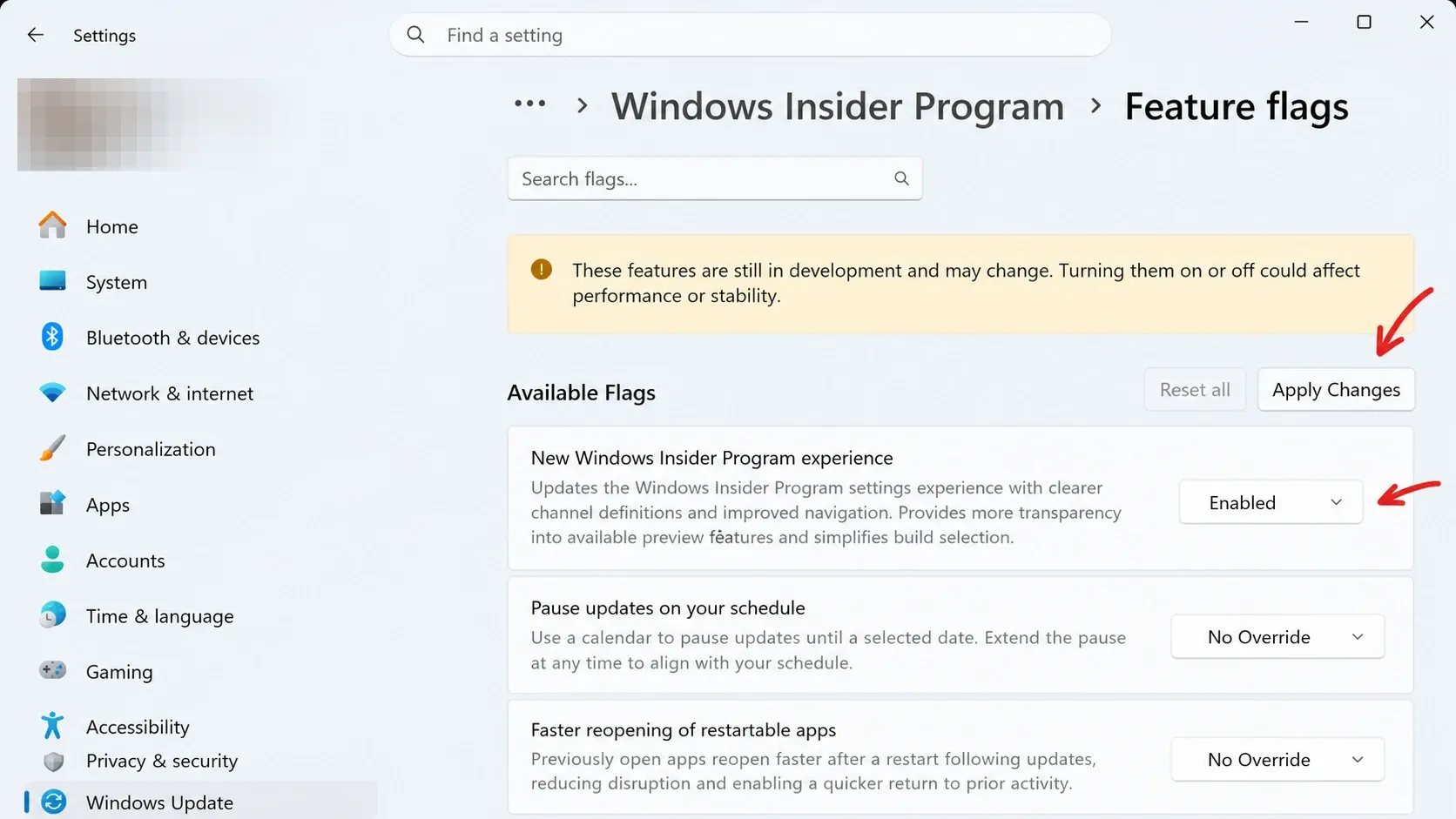
How to confirm a flag worked
After the restart, the selected feature appears in the part of Windows it controls. For example, enabling Alternate taskbar positions adds the option to move the taskbar to the top, left, or right, and the Small Taskbar Feature shrinks the taskbar once “Show smaller taskbar buttons” is set to Always. If the change is missing, reopen the Feature flags page and verify the toggle still reads Enabled.
Why the Feature flags page might be missing
- You are on the Beta or Release Preview channel, not Experimental. The page is exclusive to the Experimental channel.
- The new Insider experience has not reached your device yet. Microsoft rolls it out over time rather than to all eligible PCs at once.
- You are not signed in as an administrator, which is required to see and change the page.
- The feature you want is not a visible, advertised preview feature. Bug fixes and system-level changes do not appear as flags.
When you still need ViVeTool
The Feature flags page only surfaces features Microsoft officially exposes. Many under-development components stay hidden, and for those, ViVeTool remains the workaround. It is a third-party command-line tool that toggles features by ID, run from an elevated Command Prompt with a command like vivetool /enable /id:60911173. That particular ID enabled the early Feature flags page itself on builds where it had not yet appeared.
ViVeTool is not supported by Microsoft, its feature IDs change between builds, and there is no guarantee a given code still works. For everything Microsoft chooses to advertise, the built-in Feature flags page is the safer route, and the toggles there will keep changing as features graduate into Windows 11 by default.



