

Remote Server Administration Tools (RSAT) let you manage Windows Server roles from a Windows 11 desktop without signing in to the server itself. On Windows 11 they are not a separate download. They ship as Features on Demand, so you turn on only the consoles you need, such as Active Directory Users and Computers, DNS Manager, DHCP tools, Group Policy Management, or Failover Cluster Manager.
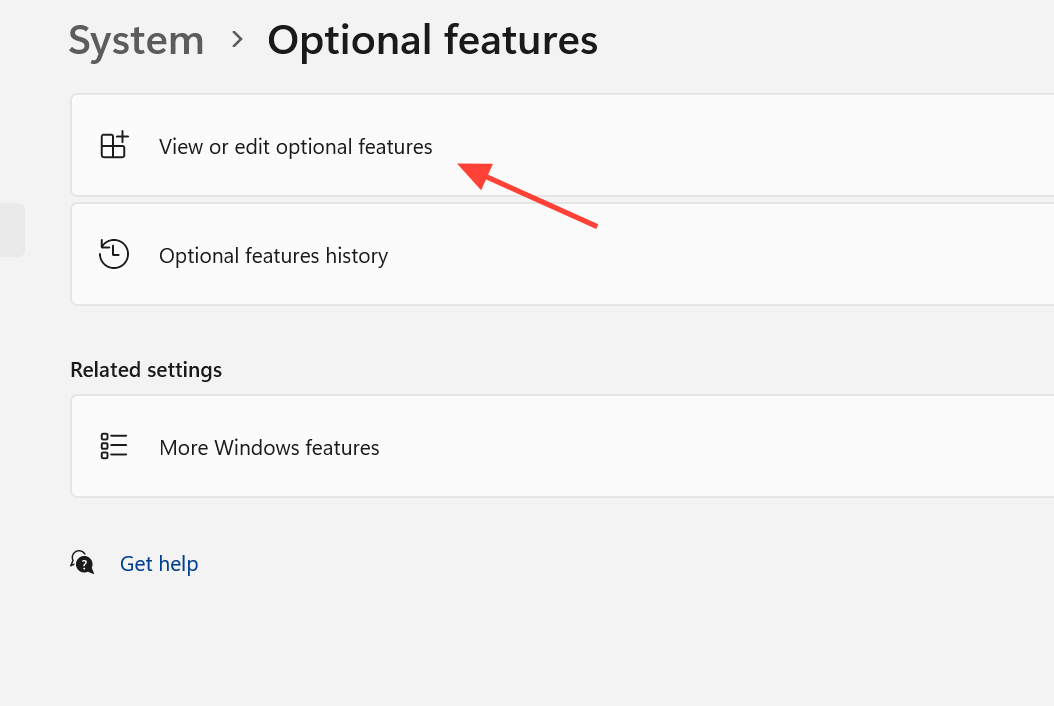
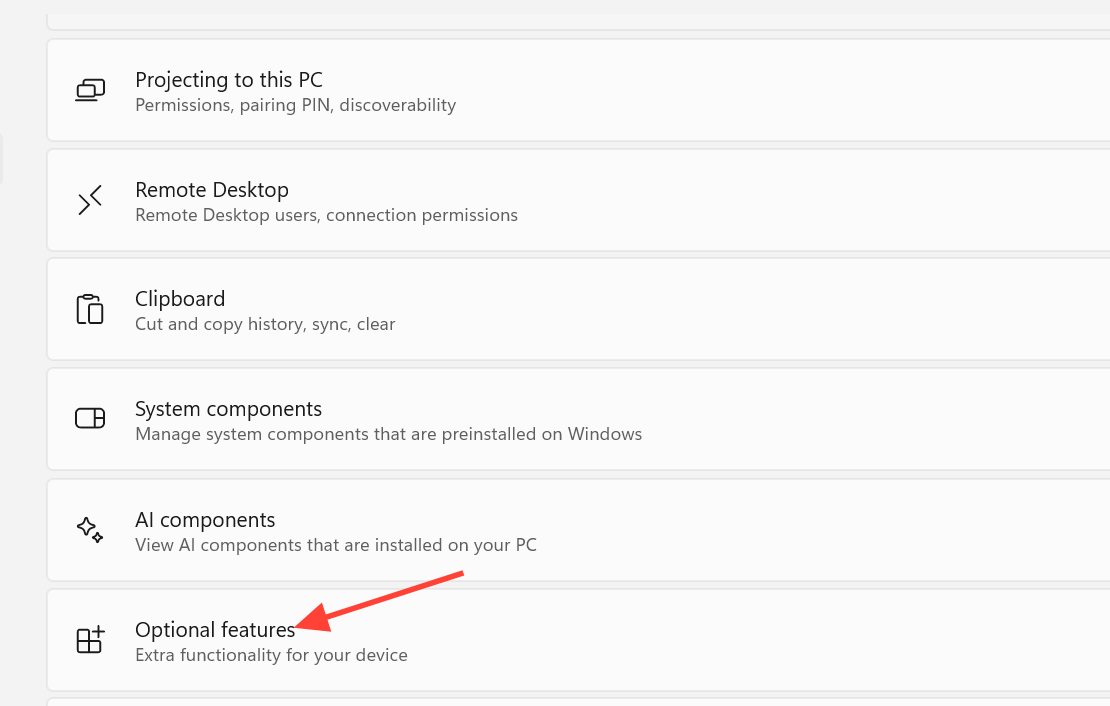
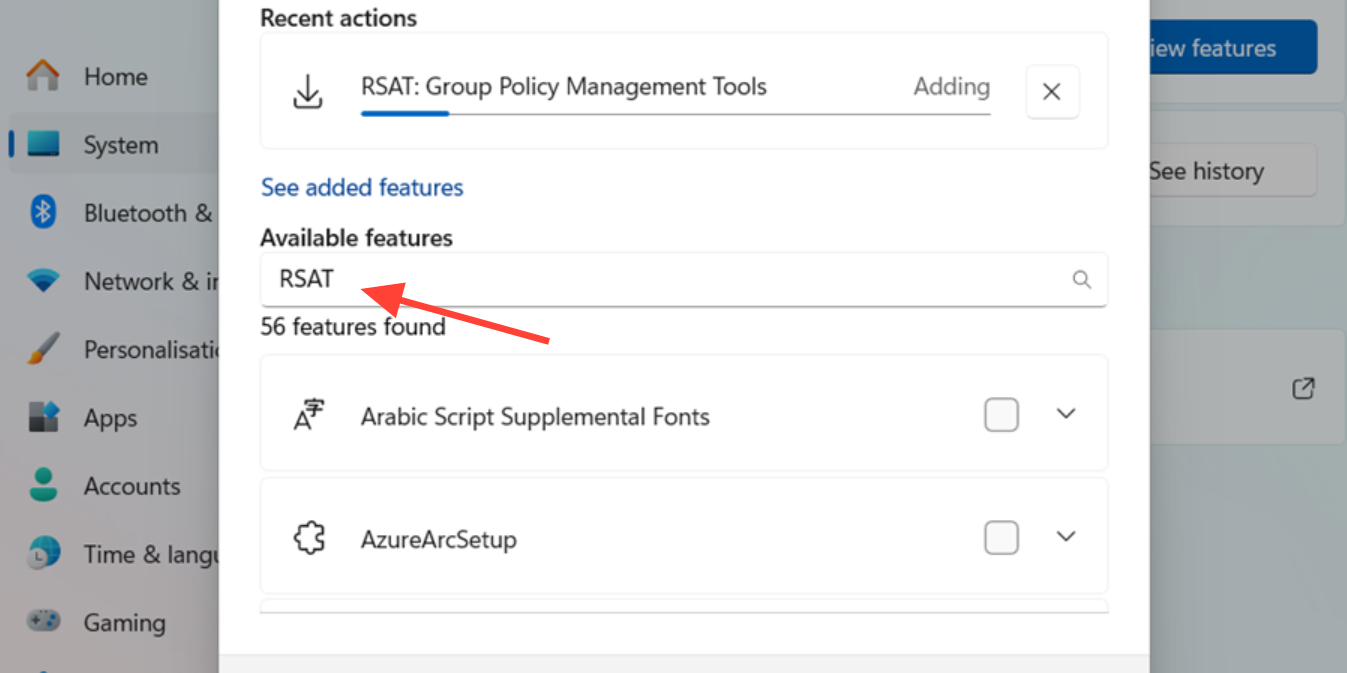
Quick answer: Open Settings > System > Optional features, select View features next to Add an optional feature, type RSAT, check the tools you want, then choose Next and Add. You need Windows 11 Pro, Enterprise, Education, or Pro for Workstations and local administrator rights.
Requirements for RSAT on Windows 11
RSAT only installs on the business and professional editions of Windows. Windows 11 Home does not support it, and you cannot work around the edition limit without breaking the license terms. The same restriction applied on Windows 10, where you needed Pro or Enterprise.
| Requirement | Detail |
|---|---|
| Edition | Windows 11 Pro, Enterprise, Education, or Pro for Workstations |
| Permissions | Local administrator rights on the PC where RSAT installs |
| Feature source | Access to Windows Update, WSUS, Configuration Manager, Intune, or an approved local source for the Features on Demand payload |
| Network | Connectivity to the domain controllers, DNS, DHCP, file servers, or clusters you plan to manage |
| Server permissions | Delegated rights in the service you manage; installing RSAT alone grants no server access |
Installing a console does not turn your PC into a server. Adding DNS Server Tools gives you DNS Manager to administer remote zones and records, but it does not make Windows 11 a DNS server.
RSAT tools available on Windows 11
Most of the commonly used consoles install on a Windows client as Features on Demand. A handful of server-focused tools are only available on Windows Server. The table below shows the tools you are most likely to add on a Windows 11 workstation.
| Tool | What it manages |
|---|---|
| AD DS and AD LDS Tools | Active Directory Users and Computers, Domains and Trusts, Sites and Services, plus the PowerShell module |
| Group Policy Management Tools | Group Policy Management Console for editing, linking, and troubleshooting GPOs |
| DNS Server Tools | DNS Manager for zones, records, and forwarders |
| DHCP Server Tools | DHCP console and PowerShell support for scopes, leases, and reservations |
| Failover Clustering Tools | Failover Cluster Manager and cluster PowerShell cmdlets |
| File Services Tools | File Server Resource Manager, DFS management, and related components |
| Remote Desktop Services Tools | Management for RDS role services such as Gateway and Licensing |
| Windows Server Update Services Tools | WSUS console for approvals, synchronization, and client targeting |
| BitLocker Drive Encryption Administration Utilities | BitLocker management and recovery password tools |
Hyper-V Management Tools are part of Windows itself rather than the Features on Demand list, so you do not need RSAT to add Hyper-V Manager on a client. Some tools, such as SNMP, WINS, and Fax Server Tools, only appear on Windows Server.
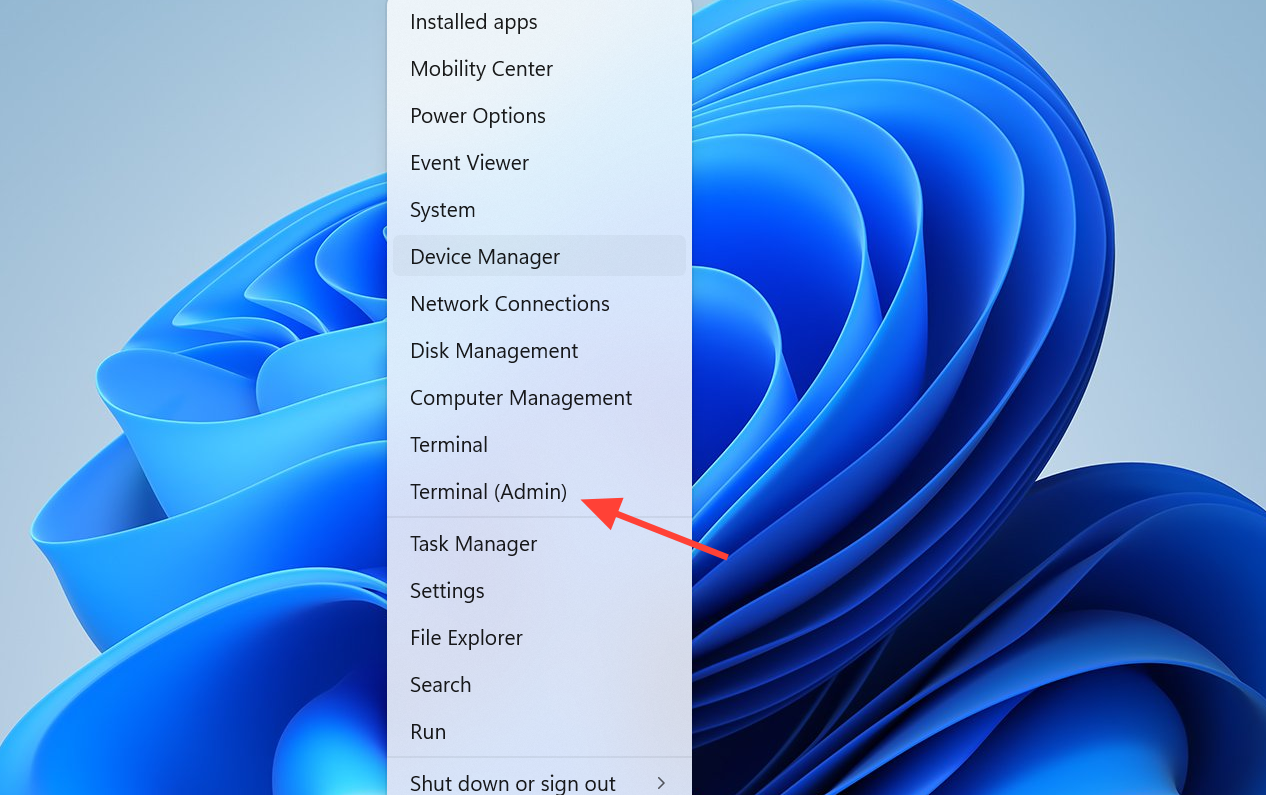
Install RSAT from Optional Features
This is the simplest method for a single PC. Sign in with an account that has local administrator rights before you start.
Microsoft documents the same flow and the alternate methods on its install RSAT in Windows reference.
Install RSAT with PowerShell or DISM
For scripted deployment, Intune remediation, or Configuration Manager task sequences, install capabilities by name. The capability names stay consistent across recent Windows 11 releases, which makes them safe to reuse in scripts. Still validate the names against the exact image you deploy to, especially for offline media.
Add-WindowsCapability -Online -Name Rsat.ActiveDirectory.DS-LDS.Tools~~~~0.0.1.0
Add-WindowsCapability -Online -Name Rsat.GroupPolicy.Management.Tools~~~~0.0.1.0
Add-WindowsCapability -Online -Name Rsat.Dns.Tools~~~~0.0.1.0
Add-WindowsCapability -Online -Name Rsat.DHCP.Tools~~~~0.0.1.0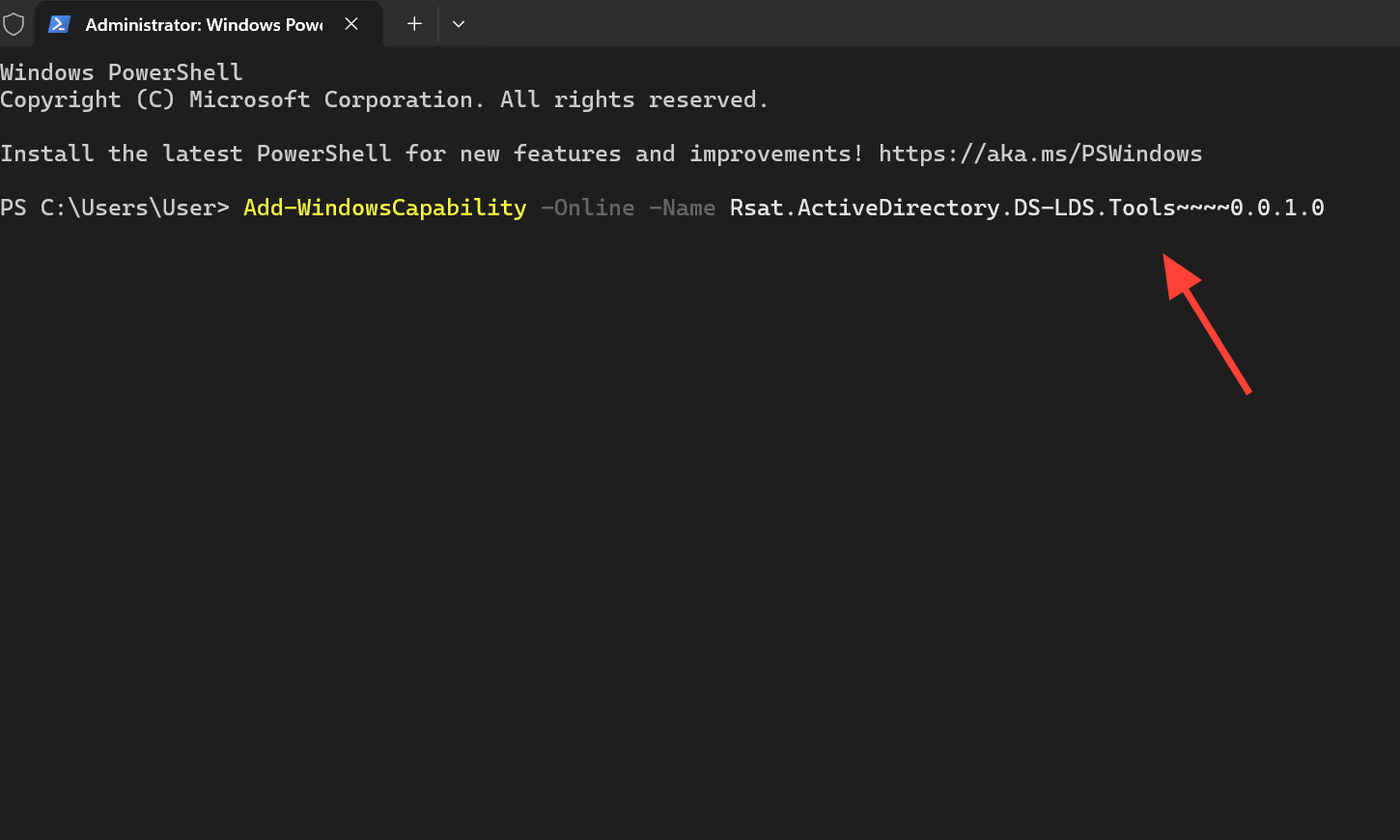
Get-WindowsCapability -Online | Where-Object Name -like "Rsat*"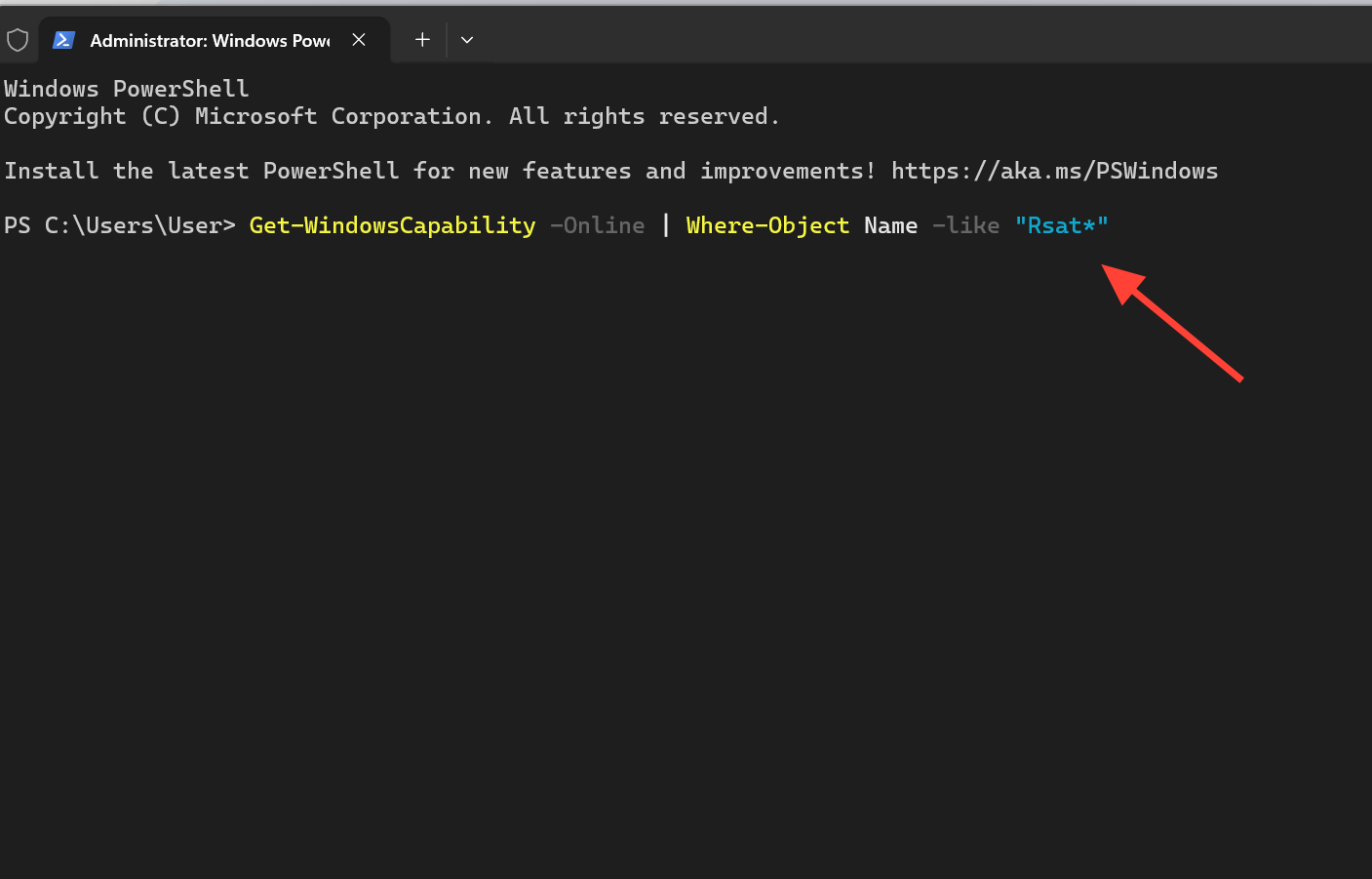
The same capabilities can also be added through DISM when you are servicing an offline image rather than a running PC.
Where to find RSAT tools after installation
Once a tool is installed, open it from Start > All apps > Windows Tools, or search for the console name directly, such as DNS Manager or Group Policy Management. On Windows Server, the tools also appear under the Tools menu in Server Manager.
You can confirm a successful install in two ways. The capability shows as Installed when you run the Get-WindowsCapability query above, and the matching console launches from the Start menu. If the tool opens and connects to your server, RSAT is working.
Common reasons RSAT fails to install
Most failures trace back to edition limits, the feature source, or update policy. Work through these before assuming the tool is broken.
| Symptom | Likely cause and fix |
|---|---|
| RSAT entries missing or install blocked | The PC is running Windows 11 Home. Switch to Pro, Enterprise, Education, or Pro for Workstations. |
| Install fails in a managed environment | WSUS, Windows Update for Business, or Intune redirects the request to an internal source that lacks the 24H2 Features on Demand content. Point the device at a source that has the correct payload. |
| “Add an optional feature” cannot reach a download | The PC cannot obtain the Feature on Demand payload. Restore access to Windows Update or an approved local source. |
| Console installs but cannot manage the server | The signed-in account lacks delegated rights, or required management ports are blocked. Grant the correct permissions and confirm network connectivity. |
| Old RSAT installer does not work | Standalone packages from Windows 7 or early Windows 10 are not supported. Use the built-in Features on Demand instead. |
One more thing to remember: installing a single RSAT component does not pull in the whole suite. If a console you expected is missing, check that you added that specific capability and not just a related one. On Arm64 devices running newer builds, a smaller set of consoles is available through Control Panel > Programs > Programs and Features > Turn Windows features on or off, covering Active Directory, Certificate Services, Server Manager, Group Policy, DNS, and DHCP tools.



