

The error Your printer has experienced an unexpected configuration problem (0x800706b5) stops a working printer in its tracks. You can usually still scan or print from a phone, but the document refuses to print from your PC. The cause is almost always on the Windows side, with corrupted or outdated printer drivers, a stalled Print Spooler service, or a conflicting background program being the usual culprits.
Quick answer: Remove the printer from Control Panel and add it again. If the error returns, stop the Print Spooler service, delete everything inside C:\Windows\System32\spool\PRINTERS, restart the service, then reinstall the latest driver from your printer maker.
What error 0x800706b5 means for printing
The 0x800706b5 code appears next to the configuration message when Windows cannot hand a job to the printer correctly. It is one of a family of related codes that show up with the same wording. The fixes below apply across them, but knowing the variant can hint at the underlying cause.
| Error code | Common cause |
|---|---|
| 0x800706b5 | Driver or Windows Update component problem |
| 0x80070002 | Misconfigured or missing printer files |
| 0x8007007e | Spool folder contents need clearing |
| 0x80004005 | Generic configuration failure; reinstall printer |
| 0x80070709 | Driver conflict after reinstalling |
| 0x000003e3 | I/O operation aborted during printing |
Note: The same 0x800706b5 code also shows up for Xbox Game Pass and Windows Update problems. The steps here are written only for the printing version of the error.
Remove and re-add the printer
The fastest fix is to delete the printer and set it up fresh. This clears a broken configuration without touching anything else.
Run the Printer Troubleshooter
Windows 11 and 10 include a built-in printer troubleshooter that checks for the most common faults and applies automatic fixes. It is a low-risk first step that often clears the configuration error on its own.
HP printer owners can run the dedicated HP Print and Scan Doctor, which detects the printer, checks the connection, and offers a one-click Fix Printing option. You can download it from HP support.
Update, uninstall, and reinstall the printer driver
A corrupted or outdated driver is the most common reason behind this error. Drivers connect the printer hardware to Windows, and a broken one cannot pass jobs through correctly. Start by updating, then do a clean reinstall if the message persists.
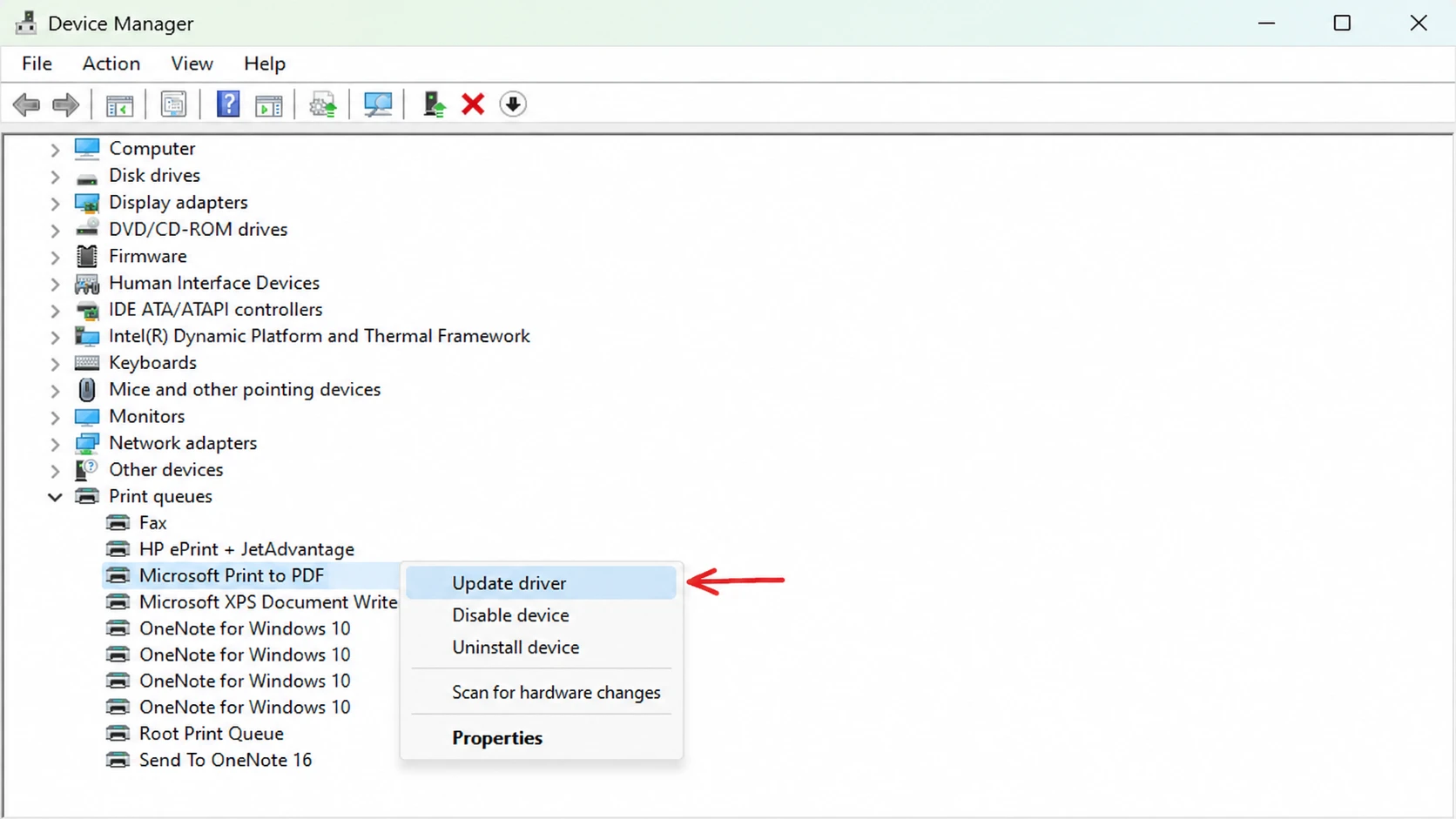
Tip: For a deeper cleanup, open Run, type printui.exe /s (note the space before the slash), open the Drivers tab, and remove any leftover entry for your printer before reinstalling. This stops an old driver from clashing with the new one.
Clear the print queue and spooler files
Stuck jobs in the spool folder can keep the printer in a bad state. Clearing them and restarting the Print Spooler service resets the queue and often clears the configuration error.
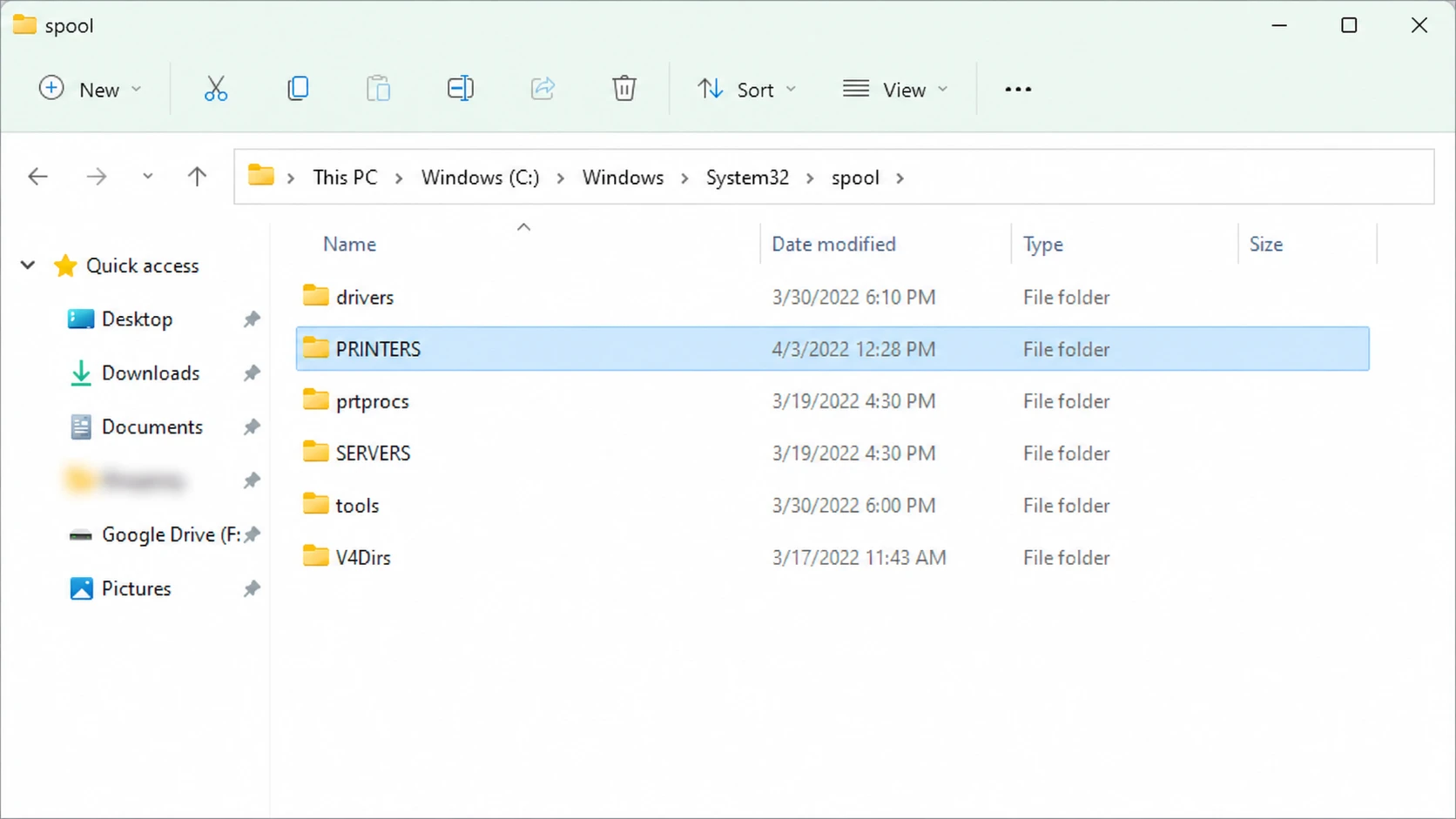
services.msc, and press Enter. Find Print Spooler, right-click it, and choose Stop.C:\Windows\System32\spool\PRINTERS. Select everything inside and delete it.If you prefer the command line, you can stop and start the service with two commands.
net stop spooler
net start spooler
Install pending Windows updates
The 0x800706b5 code is frequently tied to a Windows Update component that has not finished installing. If updates were downloaded but not applied, the printer can fail until your PC completes them.
To catch corrupted system files at the same time, open Command Prompt as administrator and run the System File Checker.
sfc /scannowLet the scan reach 100 percent. It replaces damaged Windows files with cached copies and reports when repairs are done.
Troubleshoot in a Clean Boot state
A third-party program running in the background can interfere with printing. A Clean Boot starts Windows with only essential services so you can rule that out.
msconfig, open the Services tab, tick Hide all Microsoft services, then disable the remaining ones. Use Task Manager’s Startup tab to disable startup apps.Most people clear 0x800706b5 by removing and re-adding the printer or by doing a clean driver reinstall, so start there before moving to the spooler reset and Clean Boot checks. You will know the fix has held when a document prints from your PC without the configuration message returning. If every step fails and only your computer triggers the error while phone printing still works, the printer may need service from its manufacturer.



