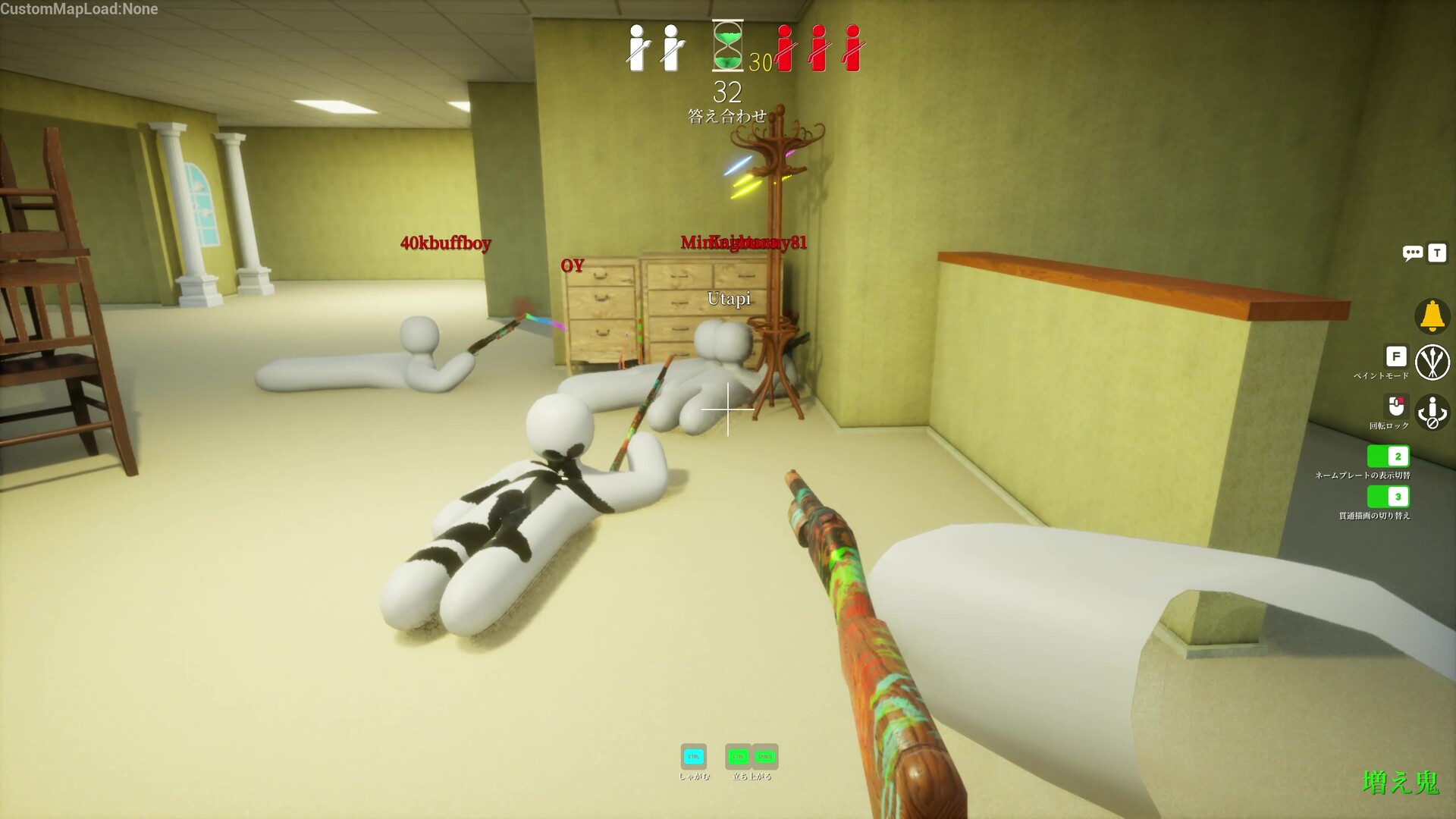
MECCHA CHAMELEON does not give you a free-floating field of view setting out of the box. The Hunter view runs at a fixed value, and the only way to pick your own first-person FOV is to add a small mod called FOVControl, which drops a real slider into the game’s own options menu. Here is exactly what controls the view and how to widen or narrow it.
Quick answer: The official Hunter FOV is 100 (raised from 90 in patch v1.1.0). To set a custom first-person FOV between 60 and 140, install the FOVControl UE4SS mod plus the UE4SS runtime, then open Settings → General and use the new Field of View row.
What controls FOV in MECCHA CHAMELEON
The base game does not expose an adjustable FOV slider. The Seeker (Hunter) camera was bumped from 90 to 100 degrees in patch v1.1.0, a change made partly to reduce motion sickness and let players scan rooms with fewer camera turns. That value applies automatically and is not something you set yourself in the stock menu.
If you want anything other than that built-in number, you need the FOVControl mod. It adds a native Field of View slider to Settings → General that accepts any value from 60 to 140 degrees, styled to match the game’s own options (penguin handle included), and it remembers your choice between sessions.
Requirements before you install FOVControl
FOVControl is a UE4SS Lua mod, so it cannot be installed through the Steam Workshop. The Workshop for this game only distributes custom maps. You install everything manually inside the game folder. Two pieces are needed before the mod itself.
- UE4SS runtime — the scripting layer that loads Lua mods, placed in the game’s
Win64folder. Get it from the official UE4SS releases page. - The bundled UE 5.6 signature fix — the file
UE4SS_Signatures/StaticConstructObject.luaincluded with the mod download. Stock UE4SS will not start on this game without it; it gets stuck in an endlessPS Scan attempt N (Phase 2)loop.
All paths below sit inside your game install, for example ...\steamapps\common\MECCHA CHAMELEON\Chameleon\Binaries\Win64\.
Install the FOVControl FOV slider

dwmapi.dll and the ue4ss\ folder land directly inside Binaries\Win64\.UE4SS_Signatures\StaticConstructObject.lua from the mod download into Binaries\Win64\ue4ss\UE4SS_Signatures\ and overwrite if asked. Skipping this is the single most common reason UE4SS never starts on this game.FOVControl\ folder into Binaries\Win64\ue4ss\Mods\. You should end up with the path ...\ue4ss\Mods\FOVControl\Scripts\main.lua.enabled.txt auto-enables the mod on recent UE4SS. If your build still uses the older mods.txt system, open ...\ue4ss\Mods\mods.txt and add the line below before the final ; line.FOVControl : 1How to set your FOV (slider, hotkeys, and console)
Once loaded, you have three ways to change the view. The slider is the main control, while the hotkeys and console let you nudge values without leaving gameplay.
| Method | Action |
|---|---|
| Settings → General | Field of View slider, 60–140° |
| F5 | FOV −5° |
| F6 | FOV +5° |
| F7 | Re-apply current FOV |
| UE4SS console | fov 110 sets the value; fov alone prints the current one |
Your choice is written to the game’s own settings save and to a fallback fov.txt inside the mod folder. It re-applies automatically whenever you respawn or change levels, so you set it once and forget it.
How to confirm the mod loaded
Open the UE4SS console window that appears next to the game. A working install prints [FOVControl] v3.7 loaded and a line reading FOV slider injected (... navSlider=true). If you see both and the Field of View row appears in Settings → General, the mod is active.
If the slider is missing or the mod did not load, check these specific causes:
- The UE4SS console never appears or loops forever on
PS Scan attempt— the signature fix from Step 2 is missing or sitting in the wrong folder. - No Field of View row and no loaded message — the
FOVControl\folder is misplaced, so verify the...\ue4ss\Mods\FOVControl\Scripts\main.luapath. - UE4SS stops loading after a game update — the executable signature may have changed and the signature fix needs re-verifying against the new build.
Multiplayer safety and version notes
FOVControl is client-side and view-only. It changes only your own camera’s field of view and does nothing to gameplay, so it does not replicate or affect other players, placing it in the cosmetic, client-side category. As general courtesy with any mod, private or local sessions are the safer choice, and the developers may restrict accounts for clearly gameplay-altering mods in public lobbies.
The current release is FOVControl v3.7, built and tested against game patch 1.1.0 on Unreal Engine 5.6 (CL 44394996). It does not modify any game files; it runs as a script and is safe to add or remove at any time. All saving is handled by the game’s own settings widget, so it never writes directly to engine memory.
How to remove FOVControl
Delete the ...\ue4ss\Mods\FOVControl\ folder. If you added the mods.txt line, remove that too. To strip out UE4SS entirely, delete dwmapi.dll and the ue4ss\ folder from Binaries\Win64, and the game returns to its default fixed view.
For most players, the practical takeaway is simple. If you only want the wider default, patch v1.1.0 already gives Seekers a 100-degree view automatically. If you want full control over how much of the scene you see, FOVControl is what turns that fixed view into an adjustable 60–140 slider.