Dropping is one of the ways Grow a Garden 2 lets you move fruit out of your inventory without selling it. Instead of handing crops to the Sell Stand or gifting them to another player, you can place a fruit back into the world. The feature is built into the game’s core inventory system, which launched alongside Grow a Garden 2 on Roblox on June 12, 2026.
Quick answer: Open your inventory, select the fruit you want to remove, and use the drop action to place it on the ground near your character.
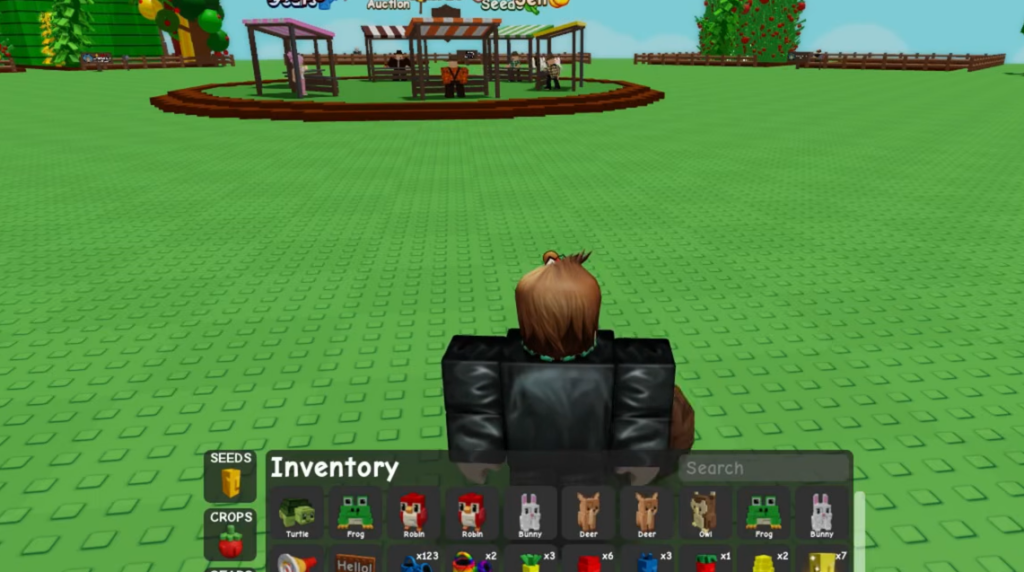
Where dropped fruit comes from: the inventory
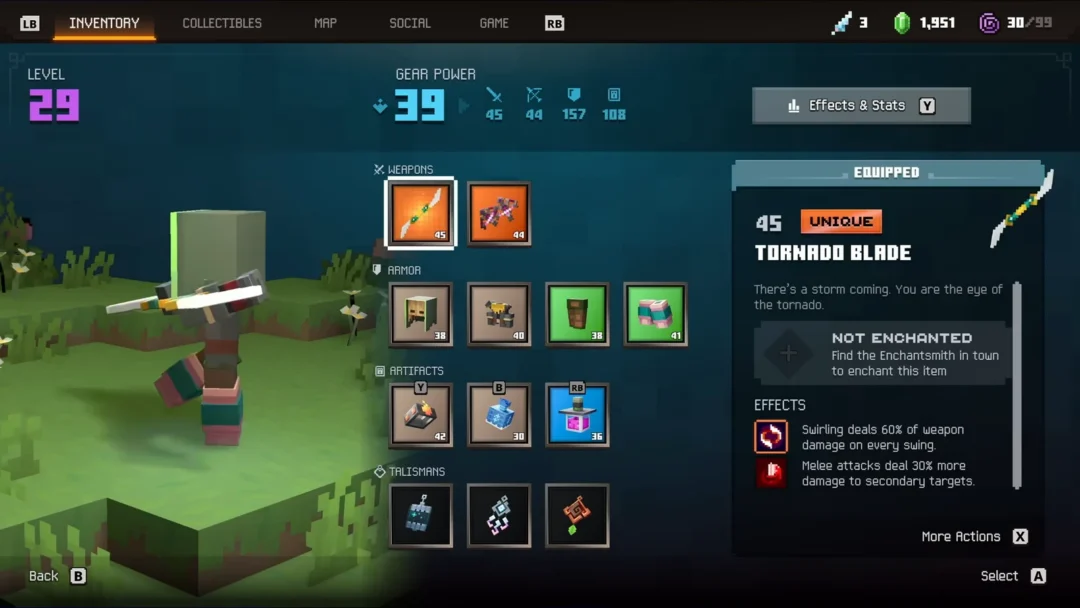
Every fruit you drop starts in your inventory. The inventory opens without any special privilege and holds the items you collect across the garden. The base inventory can hold up to 325 slots, and it is divided into segments for Seeds, Crops, Pets, Gears, and an All view that shows everything together.
Harvested fruit lands in the Crops segment. If you have a lot of items, use the Search tab to find a specific fruit quickly before you drop it. Only fruit and crops you actually own can be dropped, so harvest first using the normal pickup or a Multi Harvest crop, where only the fruit is collected, and the plant keeps regrowing.
How to drop a fruit step by step
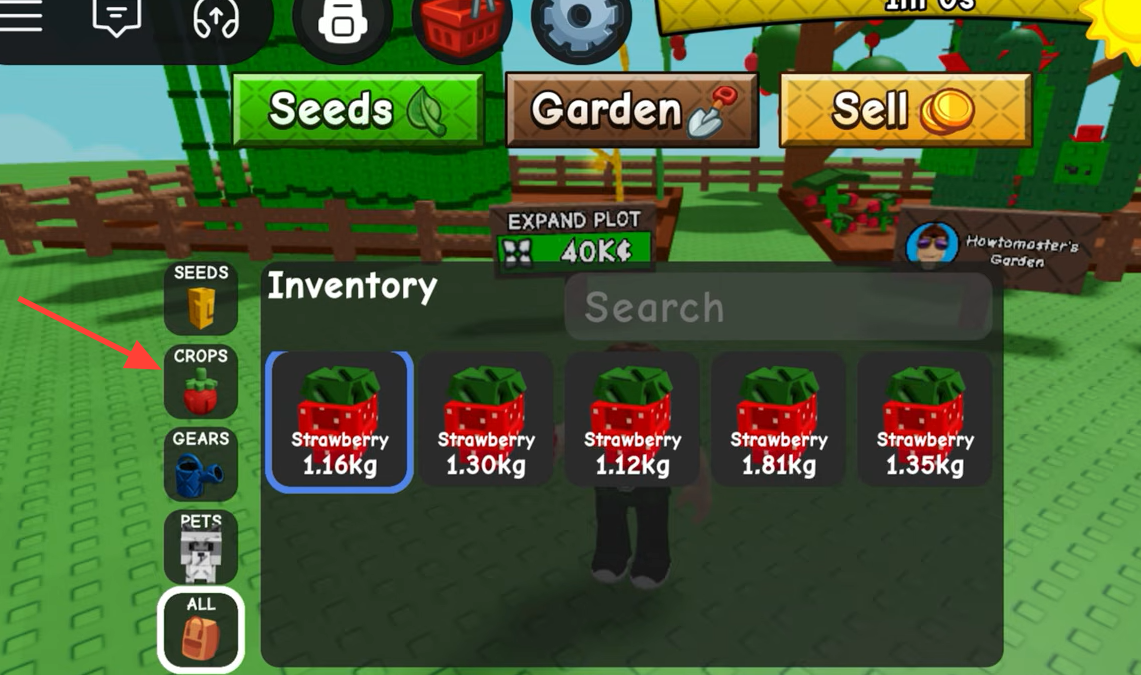
You will know it worked when the fruit disappears from the Crops segment and shows up in the world where you dropped it. If the slot count in your inventory goes down by one, the drop registered.
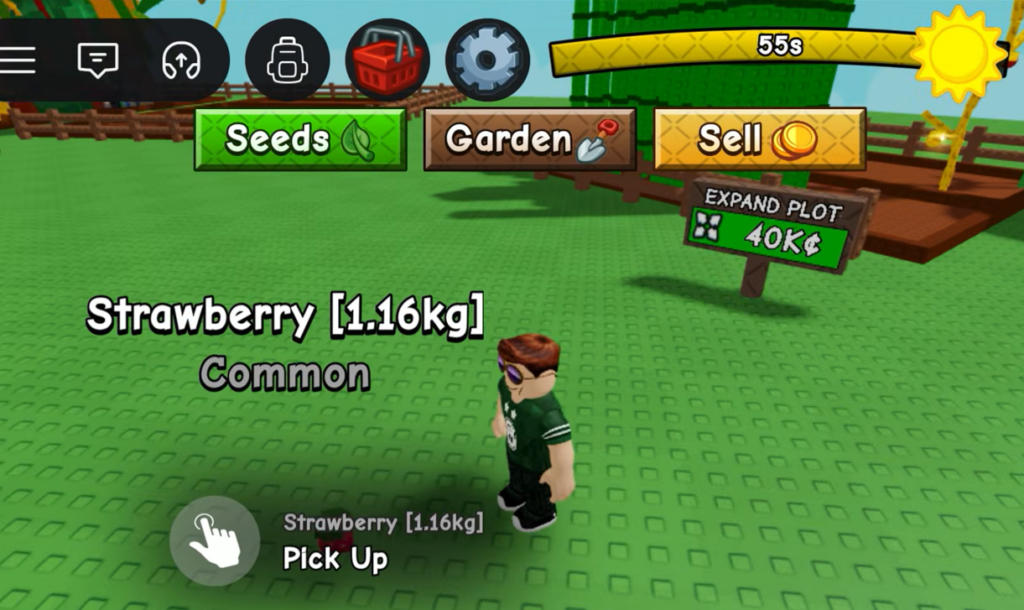
Protect valuable fruit before you drop anything
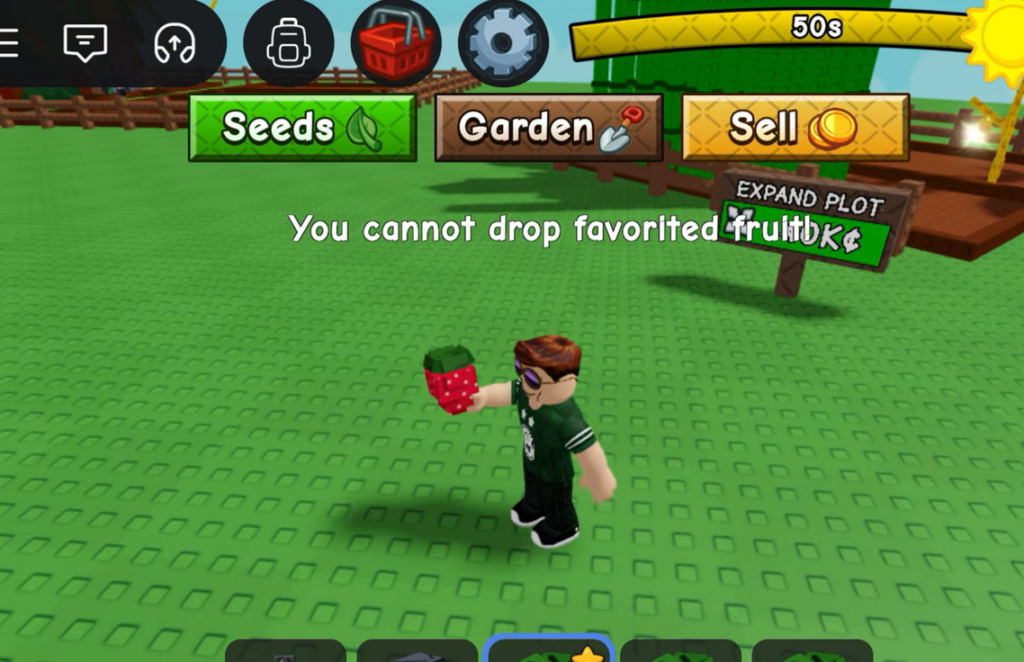
Removing fruit from your inventory is easy to do by accident, especially with rare sizes or mutations that are worth a large amount of Sheckles. The favorite status is the simplest safeguard. When you mark a crop as a favorite, it becomes unsellable, which keeps your best harvests from leaving your inventory by mistake.
A favorited item is flagged in the inventory so you can tell it apart at a glance before you start clearing out fruit you no longer want. Favorite the crops you plan to keep, then drop the leftovers.
Dropping vs. selling vs. gifting
It helps to know which action does what before you commit, because each one moves fruit out of your inventory in a different way.
| Action | What happens to the fruit |
|---|---|
| Drop | Placed back into the world near your character; leaves your inventory. |
| Sell | Handed in at the Sell Stand for Sheckles based on the price formula. |
| Gift | Sent to another player, who must accept it before it transfers. |
If your goal is money rather than clearing space, the Sell Stand pays out Sheckles using each fruit’s base sell value, size, mutation, decay, and the bonus for friends on the same server. Dropping does not pay anything, so reserve it for fruit you want to move or display rather than cash in.
Keep in mind that harvesting itself cannot be undone once a crop is collected, so the safest routine is to harvest, favorite anything valuable, and only then drop the surplus you no longer need.