A GIF that shows up as a still image, buffers forever, or only animates when you hover over it usually points to a setting or a stale cache, not a broken file. Discord pulls GIFs from its media servers, so when playback stalls the fix is almost always on your side: an autoplay toggle, a motion setting, cached data, or your network path.
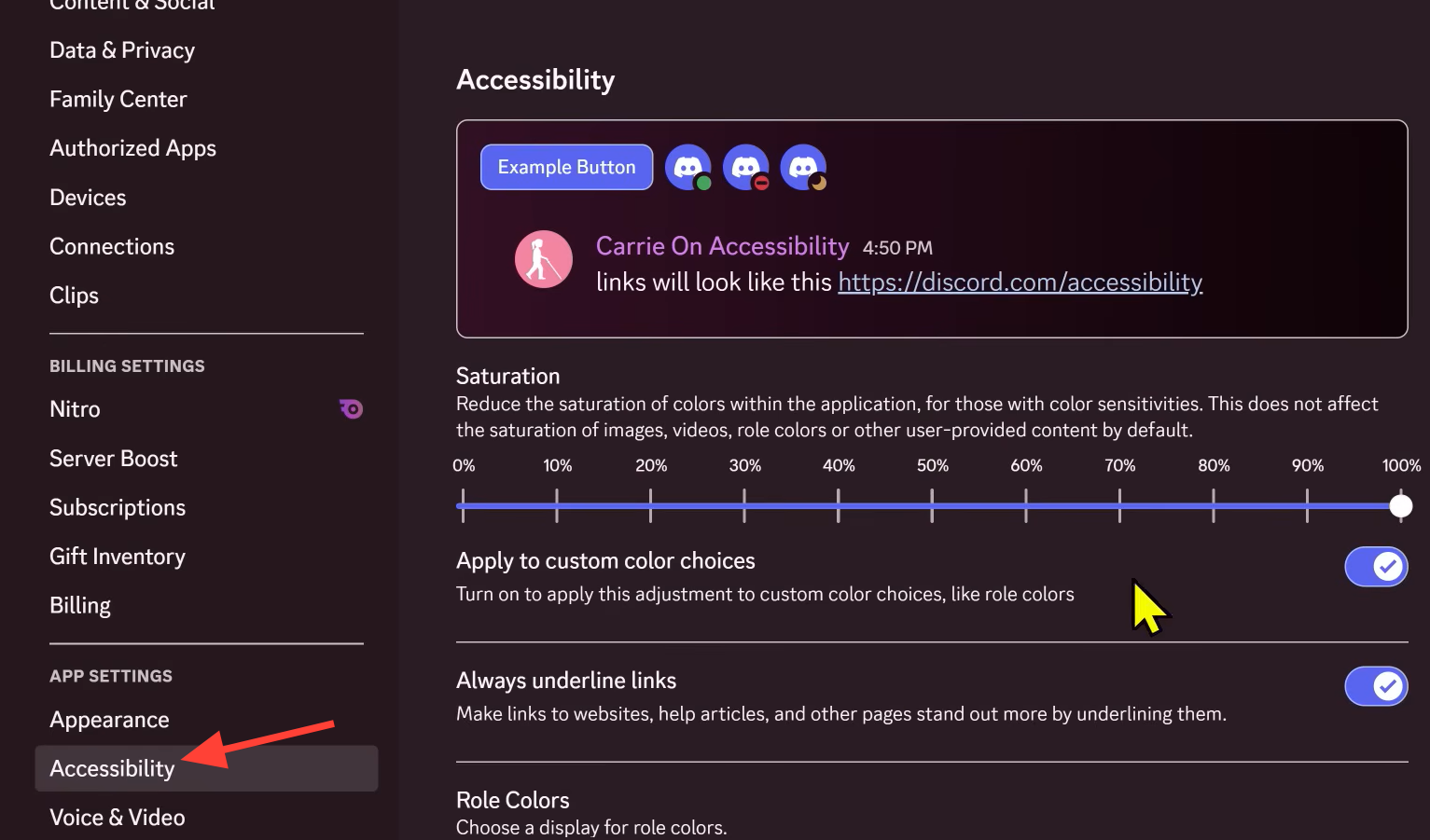
Quick answer: Open Discord Settings, go to Accessibility, turn on Automatically play GIFs when Discord is focused and Play animated emoji, then turn off Enable Reduced Motion. If GIFs still won’t move, clear the Discord cache and restart the app.
Turn on GIF autoplay in Accessibility settings
The most common cause is a disabled autoplay switch, which often flips off after an app update. When it’s off, GIFs sit as frozen frames until you hover your mouse over them. Turning it back on makes them animate on their own.
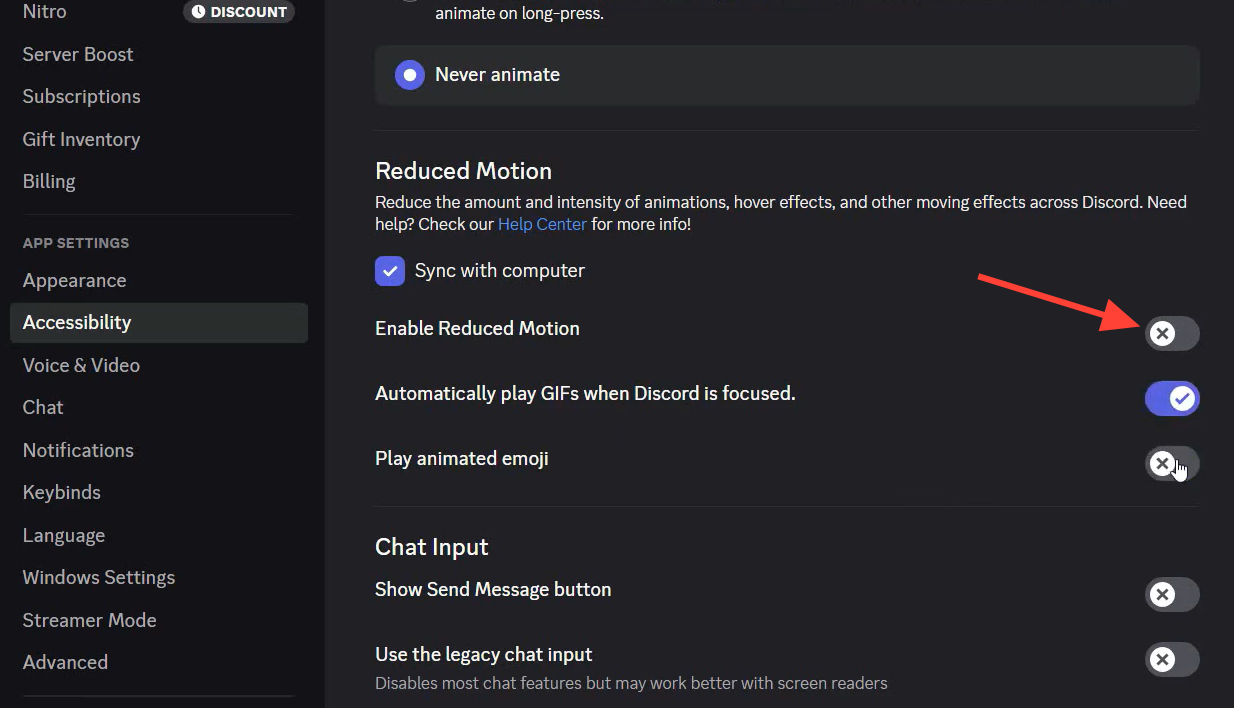
On mobile, the same control lives in your account menu. Open the hamburger menu, tap your avatar, go to Text & Images, and make sure Automatically play GIFs when possible is switched on.
Turn off Reduced Motion
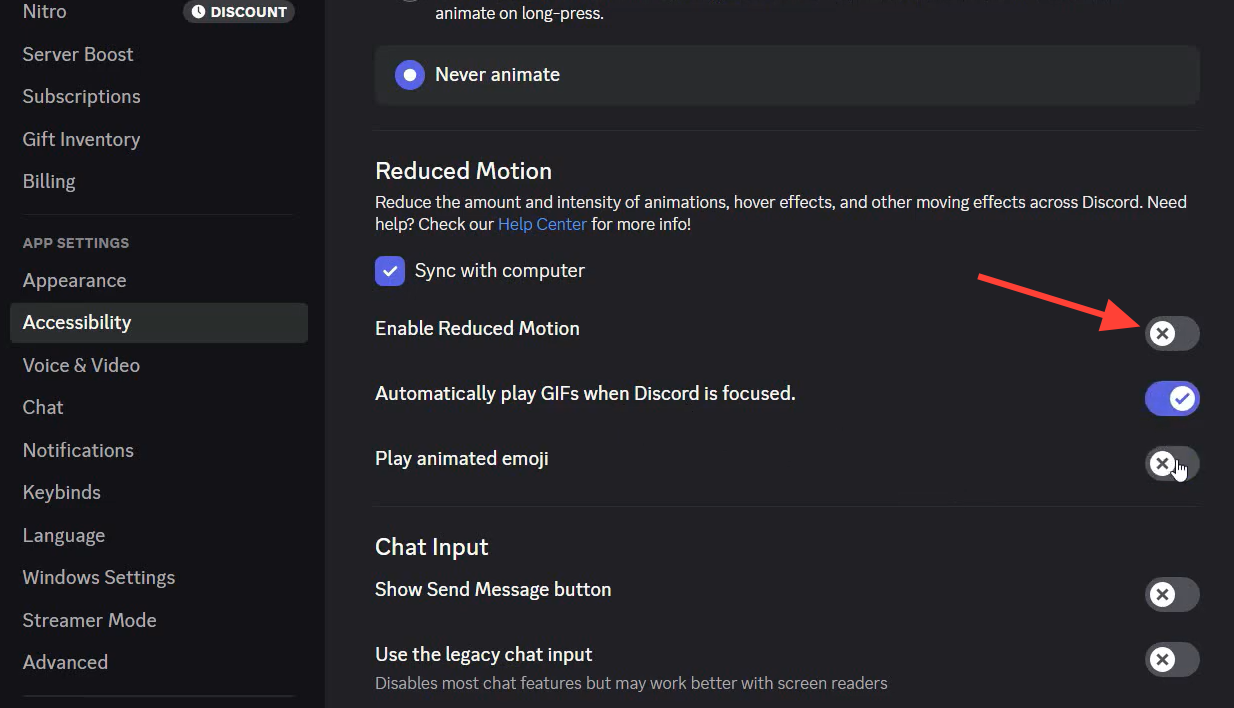
Reduced Motion cuts down animation across Discord, and that includes GIF playback and hover effects. If it’s enabled, GIFs and animated avatars stay static even when autoplay is on. Disabling it restores the animation.
Go to Settings, open the Accessibility tab, and toggle off Enable Reduced Motion. On some builds, this control appears under Appearance instead, so check there if you don’t see it in Accessibility.
Clear the Discord cache on desktop
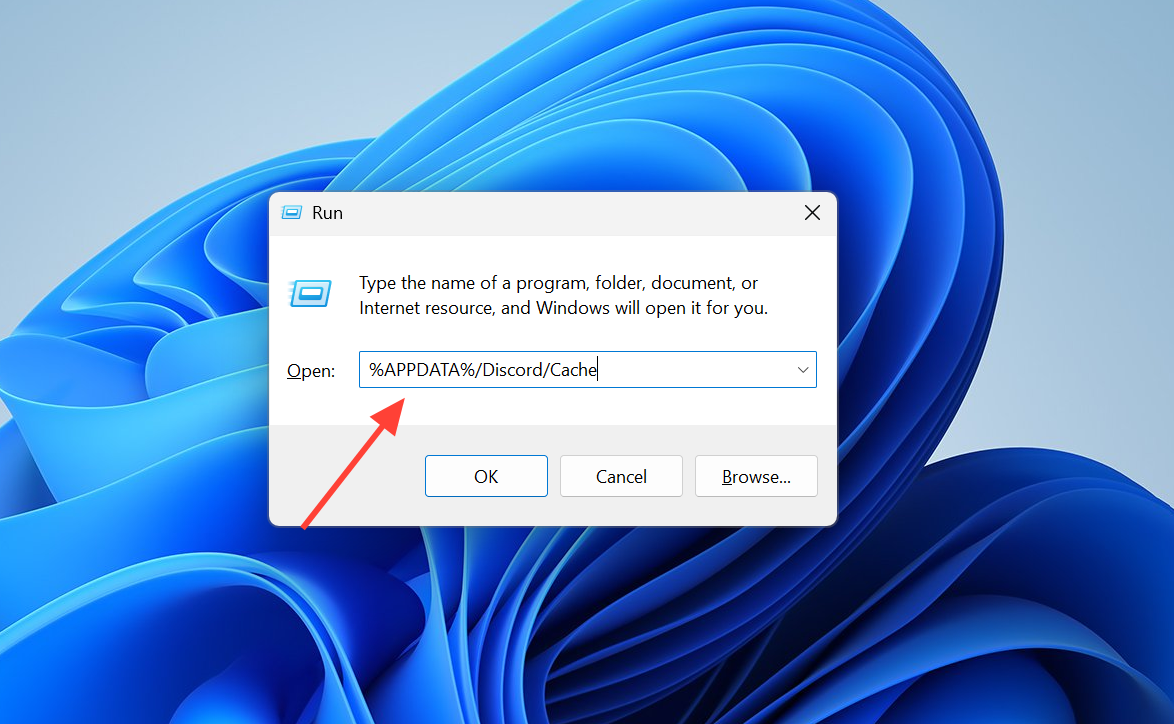
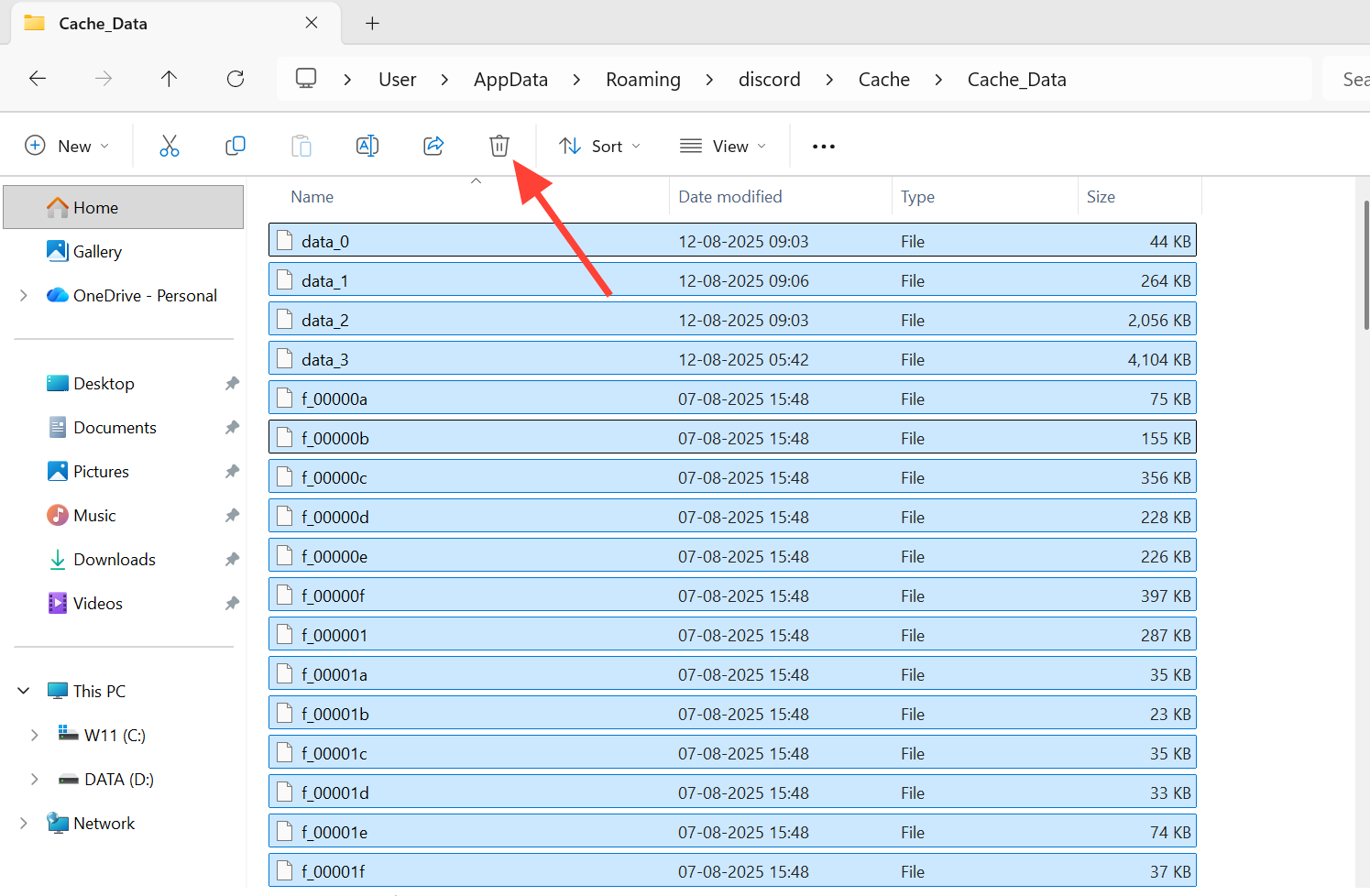
Cached media files build up over time and can become corrupt, which leaves GIFs blank, stuck loading, or refusing to animate. Deleting the cache forces Discord to rebuild it with fresh files. Quit Discord fully before you start, including from the system tray.
Windows
macOS
~/Library/Application Support/discord, and press Enter.Toggle Hardware Acceleration
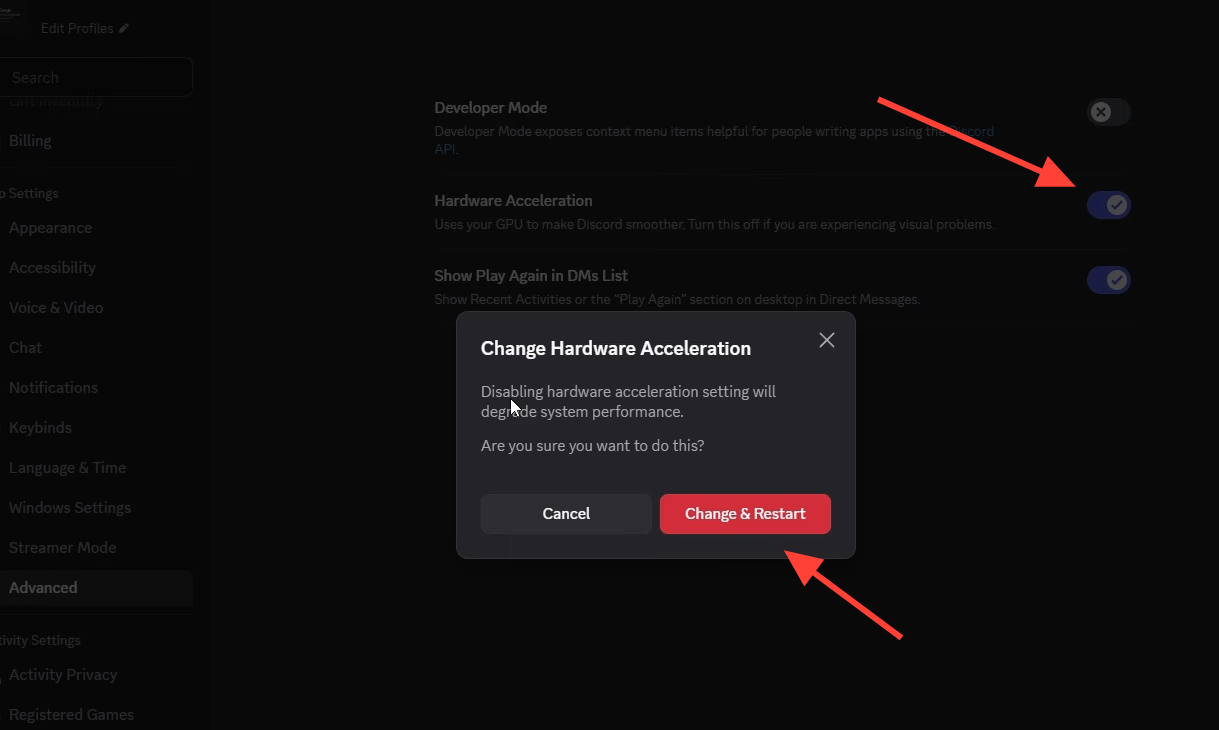
On the desktop app, GIF rendering runs through your graphics hardware. When that path glitches, GIFs can freeze or fail to draw. Switching Hardware Acceleration off and on resets the rendering pipeline.
Open Settings, go to Advanced, and turn Hardware Acceleration off. Restart Discord and test a GIF. If it still fails, turn the setting back on and retest, since some machines play GIFs correctly only with it enabled.
Fix GIFs that upload as still images
If your own GIFs post as flat pictures, especially on mobile, the problem is usually how they were saved or how big they are. Discord can mistake a GIF pulled from the camera roll or gallery for a plain image. Two adjustments fix most of these cases.
- Upload as a file, not from the gallery. Attach the GIF through the file picker (the arrow box next to the message box) instead of the photo gallery so Discord keeps it as a moving GIF.
- Copy directly from a GIF app. Grab the GIF from a service like GIPHY and paste it straight into the channel or DM rather than saving it to your camera roll first.
File size also matters. Standard uploads must stay under 10MB, and animated content has tighter limits in specific spots. Resize before uploading if you exceed these.
| Where the GIF is used | Maximum size |
|---|---|
| Custom emoji | 256KB |
| Animated avatar | 8MB |
| Message attachment | Under 10MB (higher with Nitro) |
Animated avatars require a Nitro subscription. Without Nitro, an uploaded GIF avatar will display as a static image no matter what other settings you change.
Check your network, VPN, and DNS
Because GIFs load from Discord’s media servers, a slow or blocked connection leaves them stuck buffering or blank. A weak internet link is one of the most frequent reasons they never finish loading.
- Switch between Wi-Fi and cellular. If GIFs load on one but not the other, your network path or DNS is the issue.
- Turn off any VPN or proxy temporarily, since these can break the connection to Discord’s media servers and slow downloads.
- Test a different GIF. If only one fails, that specific file or its permissions are the problem, not your setup.
Update, re-login, or reinstall Discord
An outdated app can carry bugs that stop GIF playback, and updates regularly ship fixes for exactly this kind of issue. Some GIF failures also trace back to Apple’s own iOS updates rather than Discord, so keeping your device current matters too.
%LocalAppData%, go into the Discord folder, and run Update. On mobile, update through your app store.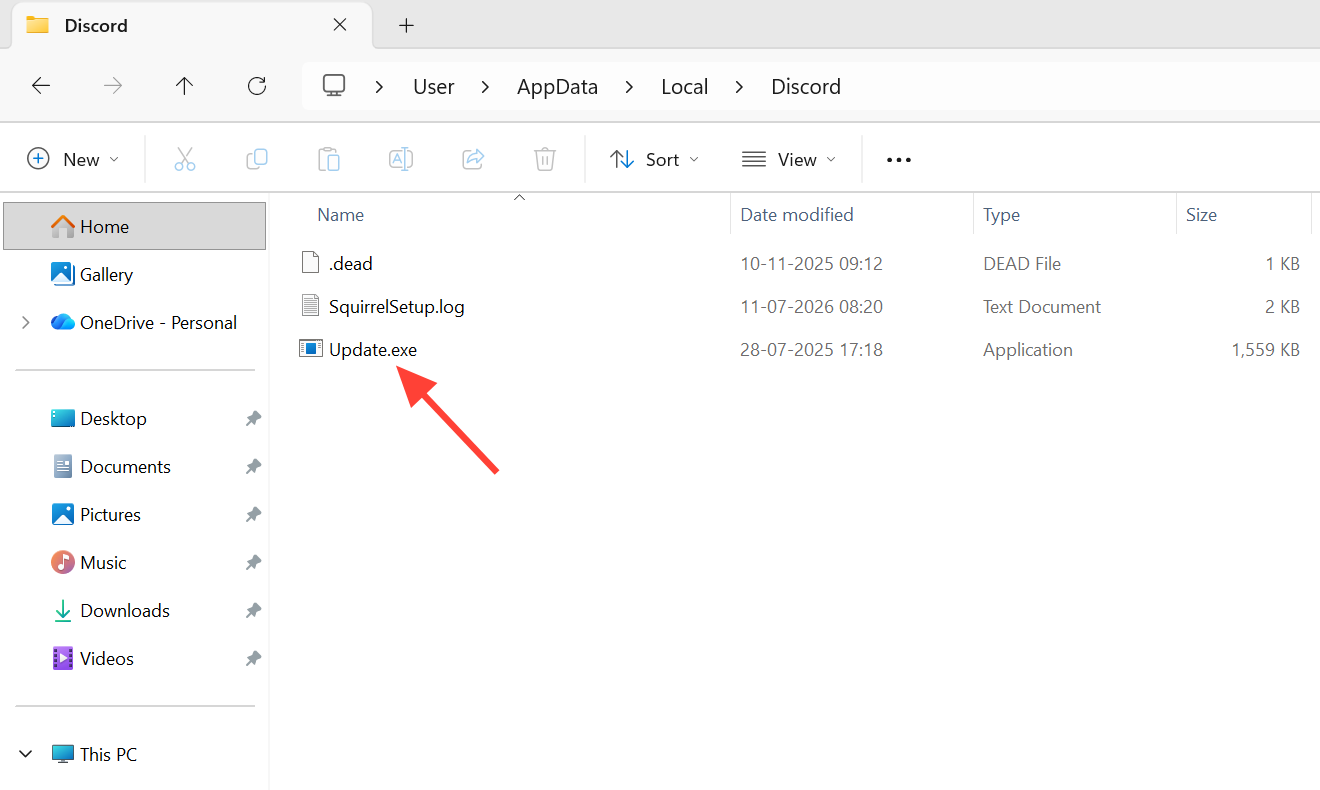
C:\Users\USERNAME\AppData\Local, then download a fresh copy from the official Discord download page and run the installer.You’ll know the fix worked when a GIF animates on its own the moment it appears in chat, without needing a hover, and when your own uploads post as moving images instead of frozen frames. Start with the autoplay and Reduced Motion toggles, since they resolve the majority of cases, and only move on to cache clearing, network checks, and reinstalling if the animation still won’t play.