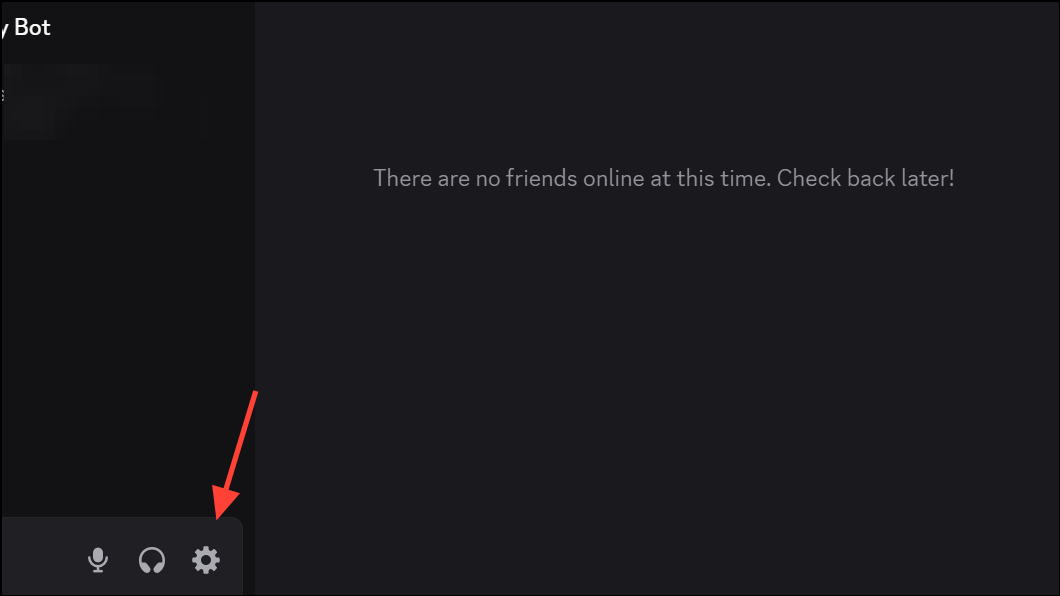
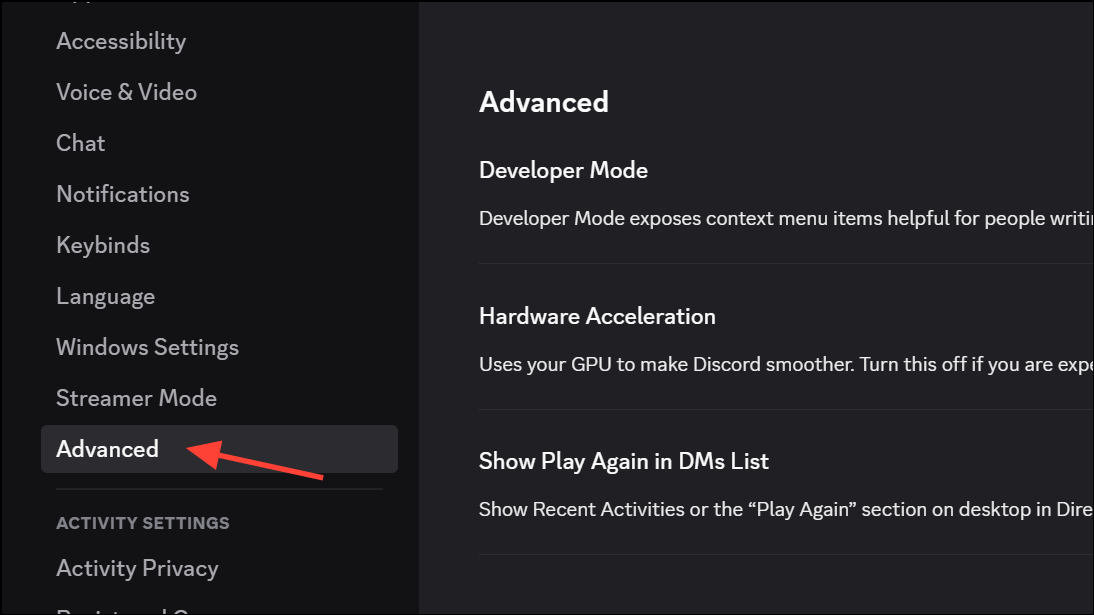
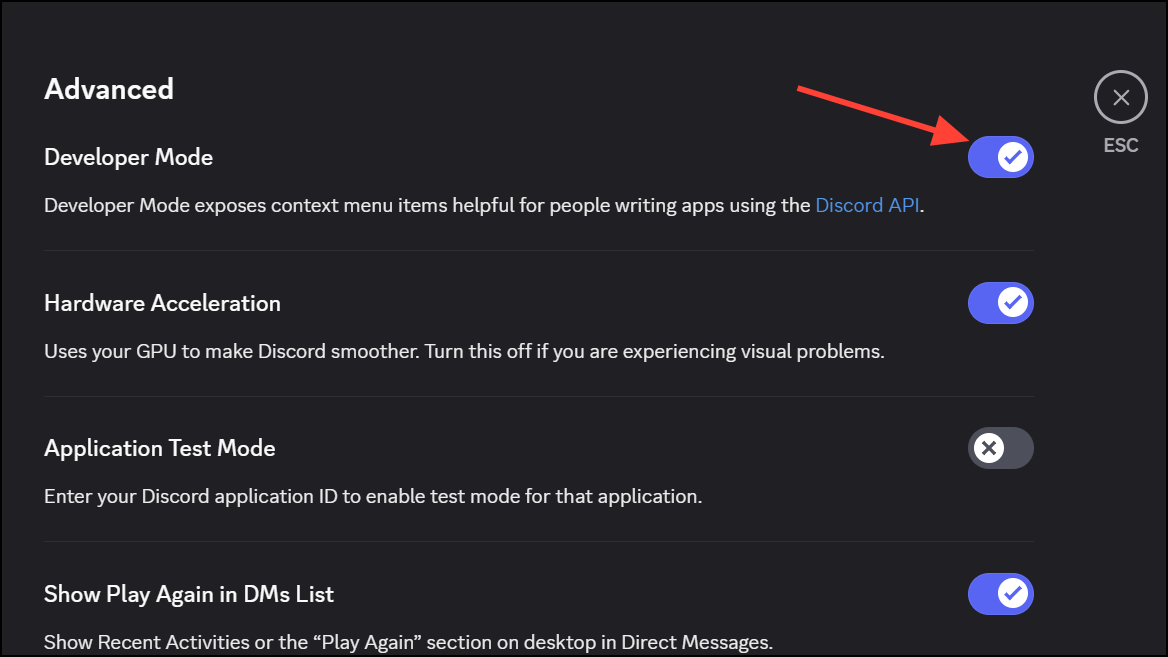
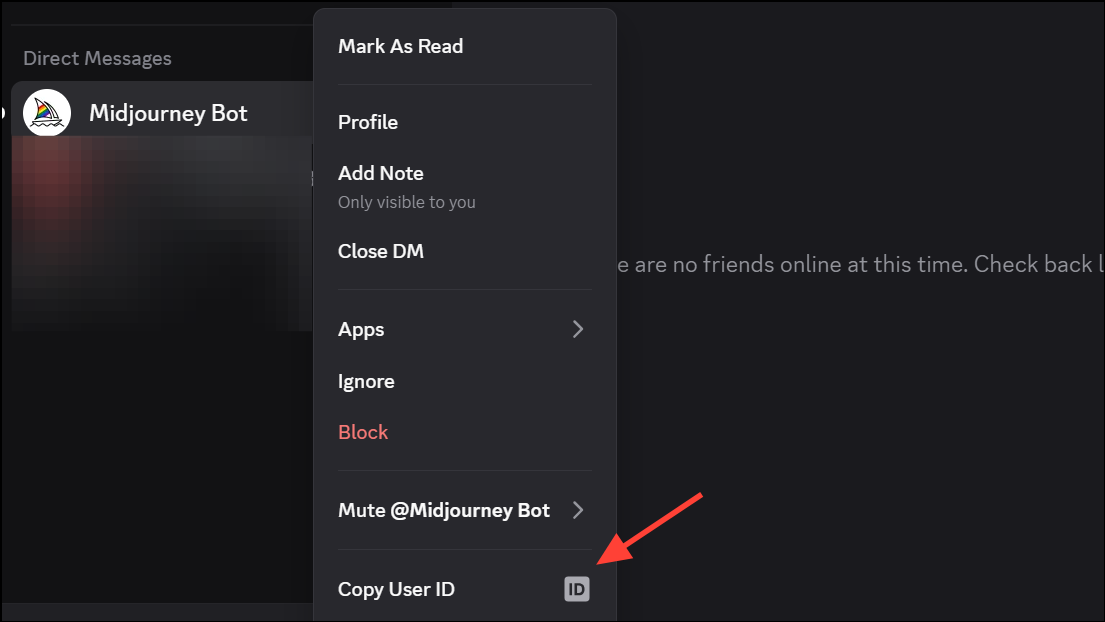
Accessing user, server, and channel IDs is essential when building bots, configuring integrations, or running in-development Activities on Discord. Enabling Developer Mode reveals these identifiers and unlocks additional developer-centric features, streamlining tasks like copying IDs and testing your Discord applications. The process is straightforward, but the steps vary slightly between the desktop app and the web version.
Enable Developer Mode Using Discord Settings (PC and Web)
Enable Developer Mode for Advanced Experiments (Desktop App Only)
Some users want access to Discord’s internal developer experiments, which expose hidden or experimental features not available in standard Developer Mode. This process involves editing Discord’s configuration files and running JavaScript in the DevTools console. These steps are only recommended for advanced users and may break with future Discord updates.
WIN+R to open the Windows Run dialog. Enter the following path to open your Discord settings folder:%APPDATA%\Discord\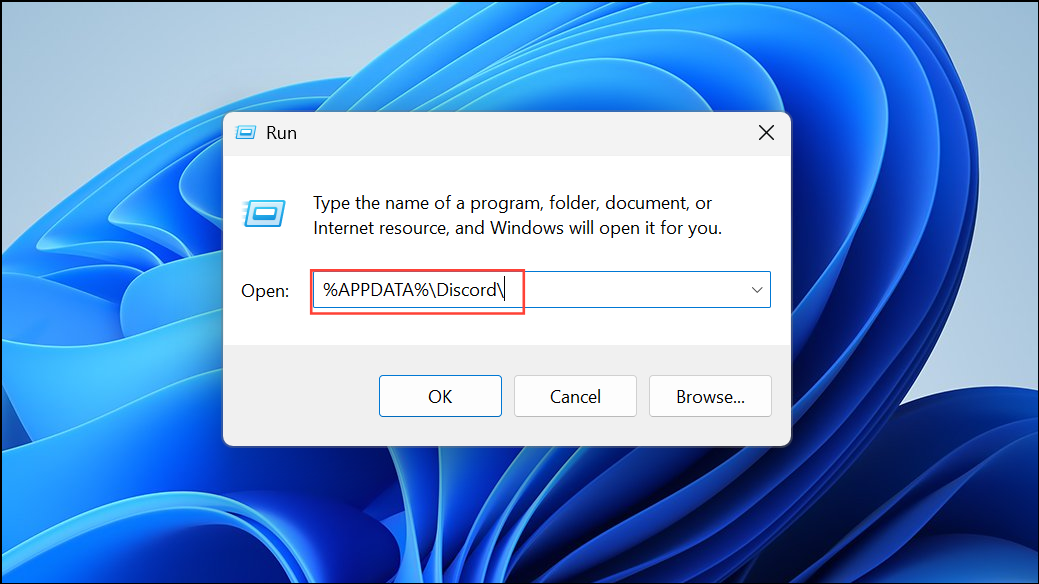
For Discord PTB (Public Test Build) or Canary, use %APPDATA%\DiscordPTB\ or %APPDATA%\discordcanary\ respectively.
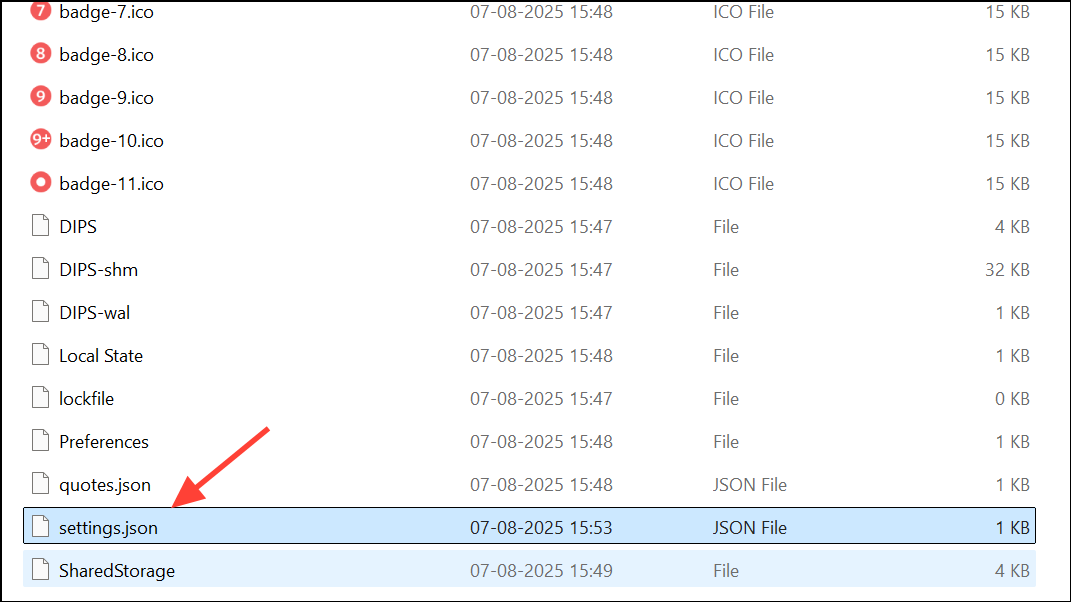
"DANGEROUS_ENABLE_DEVTOOLS_ONLY_ENABLE_IF_YOU_KNOW_WHAT_YOURE_DOING": trueThis setting allows you to open the Developer Tools console with Ctrl+Shift+I inside the Discord app.
Object.defineProperty(
    (webpackChunkdiscord_app.push([
        [""],
        {},
        (e) => {
            m = [];
            for (let c in e.c) m.push(e.c[c]);
        },
    ]),
    m).find((m) => m?.exports?.default?.isDeveloper !== void 0).exports.default,
    "isDeveloper",
    { get: () => true }
);
After executing, open Discord’s settings. You should now see an Experiments tab at the bottom of the settings sidebar, where you can toggle various internal features and beta options.
Troubleshooting Developer Mode Issues
If Developer Mode or the Developer Console does not appear after following the steps:
- Restart Discord completely, ensuring all processes are closed. Sometimes Discord needs a full restart to apply new settings.
- Double-check that you’re editing the correct
settings.jsonfile for your Discord version (Stable, PTB, or Canary). - Ensure you’re using the latest version of Discord, as older builds may have different settings locations or lack certain features.
- If you are on the web version, advanced experiments are not available, but standard Developer Mode works the same way as on desktop.
Alternative: Using Browser Extensions or Plugins (Web Only)
For users who want to automate enabling experiments or apply CSS fixes on the web version of Discord, browser extensions like Tampermonkey can be used to run custom scripts. These scripts can unlock experiments and adjust Discord’s interface, but they require technical knowledge and may violate Discord’s terms of service.
Example Tampermonkey script for enabling experiments and fixing layout issues:
// ==UserScript==
// @name         Discord Enable Experiments Web
// @namespace    https://discord.com/channels/
// @version      2025-04-11
// @description  Enable experiments and fix layout issues in Discord Web
// @match        https://discord.com/channels/*
// @grant        none
// ==/UserScript==

(function() {
    'use strict';
    function wait(ms) {
        return new Promise(resolve => setTimeout(resolve, ms));
    }
    const enableExperiments = async () => {
        let cache; webpackChunkdiscord_app.push([["wp_isdev_patch"], {}, r => cache=r.c]);
        var UserStore = Object.values(cache).find(m => m?.exports?.default?.getUser).exports.default;
        var actions = Object.values(UserStore._dispatcher._actionHandlers._dependencyGraph.nodes);
        var user = UserStore.getCurrentUser();
        actions.find(n => n.name === "ExperimentStore").actionHandler.CONNECTION_OPEN({
            type: "CONNECTION_OPEN", user: {flags: user.flags |= 1}, experiments: [],
        });
        actions.find(n => n.name === "DeveloperExperimentStore").actionHandler.CONNECTION_OPEN();
        webpackChunkdiscord_app.pop(); user.flags &= ~1; "done";
    }
    const fixCSS = async () => {
        const style = document.createElement('style');
        style.textContent = `
            .children__9293f { width: 0px !important; }
            .videoSizer_a21736 { width: 79% !important; }
            nav[class*="guilds"]+div[class*="base"] div[class*="sidebar"]+div {
                width: calc(100% - 240px) !important;
            }
        `;
        document.head.appendChild(style);
    }
    wait(5000).then(() => {
        enableExperiments();
        fixCSS();
    });
})();
Use these scripts responsibly and be aware of potential policy violations or interface breakage after Discord updates.
Enabling Developer Mode in Discord on PC or the web makes it much easier to work with bots, integrations, and custom applications by exposing important IDs and developer options. For advanced experimentation, proceed with caution and always keep backups of your settings.