Want to capture a cool moment, snap a selfie with your character, or save a picture from Gakuran to share later? The in-game phone has a full Camera app that does all of that, and it even lets you save shots straight to your Roblox account. Here is how to use it.
How to take a photo
The Camera app lets you take pictures using your in-game phone, anywhere in the world, instantly.
- Open your phone.
- Select the Camera app.
- Switch between the front and back camera as needed.
- Take your photo.
Front vs. back camera
- Back camera: captures the world around you and other players, great for scenery and group shots.
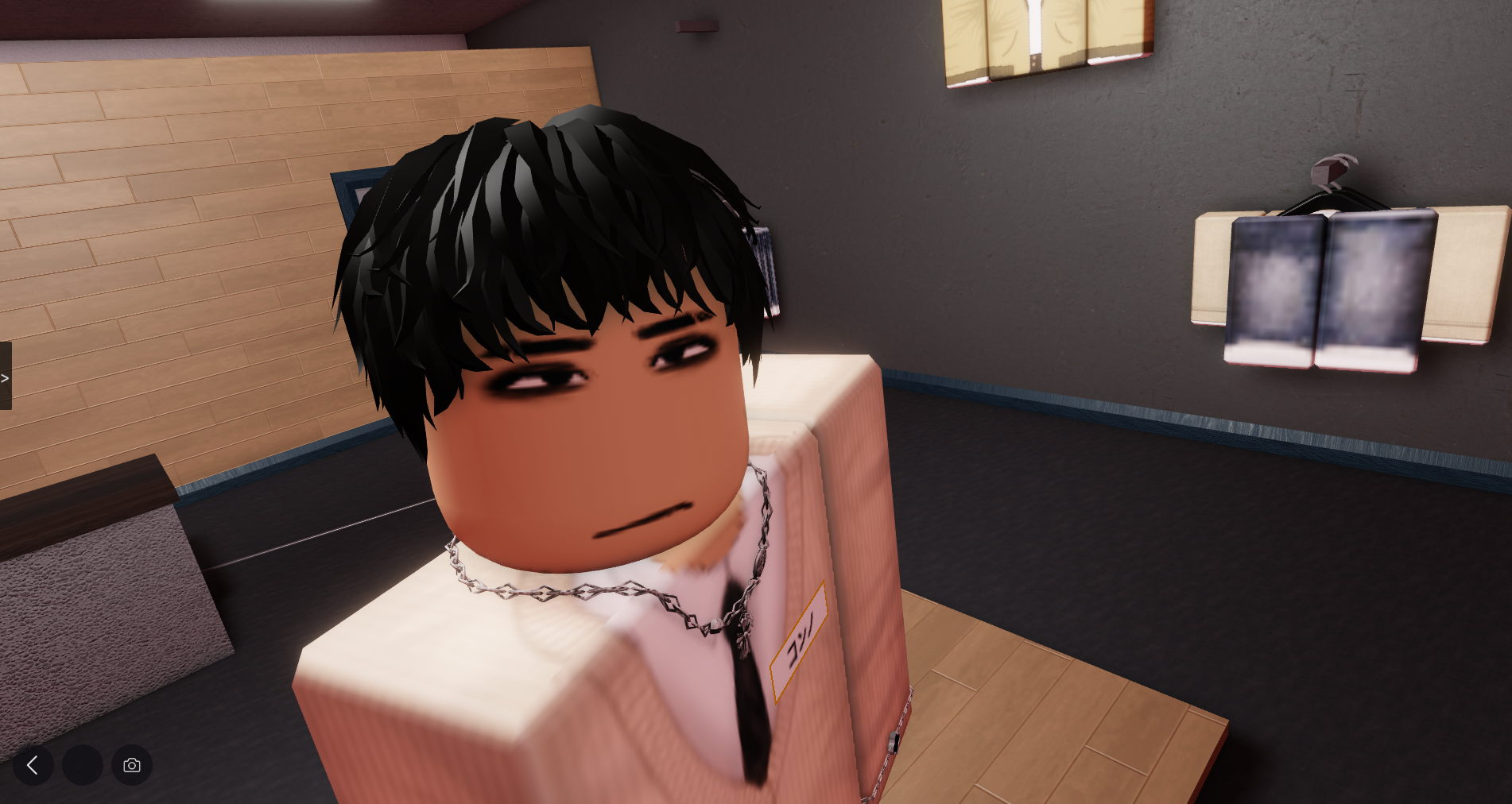
- Front camera: takes selfies of your own character.
How to save your photos (Roblox Captures)
This is the part that makes the Camera genuinely useful: you can save your photos to your Roblox account so they are not lost when you leave. After you take a shot:
- Open the photo preview.
- Select Save to Captures.
The image is then stored in your Roblox Captures, which you can access outside the game through your Roblox account. That means any selfie or scenery shot you take in Gakuran can be viewed, downloaded, or shared later, just like a screenshot from any other Roblox experience.
Tips for better shots
Since you can shoot anywhere, use the back camera for scenic spots around Nishikata like the courtyard or Club Akuma, and flip to the front camera for selfies with friends you have added through Social Link. Remember to hit Save to Captures on any photo you actually want to keep, otherwise it stays only as an in-the-moment preview. It is a small feature, but it is a fun way to document your time in the world.