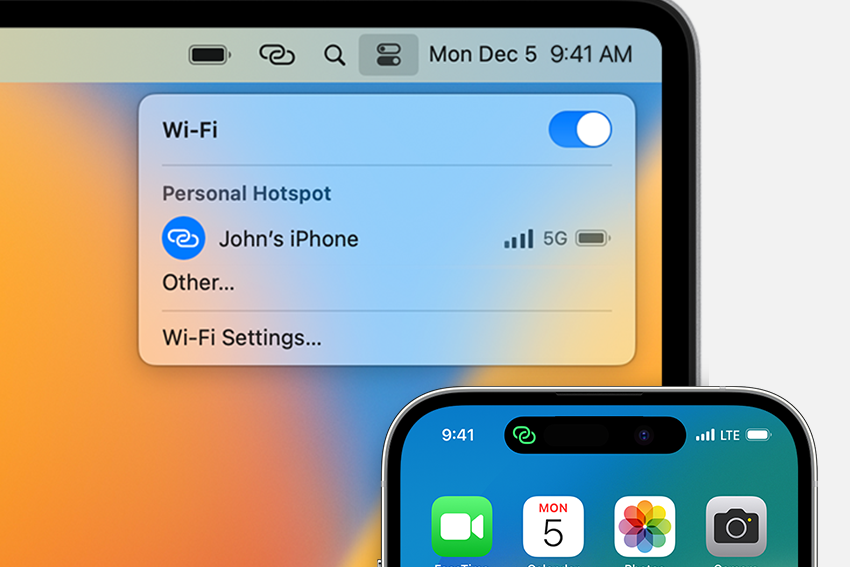
macOS Tahoe 26 adds Auto‑Join Hotspot so your Mac can connect to your iPhone or iPad Personal Hotspot automatically when no Wi‑Fi network is available. You enable it once, and the Mac will handle tethering in the background without typing passwords or toggling the hotspot on the phone.
Check requirements
Before you turn on Auto‑Join, confirm the following to avoid connection failures.
- Mac updated to macOS Tahoe 26 or later.
- iPhone or iPad (Wi‑Fi + Cellular) with a carrier plan that includes Personal Hotspot.
- Wi‑Fi and Bluetooth enabled on all devices.
- Mac and iPhone/iPad signed in to the same Apple ID, or in the same Family Sharing group.
- Devices are near each other; Auto‑Join only kicks in when no Wi‑Fi network is available.
Enable Auto‑Join Hotspot on your Mac
Ask to join hotspots. This setting governs automatic tethering behavior.Automatic. With this enabled, your Mac will attempt to join your trusted iPhone/iPad hotspot when no Wi‑Fi is available.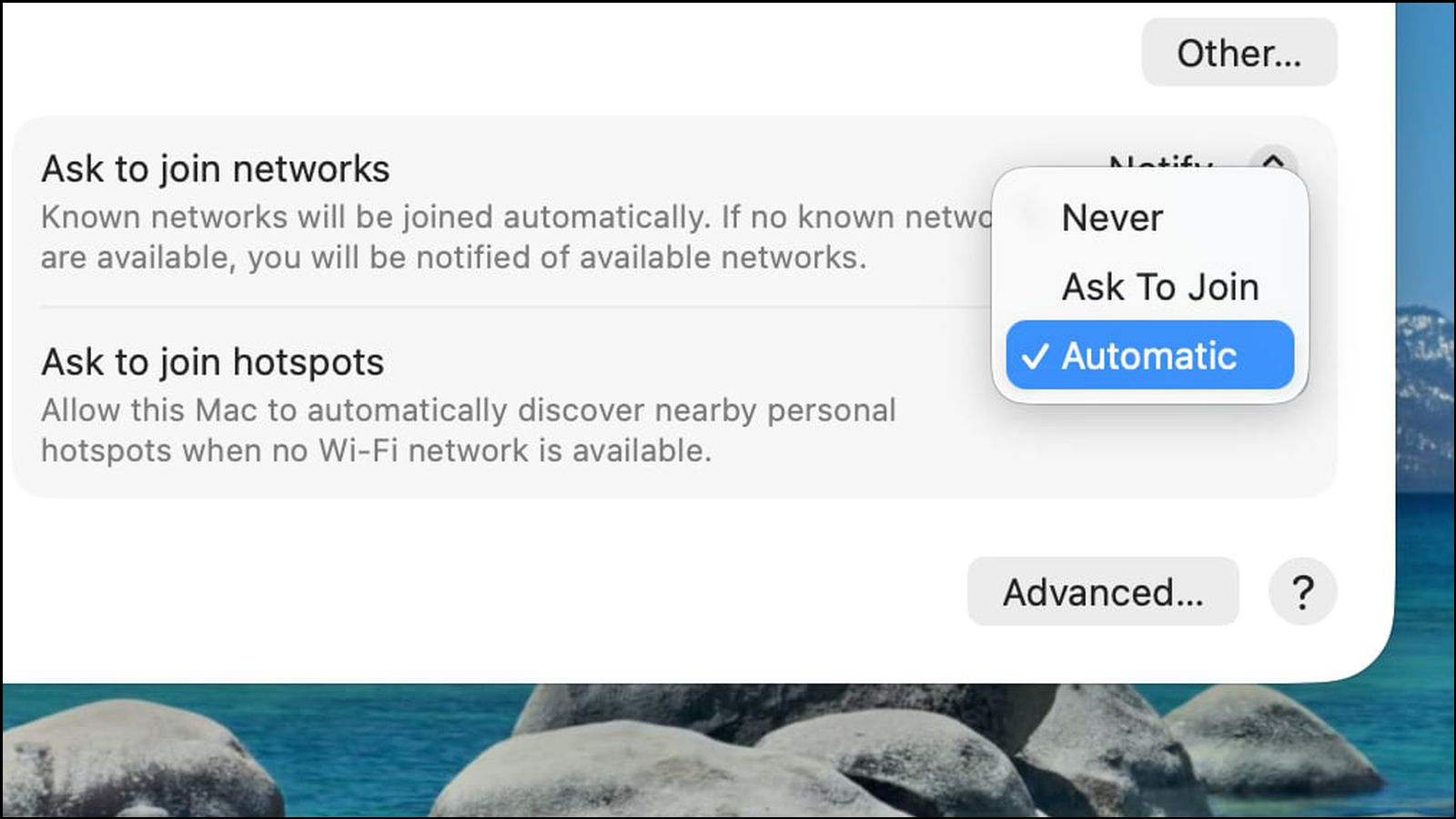
When connected to Personal Hotspot, the Wi‑Fi status icon changes to the hotspot indicator so you can quickly confirm the link is active.
Allow family devices to connect automatically (Family Sharing)
Settings. This is where you control hotspot access.Automatic to allow their device to join when needed, or Ask for Approval to receive a prompt each time.Auto‑Join respects Apple ID trust and Family Sharing, so it will not connect to nearby strangers’ hotspots.
Connect on demand with Instant Hotspot (manual fallback)
Manual connection is useful to test that your devices can tether successfully before relying on Auto‑Join.
Tips for reliable Auto‑Join behavior
- Keep your iPhone/iPad near the Mac and with a usable cellular signal; the Mac won’t switch if the hotspot cannot provide data.
- Leave Wi‑Fi and Bluetooth turned on for both devices; Instant Hotspot and Auto‑Join rely on them.
- Auto‑Join only triggers when no Wi‑Fi network is available, so disconnect from weak or captive Wi‑Fi if you want the Mac to switch to your hotspot.
- Using Personal Hotspot draws noticeable power on the iPhone/iPad; consider charging the device during extended sessions.
Troubleshooting Auto‑Join Hotspot
Verify settings and trust
Wi‑Fi Settings → Ask to join hotspots → Automatic. This is the control that enables background joining.Refresh radios and proximity
Restart and update
Re‑establish the relationship
Settings → Personal Hotspot off, wait ten seconds, then on. This refreshes hotspot advertisements to nearby devices.Carrier and network reset checks
Settings → General → Transfer or Reset → Reset → Reset Network Settings. This clears Wi‑Fi, VPN, and APN settings, so you’ll need to rejoin Wi‑Fi networks afterward.Once configured, Auto‑Join removes the repetitive steps of hotspot toggling and password entry, giving your Mac a dependable fallback when trusted Wi‑Fi isn’t available.