Outlook freezing or displaying a “not responding” message can disrupt email workflows, delay communication, and even cause data loss. These issues often result from overloaded mailboxes, outdated add-ins, profile mismatches, or corrupted data files. Addressing the root cause with targeted troubleshooting restores Outlook’s stability and keeps your email running smoothly.
Start with Advanced Diagnostics and Updates
Use the Get Help feature to find the Classic Outlook Advanced Diagnostics troubleshooter for a streamlined check of common issues. This tool scans for problematic add-ins, data file corruption, and configuration mismatches. After the scan, review the results and apply any recommended fixes.
Confirm that Windows is fully updated. Outdated system files or missing patches frequently cause compatibility problems that lead to freezing or crashing. Open Windows Update from your system settings and install all pending updates.
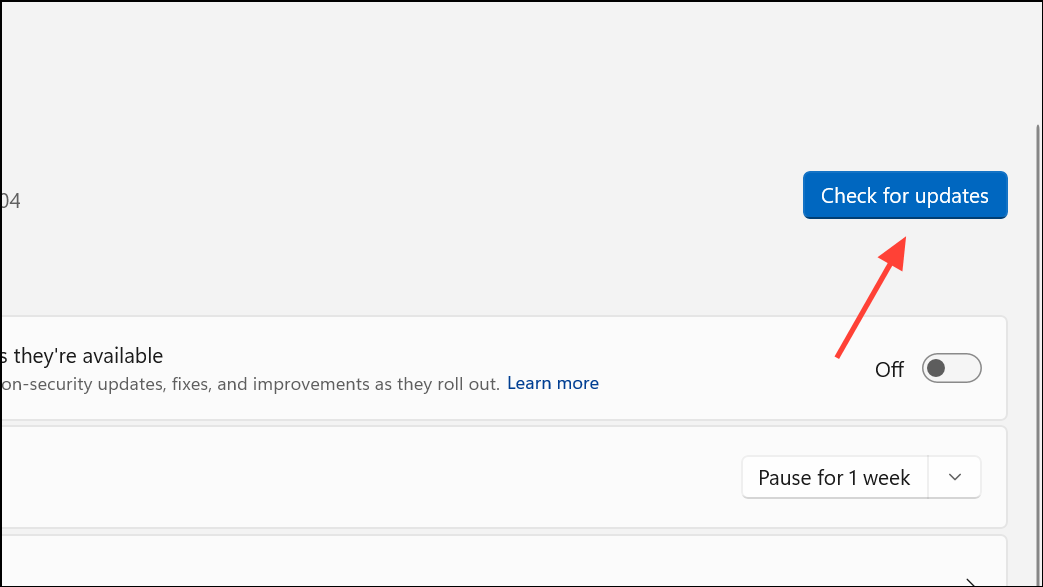
Then, launch Outlook and check for additional Office updates under
File > Office Account > Update Options > Update Now.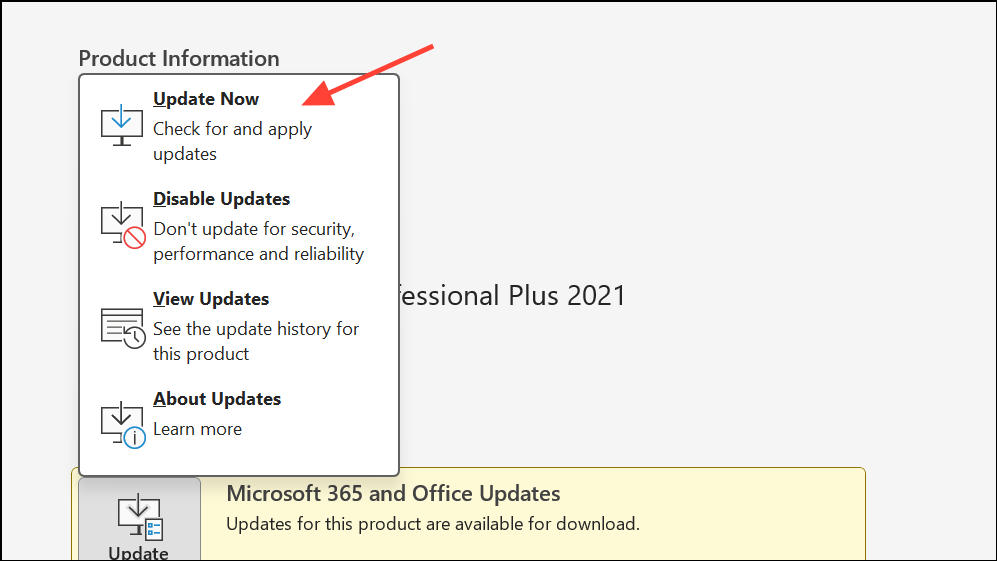
Check for Add-In Conflicts and Safe Mode Operation
Start Outlook in Safe Mode to rule out add-in conflicts. Hold
Ctrl while launching Outlook, or type outlook.exe /safe in the Run dialog (Windows Key + R). If Outlook works without freezing, the issue likely stems from an add-in.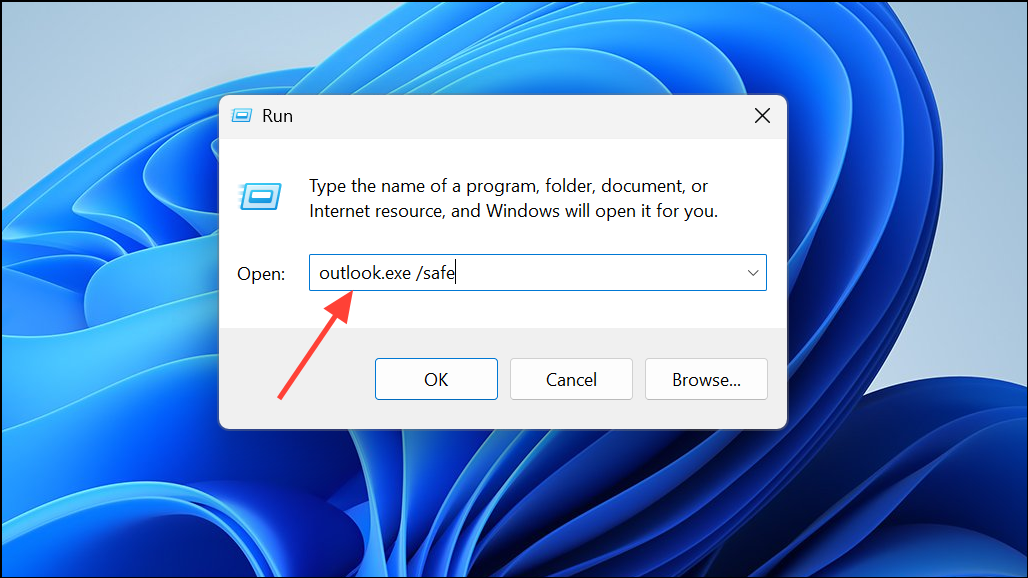
Disable add-ins by navigating to
File > Options > Add-Ins. At the bottom, select COM Add-ins and click Go. Uncheck all add-ins, restart Outlook, and re-enable them one at a time to identify the culprit.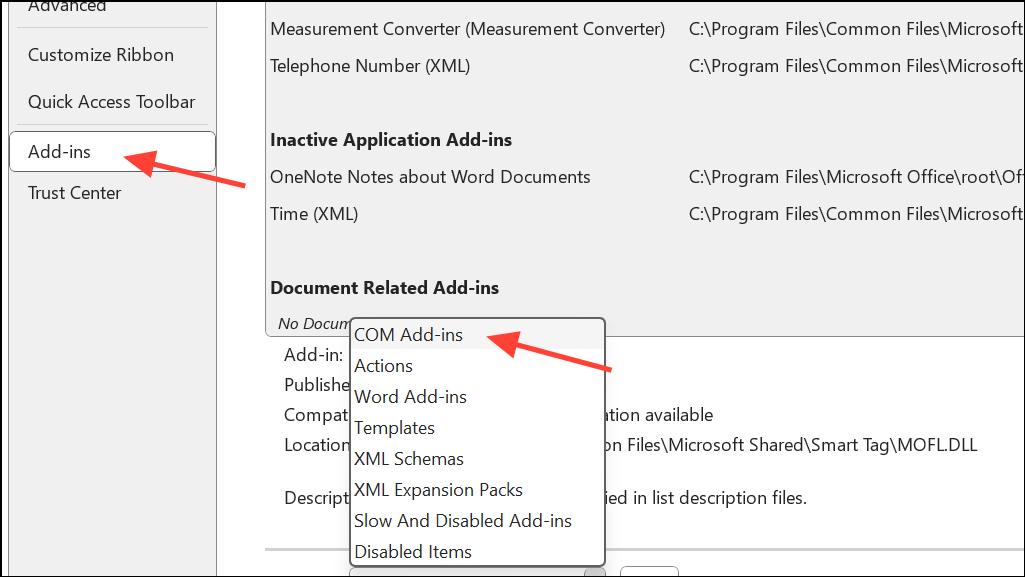
Reduce Mailbox and Data File Size
Large mailboxes or oversized data files (.pst/.ost) slow down Outlook and cause it to hang, especially when opening or searching emails. Archive old emails or move them to separate folders. Use the AutoArchive feature or manually create new folders under the
Folder tab by selecting New Folder.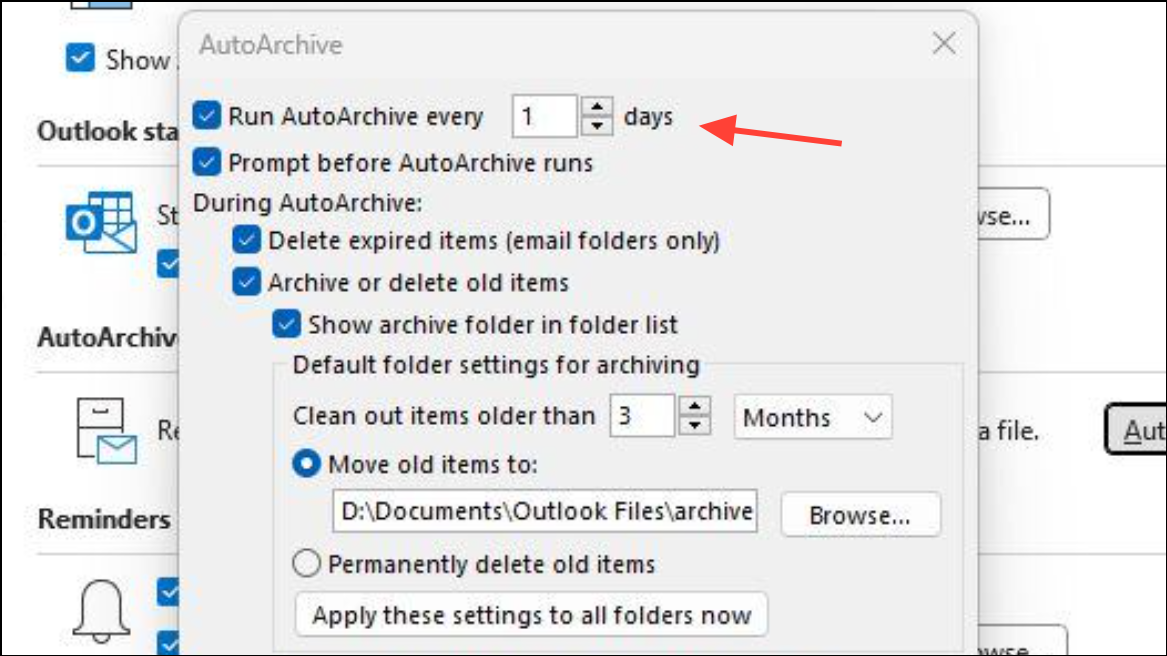
Compact your data files to reclaim space. In Outlook, go to
File > Account Settings > Data Files, select your data file, click Settings, and choose Compact Now.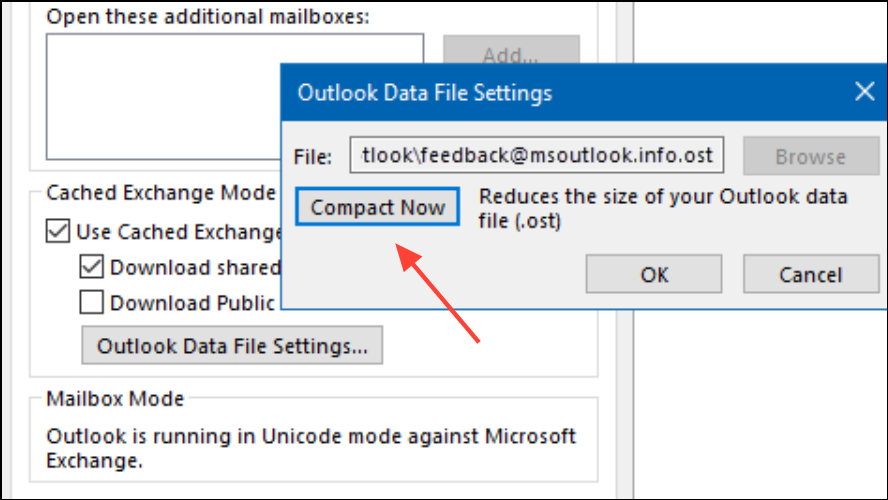
Repair Outlook Data Files
Corrupted .pst or .ost files frequently cause Outlook to freeze or crash. Use the Inbox Repair Tool (
scanpst.exe), which is typically located in your Office installation folder. Close Outlook, run the tool, select your data file, and follow prompts to repair detected errors.Address Profile and Account Issues
Profile mismatches—such as logging into Office 365 with a personal account while using a company Exchange mailbox—can create persistent freezing or crashing. Align your Office login with your primary email account. Sign out of any personal accounts in
File > Office Account, log in with your work credentials, and restart Outlook.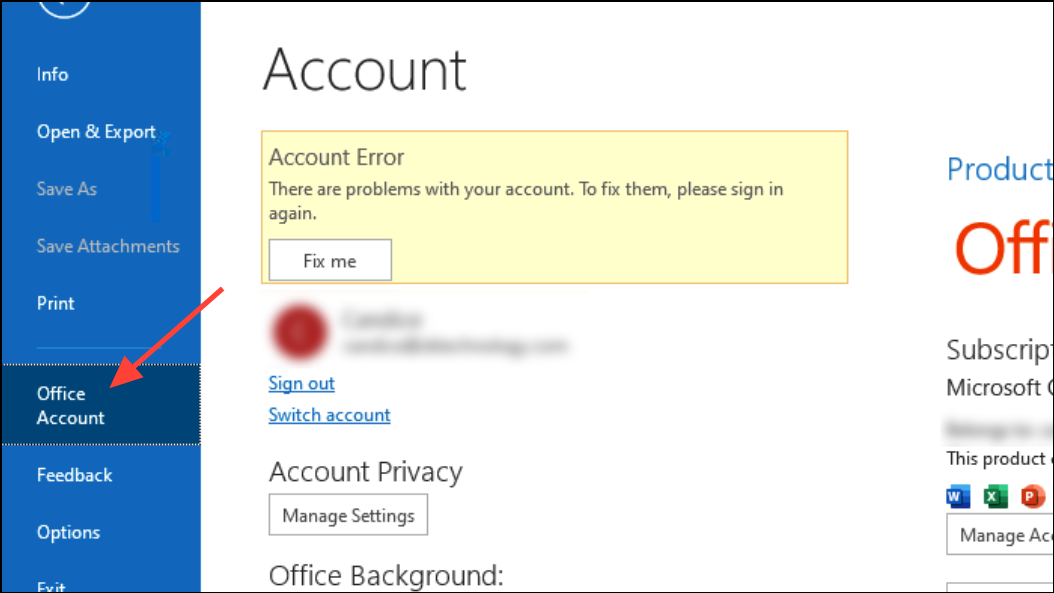
Create a new Outlook profile if freezing persists. In Control Panel, select
User Accounts > Mail > Show Profiles. Click Add, enter a new profile name and set up your email account. Choose to prompt for a profile when starting Outlook, and test with the new profile before deleting the old one.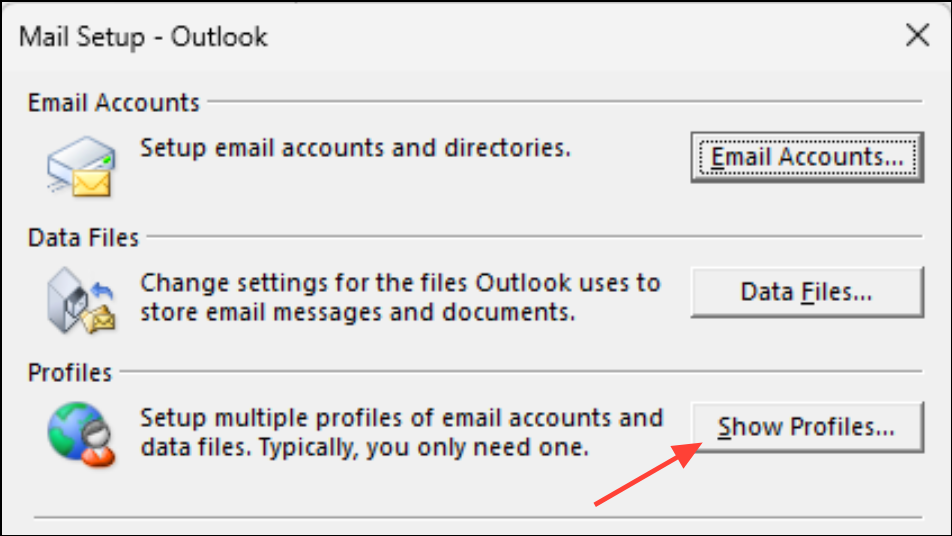
Check for External Content and Network Issues
Outlook may hang while loading external content, such as images in emails, especially on slow networks. To prevent this, go to
File > Options > Trust Center > Automatic Download and select options to block automatic downloads of external content.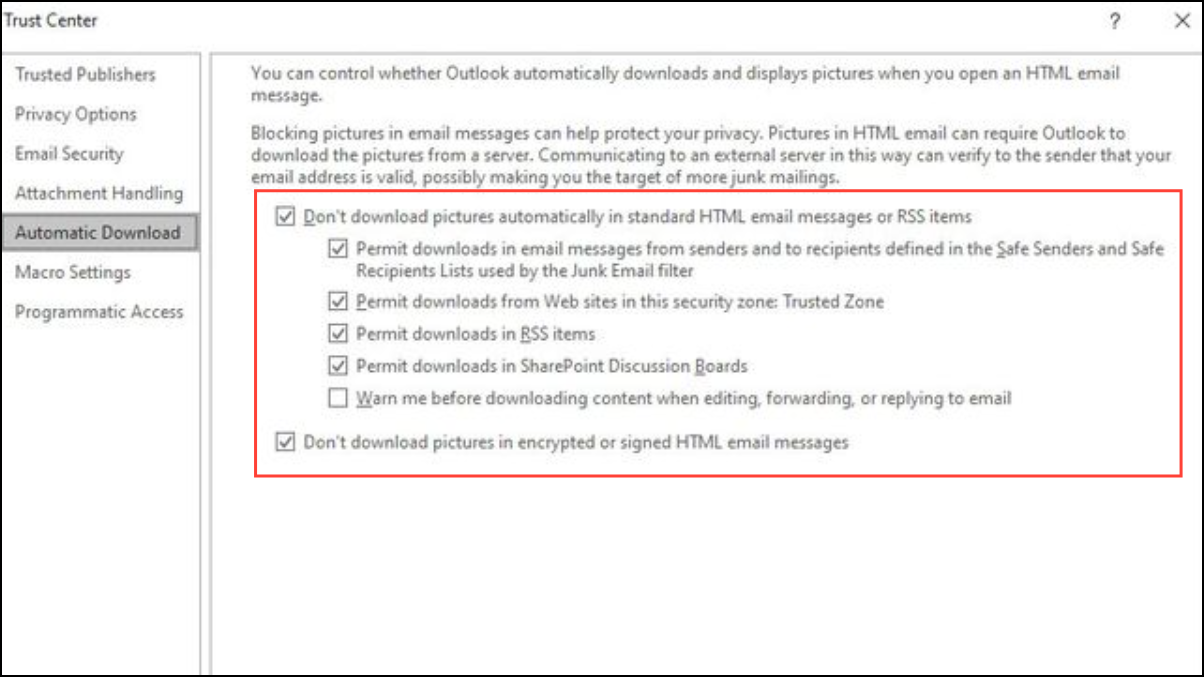
If your AppData folder is redirected to a network location, Outlook’s performance may suffer. Adjust your registry settings to store AppData locally: open Registry Editor, navigate to
HKEY_CURRENT_USER\Software\Microsoft\Windows\CurrentVersion\Explorer\User Shell Folders, and set the AppData value to %USERPROFILE%\AppData\Roaming.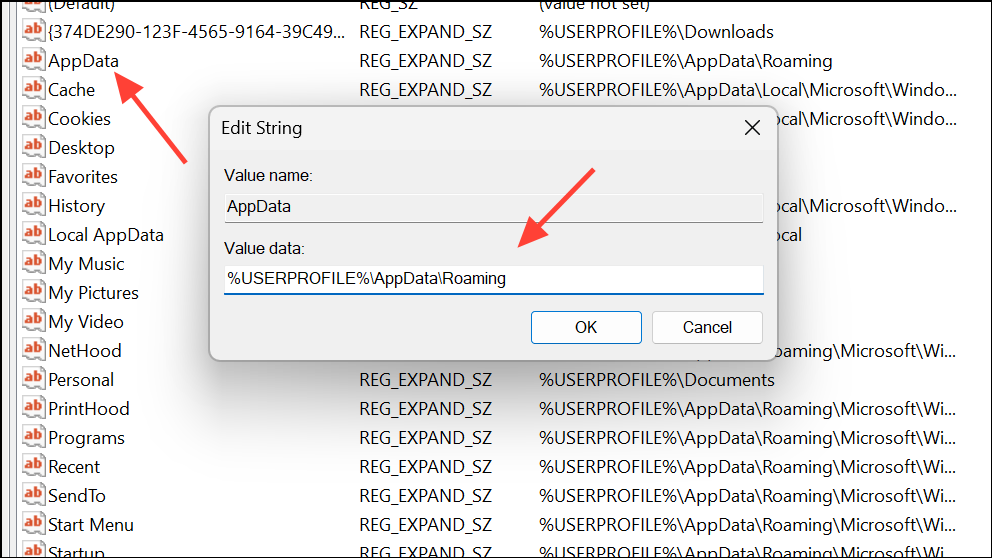
Repair or Reinstall Office Programs
Faulty Office installations can cause Outlook to freeze or crash. Close all Office apps, open Control Panel, go to
Programs and Features, right-click Microsoft Office, and select Change(choose Online Repair for a thorough fix).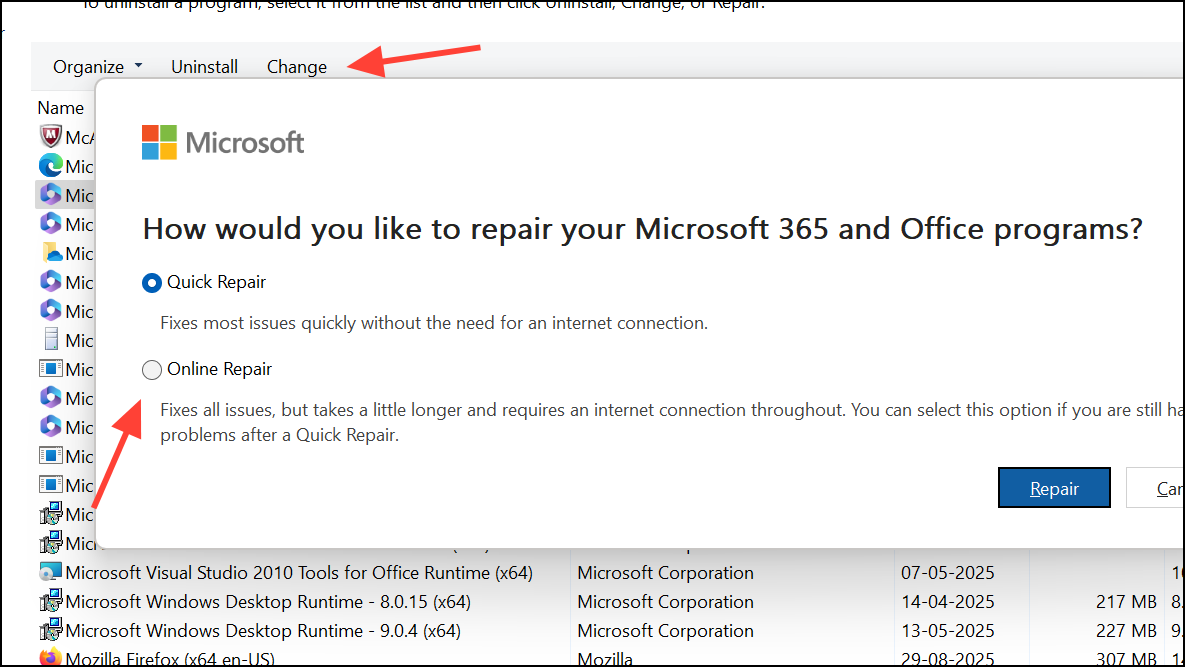
Check Antivirus and System Resource Conflicts
Outdated or conflicting antivirus software can interfere with Outlook. Update your antivirus program and disable any Outlook integration features. If issues persist, temporarily turn off the antivirus to test if Outlook’s behavior improves. Always re-enable protection after testing.
Close unnecessary applications to free up system resources. Outlook requires substantial memory and CPU, especially with large mailboxes or multiple accounts. Running too many concurrent programs can slow Outlook or cause it to hang.
Advanced: Selective Startup and Windows User Profile
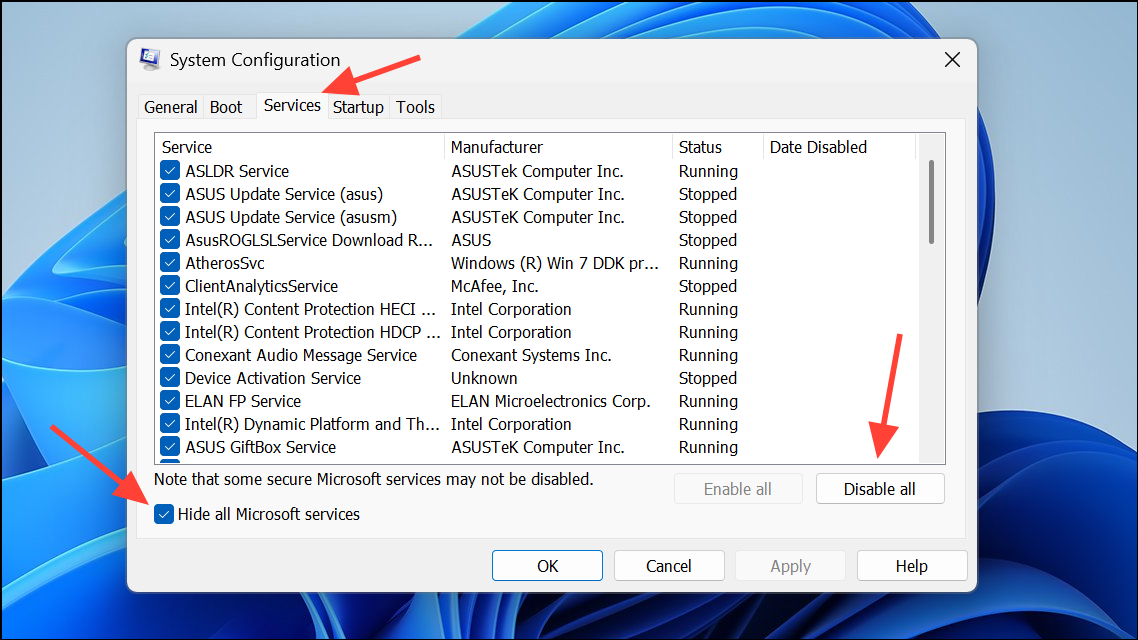
Perform a Selective Startup (clean boot) to identify software conflicts. Use
msconfig from the Run dialog to open the System Configuration Utility.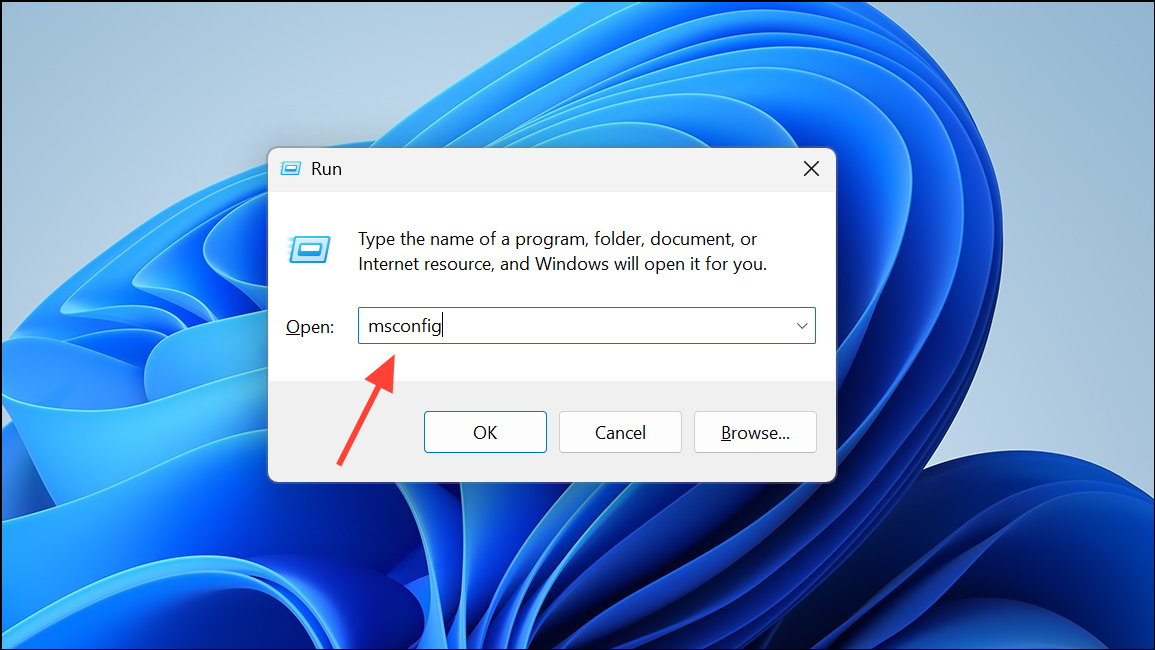
Go to the Services tab, disable all non-Microsoft services and startup items, then reboot. Gradually re-enable items to pinpoint the cause of freezing.
If Outlook still freezes, your Windows user profile might be corrupted. Create a new Windows user account by opening the Settings app, going to Accounts, and selecting Other Users.
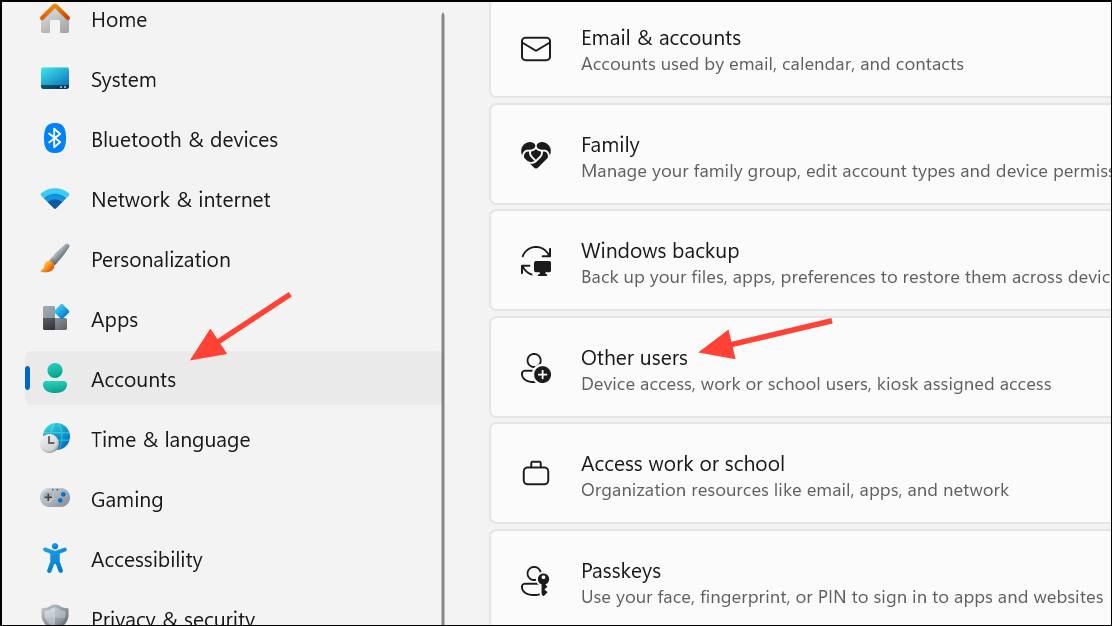
Click Add account, set up your new account, log in, and configure Outlook. If Outlook works normally, migrate your files and settings to the new profile.

Additional Tips and Preventive Measures
- Regularly archive or delete old emails to keep mailbox size manageable.
- Keep all software—including Windows, Office, and antivirus—updated.
- Avoid syncing Outlook data files (.pst or .ost) to cloud storage like OneDrive, as this can cause file access conflicts.
- Use Outlook Web App as a temporary workaround if desktop Outlook remains unstable.
Resolving Outlook freezing or not responding issues often requires a combination of these steps. Systematic troubleshooting restores normal operation and keeps your email flowing without interruptions.