Emails that stay in the Outlook Outbox or Inbox until you manually initiate a send/receive operation typically indicate a configuration issue, a connectivity problem, or an underlying software conflict. This behavior disrupts workflow and can lead to missed communications. Addressing the root cause restores Outlook’s ability to send emails automatically, streamlining your email management.
Enable “Send Immediately When Connected” Setting
In the Options window, click
Advanced in the left sidebar. Scroll down to the “Send and receive” section.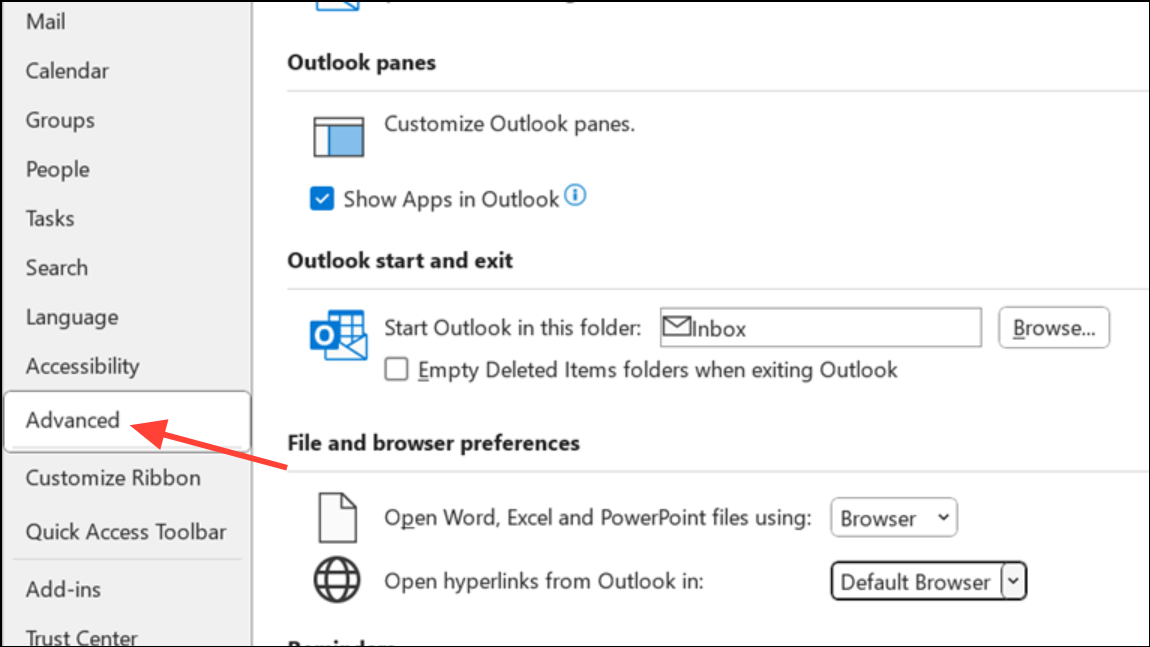
Make sure the box for
Send immediately when connected is checked. This setting ensures that Outlook attempts to send messages as soon as a connection is available.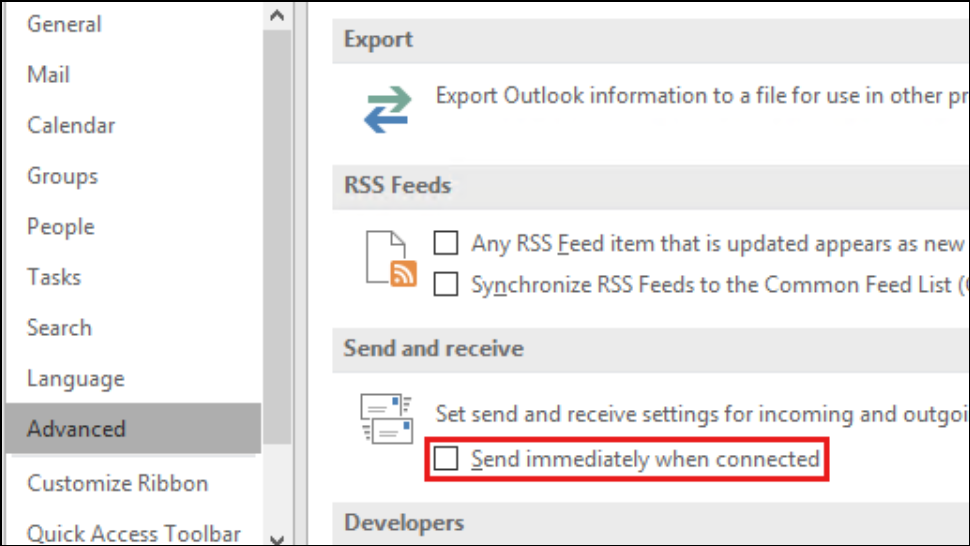
Click
OK to save changes. If the option is grayed out, your organization may enforce this through group policy; contact your administrator if needed.Check Connection Status and Work Offline Mode
Look at the bottom right corner of the Outlook window to check your connection status. If it says “Working Offline,” emails will not send automatically.
Go to the
Send/Receive tab and click the Work Offline button to toggle back online. The status should change to “Connected” or “Connected to: Microsoft Exchange.”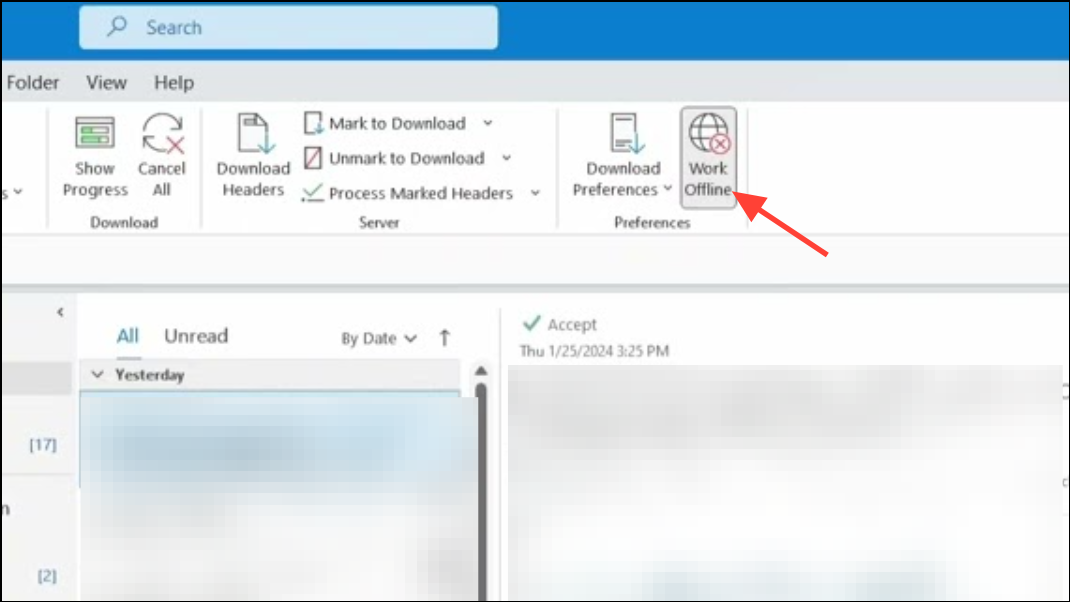
Remove Large Attachments or Corrupted Messages
Switch Outlook to offline mode by clicking
Send/Receive > Work Offline. This prevents Outlook from attempting to send while you troubleshoot.Go to the Outbox folder. If an email has a large attachment or appears stuck, right-click the message and select
Removeto remove it, or drag it to the Drafts folder to open and edit the attachment.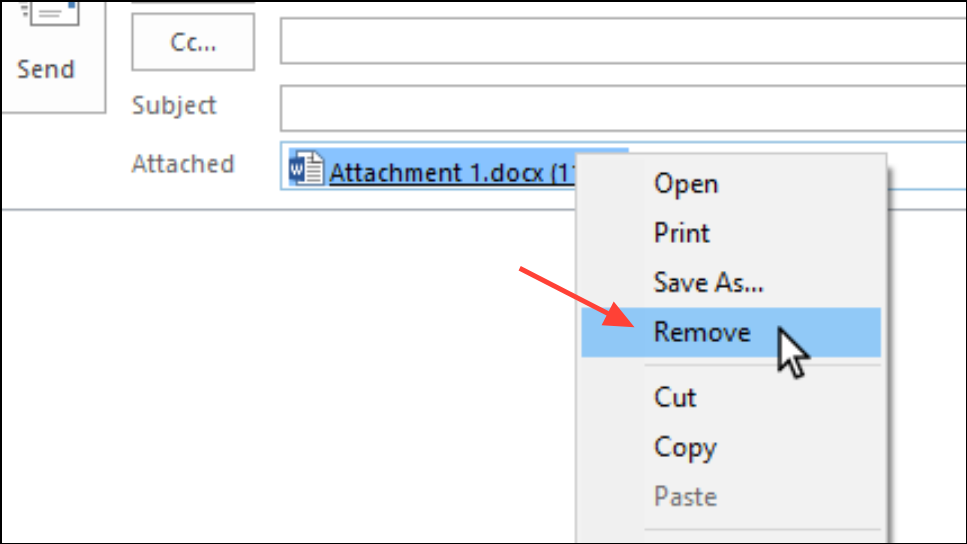
If you receive an error that Outlook has already begun transmitting the message, close Outlook completely. Use Task Manager to ensure no
outlook.exe processes are running, then restart Outlook and try again.Repair Outlook Profile or Create a New One
If emails remain stuck despite correct settings, your Outlook profile may be corrupted. Open Control Panel and search for
Mail, then select Show Profiles.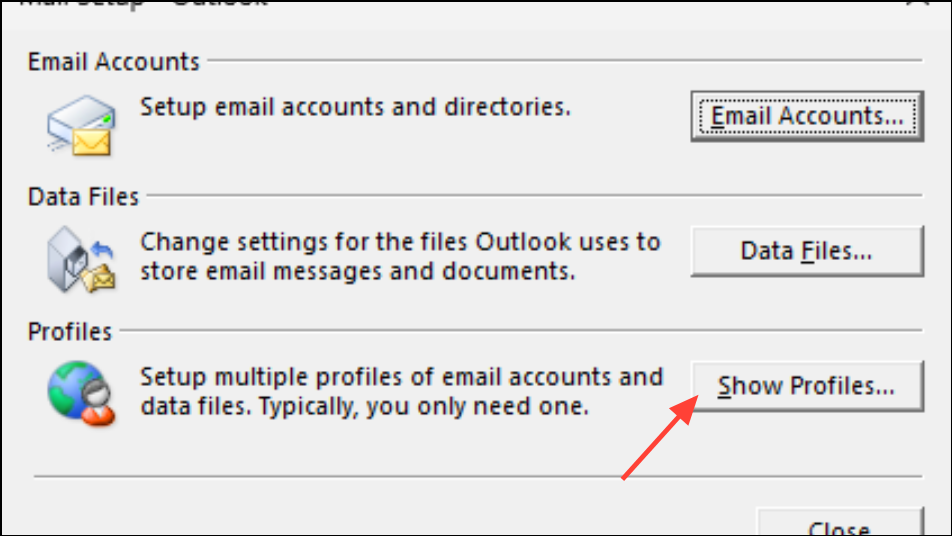
Click
Add to create a new profile, enter a name, and configure your email account. Set the new profile as default and restart Outlook.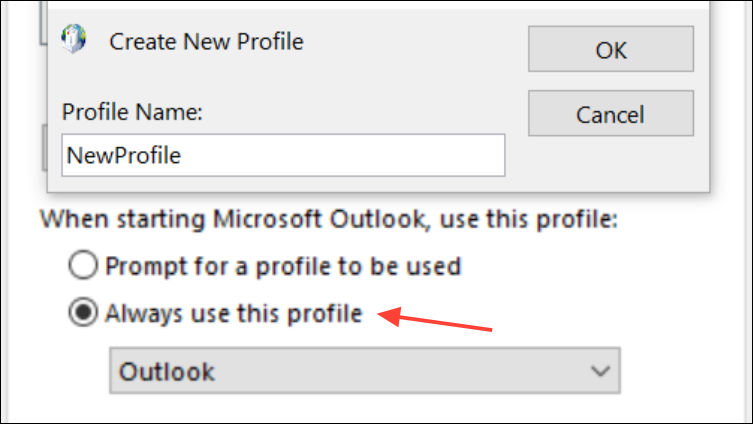
Address Add-Ins, Antivirus, and Conflicting Software
Faulty add-ins or antivirus programs sometimes block outgoing mail. In Outlook, go to
File > Options > Add-ins. At the bottom, select COM Add-ins and click Go. Uncheck any add-ins you do not need, especially those related to CRM, social connectors, or third-party integrations.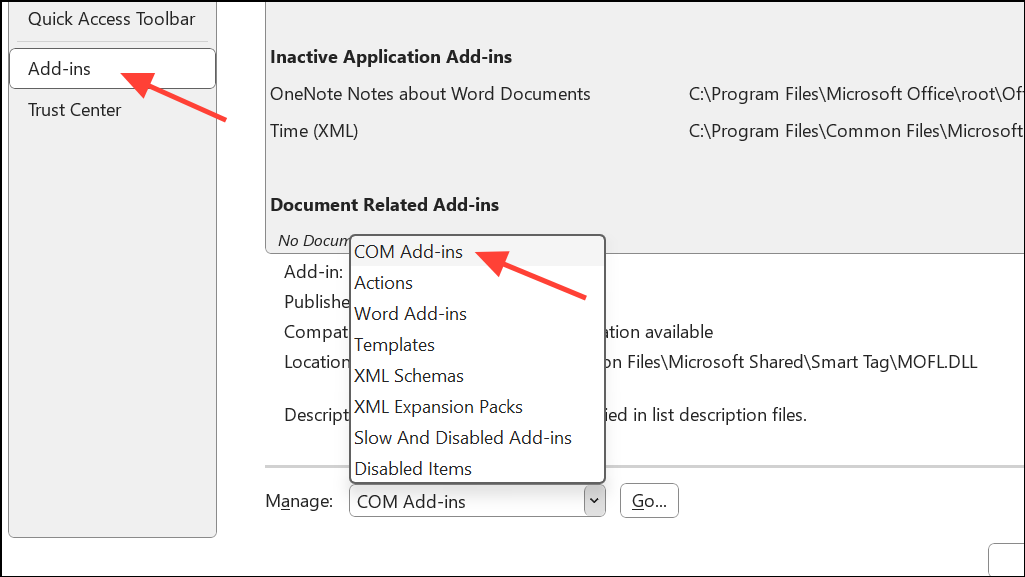
Temporarily disable antivirus email scanning features. Most modern antivirus software will still check files as they are saved to disk, so disabling email scanning should not reduce security.
Restart Outlook and check if emails send automatically. If the issue is resolved, reactivate add-ins one at a time to identify the culprit.
Verify Account Settings and Credentials
Incorrect or outdated account settings can prevent Outlook from sending messages. Go to
File > Account Settings > Account Settings again. Double-click your email account to review settings.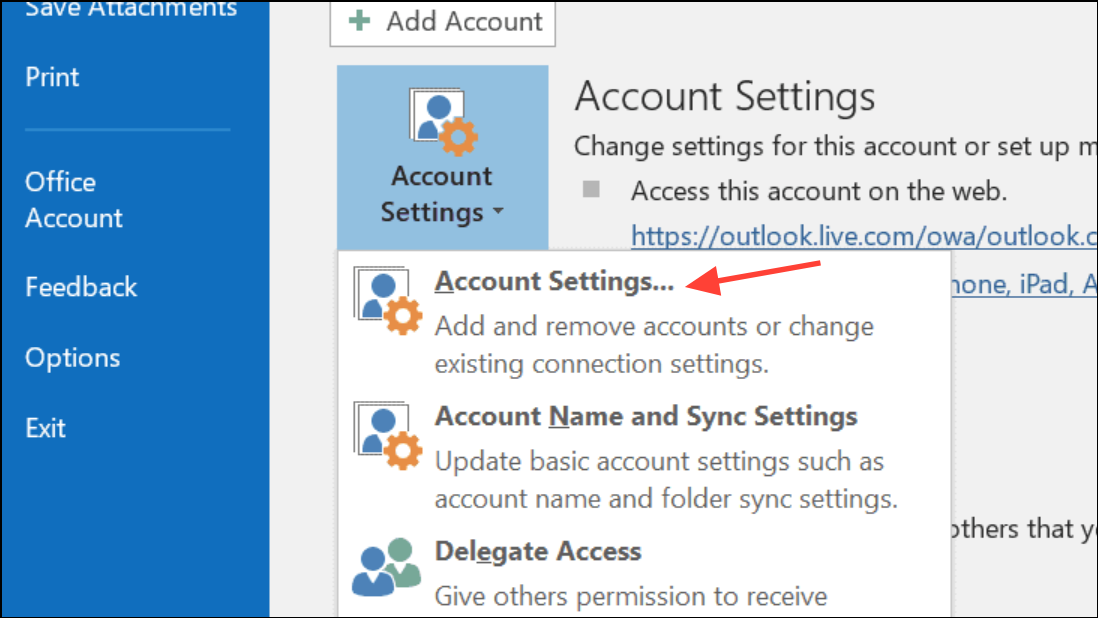
Confirm your username, password, and server details match those provided by your email service. Update your password in Outlook if you recently changed it on your provider’s website.
Check the
Outgoing Server and Advanced tabs to ensure correct port numbers and authentication settings are in place.Clear Stuck Emails and Restart Outlook
Occasionally, Outlook or Windows processes hang and block outgoing mail. Close Outlook, open Task Manager, and end any
outlook.exe processes.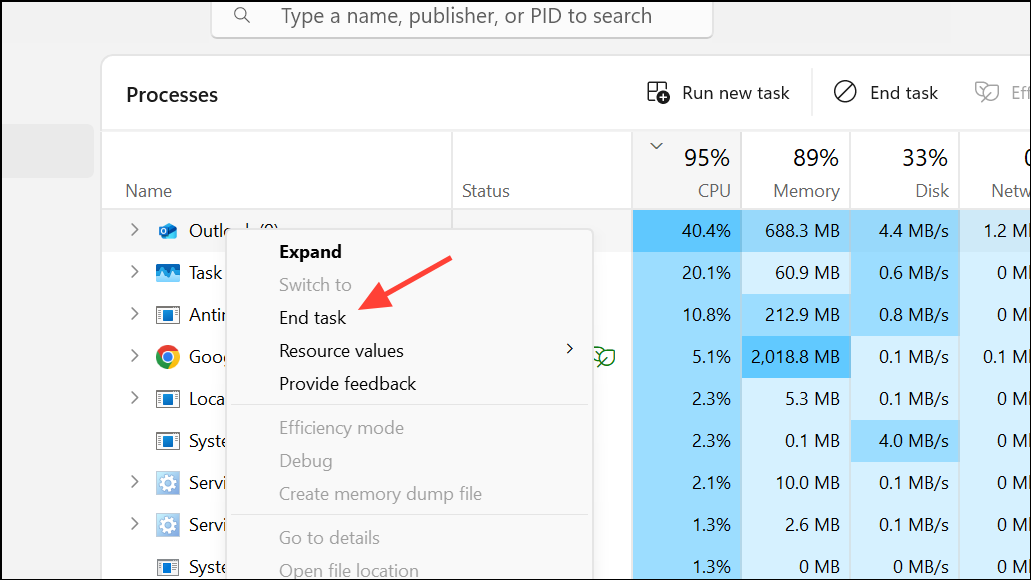
Restart Outlook. If the Outbox is now clear and emails are sent, the issue was likely a stuck process.
Update or Repair Office Installation
Outdated or corrupted Office installations can cause intermittent issues. Go to
File > Office Account > Update Options and choose Update Now.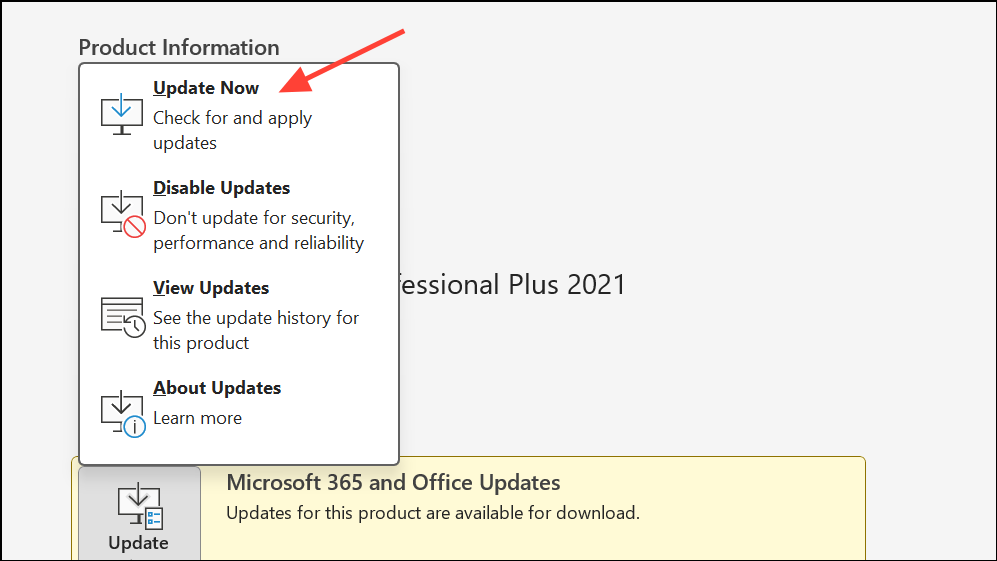
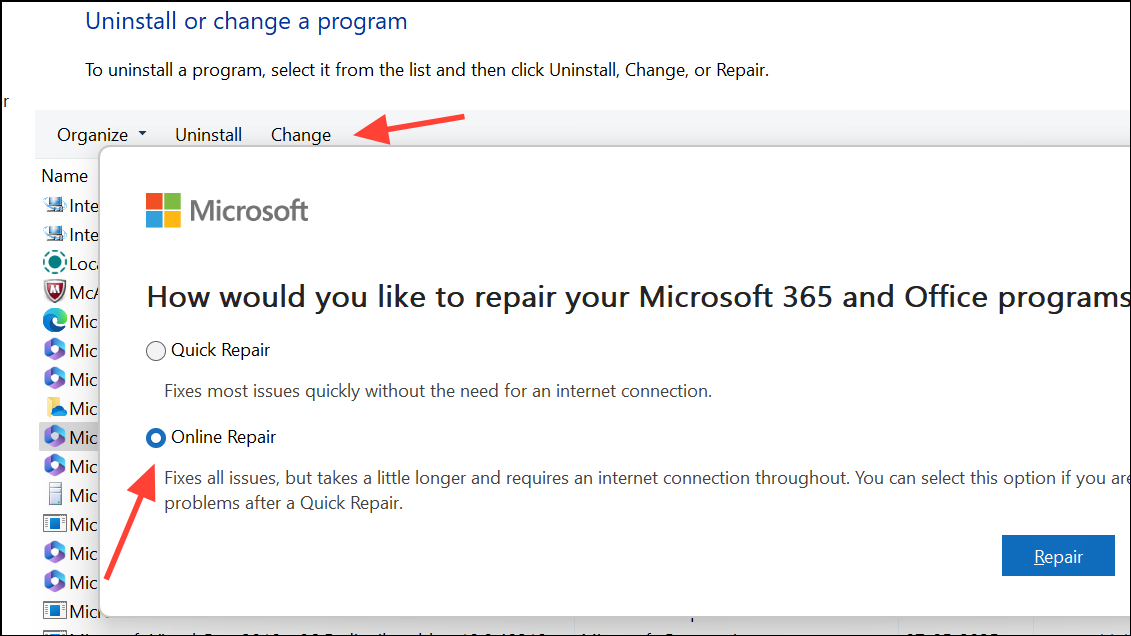
If the problem persists, run an Online Repair of Office via Control Panel > Programs and Features > Microsoft Office > Change > Online Repair.
Resolving Outlook emails stuck in the Outbox or Inbox often requires adjusting key settings, checking connectivity, and occasionally repairing or recreating your profile. Keeping Outlook updated and minimizing conflicting software reduces future issues.