Outlook users sometimes run into the error message: Sorry, we're having trouble opening this item. This could be temporary, but if you see it again, you might want to restart Outlook. This issue can stop access to emails, calendar events, or other items, even after restarting Outlook. The error often points to problems with cached data, add-ins, outdated software, or even corruption in your Outlook profile or data files. Addressing these root causes not only restores access but also prevents future interruptions.
Clear Outlook Cache Files
Corrupt or overloaded cache files frequently cause Outlook to misbehave. Clearing these files forces Outlook to rebuild a fresh cache, which often resolves persistent display or access issues.
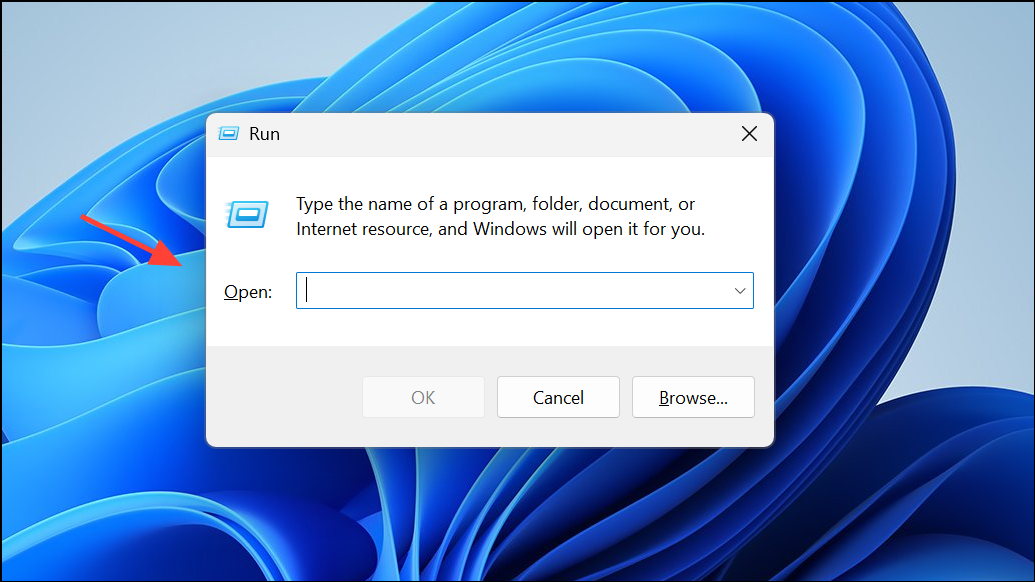
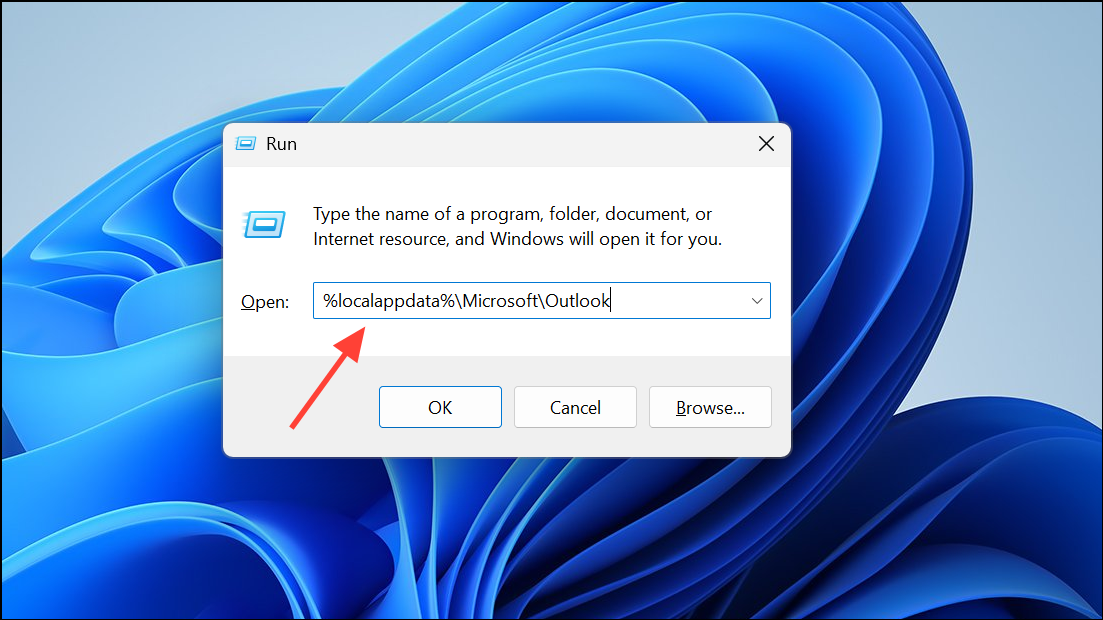
RoamCache folder inside and delete all files within it. These are temporary files and safe to remove.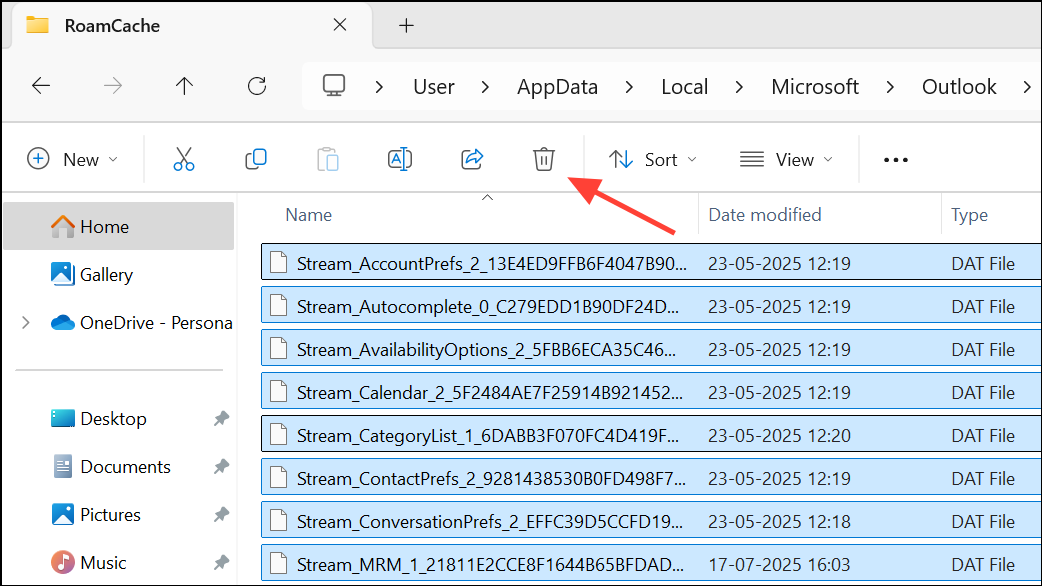
Update Outlook to the Latest Version
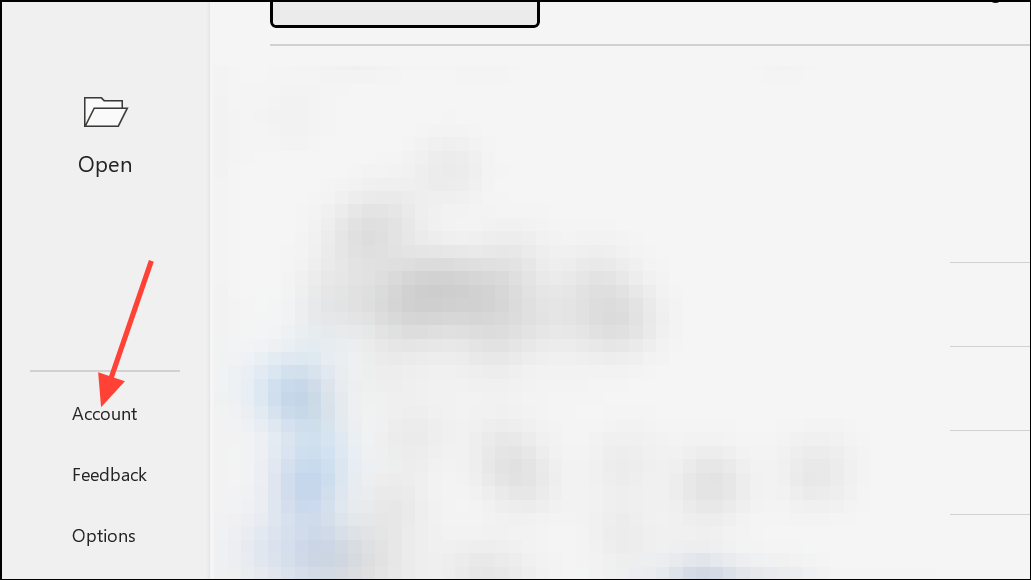
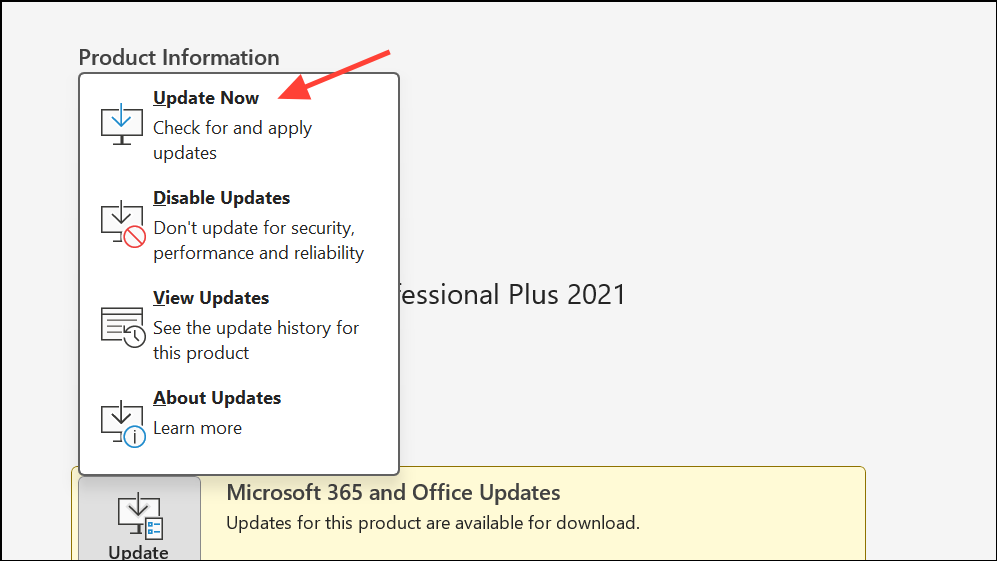
Outdated Outlook builds may contain bugs or compatibility issues that block access to mail items. Updating ensures you receive the latest fixes from Microsoft.
Repair Your Outlook Data File (OST/PST)
Corruption in the Outlook data file (OST or PST) can prevent items from opening. Repairing or recreating the data file restores access to your mailbox.
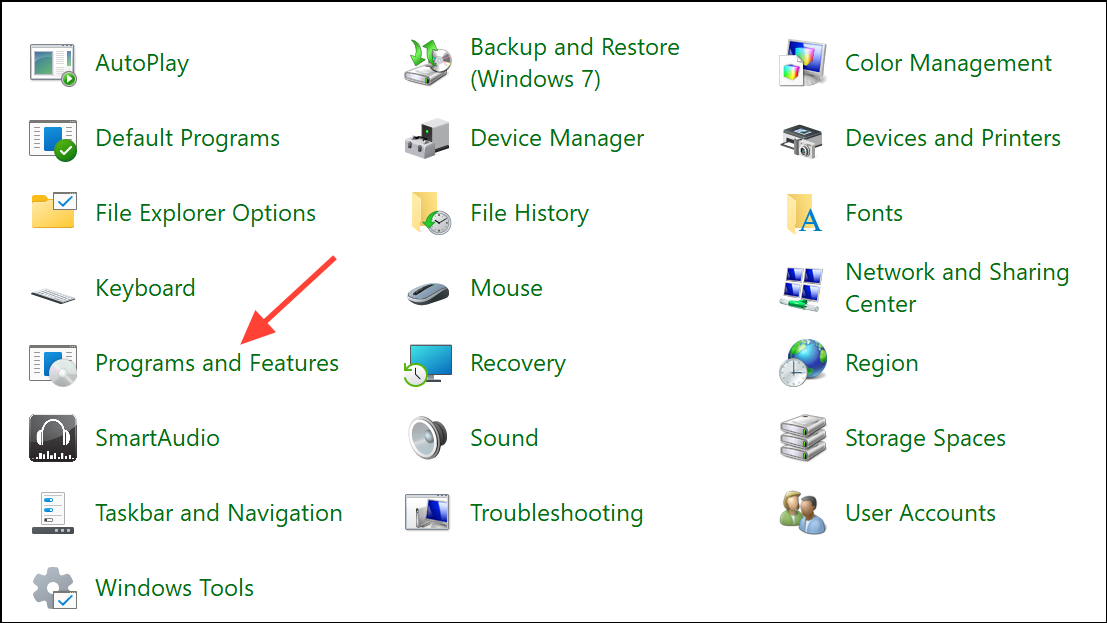
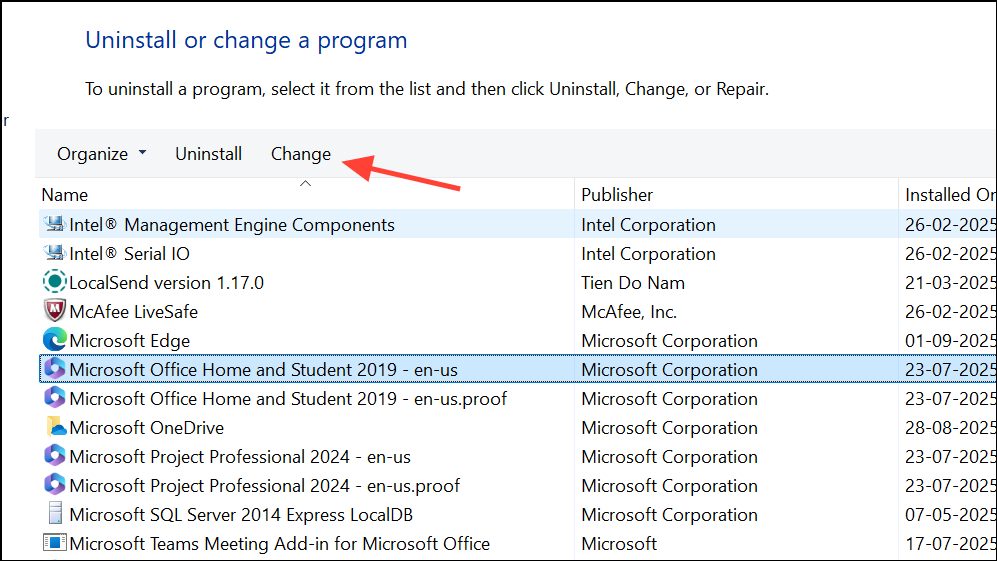
Quick Repair or Online Repair and follow the prompts. Quick Repair is faster, but Online Repair is more thorough.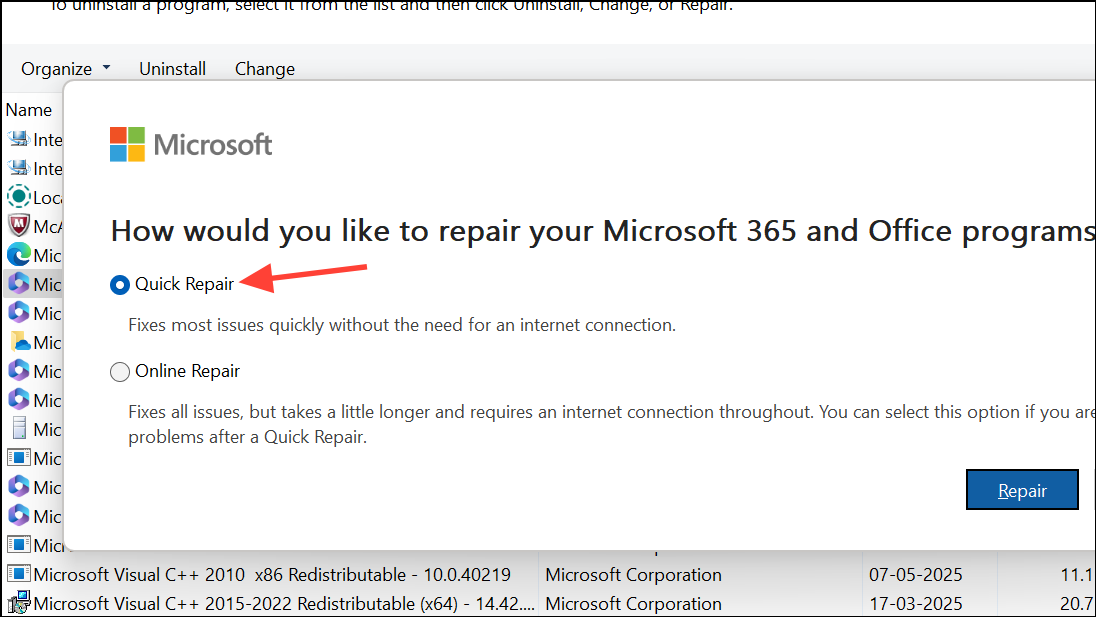
C:\Users\[YourProfile]\AppData\Local\Microsoft\Outlook, make a backup, then delete the original file. Restart Outlook to generate a new OST and resynchronize your mailbox.If you notice missing items after rebuilding, use an OST to PST converter tool to recover data from your backup.
Reset Outlook View and Navigation Settings
Incorrect or corrupted view settings can stop items from displaying properly. Resetting these settings restores the default Outlook layout and solves related display problems.
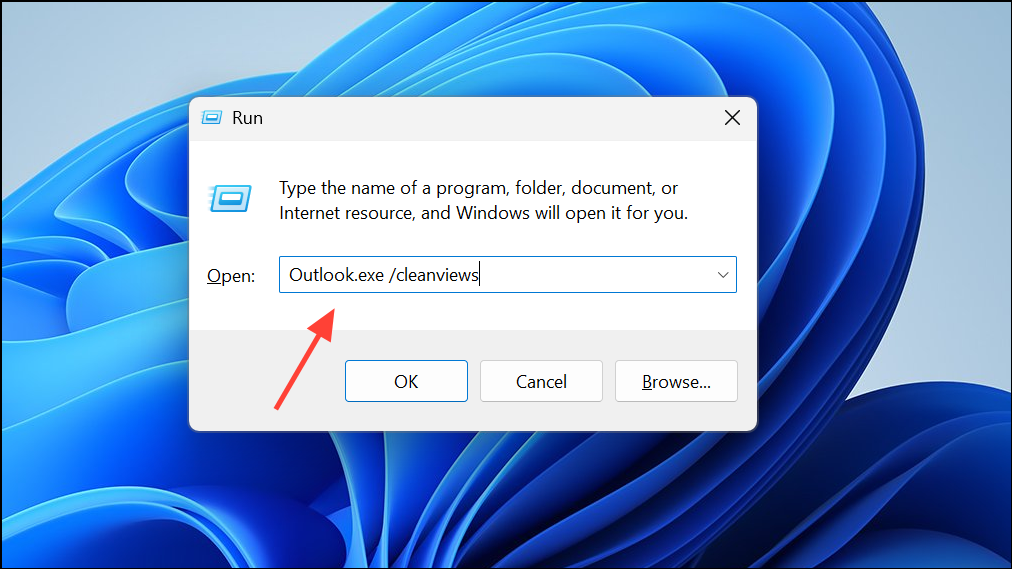
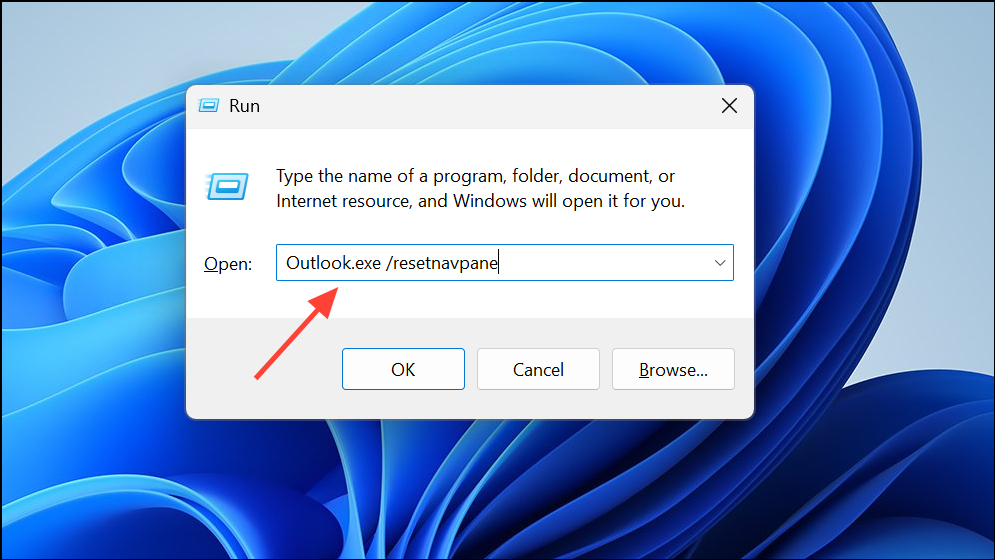
Check and Remove Faulty Add-Ins
Add-ins can conflict with Outlook and block item access. Disabling unnecessary or malfunctioning add-ins often restores normal function.
Windows + R, typing Outlook.exe /safe, and pressing Enter. Safe Mode loads Outlook without add-ins.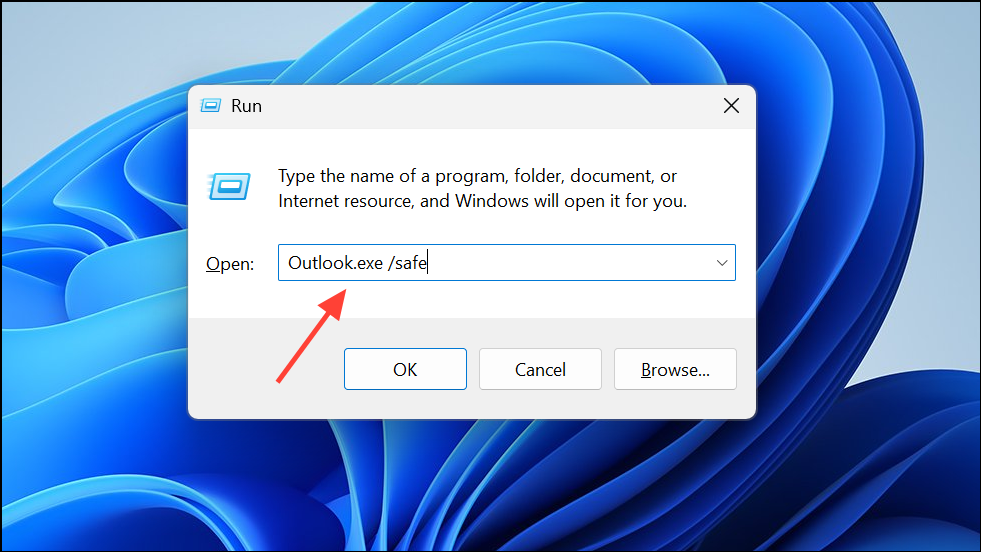
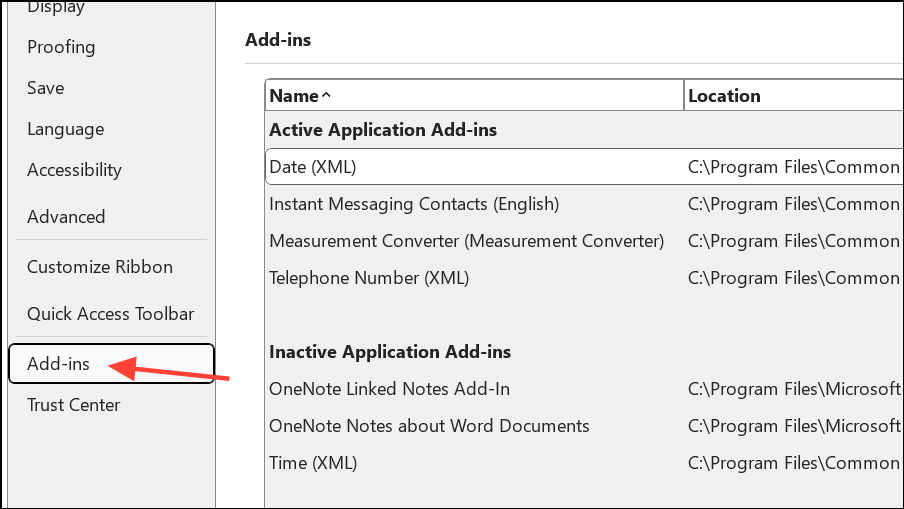
Go next to COM Add-ins and uncheck all add-ins. Re-enable them one by one to identify the culprit.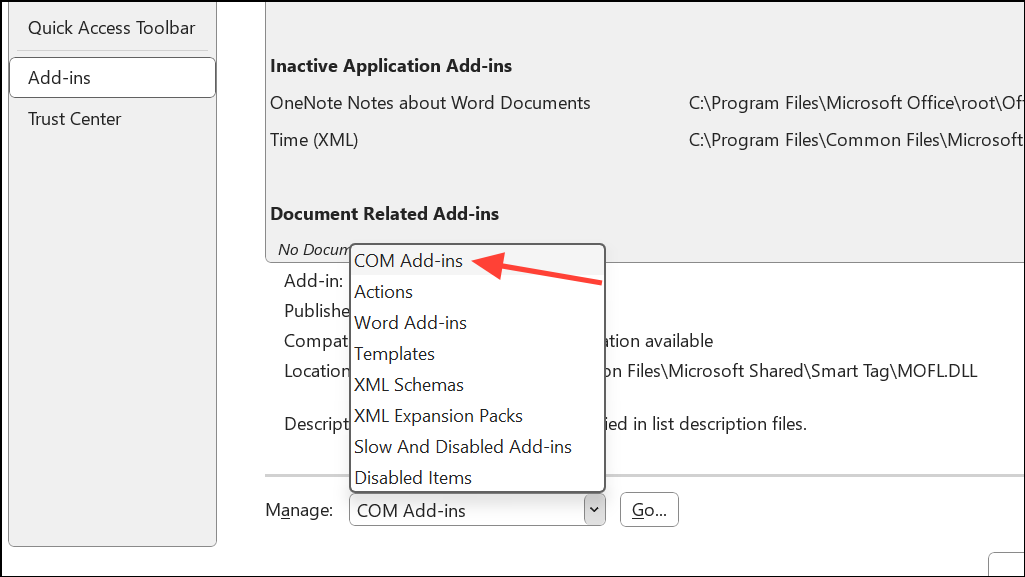
Disable Cached Exchange Mode (If Using Exchange)
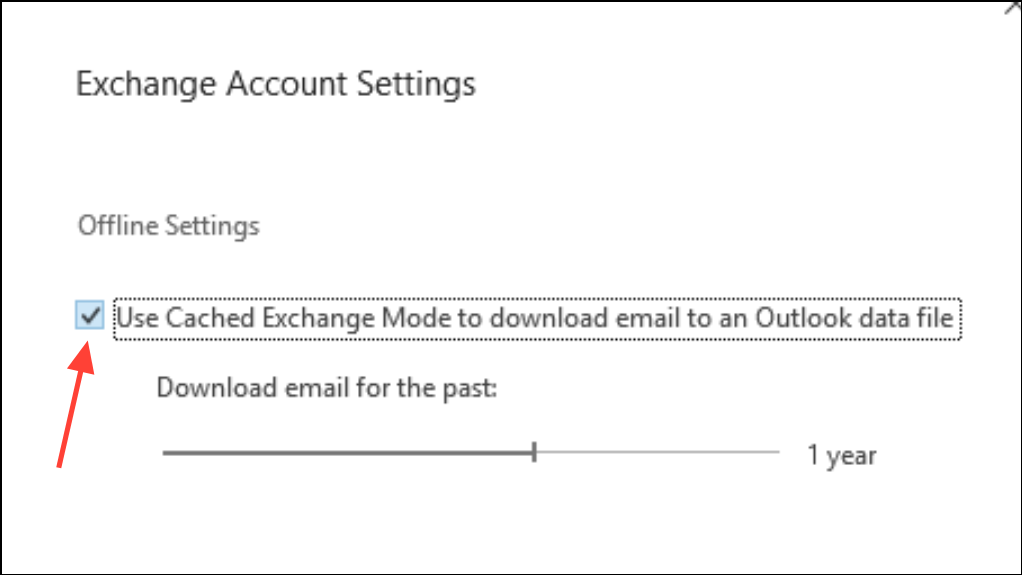
Cached Exchange Mode stores a local copy of your mailbox. Issues with this cache can trigger item opening errors. Disabling it forces Outlook to connect directly to the server, bypassing local cache issues.
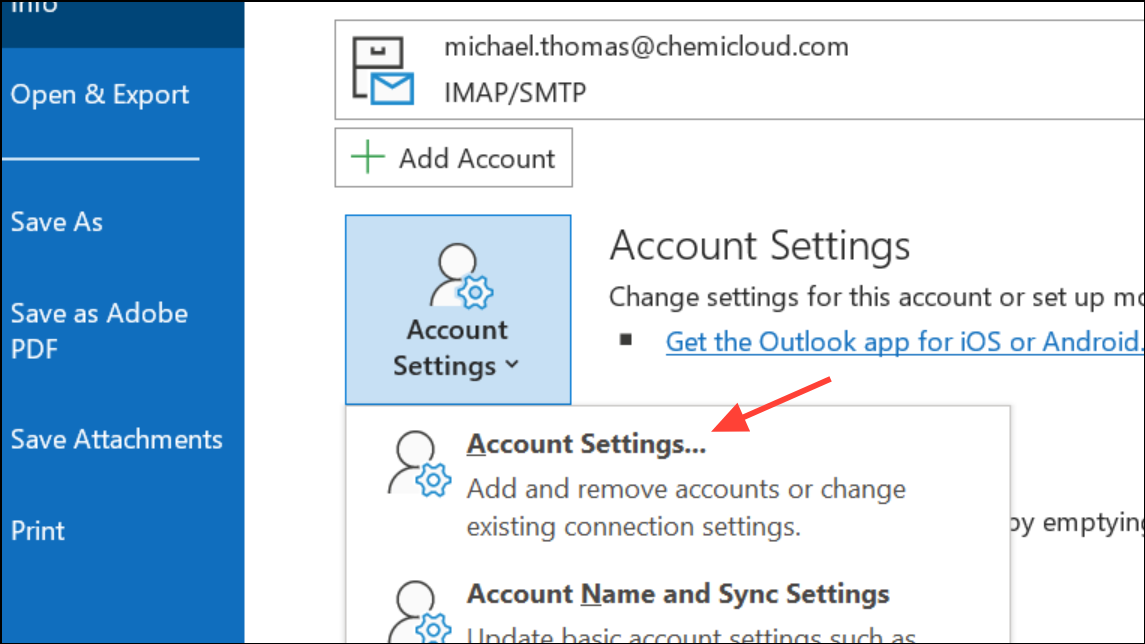
Repair or Create a New Outlook Profile
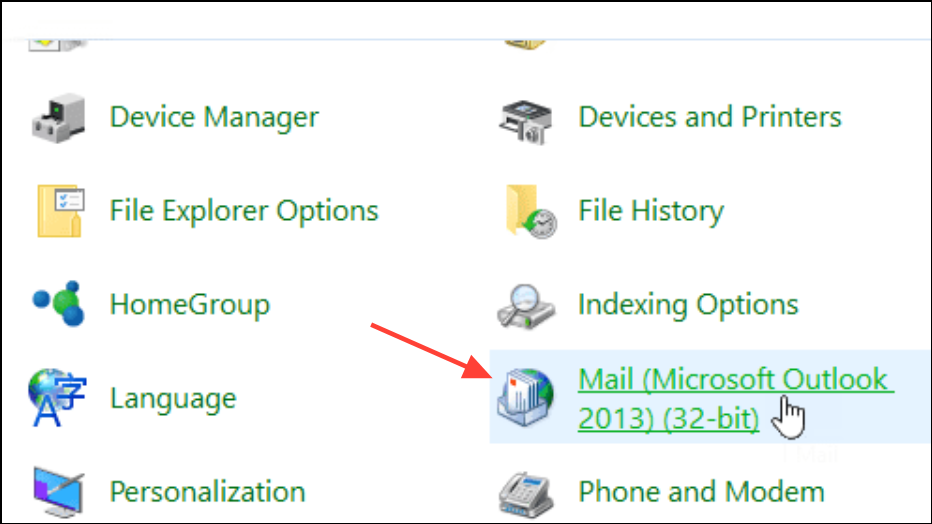
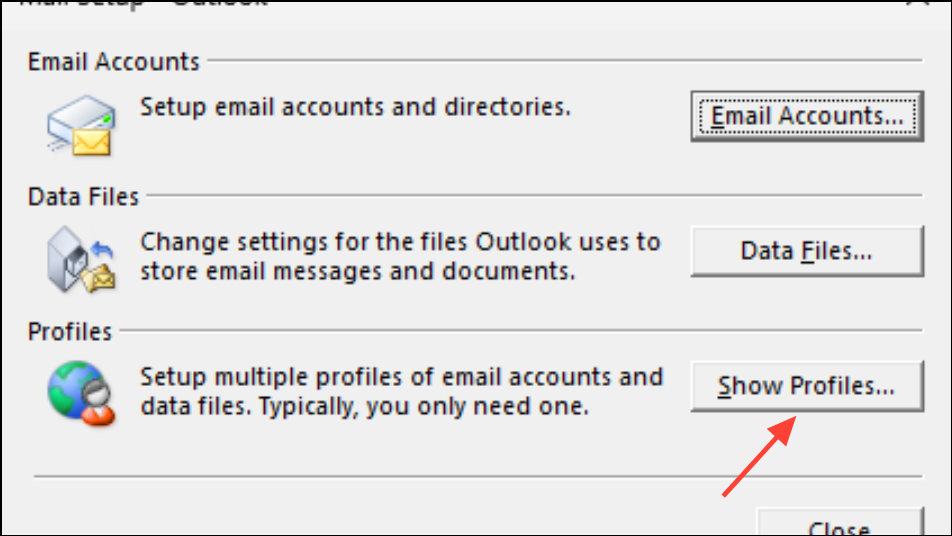
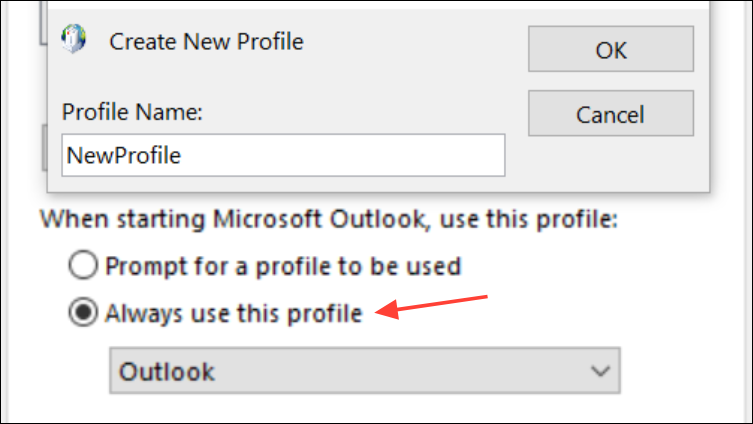
A corrupt Outlook profile can cause persistent errors that survive other fixes. Repairing or recreating the profile resets all configuration settings and can resolve deep-seated issues.
Check Internet Connection and Synchronize Folders
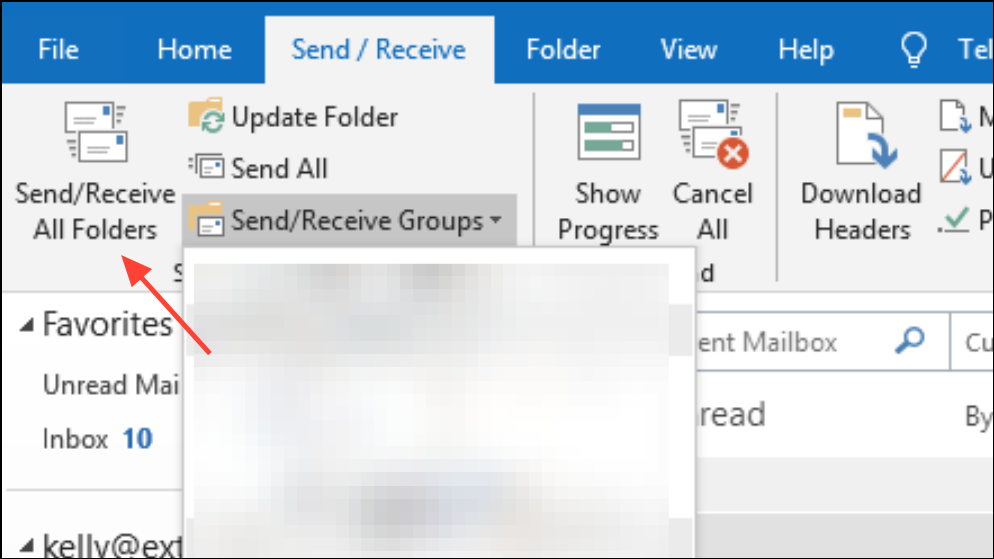
A slow or unstable internet connection can interrupt synchronization, preventing access to emails stored on the server. Ensuring a stable connection and forcing a manual sync can restore access.
Use Microsoft Support and Recovery Assistant (SaRA)
Microsoft’s SaRA tool diagnoses and automatically repairs common Outlook issues, including item opening errors.
Following these approaches restores access to Outlook items and keeps your mailbox running smoothly. If none of these fixes resolve the problem, contacting Microsoft support or IT professionals for deeper diagnostics is recommended.