
Color-coding sections in Microsoft OneNote directly improves how quickly you can locate information and group related content. Assigning distinct colors to sections, pages, or entire notebooks makes it easier to visually scan and access what you need, especially in large or complex notebooks. The process varies slightly depending on whether you’re using OneNote on Windows, Mac, iPad, iPhone, or the web. Here’s how to apply colors to sections, plus some workarounds for users who want more color options or advanced customization.
Changing Section Colors in OneNote for Windows
Section Color or Select Color depending on your version.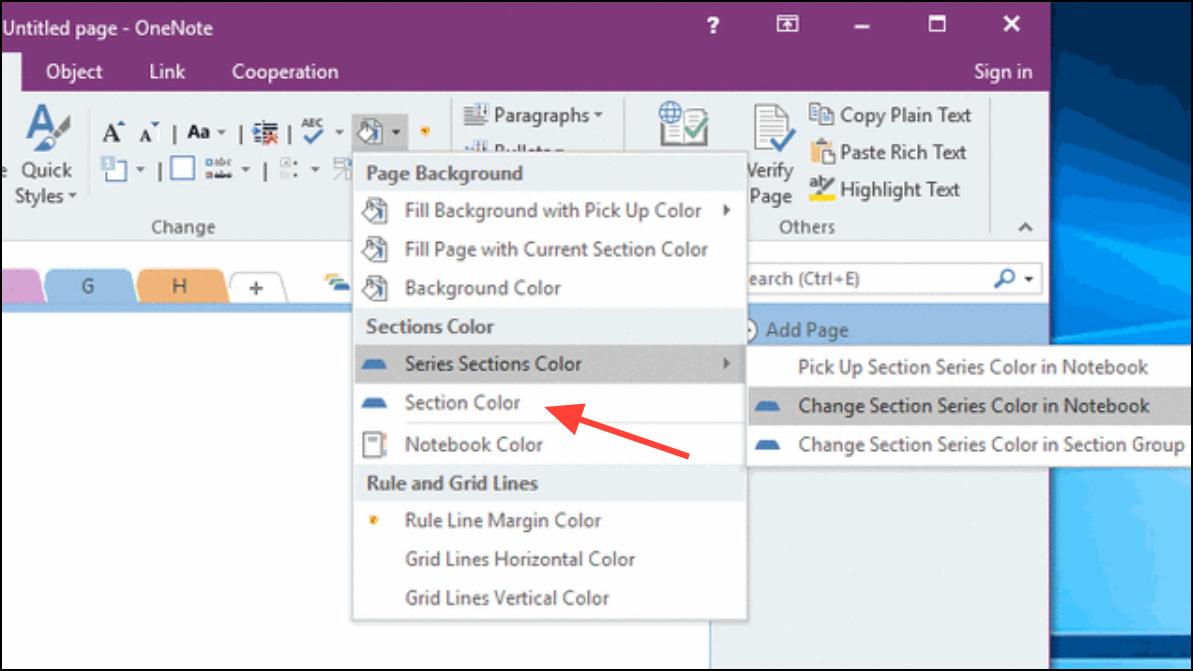
If you later want to change the color, repeat these steps and select a different color. To remove a color, choose the None option from the same menu.
Changing Section Colors in OneNote for Mac
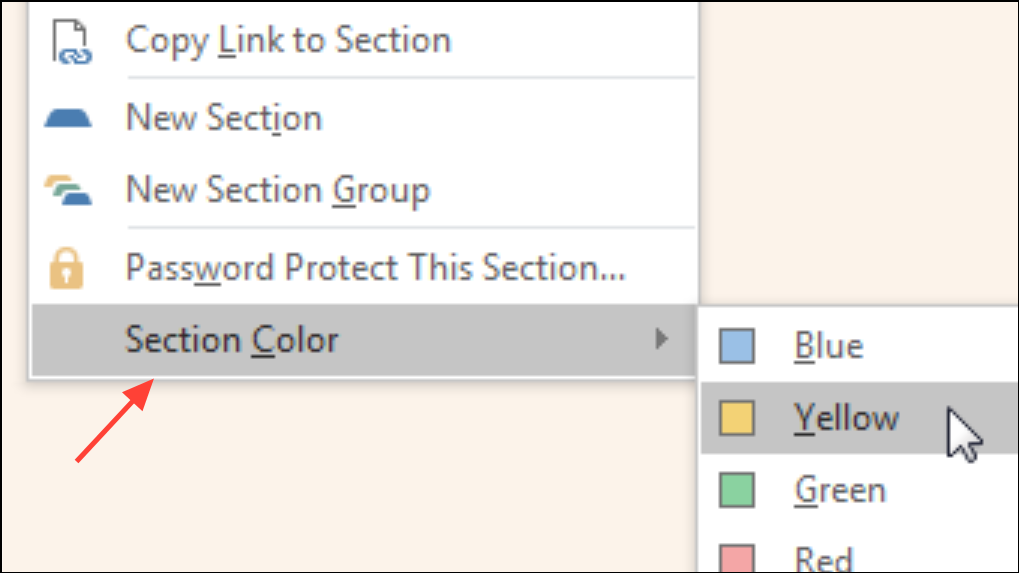
To remove the color, use the same menu and pick None.
Changing Section Colors in OneNote for iPad and iPhone
On iPad and iPhone, you can assign colors to both notebooks and sections, though the steps differ slightly between devices.
On iPad
On iPhone
View tab, and tap Page Color.Changing Section Colors in OneNote for Web
In the web version of OneNote, section color customization may be limited compared to desktop or mobile apps. Typically, you can right-click on a section tab and look for a Section Color or similar option. If not available, consider switching to the desktop app for full color selection capabilities.
Expanding Section Color Options with Add-Ons
OneNote’s default color palette for sections is limited, which can be restrictive if you want more granular organization or specific color themes. To address this, several third-party add-ons and macros are available for Windows users:
- Onetastic Macro: The “Set Section Color” macro for Onetastic allows you to pick from a broader range of colors using a color picker. After installing Onetastic, run the macro, select your section, and choose any color, not just the default set. This is especially useful if you want multiple shades of a single color or need more than the standard 16 options.
- OneMore Add-In: The OneMore add-in provides advanced customization, including the ability to customize section colors and even set all section tabs to a rainbow sequence. After installation, right-click a section tab and select
Customize Section Colorfor expanded choices.
Note: These tools are only available for the Windows desktop version of OneNote. They do not work on OneNote for Mac, iOS, Android, or the web version.
Limitations and Workarounds
Some customization features are not currently available in OneNote. For example, you cannot color section groups—only individual sections. Users have requested the ability to color section groups or assign icons for easier identification, but this is not a built-in feature as of now. Microsoft recommends submitting feedback directly through the app to request such improvements.
On mobile devices, especially Android and some iOS versions, section color changes may not be available or may only sync from changes made on desktop. Always check for app updates to access the latest features.
For users who want to visually distinguish section groups, consider using consistent naming conventions or emoji in section group names as a workaround until more visual options are added by Microsoft.
Color-coding sections in OneNote streamlines how you organize and find information. With built-in features and a few add-ons, you can quickly adapt your workspace to fit your workflow and preferences.