

Outlook error code 3399811147, often accompanied by the message “Something went wrong. [7ita9]”, disrupts sign-in for Office 365 or work/school accounts on the desktop version of Outlook. This error typically appears after changes to account credentials, device migrations, or when cached authentication data becomes corrupted. While access to Outlook on the web usually remains available, the desktop application fails to authenticate, blocking email access and productivity.
Repair Windows Account Manager (WAM) Authentication
Open the Windows search bar, type
PowerShell, right-click on Windows PowerShell, and select “Run as administrator.” This step is essential because administrative rights are required to register system components.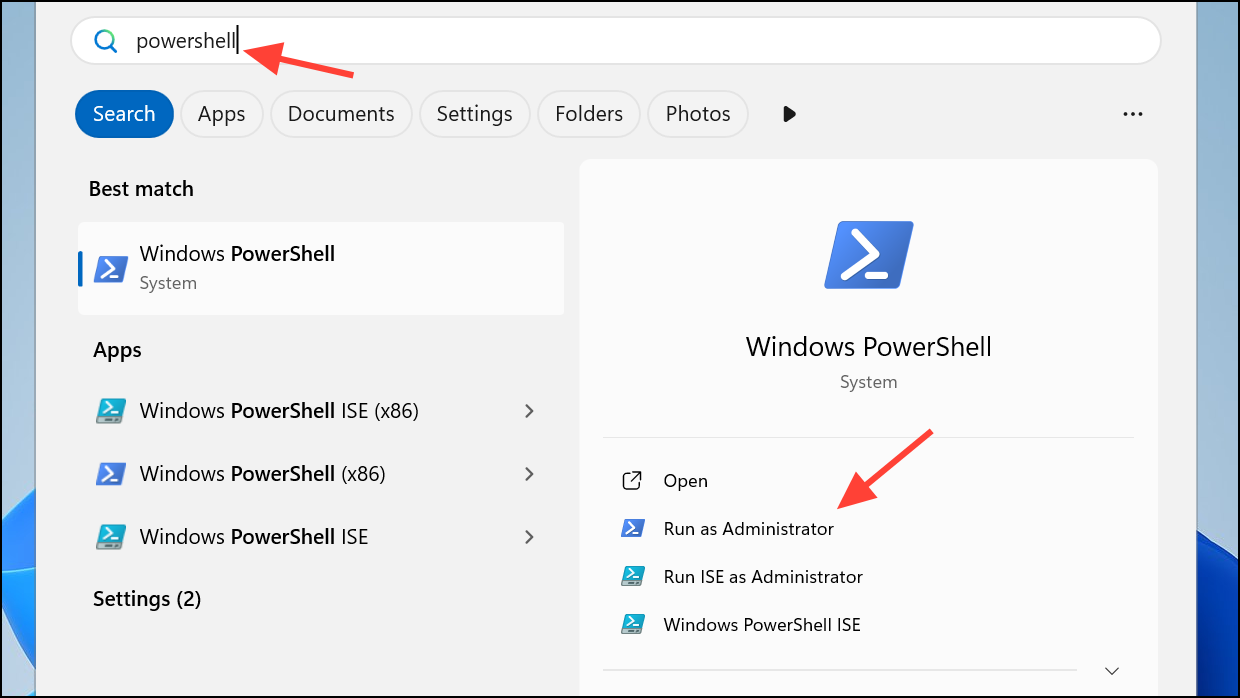
In the PowerShell window, enter the following commands one at a time, pressing
Enter after each. These commands re-register key Windows components responsible for account authentication:
Add-AppxPackage -Register "$env:windir\SystemApps\Microsoft.AAD.BrokerPlugin_cw5n1h2txyewy\Appxmanifest.xml" -DisableDevelopmentMode -ForceApplicationShutdown
Add-AppxPackage -Register "$env:windir\SystemApps\Microsoft.Windows.CloudExperienceHost_cw5n1h2txyewy\Appxmanifest.xml" -DisableDevelopmentMode -ForceApplicationShutdown
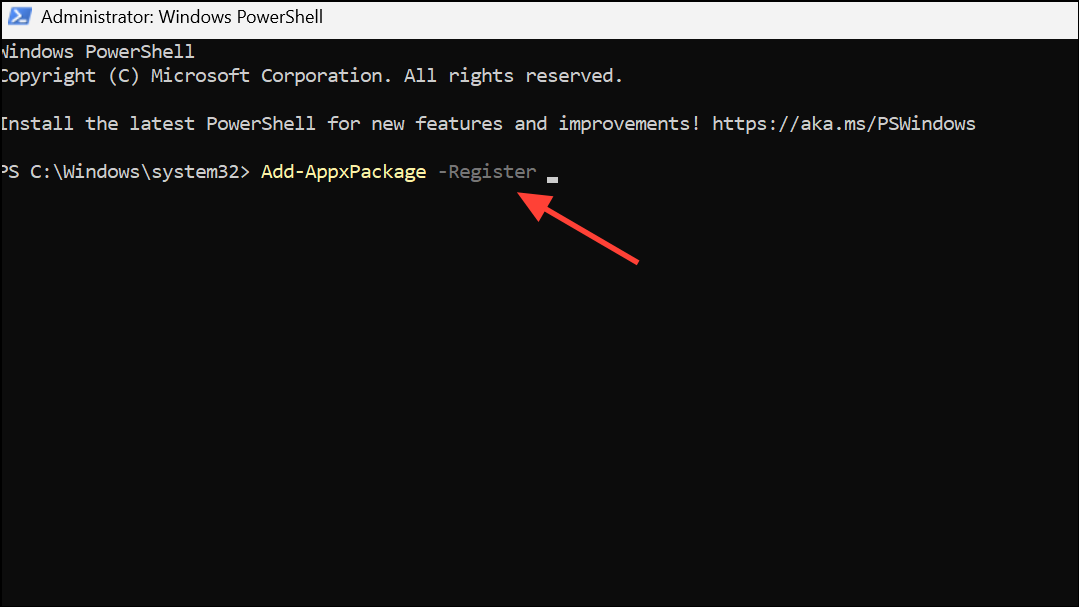
Close PowerShell and restart your computer. This ensures all authentication services reload with the repaired configuration.
Remove and Re-Add Work or School Account
Click on the Windows Start menu and select
Settings. Navigate to Accounts and then Access work or school.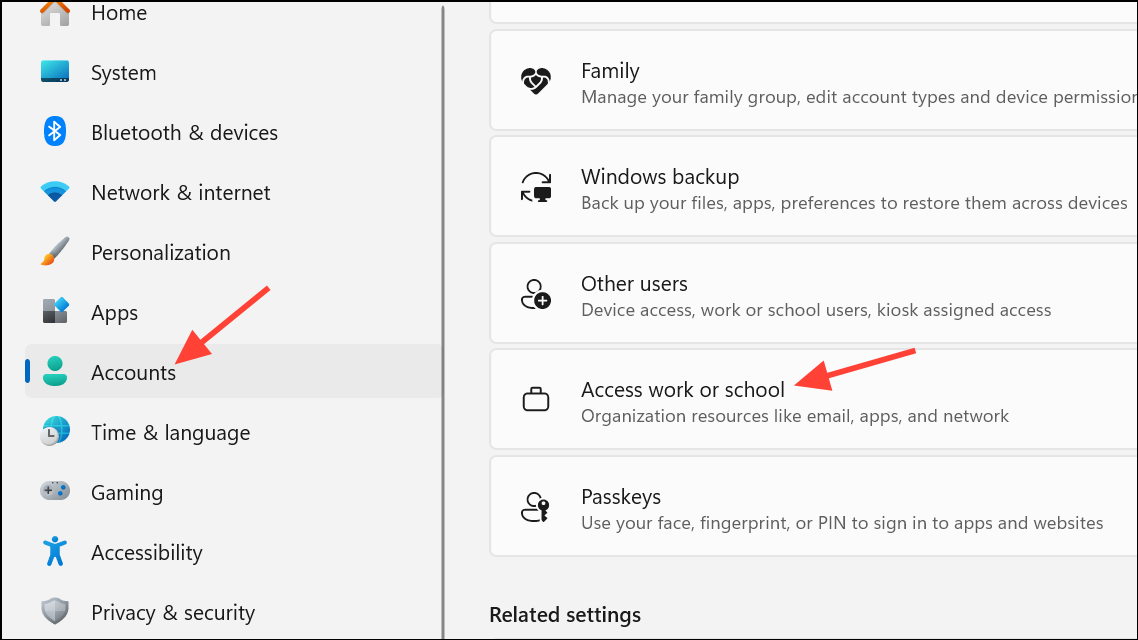
Locate your connected work or school account. Click on it and select
Disconnect. Confirm any prompts to remove the account from your device. This step clears conflicting or outdated account tokens that can prevent successful authentication.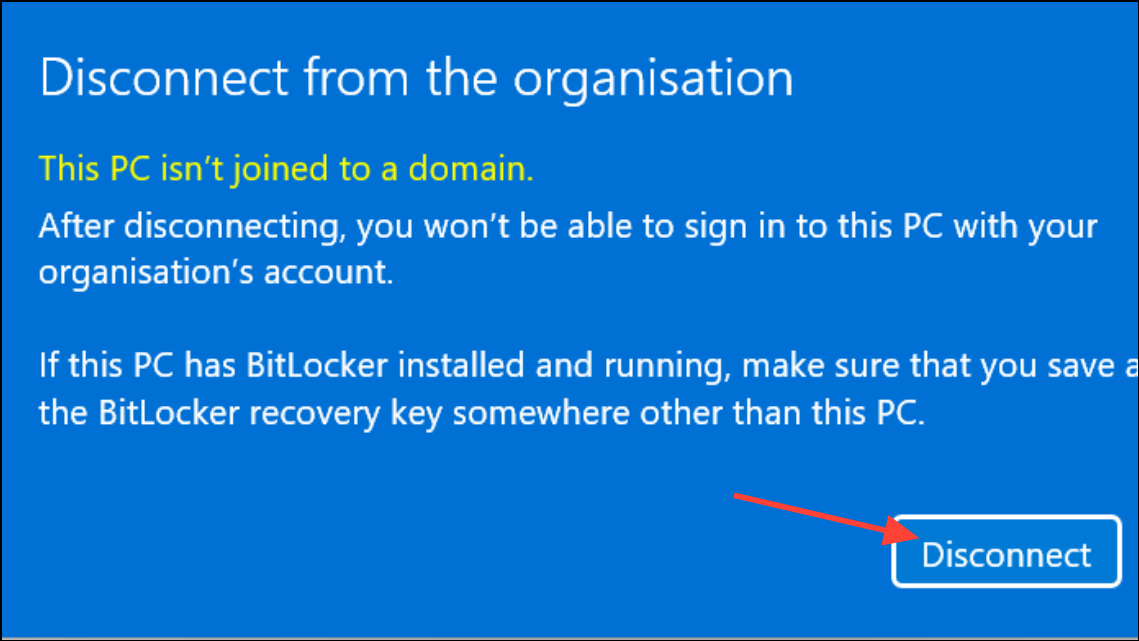
Return to
Access work or school in Settings, then select Connect. Enter your credentials to re-add your account. This process initiates a fresh authentication handshake with Microsoft’s servers.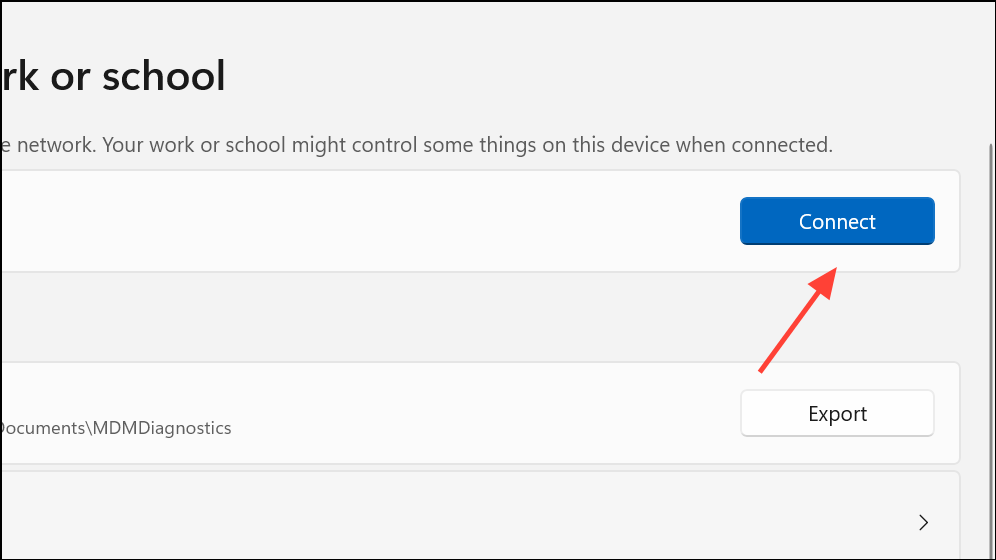
Clear Cached Credentials in Windows Credential Manager
Open the Windows search bar and type
Credential Manager. Select the Credential Manager control panel entry.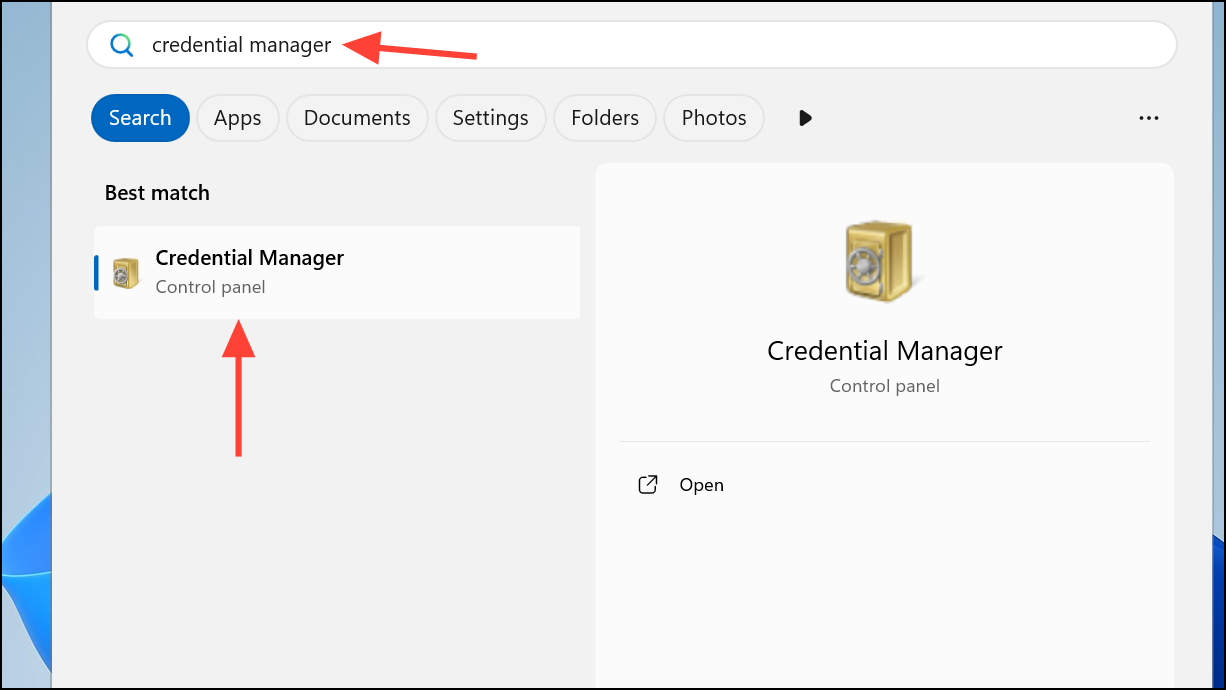
Click on
Windows Credentials, then review the list for any entries related to MicrosoftOffice, Outlook, or Office365. Click each and select Remove to delete them. This clears out expired or corrupted authentication tokens that block successful sign-in.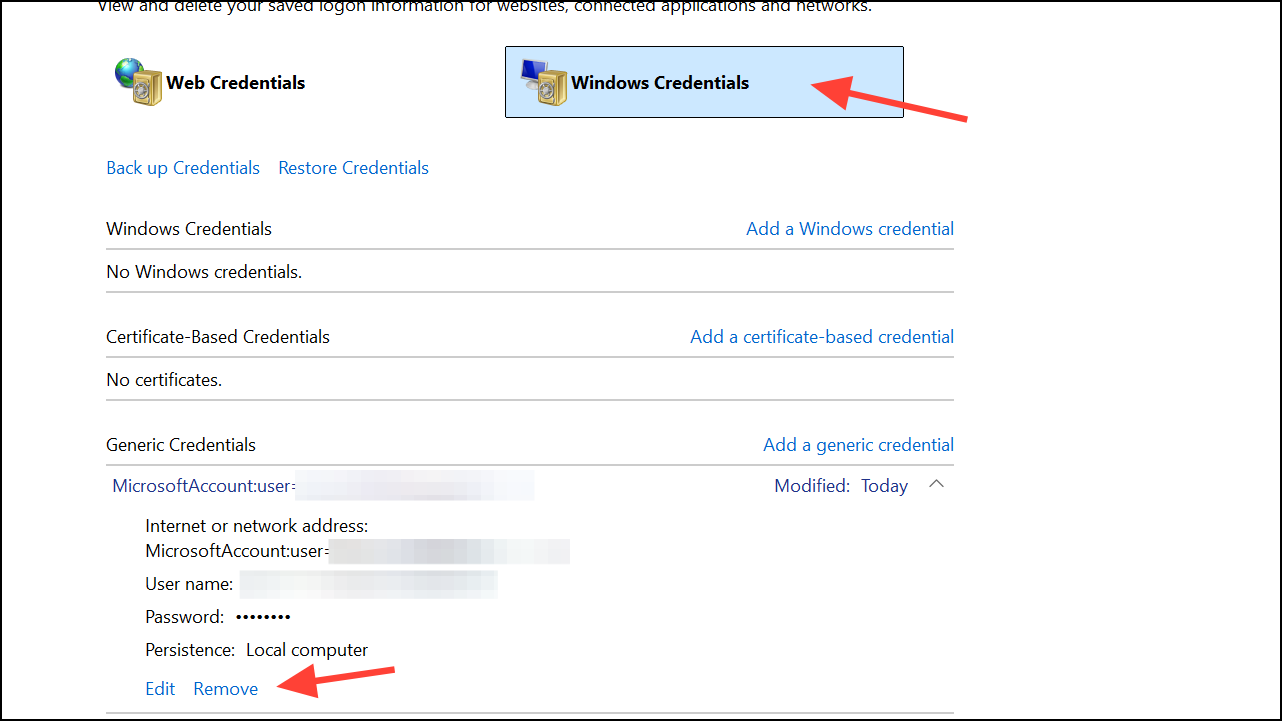
Create a New Outlook Profile
Close Outlook completely. Open the Windows Control Panel and set the view to
Large icons for easier navigation.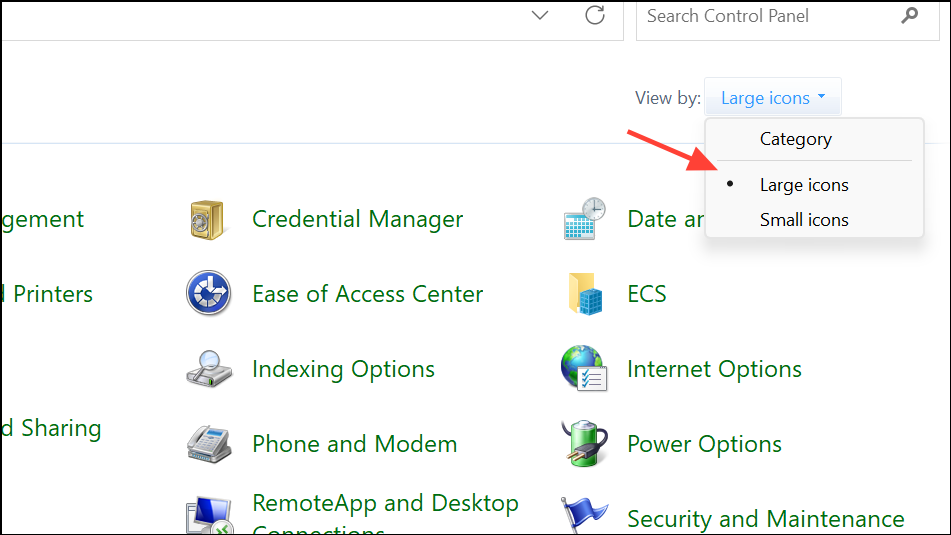
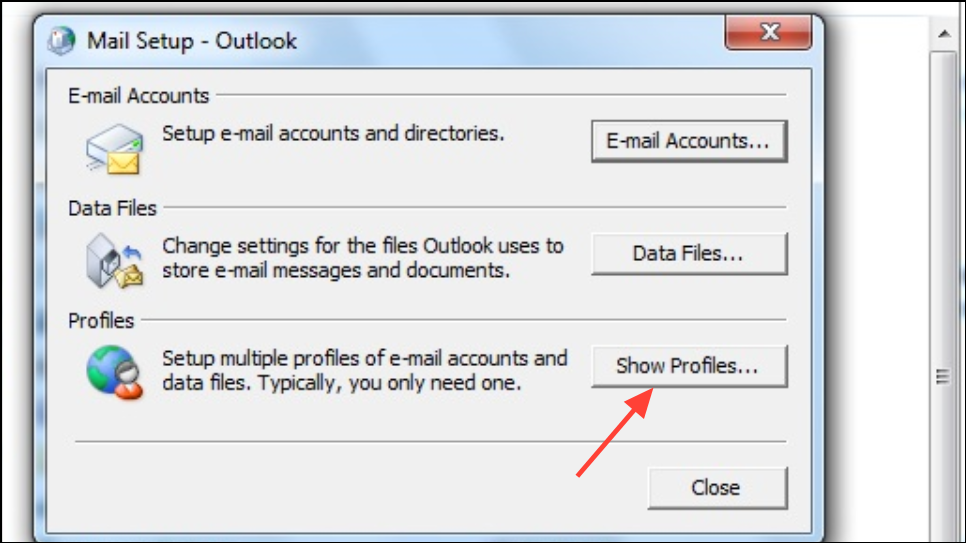
Click
Add, enter a name for the new profile, and follow the prompts to set up your account from scratch. When finished, select Always use this profile and choose your new profile from the dropdown menu.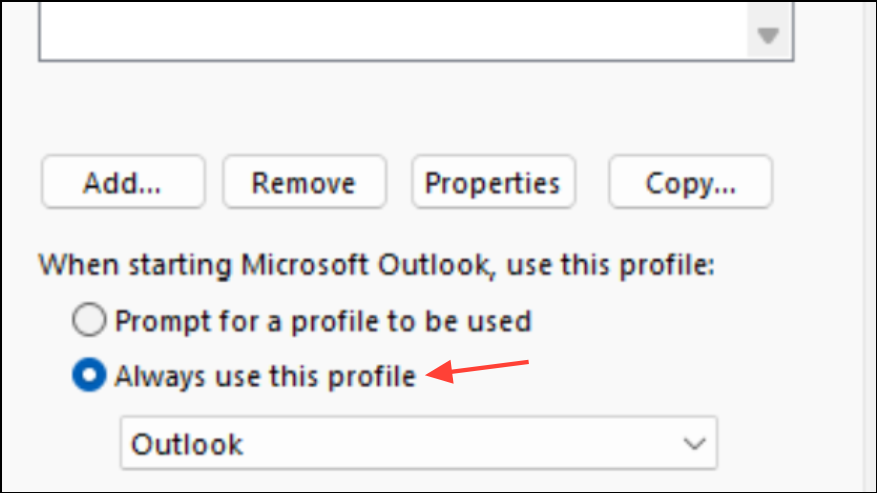
Launch Outlook. The new profile bypasses any corruption or misconfiguration present in the previous profile.
Update Outlook and Windows
Open Outlook, go to the
File menu, and select Office Account or Account. Click Update Options and choose Update Now. This downloads and installs the latest bug fixes and compatibility updates for Outlook.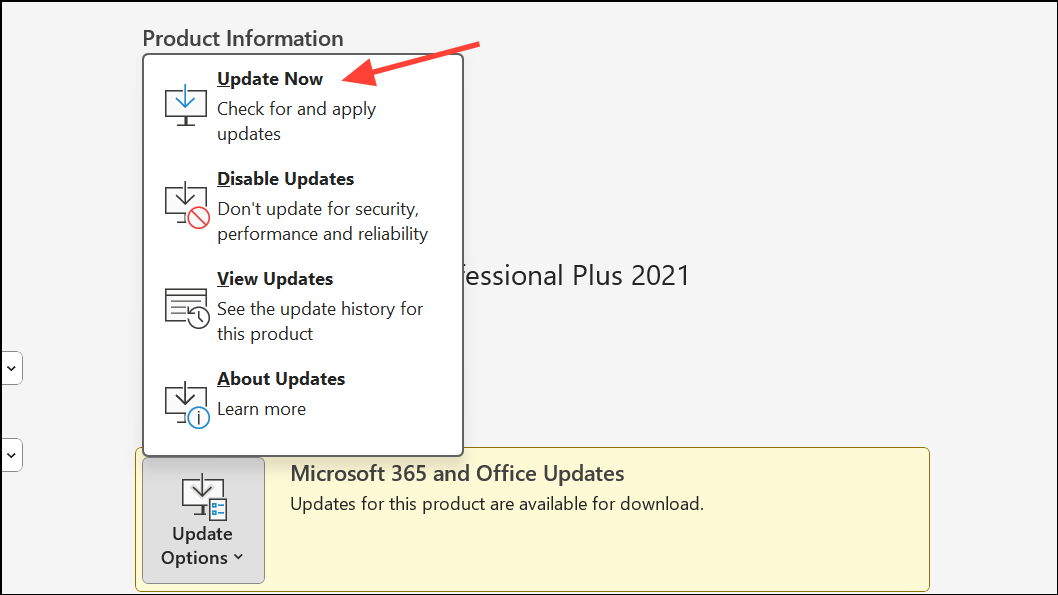
To update Windows, open the Start menu, type
Windows Update, and check for updates. Install all available updates and restart your device. Keeping both Outlook and Windows current prevents known bugs and authentication errors.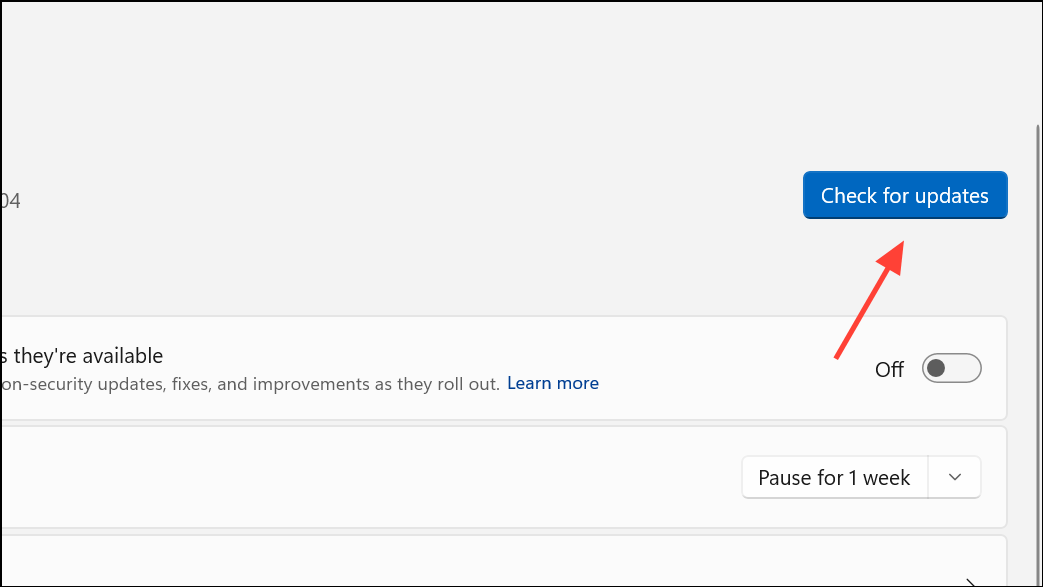
Disable Problematic Outlook Add-ins
Press
Win + R to open the Run dialog, type outlook /safe, and press Enter. This starts Outlook in Safe Mode, which loads without add-ins.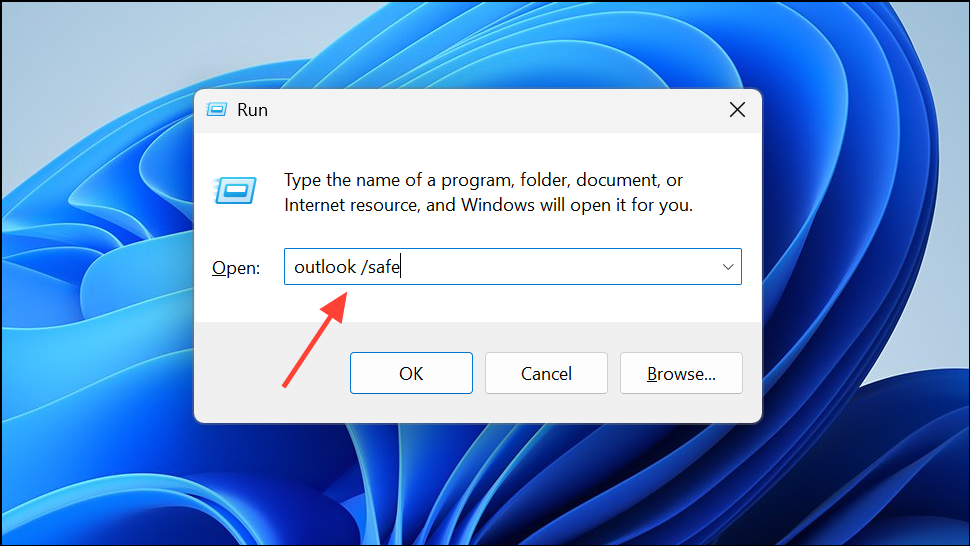
If Outlook works in Safe Mode, go to
File > Options > Add-ins. At the bottom, select COM Add-ins and click Go. Deselect all add-ins and restart Outlook. Re-enable add-ins one at a time to pinpoint the one causing issues.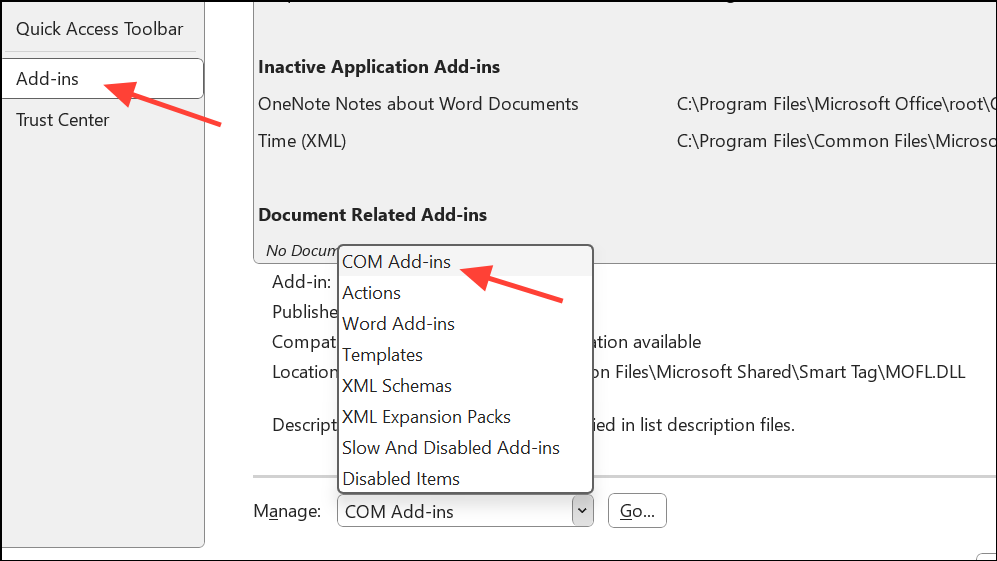
Repair Microsoft Office Installation
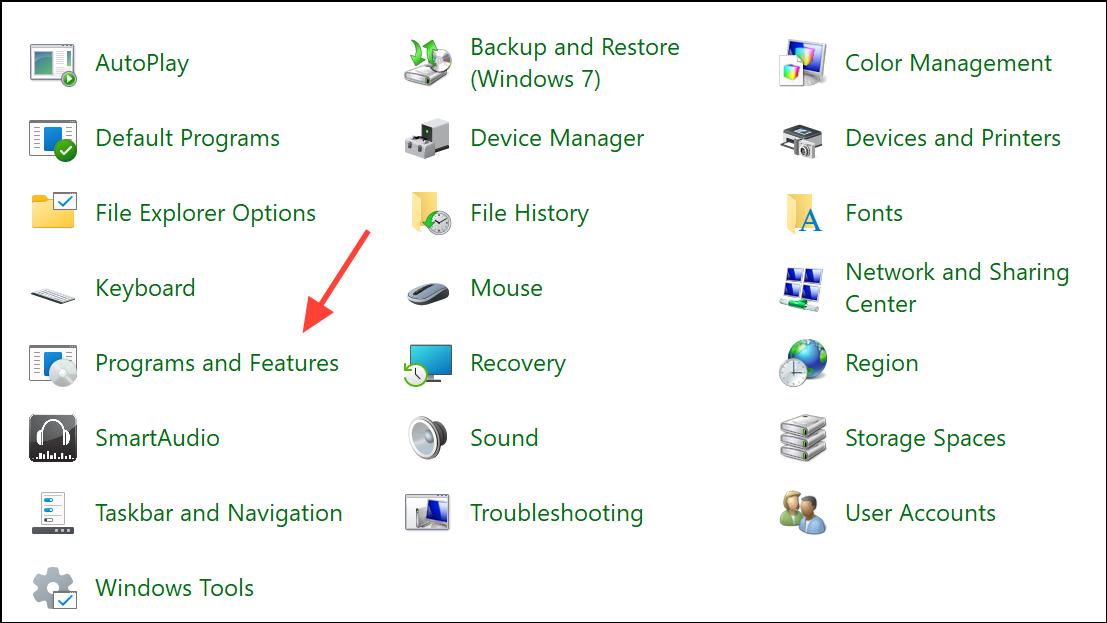
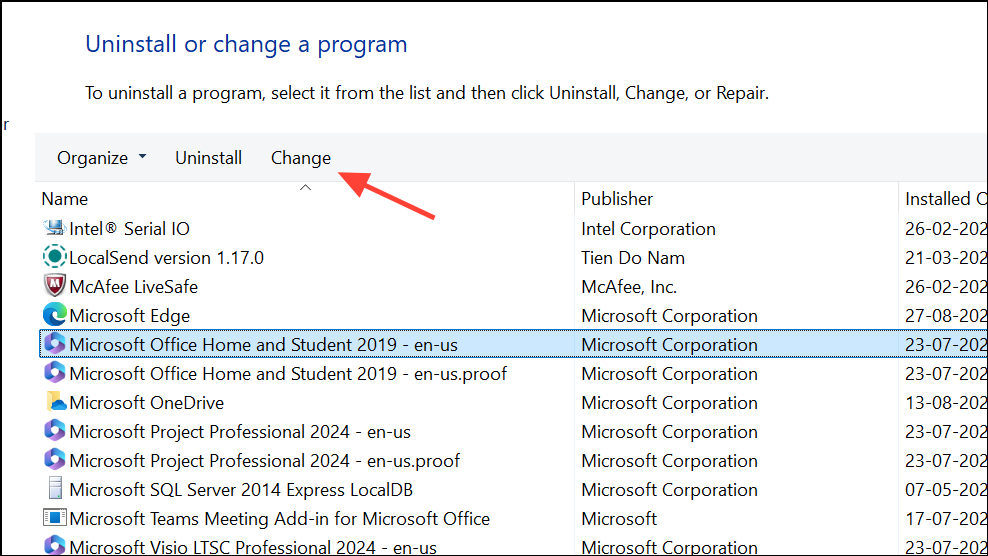
Choose the
Online Repair option for a thorough fix, then follow the prompts. This process repairs any corrupted Office files that may be causing Outlook to malfunction.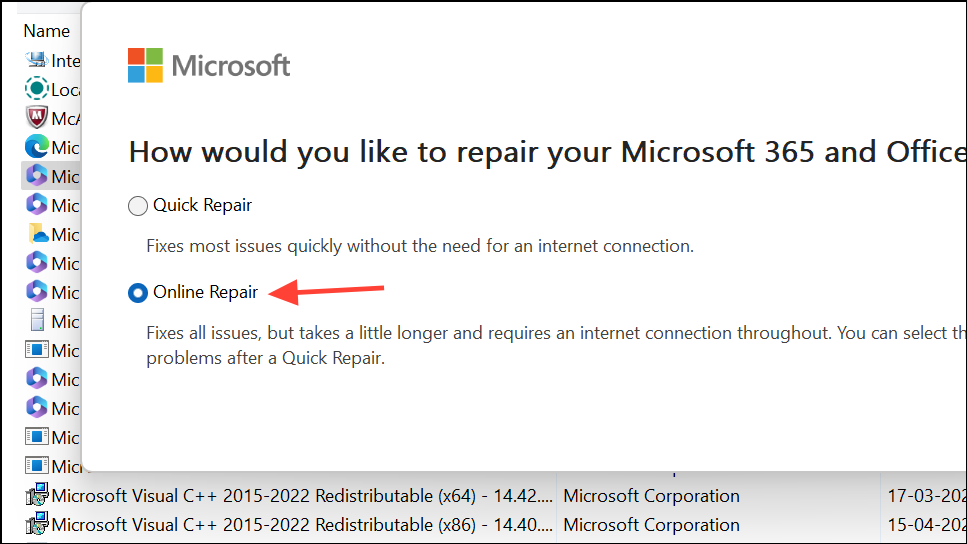
Addressing Outlook error code 3399811147 requires a systematic approach to authentication, account configuration, and profile management. Applying these fixes restores desktop Outlook access and keeps your email workflow smooth.





