Microsoft PowerPoint for Windows includes a built-in screen recording tool that makes it possible to capture on-screen activity and audio for use in presentations or as standalone video files. This feature streamlines the process of creating tutorials, demonstrations, and video explanations without the need to install additional software. However, the screen recording option is currently not available in the Mac version of PowerPoint, so Mac users will need to use alternative tools. Below, you’ll find detailed instructions for using PowerPoint’s screen recording feature on Windows, as well as guidance for Mac users and key troubleshooting tips.
Using Screen Recording in PowerPoint for Windows
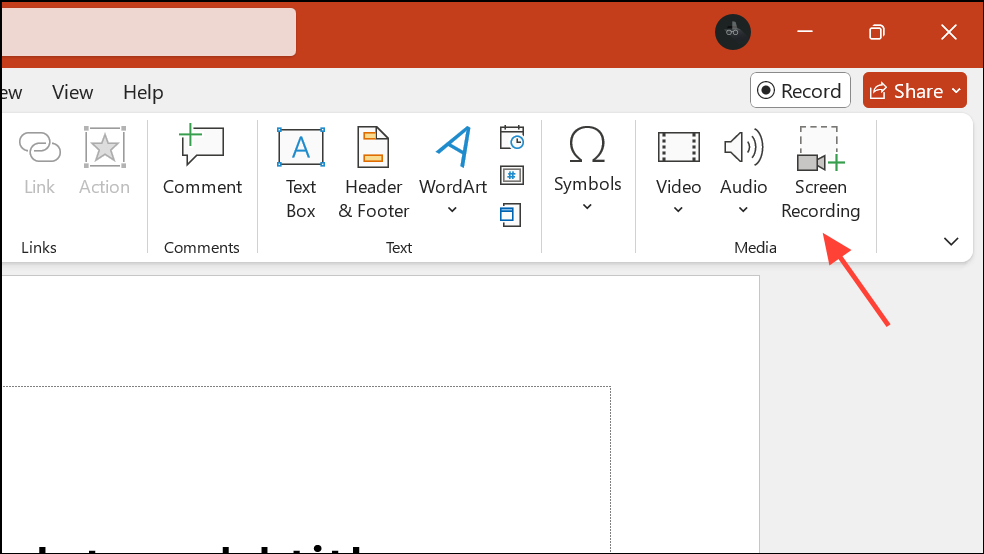
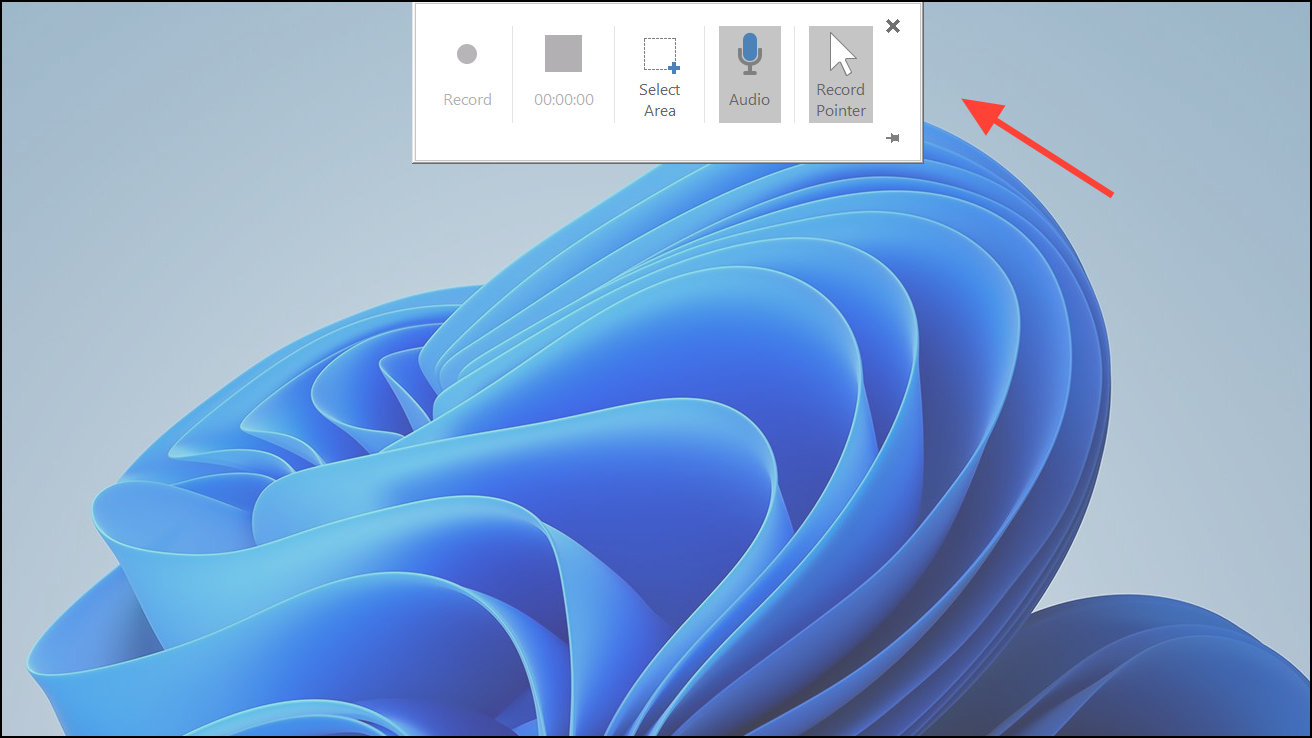
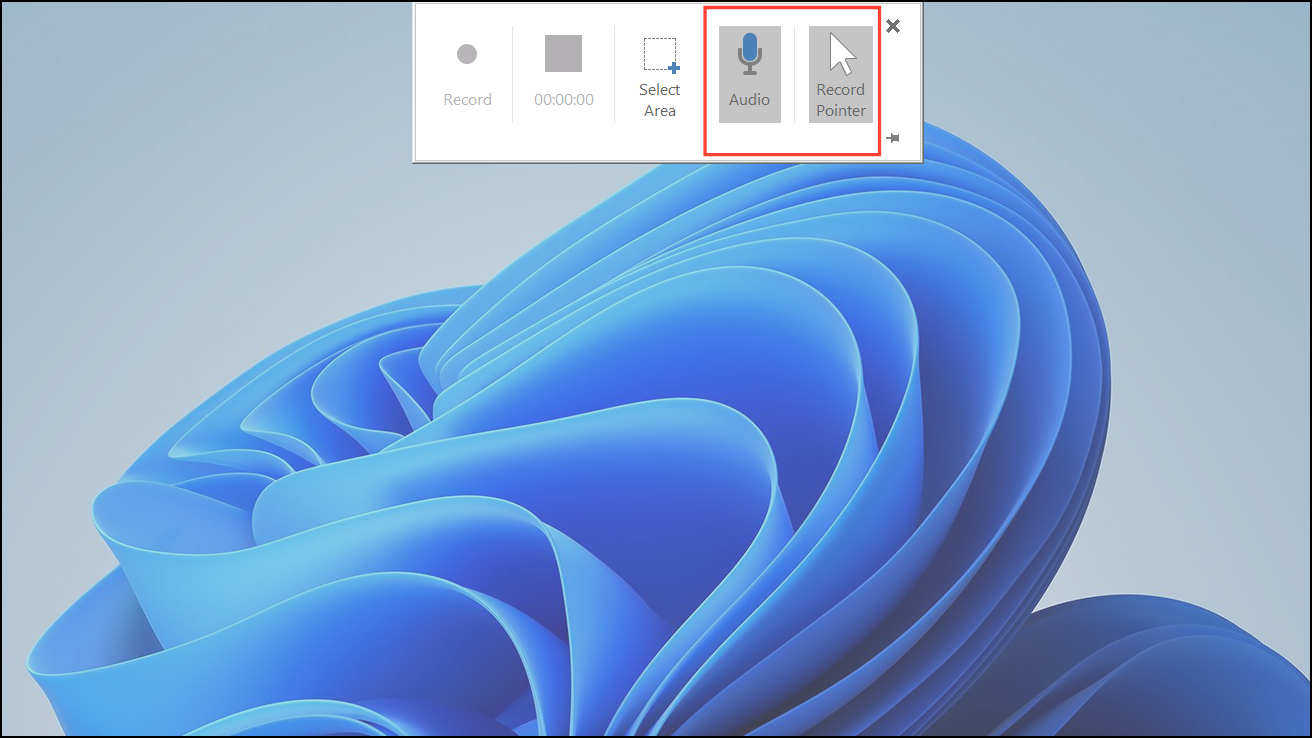
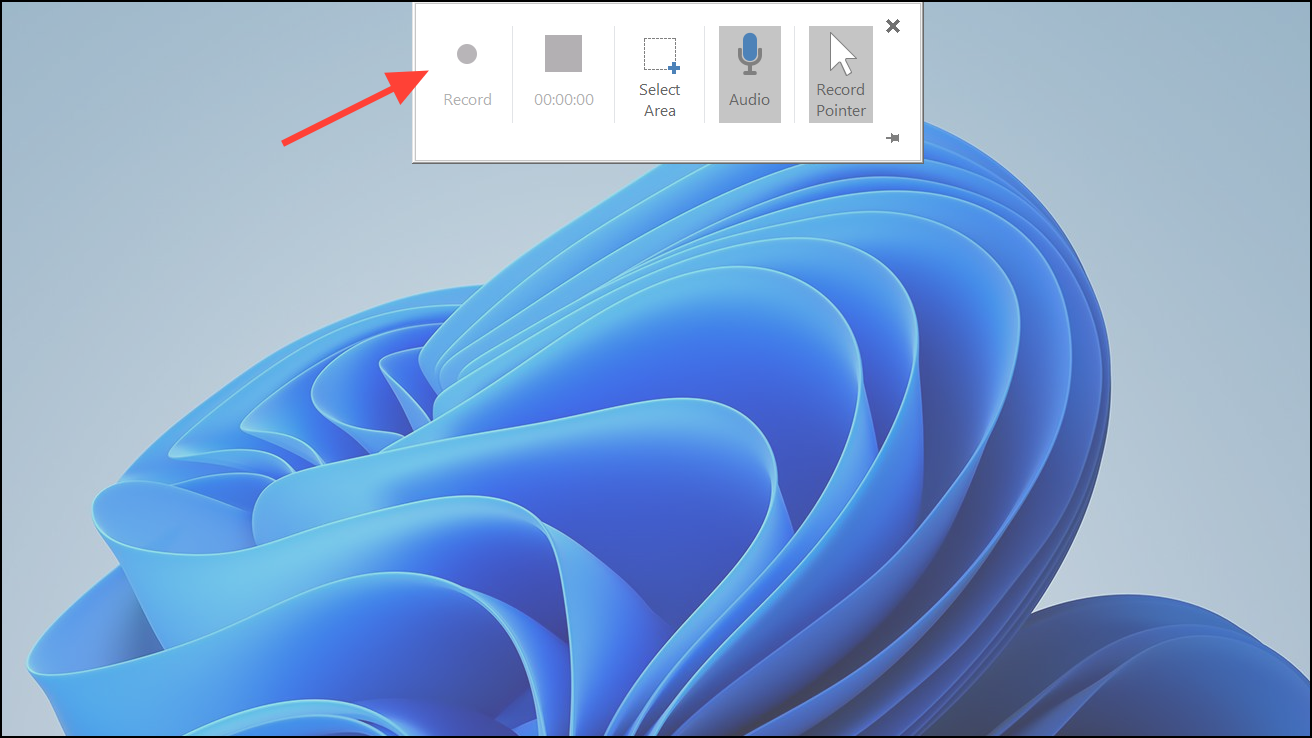
Windows logo key + Shift + R. To resume, press the same shortcut again.Windows logo key + Shift + Q. The recorded video will appear on your current slide.Editing Your Screen Recording in PowerPoint
While PowerPoint doesn’t offer advanced video editing tools, you can perform basic edits directly within your presentation:
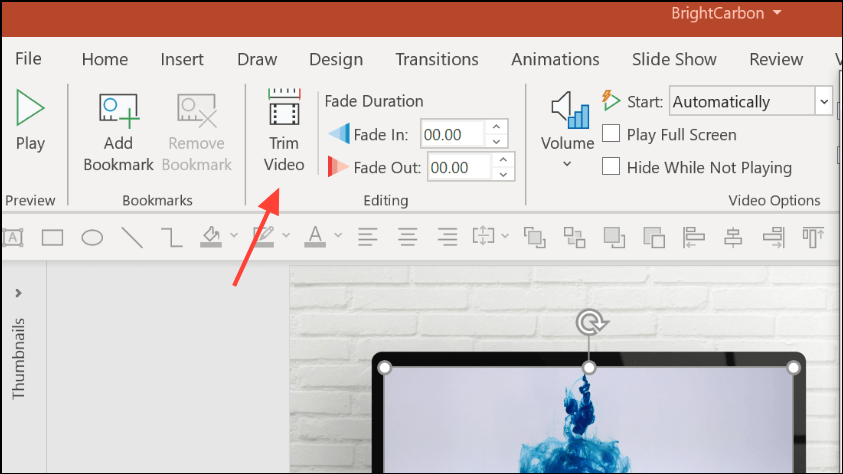
- Trim Video: Select the video, go to the Playback tab, and click Trim Video. Adjust the green and red markers to set new start and end points, then click OK to remove unwanted sections from the beginning or end.
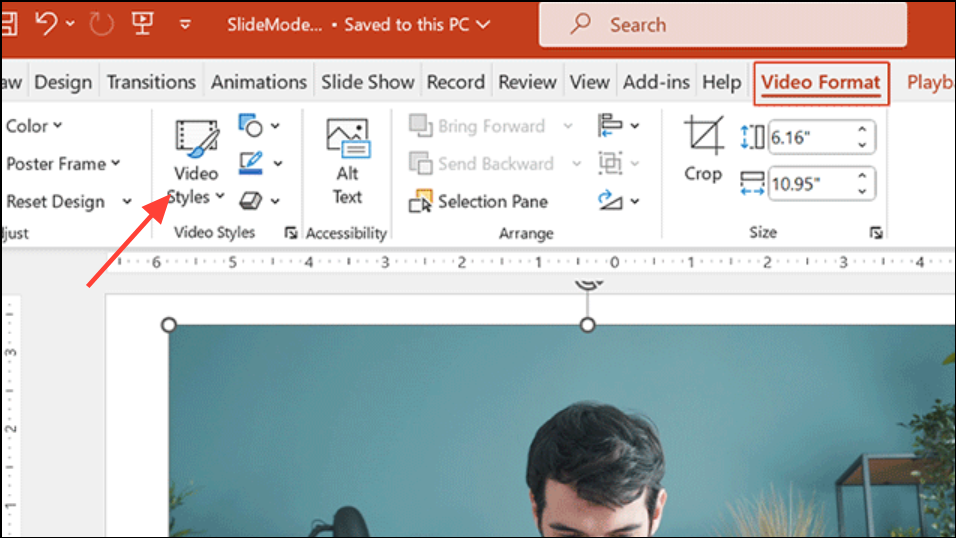
- Change Video Style: With the video selected, open the Video Format tab. In the Video Styles section, you can apply borders, shapes, and effects to the video frame for a more polished look.
- Adjust Playback Settings: In the Playback tab, set how the video starts (automatically, on click, or in sequence), enable looping, or choose to rewind after playback.
Audio Recording Considerations
PowerPoint’s screen recorder can capture audio, but the way it handles system (internal) audio depends on your hardware. If your computer does not have a sound card that supports internal audio capture, PowerPoint may only record audio from your microphone. For users who need to capture system sounds (like application audio or video playback), verify your sound card supports this feature. If not, consider using third-party screen recording software that offers more audio input flexibility.
PowerPoint Screen Recording on Mac
The screen recording feature is not available in PowerPoint for Mac. Even if you enable permissions under System Settings > Privacy & Security > Screen Recording for PowerPoint, the option will not appear in the Insert tab. Mac users should use the built-in QuickTime Player for screen recording:
Troubleshooting and Tips
- Missing Screen Recording Option: Ensure you are using the Windows version of PowerPoint (Office 2016, Office 365, or newer) as this feature is not available on Mac.
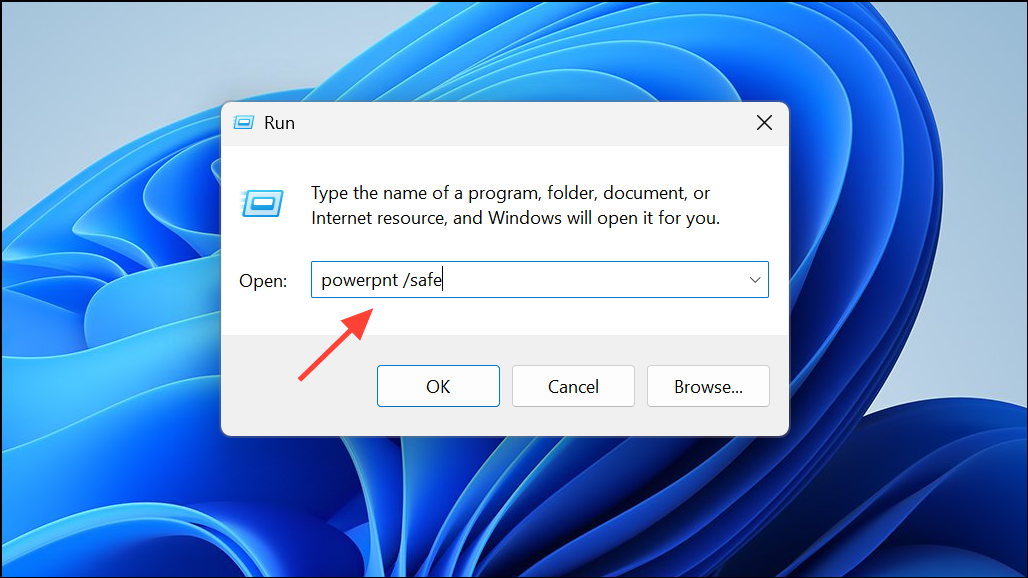
- Screen Recording Not Working: Restart PowerPoint or your computer, check for software updates, or run PowerPoint in Safe Mode (
powerpnt /safein the Run dialog). If issues persist, consider reinstalling PowerPoint or using alternative screen recording software.
- Recording Quality: PowerPoint’s screen recorder is suitable for tutorials and demonstrations but may not perform well for high-motion content like gameplay. For advanced needs, dedicated screen recording tools offer higher frame rates and more configuration options.
Recording your screen in PowerPoint is a straightforward way to add visual demonstrations to your presentations or create standalone screencasts. For Windows users, this feature streamlines content creation, while Mac users can rely on QuickTime Player for similar results. Remember to check your audio hardware if you need to capture internal sounds, and use PowerPoint’s editing tools to refine your recordings as needed.