
Outlook’s 0x8007007a error typically appears when trying to send emails with attachments—especially large files or certain types of documents. The error message often reads “Failed to upload attachments to server (error 0x8007007a),” and Outlook may refuse to send the message, while web-based email (OWA) or other attachments work without issue. This problem can disrupt workflow and block critical communications, so addressing the root cause is essential for restoring Outlook’s normal operation.
Compress or Modify the Attachment
Oversized or problematic attachments are a leading cause of the 0x8007007a error. Even when the file size appears to be within limits, server-side restrictions, file corruption, or specific attachment properties (such as digital signatures) can trigger failures. Compressing the file or altering its format can often resolve the issue.
Send to > Compressed (zipped) folder, and attach the resulting archive to your email.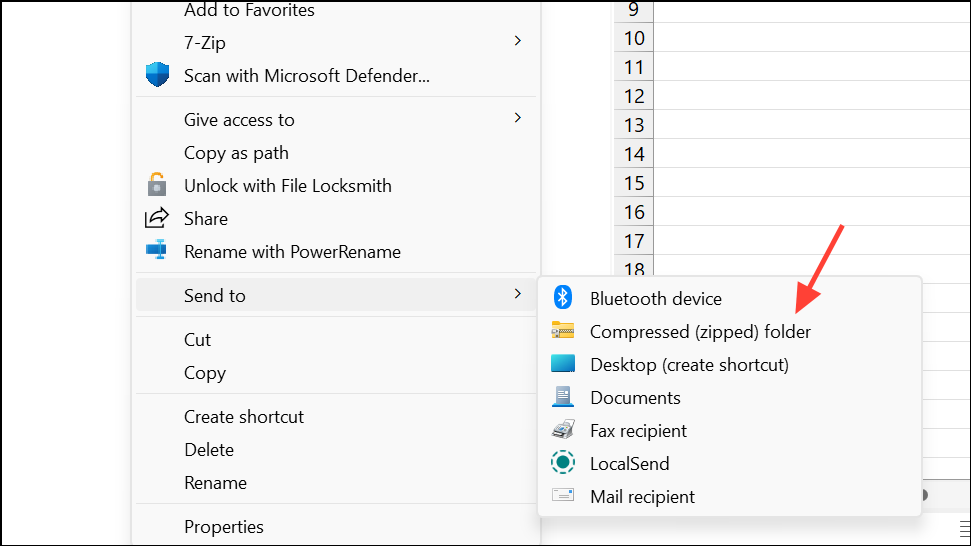
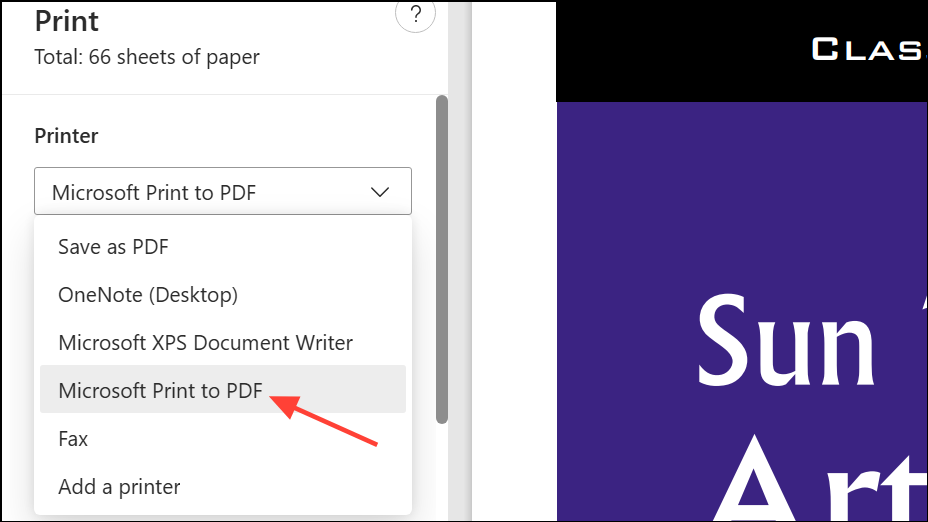
Test Sending Other Attachments
Attachment-specific issues can cause the error even when other files of similar size send successfully. Testing with different files helps isolate whether the issue is with Outlook, the server, or the particular attachment.
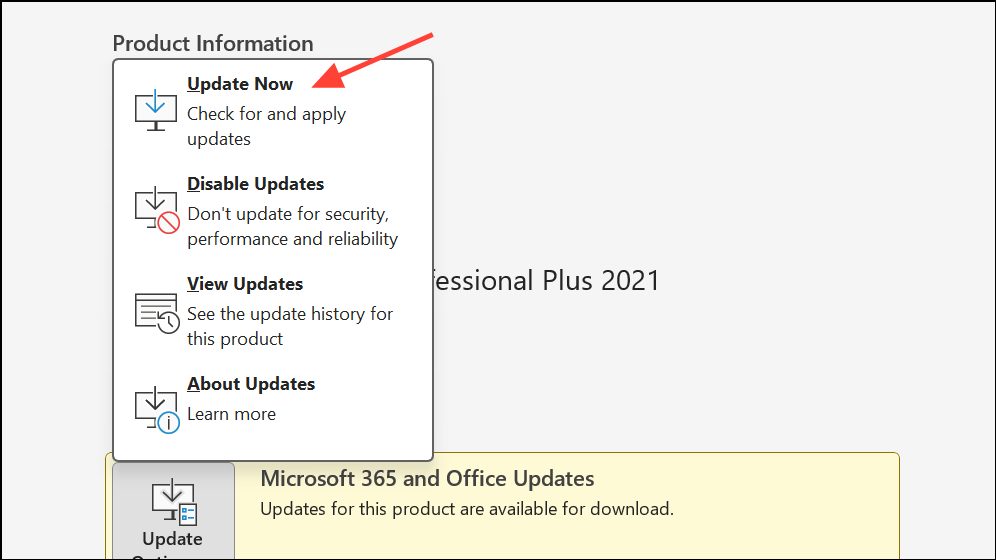
Update Outlook to the Latest Version
Running outdated Outlook versions can introduce compatibility problems with mail servers, especially after server-side updates. Ensuring Outlook is current can resolve errors related to attachment handling or synchronization.
Repair Outlook or Office Installation
Corrupted Outlook or Office files can cause persistent sending errors. Performing a repair can restore missing or damaged components.
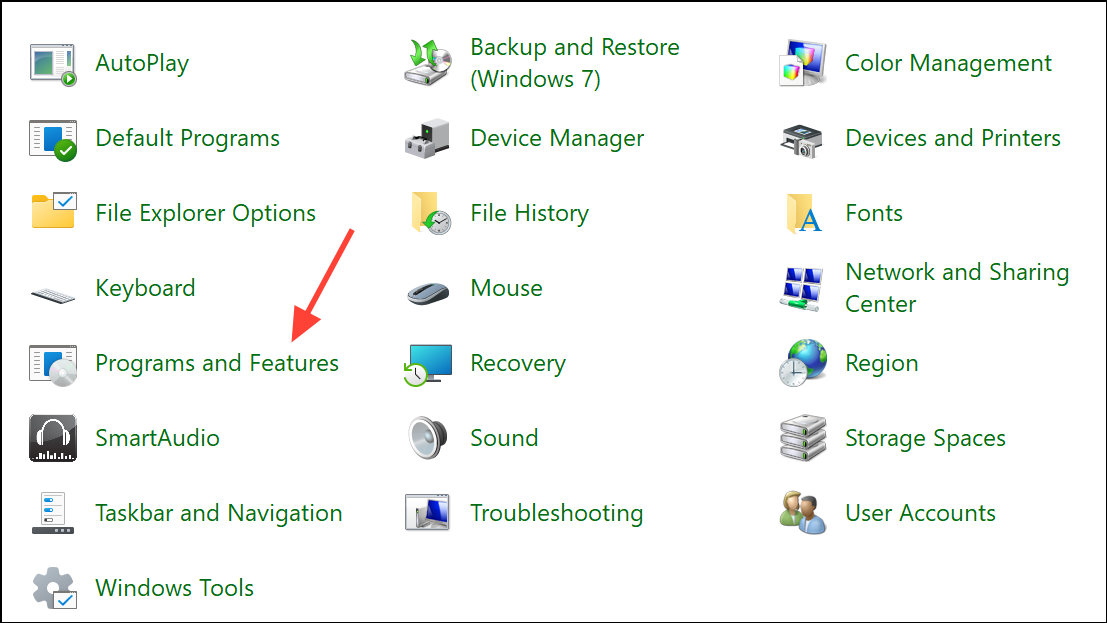
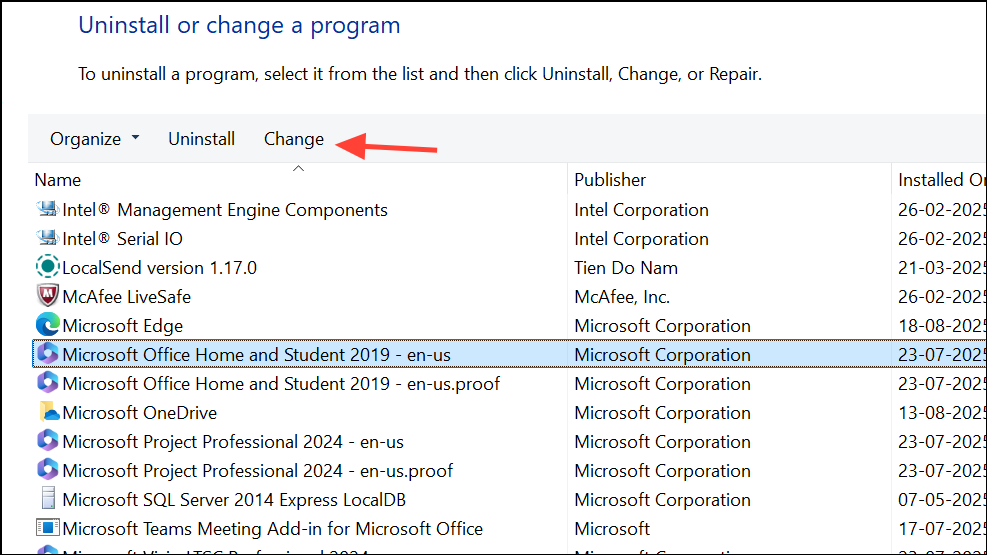
Quick Repair first. If problems persist, repeat the process and select Online Repair (note that Online Repair will require an internet connection and may take longer).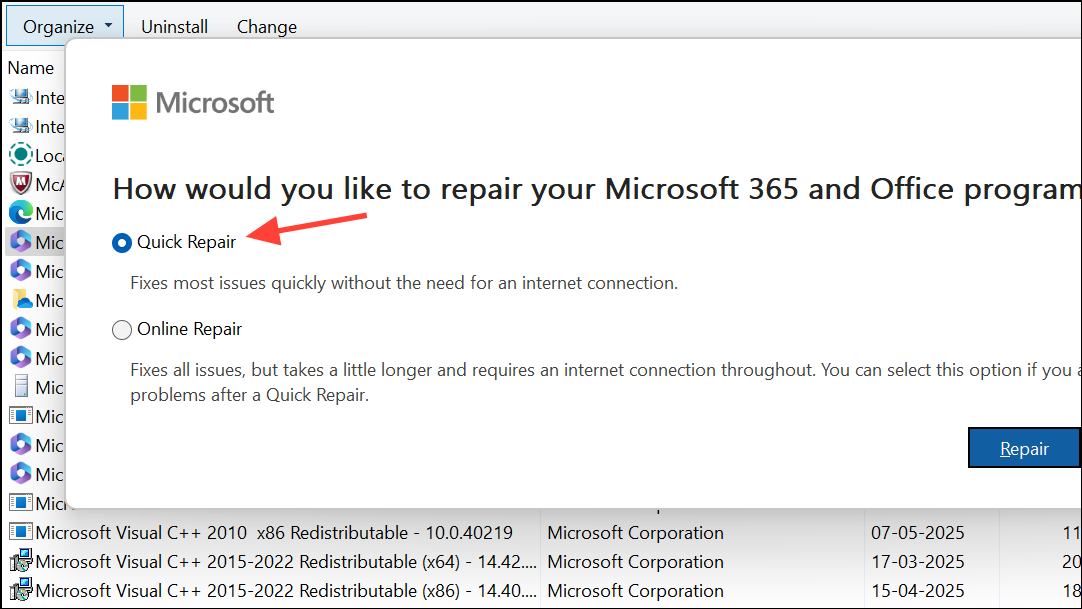
Create a New Outlook Profile
Corrupted Outlook profiles can prevent attachments from uploading or sending. Creating a new profile resets account settings and can bypass profile-specific issues.
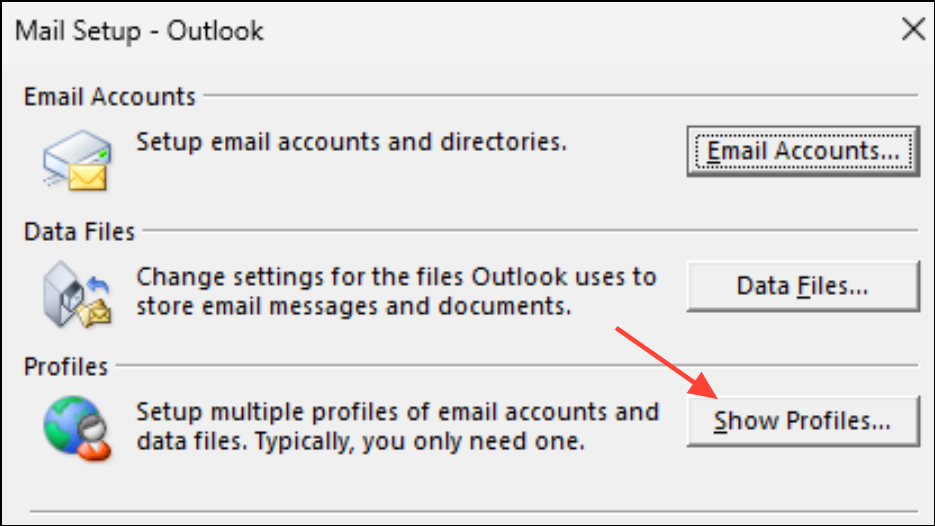
Add to create a new profile. Enter a name for the new profile and add your email account credentials.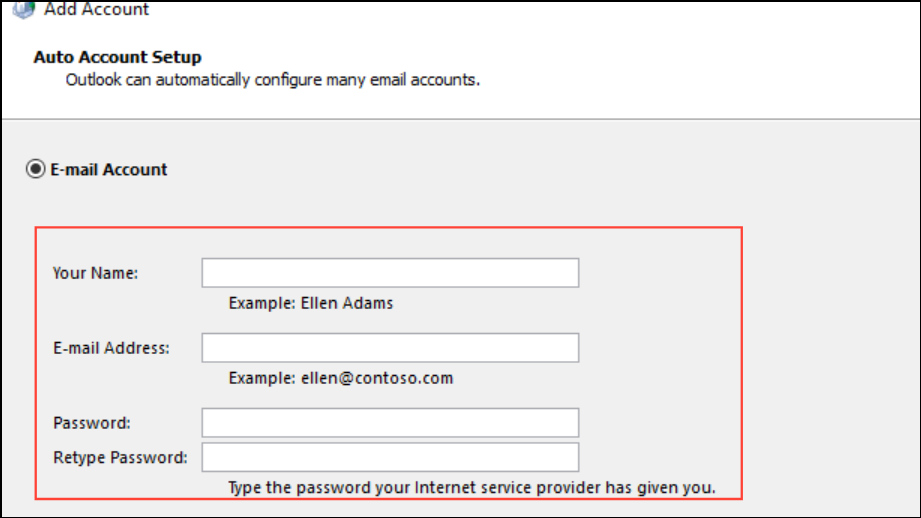
Always use this profile and choosing your new profile from the dropdown.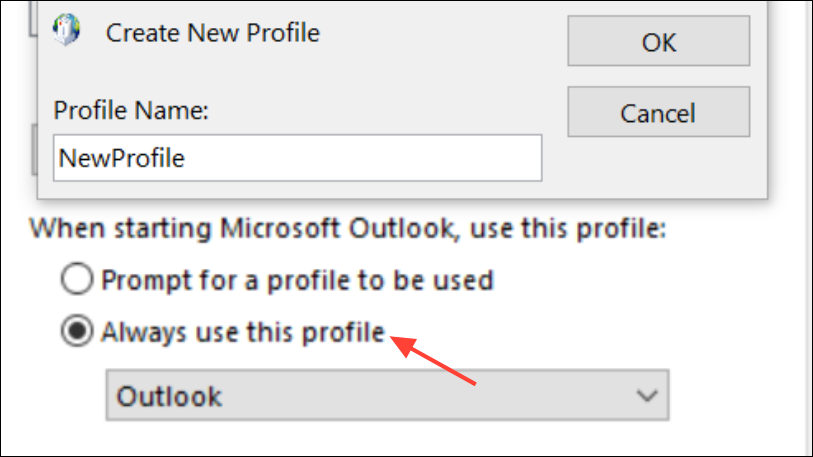
Check Account and Server Attachment Size Limits
Some mail servers enforce strict limits on attachment size, differing between Outlook desktop and web-based clients. Even if a file sends in Outlook Web Access (OWA), Outlook desktop may enforce lower limits or different rules.
Resolving Outlook error 0x8007007a restores your ability to send important attachments and keeps your communication running smoothly. If issues persist after these steps, consult your IT administrator or consider using Outlook Web Access as a workaround for critical messages.





