Windows Search fails to locate files stored on Google Drive when the Drive for Desktop app is set to use the Stream files option, creating a virtual drive (like G: or N:) that Windows Indexing does not recognize. This setup prevents Windows Search and File Explorer from indexing or quickly finding your Google Drive files, which slows down file retrieval and forces users to manually browse for documents.
Method 1: Switch Google Drive for Desktop to Mirror Files Mode
Stream files to save local disk space.Mirror files. This mode stores all Google Drive files locally on your computer (typically under C:\Users\[username]\My Drive), making them available for Windows Search and Indexing.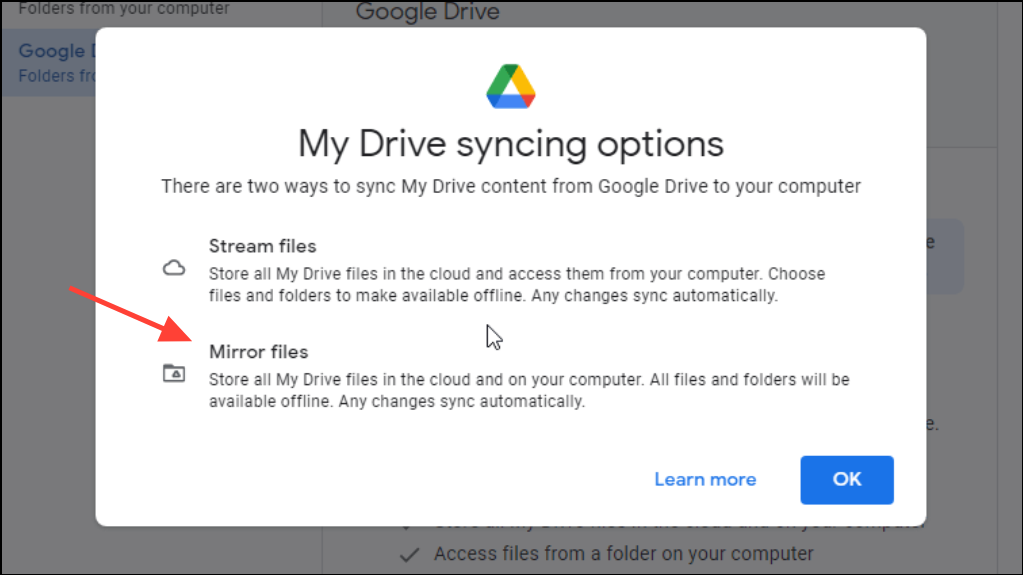
Advanced and select Rebuild to force Windows to re-index your files.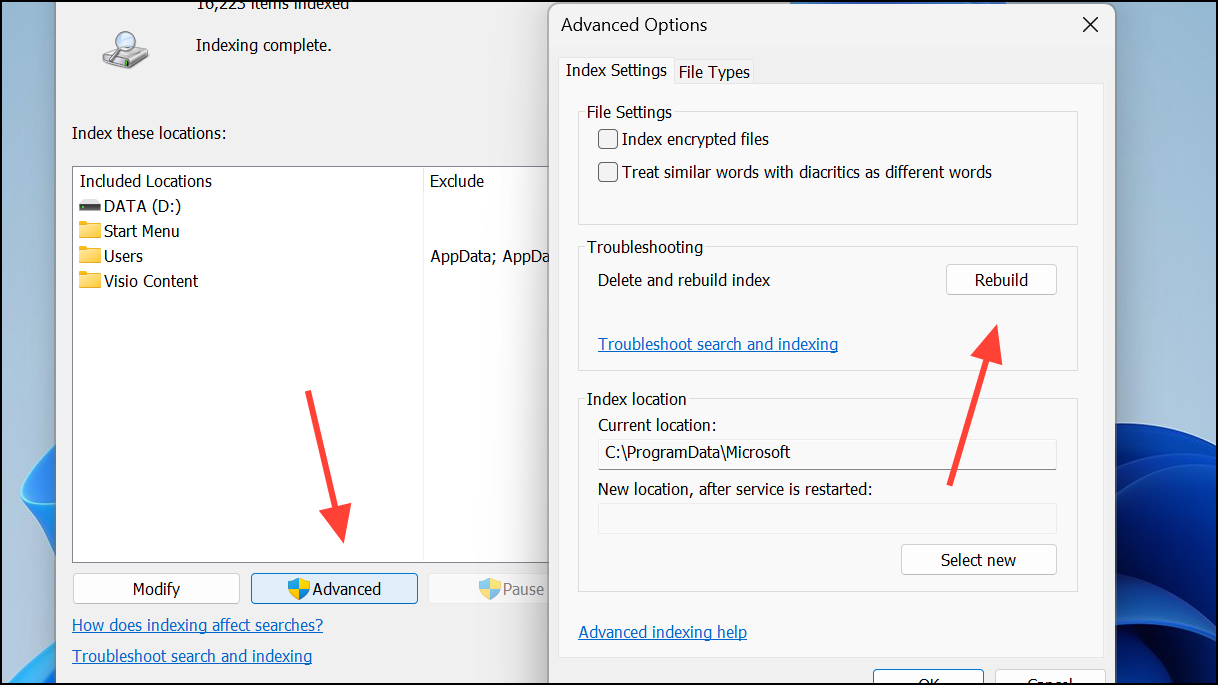
Method 2: Adjust Windows Search and Indexing Settings
Indexing Options in the Start menu.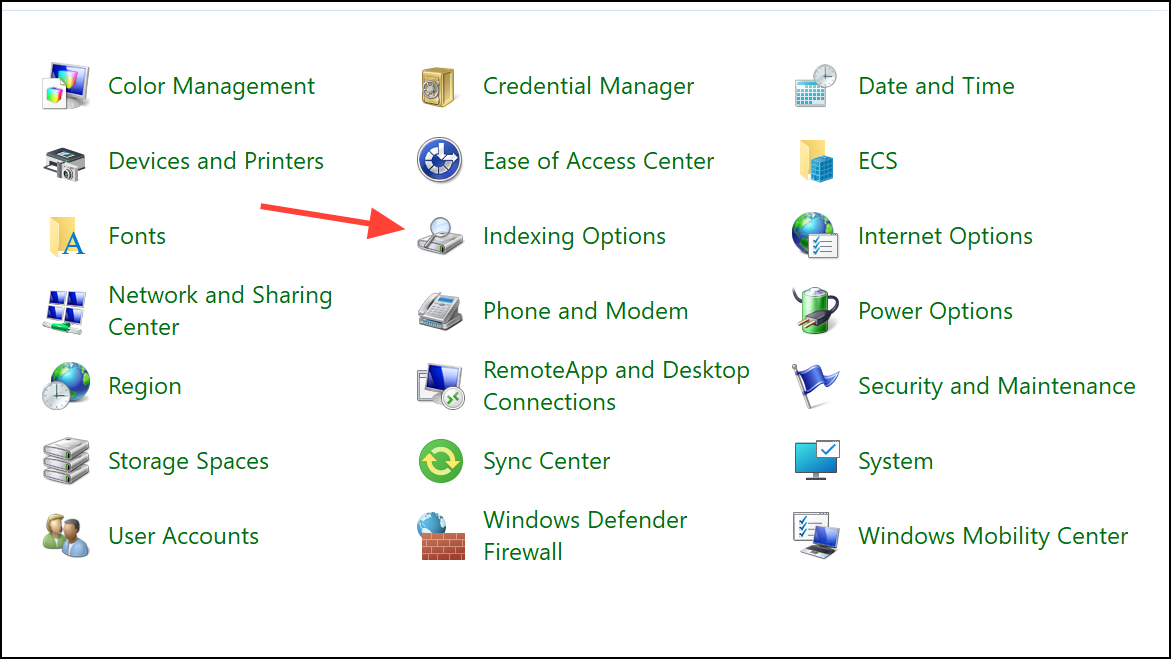
Modify and attempt to add your Google Drive folder. With Stream files, the virtual drive may not appear as an option. If you are using Mirror files, ensure the mirrored folder is included.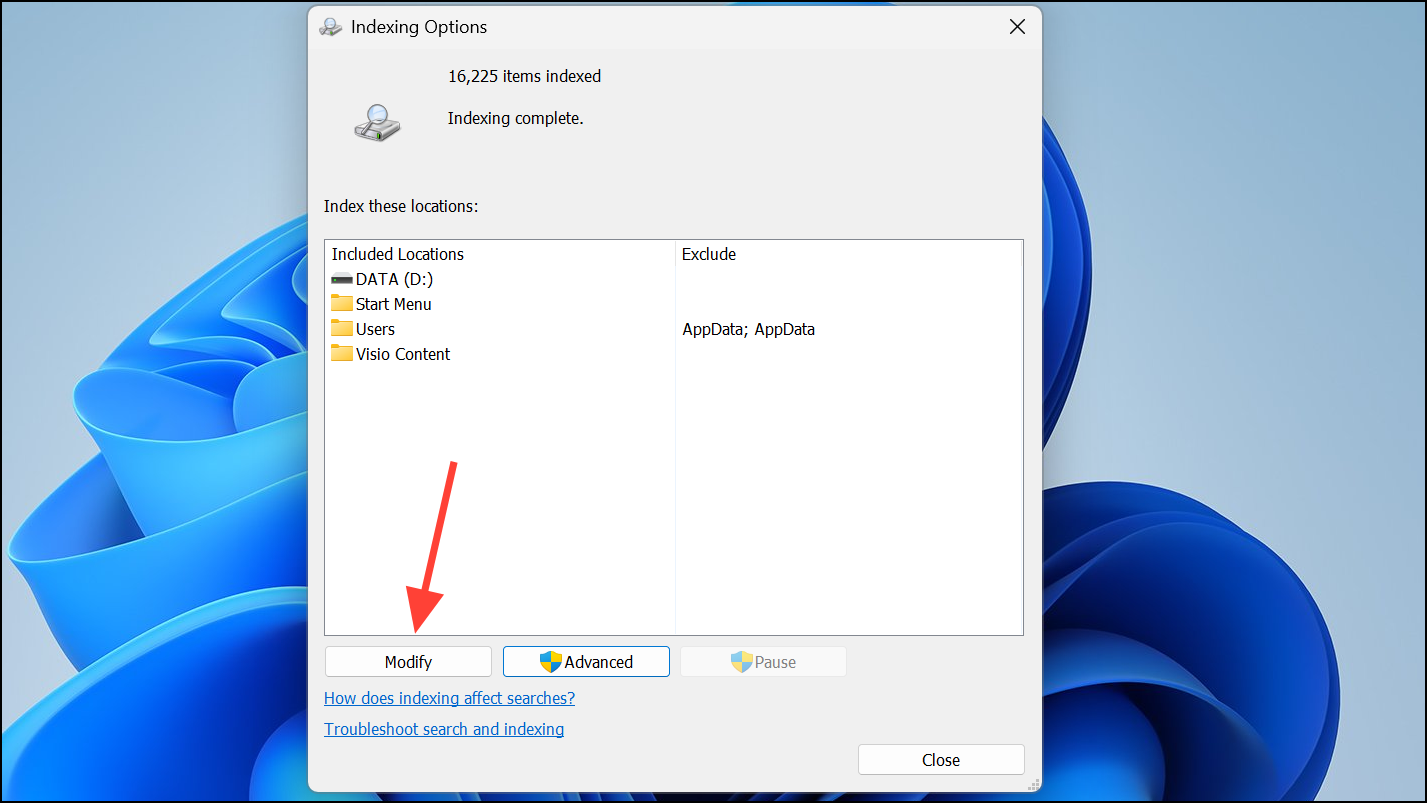
Advanced and select Rebuild to refresh the index. This process can take time, especially for large folders.Method 3: Use Third-Party Search Tools for Google Drive Files
Properties > Compatibility, and verify that Run this program as an administrator is unchecked.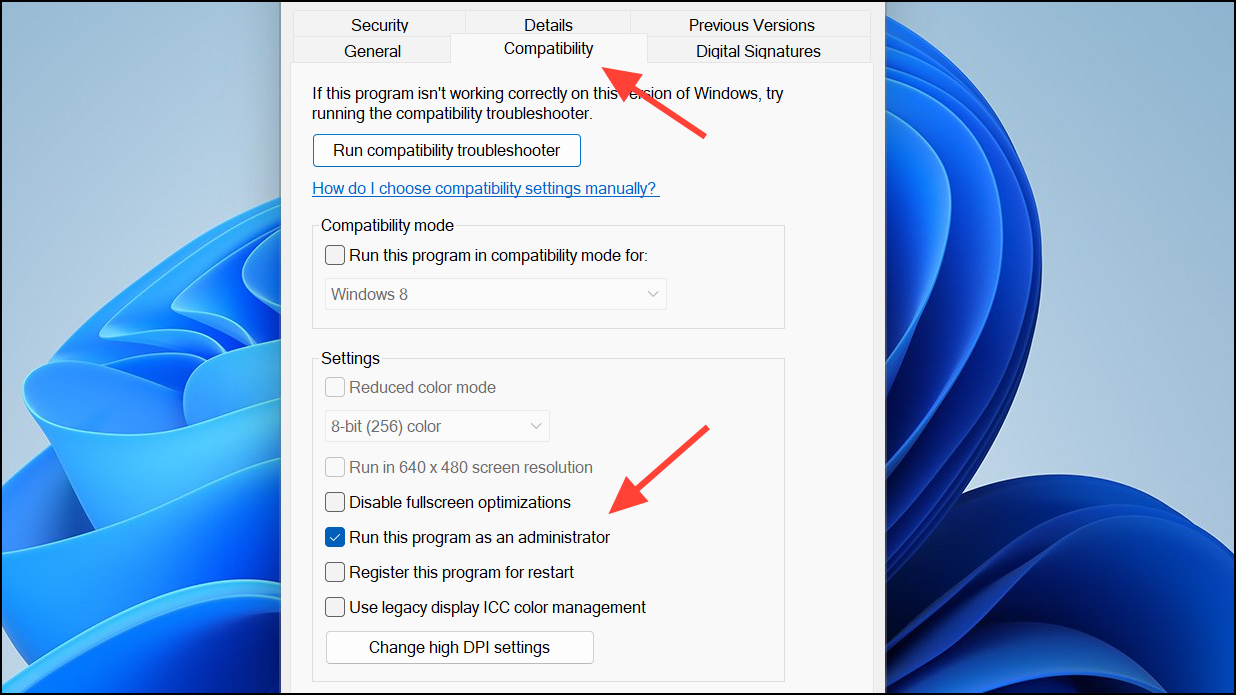
Tools > Options, then select the Folders tab. Click Add... and select your Google Drive virtual drive (e.g., G:\My Drive or N:\My Drive). Click OK to start indexing.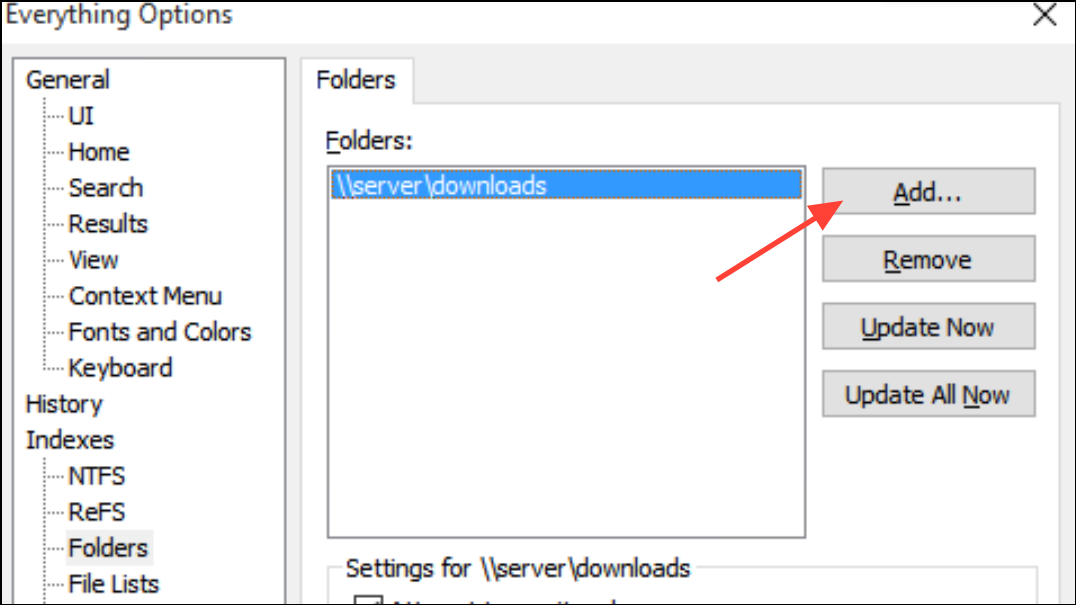
Index section, and add your Google Drive folder. Activate the Listary launcher with a double Ctrl press and begin searching your Drive files instantly.These third-party tools bypass Windows Indexing limitations and allow you to quickly locate files on virtual drives, including those created by Google Drive’s Stream files mode.
Method 4: Troubleshooting and Alternative Workarounds
services.msc, locate Windows Search, and ensure it is set to Running and Automatic.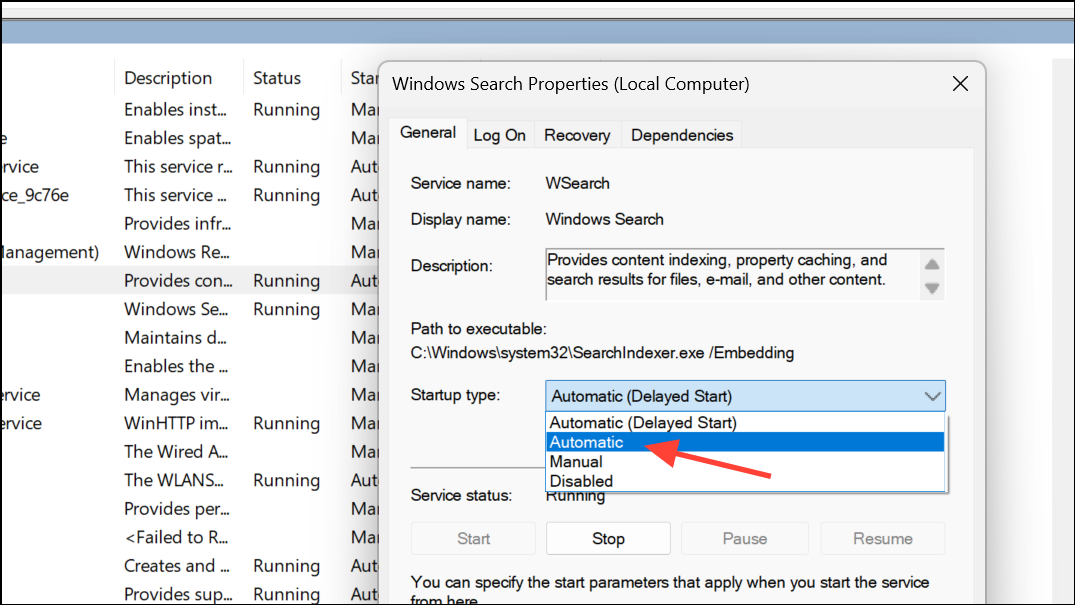
Win+S, type troubleshooter, and select Other troubleshooters. Choose Search and Indexing and follow the prompts. This may resolve general search issues, but does not address Google Drive virtual drive limitations.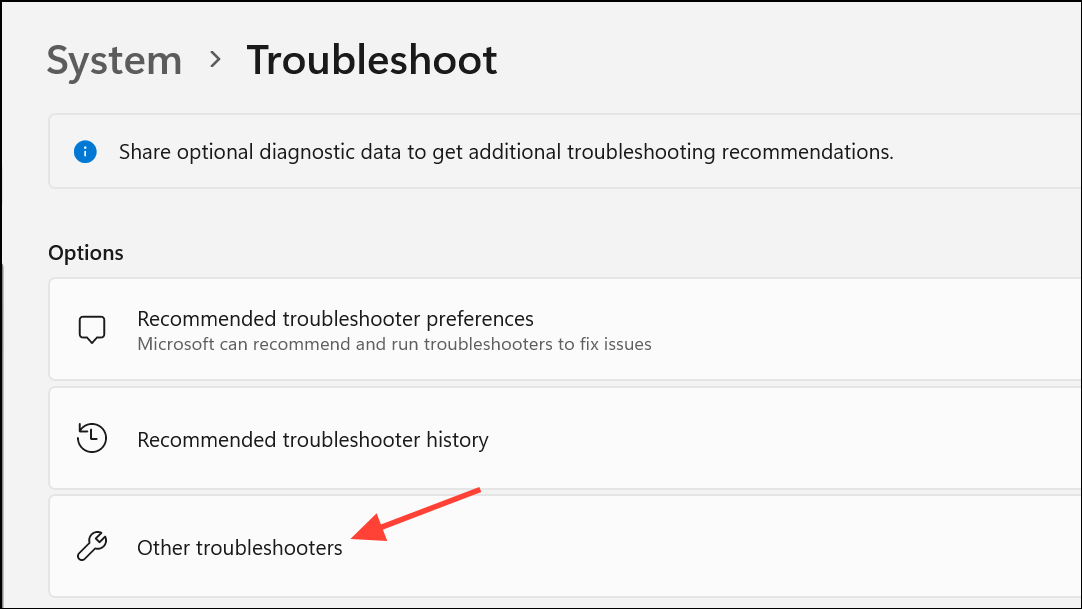
Switching to a third-party search tool or using Mirror files mode significantly improves the speed and reliability of finding Google Drive files on Windows. For most users, these methods will restore fast file search functionality without manual folder browsing.