Arranging multiple images or overlaying text boxes in Google Docs often requires more than just inserting pictures on a page. Google Docs provides a few different ways to group and layer images, with the Drawing tool offering the most robust control over positioning, grouping, and stacking elements. Understanding these methods can save time and prevent frustration when designing visually organized documents.
Method 1: Using the Drawing Tool to Group and Layer Images
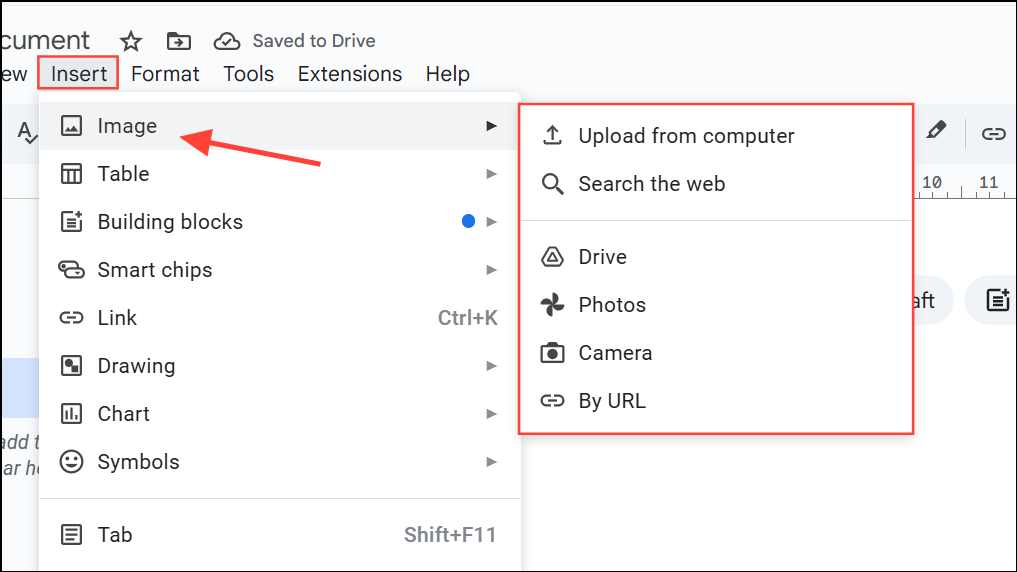
The Drawing tool in Google Docs allows you to insert, stack, and group images and text boxes with precision. This method is the most effective for complex arrangements, such as combining pictures with arrows, shapes, or overlaying text.
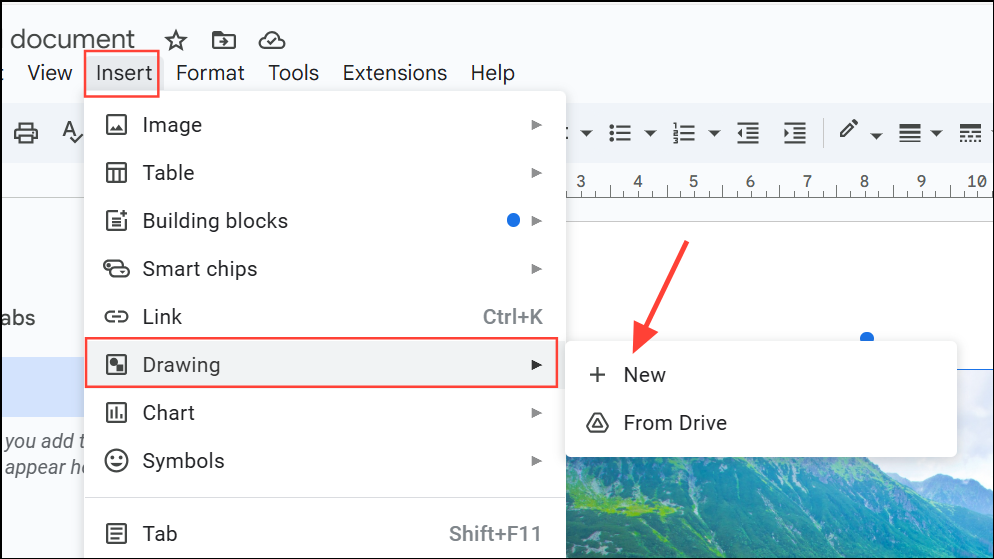
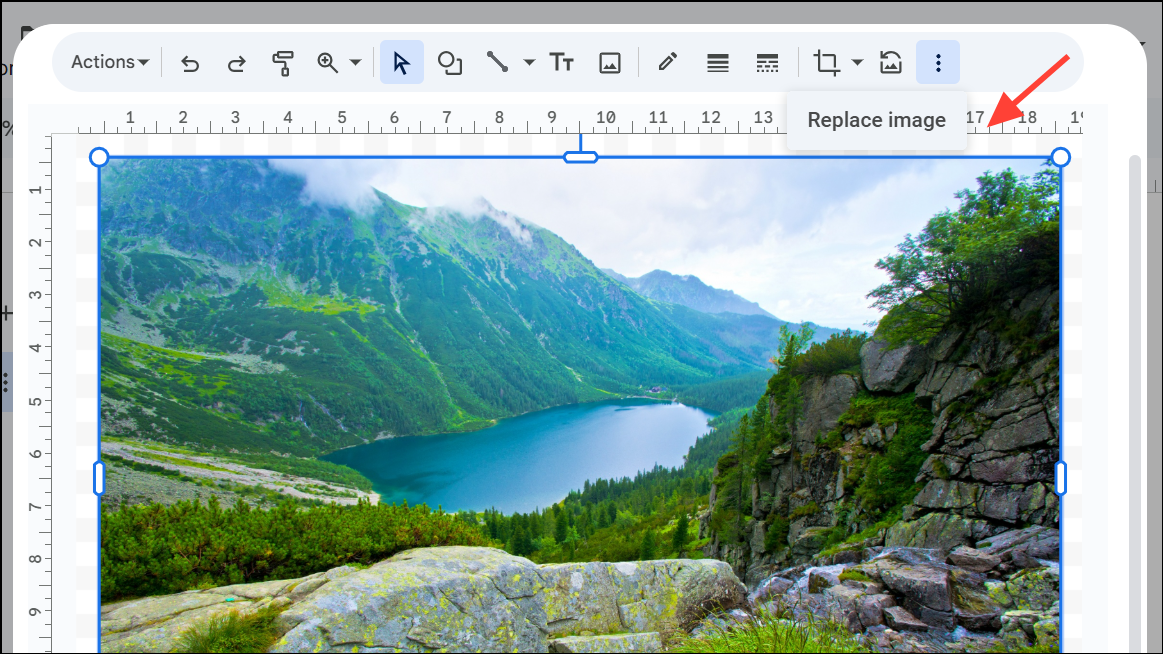
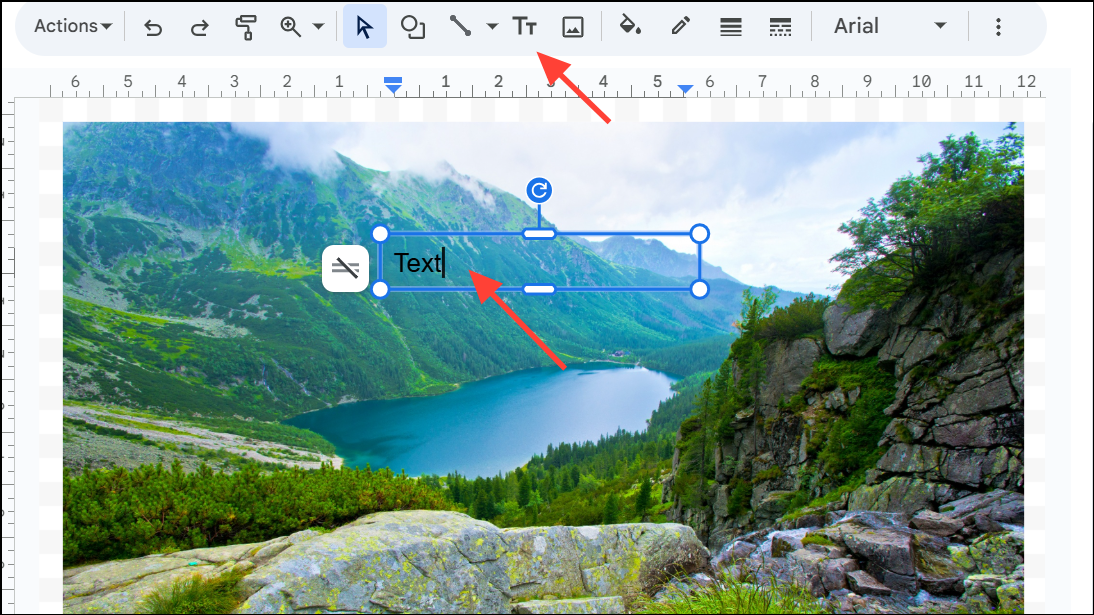
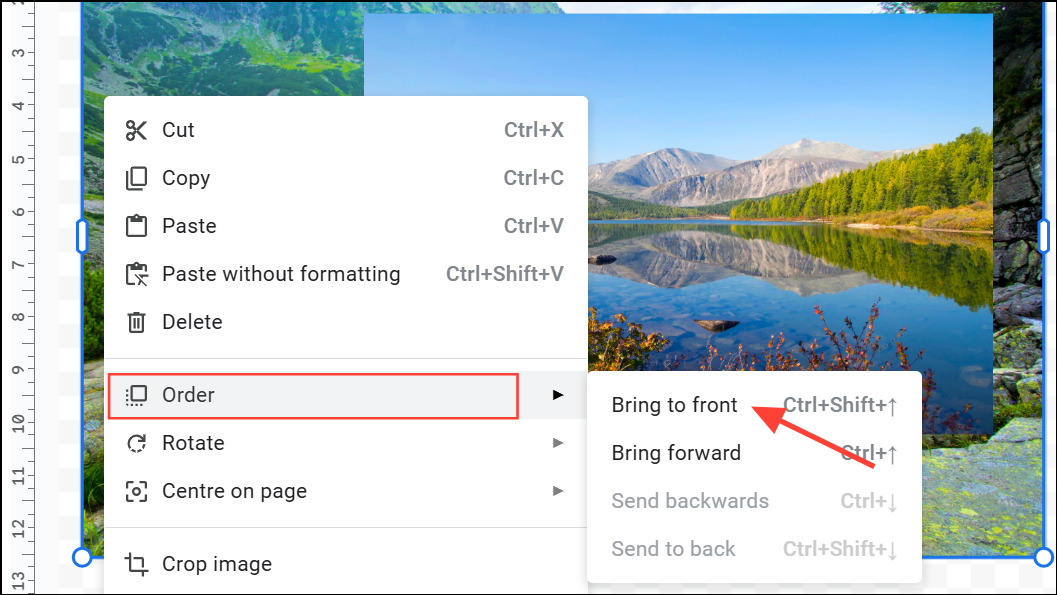
Shift and click each object to select them. Then, click Actions > Group. Grouping lets you move and resize the objects as a single unit.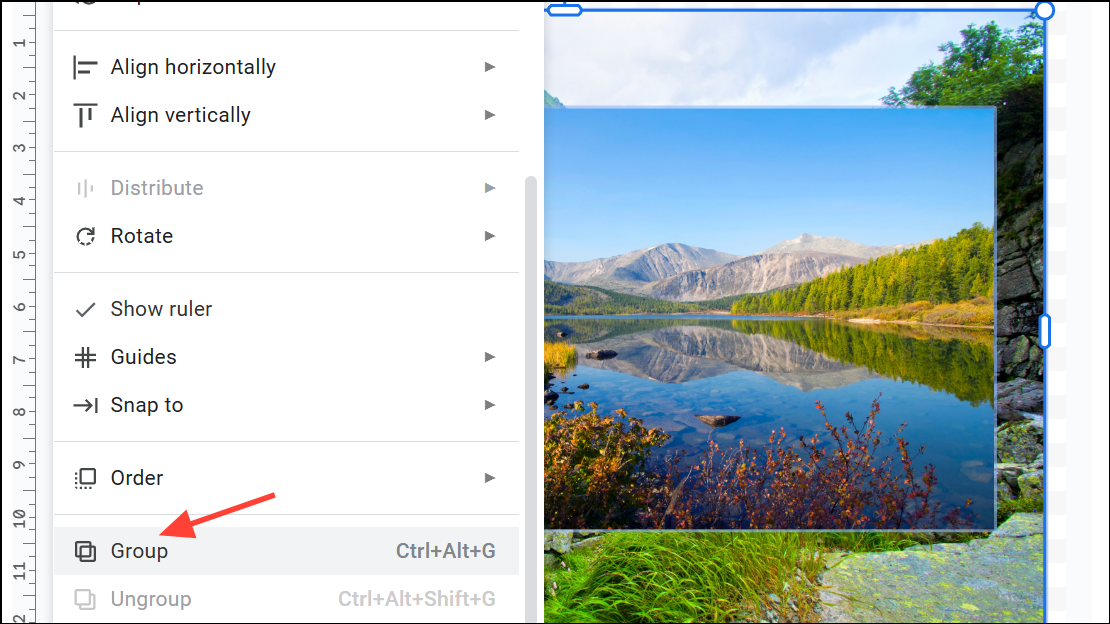
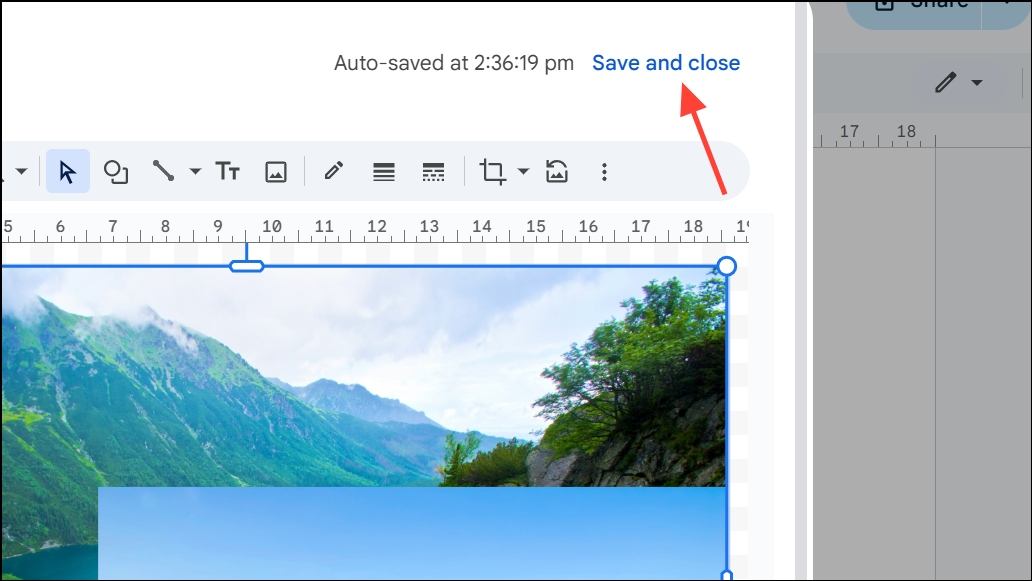
This approach is ideal for creating custom diagrams, annotations, or invitations where precise placement of images and text is required.
Method 2: Layering Images Directly in the Document
Recent updates to Google Docs allow some basic layering by adjusting image text wrapping, but this method is less flexible than the Drawing tool and does not support grouping multiple images as a single object.
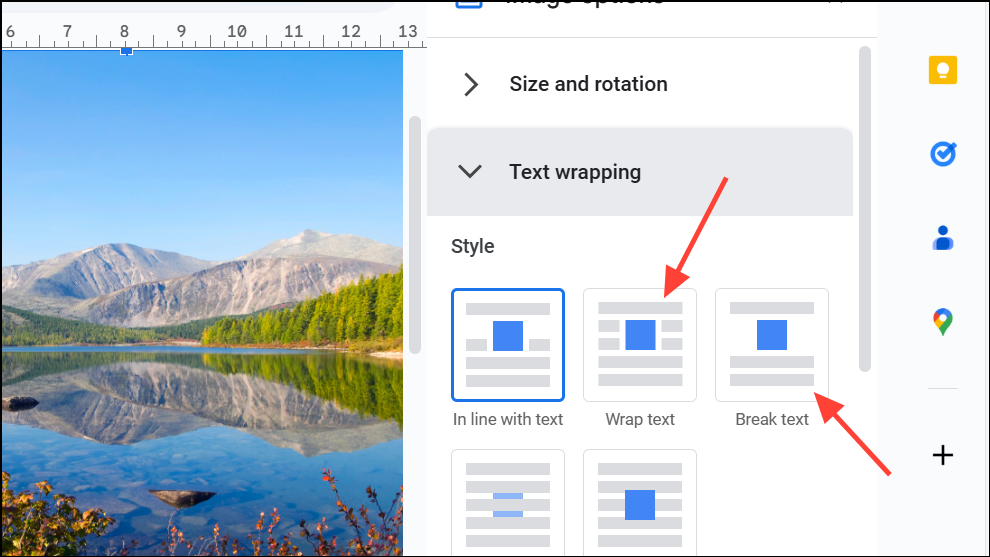
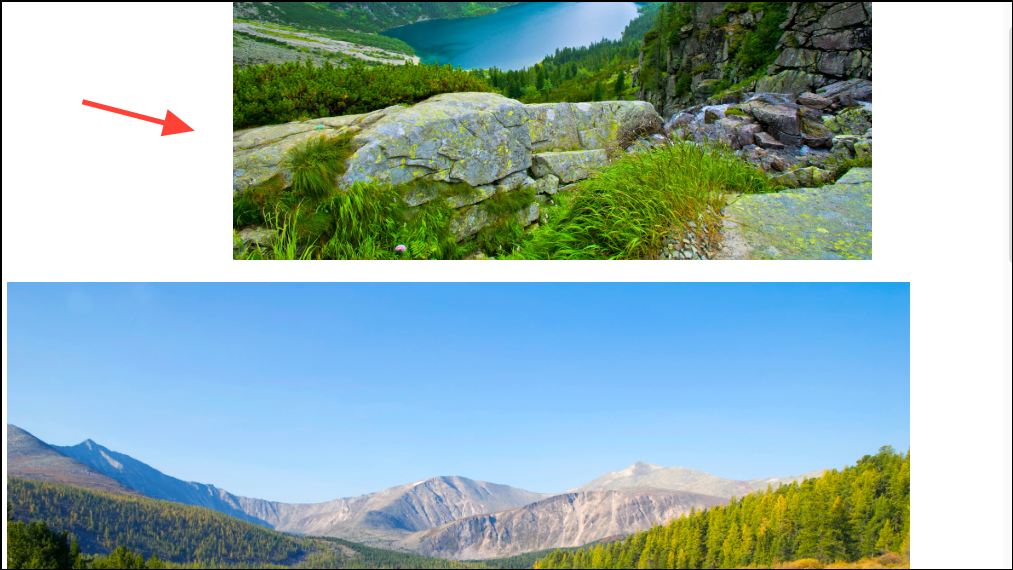
Shift while pressing the arrow keys to move images in smaller increments for precise alignment.This method is suitable for simple layouts but does not allow for true grouping of multiple images or advanced layering beyond basic stacking.
Method 3: Using Keyboard Shortcuts for Layering
Some users report limited success using keyboard shortcuts to change the stacking order of images, though this may not work consistently across all browsers or operating systems.
Ctrl + ↑ to bring the image forward, or Ctrl + ↓ to send it backward. On Mac, use Command instead of Ctrl.This shortcut can help with quick adjustments but does not provide grouping or advanced layering options.
Using the Drawing tool gives you the most control for grouping and layering images in Google Docs, especially for complex layouts. For simpler needs, direct layering and keyboard shortcuts may be sufficient, but grouping is only possible through the Drawing module. Regularly saving your work in the Drawing panel prevents loss of complex arrangements.