

Screen or audio recording in PowerPoint can suddenly stop working for a range of reasons—sometimes you’ll find the recording button grayed out, other times your video records but audio is missing entirely. These issues can stem from system permissions, outdated drivers, software conflicts, or even hardware acceleration settings. Addressing the root causes restores the ability to capture presentations, lectures, or tutorials directly within PowerPoint, saving time and avoiding the need for extra software.
Check Microphone Permissions in Windows 11
PowerPoint requires explicit permission to access your microphone for both screen and audio recording. Without this, audio capture will silently fail, even if your device is otherwise working.
Privacy & security on the left sidebar, then select Microphone under the “App permissions” section.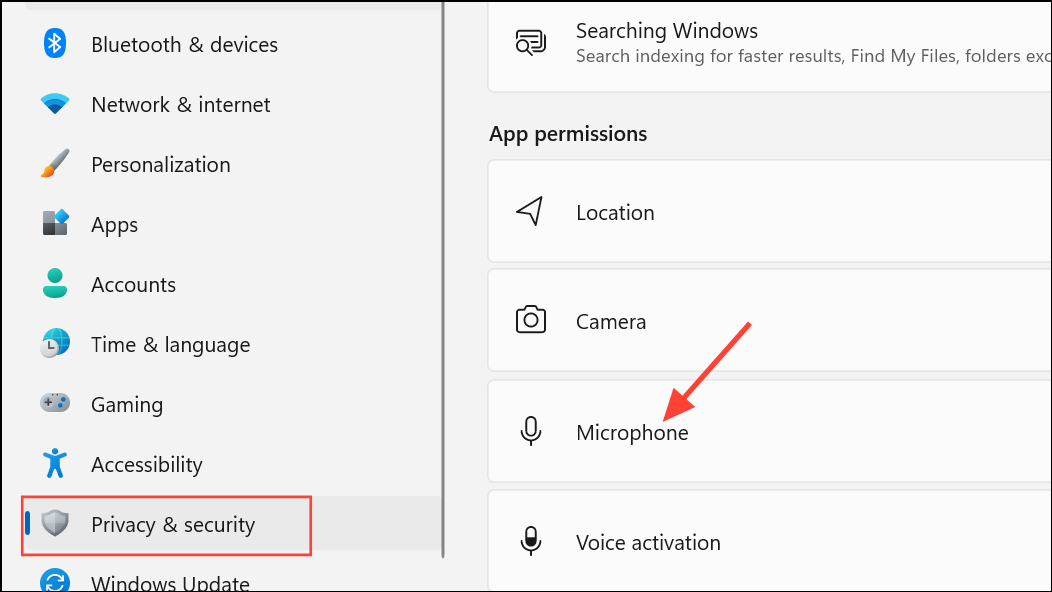
Microphone access is toggled ON. Also, scroll to the list of apps and verify that Let desktop apps access your microphone is enabled. If PowerPoint is listed, make sure its toggle is ON.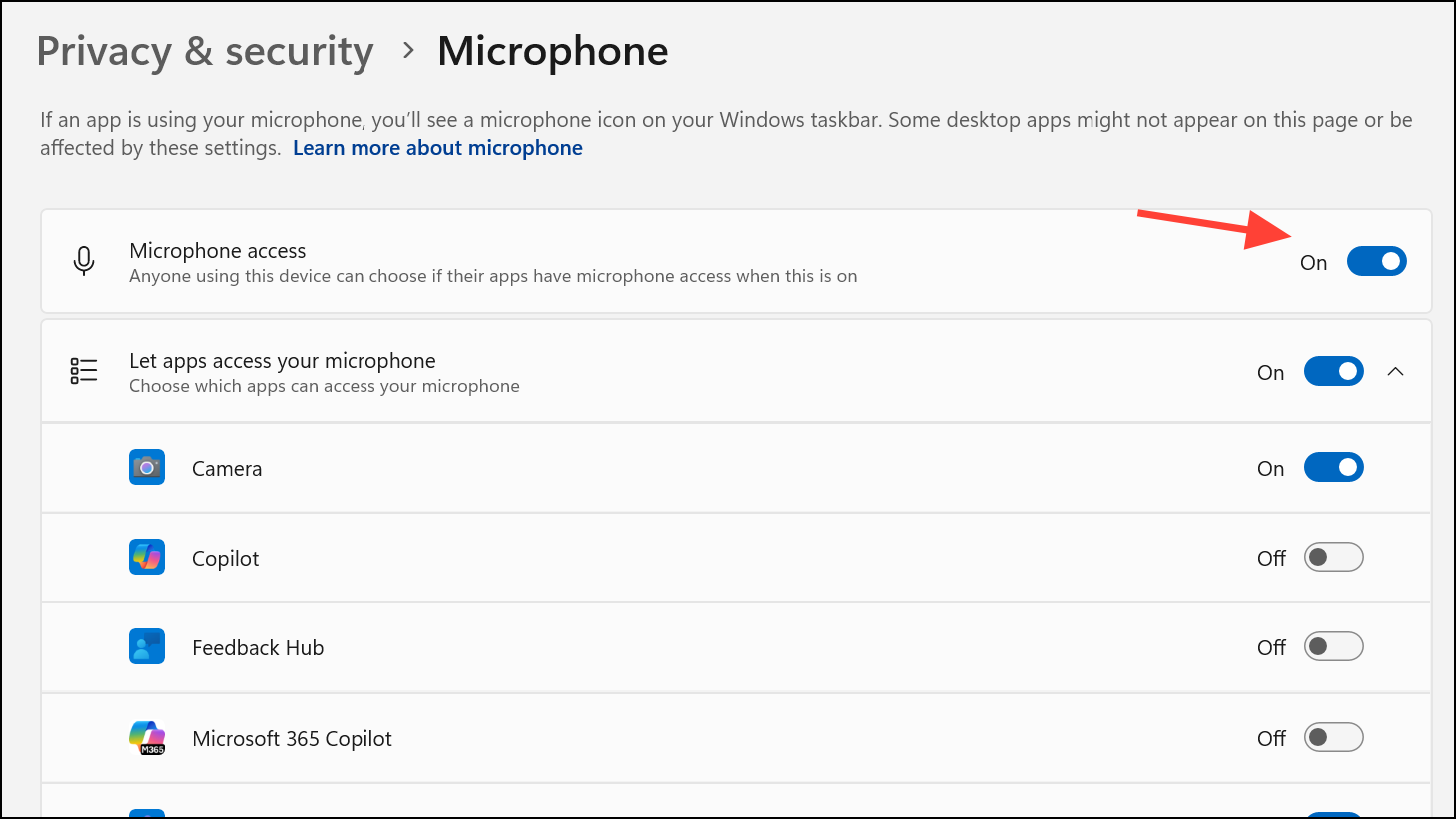
Update Audio Drivers
Outdated or corrupted audio drivers can prevent PowerPoint from accessing your microphone or system audio. Updating drivers ensures compatibility and resolves many silent recording failures.
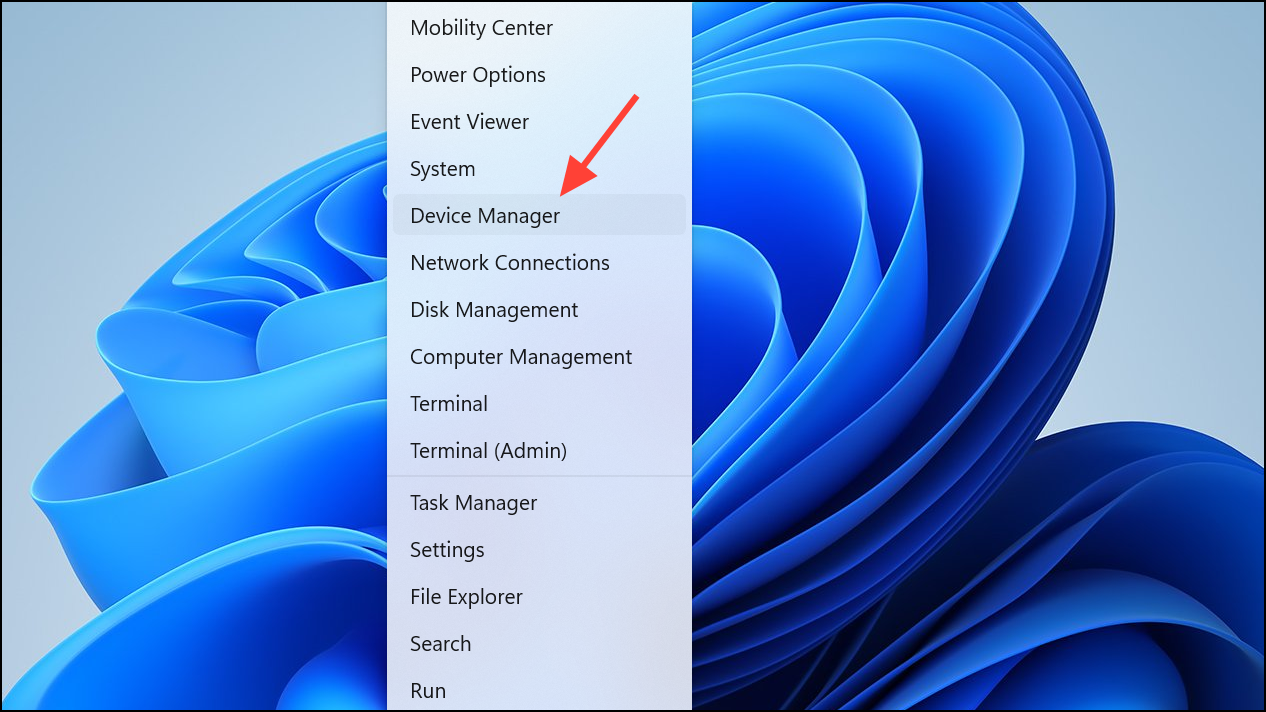
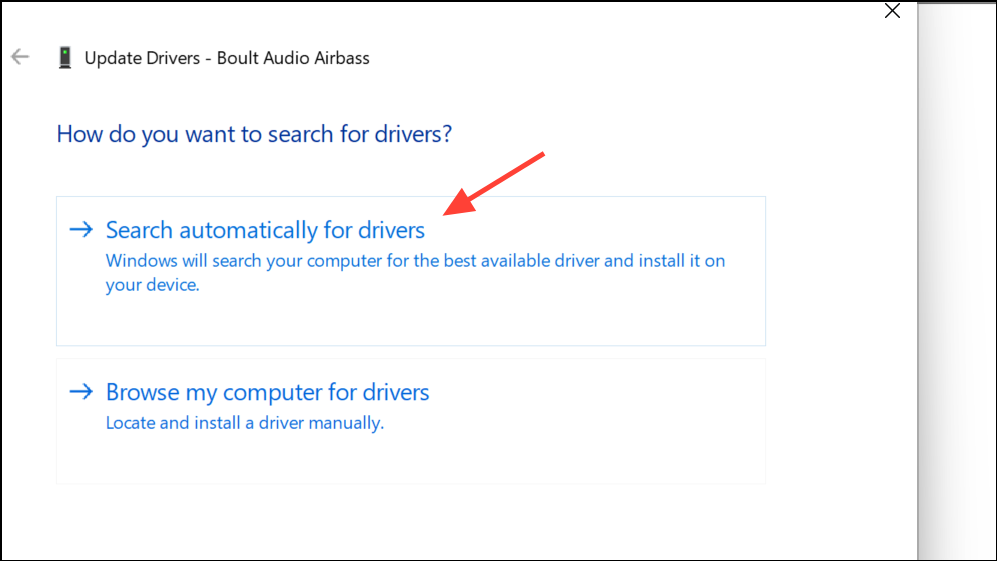
Sound, video and game controllers. Right-click your audio device (for example, “Realtek Audio” or “Intel Smart Sound Technology”) and choose Update driver.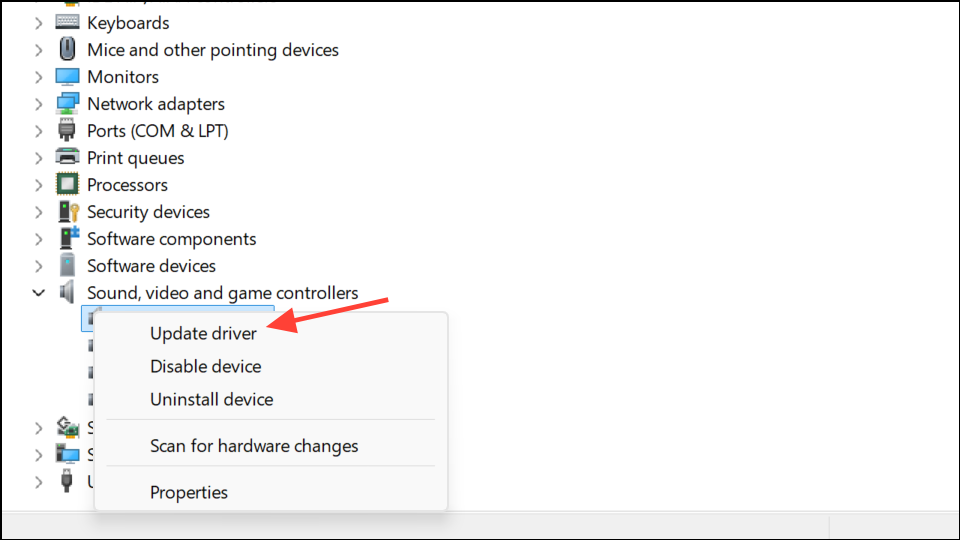
Run PowerPoint as Administrator
Running PowerPoint with administrator rights can resolve permission-related barriers that block screen or audio recording. This step is especially important if your organization applies strict security policies.
Run as administrator.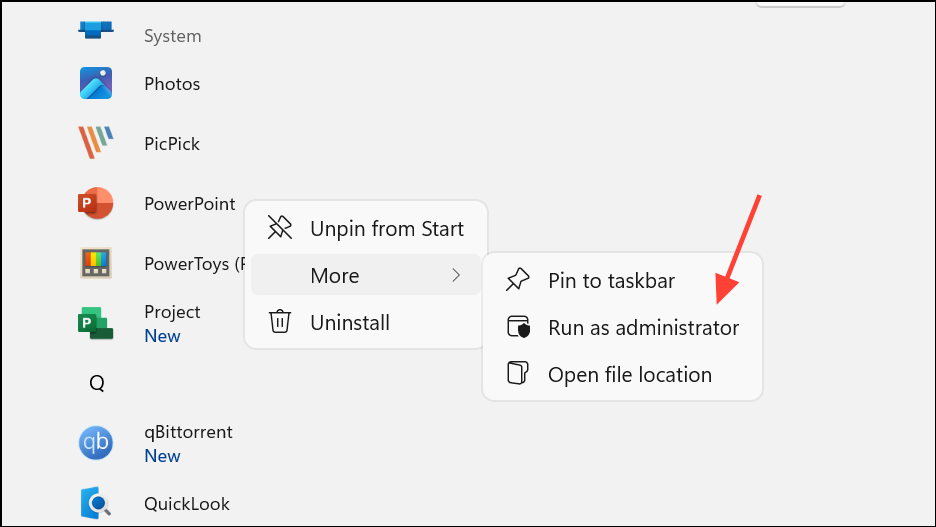
Yes to grant permission. Try using the recording feature again.Disable Hardware Graphics Acceleration
Hardware acceleration leverages your graphics card to improve performance, but it can cause recording failures if your drivers are incompatible or outdated. Disabling this feature often resolves screen capture glitches and missing audio.
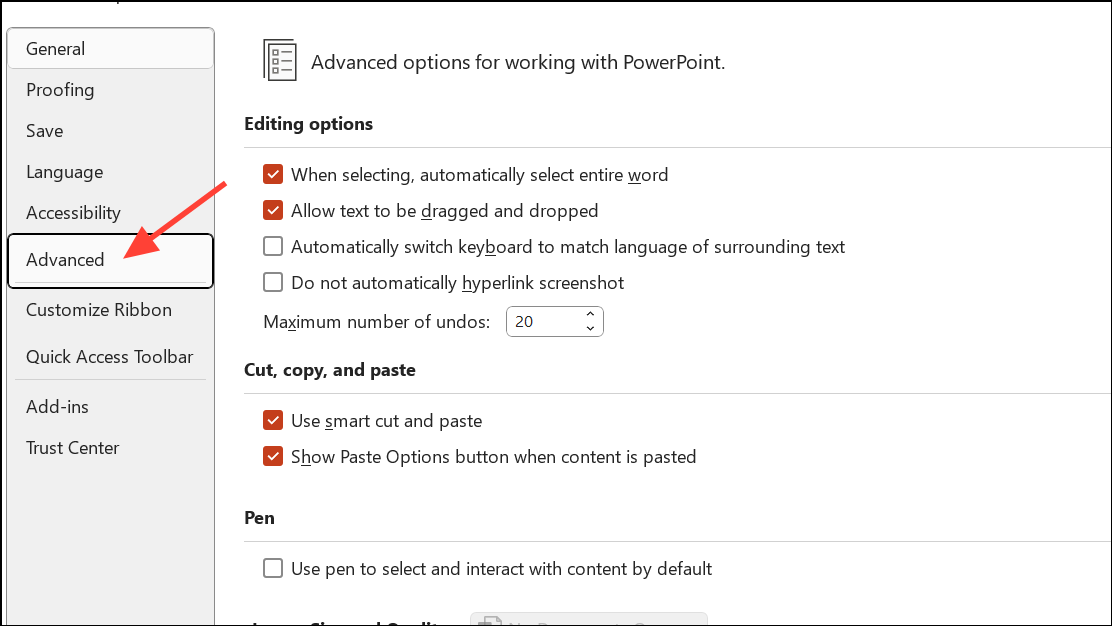
Disable hardware graphics acceleration, if it is available for your version of the program.Repair or Update Office Installation
Corrupted or outdated Office installations can break PowerPoint’s recording features. Repairing or updating ensures all required files are present and up to date.
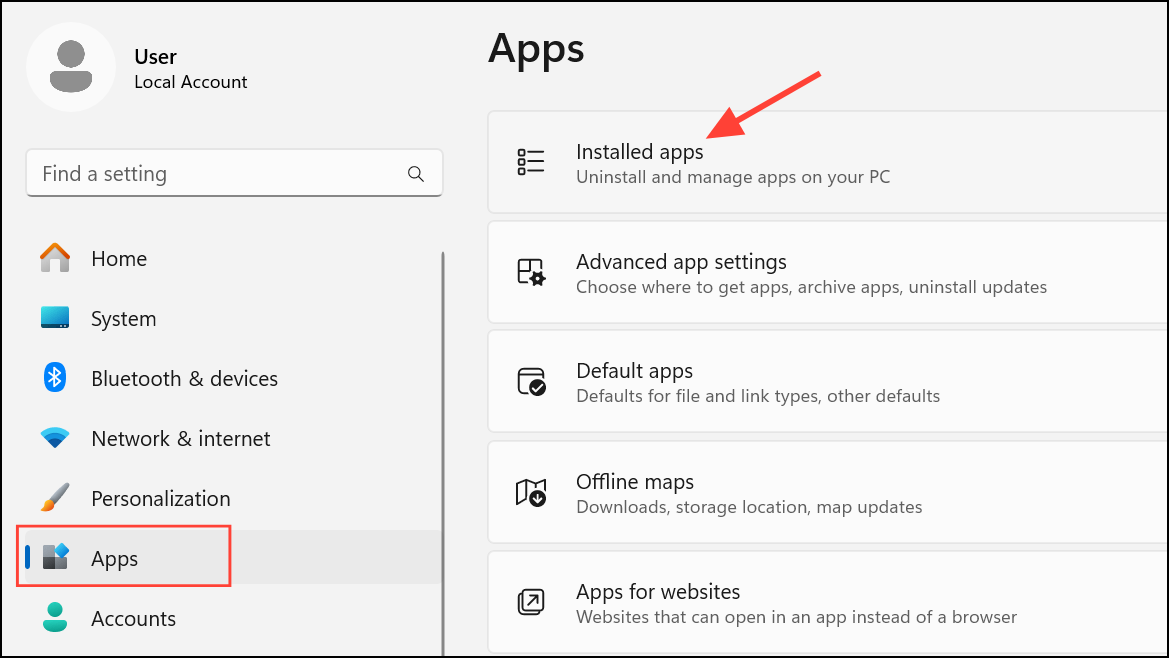
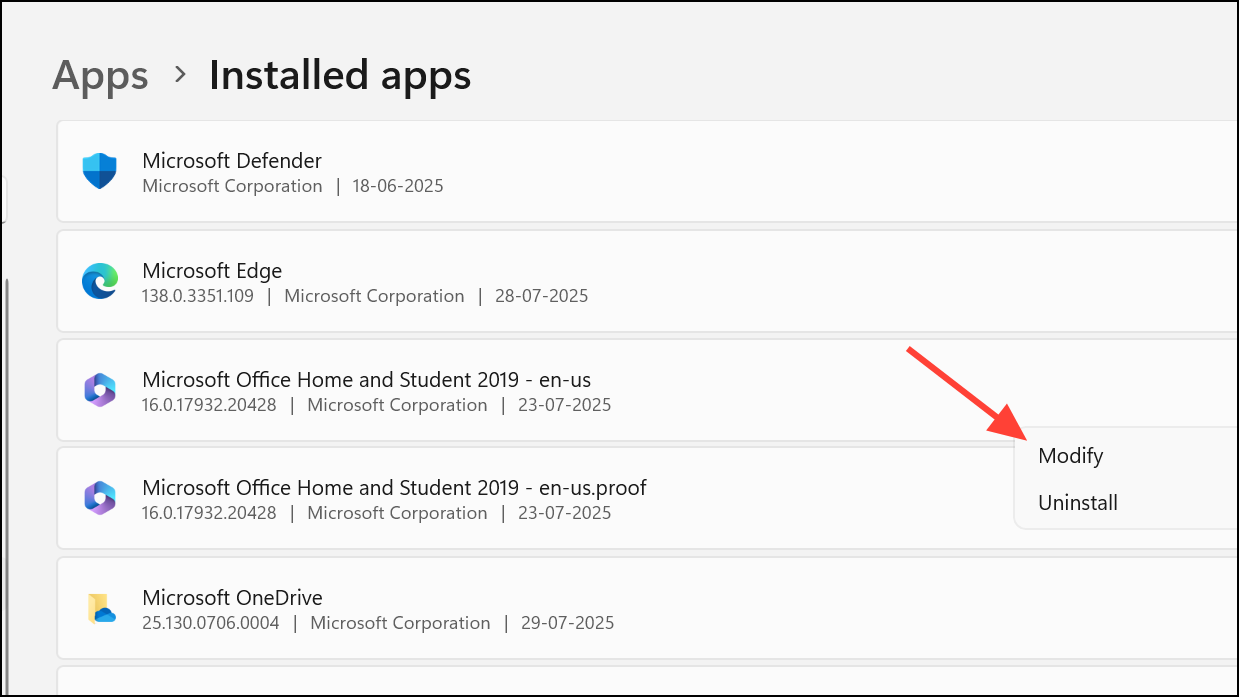
Quick Repair and follow the prompts. If problems persist, repeat and choose Online Repair for a deeper fix.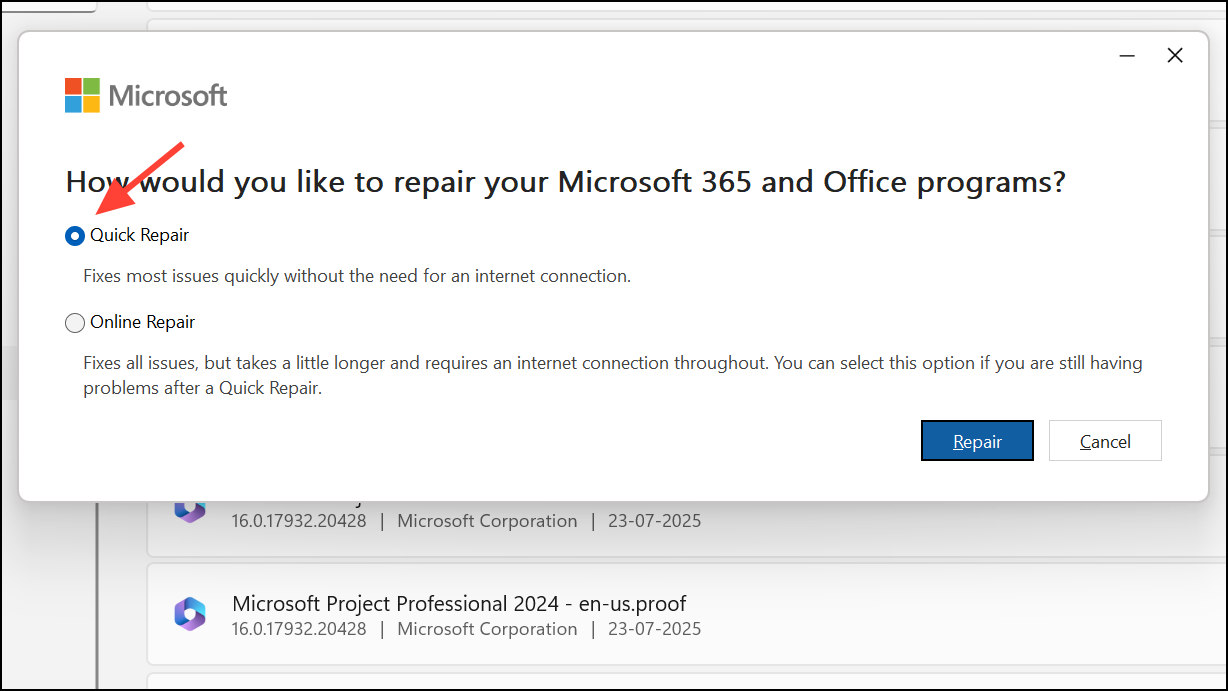
File > Account, then click Update Options > Update Now.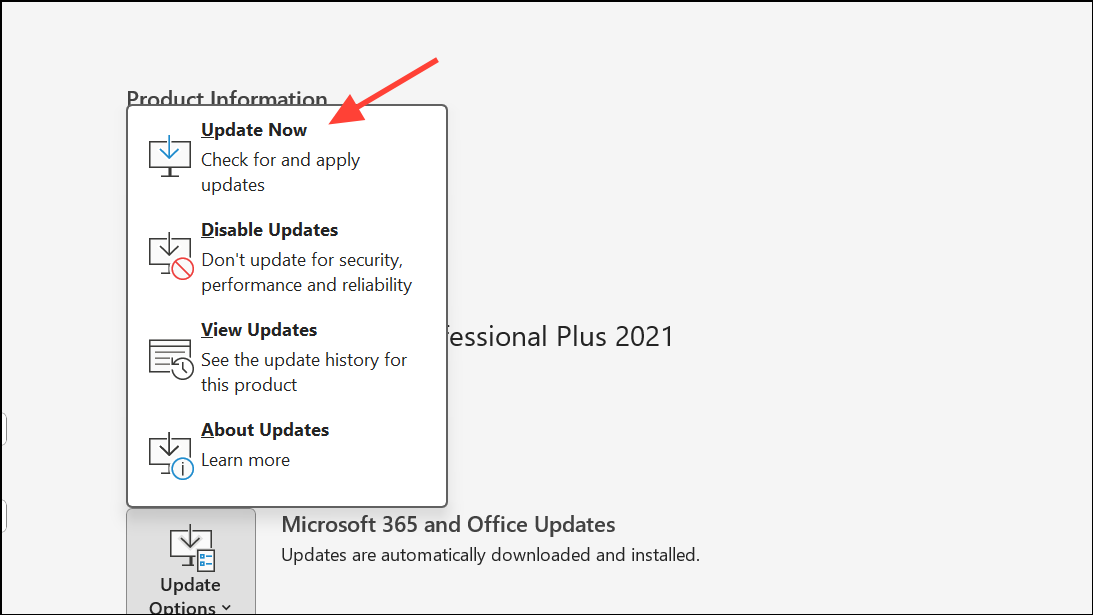
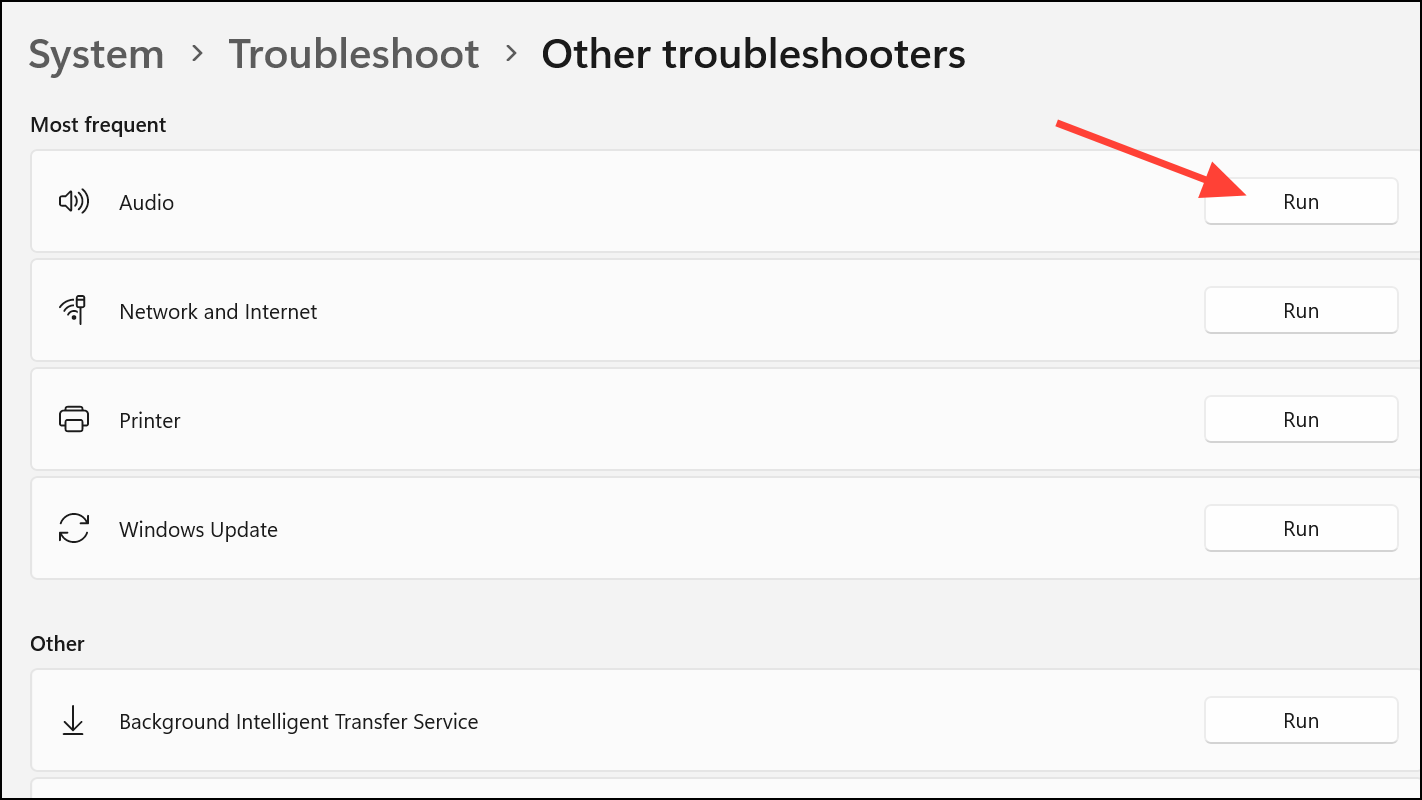
Run Windows Audio Troubleshooter
Windows 11 includes a built-in troubleshooter that can diagnose and resolve common audio recording issues, such as muted microphones or misconfigured input devices.
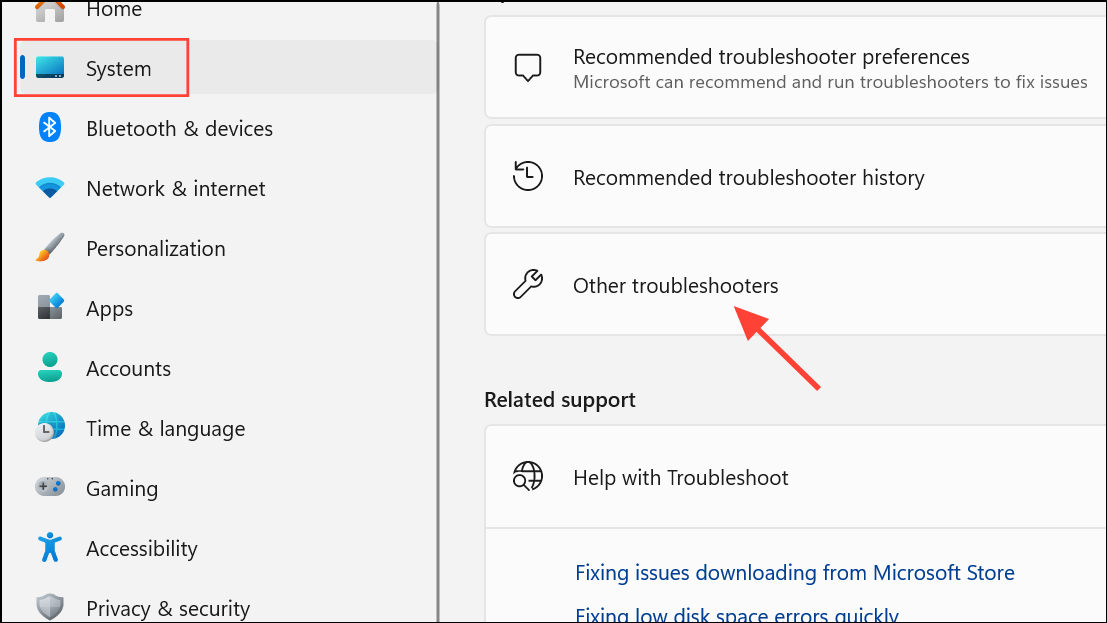
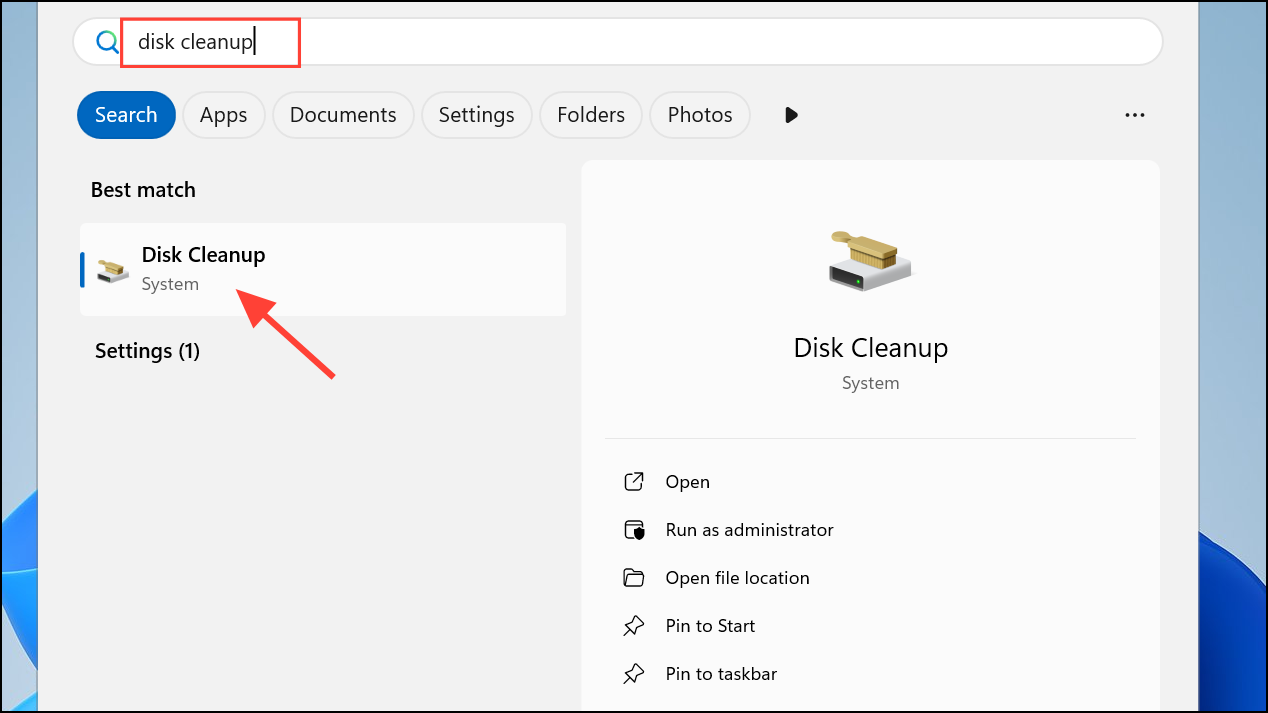
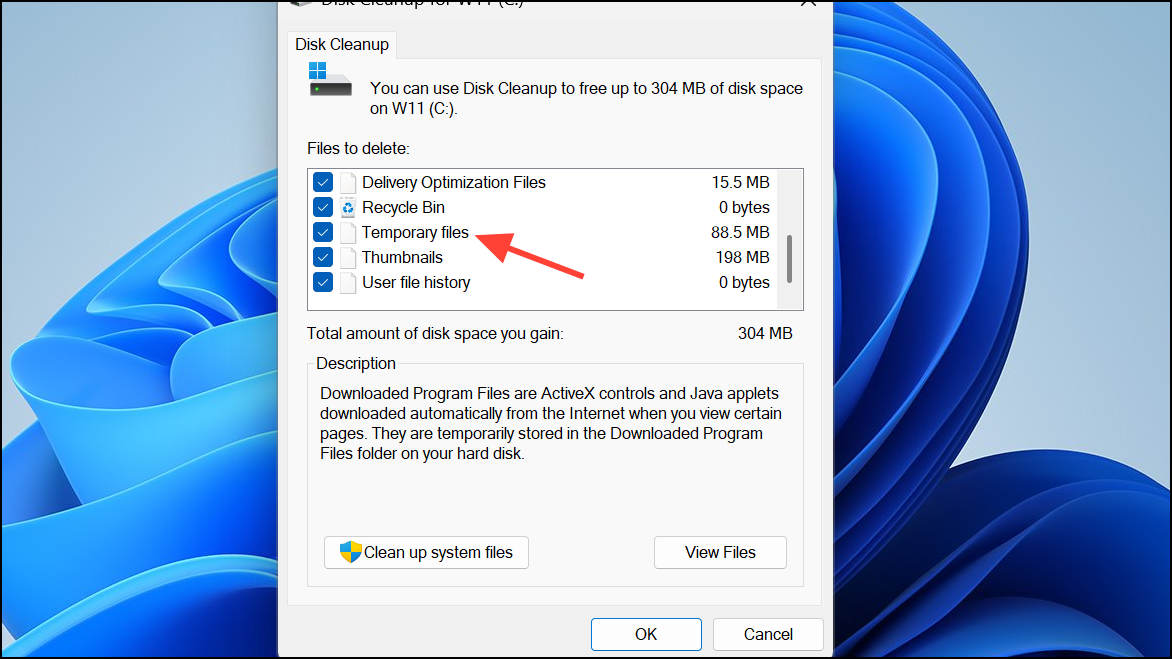
Free Up Disk Space
Screen recordings require available disk space to save video and audio data. Insufficient space can cause PowerPoint to silently fail or lose recordings.
Test with Wired Microphones or Different Audio Devices
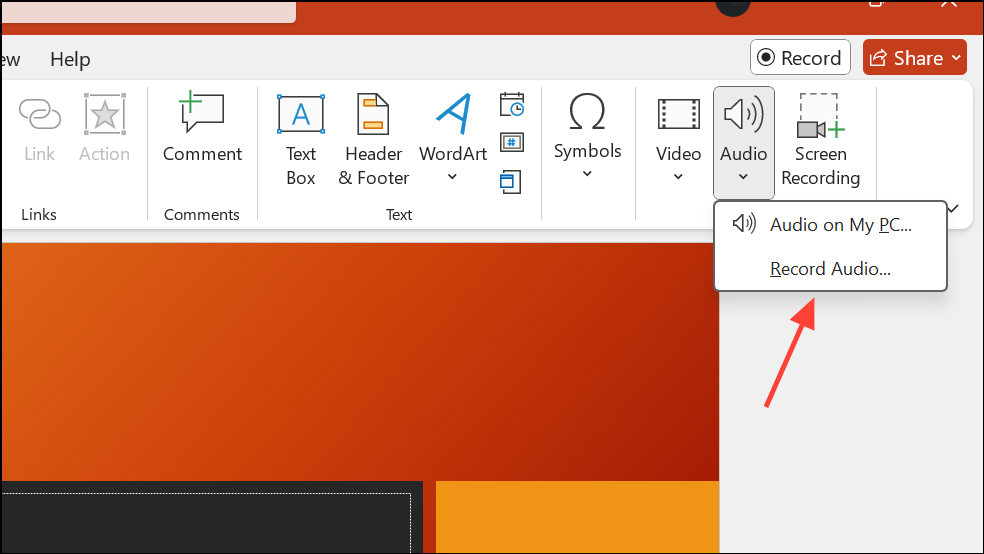
Bluetooth and wireless audio devices may not always be compatible with PowerPoint’s recording engine. If audio fails to record when using a Bluetooth headset, switch to a wired microphone or the device’s built-in mic for testing.
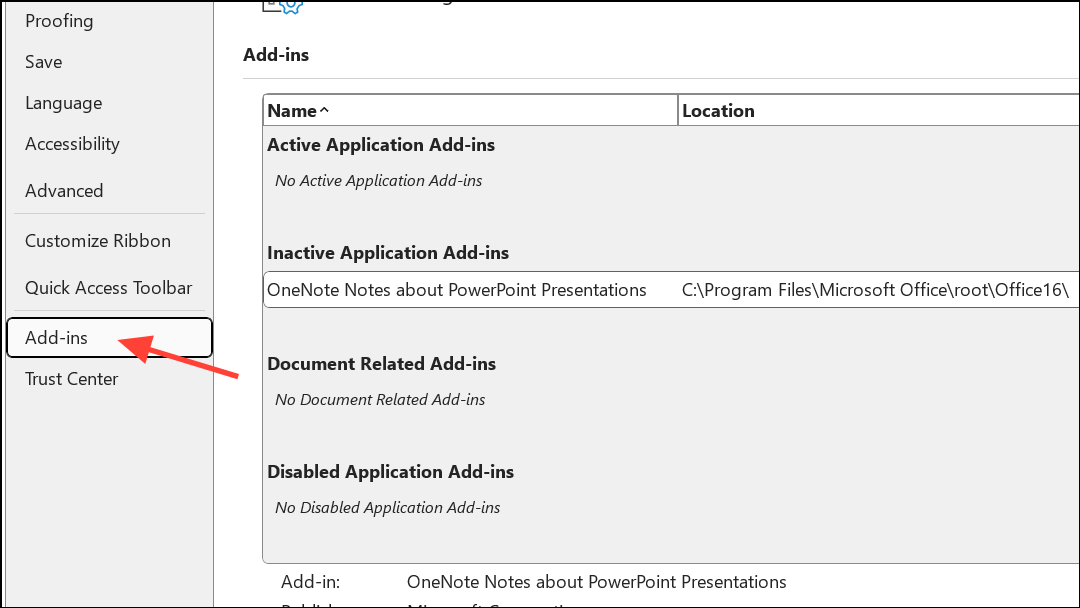
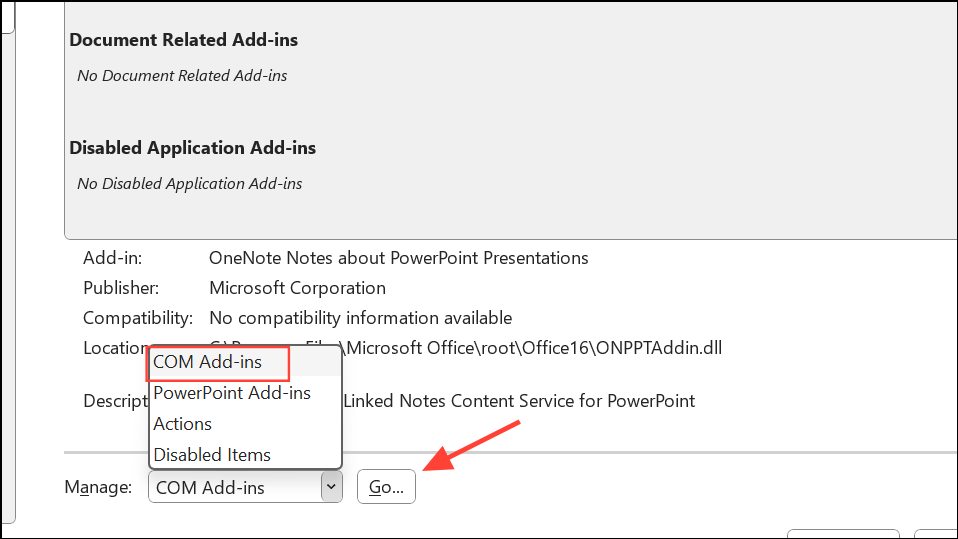
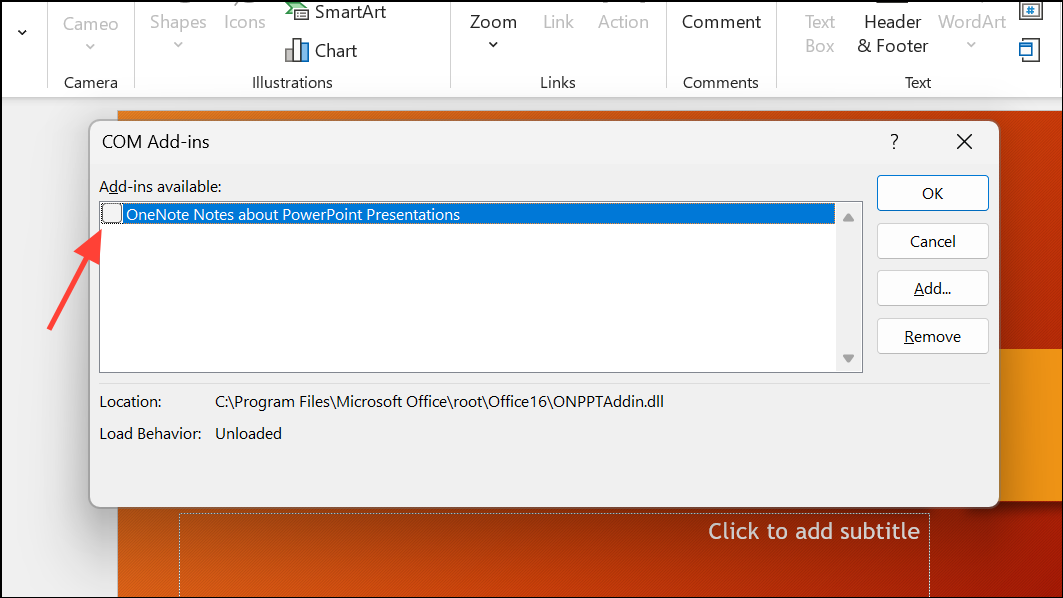
Disable Conflicting Add-ins
Third-party add-ins can interfere with PowerPoint’s built-in recording features. Disabling all add-ins helps isolate the cause.
Use Alternative Screen Recording Software
If PowerPoint’s built-in screen or audio recording remains unreliable, consider using external screen recording tools. Applications like OBS Studio, MiniTool Video Converter, or EaseUS RecExperts provide robust screen and audio capture features, often with more control and reliability than PowerPoint’s native tools.
Addressing PowerPoint’s audio or screen recording issues in Windows 11 is a matter of checking permissions, updating drivers, and methodically troubleshooting software conflicts. If built-in fixes don’t work, third-party recorders provide a reliable backup for capturing your presentations.





