

Exporting PowerPoint slides as Word handouts can fail with the error message “PowerPoint couldn’t write to Microsoft Word,” especially when working with large presentations or files containing many images. This error disrupts workflows that depend on creating editable Word documents from PowerPoint, such as preparing meeting handouts or lecture notes. Several methods can address this issue, ranging from optimizing image settings to troubleshooting Office installations.
Compress Images to Reduce File Size
Large PowerPoint files—especially those with many high-resolution images—can overwhelm the export process, causing the error. Adjusting image settings to compress pictures and discard unnecessary editing data often resolves the problem and allows the export to finish.
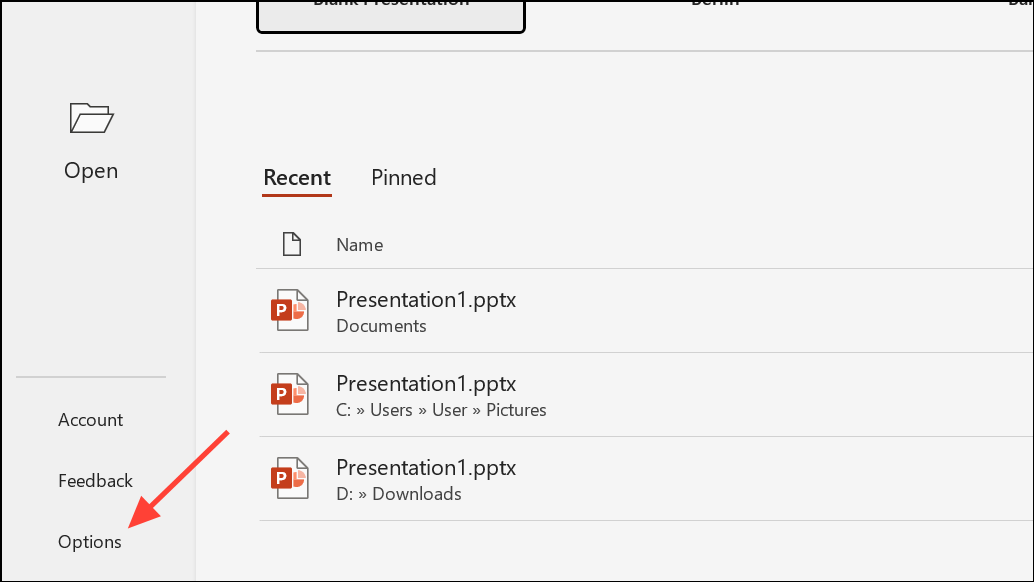
Advanced from the left sidebar. Scroll down to the “Image Size and Quality” section.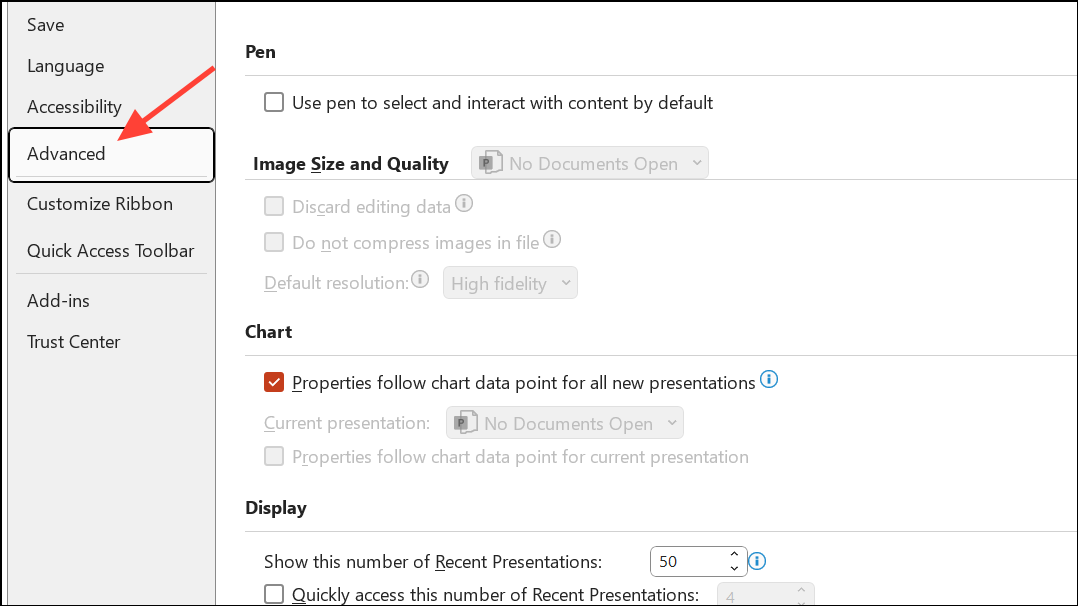
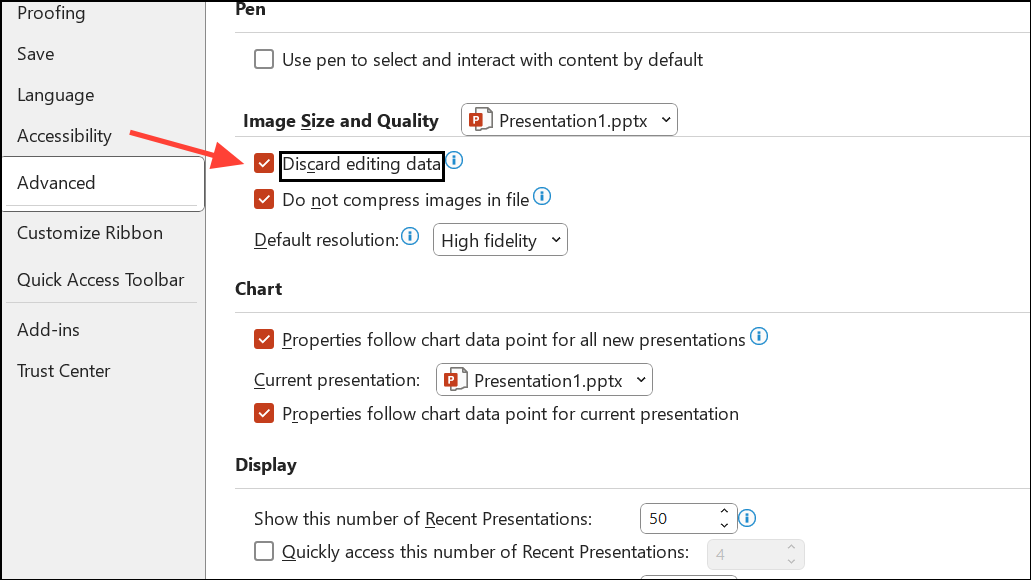
Do not compress images in file is not checked. This setting allows PowerPoint to compress images and reduce file size.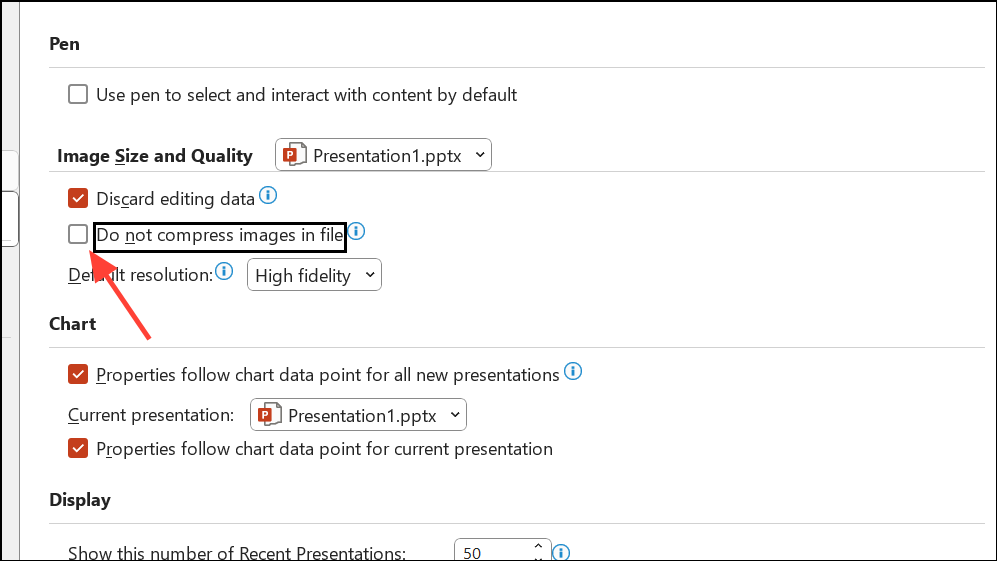
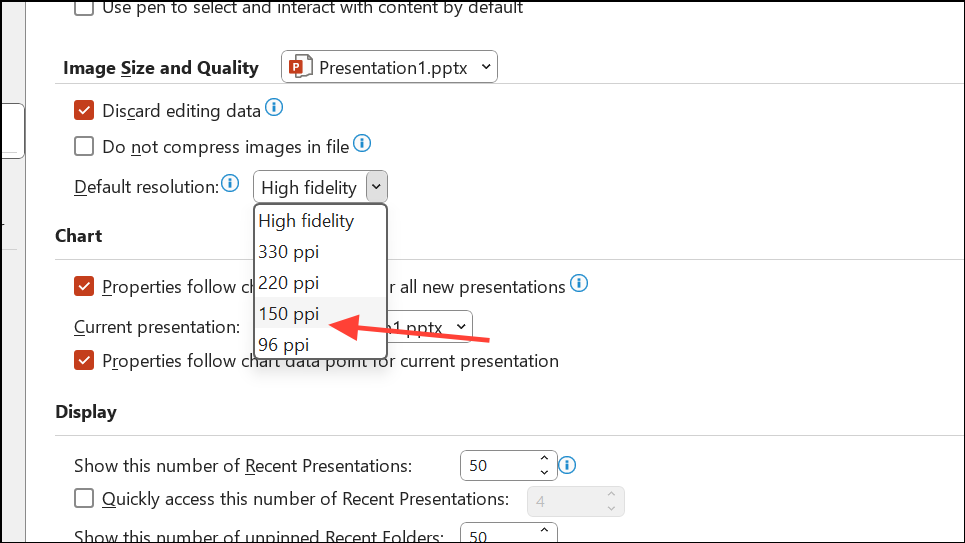
File > Export > Create Handouts > Create Handouts in Microsoft Word. Select your preferred layout and click OK.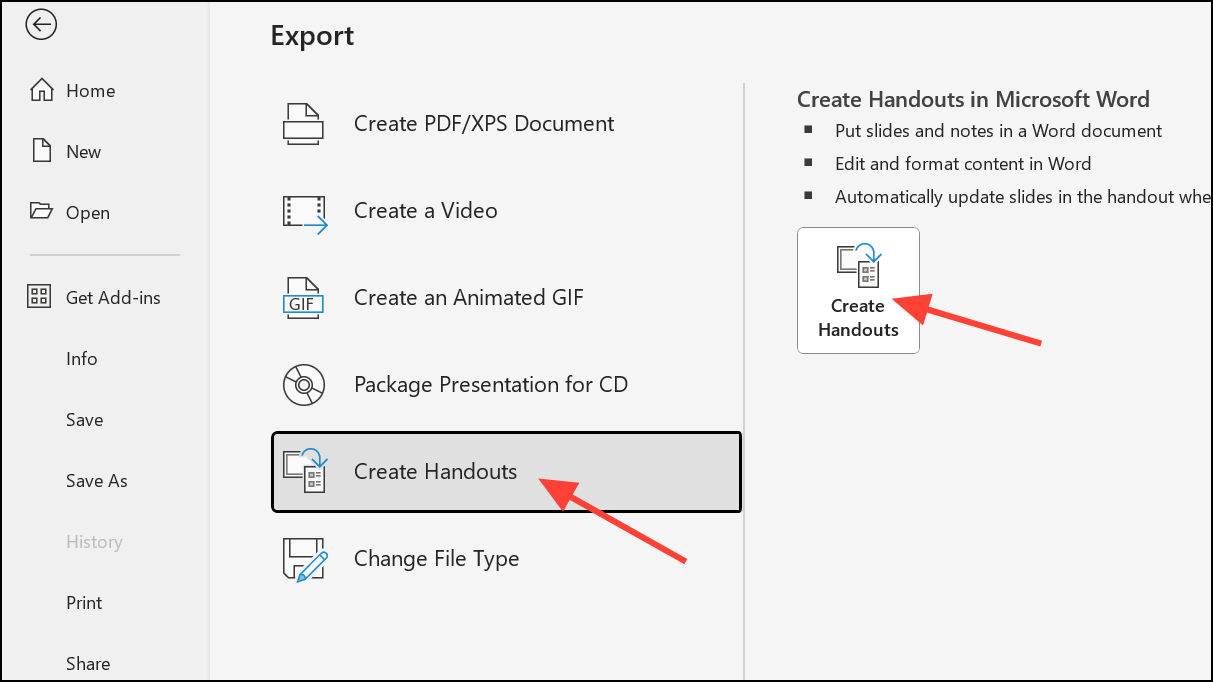
This approach reduces the file size and streamlines the export process, which often eliminates the error and allows large presentations to be successfully written to Word.
Split Large Presentations into Smaller Segments
If compressing images does not allow the entire file to export, breaking up the presentation into smaller sections can help. PowerPoint and Word require significant memory to process large files, and dividing the export into batches can prevent the process from failing partway through.
.pptx format. Avoid saving directly to OneDrive or network drives for this process.This method improves reliability for exporting very large or complex presentations.
Restart and Minimize Background Processes
Exporting to Word consumes a significant amount of memory. Running many applications at once can cause PowerPoint to fail during export. Restarting your computer and running only PowerPoint can free up resources for the export process.
This approach can improve the chances of a successful export, especially on systems with limited RAM or when handling large files.
Update and Repair Office Installation
Outdated or corrupted Office installations can cause export errors. Ensuring your Office suite is up to date and running a repair can resolve underlying software issues.
File > Account > Update Options, then select Update Now to check for and install updates.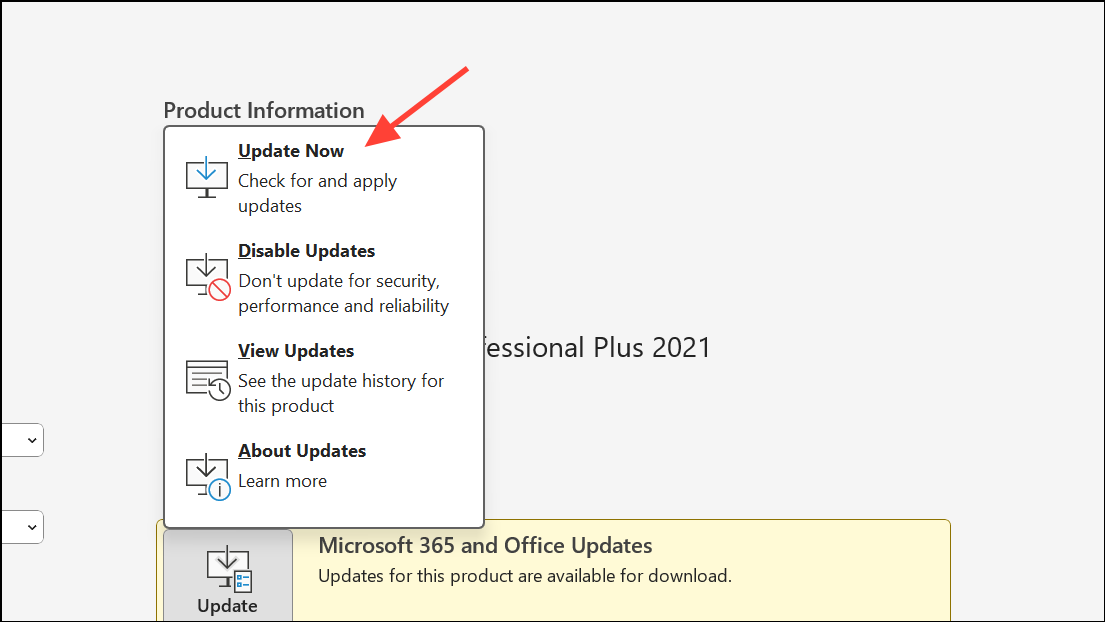
Control Panel > Programs and Features, select Microsoft Office, and click Change. Choose Quick Repair or Online Repair for a deeper fix.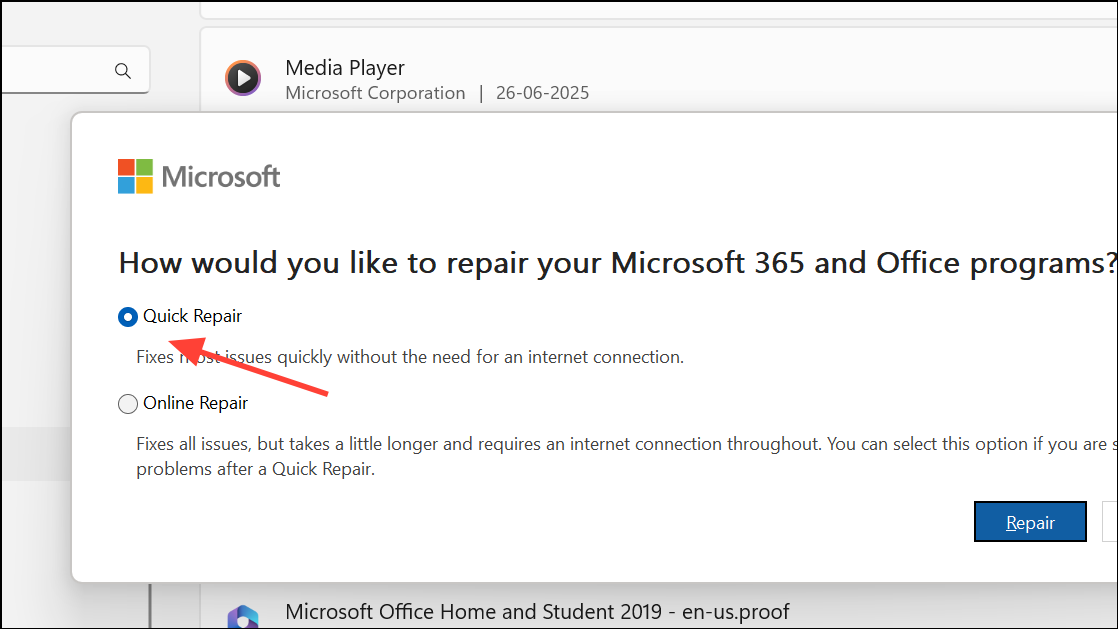
Keeping Office updated and repaired can prevent and resolve export errors caused by software issues.
Use Safe Mode and Disable Add-ins
Conflicts with PowerPoint or Word add-ins can sometimes cause export failures. Running PowerPoint in Safe Mode disables add-ins and customizations, allowing you to test whether these are the source of the problem.
Ctrl while launching the application, or by running powerpnt /safe from the Run dialog.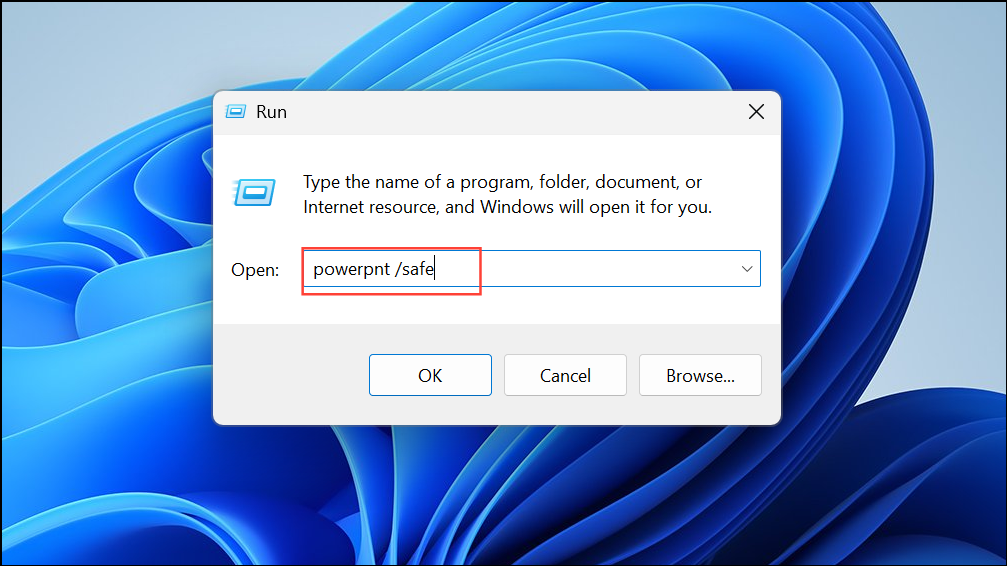
File > Options > Add-ins to identify the culprit.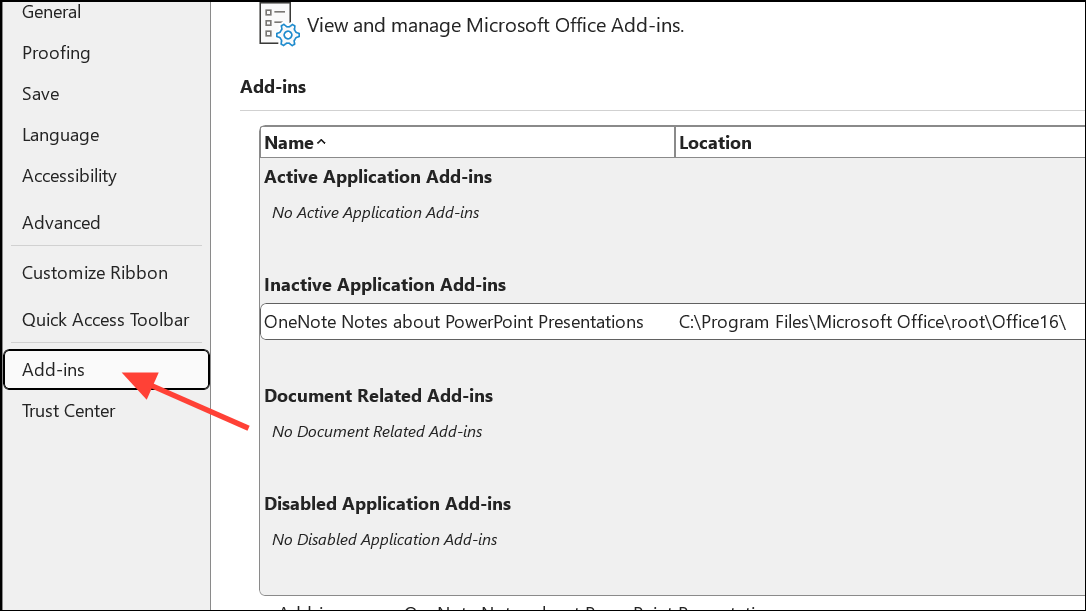
This troubleshooting step targets issues caused by third-party plugins or customizations.
Upload and Open in Microsoft 365 Online
Some users report that uploading the presentation to Microsoft 365 Online (using a web browser like Edge) and opening it there can clean up file compatibility issues, making the export process more reliable.
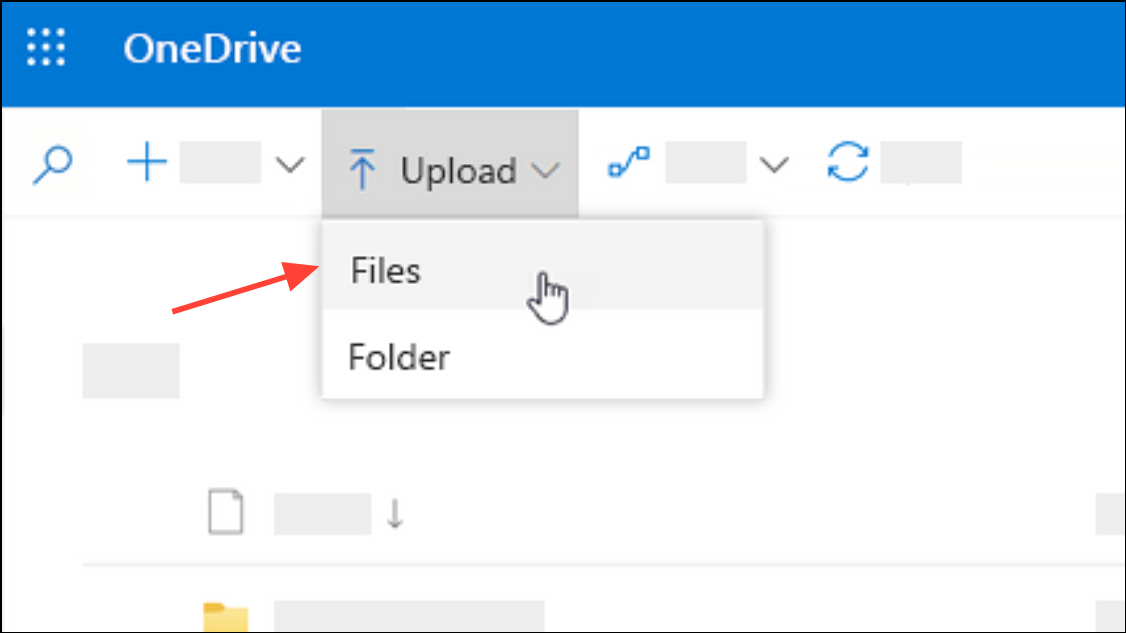
This method can resolve file corruption or compatibility issues that block the export process.
Addressing the “PowerPoint couldn’t write to Microsoft Word” error typically involves compressing images, managing file size, updating Office, or troubleshooting add-ins and compatibility. These steps can help you reliably export your slides as Word handouts and avoid workflow interruptions.





