
PowerPoint slideshows that crash, freeze, or refuse to open can disrupt meetings, delay projects, and risk data loss. Large embedded videos, outdated software, or conflicting add-ins are common culprits behind these failures. Addressing these issues quickly restores reliability and prevents future interruptions.
Use a Dedicated PowerPoint Repair Tool
Corrupted PowerPoint files often trigger repeated crashes or prevent the program from opening. Specialized repair software can automatically identify and fix file corruption at the document level, restoring access to your presentations without manual intervention.
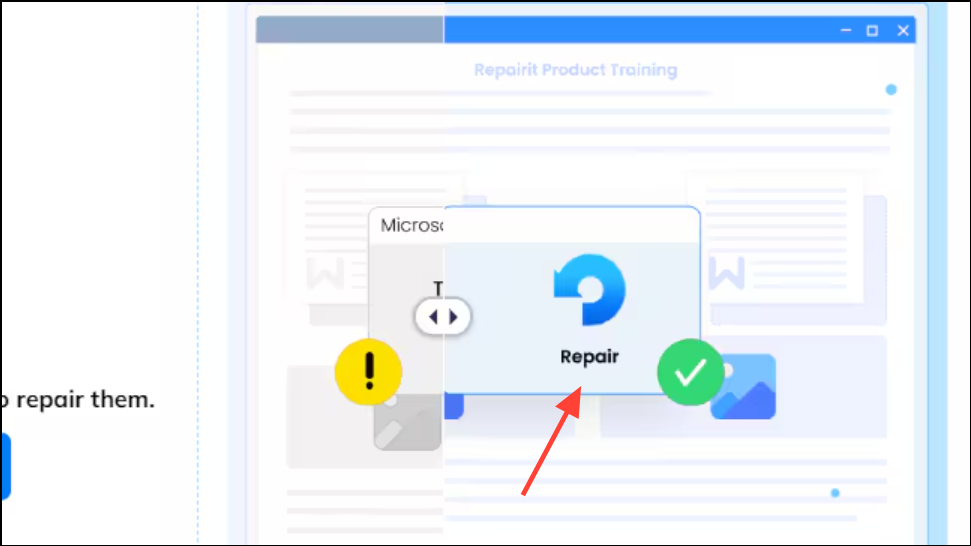
This method is especially effective for presentations that crash during playback or refuse to open due to corruption. It also supports batch repair for multiple files at once, minimizing downtime.
Update Microsoft PowerPoint and Office
Outdated versions of PowerPoint or Office often contain unresolved bugs that cause freezing, crashing, or compatibility issues with newer features and file formats. Installing the latest updates replaces problematic files and introduces critical bug fixes.
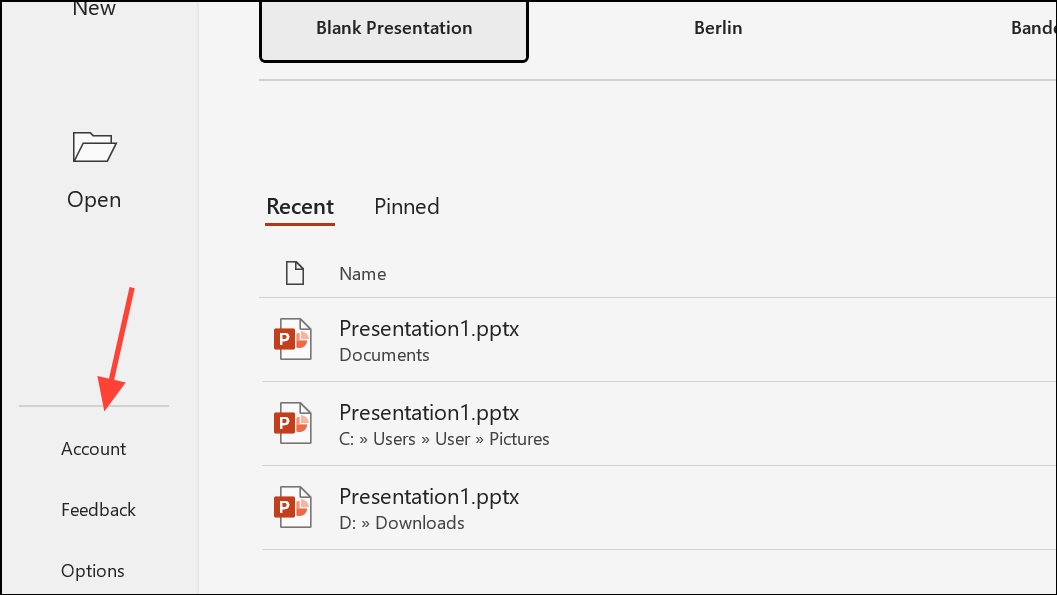
Update Options and choose Update Now. Allow Office to download and install the latest updates.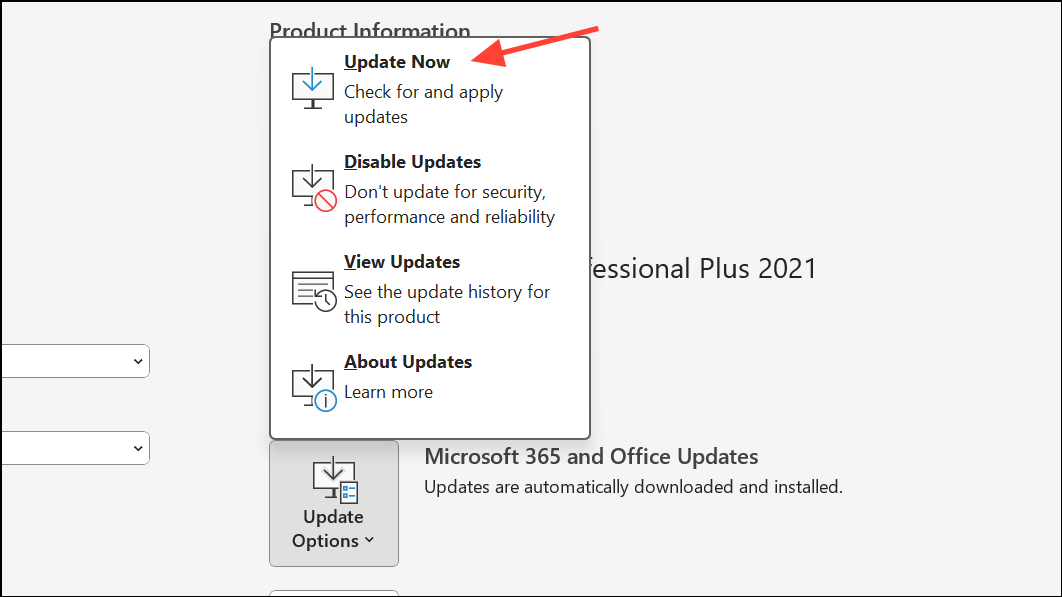
Restart PowerPoint after updating. Newer versions often resolve instability and improve compatibility with third-party add-ins or embedded media.
Check and Manage PowerPoint Add-Ins
Third-party add-ins can conflict with PowerPoint, causing it to crash or fail to start. Disabling or removing problematic add-ins isolates the issue and restores normal operation.
Windows Key + R to open the Run dialog, type PowerPnt /safe, and press Enter. This launches PowerPoint in Safe Mode without add-ins.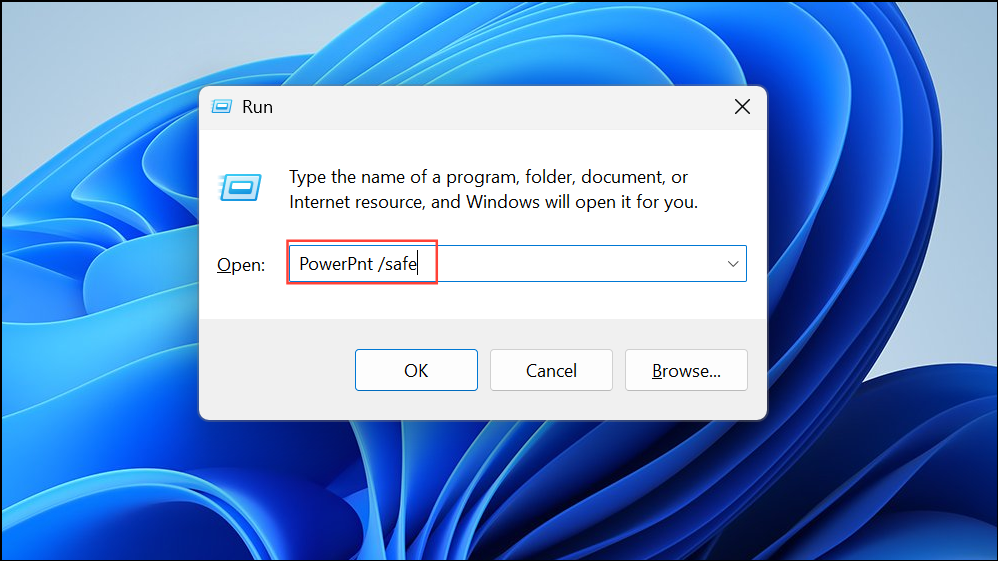
File > Options > Add-Ins. At the bottom, select COM Add-ins and click Go.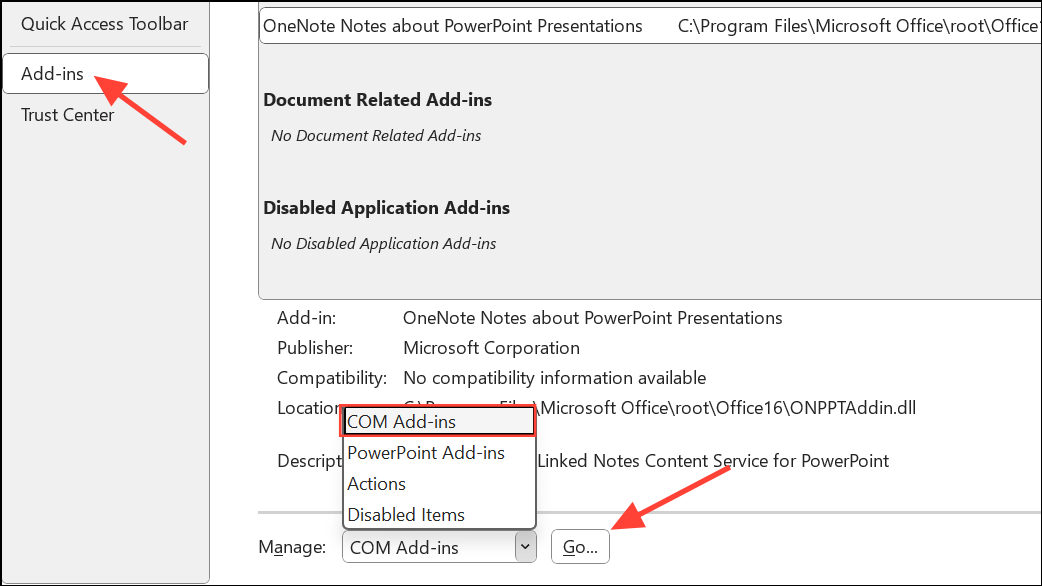
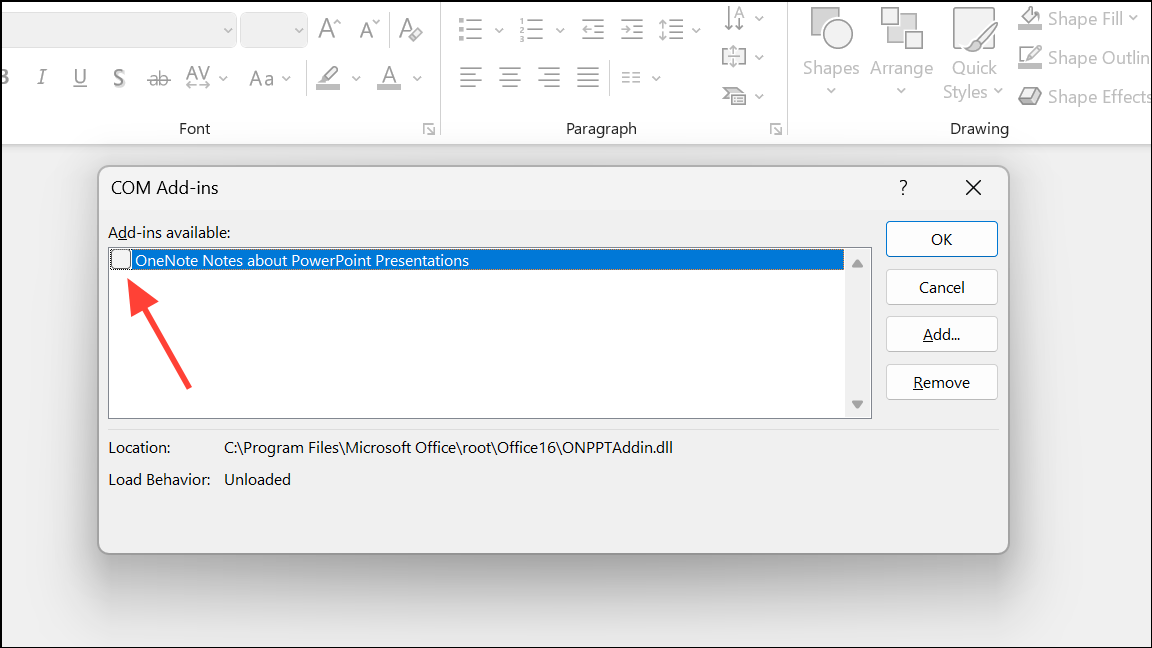
This approach directly targets conflicts introduced by third-party tools or outdated extensions.
Repair Microsoft Office Installation
Problems within the Office installation itself—such as corrupted program files—can cause PowerPoint to hang, freeze, or crash. The built-in repair feature scans and restores missing or damaged components.
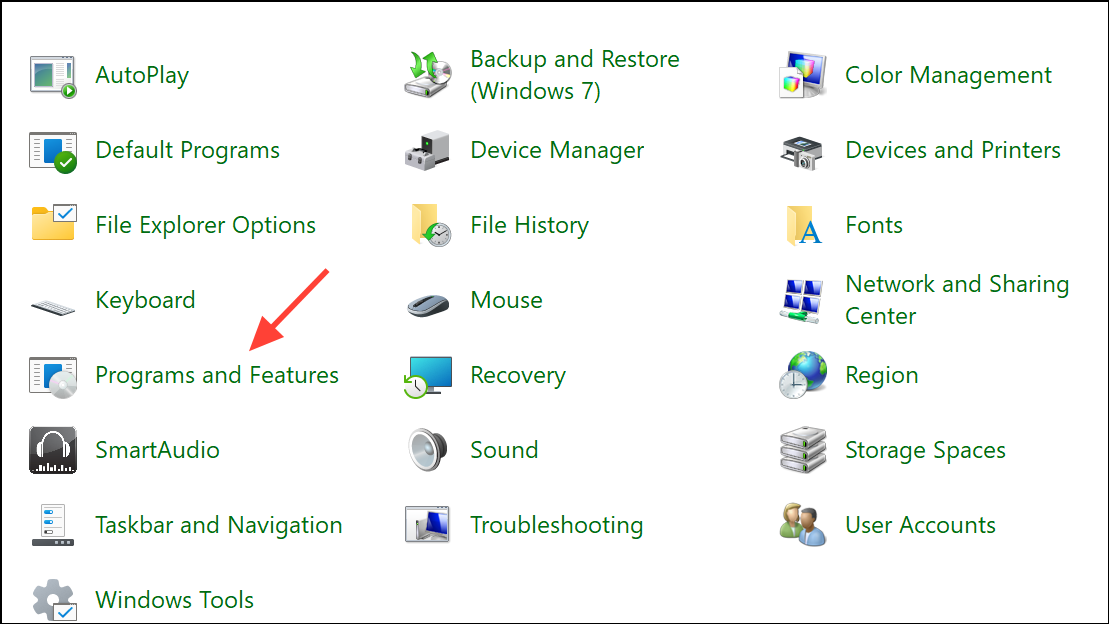
Change. Choose Repair and follow the prompts for either Quick or Online Repair.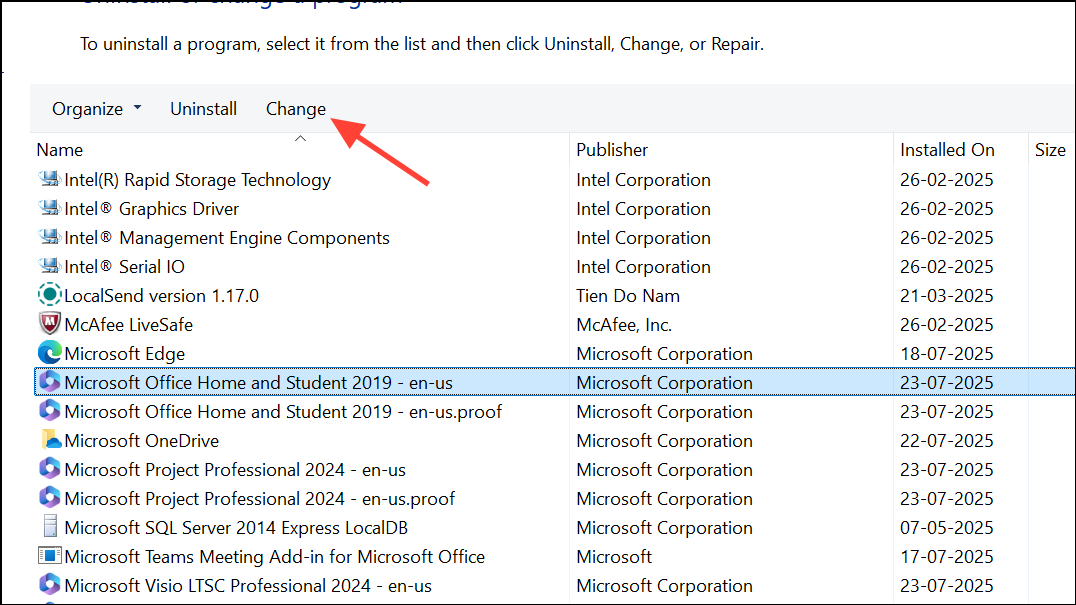
This process restores Office to its default state, resolving issues caused by corrupted or missing files.
Reduce PowerPoint File Size and Media Complexity
Large presentations with high-resolution images, embedded videos, or complex animations can exceed system memory limits, causing PowerPoint to freeze or crash—especially on older hardware.
Picture Format tab, and choosing Compress Pictures. Reduce image resolution and remove unnecessary embedded media.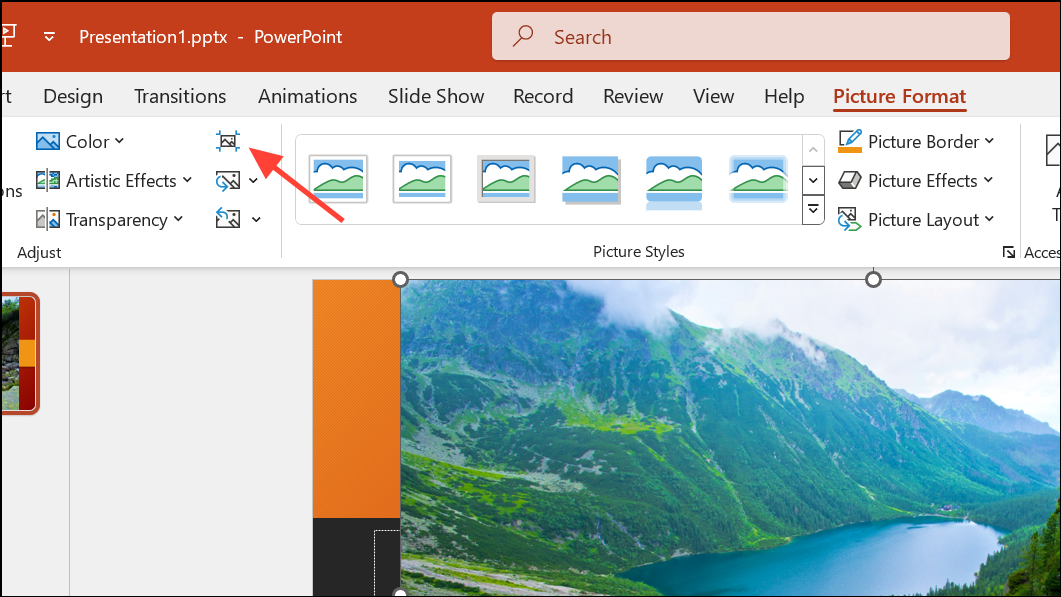
Optimizing file size and media content improves PowerPoint’s stability and speeds up loading and saving times.
Check for Background Processes and Hardware Resource Limits
Running multiple applications or browser tabs can exhaust system resources, causing PowerPoint to become unresponsive or crash—especially during memory-intensive tasks like slide transitions or media playback.
Ctrl + Alt + Del and open Task Manager. Review the list of running applications and background processes.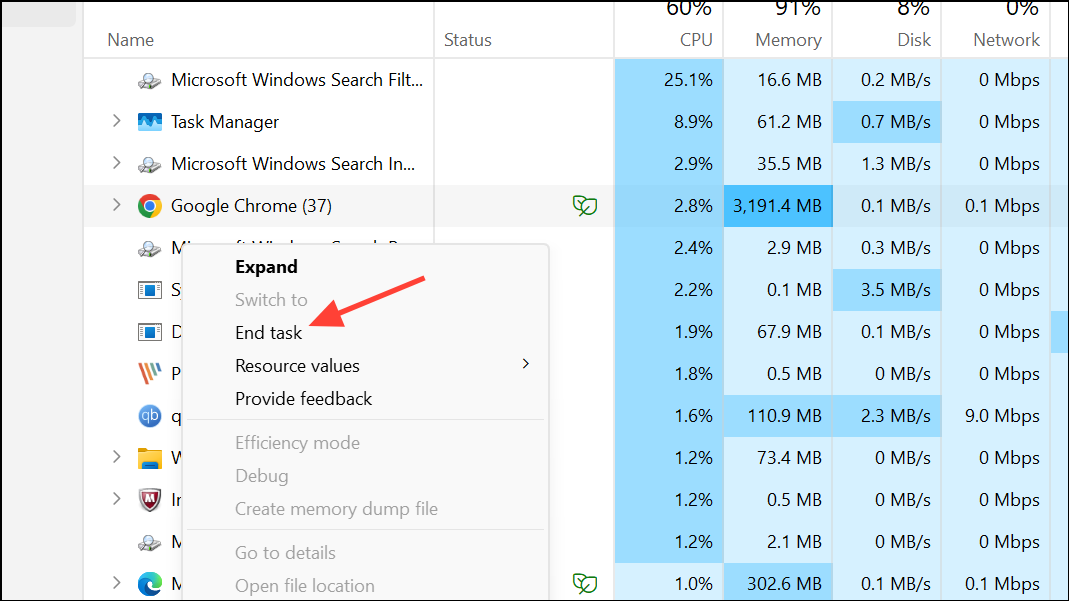
Reducing background load frees up resources, allowing PowerPoint to run smoothly and reducing the risk of crashes.
Update or Adjust Antivirus Software Settings
Antivirus programs sometimes conflict with PowerPoint, blocking certain operations or causing crashes—particularly if the antivirus integrates with Office or scans files in real time.
Resolving antivirus conflicts restores PowerPoint’s functionality without compromising overall system security.
Change Default Printer Settings
PowerPoint loads printer drivers when starting, and faulty or incompatible printers can cause delays or crashes—especially if the default printer is offline or misconfigured.
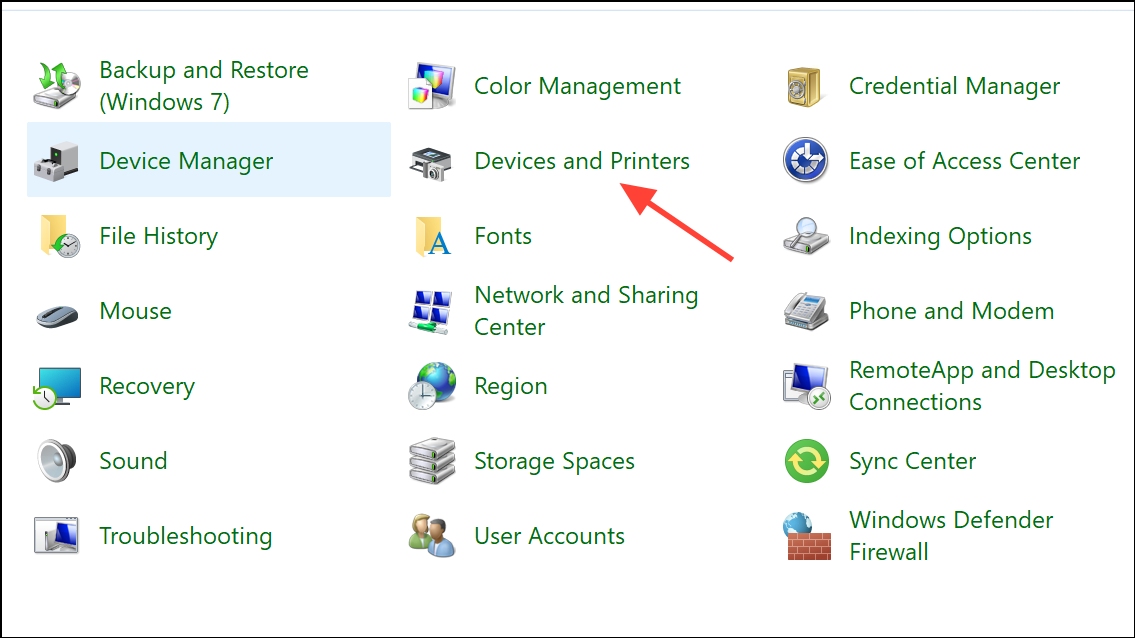
Set as default printer.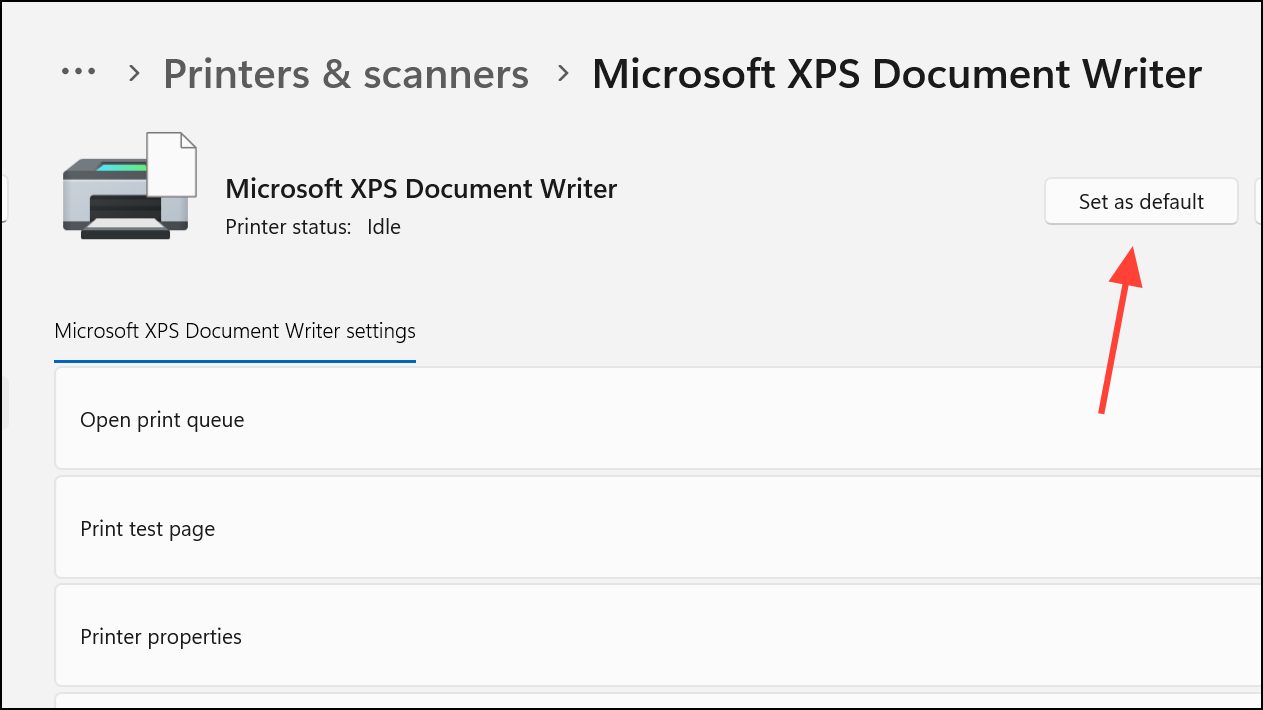
This workaround helps if PowerPoint crashes when opening print dialogs or starting up.
Check for Codec Issues with Embedded Media
Presentations containing audio or video files may crash if the required codecs are missing or unsupported on your computer.
This is especially relevant for presentations transferred between computers or those using non-standard media formats.
Perform a Clean Boot or Selective Startup
Conflicts with other background programs or startup services can interfere with PowerPoint. A clean boot starts Windows with minimal drivers and startup programs, isolating software conflicts.
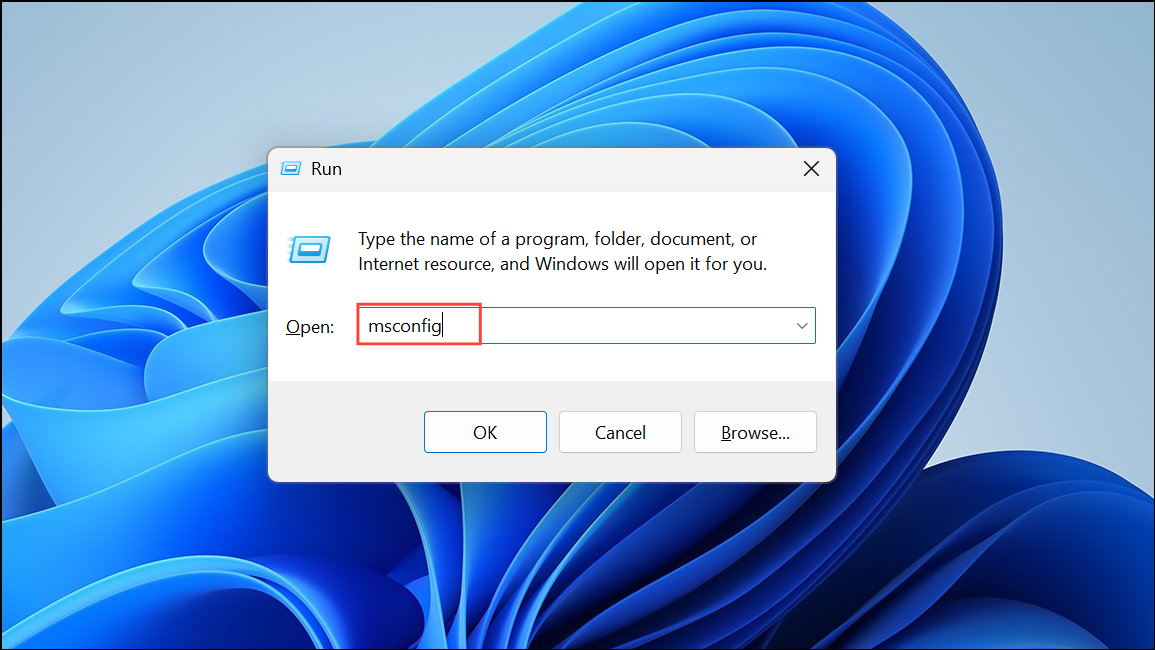
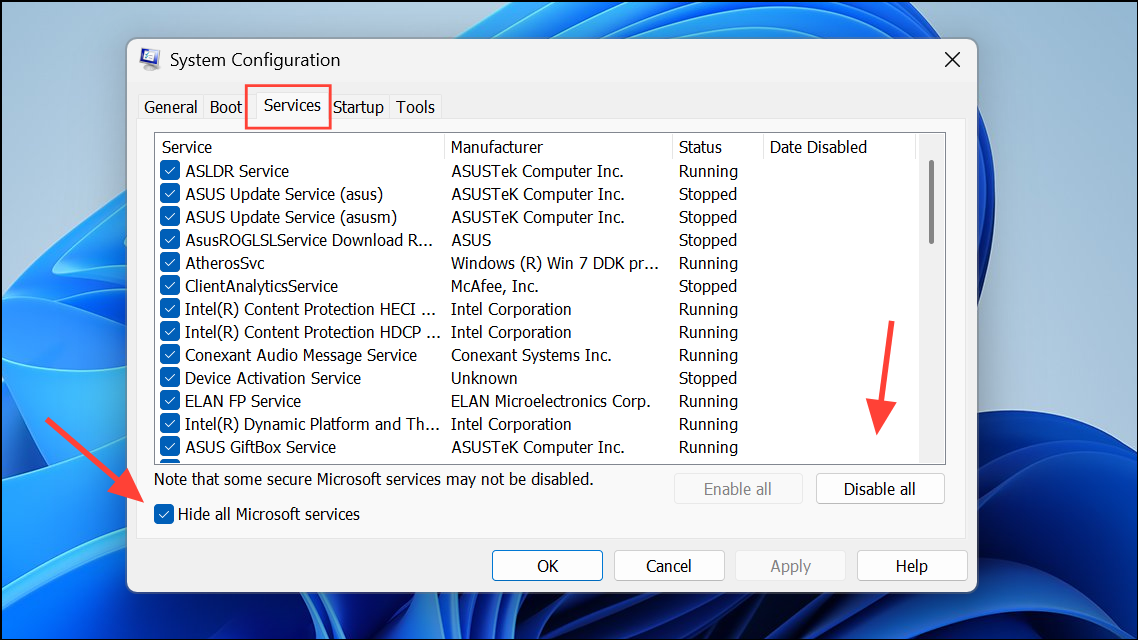
Startup tab and click Open Task Manager. Disable all startup items. Restart your computer and test PowerPoint.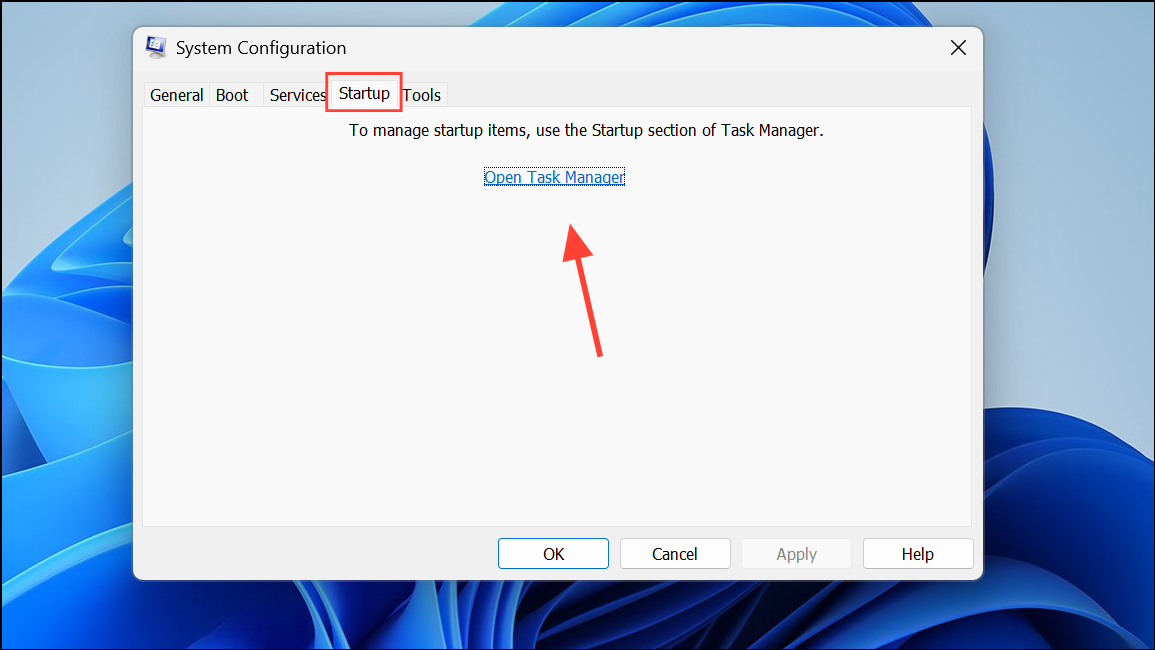
If PowerPoint works normally, re-enable services and startup items one by one to identify the conflicting application.
Regularly updating PowerPoint, monitoring file size, and managing add-ins or background processes significantly improves stability. If problems persist after following these steps, consider consulting Microsoft Support or using a dedicated repair tool for complex cases.





