

Outlook’s search function sometimes fails to return expected results, which can disrupt daily workflow and make it hard to locate important emails. Optimizing search reliability in Outlook requires targeted troubleshooting, depending on whether you’re using the New Outlook or Classic Outlook interface on Windows 11. The following methods address core causes such as incomplete indexing, incorrect search settings, and profile corruption, resulting in more consistent and accurate search results.
Update Search Settings in New Outlook
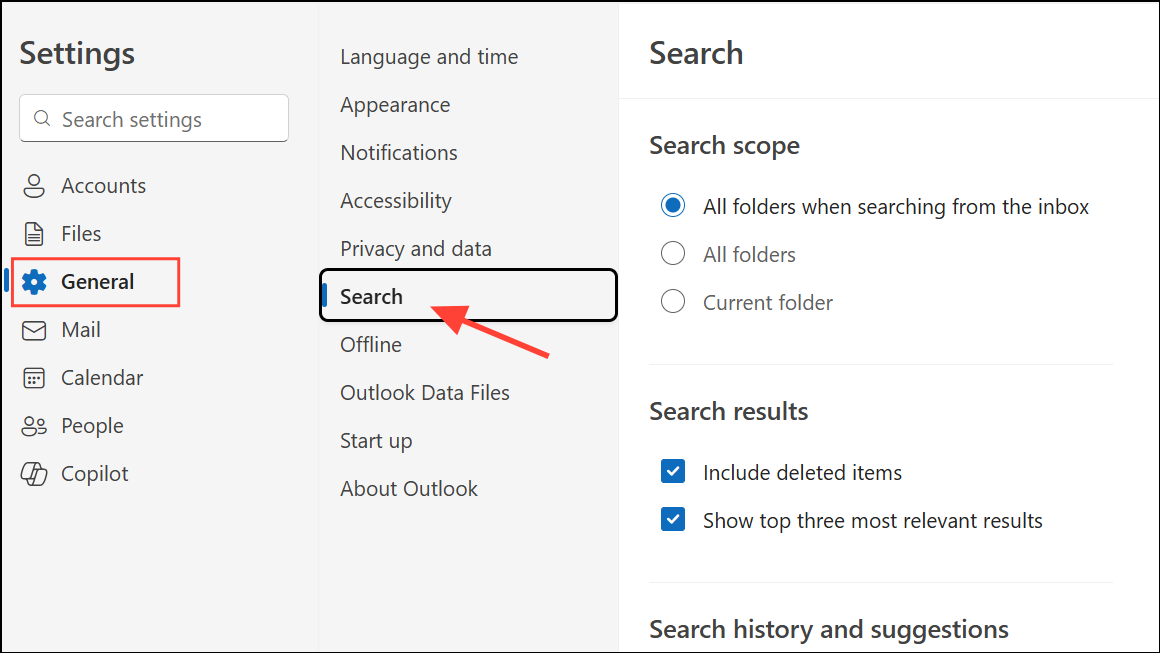
Current Folder or All Folders to control how broadly Outlook searches your mailboxes. This step can help when older emails or items in specific folders do not appear in results.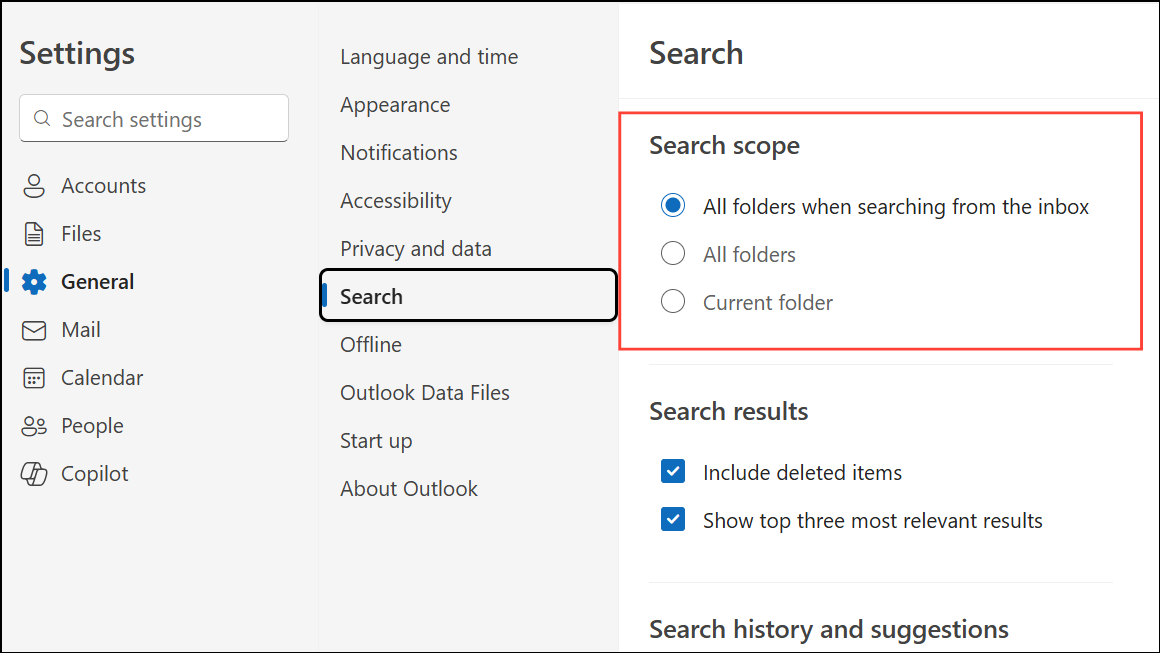
Include deleted items option is checked under Search results in the same menu. Saving this setting expands search coverage to the Deleted Items folder.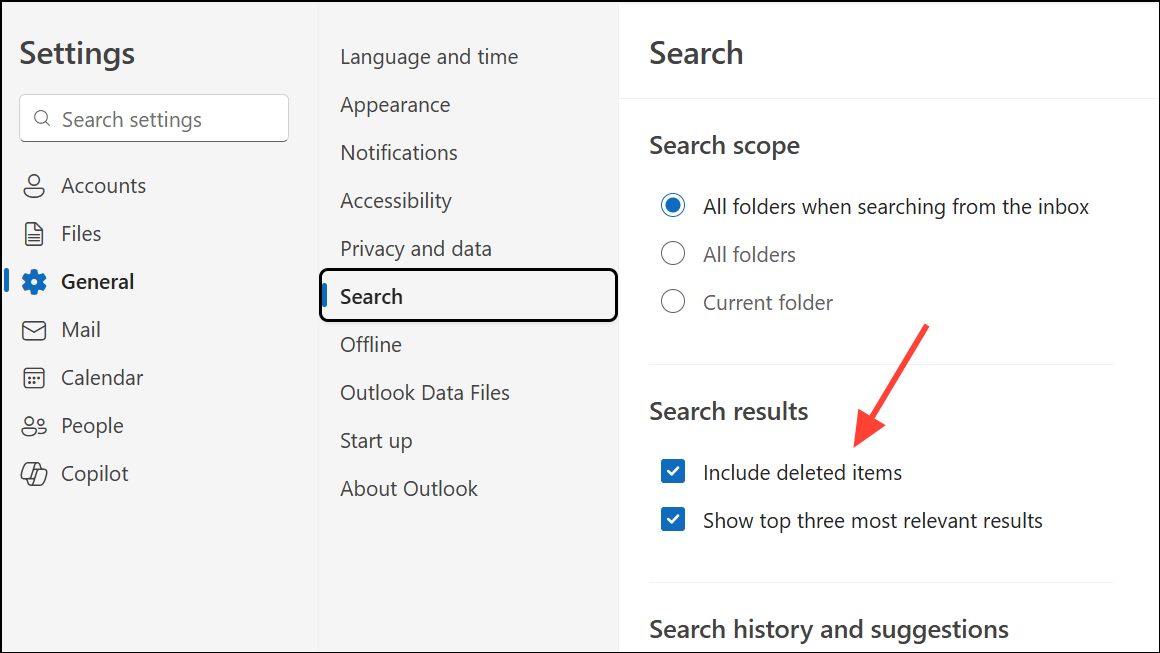
Settings > General > Offline and adjust Days of email to save to a longer period. This downloads more historical emails for local indexing, which can resolve issues where searches miss older messages.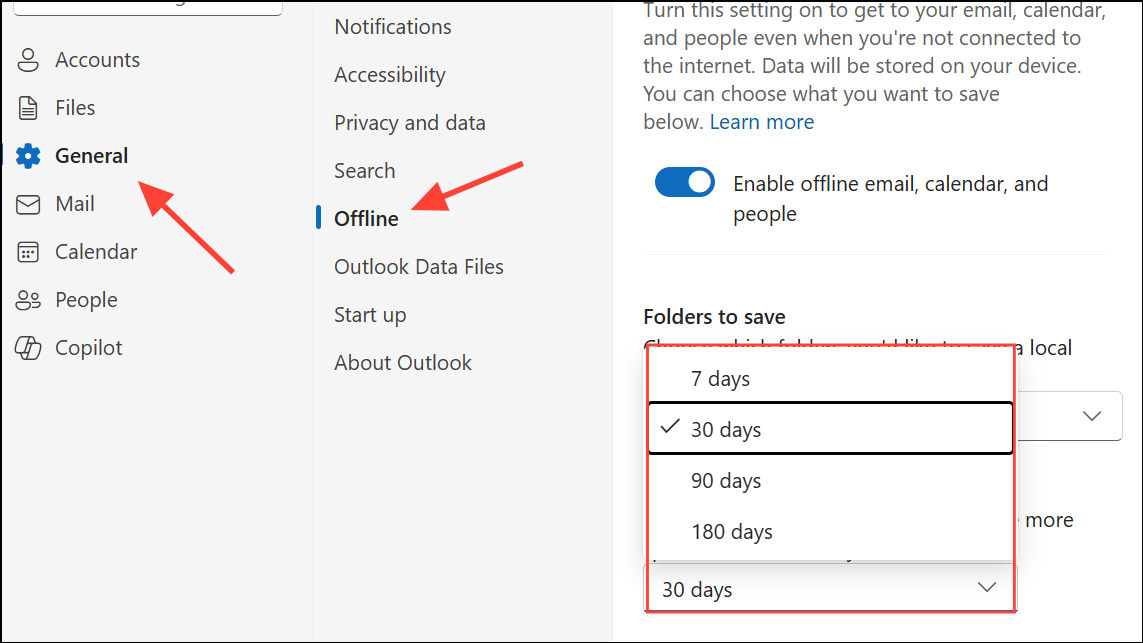
Run the Windows Search Troubleshooter (Classic Outlook)
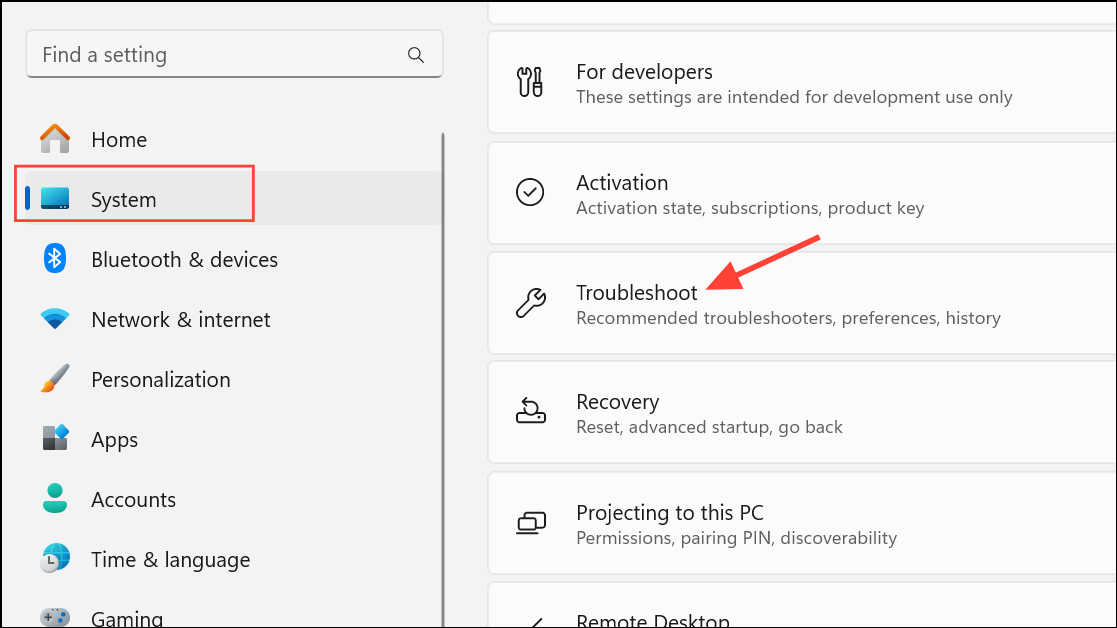
Searching Windows and select the Indexer troubleshooter. This tool diagnoses and repairs issues with the Windows Search index, which Outlook relies on to deliver results quickly and accurately.Verify Indexing Status and Data File Selection (Classic Outlook)
Search Tools > Indexing Status. The dialog will show how many items remain to be indexed. If indexing is incomplete, leave Outlook open and check again after several minutes to see if the number decreases. Persistent high numbers may indicate a stuck index.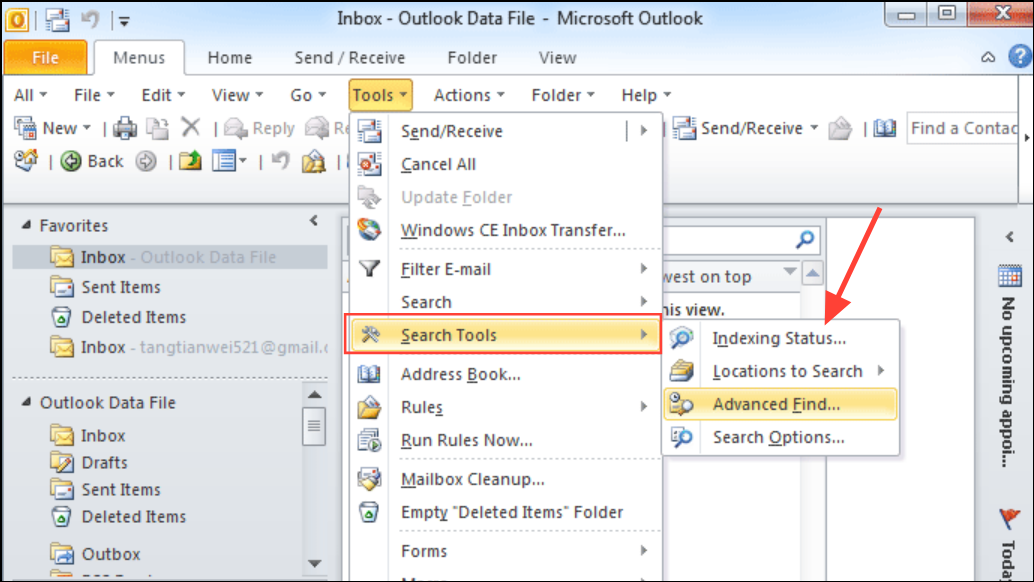
Search Tools > Locations to Search and confirm that all relevant data files are checked. If your main mailbox or archives are not selected, Outlook will not search them.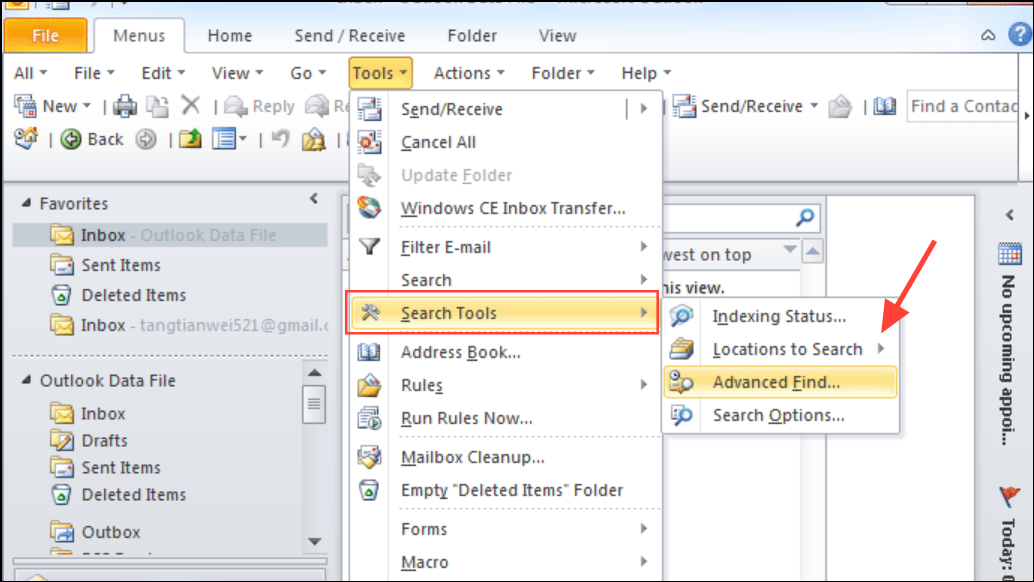
Restart and Configure the Windows Search Service
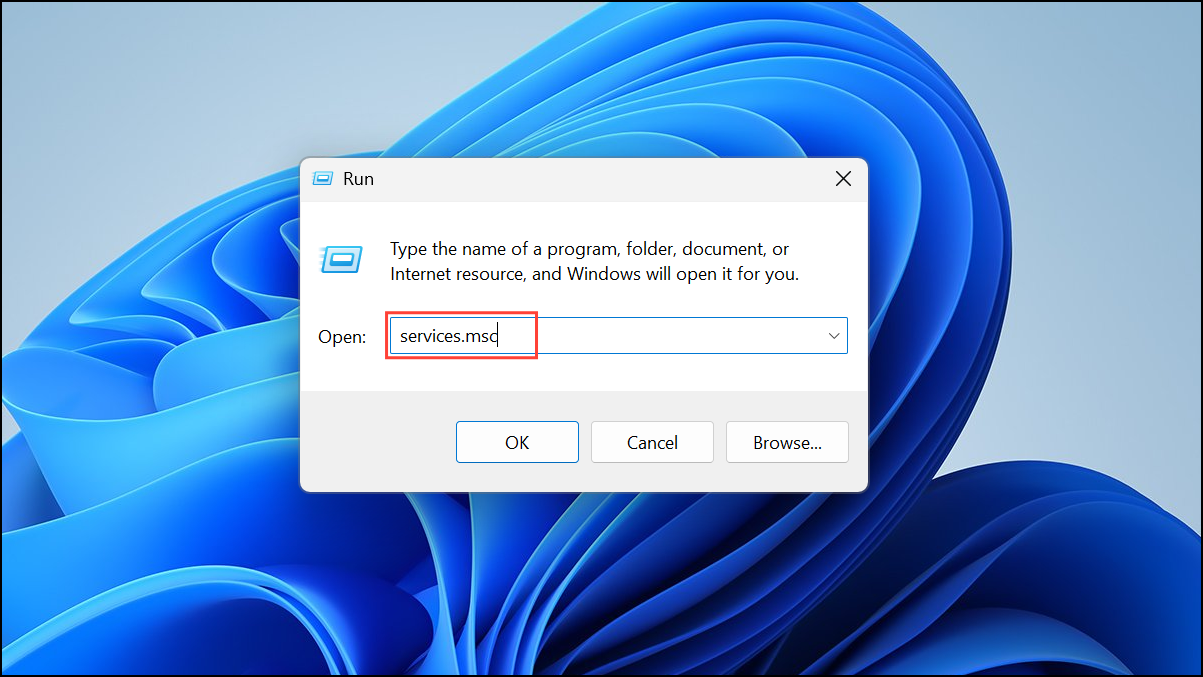
Windows Search, double-click it, and set Startup type to Automatic (Delayed Start). If the service is not running, click Start to activate it. This ensures the search indexer is always available for Outlook.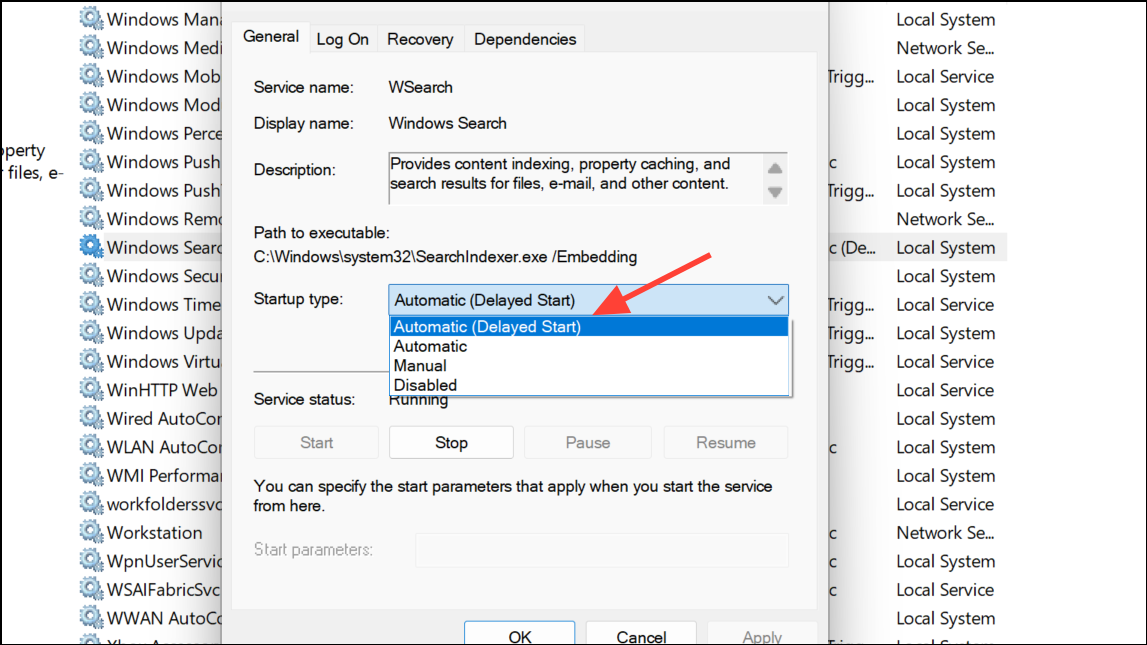
Include Outlook Data in Indexing
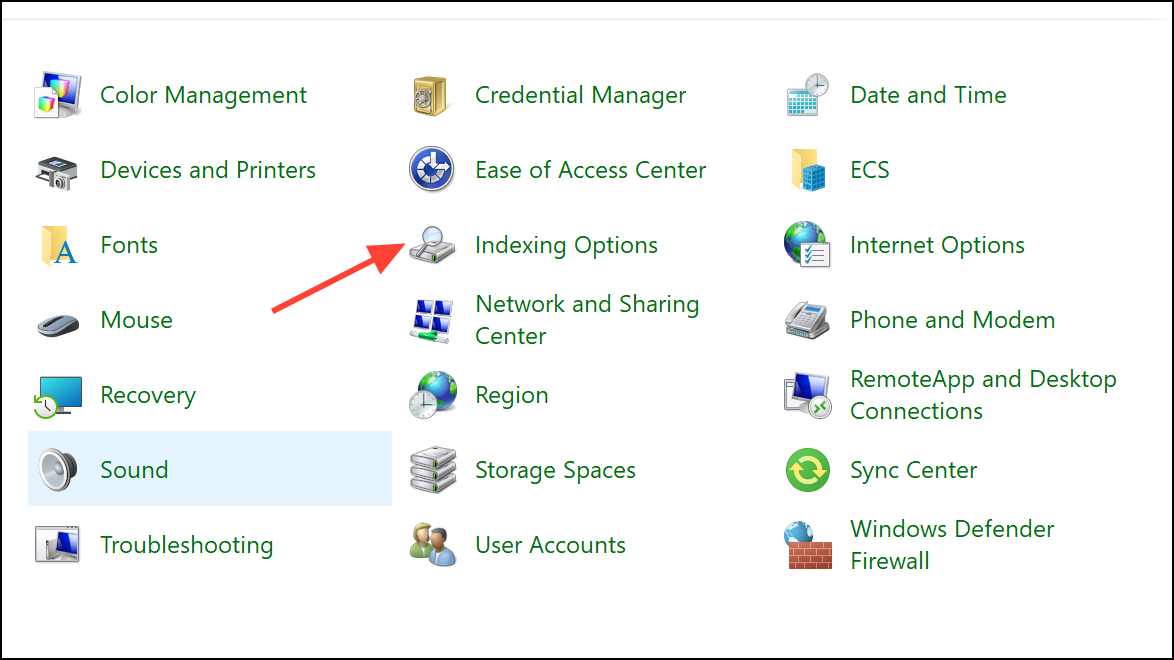
Microsoft Outlook appears in the Included Locations list. If missing, click Modify and check the box next to Outlook.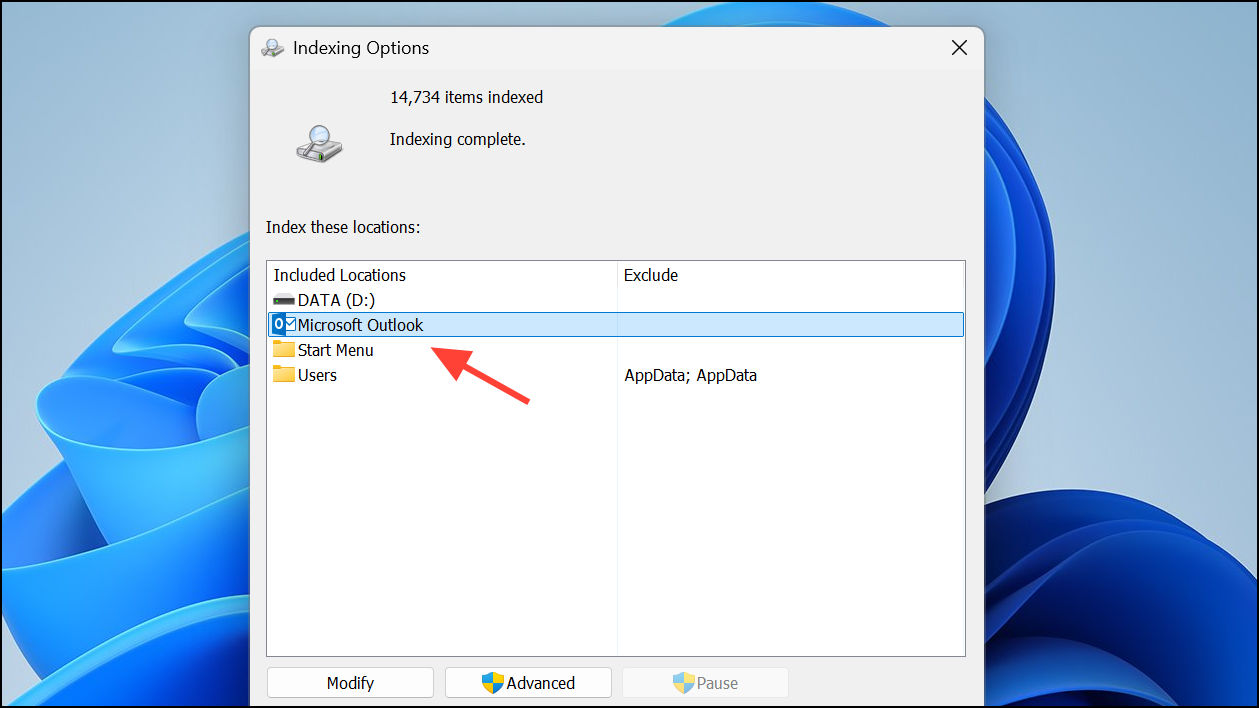
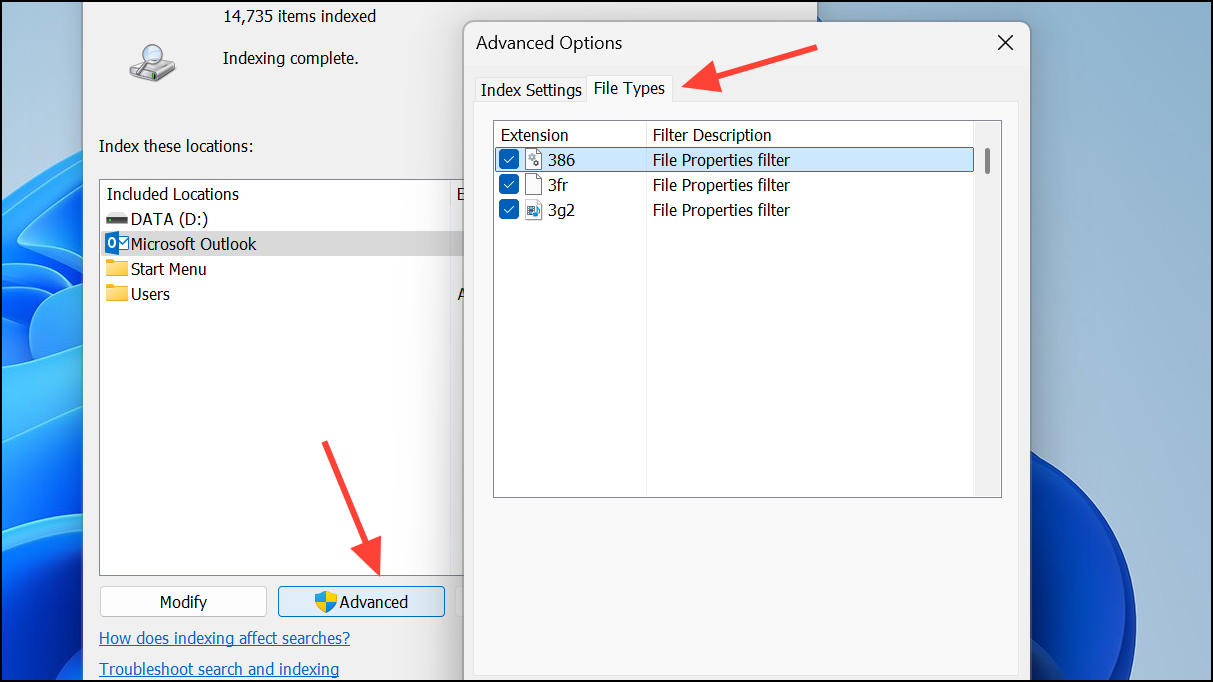
msg and ensure Index Properties and File Contents is enabled. This setting allows Outlook to search message content, not just headers.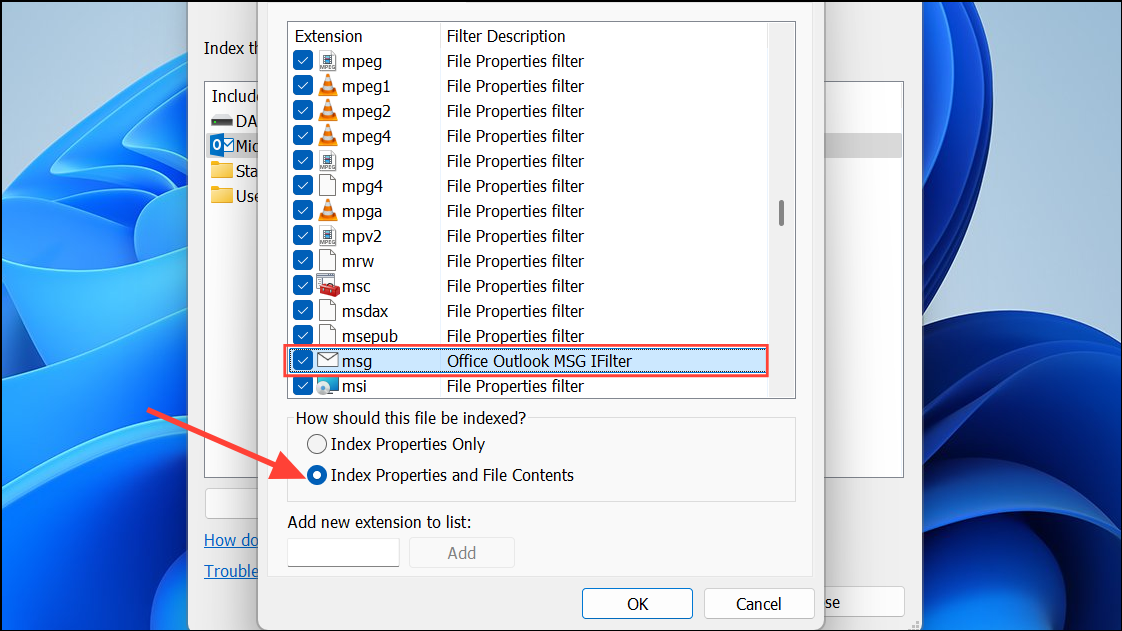
Filter Description column shows Office Outlook MSG IFilter. If not, the Windows Search service or Outlook installation may be faulty. In this case, consider repairing Office or contacting support.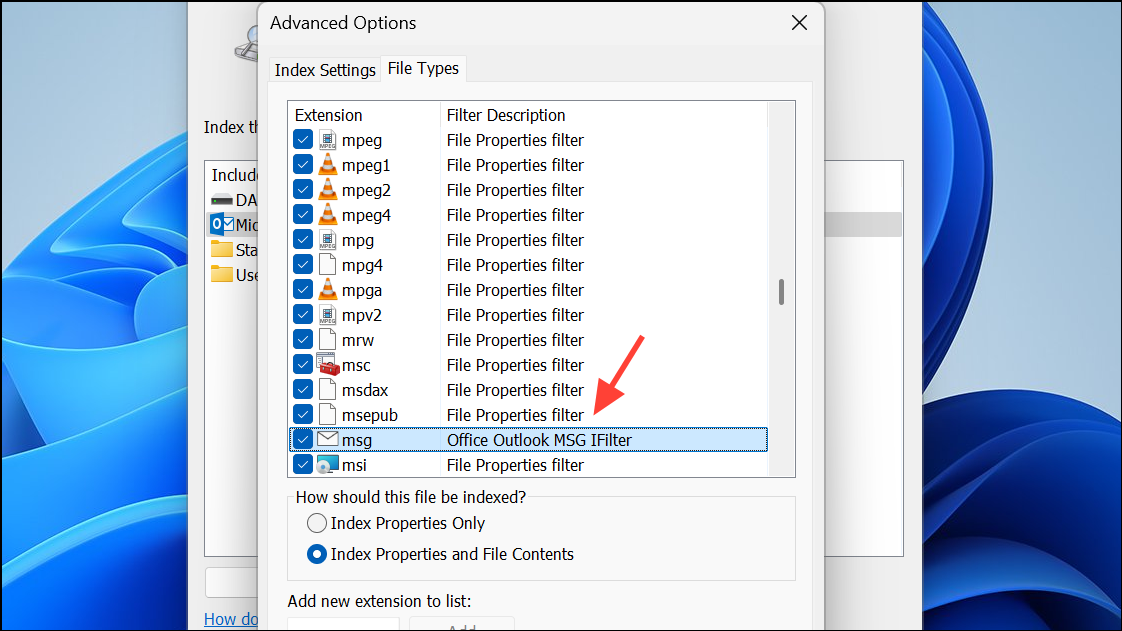
Rebuild the Search Index
Advanced and select Rebuild. This process deletes and recreates the search index, which can resolve corruption that leads to missing or incomplete results. Be aware that rebuilding may take several hours, especially with large mailboxes.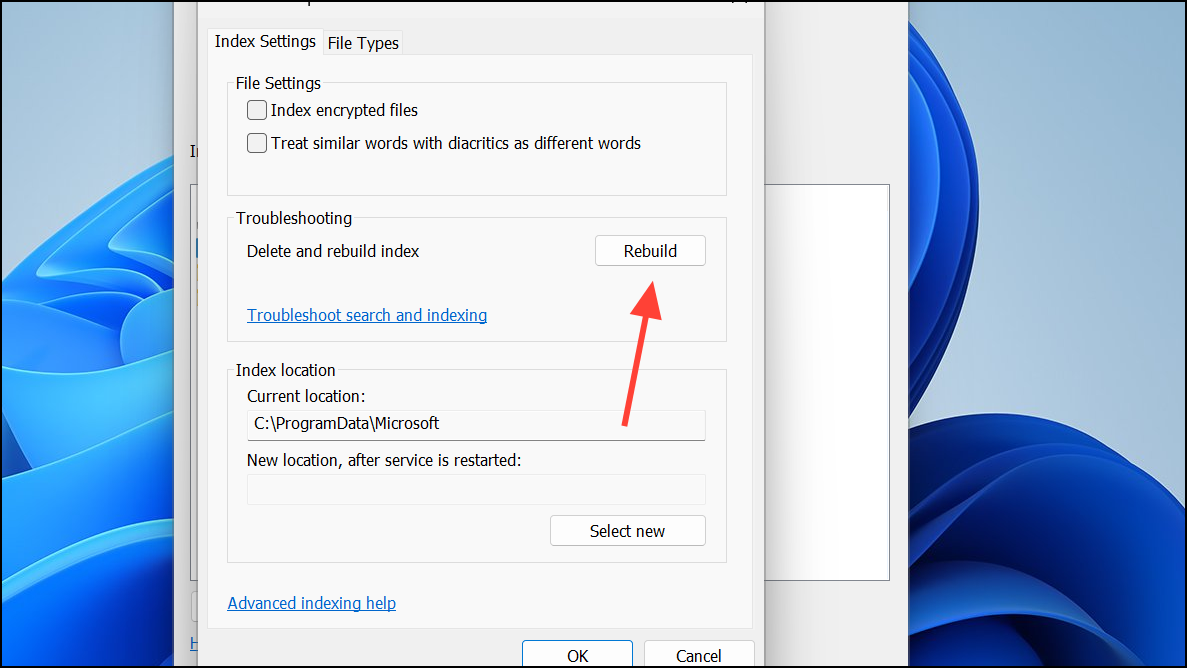
Indexing Status to confirm progress.Create a New Outlook Profile
File > Account Settings > Manage Profiles. Alternatively, exit Outlook and open Mail from the Control Panel. Click Show Profiles and then Add account to create a new profile. Enter a name and set up your account details.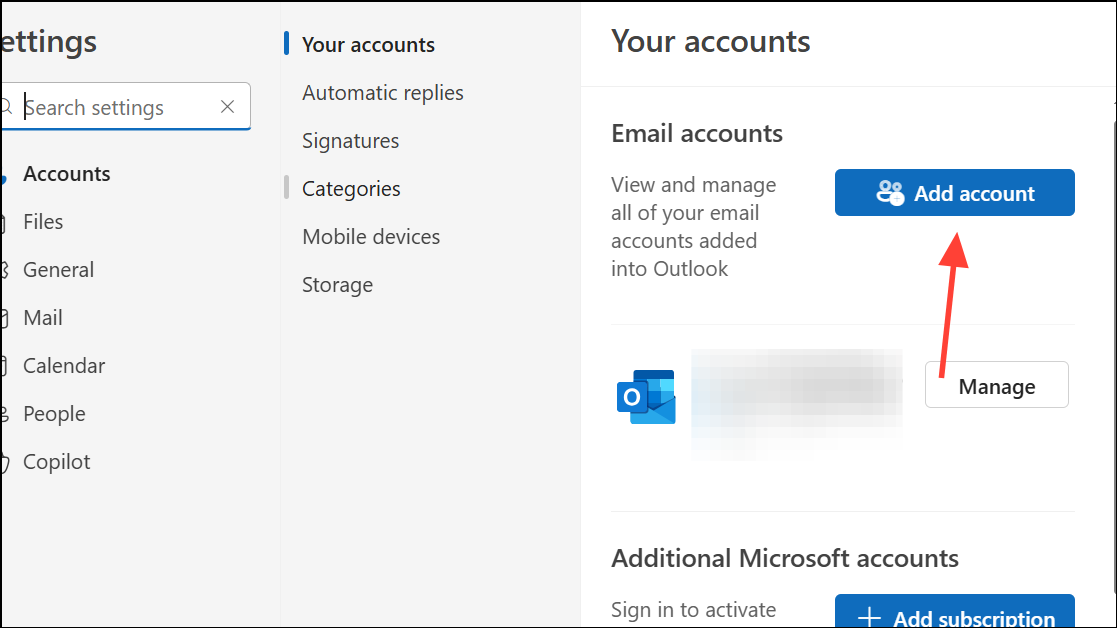
Expand Search Coverage and Results
File > Options > Search. To include deleted items, check Include messages from the Deleted items folder in each data file when searching in All Items and click OK. Restart Outlook.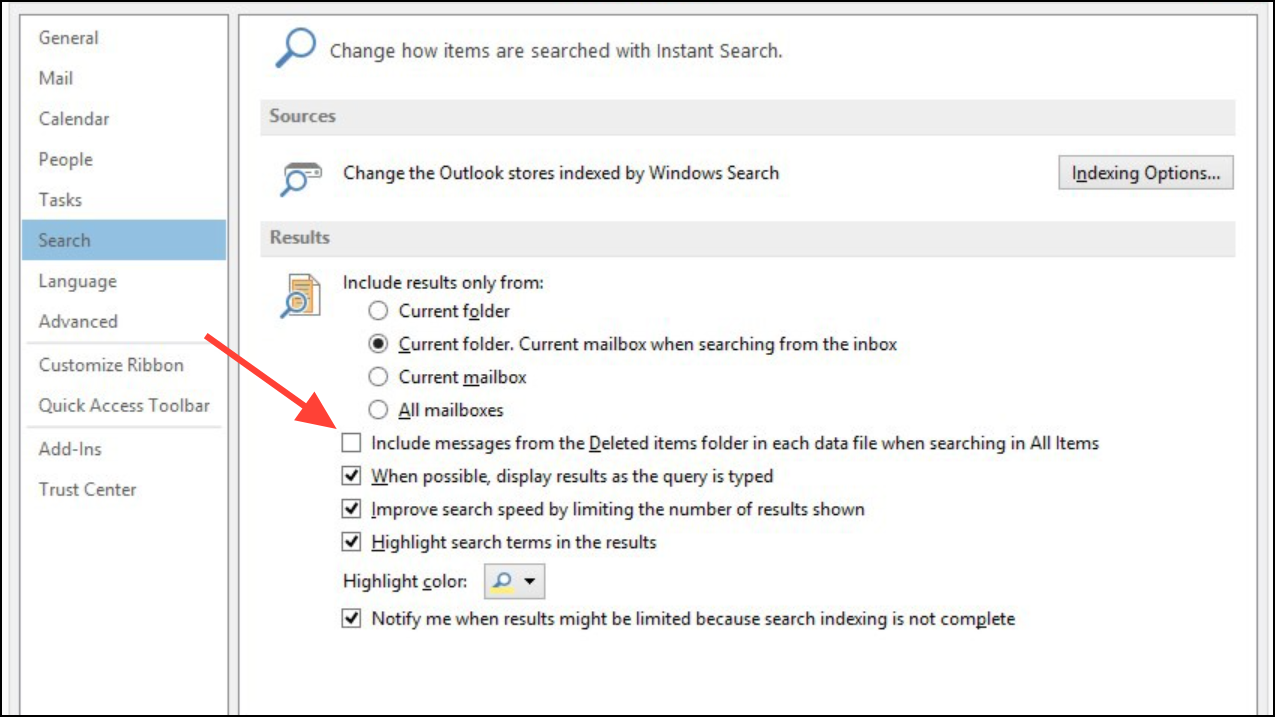
Download email for the past slider in File > Account Settings > Account Settings, then select your account and click Change. Move the slider to a longer period or all mail, then save and restart Outlook.Improve search speed by limiting the number of results shown in File > Options > Search. Note that displaying all results may slow down searches.Repair or Reinstall Microsoft Office
Start button and select Installed apps (Windows 11) or Apps and Features (Windows 10).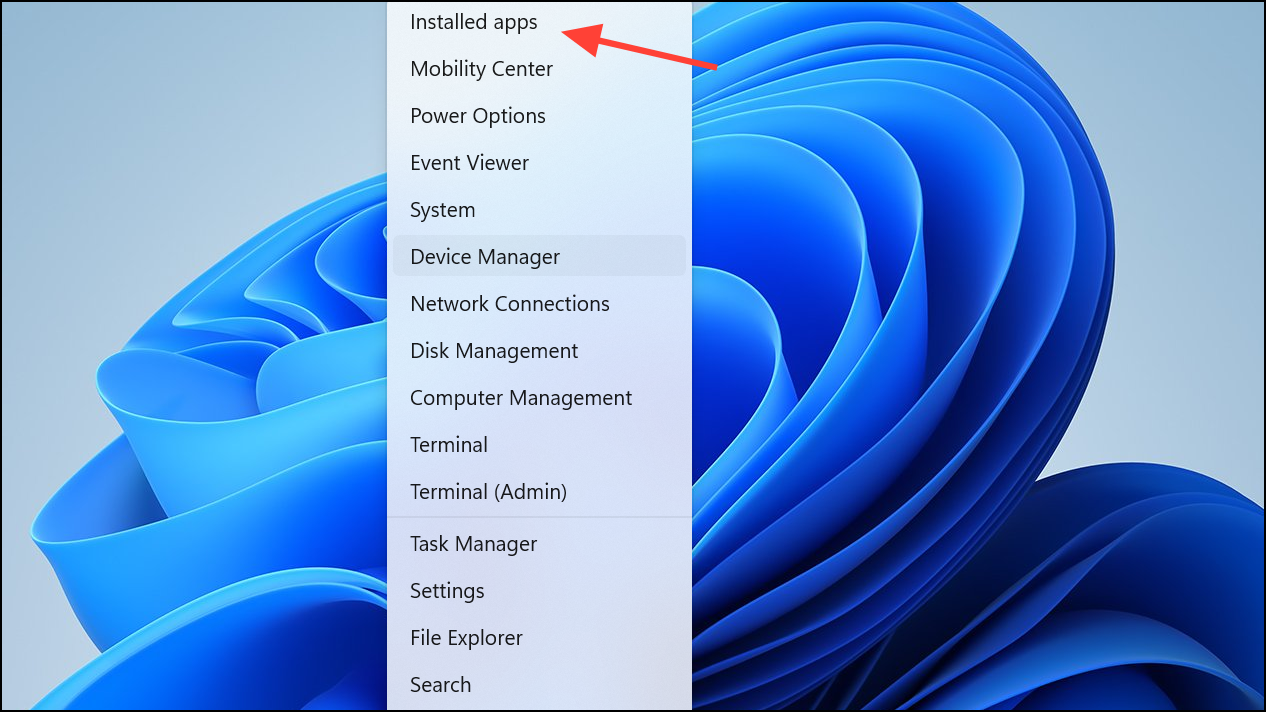
Modify, and choose Online Repair for a comprehensive repair. Follow on-screen instructions. This process repairs corrupted program files that may impact Outlook’s search.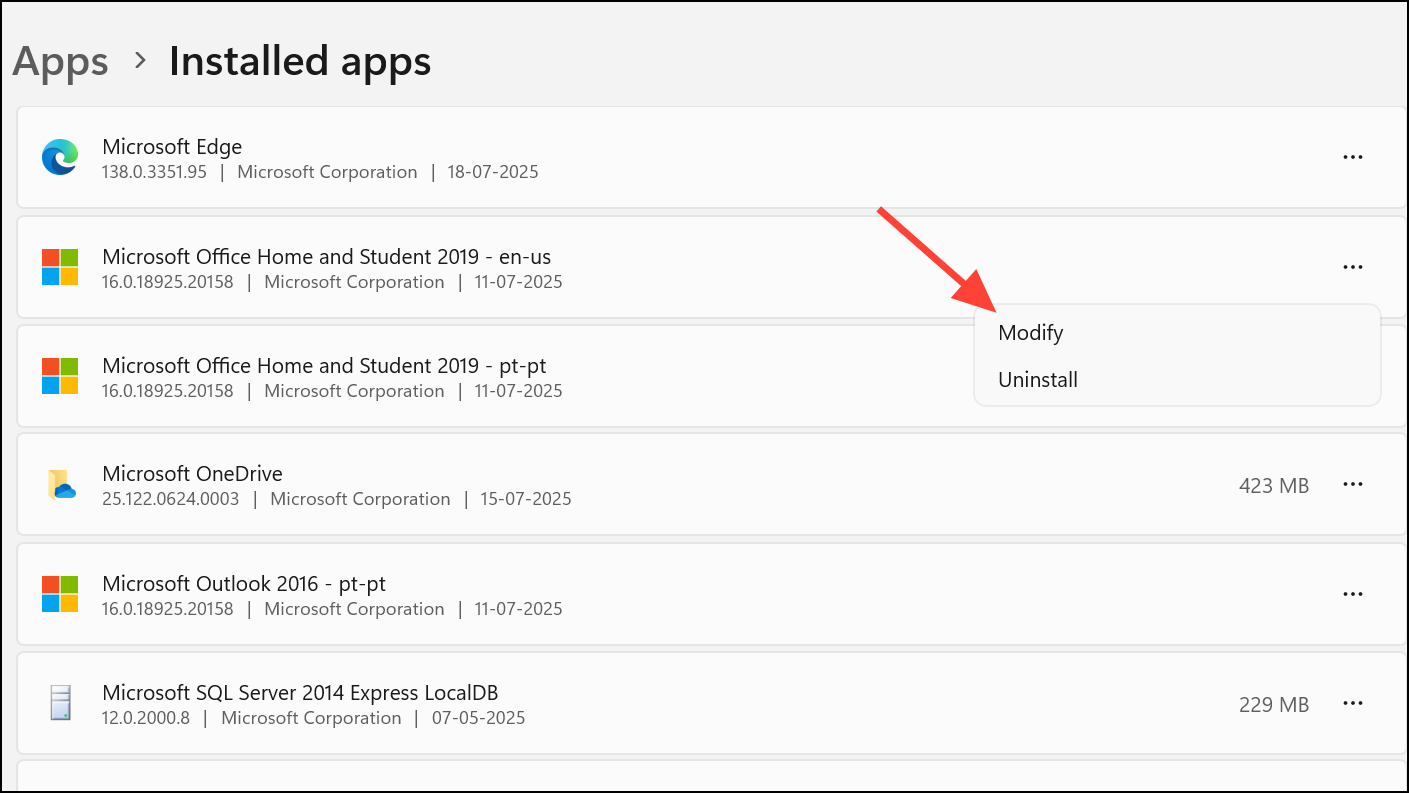
Optimize Search in Shared Mailboxes and Archives
Current Folder search scope rather than All Mailboxes, as Outlook may not return results from shared or archive mailboxes in broader searches. For auto-expanded archives, search each folder or subfolder individually for best results.
    1. Press Windows + R, type regedit, and press Enter.
    2. Navigate to HKEY_CURRENT_USER\Software\Microsoft\Office\16.0\Outlook\Search.
    3. Create a new DWORD value named DisableServerAssistedSearch and set its value to 1.
    4. Close the registry editor and restart Windows.
Disabling server-assisted search can resolve certain search errors in shared mailboxes, especially with perpetual-license versions of Office.
Restoring Outlook’s search functionality on Windows 11 involves a combination of updating search settings, maintaining the Windows Search index, and keeping Outlook profiles healthy. Regularly reviewing these settings and steps helps keep your searches accurate and reliable.





