How to Fix Microsoft Teams Not Detecting Camera or Microphone
Restore full video and audio functionality in Microsoft Teams by following these detailed troubleshooting steps for Windows 11, Mac, and web browsers.
Restore full video and audio functionality in Microsoft Teams by following these detailed troubleshooting steps for Windows 11, Mac, and web browsers.
by Pallav Pathak
Audio and video devices may suddenly stop working in Microsoft Teams, even when Windows 11 or macOS recognizes them and other applications use them without issue. This breakdown can disrupt meetings, prevent participation, and lead to missed communication. Addressing device detection problems in Teams requires a methodical approach, starting with the most reliable fixes and moving to more advanced troubleshooting if necessary.
Check Device Permissions and Access in Windows 11 and macOS
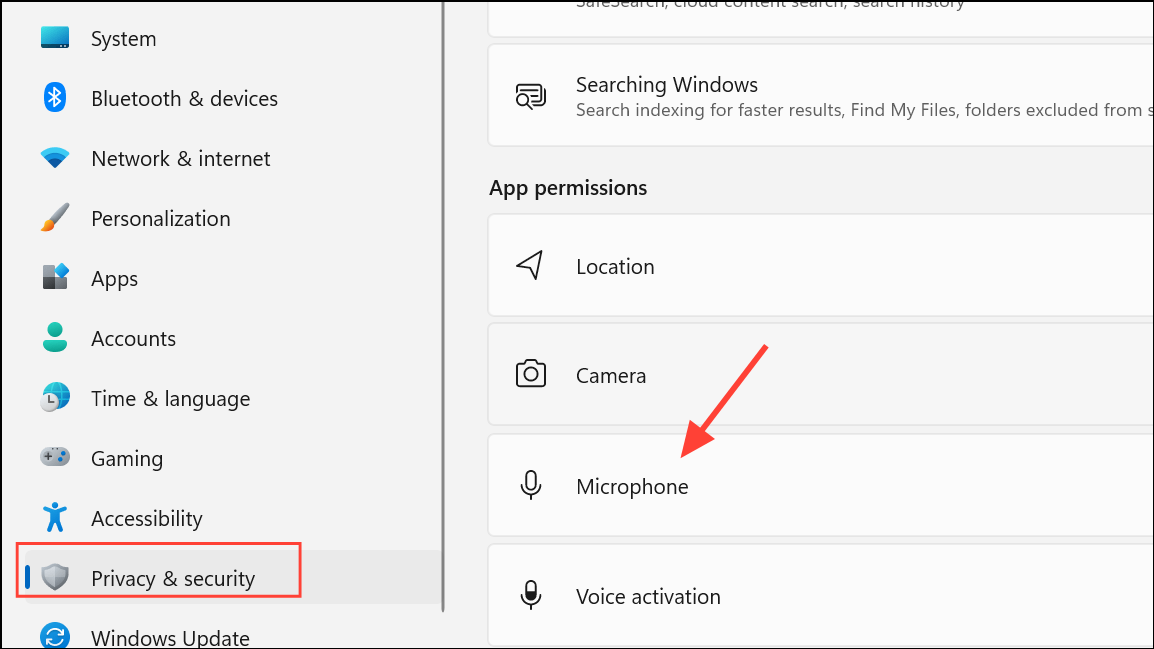
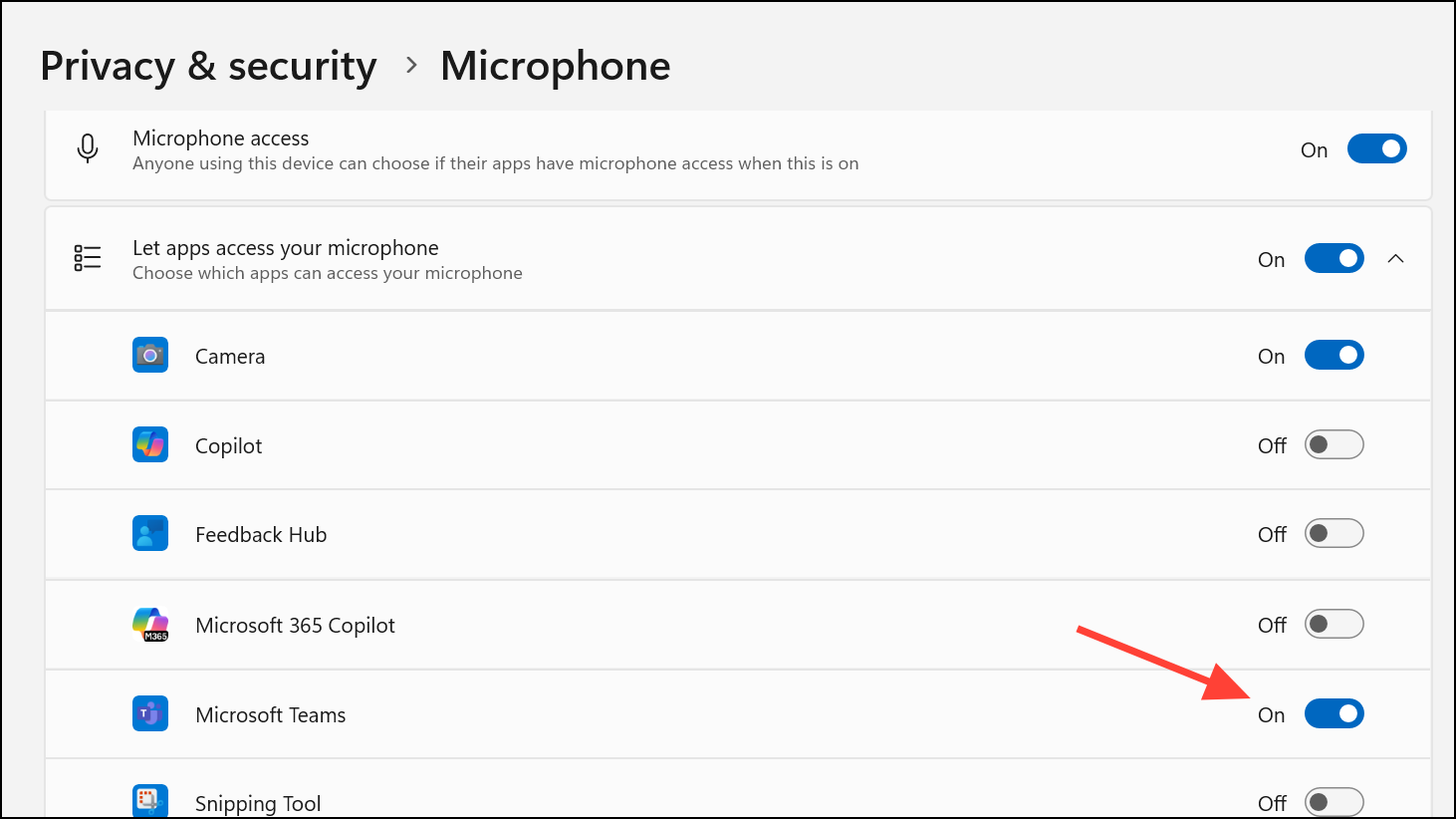
Open the system settings. On Windows 11, go to Settings > Privacy & security > Camera and Settings > Privacy & security > Microphone. On Mac, use System Settings > Privacy & Security > Camera and System Settings > Privacy & Security > Microphone.
Confirm that Microsoft Teams is allowed access to both camera and microphone. If the toggles are already enabled, switch them off and then back on to refresh permissions.
Shut down all programs that could be using the camera or microphone, such as Zoom, Skype, FaceTime, or browser tabs with video conferencing tools. Only one application can use a device at a time, so conflicts are common.
If using external devices, unplug webcams and microphones, wait a few seconds, and reconnect them to a different USB port if possible. This can force Windows or macOS to reinitialize the device.
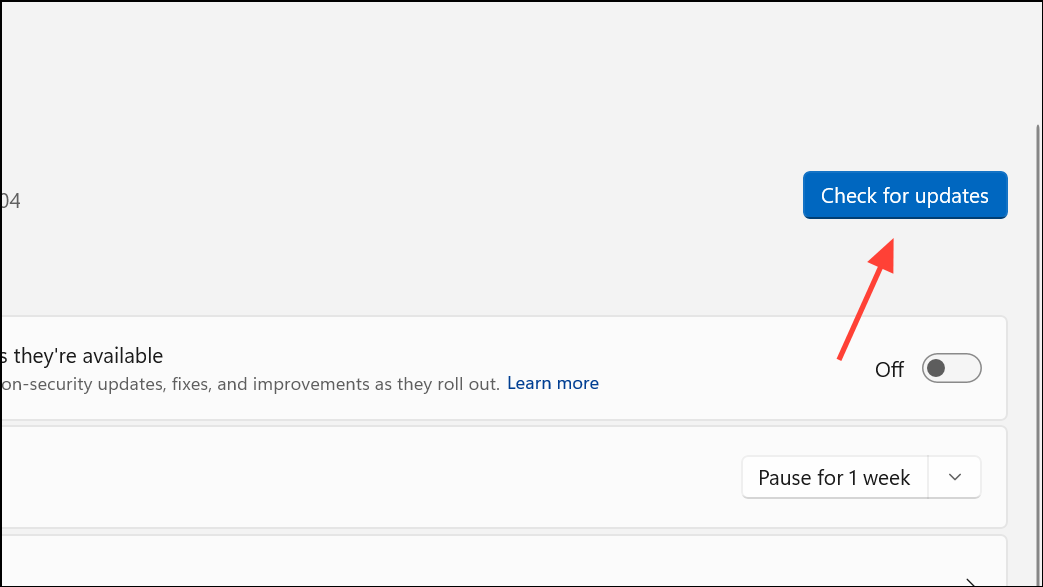
Update your operating system. On Windows 11, go to Settings > Windows Update and install any available updates. On Mac, open System Settings > General > Software Update.
Update camera and audio drivers. On Windows, open Device Manager, expand Imaging Devices or Sound, video and game controllers, right-click the relevant device, and select Update driver. On Mac, driver updates are included in system updates.
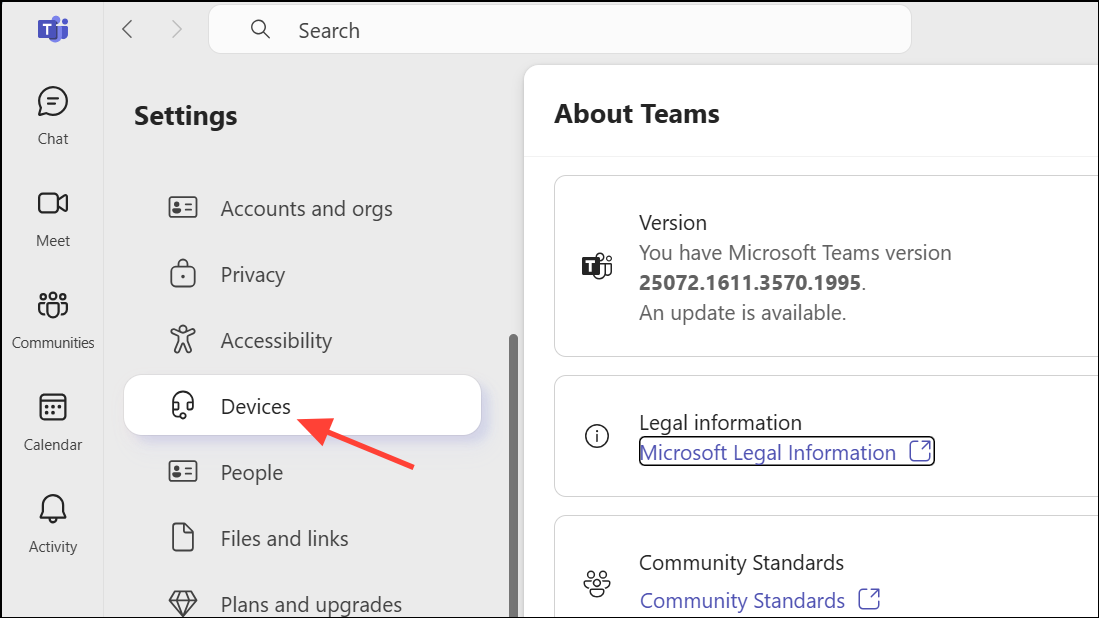
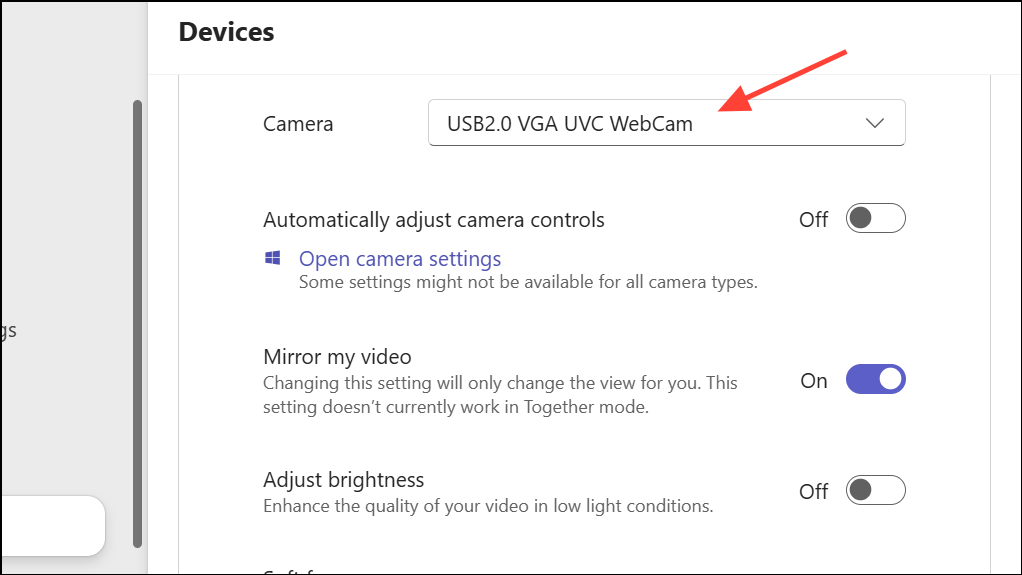
Under the Camera and Microphone sections, select the correct device from the dropdown menus. Use the preview and test call features to verify that Teams recognizes and can use your devices.
If the test call fails, note any error messages or missing options, as this can help pinpoint whether the problem is with device detection or permissions.
Delete the Teams cache to remove corrupted settings. On Windows, open File Explorer and enter %appdata%\Microsoft\Teams in the address bar. Delete all files and folders inside. On Mac, open Finder and navigate to ~/Library/Application Support/Microsoft/Teams, then delete the contents.
Restart Teams and sign in again. If issues persist, uninstall Teams from your system, download the latest version from the official Microsoft website, and reinstall it.
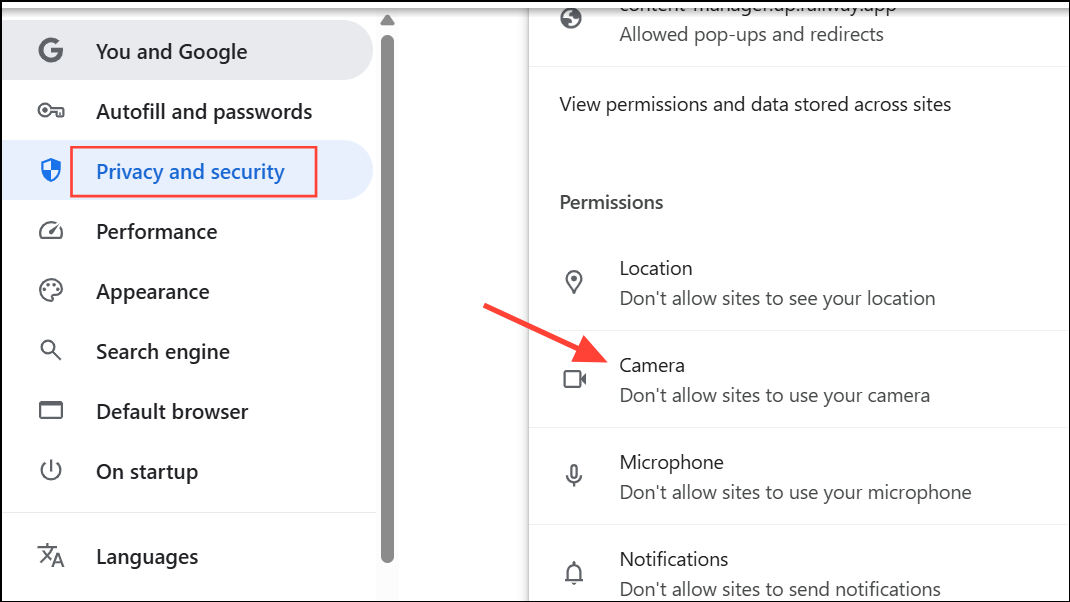
Check browser permissions for camera and microphone. In Chrome, go to Settings > Privacy and security > Site settings > Camera and Microphone, and ensure Teams is allowed. In Edge, use Settings > Cookies and site permissions.
If devices are recognized but don’t transmit audio or video, try switching browsers. Users have reported that Firefox often works when Chrome or Edge does not. Alternatively, use Chrome Incognito mode as a guest, which sometimes bypasses profile-specific bugs.
If a widespread outage or bug is suspected (for example, after a Teams update), check Microsoft’s support channels or community forums for status updates. Some users have found temporary workarounds by switching to a different Teams web URL, such as https://teams.microsoft.com/v2/?ring=general, which may revert to a more stable version.
Restart your browser and computer after changing permissions or switching URLs to ensure all changes are applied. If the problem persists, use the Teams desktop app as a fallback until the web issue is resolved.
Advanced Troubleshooting: When Devices Work Elsewhere but Not in Teams
Confirm that no other software is exclusively locking the camera or microphone. Antivirus programs or privacy tools may block device access to certain applications. Add Teams to any trusted apps or allowlists in your security software.
For laptops, check for physical switches, function keys, or hardware shutters that may disable the camera or microphone. Toggle these to ensure devices are physically enabled.
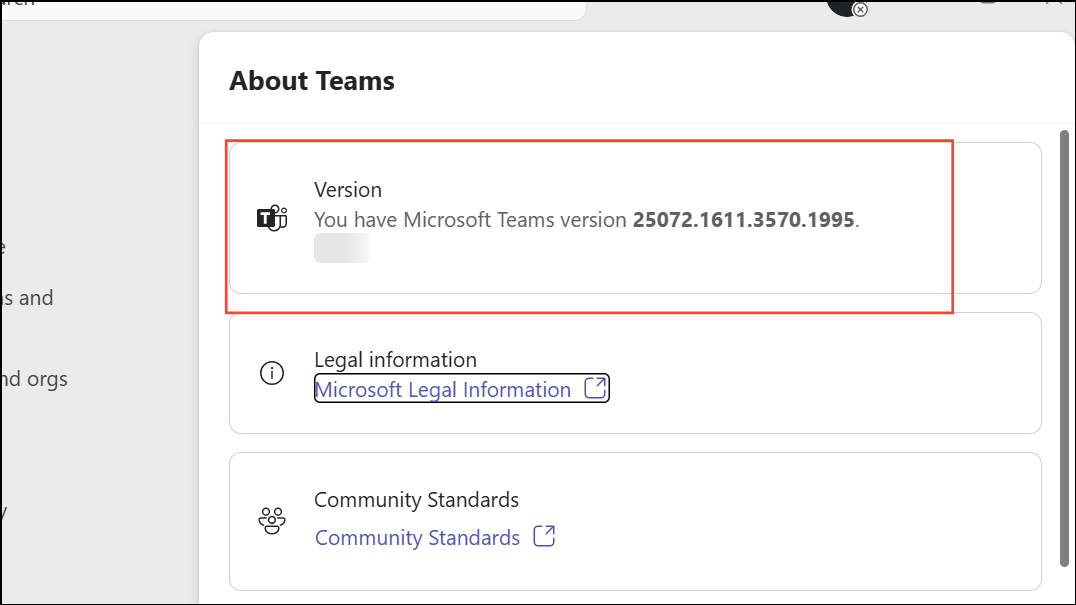
If Teams still fails to detect devices while all other apps work, and all previous steps have been exhausted, contact Microsoft support directly. Provide details about your operating system, Teams version, device models, and the troubleshooting steps you’ve already tried. Microsoft can offer tenant-specific or account-level diagnostics for persistent issues not resolved by standard methods.
Restoring camera and microphone functionality in Microsoft Teams often comes down to adjusting permissions, closing conflicting apps, and ensuring all software is current. If issues persist, switching browsers, clearing cache, or reinstalling Teams can resolve stubborn problems, while Microsoft support can address rare or widespread bugs.