Apple’s release of macOS 26 beta 2 introduces a significant update to password management, shifting from the previous system-buried approach to a dedicated Passwords app and reworked autofill and credential prompts. This change targets common complaints about clunky login workflows, slow autofill, and confusing prompts, aiming to speed up credential entry and boost security for Mac users. The following guide explains how to use the redesigned autofill features and credential prompts, what’s different from older macOS versions, and how to maximize their benefits.
Password Autofill in macOS 26 Beta 2
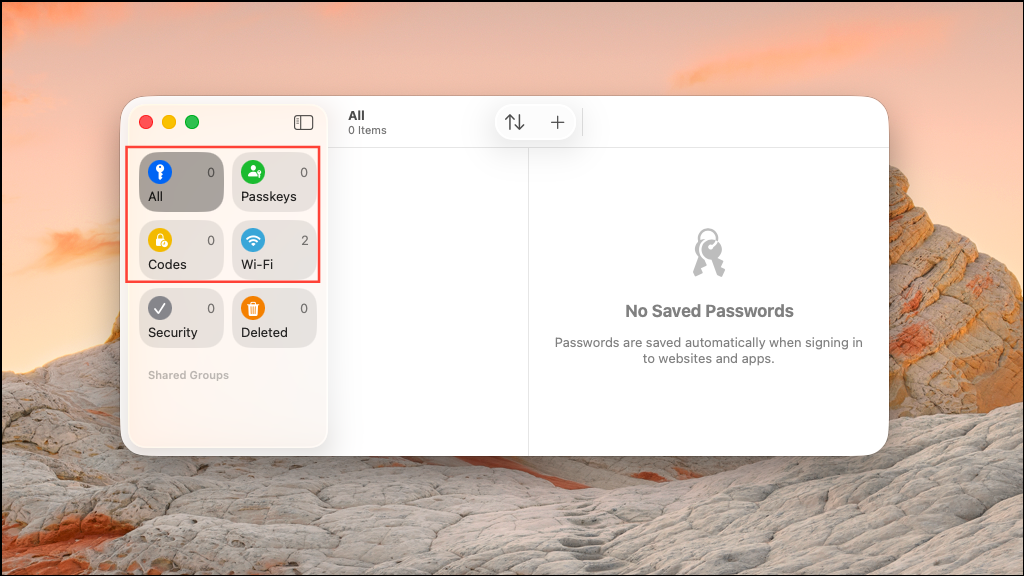
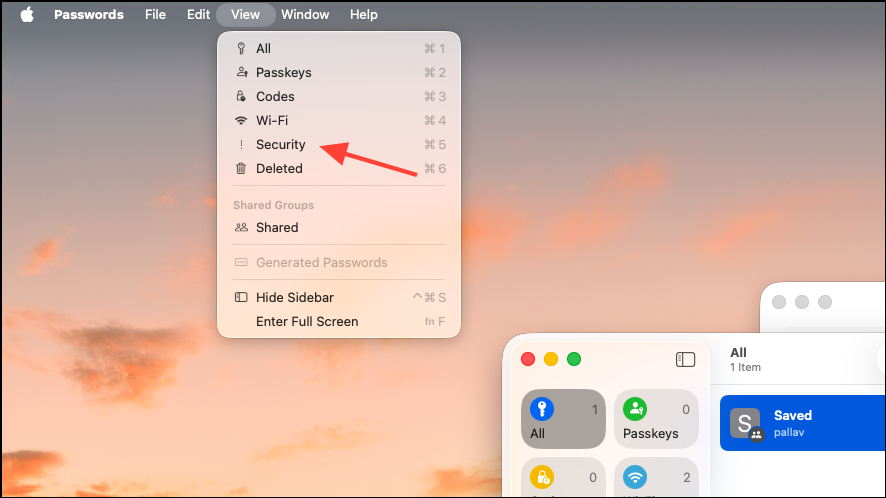
The Passwords app now sits as a standalone application, making password and passkey management much more accessible. Previously, users had to dig through System Settings or Safari preferences to find saved credentials. Now, everything is organized in one place, with clear categories for logins, passkeys, Wi-Fi passwords, two-factor codes, and shared credentials.
Redesigned Credential Prompts and Security Improvements
Earlier versions of macOS often displayed repetitive or intrusive credential prompts, requiring users to enter their Mac password or Touch ID multiple times throughout a browsing session. This led to frustration, especially for users who had to unlock credentials dozens of times per day.
In macOS 26 beta 2, the credential prompt workflow has been overhauled to reduce unnecessary interruptions:
- Credential prompts are now context-aware, appearing only when a sensitive action or new login is detected.
- Once authenticated, the system maintains your session for a reasonable period, so you’re not repeatedly asked for Touch ID or your password on every site or app.
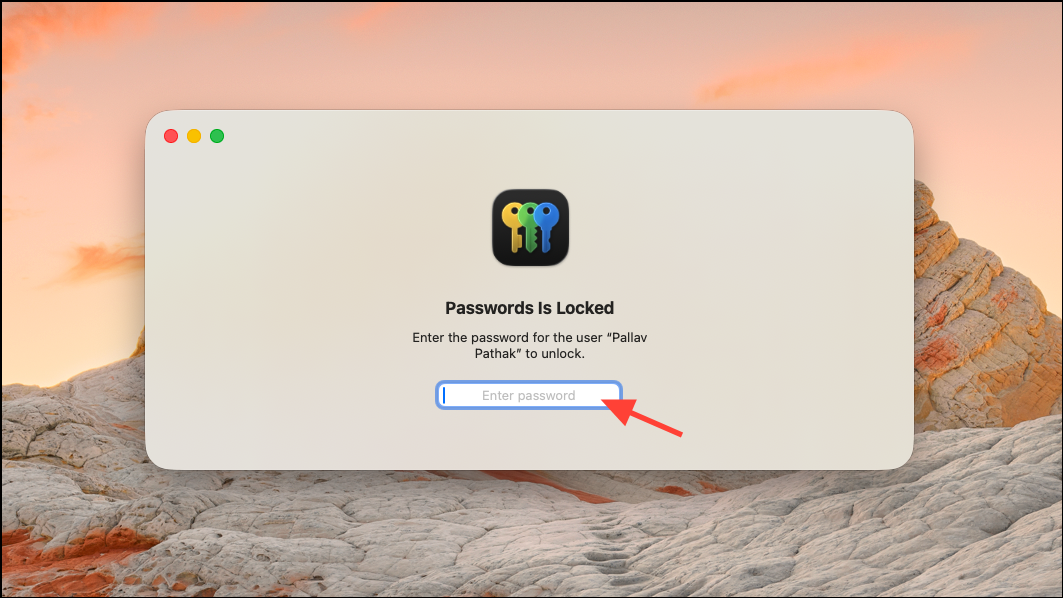
- Critical changes—such as editing, exporting, or deleting passwords—always require re-authentication, strengthening security for sensitive operations.
These changes cut down on redundant prompts, speed up access to logins, and lower the risk of accidentally sharing passwords or exposing them to shoulder-surfers.
Managing and Customizing Password Autofill Settings
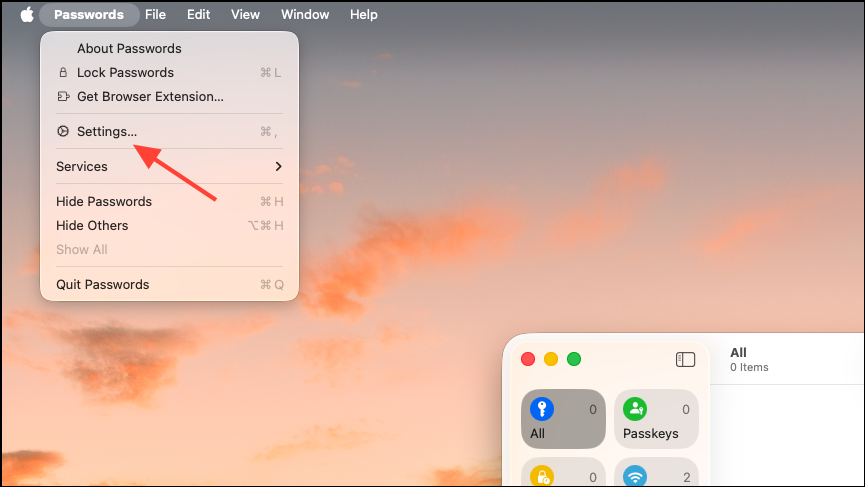
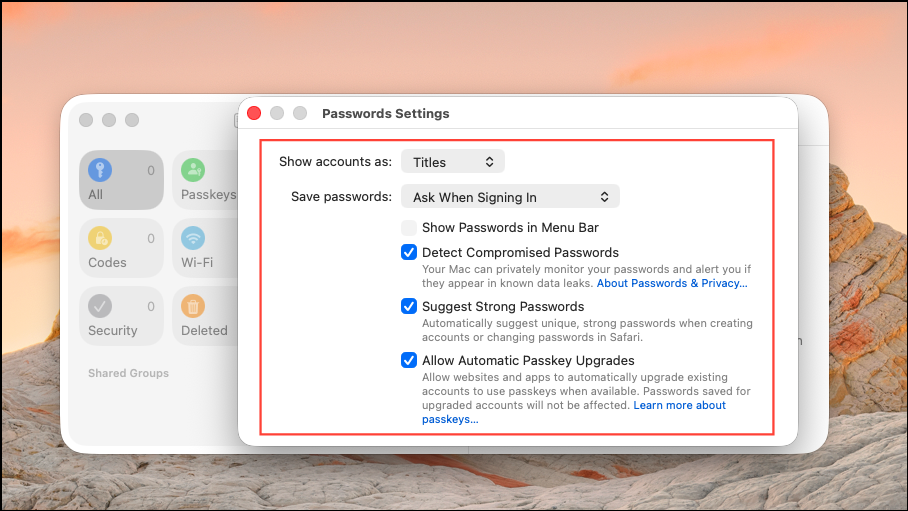
macOS 26 beta 2 gives you more control over how and when autofill operates:
Sharing and Group Management in the Passwords App
The new Passwords app introduces shared groups, allowing you to securely share credentials (such as streaming service logins or Wi-Fi passwords) with family or colleagues. This eliminates the need to send passwords over insecure channels like email or messaging apps.
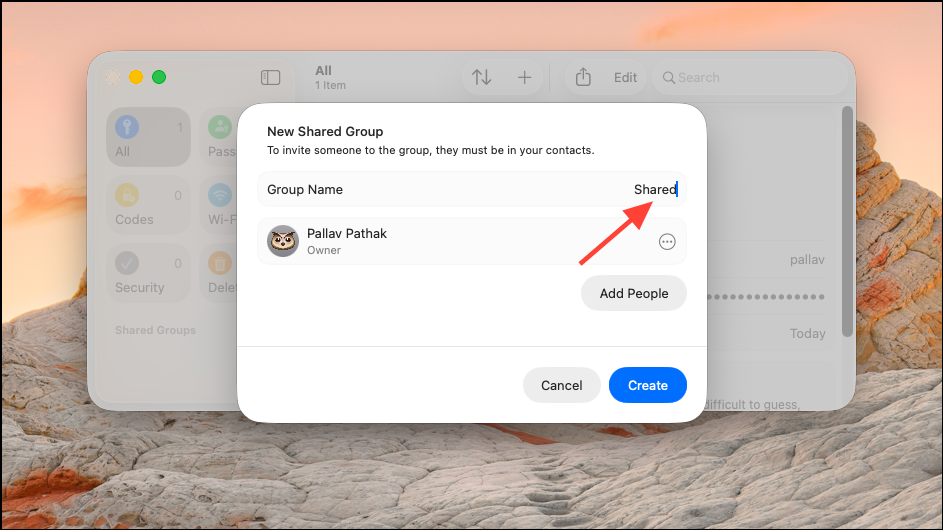
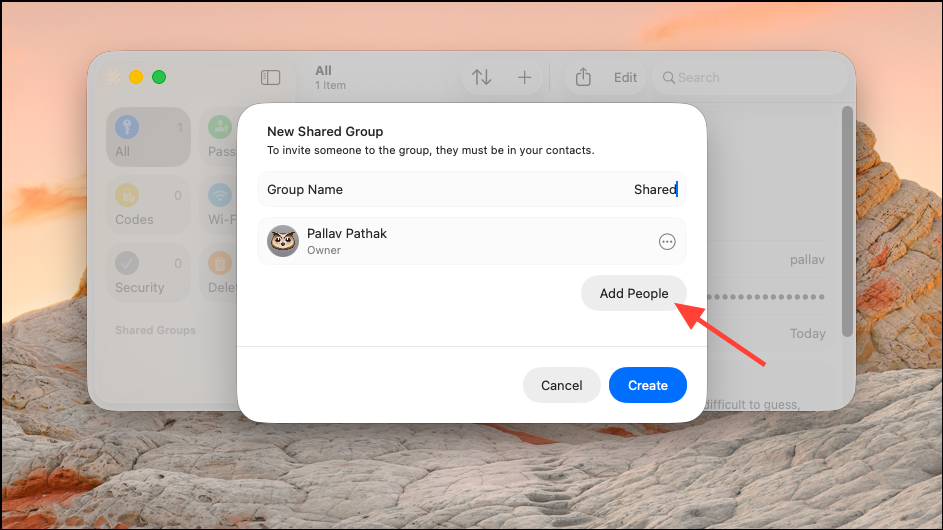
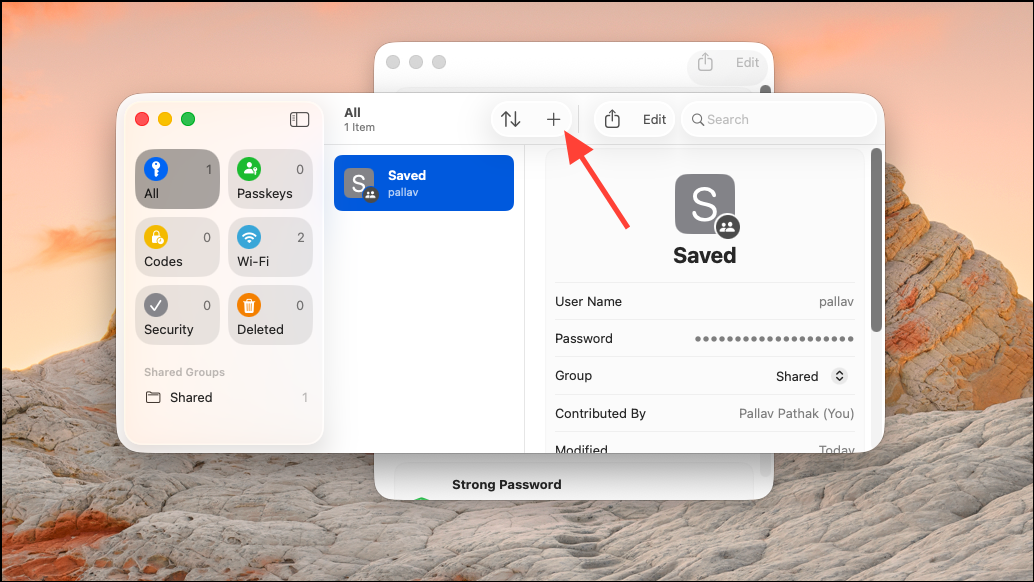
This feature streamlines group access management and reduces the risk of outdated or insecure shared passwords.
Importing and Exporting Passwords
For users migrating from third-party password managers (such as 1Password or Bitwarden), macOS 26 beta 2 supports importing credentials via CSV files. This process is most effective when performed on a Mac, as Windows support for import is limited.
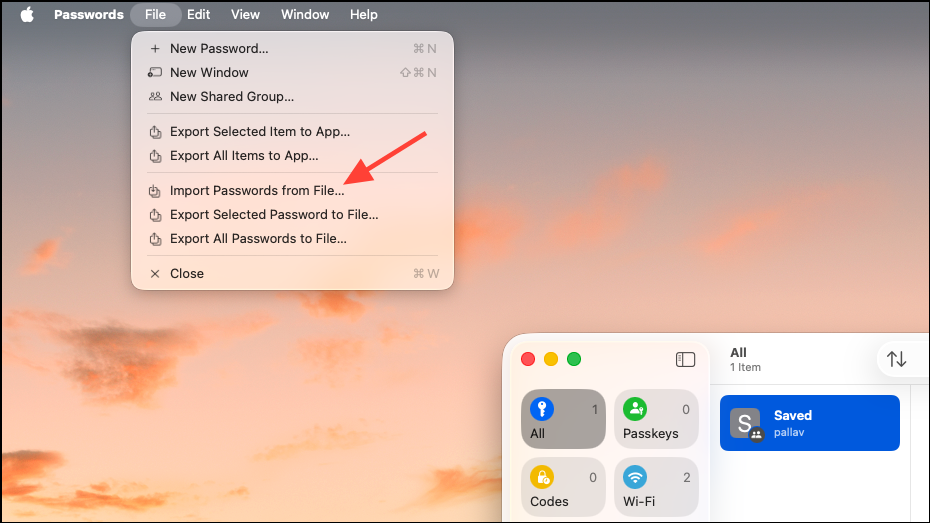
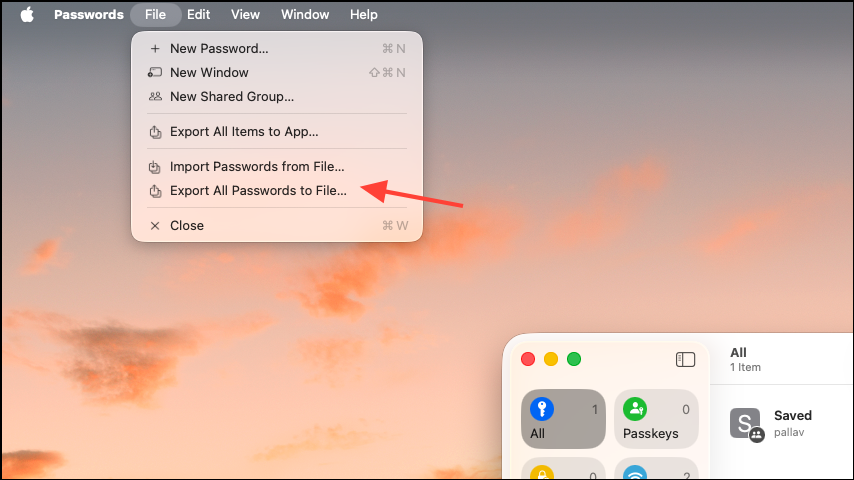
To export passwords for backup or migration, use the “Export All Passwords to File” option in the app. Always store exported files securely, as they contain sensitive information in plain text unless otherwise encrypted.
Compatibility and Limitations
The redesigned Passwords app and autofill features require macOS 26 or newer. Older Macs running Ventura, Sonoma, or earlier will not receive the standalone app or the updated autofill workflow. Windows users can access Apple Passwords via iCloud for Windows, but the interface and feature set are limited compared to macOS.
Key limitations to be aware of:
- Custom fields, file attachments, and storage of items like credit cards or software licenses are not yet supported in the Passwords app.
- Password history is not available; accidental overwrites may require password resets via the original service.
- Cross-platform support is basic—advanced users who need Linux or Android integration may prefer third-party managers.
Despite these constraints, the system-level integration of the Passwords app and autofill in macOS 26 beta 2 delivers a faster, more secure, and more user-friendly credential management experience for Apple-focused users.
macOS 26 beta 2’s Passwords app and autofill upgrades significantly streamline login workflows and strengthen credential security. Staying updated and regularly reviewing your settings ensures you get the best mix of convenience and protection.