
Running Linux applications directly on Windows 11 is possible by setting up Windows Subsystem for Linux (WSL). This approach removes the need for dual-booting or using traditional virtual machines, allowing users to install and use Linux distributions and apps alongside native Windows programs. The process is straightforward, but understanding each step ensures a smoother installation and better experience with Linux apps on your Windows system.
Install WSL Using Command Line (Recommended Method)
Windows+X and select Terminal (Admin) or Command Prompt (Admin). This ensures you have the necessary permissions to install system-level components.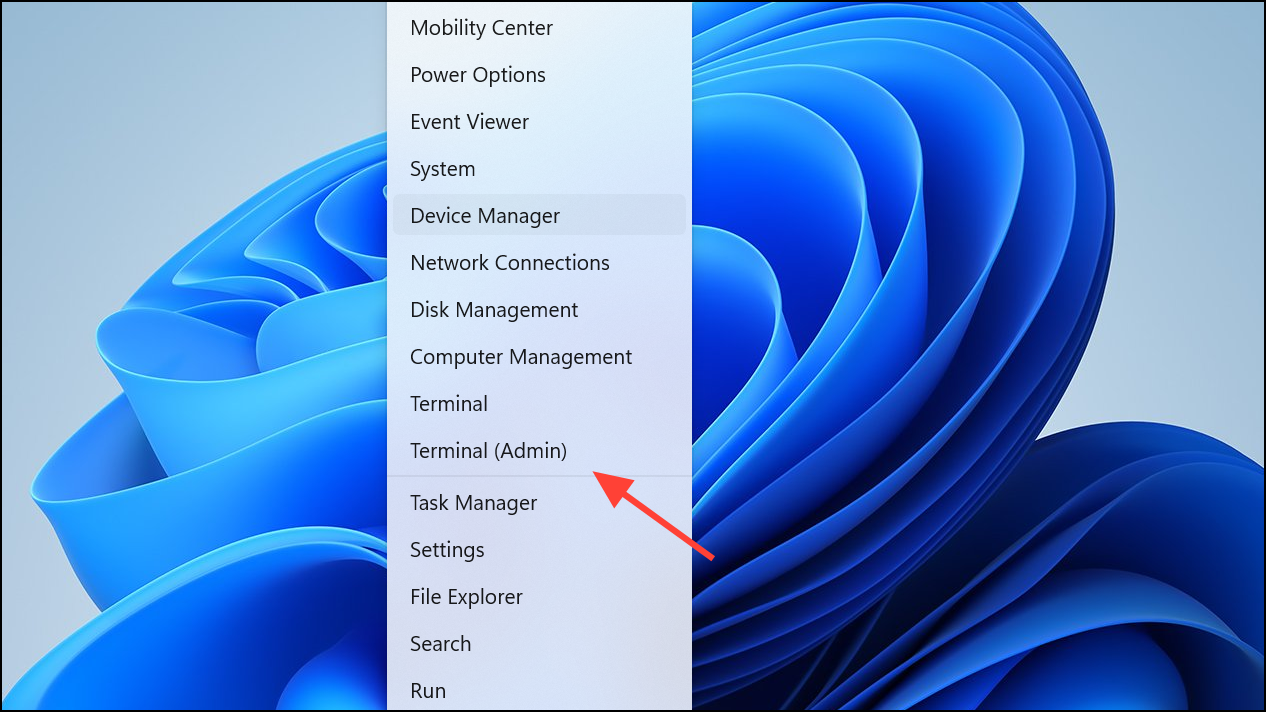
wsl --install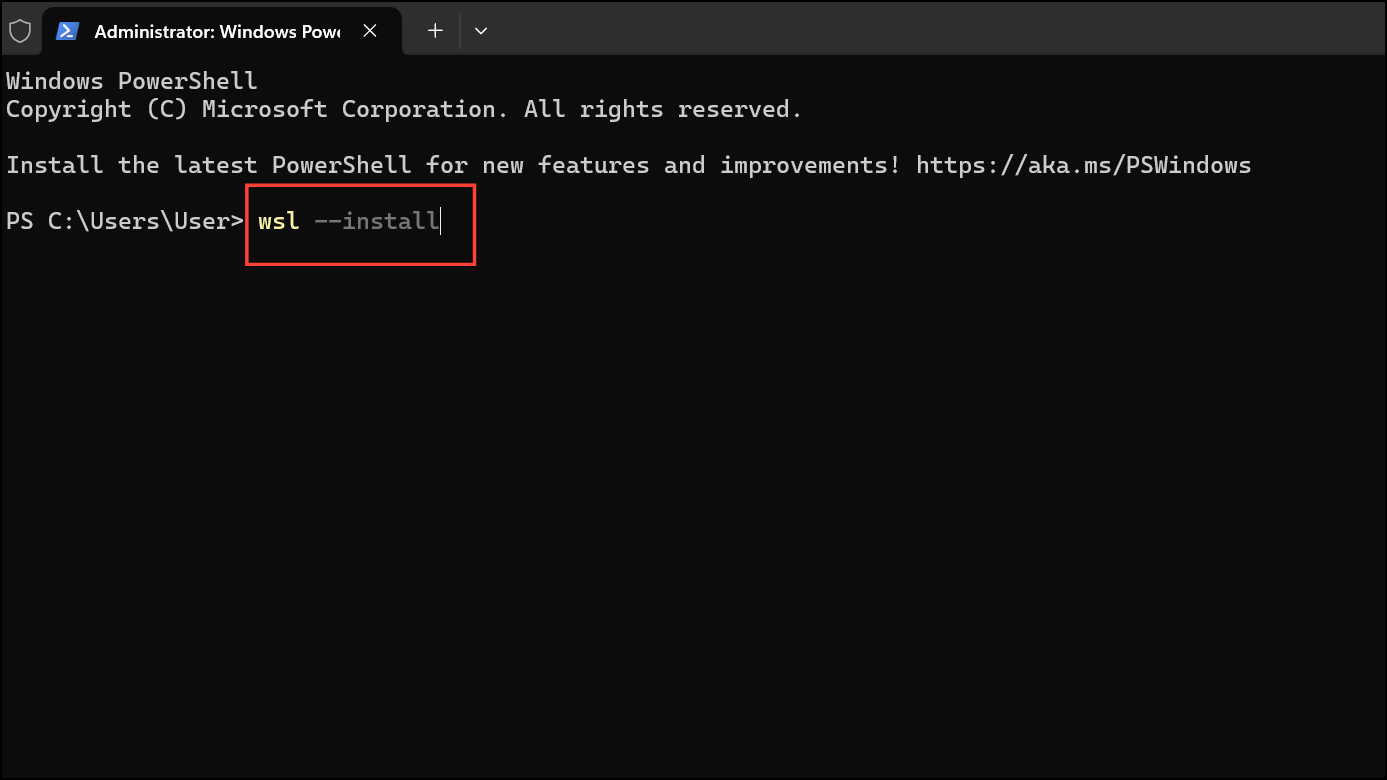
This command enables the required Windows features, downloads the WSL components, and installs Ubuntu as the default Linux distribution. If you want to install a different distribution, you can specify it with the -d flag. For example, to install Debian:
wsl --install -d DebianTo see a list of available distributions, use:
wsl --list --online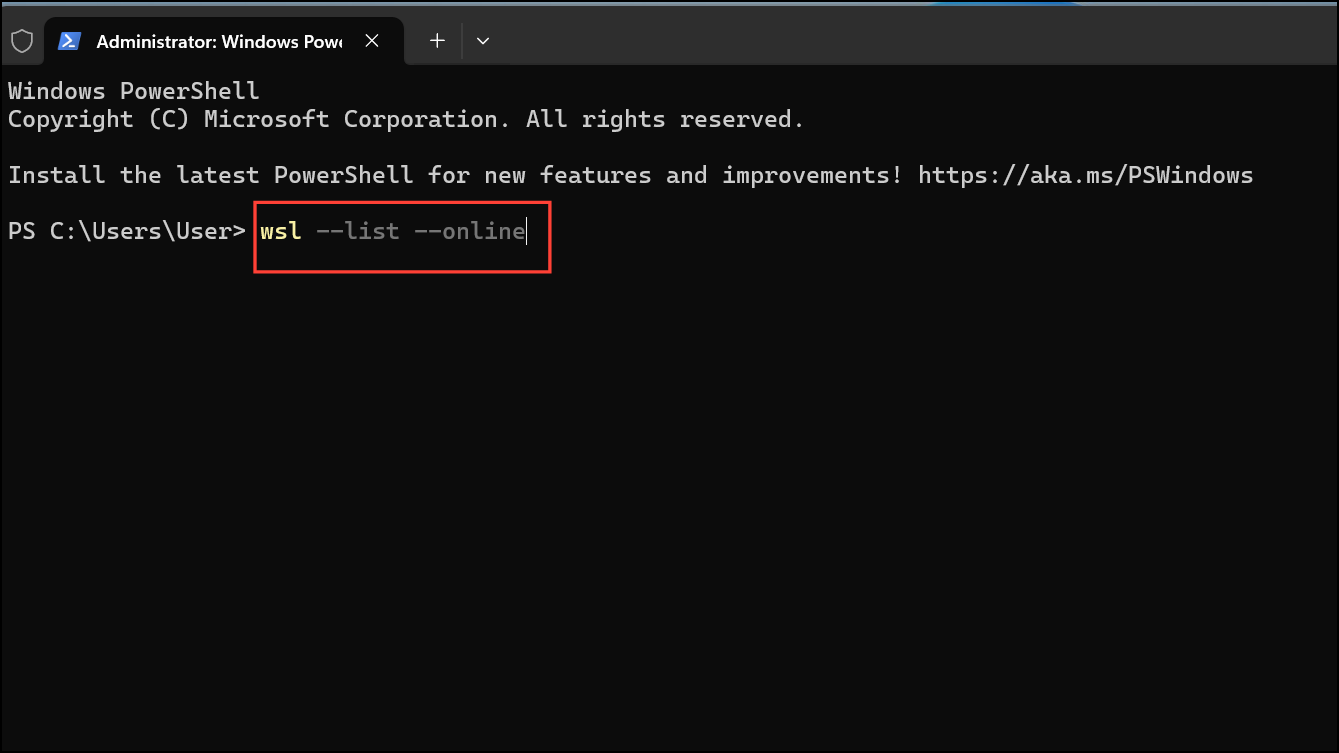
shutdown /r /t 0 in the command prompt, or by using the standard Windows restart option.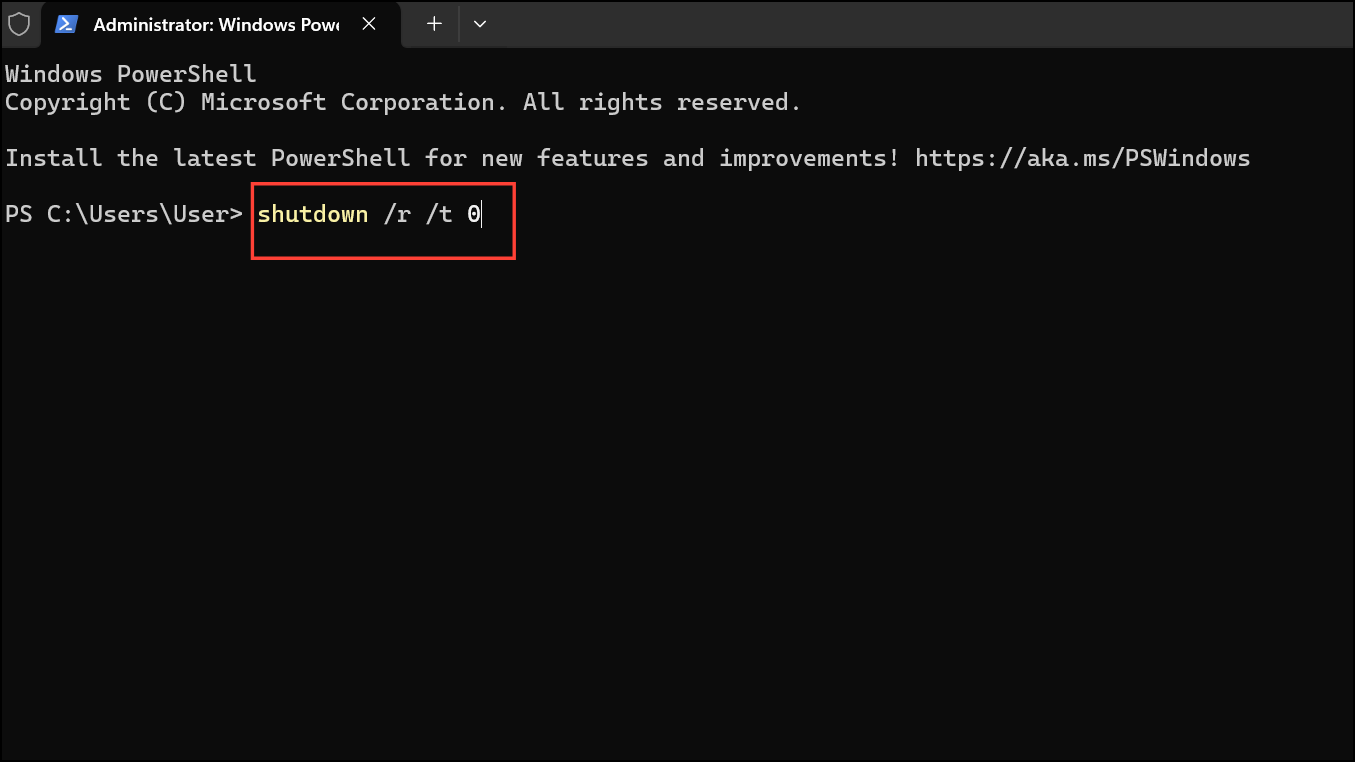
sudo apt updateThis step prepares your system to install Linux applications and tools.
sudo apt install gnome-text-editor vlc -yOnce installed, you can launch Linux GUI apps directly from the Start menu or by entering their names in the Linux terminal.
Enable WSL and Install a Linux Distribution via Windows Features and Microsoft Store
Windows Features. Select Turn Windows features on or off from the results.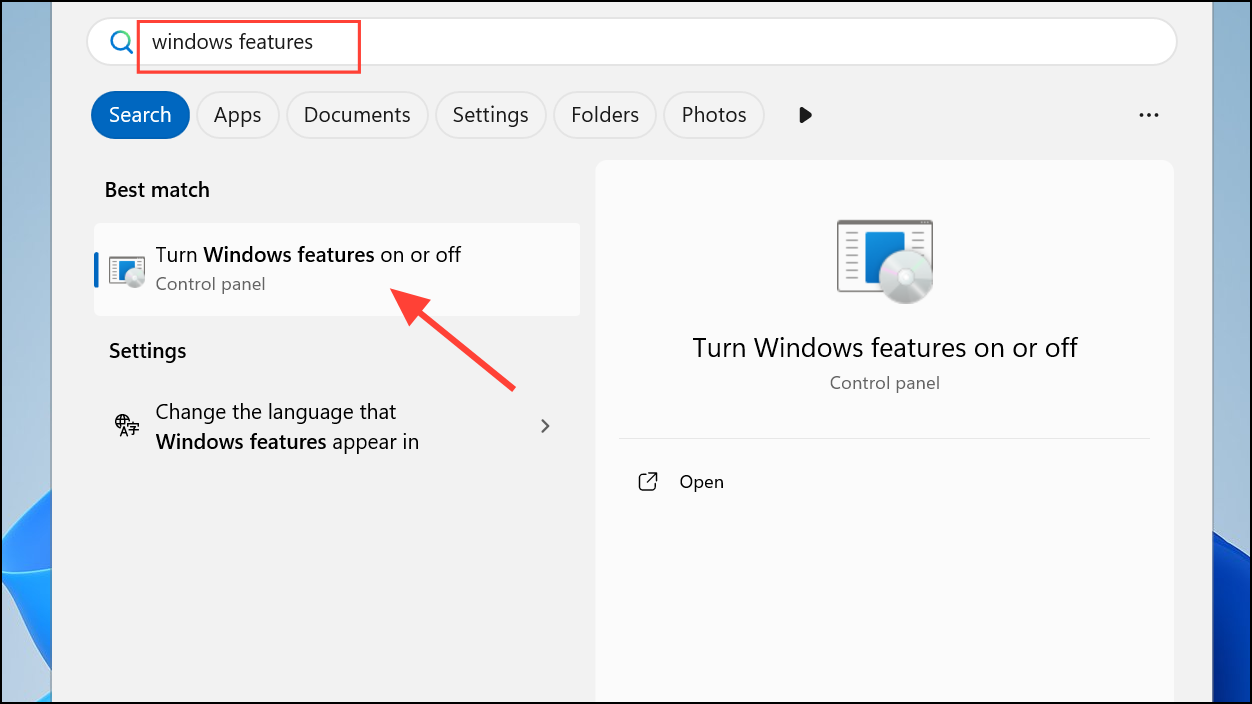
Windows Subsystem for Linux. Click OK and allow Windows to apply the changes. You will be prompted to restart your computer.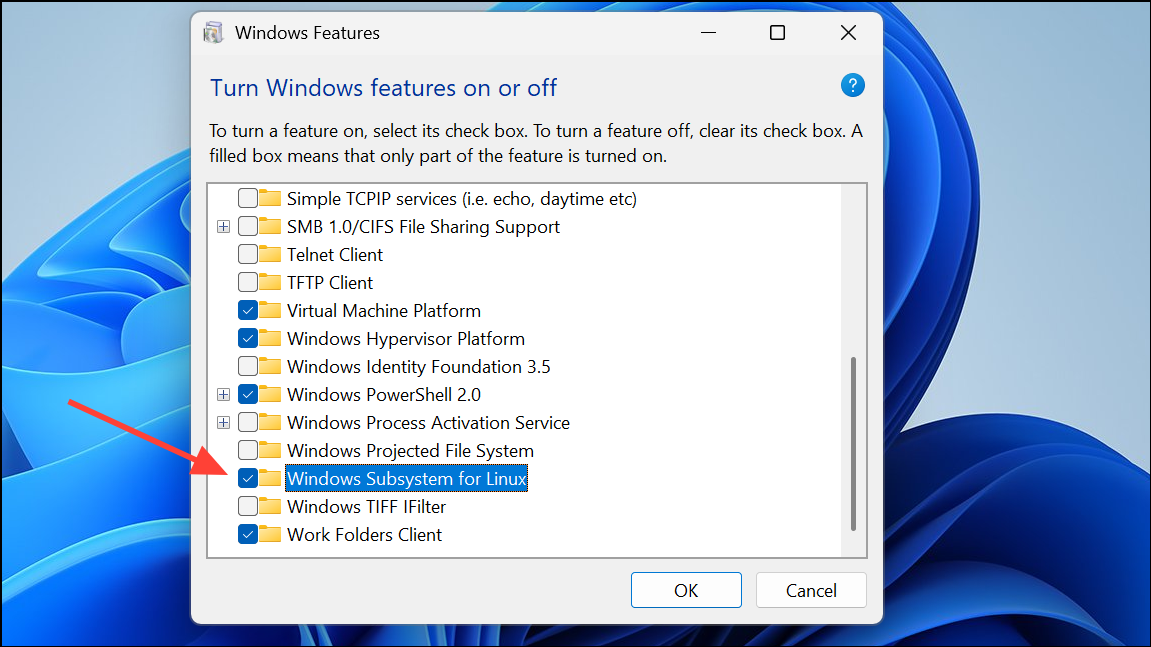
Get to download and install it.Update WSL and Enable Linux GUI Apps (WSLg)
Windows 11 and recent builds of Windows 10 support running Linux graphical applications (X11 and Wayland) through WSLg. This feature allows you to use Linux GUI apps alongside Windows programs with seamless integration, including Start menu shortcuts, taskbar pinning, and clipboard sharing.
wsl --update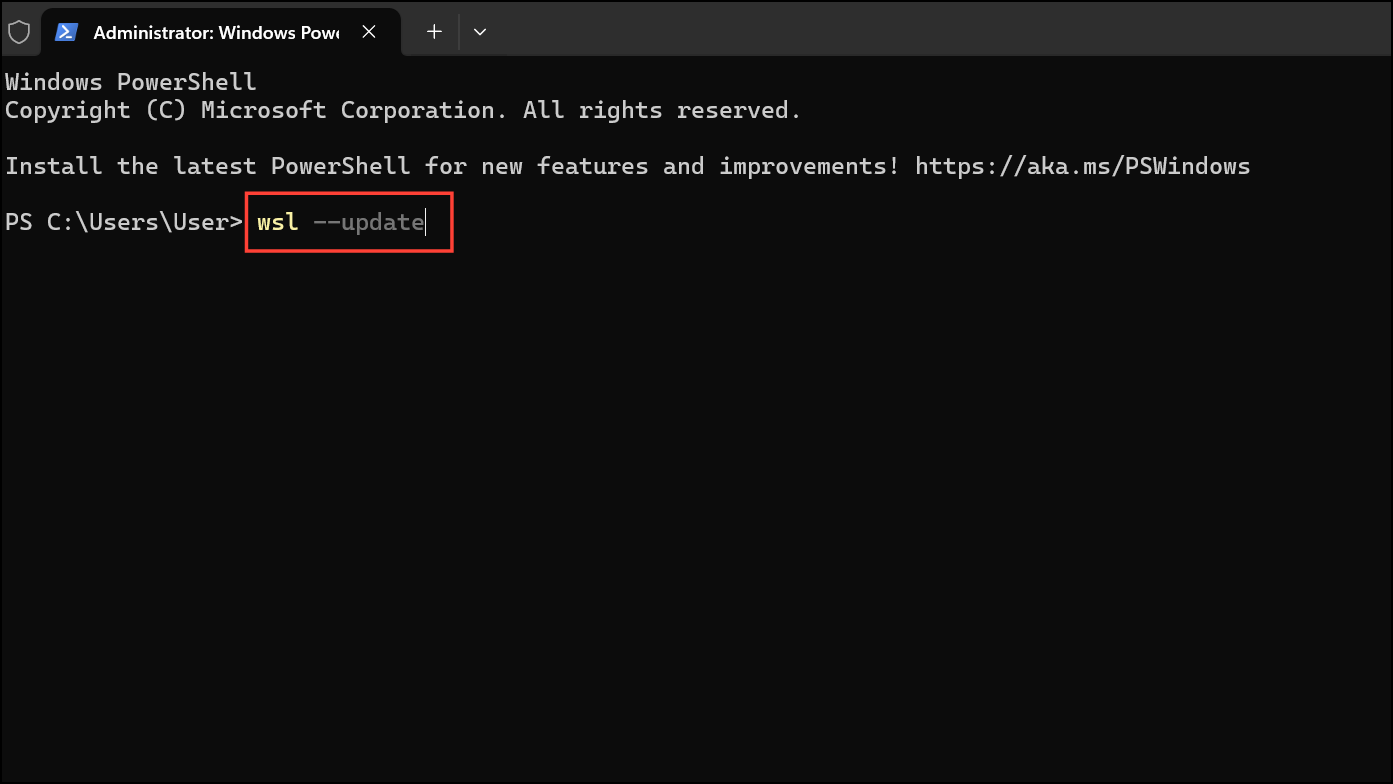
After updating, restart WSL with:
wsl --shutdown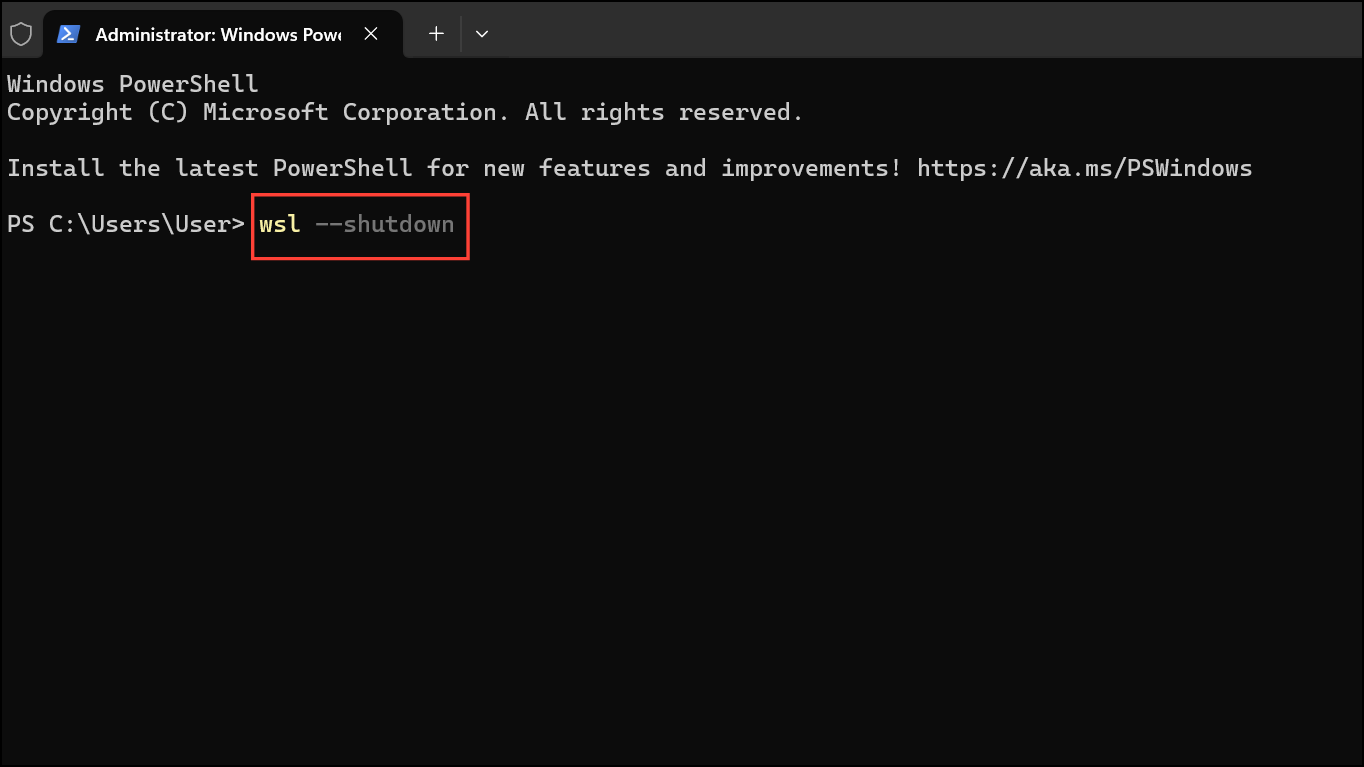
sudo apt install gimp nautilus -yThese apps will appear in your Windows Start menu under the name of your Linux distribution. You can launch them like any other Windows application.
wsl -l -v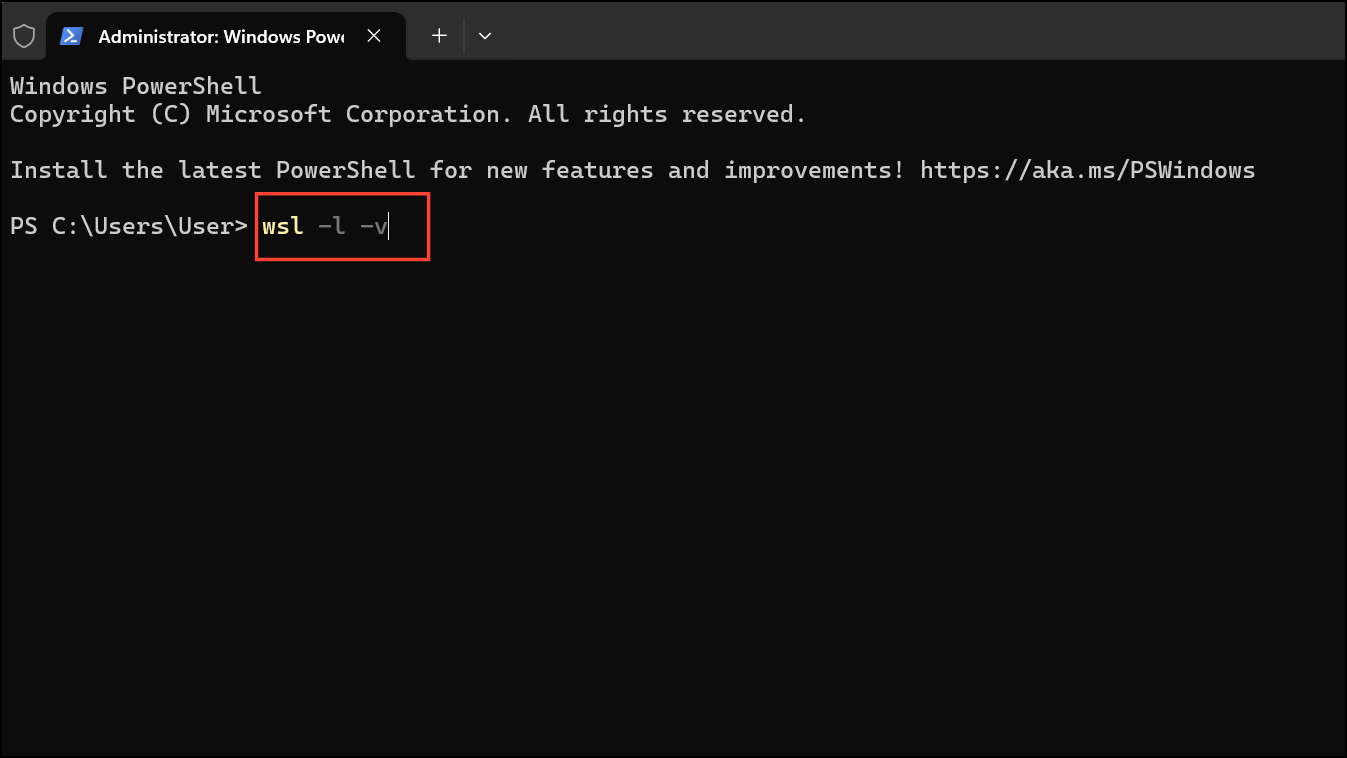
To switch to WSL 2, use:
wsl --set-version <distro name> 2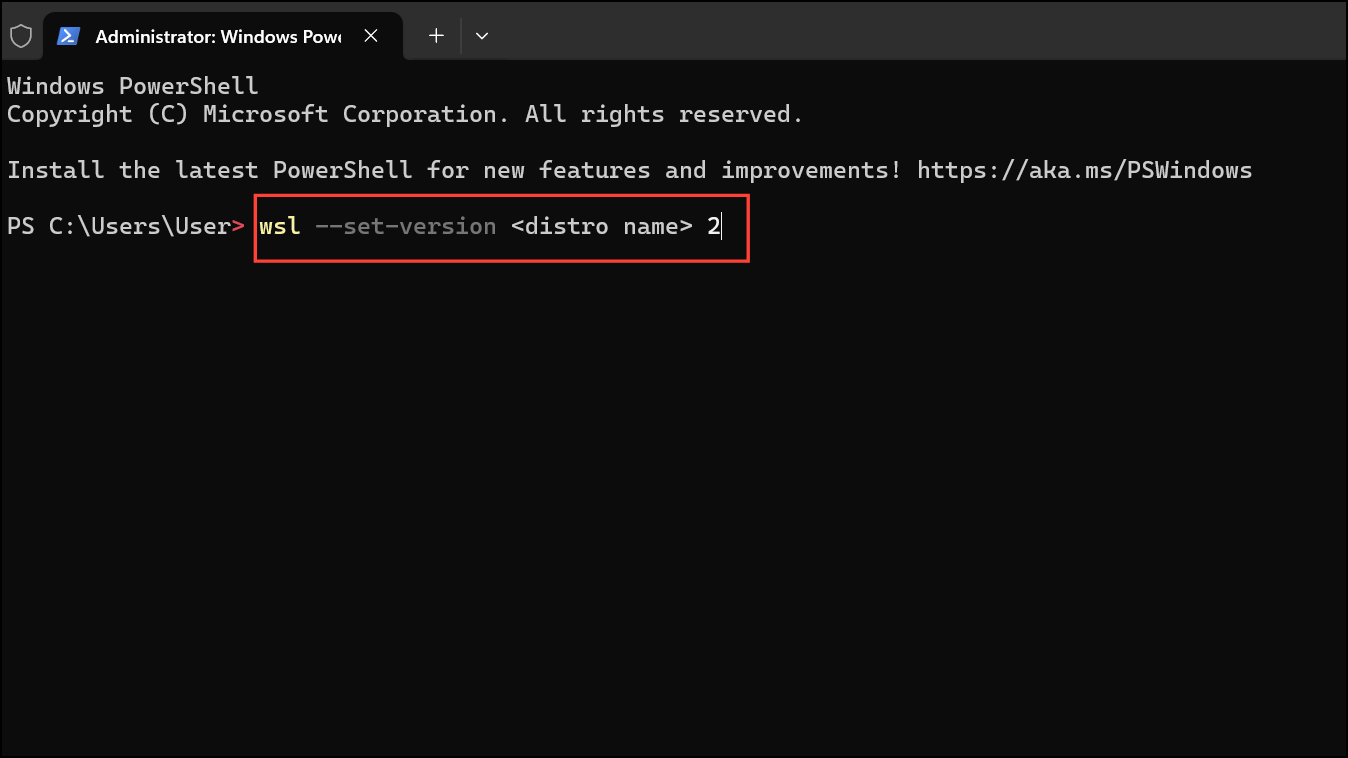
Installing and Managing Multiple Linux Distributions
WSL supports installing and running multiple Linux distributions side-by-side. This allows for different development environments or testing setups on the same Windows system.
- List available distributions with
wsl --list --online. - Install a specific distribution with
wsl --install -d <DistributionName>. - Switch the default distribution using
wsl --set-default <DistributionName>. - Run a specific distribution with
wsl -d <DistributionName>from PowerShell or Command Prompt.
This flexibility supports a range of workflows, from web development to data science and cross-platform testing.
Setting up WSL on Windows 11 unlocks the ability to run Linux command-line and graphical applications directly within Windows, streamlining development, testing, and daily workflows without leaving your familiar environment.



