

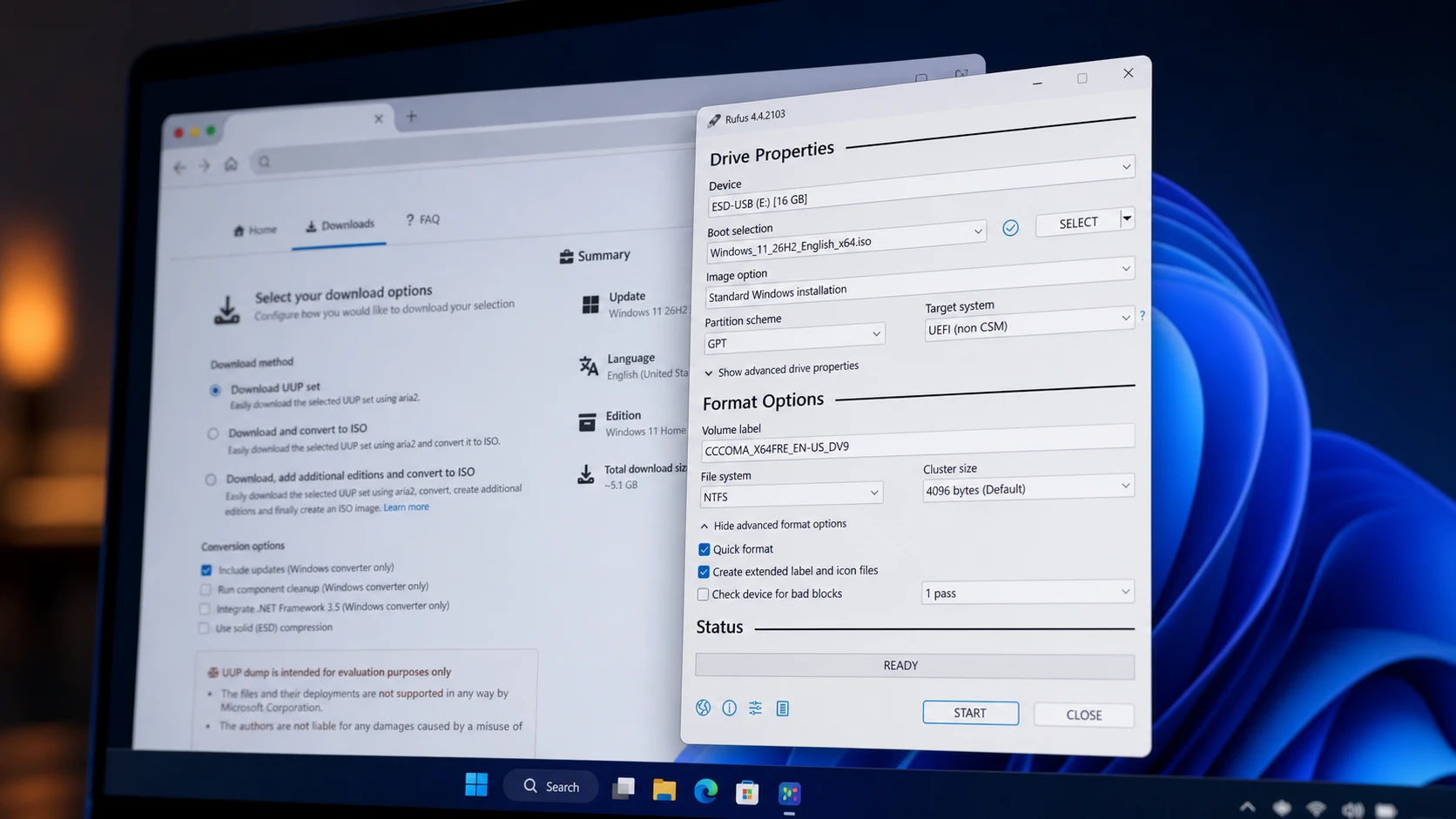
Windows 11 26H2, the 2026 Update, is expected to start rolling out later in 2026, likely around September or October. Microsoft has not posted an official ISO for it yet, but you can still build one early from the preview builds using UUP Dump. This is the practical way to test a clean install or an in-place upgrade on a spare PC or a virtual machine while the release is still in development.
Quick answer: Open the UUP Dump 26H2 page, pick the latest 26300-series build, choose your language and editions, select “Download and convert to ISO,” enable “Include updates,” then run uup_download_windows.cmd as administrator. The finished 26H2 ISO appears in the extracted folder.
UUP Dump does not host any Windows files itself. It generates a small download package that pulls the required components straight from Microsoft’s update servers and packages them into an installation image on your machine. The resulting ISO is unofficial, but every file inside it comes from Microsoft, which makes it a dependable option for enthusiasts and testers.
Before you start: requirements and warnings
Treat 26H2 as test software. Preview builds can contain bugs, unfinished features, and unexpected issues, so install it on a spare device or virtual machine rather than your main PC. Back up anything important first.
- About 70GB of free space on your primary drive for the script to download and process the files.
- A reliable internet connection. The full process can take up to an hour depending on speed.
- An 8GB or larger USB flash drive if you plan to install on real hardware.
- The correct architecture: x64 for Intel and AMD systems, arm64 for Copilot+ PCs and other ARM devices.
Download the Windows 11 26H2 ISO with UUP Dump
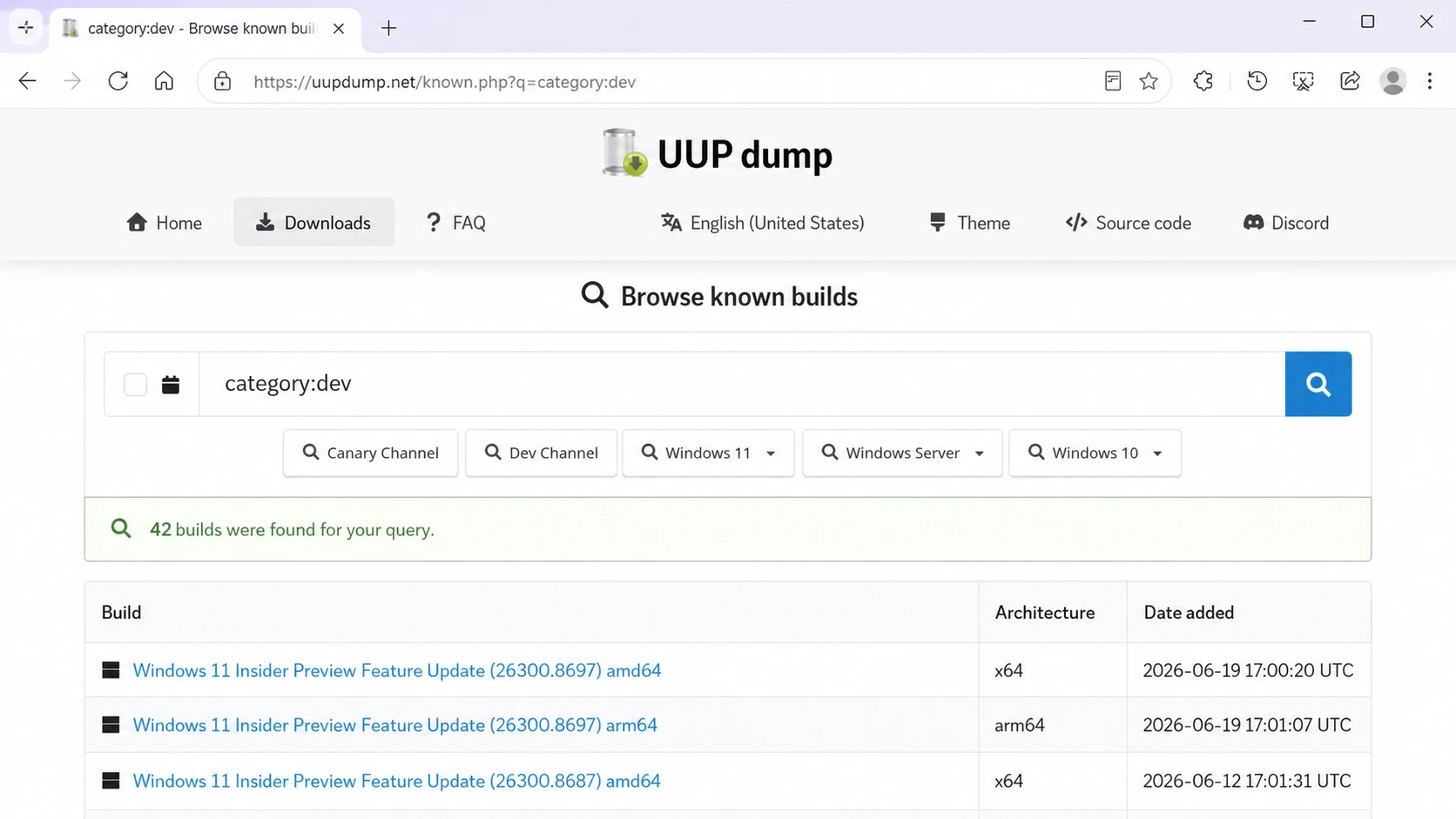
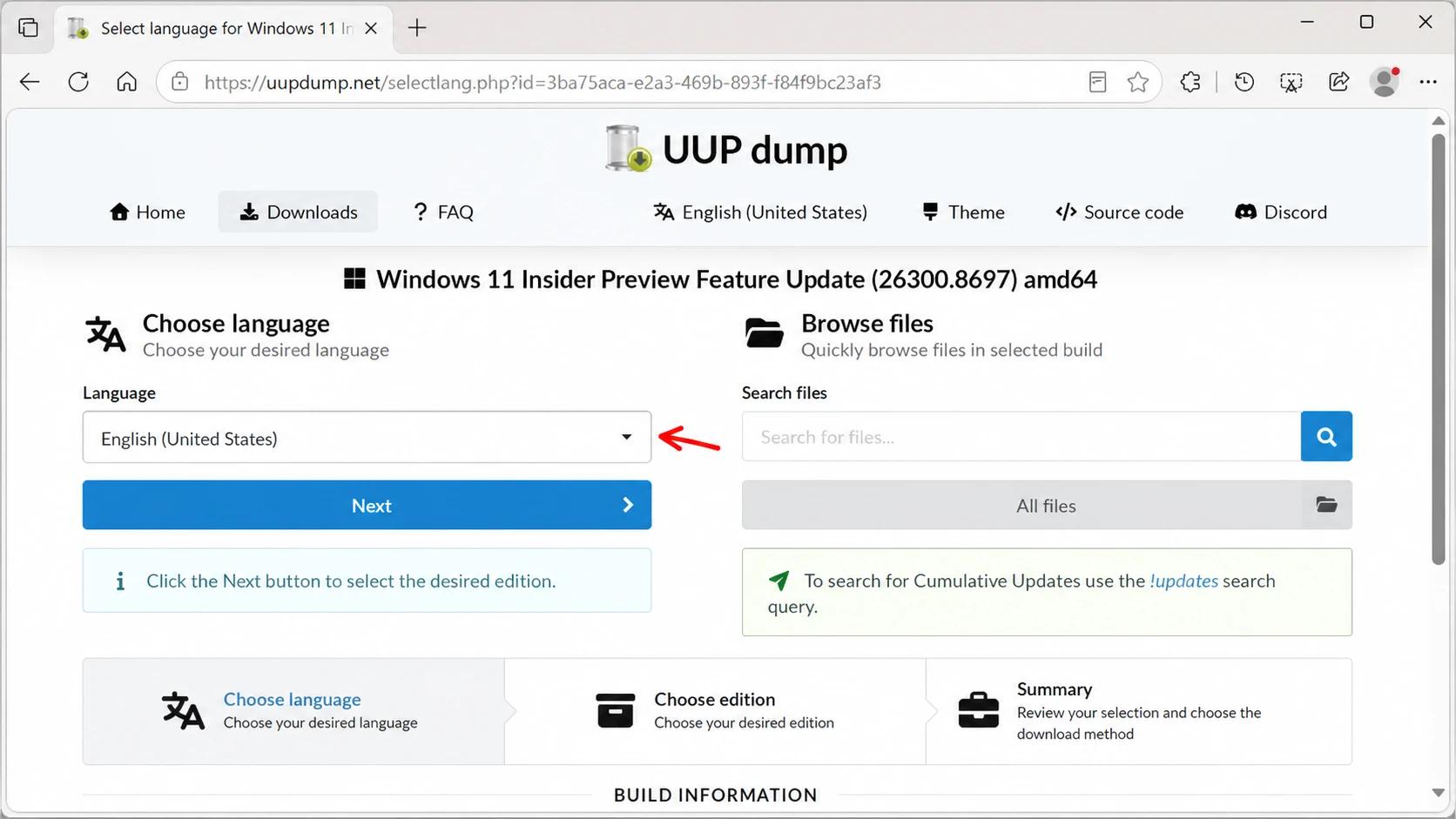
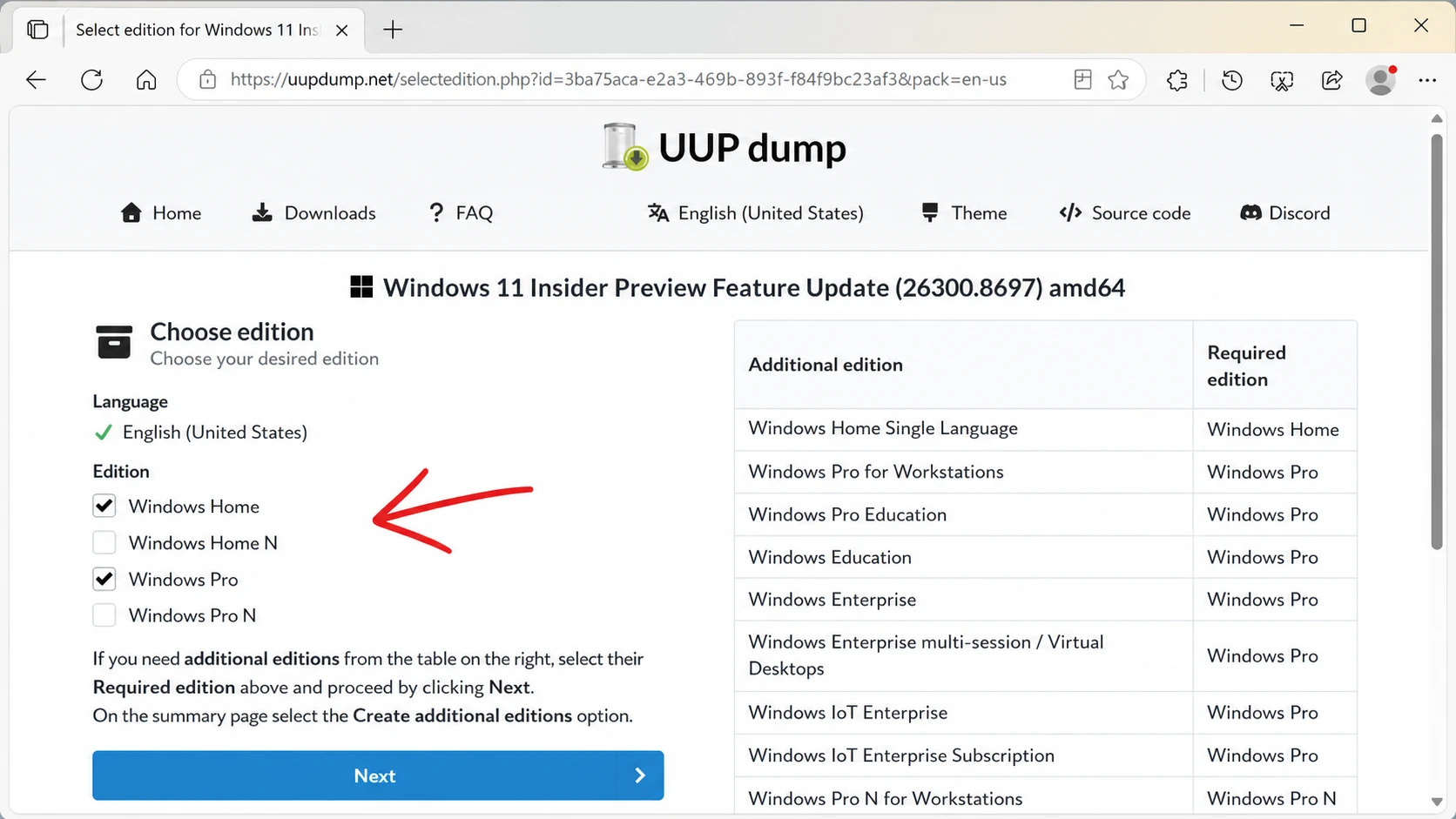
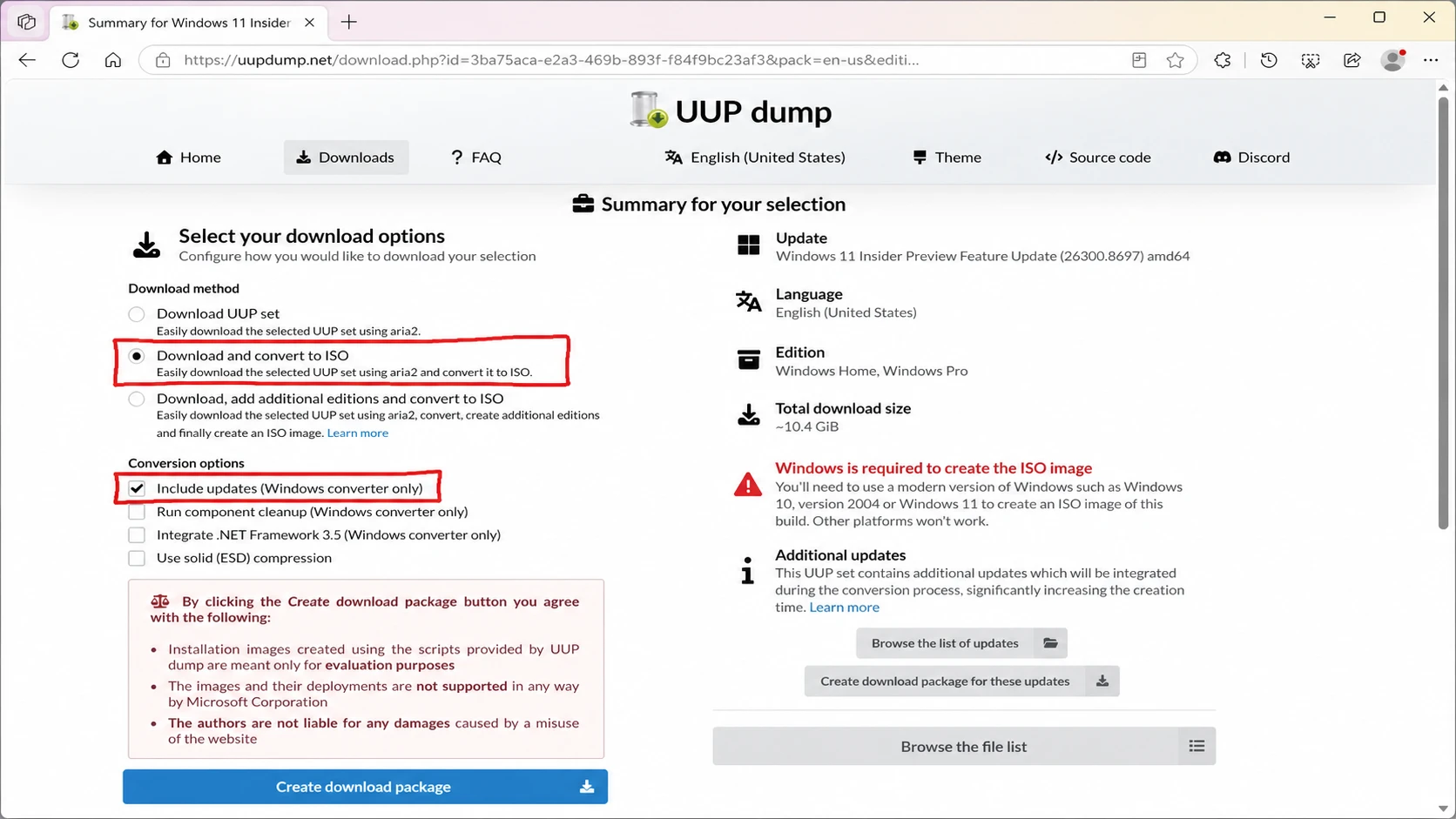
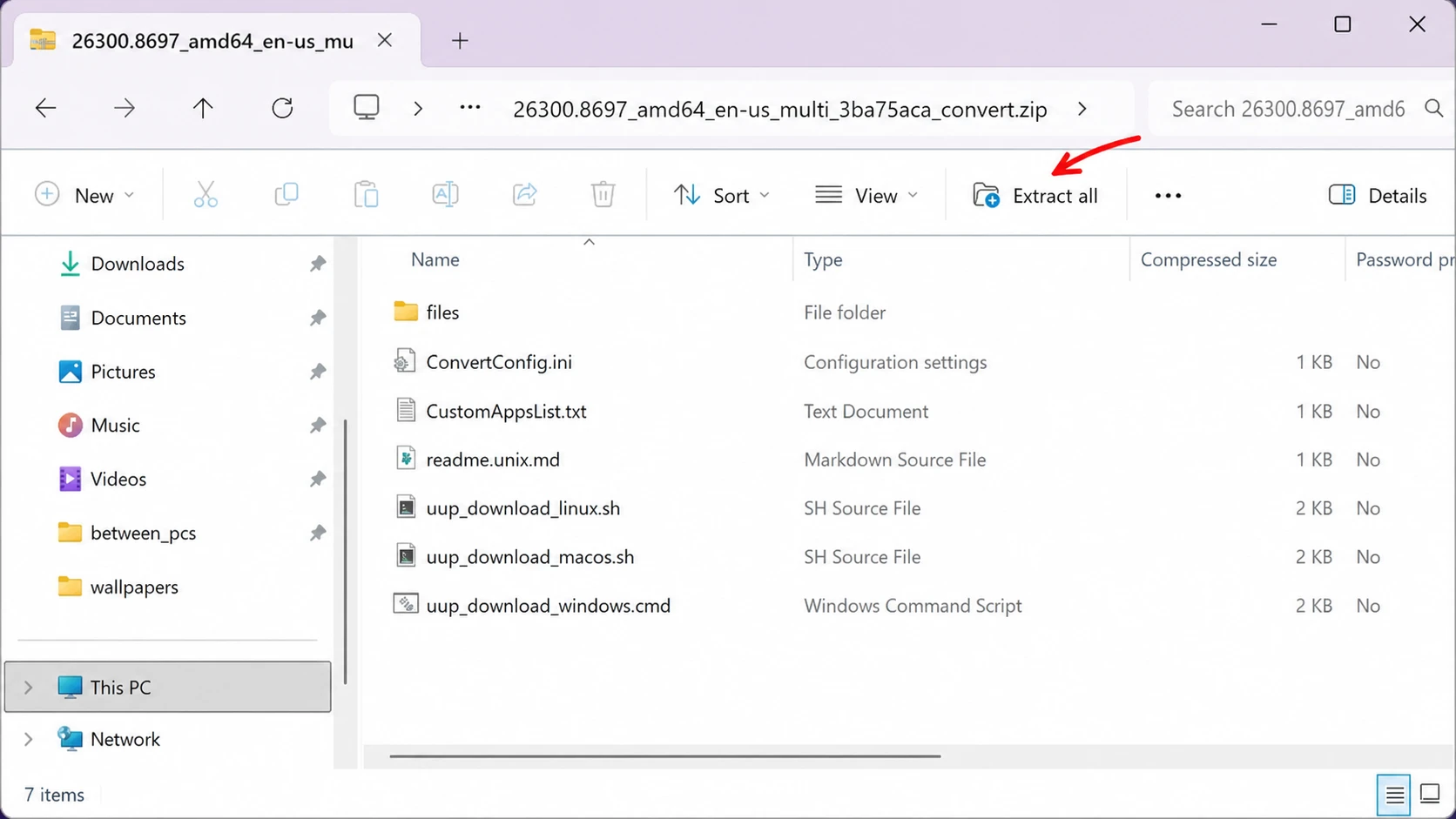
uup_download_windows.cmd batch file and choose “Run as administrator.” If Windows shows a security prompt, click “More info,” then “Run anyway” to begin.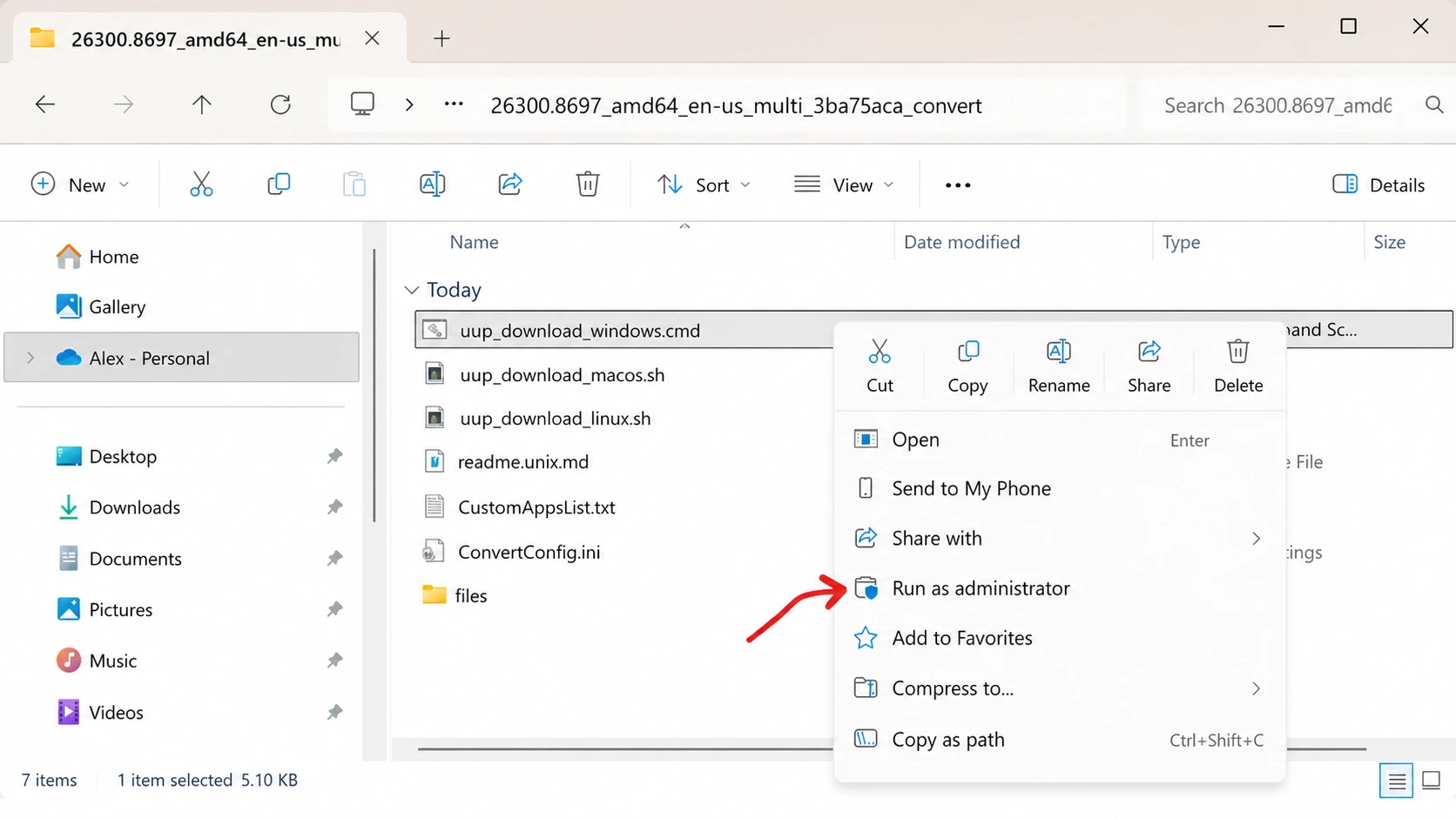
The completed Windows 11 26H2 ISO will be saved inside the same folder where you extracted the UUP Dump files. You know it worked when the ISO file appears there with a 26300-series build number in its name.
If the script fails, right-click Remove_Failure_MountDr_TempDir.cmd in the same folder and run it as administrator, then start UUP Dump again. Most failures come from running out of disk space, so confirm the drive has enough room before retrying.
Create a Windows 11 26H2 bootable USB with Rufus
Once you have the ISO, Rufus is the simplest way to write it to a USB drive for a clean install or an in-place upgrade. Connect a flash drive of at least 8GB before you start, since its contents will be erased.
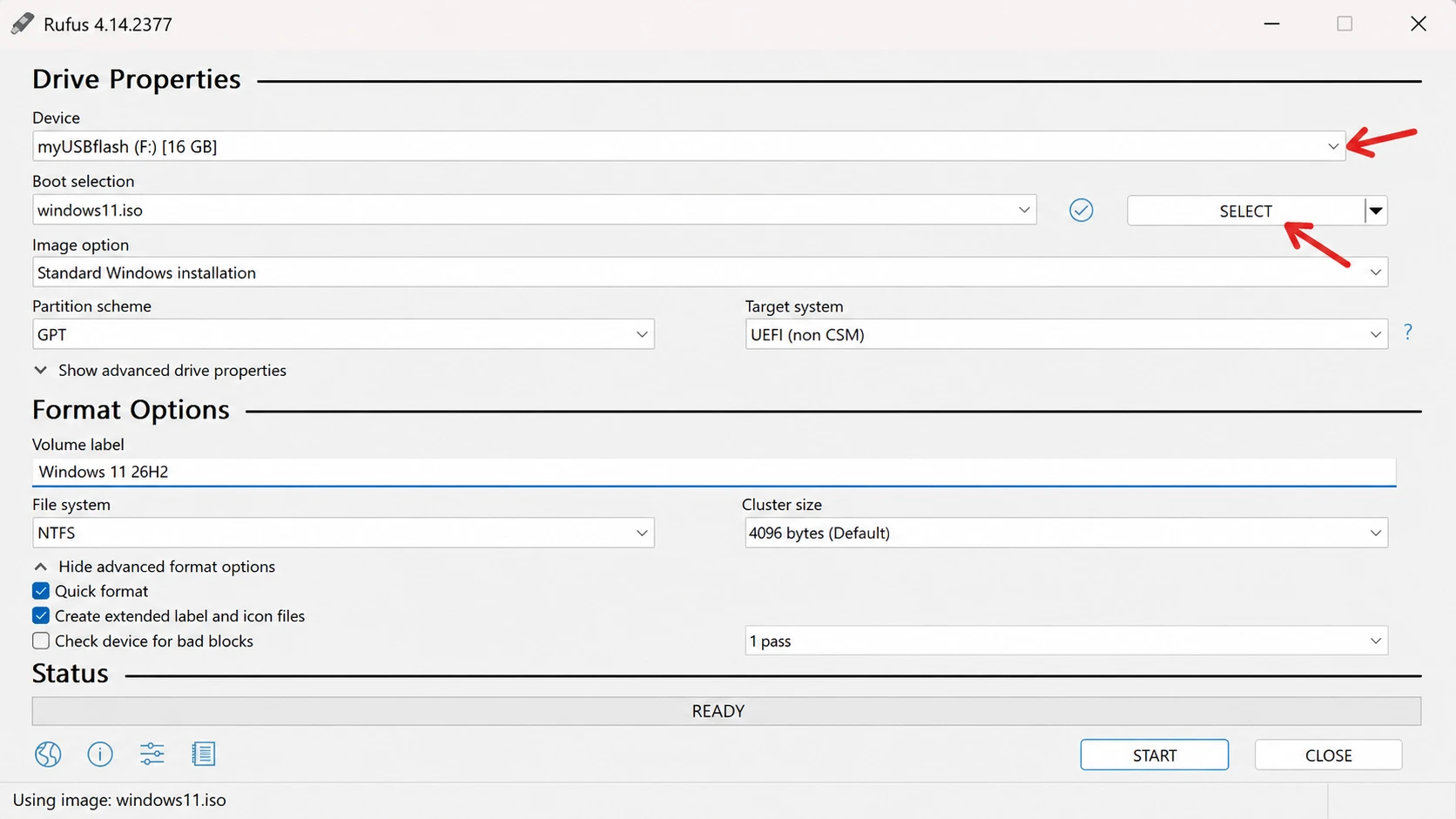
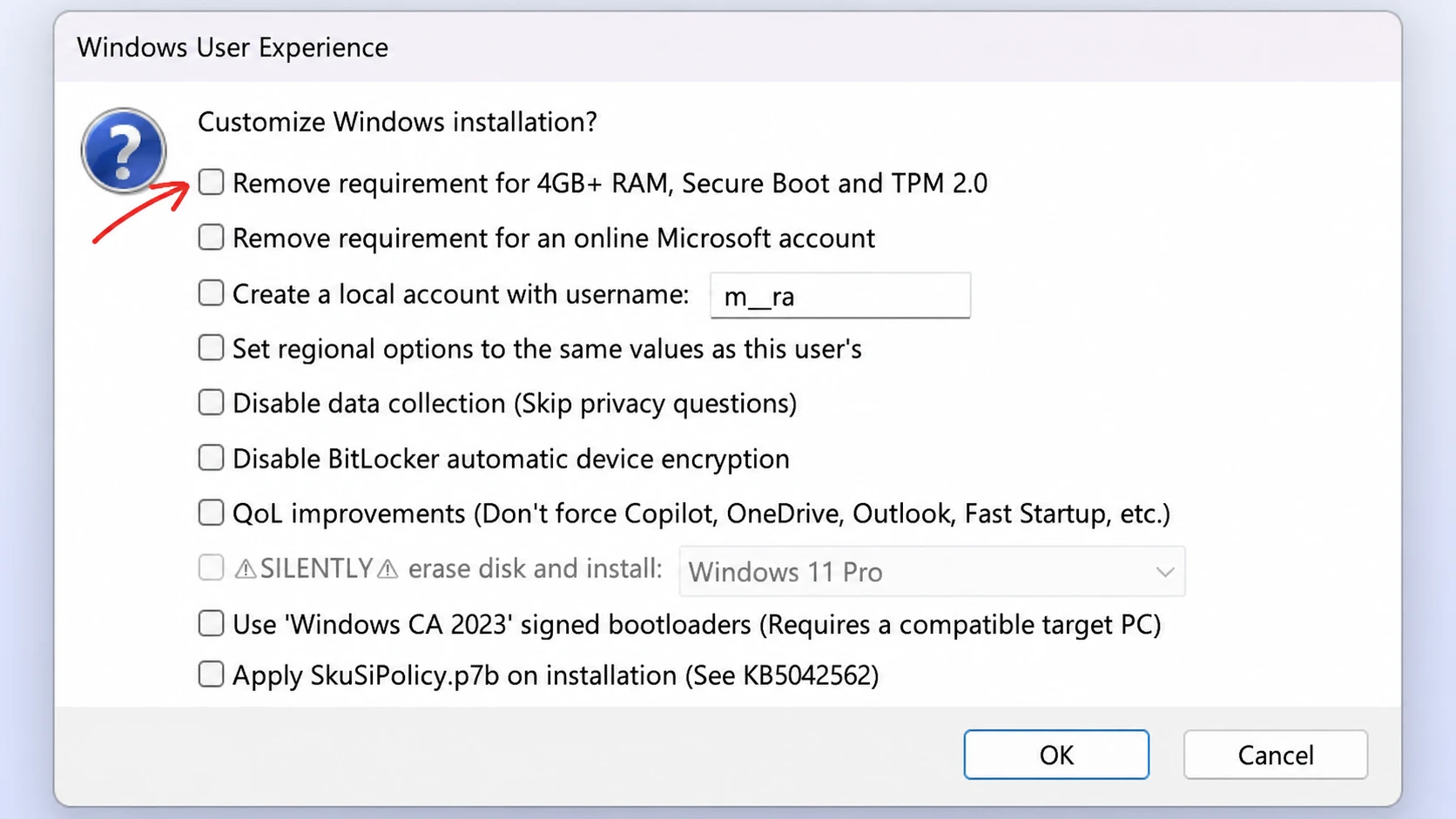
Ventoy is a good alternative if you want to keep several ISO files on one drive by copying them over, and you can also build installation media with the Command Prompt.
Should you install 26H2 now?
For most people there is little reason to jump on 26H2 months before the public release. The appeal is narrow but real. If you want to preview upcoming changes, check whether your apps run on the new build, or start planning a deployment, building an ISO with UUP Dump is faster and more flexible than waiting for Microsoft to publish an official image.
The trade-off is stability. The earlier you grab a build relative to the final release, the more likely you are to hit rough edges. Keep these images on test hardware, hold off on your daily driver, and you get an early look at the 2026 Update without putting your main setup at risk.



