

Windows 11 version 26H2, the 2026 annual update, is not expected to ship until later in the year, likely around September or October. You do not have to wait for that release to try it, though. Preview builds are already running on compatible PCs through the Windows Insider Program, and you can also do a clean install from a 26H2 ISO file.
Quick answer: Enroll a compatible PC in the Windows Insider Program and pick the Dev Channel under Settings > Windows Update > Windows Insider Program, then run Check for updates to receive the 26H2 preview. For a fresh setup, create bootable USB media from the 26H2 ISO and install from it.
What Windows 11 26H2 actually changes
Version 26H2 sits on the same platform and servicing foundation as version 25H2, so the two are nearly identical underneath. The practical effect is that many features tested during early 26H2 development are also expected to reach 25H2. Joining the preview mainly gets you those changes sooner rather than giving you a dramatically different system.
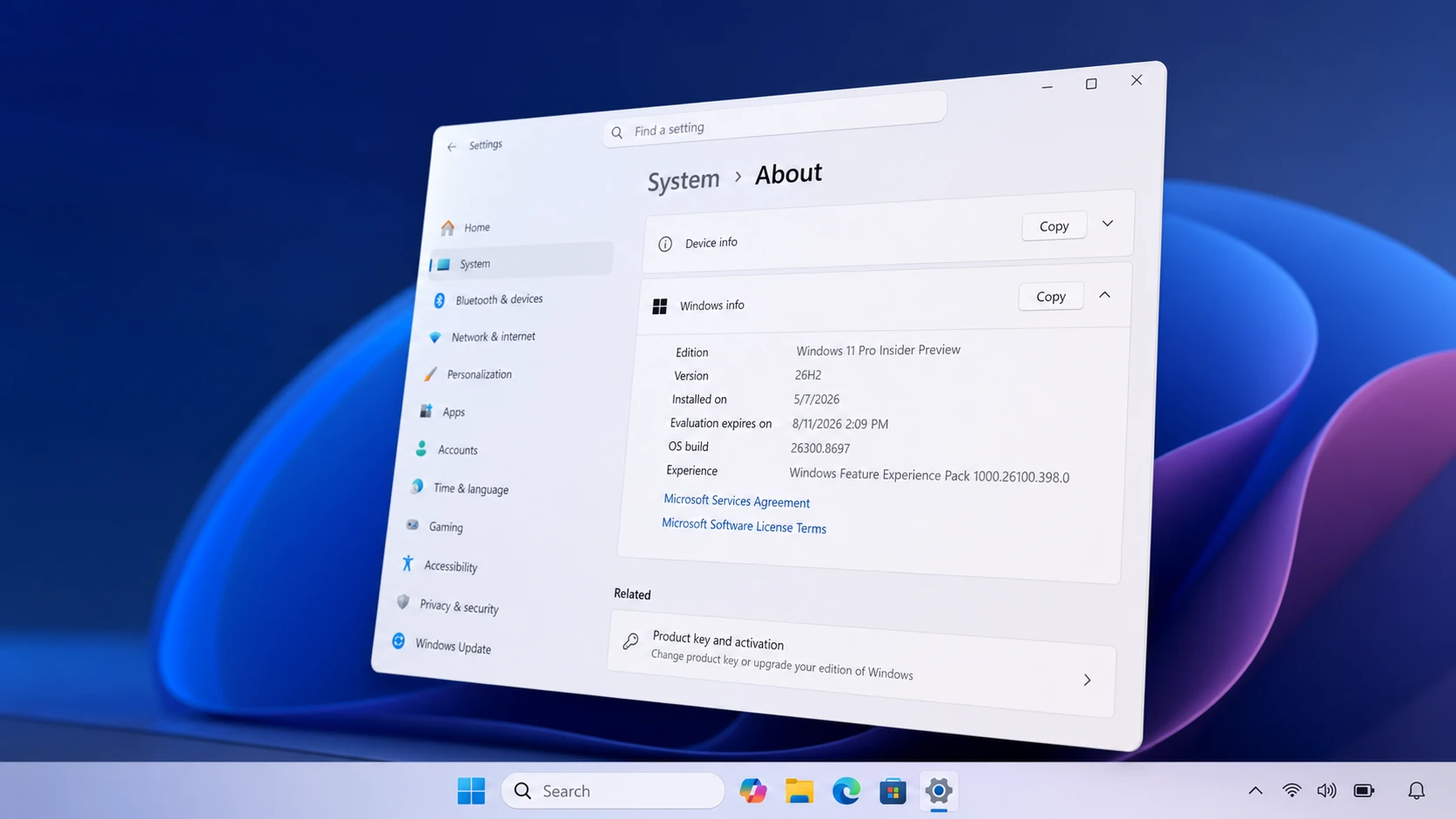
The build numbering already reflects the switch. Build 26300.8697 in the Experimental channel updated the version label under Settings > System > About (and in winver) to 26H2, so previews in that channel now belong to the next annual release. Microsoft is continuing its enablement package approach, which means devices already on 25H2 should later move to 26H2 through a small, fast update rather than a full reinstall.
Before you start: requirements and warnings
Preview builds are still test software. Run them on a secondary or test PC if you can, and make a full backup first so you can roll back if something breaks. The Experimental channel ships new builds roughly every week, and bugs, errors, and behavior changes are normal.
One hard limit applies to upgrade paths. Devices running Windows 11 version 26H1 cannot move to 26H2 because 26H1 is built on a different Windows core than versions 24H2, 25H2, and 26H2. Those machines follow a separate path to a future Windows release instead.
| Edition | Support after moving to 26H2 |
|---|---|
| Home, Pro, Pro Education, Pro for Workstations | 24 months |
| Enterprise, Education, IoT Enterprise, Enterprise Multi-session | 36 months |
Method 1: Install 26H2 through the Windows Insider Program
This is the simplest route for a PC already running Windows 11. It keeps your files and apps in place and switches the device to the preview channel.
Once the device restarts, it installs the Windows 11 2026 Update and continues to receive weekly preview builds with new features, changes, and fixes.
Method 2: Clean install 26H2 from a bootable USB
A clean install wipes the drive and sets up the preview from scratch, which is useful for a fresh test machine. Download the 26H2 ISO and write it to a USB flash drive, then make sure the PC is set to boot from USB. The exact firmware steps to enable USB booting vary by manufacturer, so check your device maker’s support page if needed.
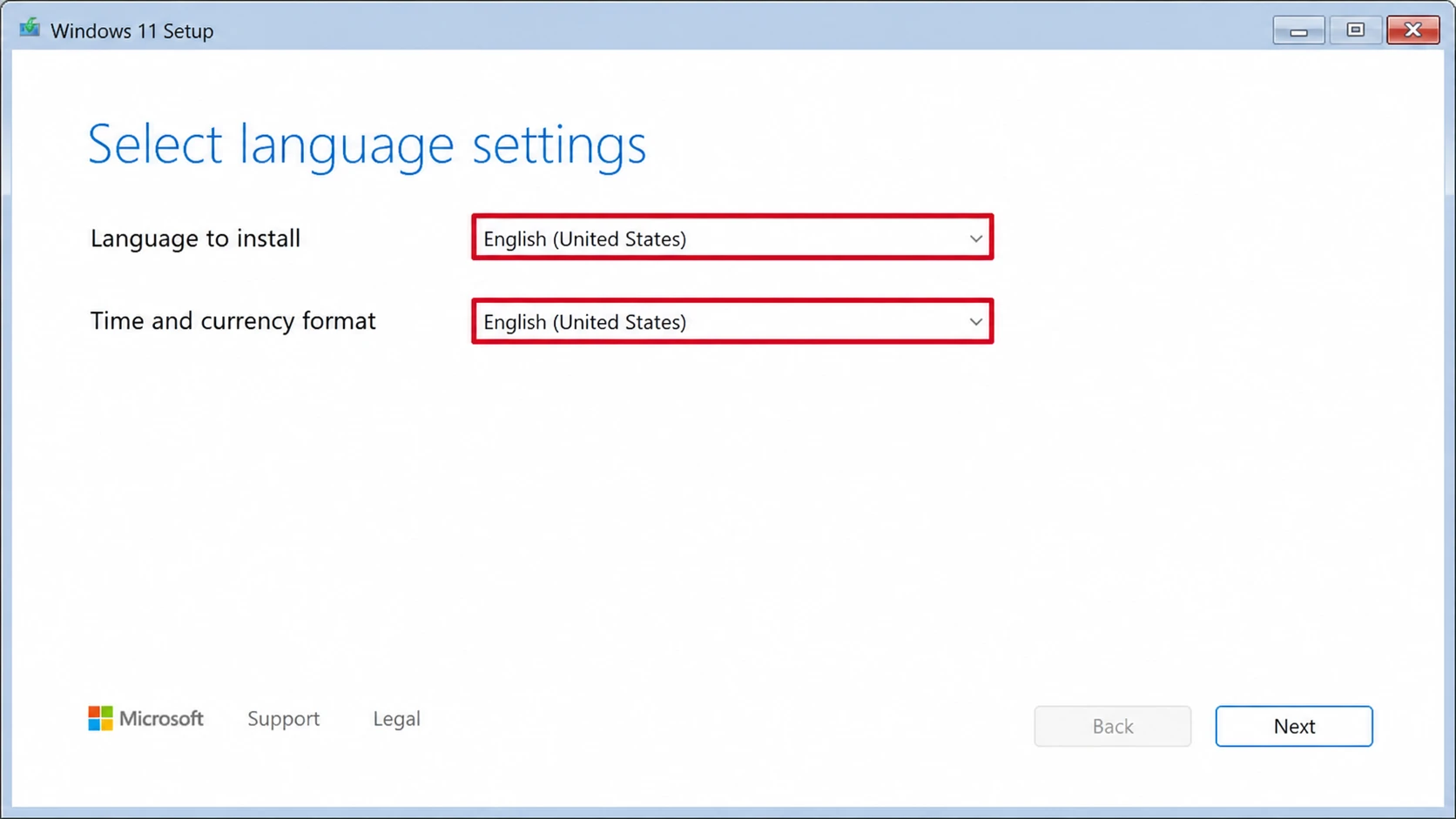
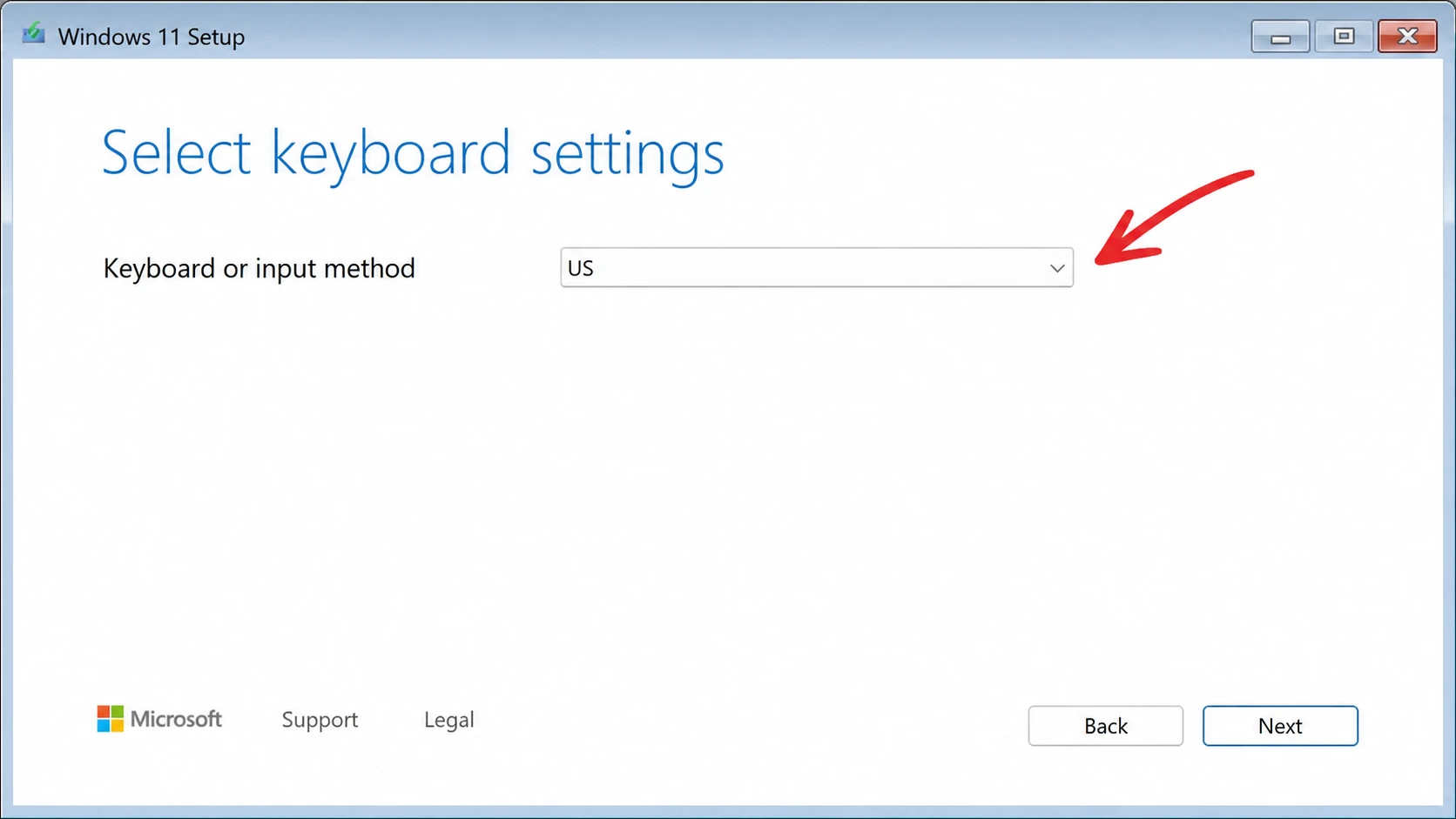
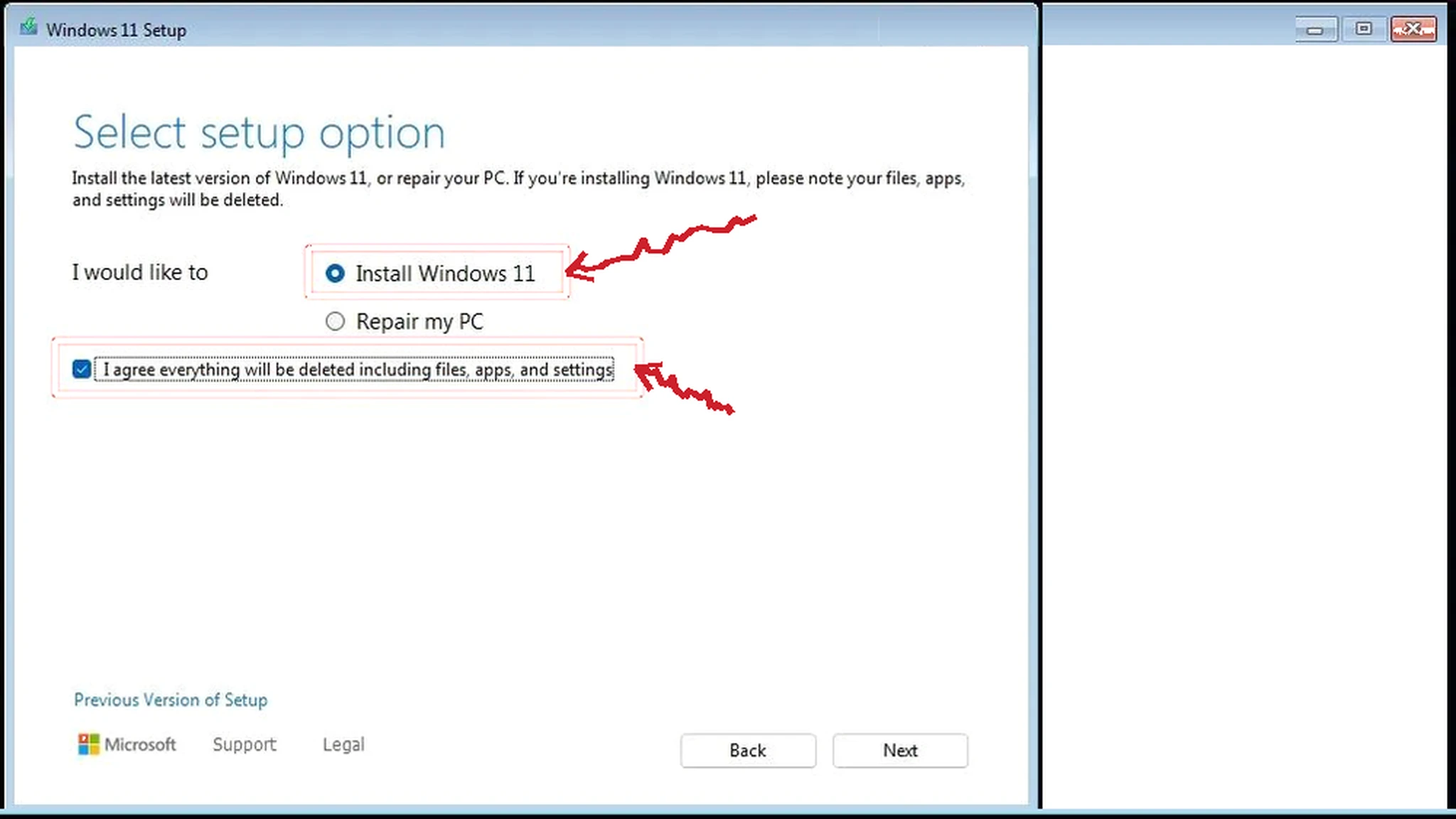
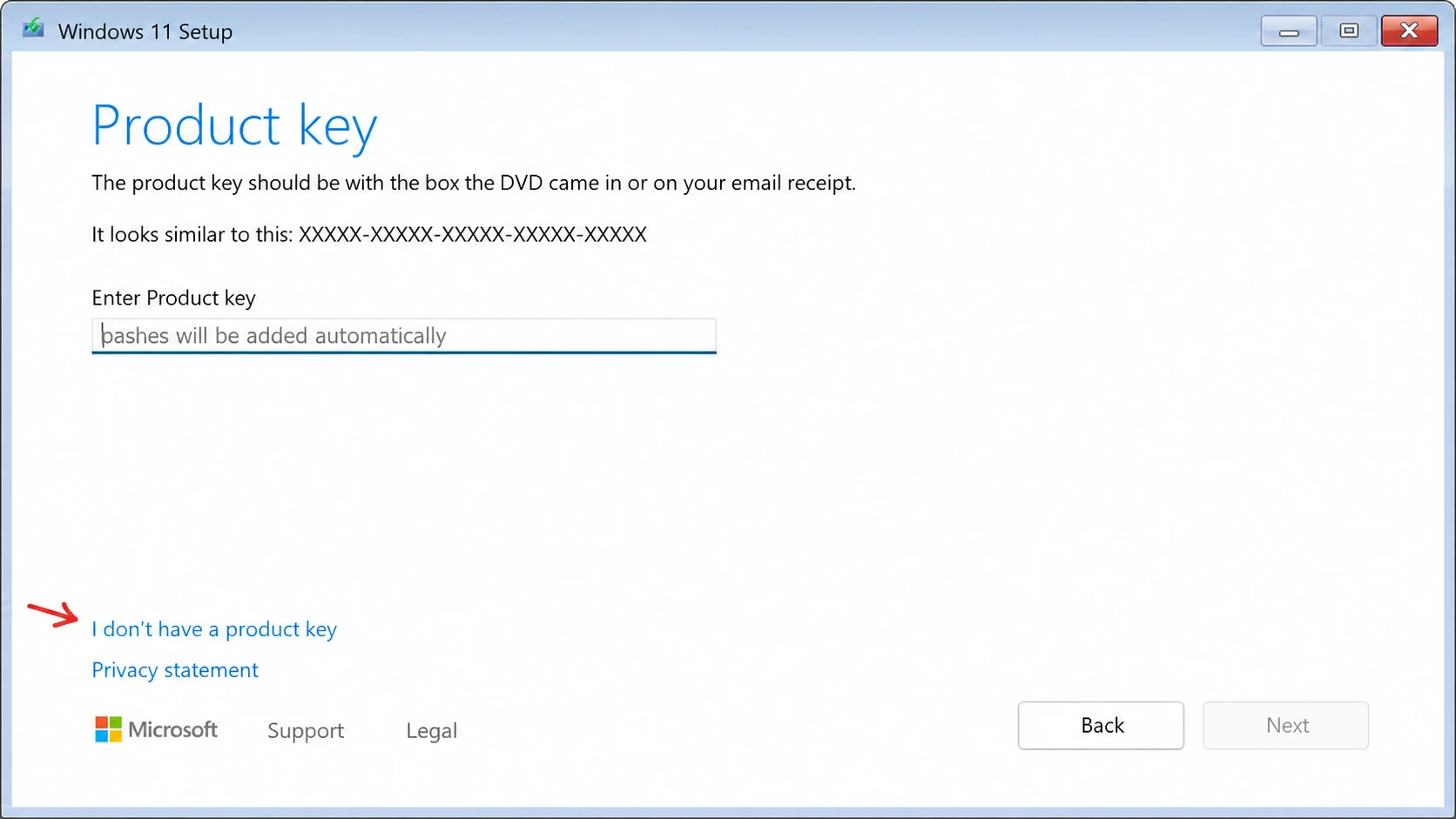
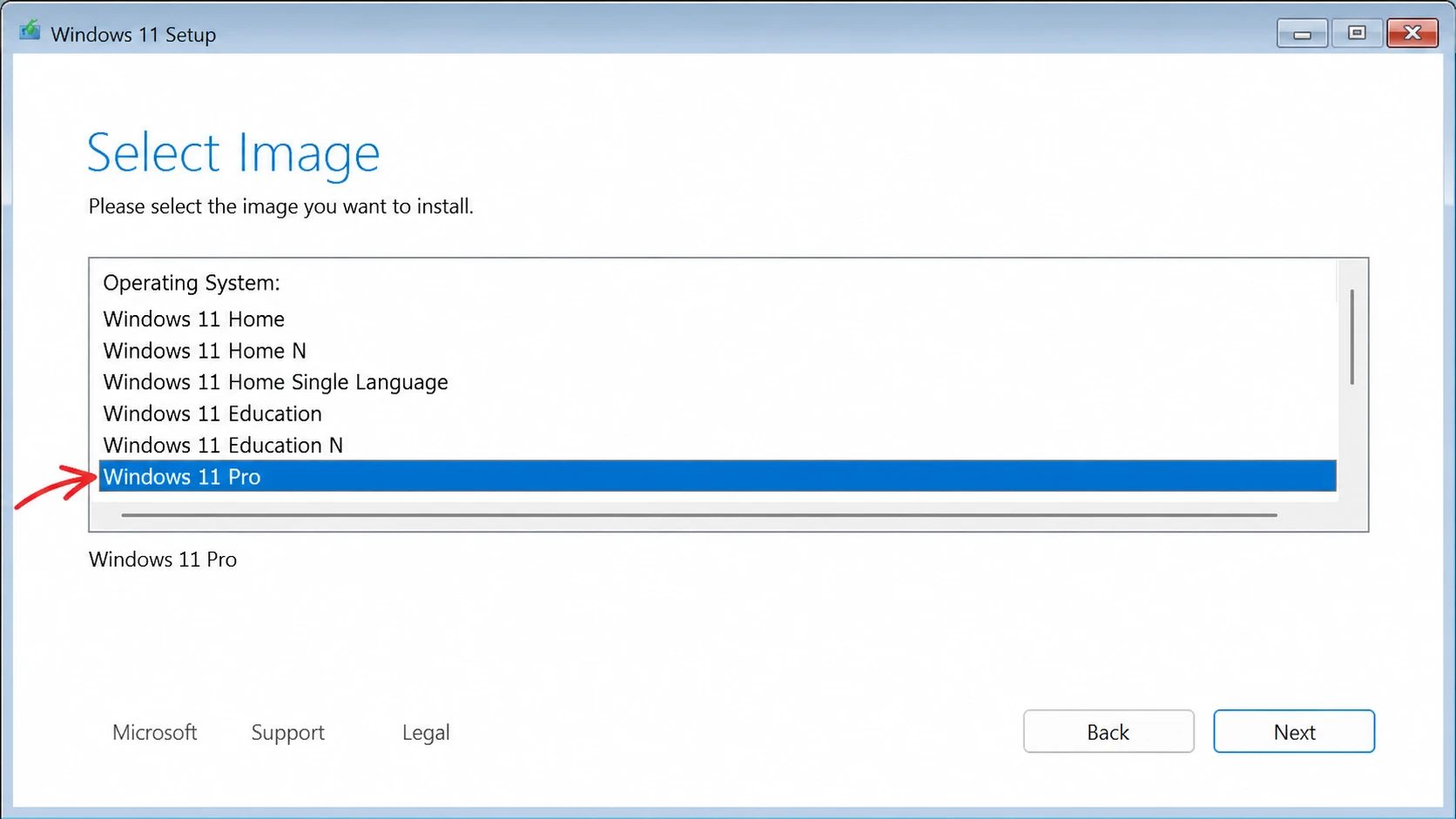
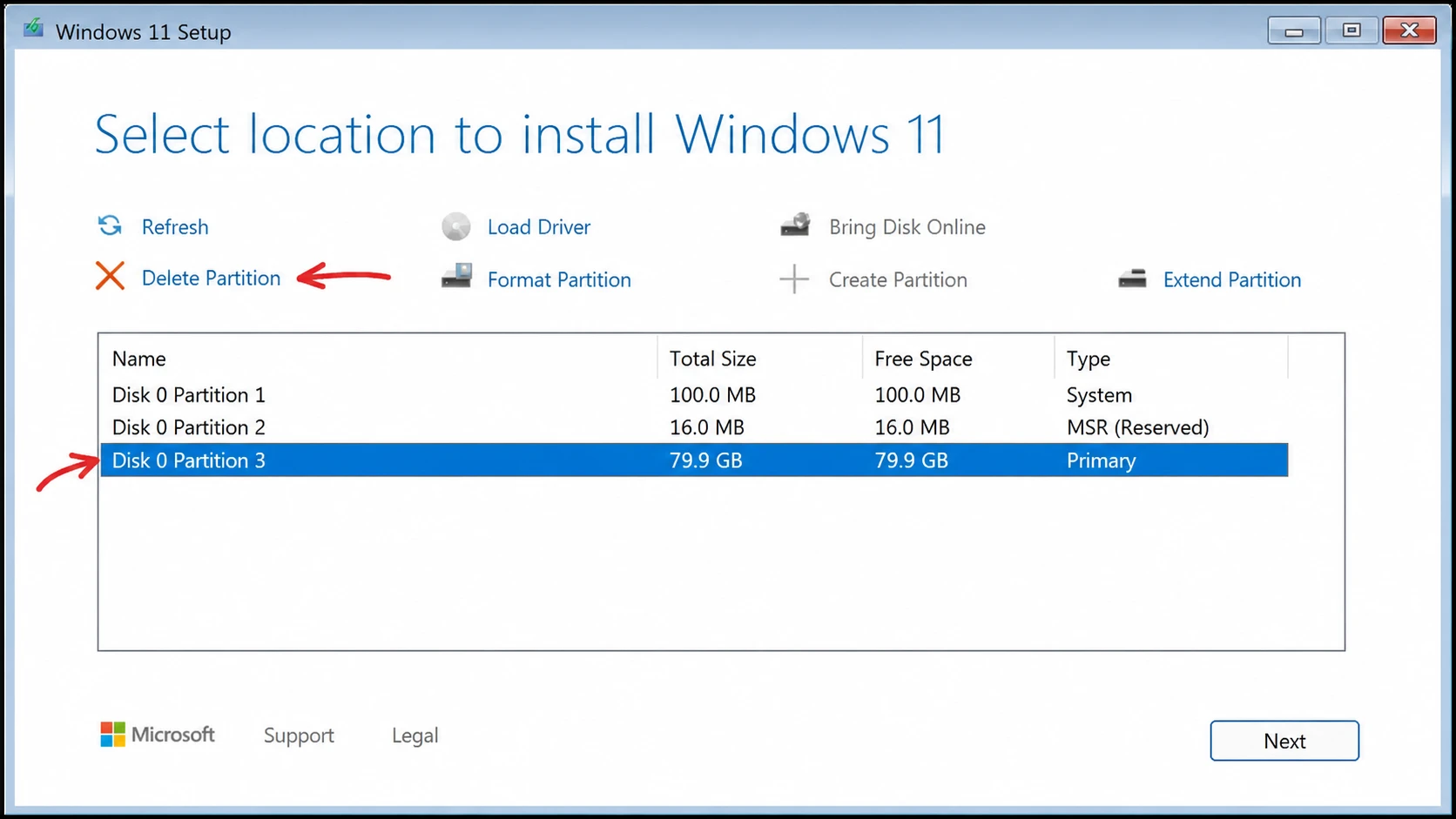
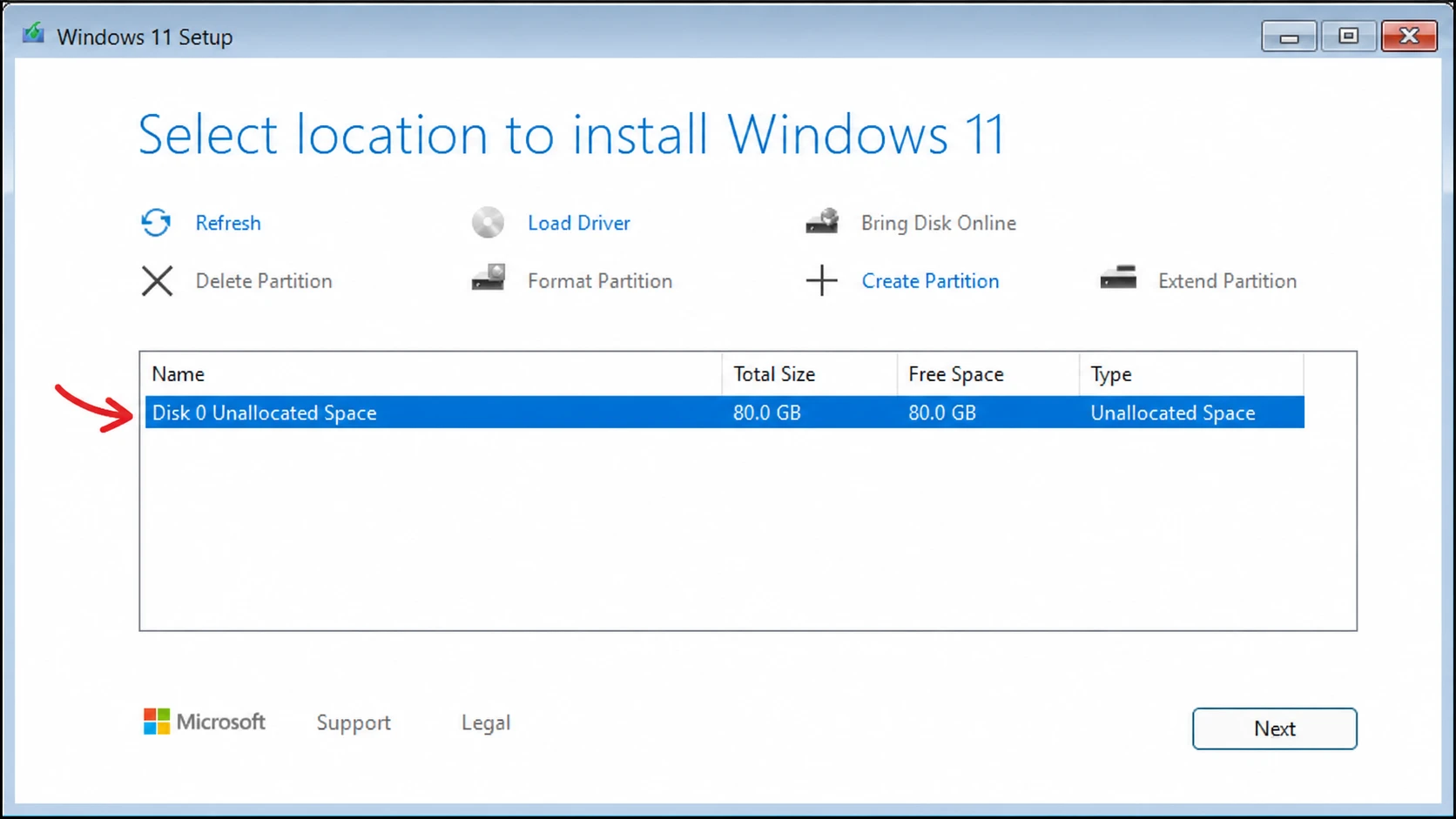
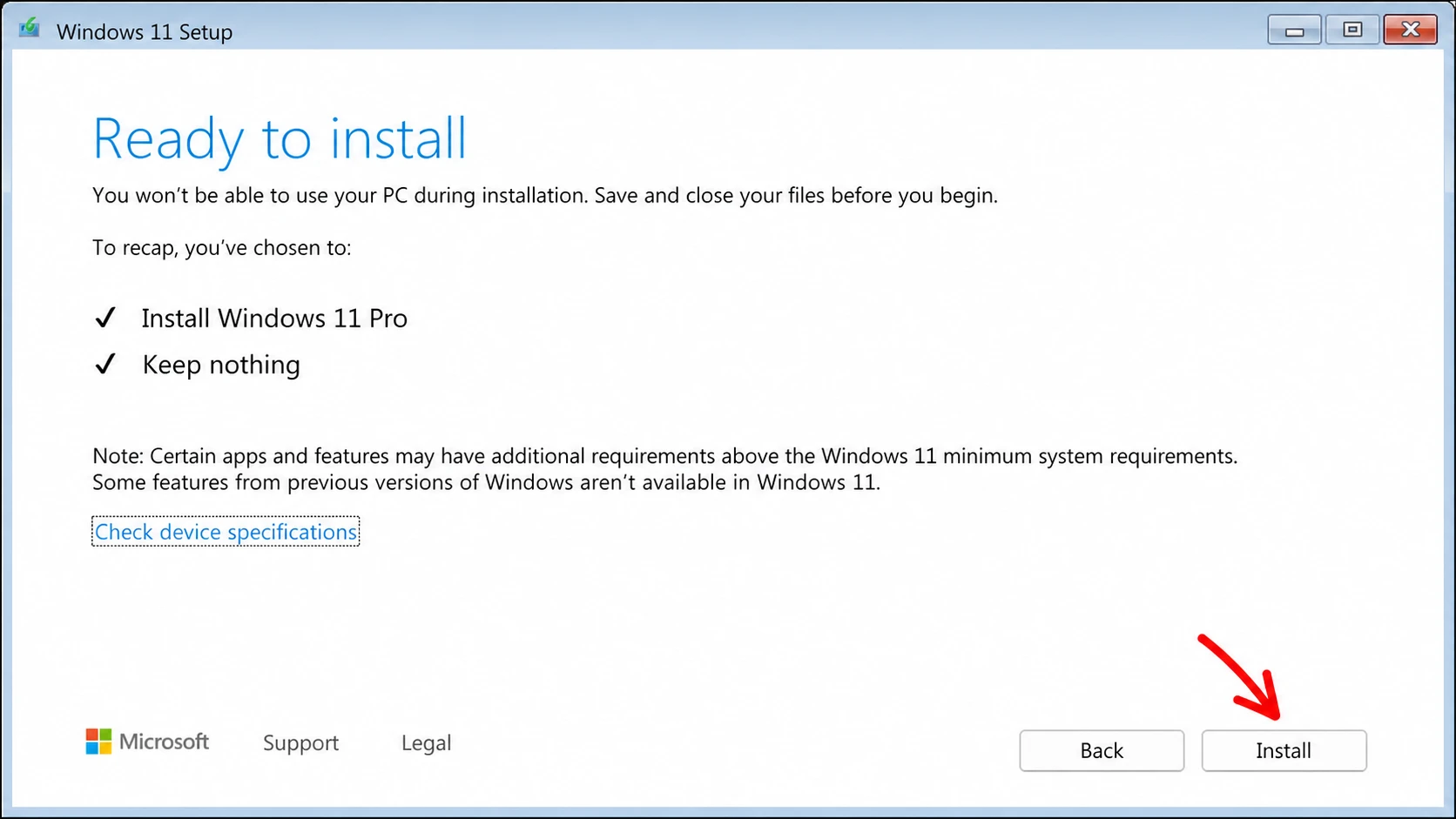
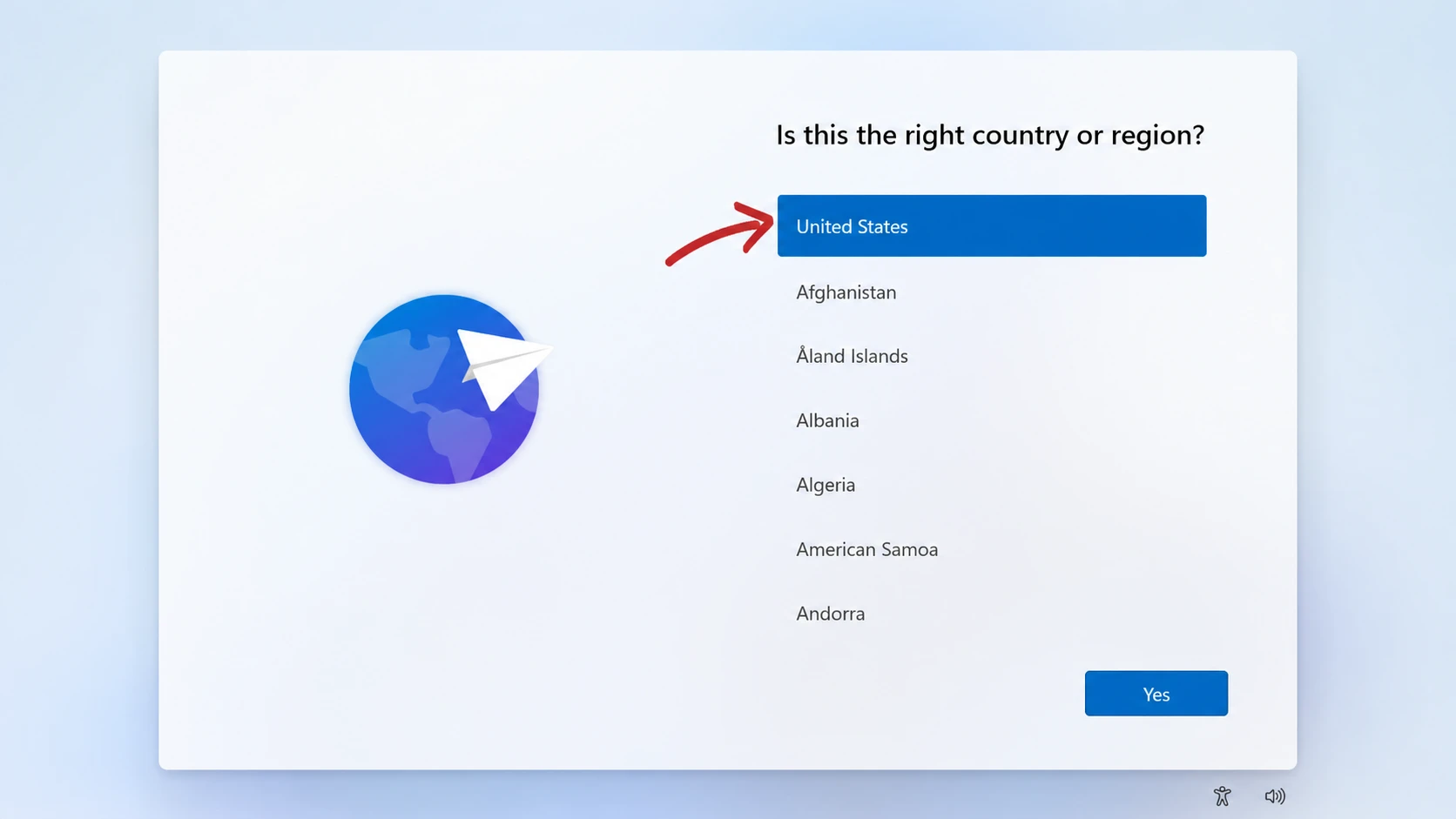
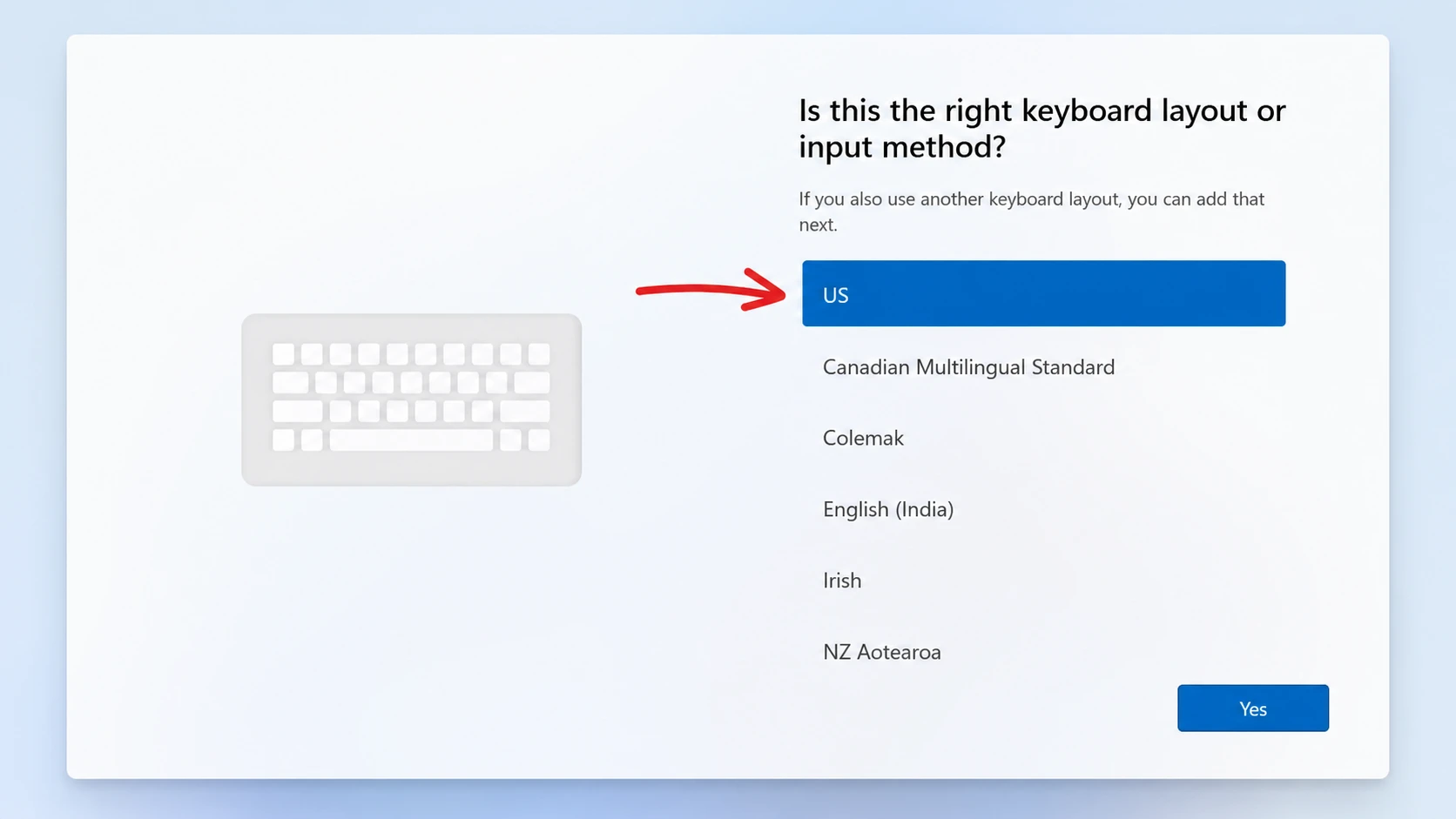
After these steps, Windows 11 26H2 finishes the clean install and boots to the desktop.
Confirm you are running 26H2
To verify the version, open Settings > System > About, or press Windows + R, type winver, and press Enter. The version should read 26H2. If it still shows 25H2 after the Insider enrollment, run Check for updates again and install any pending preview build, since the version label flips with the 26300-series Experimental flights.
For most people there is little reason to rush. Because 26H2 and 25H2 share the same base, the day-to-day experience will feel similar, and the headline changes are likely to land on both versions. The preview makes sense if you want to test new features early or validate apps and hardware against the upcoming release, just keep it off your primary machine until the final build arrives through Windows Update.



