Use the New Filters in Spotlight for Better Search Results on macOS 26
Spotlight in macOS 26 introduces advanced filters and direct actions, making it easier to find and manage files, launch apps, and complete tasks without leaving the search window.
Spotlight in macOS 26 introduces advanced filters and direct actions, making it easier to find and manage files, launch apps, and complete tasks without leaving the search window.
by Pallav Pathak
Spotlight in macOS 26 moves beyond basic search by introducing robust filtering and action capabilities that streamline navigation and task execution. These updates address longstanding frustrations with irrelevant results and slow workflows, giving users more control and speed when searching their Mac.
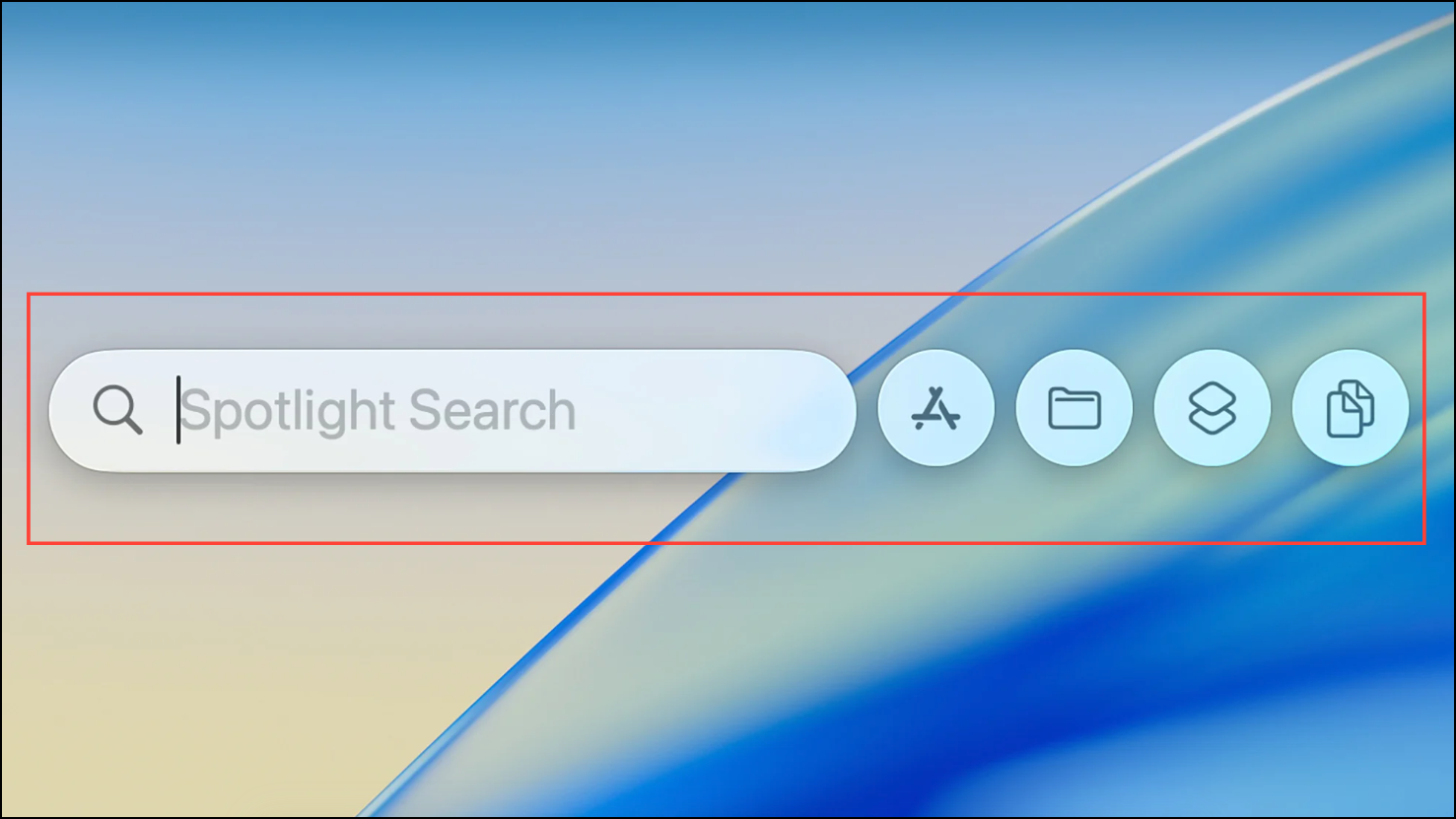
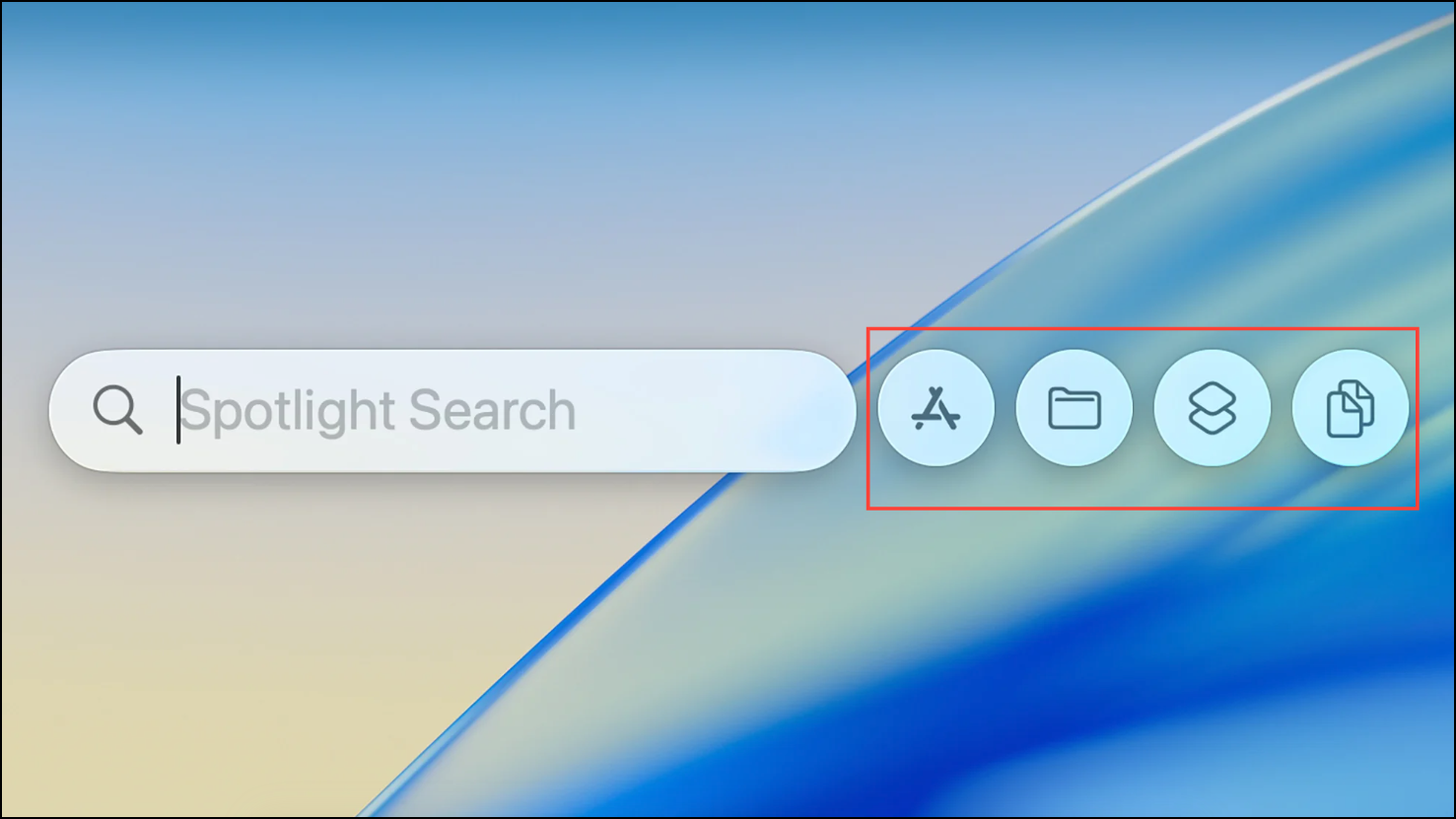
Open Spotlight with Cmd+Space, the F4 key, or by clicking the magnifying glass icon in the menu bar. The interface now displays four main sections: apps, files, shortcuts, and clipboard. These categories appear as bubbles on the right side of the search window.
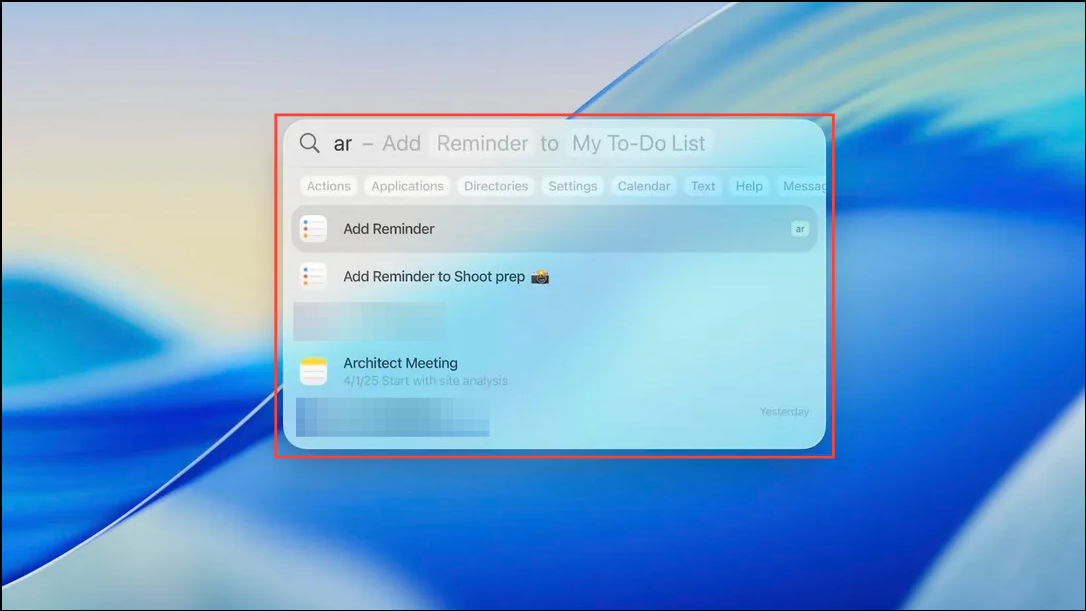
To filter results, begin typing your search term. As you type, Spotlight suggests filters directly beneath the search bar. For example, typing “/pdf” will show only PDF files, while “/icloud drive” restricts results to your iCloud Drive folders. This approach quickly narrows down large result sets to the most relevant items, reducing time spent sifting through unrelated files or apps.
You can manually browse by category. Click the folder icon to view recent files, the app icon for installed applications, the shortcuts icon for automations, or the clipboard icon for recent clipboard history. Alternatively, hold Cmd and press 1 (apps), 2 (files), 3 (shortcuts), or 4 (clipboard) to cycle between views instantly.
For even finer control, adjust Spotlight’s search scope in System Settings. Navigate to System Settings > Siri & Spotlight and enable or disable categories such as Mail, Messages, or Documents. This customizes which types of content Spotlight indexes and displays, reducing clutter from unwanted sources.
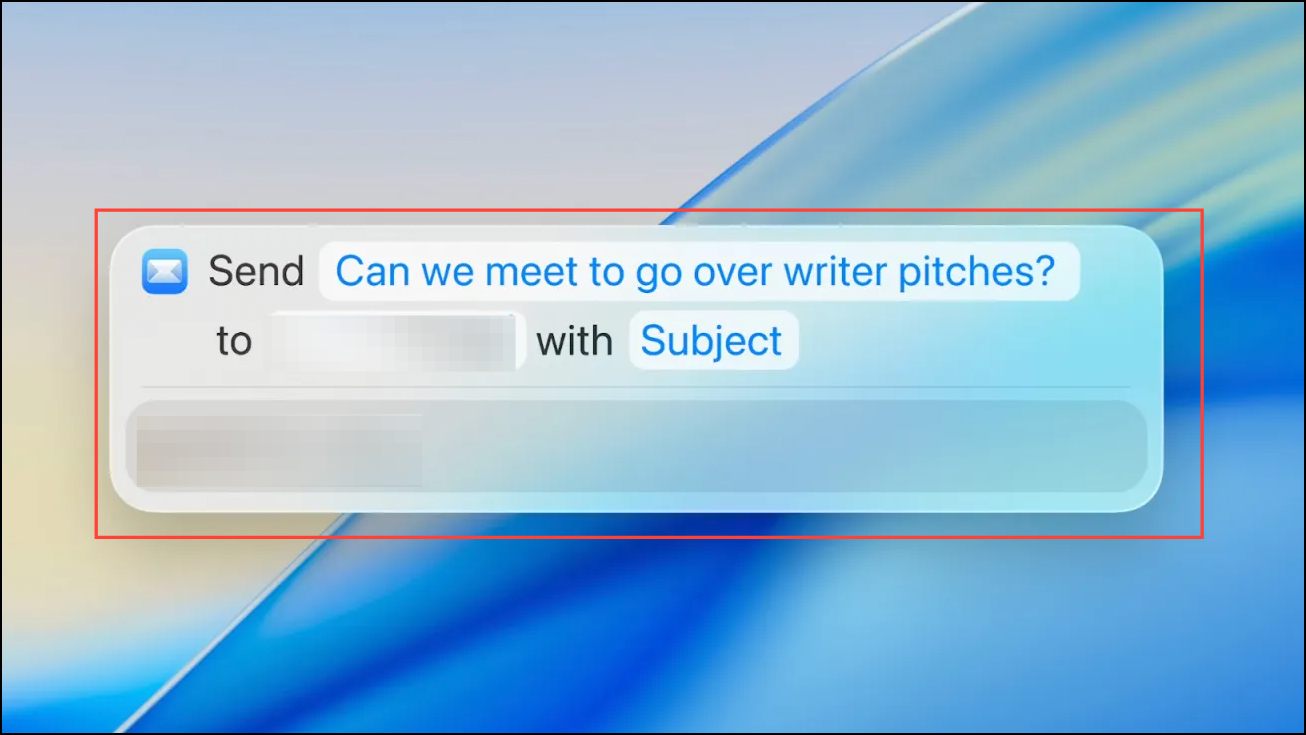
Spotlight in macOS 26 can now execute hundreds of actions without switching apps. After opening Spotlight, type an action command such as “Send Message,” “Start Timer,” or “Create Note.” The system will prompt you to complete the required fields—such as message content or recipient—directly within the Spotlight window. Press Enter to confirm and execute the action.
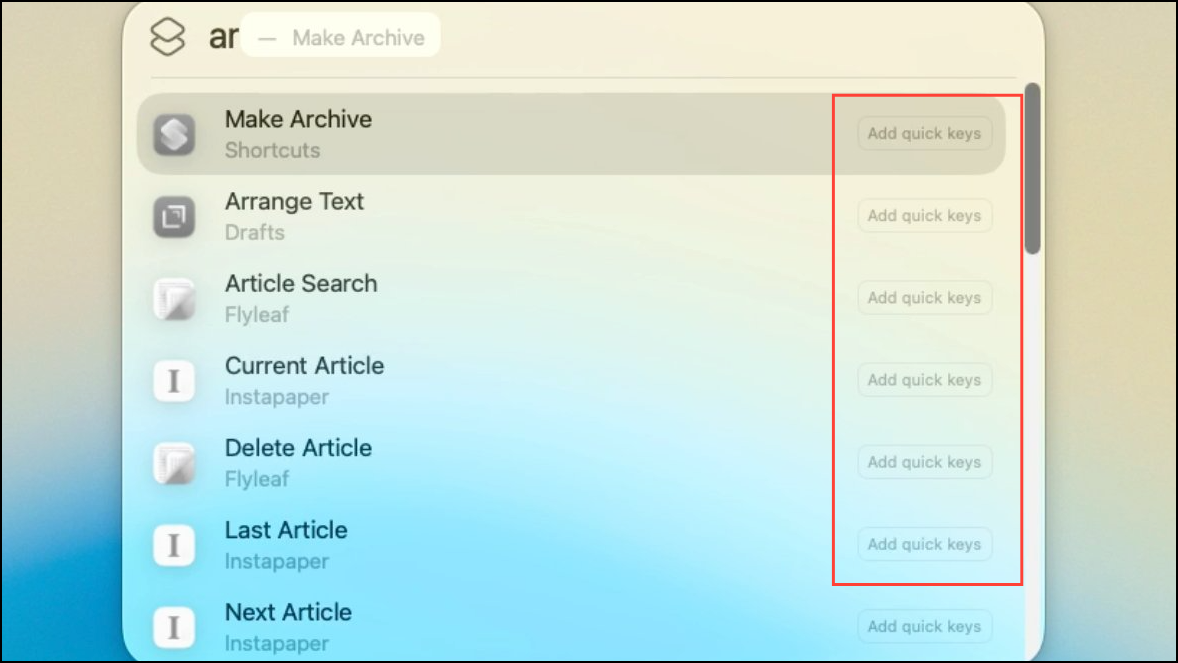
To streamline frequent tasks, use the “Add quick keys” button next to suggested actions. This allows you to assign short character strings to your favorite actions, speeding up access in the future. For example, setting a quick key for “Create Note” lets you launch a new note with just a few keystrokes.
Spotlight now integrates with Shortcuts, enabling you to trigger automations like file organization, reminders, or custom workflows without leaving the search panel. Any shortcuts you’ve set up appear in the shortcuts section, and you can launch them by typing their name or selecting from the list.
Developers can add action support to their own apps, so expect more third-party integrations over time. This means Spotlight’s action capabilities will continue to expand, further reducing the need to manually open individual applications for routine tasks.
Spotlight ranks all results—apps, files, events, messages, and more—intelligently based on your usage patterns. Frequently accessed items or contacts appear higher in results, making repeated tasks faster.
To remove unwanted results, click the three-dot menu in the top right corner of the Spotlight window. For clipboard entries, you can clear the clipboard history. For files and apps, adjust how items are displayed or filtered. This helps keep your search window focused and uncluttered.
If you want to exclude certain folders or file types from all searches, go to System Settings > Siri & Spotlight and deselect categories or add specific folders to the exclusion list. This prevents Spotlight from indexing or showing these items, which is useful for privacy or reducing noise from seldom-used locations.
Alternative Tools and Advanced Techniques
Some users prefer third-party tools like Alfred or Raycast for even more customization, faster performance, or plugin support. These alternatives offer advanced workflows, custom search filters, and integration with web services. However, with the new Spotlight upgrades in macOS 26, many users may find the built-in solution now meets their needs for speed, control, and convenience.
For advanced file searches, using Cmd+F in Finder provides granular filtering by file type, date, or other criteria, which can be more precise for complex queries. Spotlight remains optimal for quick launches and simple actions, while Finder excels at deep file management.
Spotlight’s new filters and direct action features in macOS 26 make searching, organizing, and completing tasks on your Mac faster and more intuitive. Experiment with the new filters and shortcuts to streamline your daily workflow and reduce time spent navigating menus or switching between apps.