
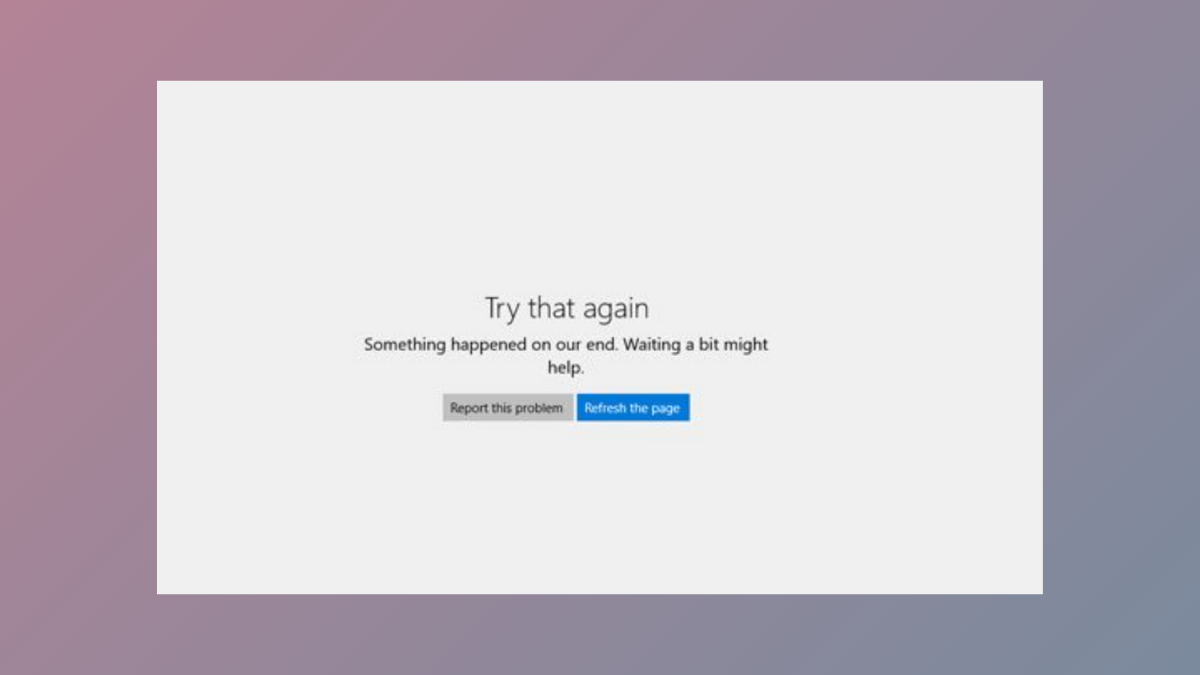
Microsoft Store app installations can fail on Windows 11 due to a range of system, account, or configuration issues. Symptoms include missing install buttons, error codes (such as 0x80070005), or the inability to find certain apps. Addressing these problems involves a combination of cache clearing, app repair, service management, and account verification. Each method below targets a specific cause and is designed to restore your ability to download and install apps from the Microsoft Store.
Repair or Reset Microsoft Store App
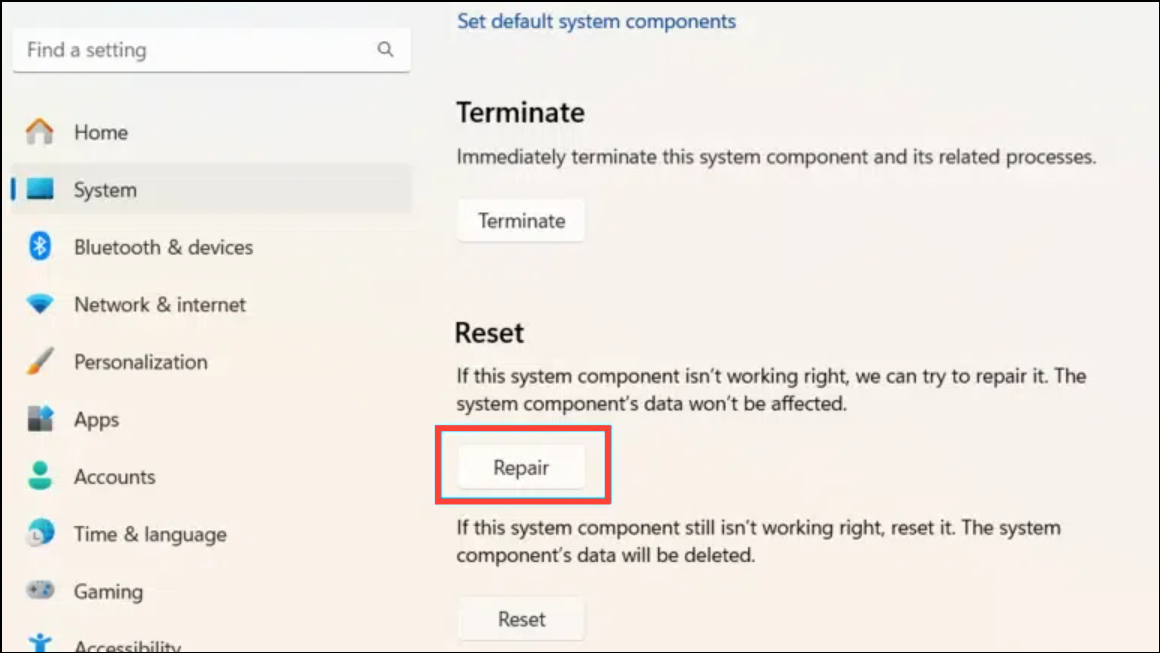
Repairing or resetting the Microsoft Store app often resolves most installation and update failures. This process restores the app’s default state, removes corrupted settings, and can resolve persistent errors without deleting your installed apps.
Windows + I. In the left pane, select Apps, then click on Installed apps or Apps & features depending on your Windows 11 version.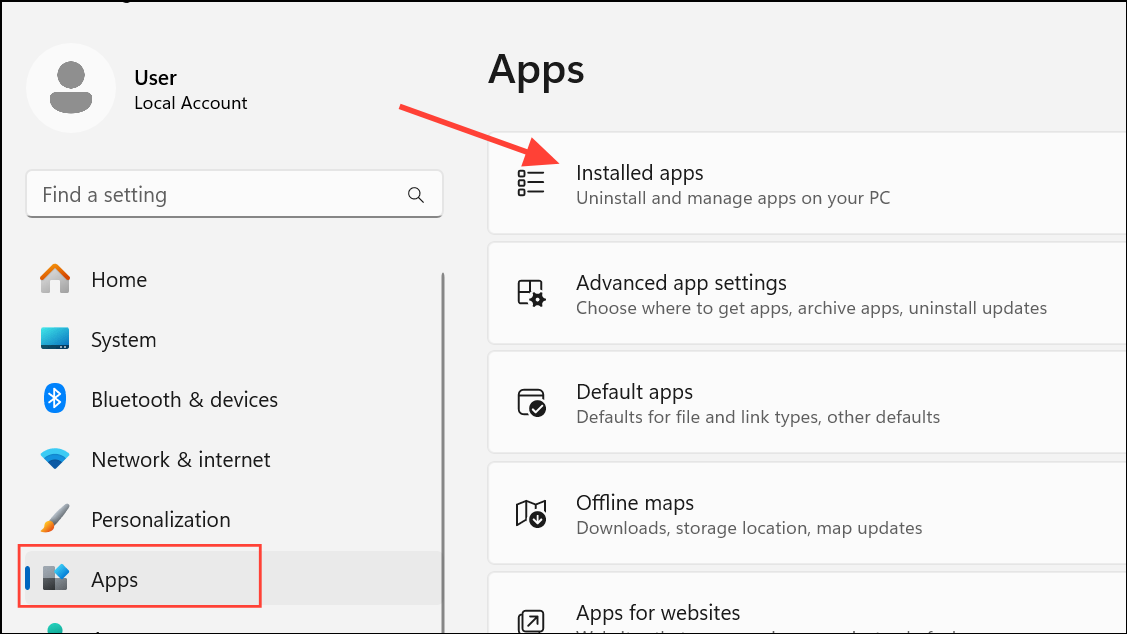
Clear Microsoft Store Cache
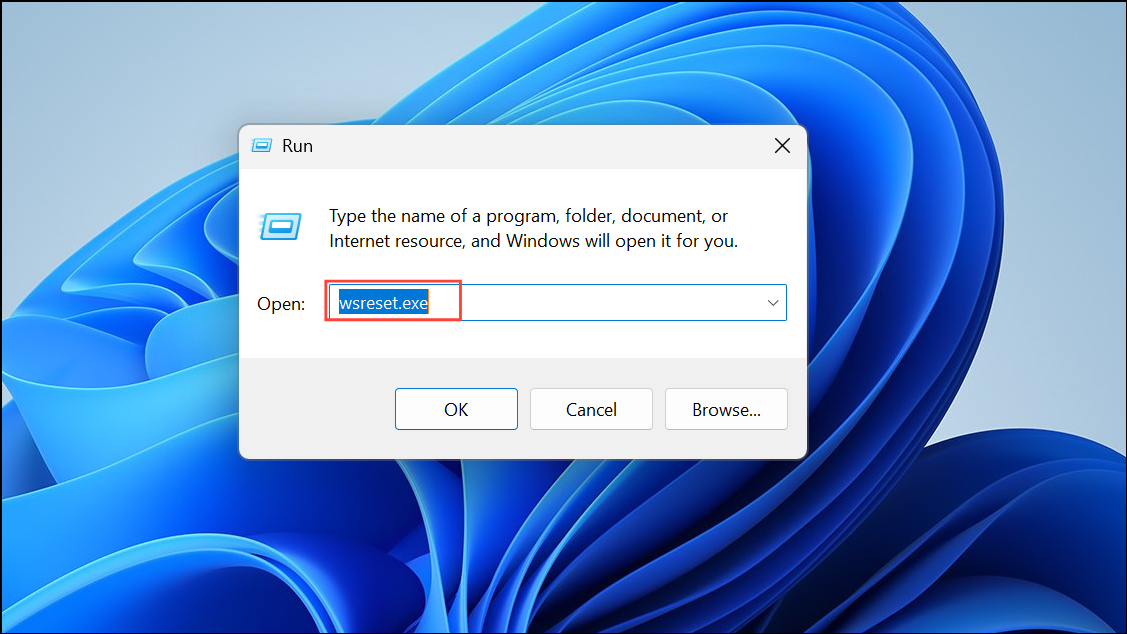
Corrupted cache files can block downloads or cause the Store to display outdated content. Clearing the cache forces Microsoft Store to fetch fresh data, often resolving glitches and installation errors.
Uninstall and Reinstall Microsoft Store Using PowerShell
If the Store app is missing or severely corrupted, uninstalling and reinstalling it can restore full functionality. This method requires administrative privileges and should be used if standard repairs fail.
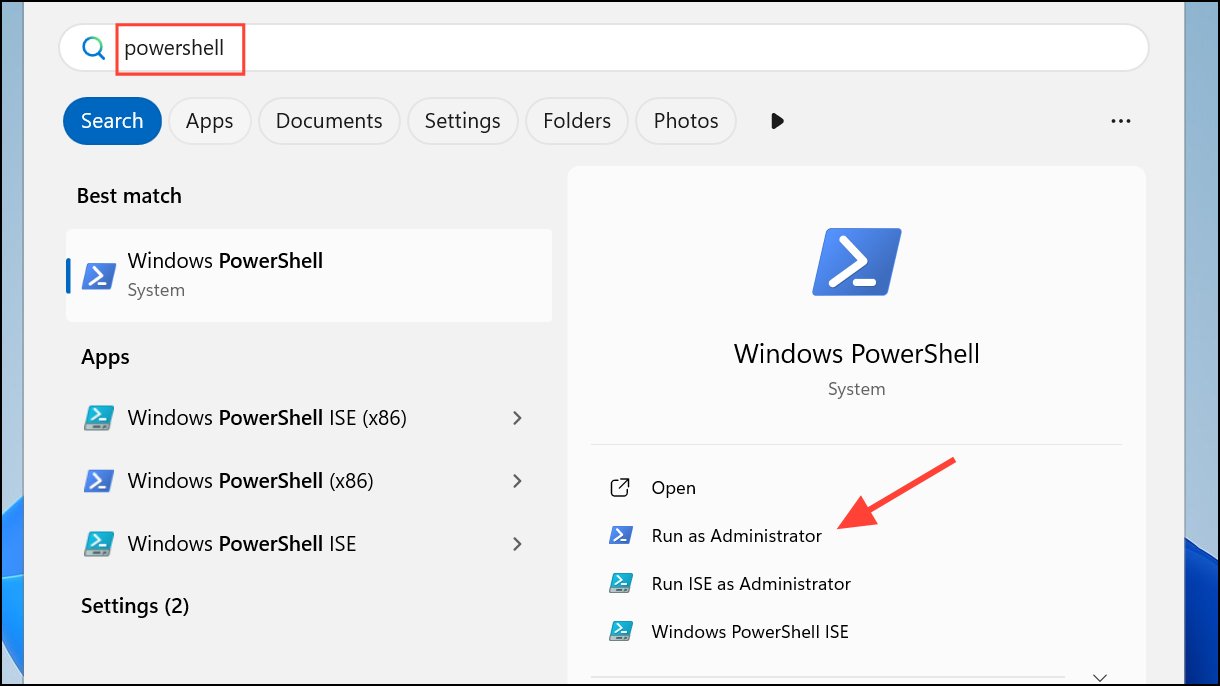
Get-AppxPackage Microsoft.WindowsStore | Remove-AppxPackage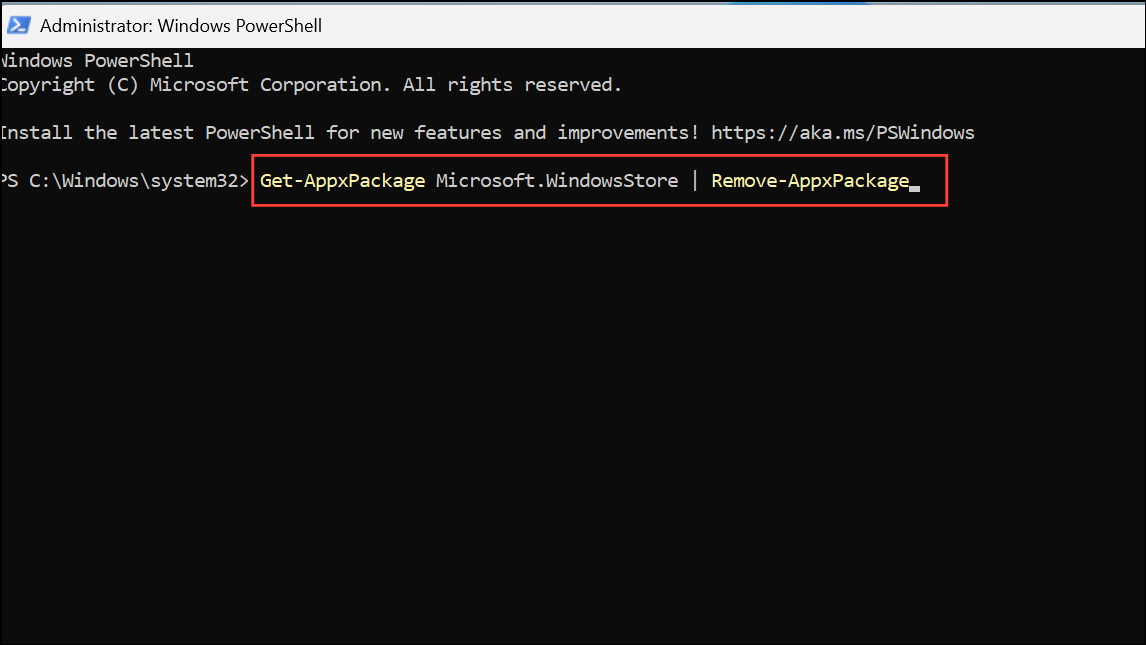
Get-AppXPackage *WindowsStore* -AllUsers | Foreach {Add-AppxPackage -DisableDevelopmentMode -Register "$($_.InstallLocation)\AppXManifest.xml"}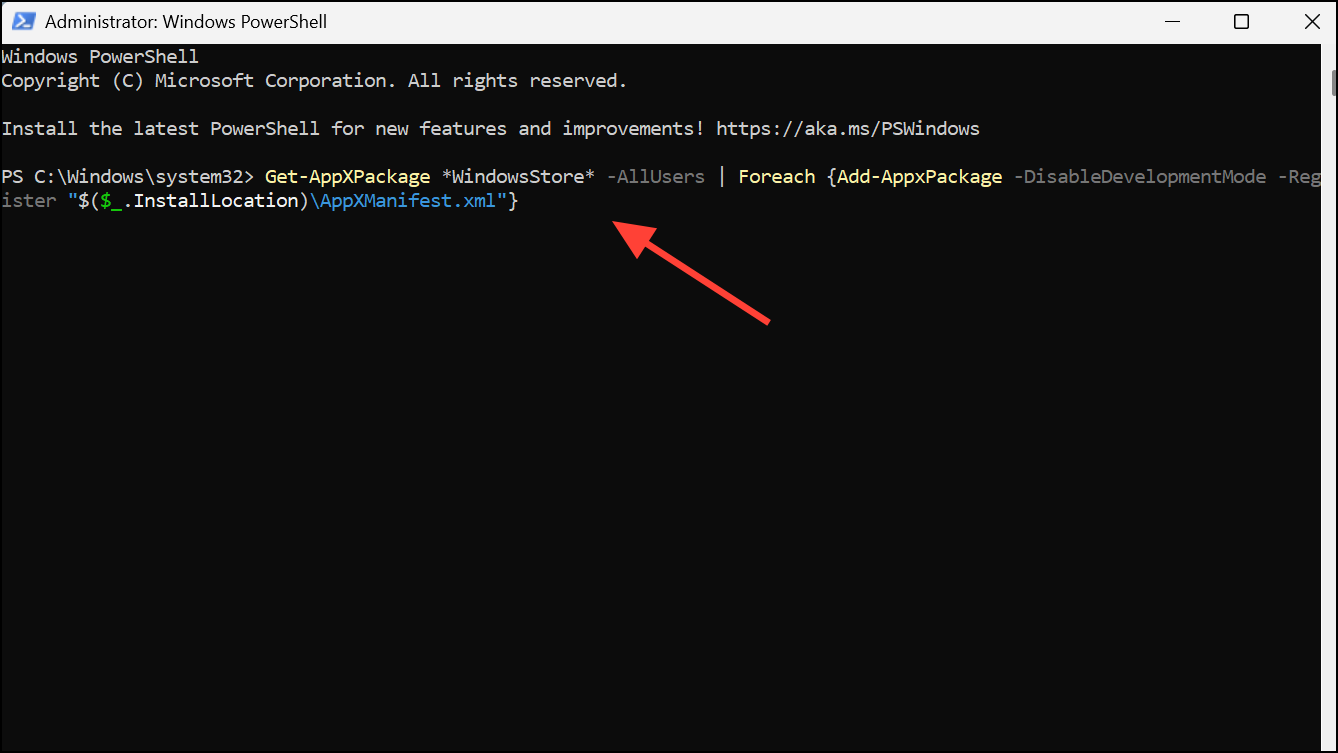
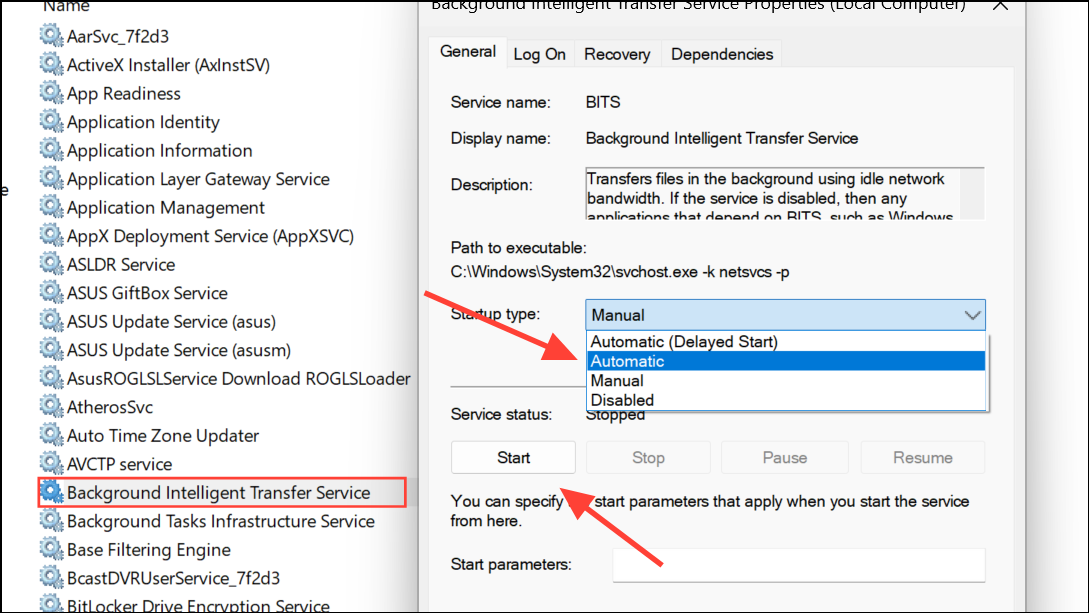
Restart Essential Microsoft Store Services
Several background services support Microsoft Store operations. If these are stopped or misconfigured, app installations may fail. Restarting and setting them to automatic can restore proper operation.
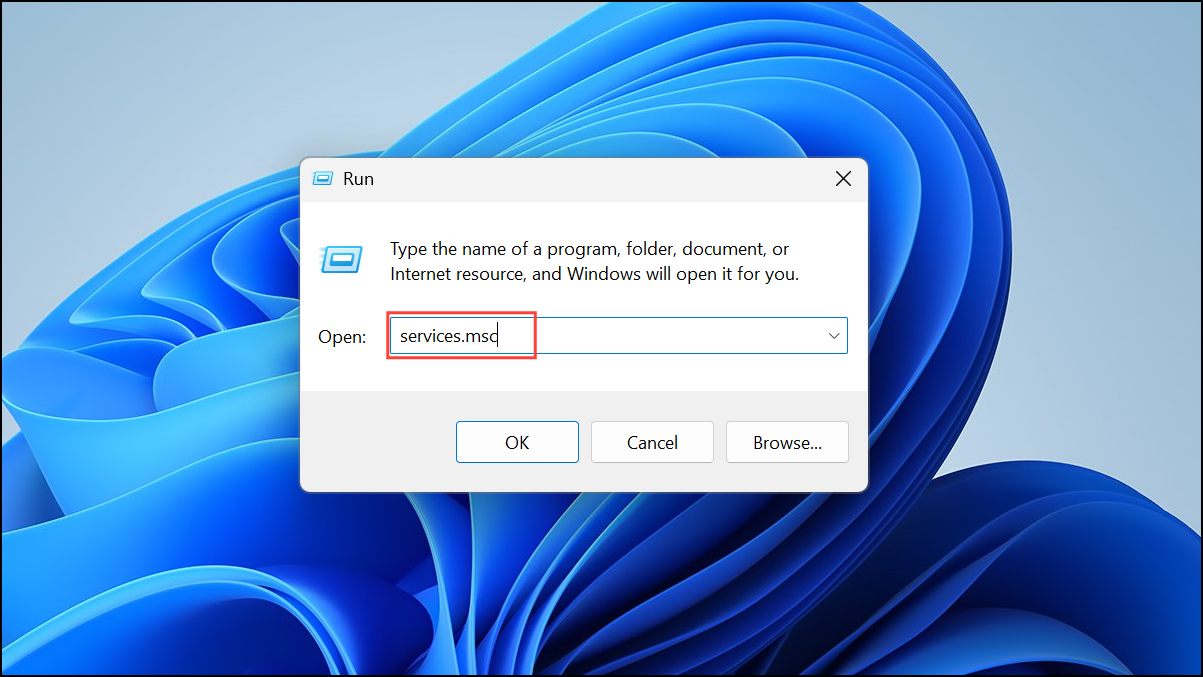
Run Windows Store Apps Troubleshooter
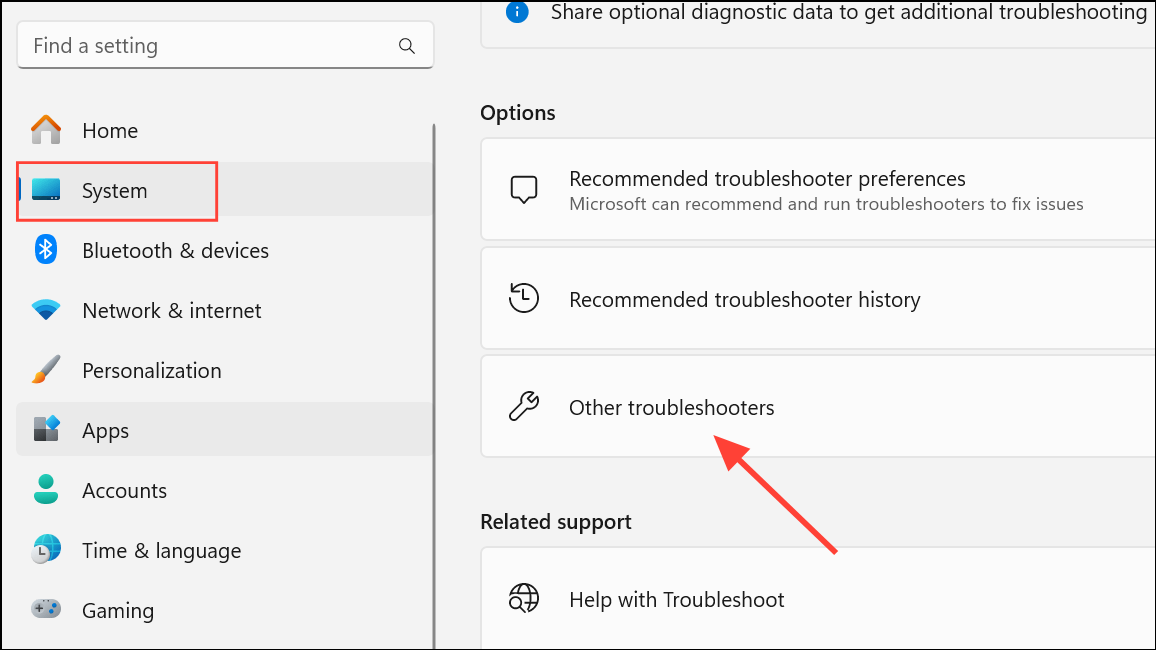
Windows 11 includes a dedicated troubleshooter for Store apps. This tool identifies and automatically corrects common Store-related issues.
Check Account and Device Restrictions
Account controls, device limits, and system settings can prevent app installations or hide apps in the Store. Reviewing these configurations can resolve invisible or blocked app issues.
- Verify you are signed in with a Microsoft account in the Store. Some apps require an account to download or install.
- If you receive messages about device limits, remove unused devices from your Microsoft account device list or uninstall apps on other devices.
- Review Microsoft Family Safety or parental controls, as these may restrict app installations based on age or content ratings.
- Check your device’s region and language settings under Settings > Time & Language, as some apps are region-locked.
- Restart your device after major system updates to complete pending changes that may block Store functionality.
Switch Off S Mode or Adjust App Installation Settings
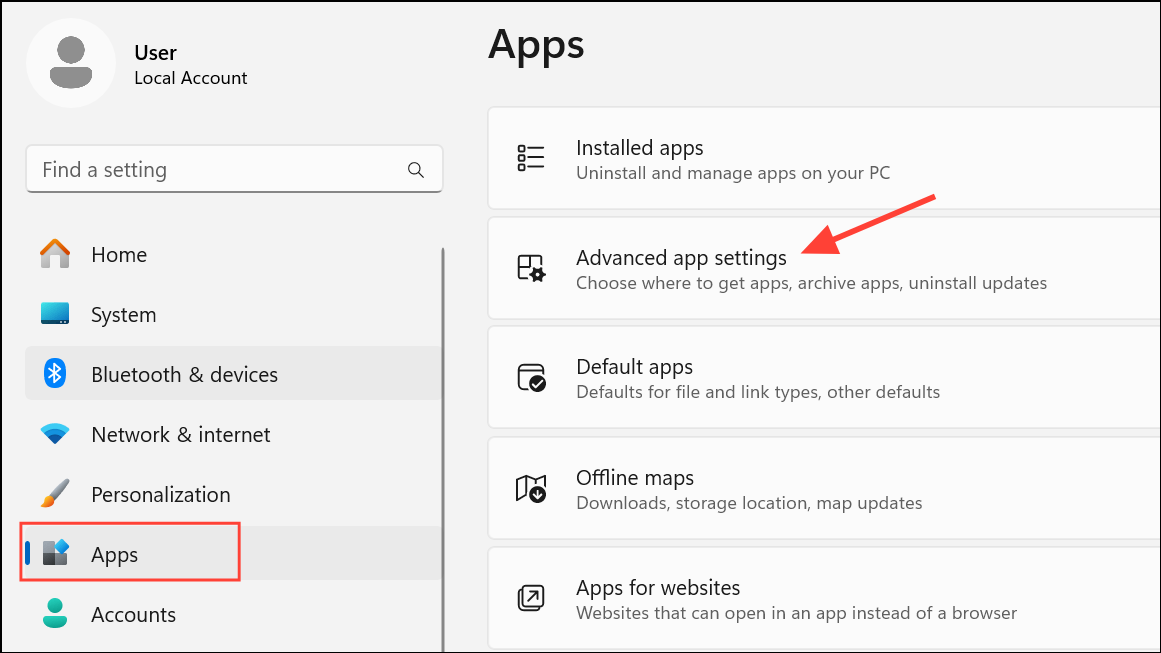
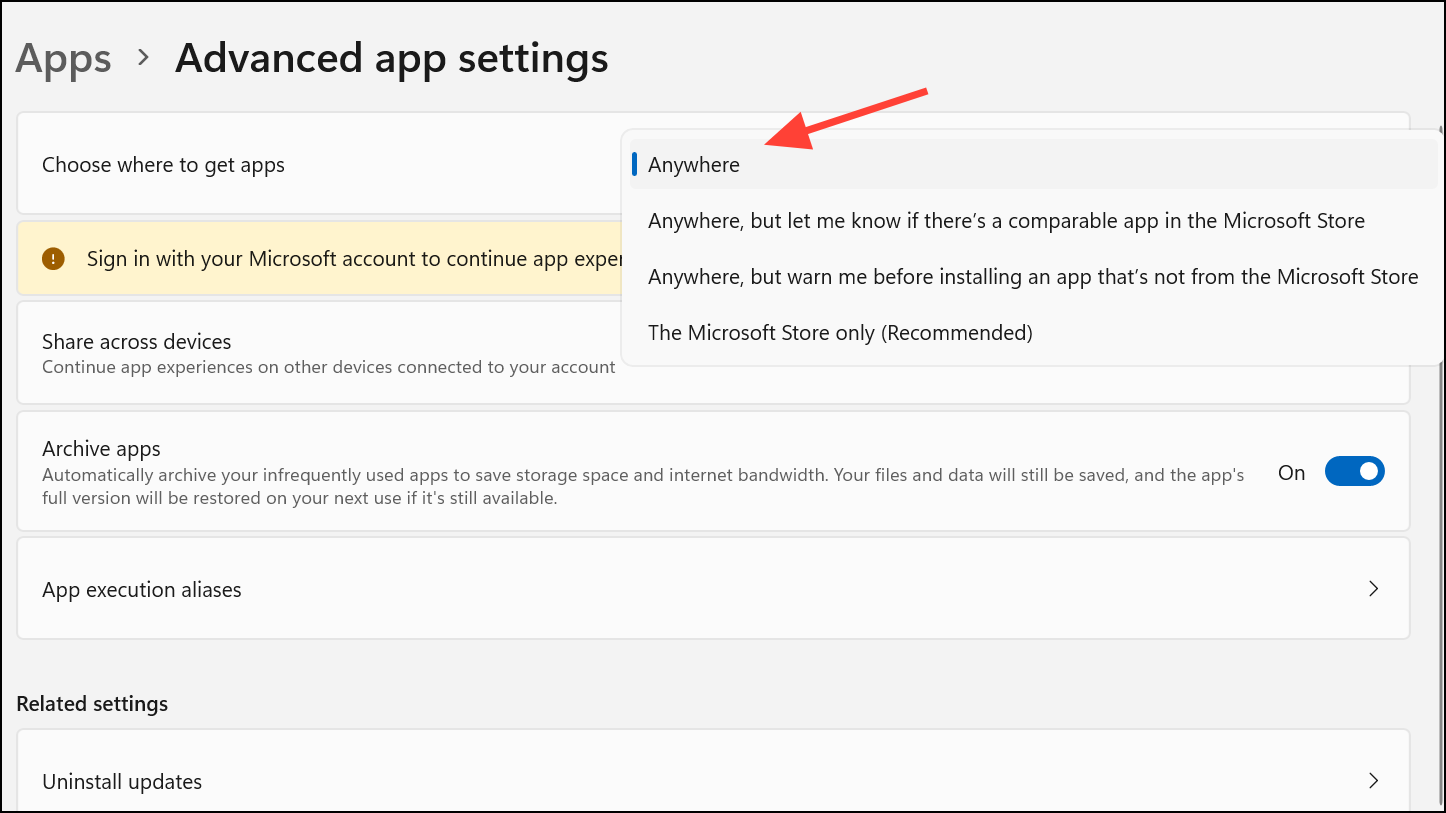
Windows 11 in S Mode only allows the installation of apps from the Microsoft Store. If you need to install apps from outside the Store or encounter messages about “Microsoft-verified apps,” you may need to switch out of S Mode or adjust app installation settings.
Repair System Files with SFC and DISM
Corrupted Windows system files can disrupt Store operations. Running built-in repair tools can restore system integrity and resolve stubborn installation problems.
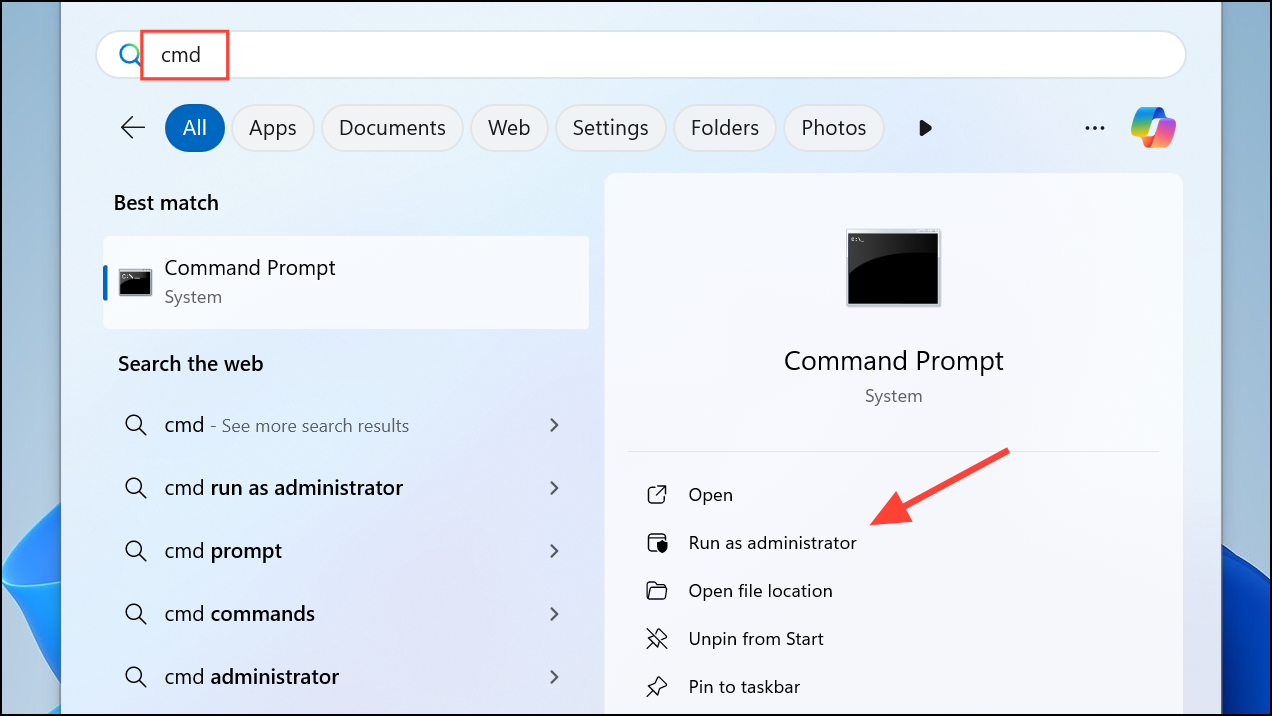
Dism.exe /Online /Cleanup-Image /Restorehealth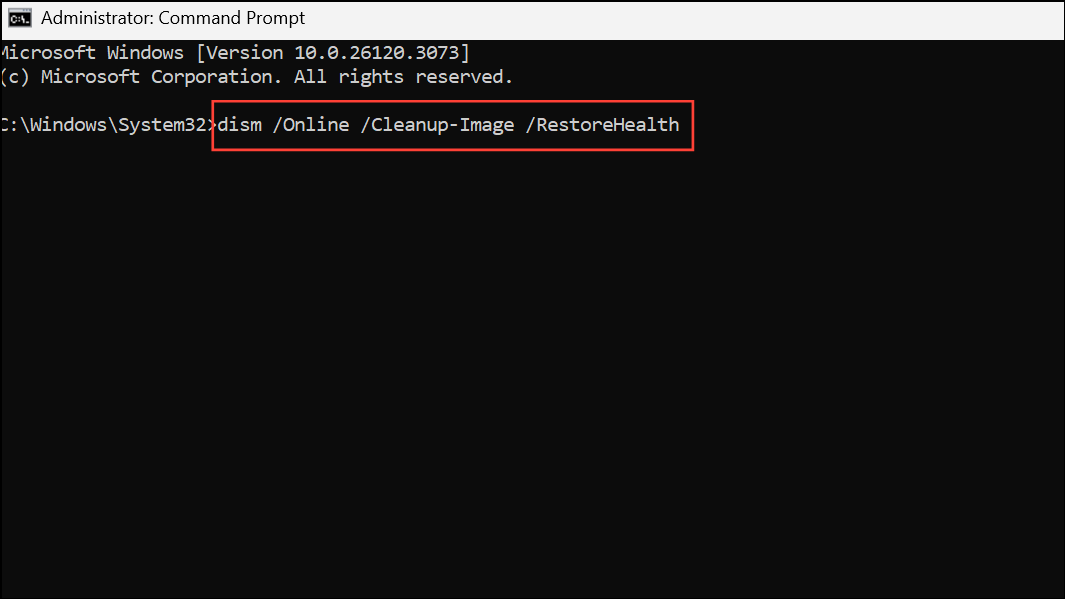
sfc /scannow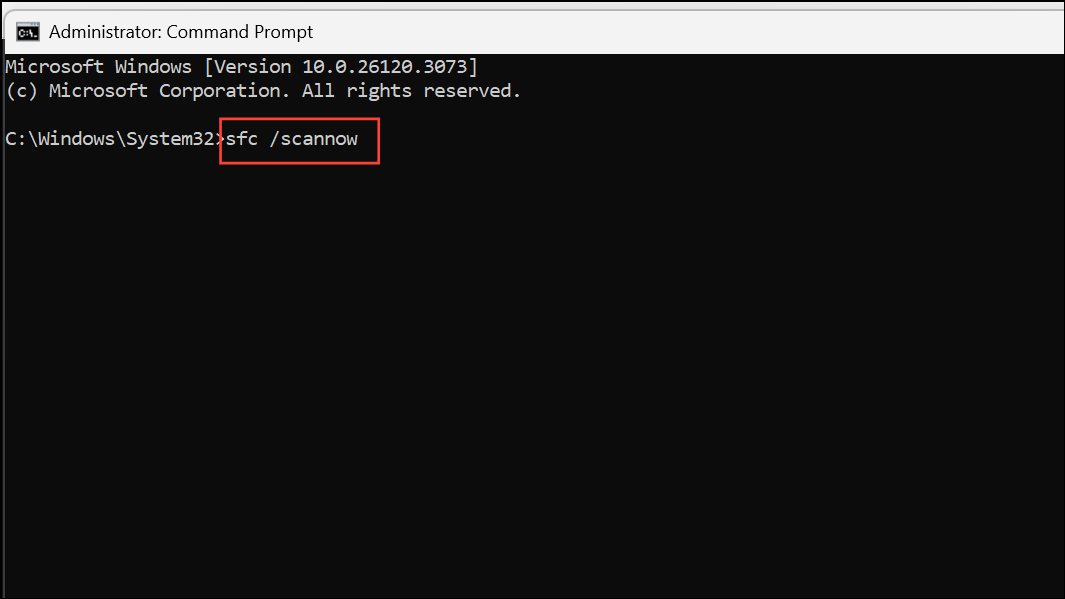
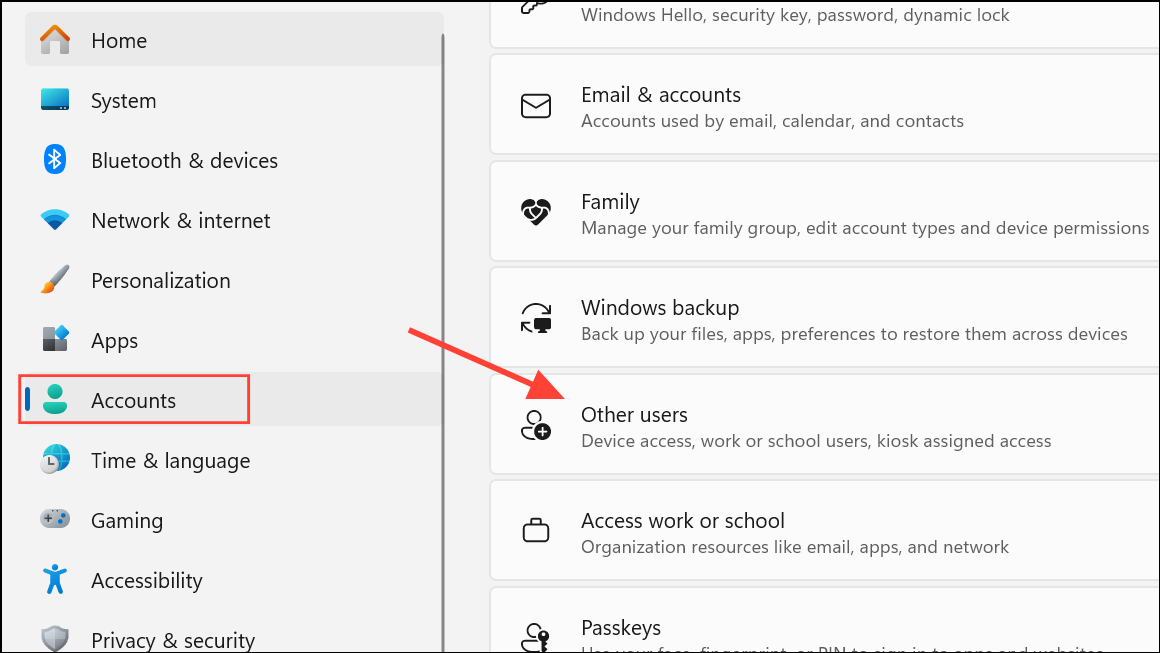
Create a New User Account
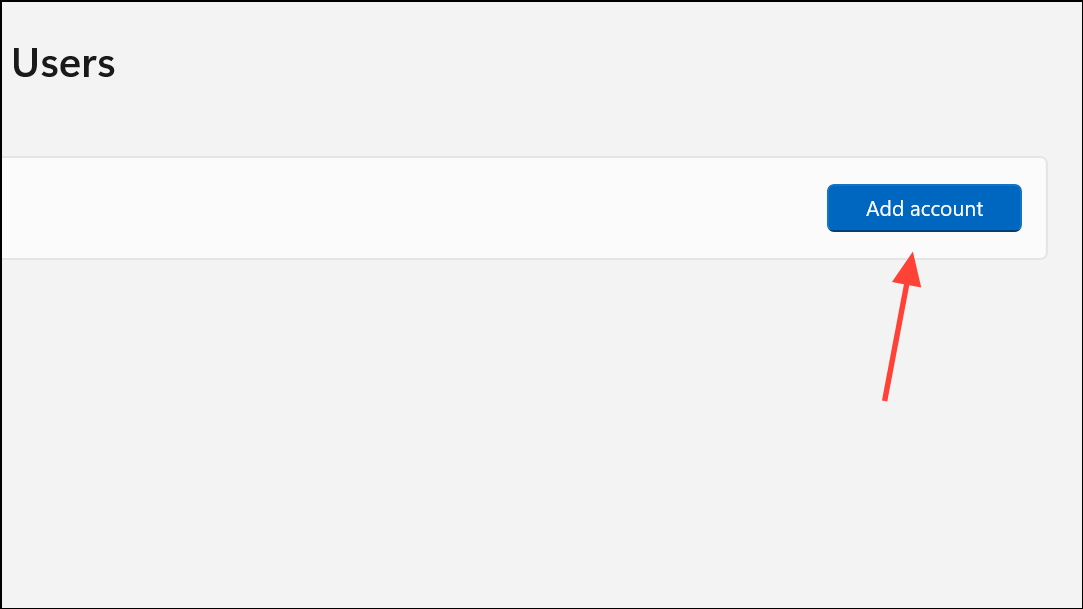
Corrupted user profiles can block Store access or app installations. Creating a new user account with administrative privileges can help determine if the issue is profile-specific.
Resolving Microsoft Store app installation issues on Windows 11 typically involves a combination of cache clearing, app repair, service checks, and account verification. If none of these methods restore normal operation, consider contacting Microsoft Support or performing a system recovery as a last resort.



