
Display stretching, black bars, or images that don’t fit the monitor correctly often signal screen aspect ratio problems in Windows 11. These issues frequently arise after system upgrades, hardware changes, or driver updates, leading to a suboptimal viewing experience with distorted images or unused screen space. Addressing these problems restores the correct proportions, ensures sharper visuals, and makes on-screen content easier to read and interact with.
Adjust Display Resolution and Scaling in Windows Settings
Display settings. Alternatively, press Windows + i and choose System > Display.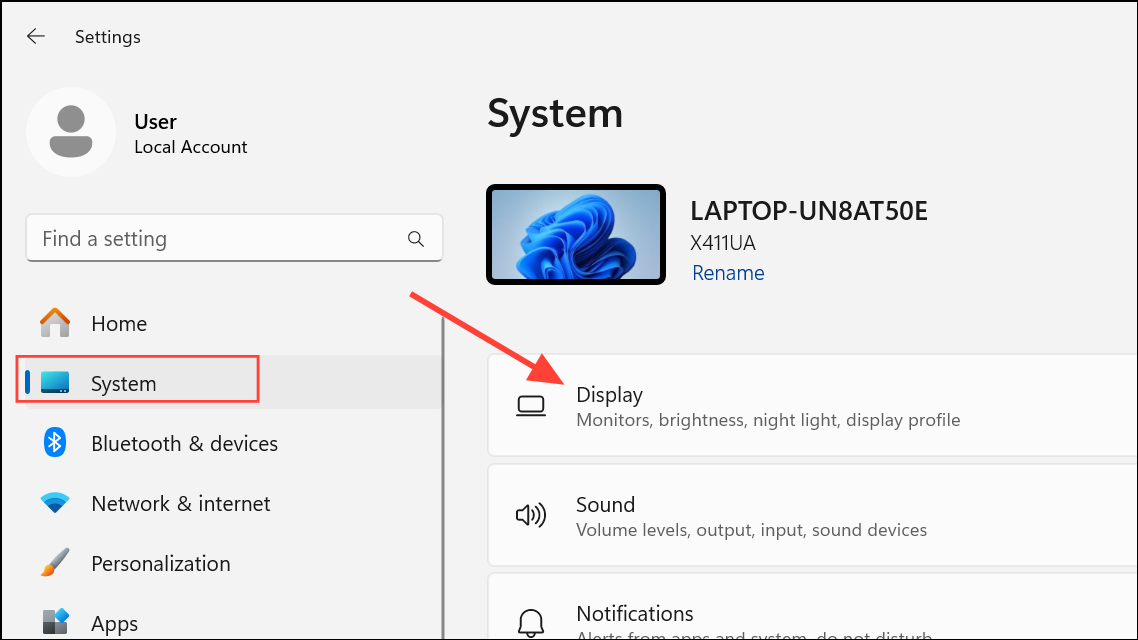
Display resolution section. Use the dropdown menu to select the resolution marked as (Recommended). This value matches your monitor’s native resolution and typically restores the correct aspect ratio, eliminating stretching or black bars.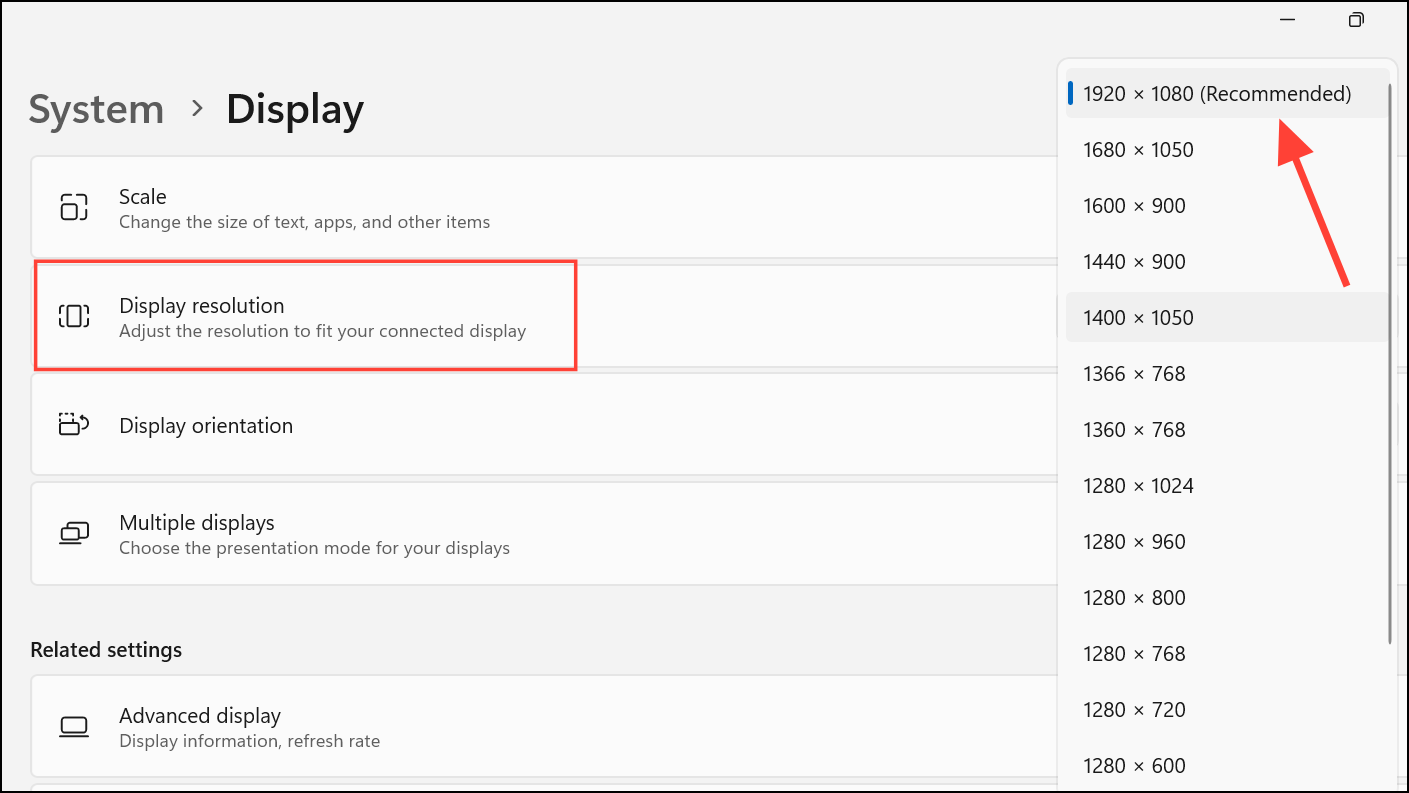
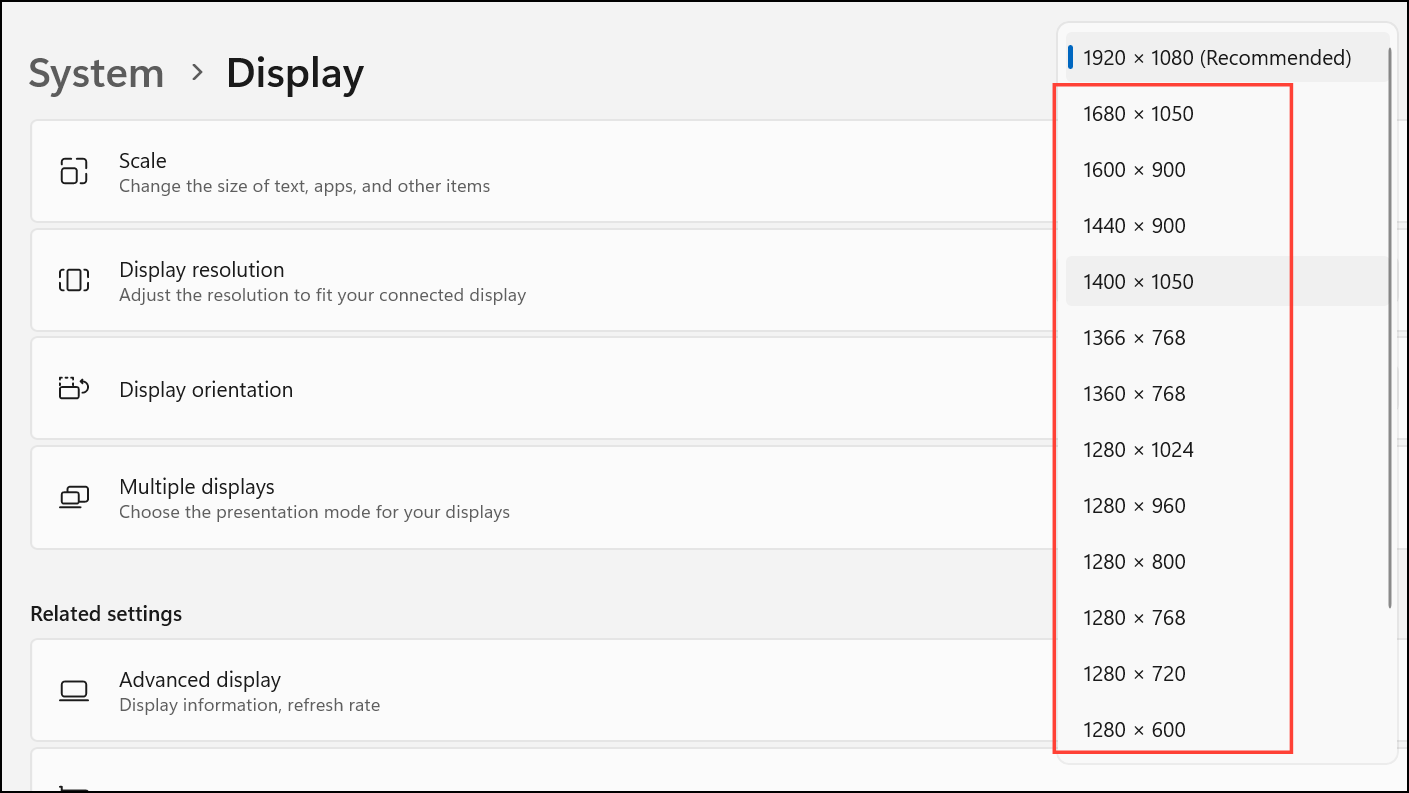
Scale & layout section, use the Scale dropdown to select a suitable percentage (commonly 100%, 125%, or 150%). Custom values can be entered for more precise control, but extreme settings may cause display issues or require signing out and back in.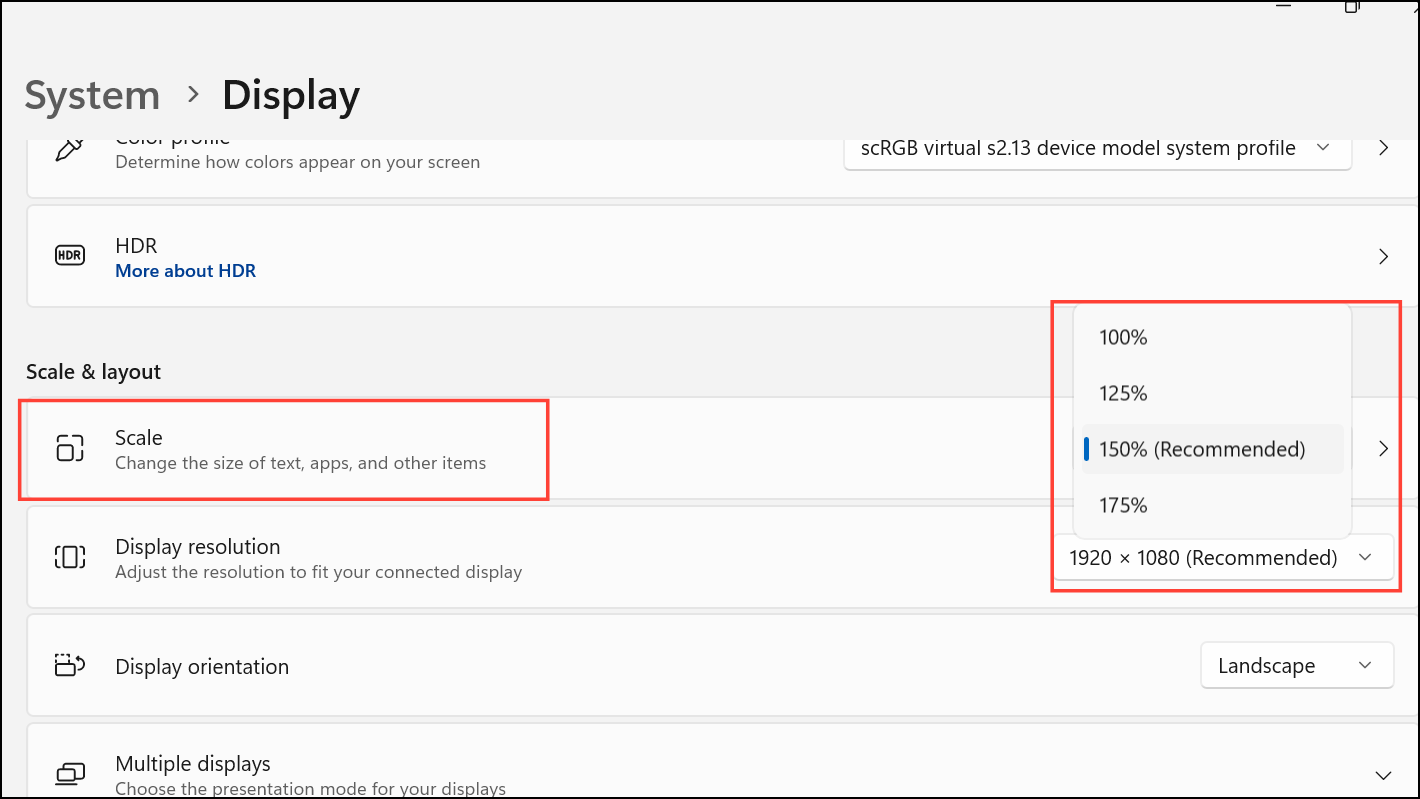
Update or Roll Back Graphics Drivers
Incorrect or outdated graphics drivers often cause aspect ratio problems, especially after Windows upgrades or hardware swaps.
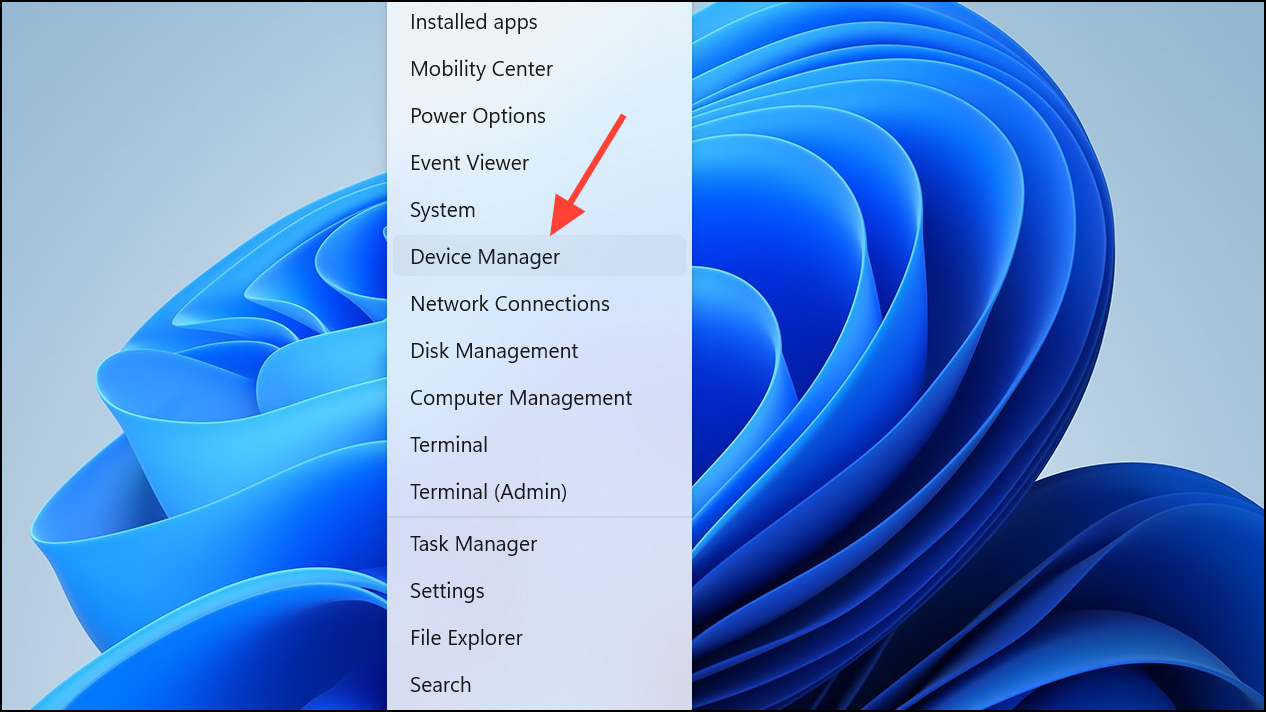
Display adapters section, right-click your graphics device, and choose Update driver. Select Search automatically for drivers to let Windows locate and install the latest version.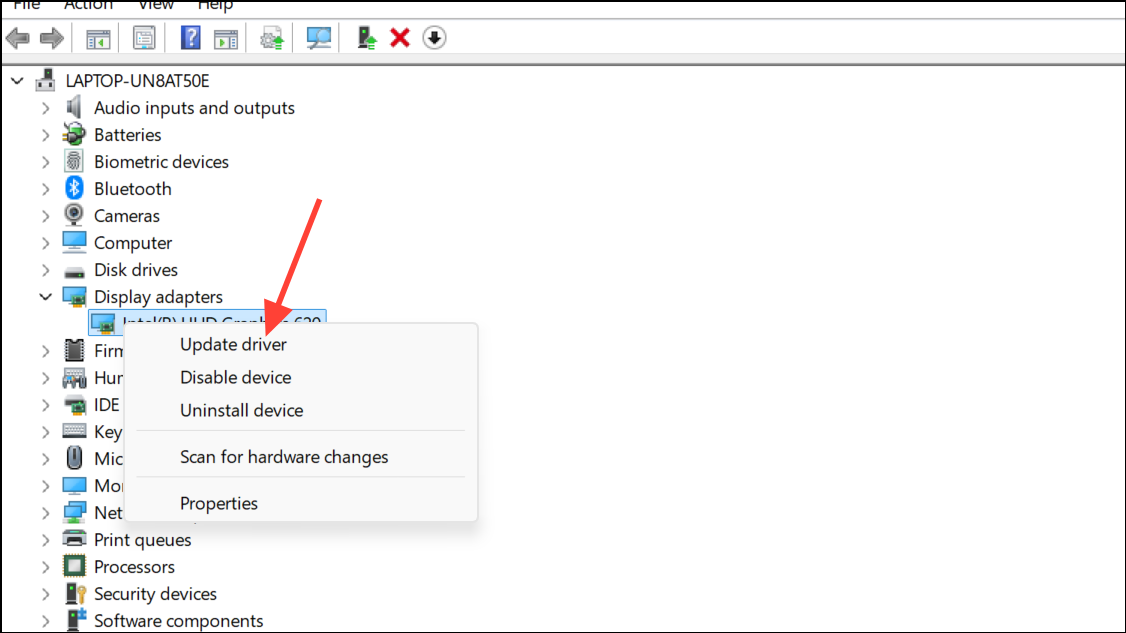
Properties.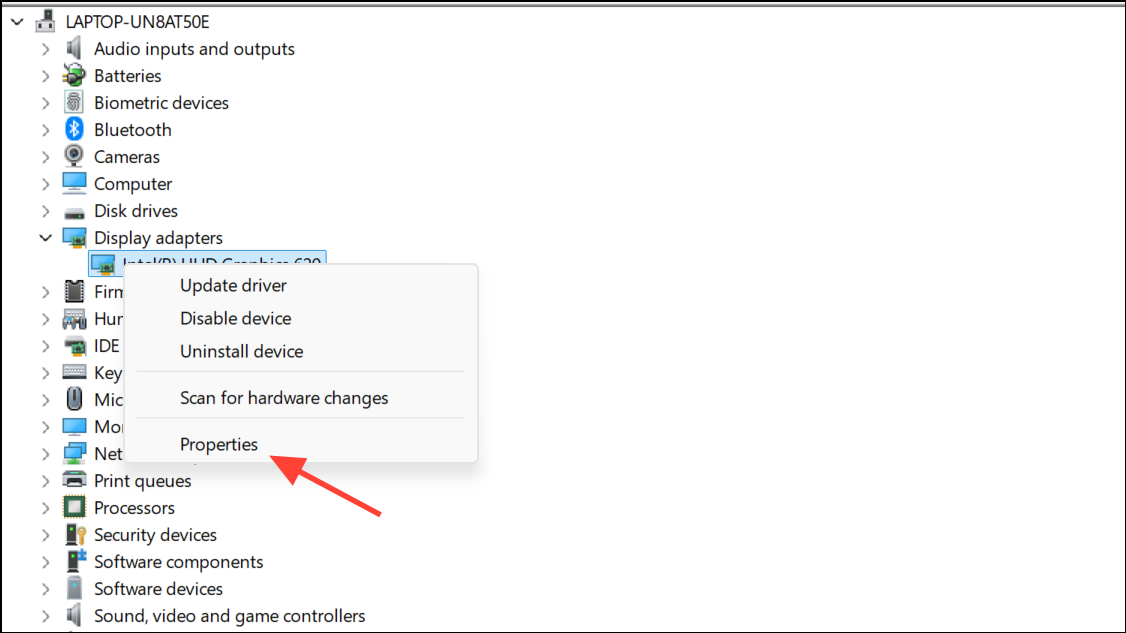
Driver tab, click Roll Back Driver if available. This restores the previous driver version, which may resolve compatibility or display problems.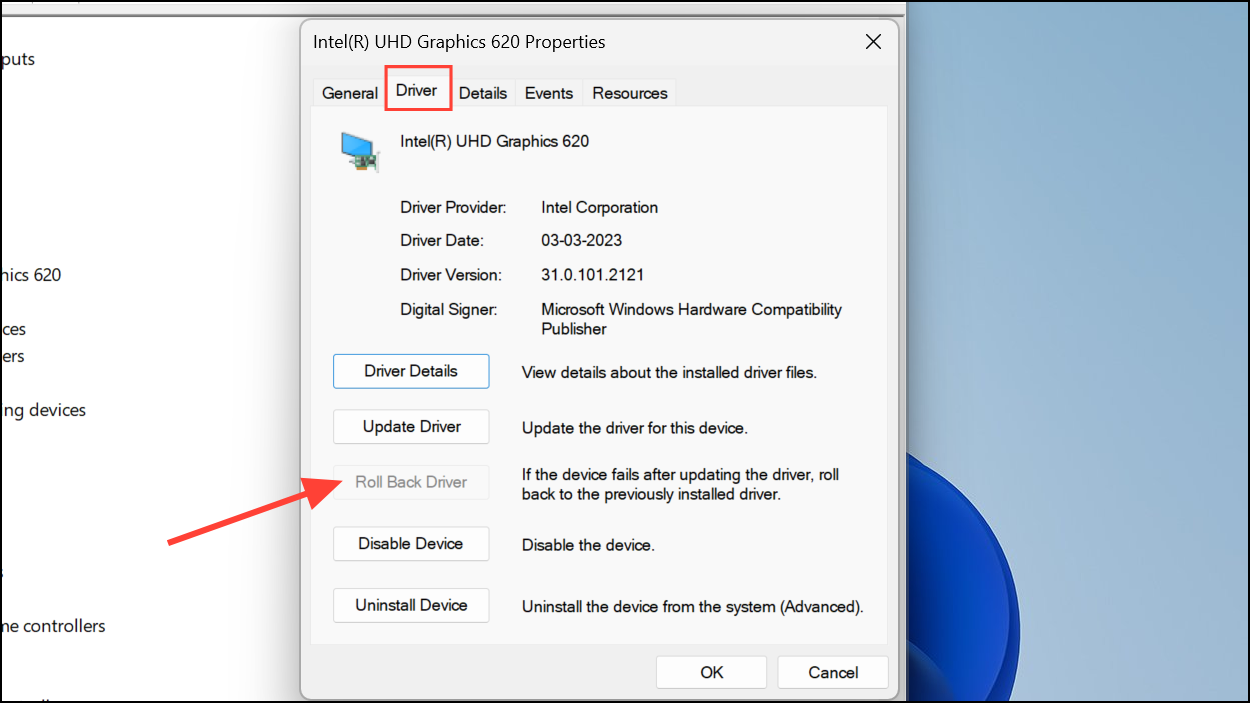
Configure GPU-Specific Scaling Options
Modern graphics cards from Intel, NVIDIA, and AMD offer advanced scaling controls that override Windows settings for more precise aspect ratio management.
Intel Graphics Command Center
Display from the sidebar. Under Scale, choose Stretched to force content to fill the entire screen, eliminating black bars. If this option is unavailable, temporarily switch to a non-native resolution, set the scaling mode, then revert to your preferred resolution to retain the “Stretched” setting.NVIDIA Control Panel
Display, choose Adjust desktop size and position. Set Scaling to Aspect ratio or Full-screen as needed. Click Resize to fine-tune width and height if the image does not fully align with your monitor’s edges.AMD Radeon Software
Scaling Mode to Preserve aspect ratio or Full panel. Use the HDMI scaling slider if the display still doesn’t fit perfectly.Check Physical Monitor Settings
Sometimes, the monitor’s own menu overrides Windows settings, causing improper aspect ratios or screen fit issues.
Aspect Ratio, Display Mode, or Image Settings. Set the aspect ratio to Auto, Wide, or your monitor’s native value (for example, 16:9). Avoid settings like 4:3 or Stretch unless intentionally desired.Resolve Hardware Compatibility and Connection Issues
Improper cables or faulty ports can also trigger aspect ratio problems. Certain HDMI or DisplayPort cables may not transmit the correct EDID (Extended Display Identification Data), leading Windows to misidentify your monitor’s capabilities.
Remove Conflicting Software and Check System Compatibility
Third-party applications that modify display settings, such as screen recorders, virtual desktops, or custom scaling utilities, may interfere with Windows’ native aspect ratio controls.
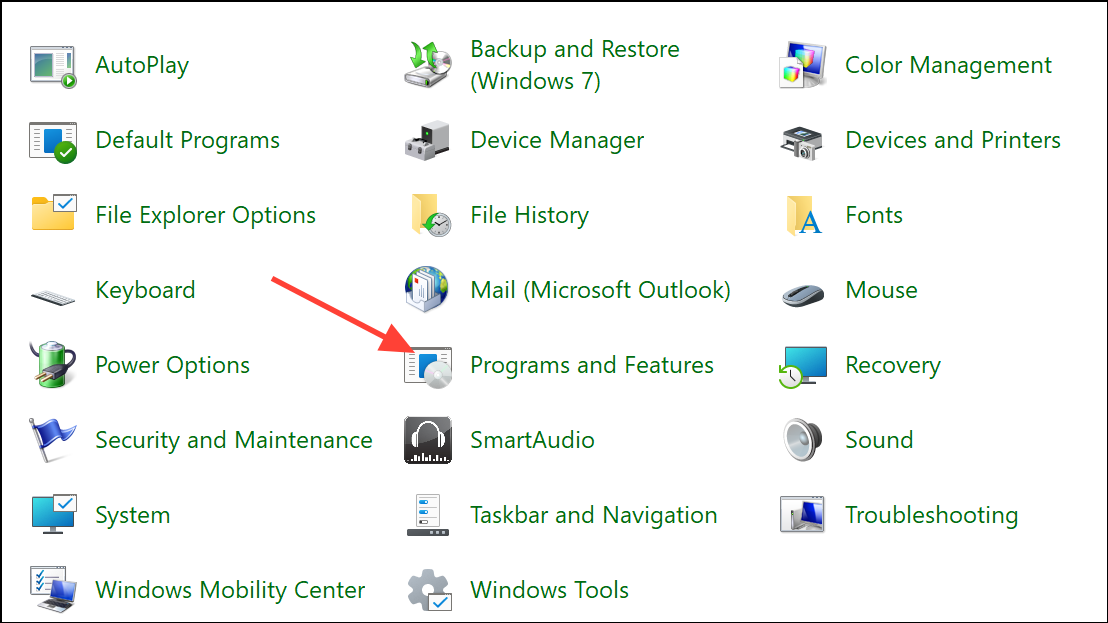
Settings > System > Recovery > Open System Restore and follow the prompts to select a restore point.By systematically adjusting display settings, updating drivers, configuring GPU controls, and verifying hardware connections, you can resolve most screen aspect ratio problems in Windows 11. Regularly checking for driver updates and using recommended monitor resolutions keeps your display looking sharp and correctly proportioned.



