


A CACHE_MANAGER blue screen stops Windows the moment the file system’s cache manager hits a fault it cannot recover from. The crash carries the bug check value 0x00000034, and it usually surfaces during heavy file activity, such as reading from a hard drive, a network share, or an external device. The cause is almost always one of a short list of problems: faulty memory, exhausted kernel memory, corrupted system files, or an outdated driver.
Quick answer: Run sfc /scannow followed by the DISM RestoreHealth command, test your RAM with the Windows Memory Diagnostic (mdsched.exe), and run chkdsk /f /r C: on your system drive. These three checks resolve the large majority of CACHE_MANAGER crashes because the error is most often tied to bad memory or damaged file system data.
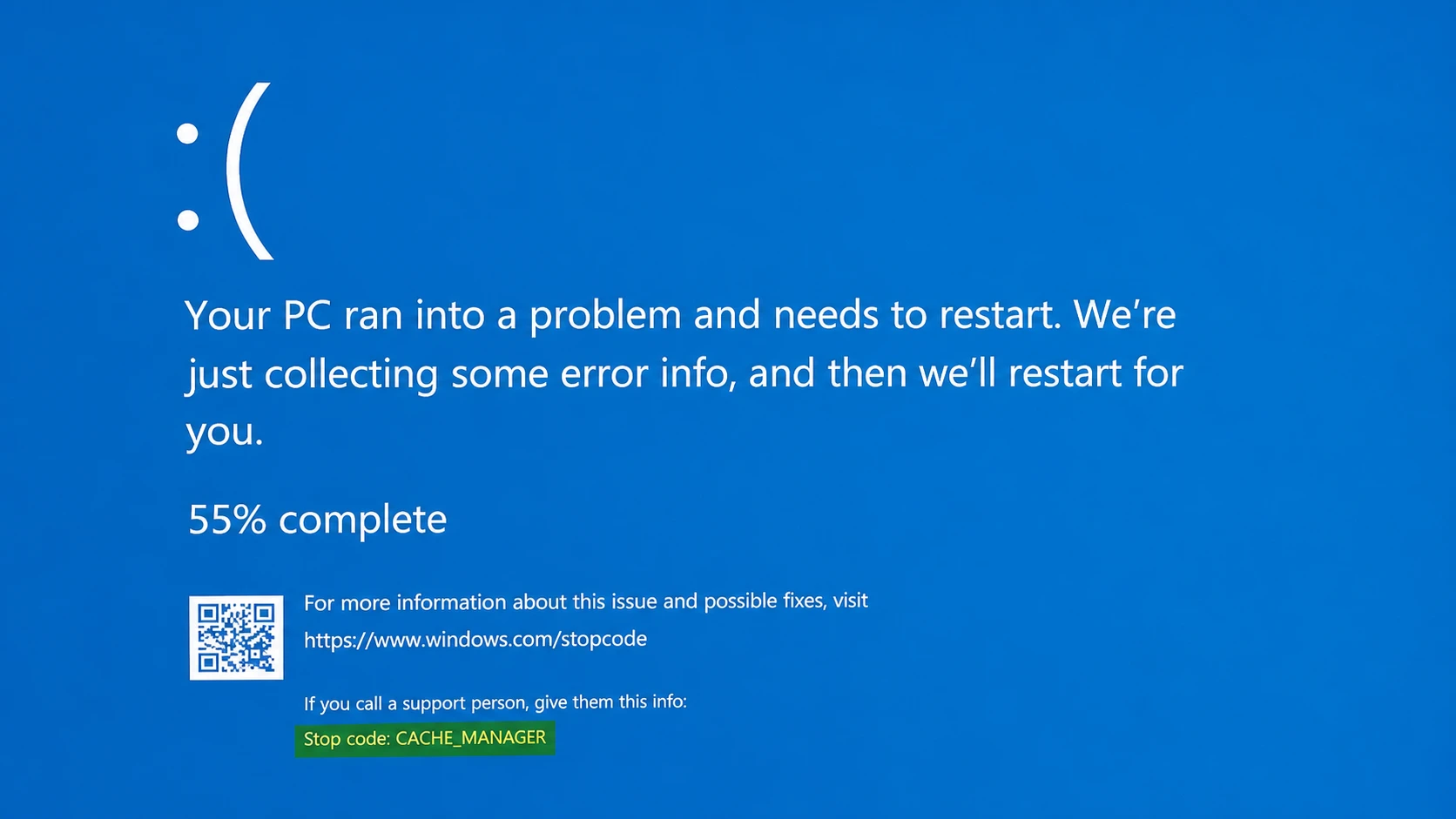
What CACHE_MANAGER (bug check 0x34) means
The cache manager is a set of kernel-mode routines and system threads that work with the memory manager to cache data for every Windows file system driver. When that subsystem cannot complete an operation safely, Windows halts and shows the stop code rather than risk damaging your data.
Microsoft points to depletion of the nonpaged pool as one direct cause. The nonpaged pool is kernel memory that can never be written out to the page file, and drivers rely on it for allocations. If that pool runs out, the system can stop. During heavy indexing, even a very low pool level can let another kernel-mode driver trip the same error. The other common triggers are corrupted system files, outdated or incompatible drivers, malware, and failing hardware, mainly RAM and hard drives.
| Cause | Typical trigger |
|---|---|
| Nonpaged pool depletion | Kernel runs out of nonpaged memory during heavy load or indexing |
| Faulty RAM | Memory module returns incorrect data to the cache manager |
| Corrupted system files | Improper shutdowns, malware, or software conflicts |
| Outdated or incompatible drivers | Storage or display drivers that no longer match the system |
| File system or disk errors | Bad sectors or a loosely connected hard drive |
Before you start: basic checks
Two quick moves can clear a one-off crash before you spend time on deeper repairs. Restart the computer to flush any temporary glitch. If the blue screen first appeared right after you plugged in a new peripheral, disconnect it. That includes USB drives, external disks, and any newly attached hardware.
If Windows keeps crashing during normal boot, start in Safe Mode, which loads a minimal set of drivers and helps you tell whether a third-party app or driver is at fault. From the sign-in screen, hold Shift while you click Restart, then go to Troubleshoot > Advanced options > Startup Settings and choose the option to enable Safe Mode.
Repair corrupted system files with SFC and DISM
Damaged system files are a frequent cause of this stop code. The System File Checker scans protected files and replaces broken ones, and DISM repairs the underlying Windows image that SFC pulls from. Run them in order.
Windows + X and pick the admin terminal.sfc /scannow and press Enter. Let the scan finish completely; it can take several minutes and will repair any files it finds out of place.DISM /Online /Cleanup-Image /CheckHealth
DISM /Online /Cleanup-Image /ScanHealth
DISM /Online /Cleanup-Image /RestoreHealthYou confirm success by completing a normal session of the file activity that used to crash the machine. If the blue screen no longer appears, the corrupted files were the cause.
Test your RAM with Windows Memory Diagnostic
Bad memory is the single most likely hardware cause of CACHE_MANAGER. The built-in Memory Diagnostic writes a value to each section of RAM and reads it back, one sector at a time. If it reads a different value, that module has a fault.
Check the disk with chkdsk
File system errors and bad sectors can block the cache manager just as memory faults do. CHKDSK scans the drive for these problems and repairs them.
chkdsk /f /r C: and press Enter. The /f switch fixes errors and /r locates bad sectors and recovers readable data. Replace C: with another letter to scan additional partitions.Note: If you cannot boot into Windows at all, open Advanced Startup Options and select Troubleshoot > Advanced options > Command Prompt to run these same commands.
Update drivers and remove conflicting software
Outdated storage and display drivers are a known trigger, and kernel-mode software such as third-party antivirus can also force this stop code. Work through both possibilities if the scans above come back clean.
When recent changes are to blame: System Restore and updates
If the blue screen started right after an update or a major change, undo that change rather than chasing it. To remove a recent update, open Settings > Windows Update > Update history > Uninstall updates and pull the suspect entry. To roll the whole system back, press Windows + R, type rstrui.exe, and pick a restore point from before the crashes began.
If nothing else works, resetting the PC through Settings > System > Recovery > Reset this PC or performing a clean install will clear software-side causes. Use these only as a last resort, since they replace your Windows installation. Note: a reset will not help if the real fault is failing hardware.
Address nonpaged pool depletion
When the crash traces back to an exhausted nonpaged pool, adding physical memory to the machine is the direct fix. More RAM raises the amount of nonpaged pool the kernel can hand out, which removes the shortage that triggers the bug check. If you recently added hardware, also confirm the new components are compatible with your motherboard, since a mismatch can cause the same instability.
Once you can run normal file operations, external transfers, and heavy disk activity without seeing the stop code again, the underlying cause has been cleared. Keep drivers and Windows updated, shut the PC down cleanly, and run periodic memory and disk checks to keep CACHE_MANAGER from coming back.



