
Unexpected camera lights or microphone icons on your Windows 11 device often raise concerns about privacy and unauthorized access. Windows 11 provides several built-in tools to help you quickly identify which applications are currently using or have recently accessed your microphone and camera, so you can take control of your device’s privacy settings and prevent unwanted surveillance.
View Current Camera and Microphone Usage with System Indicators
Windows 11 offers real-time visual cues whenever your camera or microphone is in use. When an application activates the camera, a physical indicator light near the camera lens (if present) will turn on. If your device lacks this hardware feature, Windows displays a notification—”Camera On”—in the lower-right corner of your screen. When the camera is no longer in use, a “Camera Off” notification appears.
For the microphone, a mic icon appears in the system tray at the bottom-right of your screen whenever an application is recording audio. Hovering your mouse over this icon reveals the name of the app currently using the microphone. If multiple apps are accessing the mic, hovering will show a list of all active apps. These indicators enable you to spot unauthorized or unexpected access immediately, allowing prompt action.
Check Recent Camera and Microphone Activity in Settings
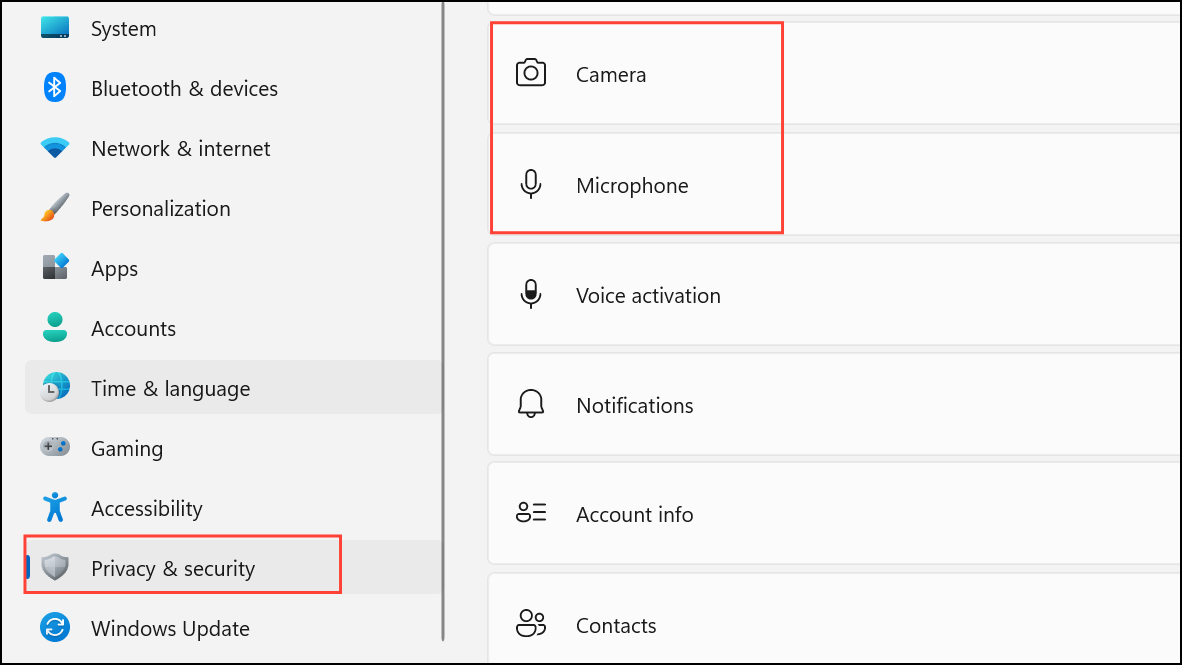
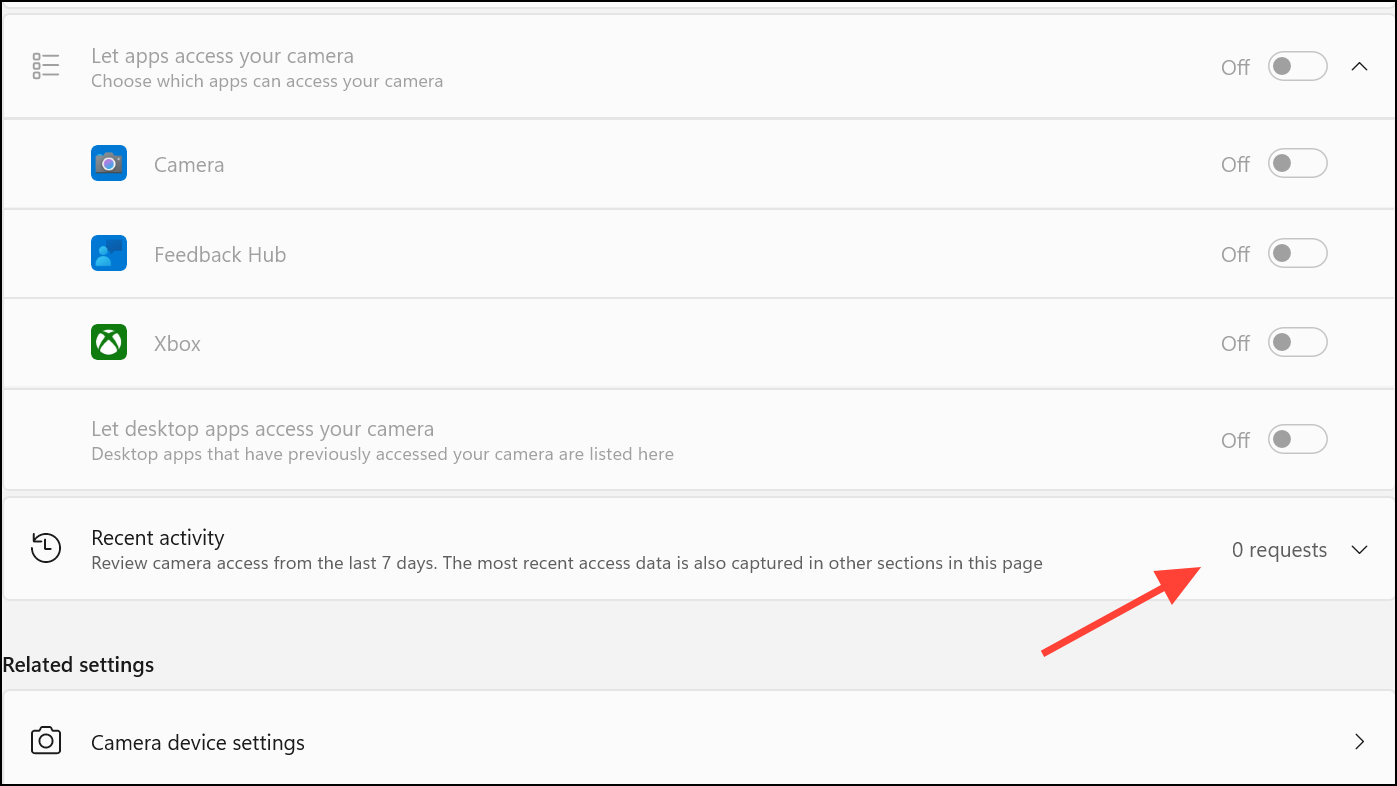
For any app you do not recognize, consider uninstalling it or turning off its access using the toggles provided in the same settings menu.
Manage App Permissions for Camera and Microphone
Windows 11 allows you to control which apps can access your camera and microphone on a per-app basis, giving you granular control over your privacy.
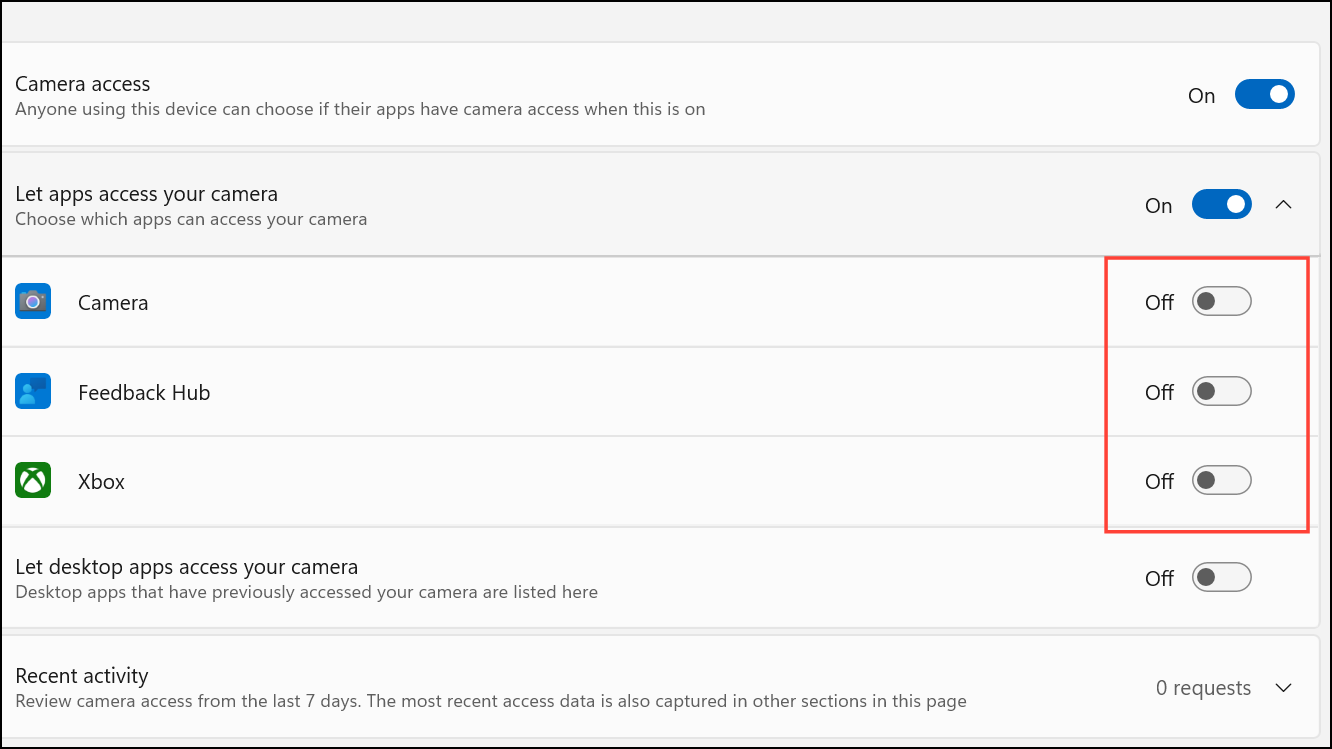
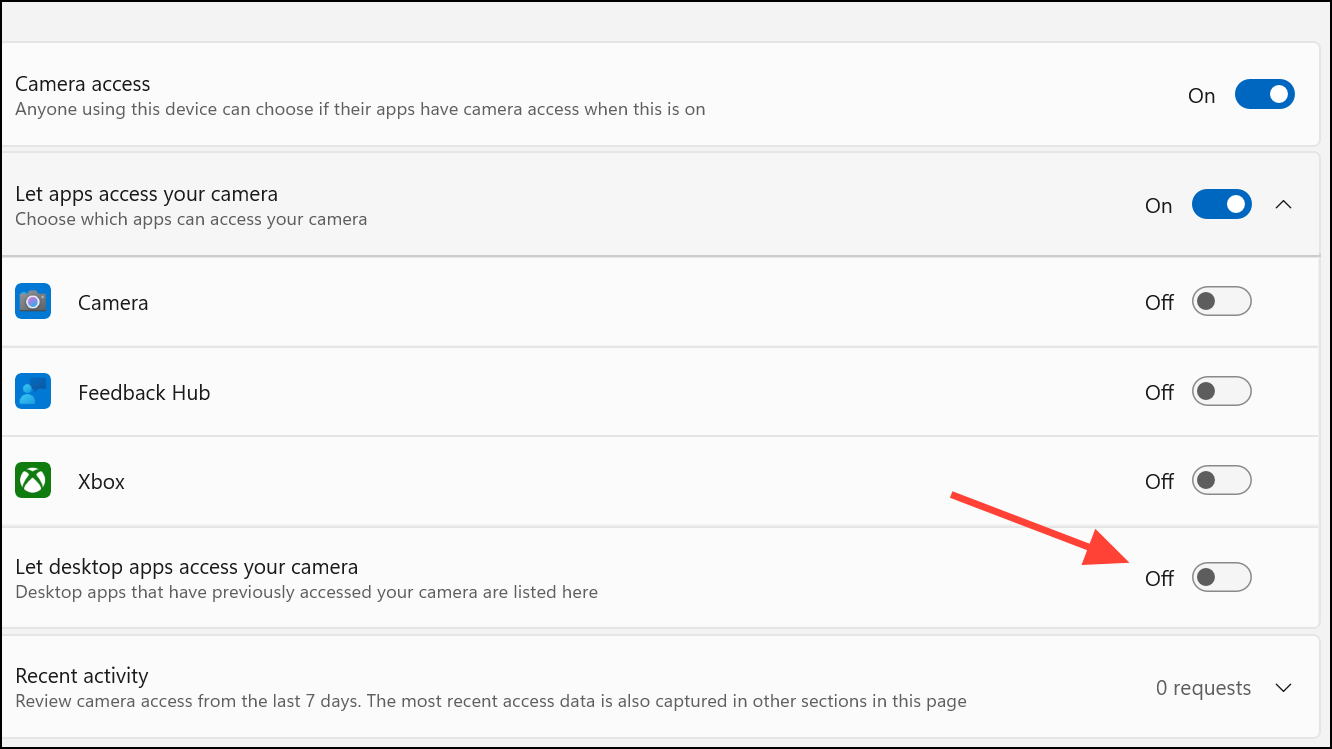
If an app you expect to see does not appear in the list, try launching it once or restarting your computer, as this can refresh the permissions list.
Identify and Control Website Access in Browsers
Web browsers like Microsoft Edge, Chrome, and Firefox have their own site-specific permissions for camera and microphone. Even if Windows allows browser access, you must grant permission for each website individually.
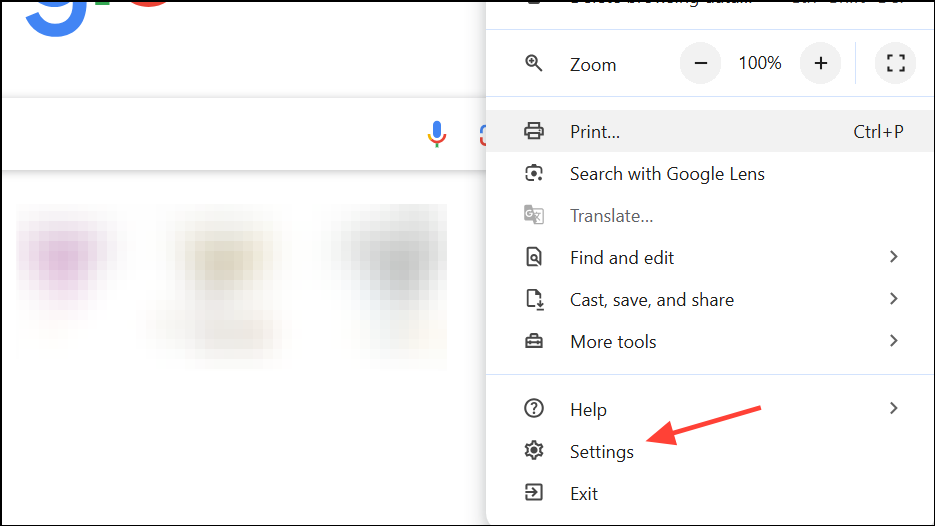
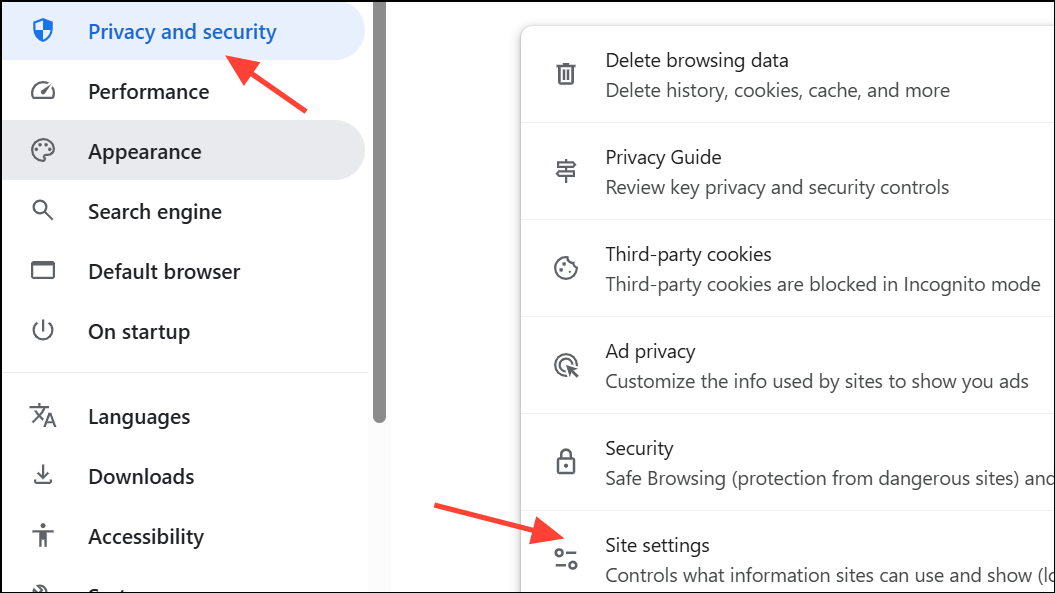
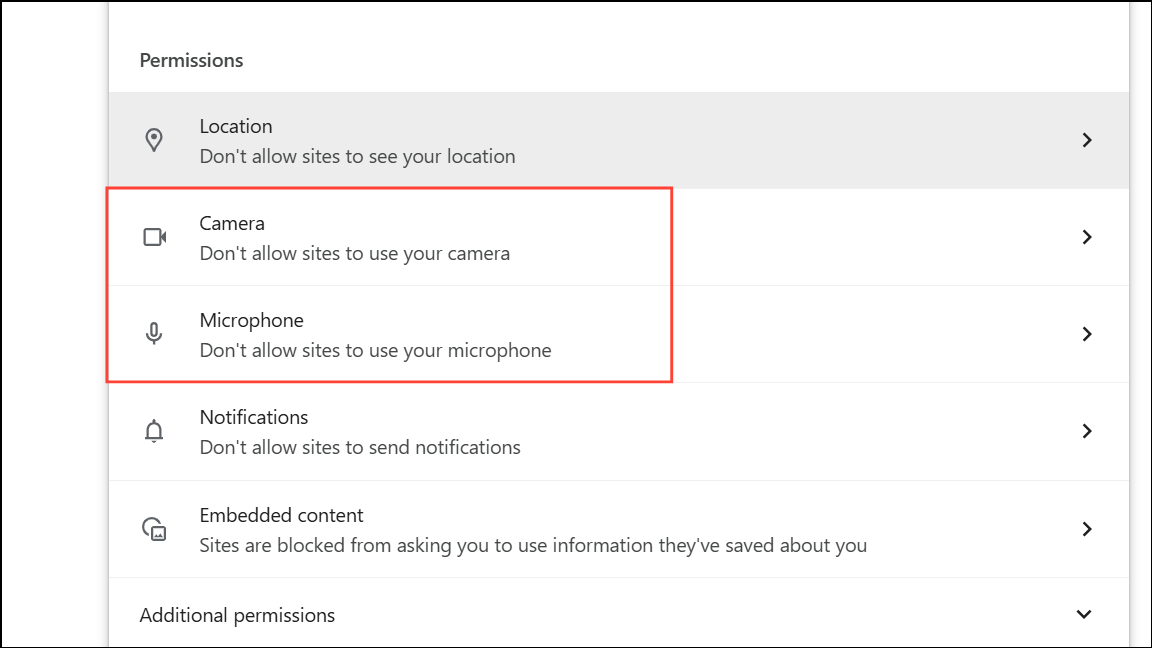
This approach is especially important for preventing websites from activating your devices without your knowledge, even if browser-level permission is granted.
Advanced Monitoring with Event Viewer and Windows Security
For users seeking deeper insight into hardware access, Windows 11 supports advanced auditing through the Event Viewer. By enabling system event auditing, you can log application requests to access hardware like the camera and microphone. This method requires turning on auditing mode and reviewing logs in Event Viewer, which records detailed access events for troubleshooting or forensic analysis. This approach is more technical and primarily used in enterprise or high-security environments.
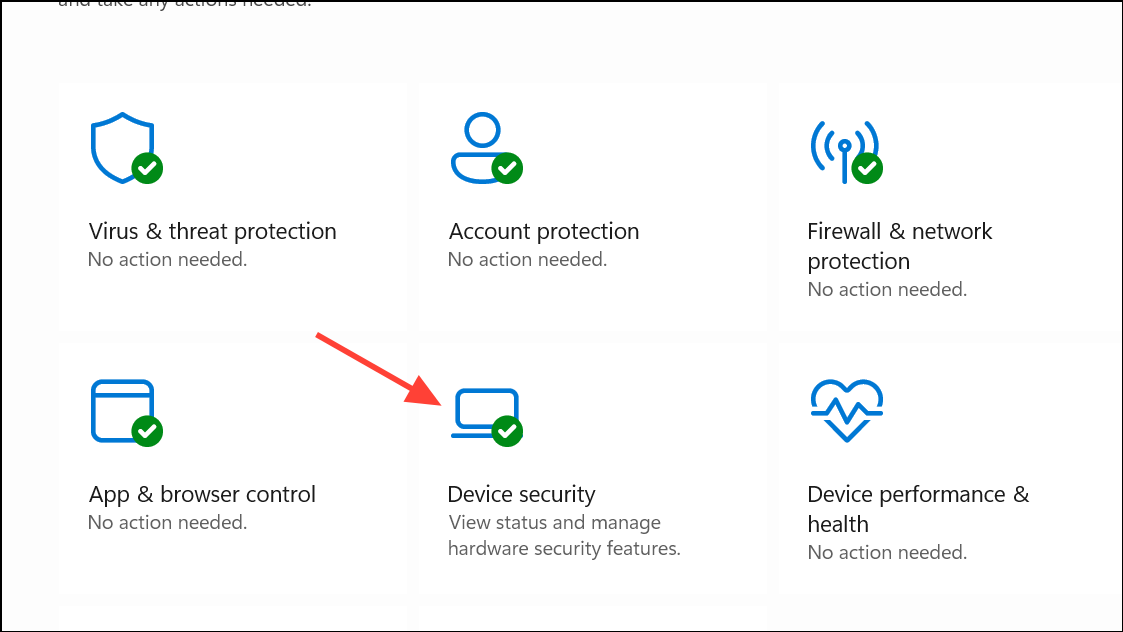
Additionally, Windows Security’s Device Security and Core isolation features help defend against malicious apps attempting to access your hardware without permission. Access these by searching for “Windows Security” in the Start menu and exploring the Device security section.
Troubleshooting Permission Issues and Best Practices
If an application cannot access your camera or microphone despite having permissions enabled, check for driver updates via Device Manager. Outdated drivers can cause device recognition problems. Occasionally, newly installed apps may not appear in the permissions list until after a restart or their first use.
For added protection, consider using physical camera covers or hardware switches when available. Regularly review your app permissions and disable access for any application that does not require camera or microphone functionality for its core tasks. Enable system notifications for camera and microphone usage to stay aware of device activity in real time.
Monitoring and controlling which apps access your camera and microphone in Windows 11 significantly improves your privacy. Regularly reviewing these settings keeps your device secure and helps you quickly spot any suspicious activity.



