
Audio output switching between stereo and 5.1 surround sound after every Windows 11 restart disrupts everything from movie nights to gaming sessions. This persistent channel-flipping stems from a mix of driver issues, aggressive power management, and system confusion over default devices. Addressing these factors restores predictable, stable audio output and eliminates the need for daily manual reconfiguration.
Update or Reinstall Audio Drivers
Outdated or incompatible audio drivers often trigger unwanted channel switching. Installing the latest, manufacturer-approved drivers ensures Windows 11 communicates correctly with your hardware and retains your preferred audio setup.
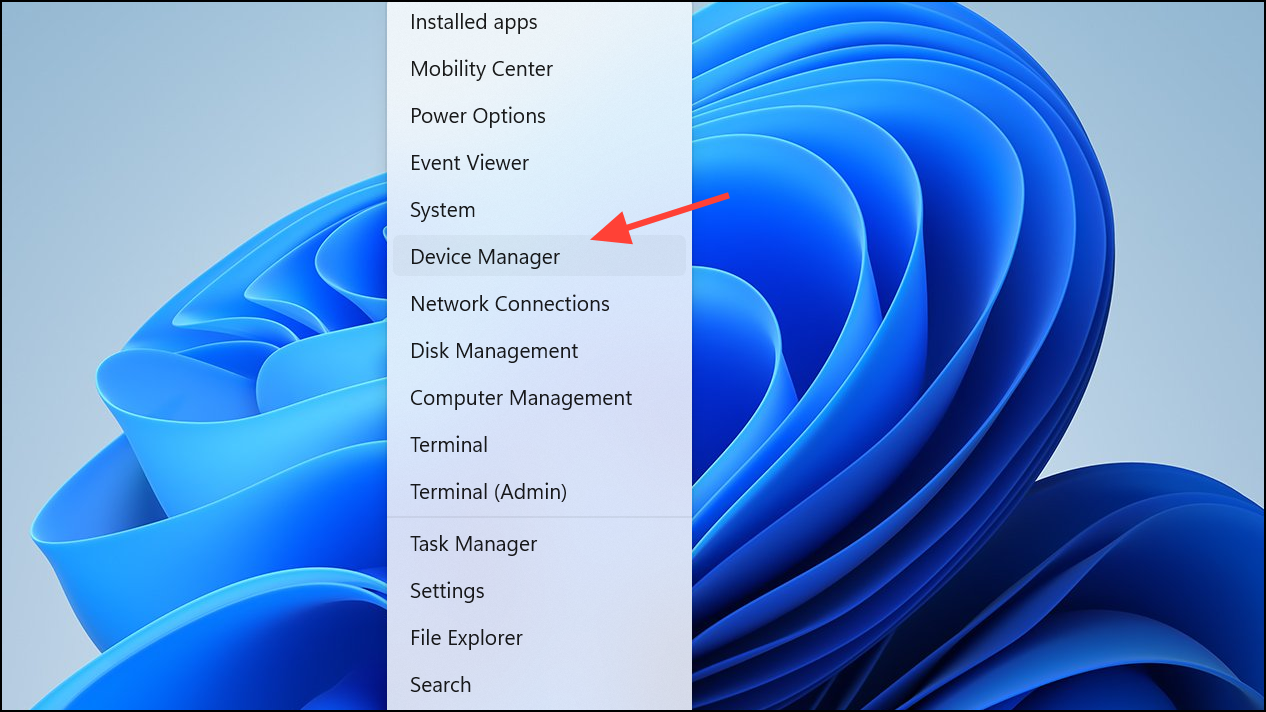
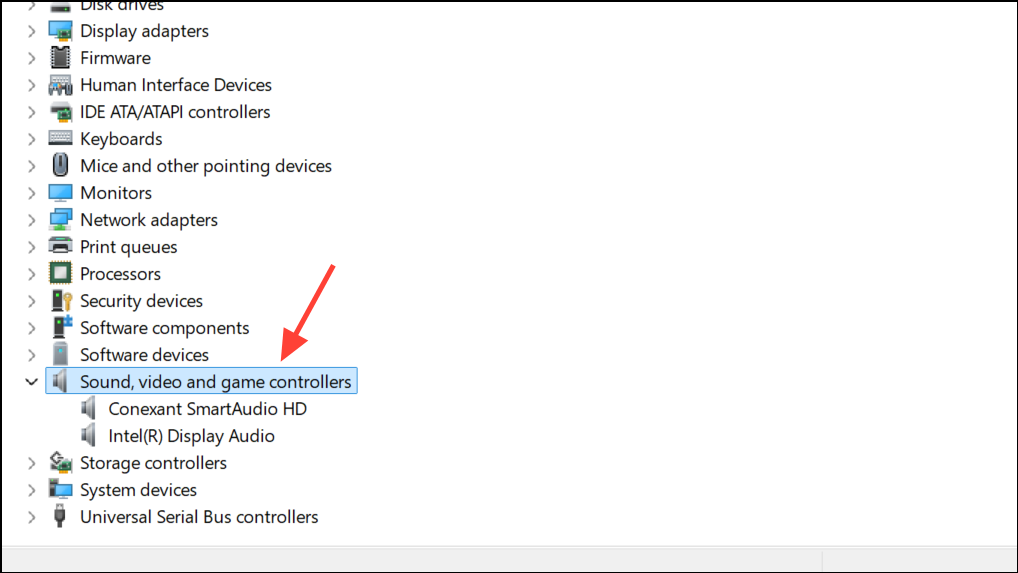
Uninstall device. Confirm the uninstallation. Restart your PC to fully remove the old driver.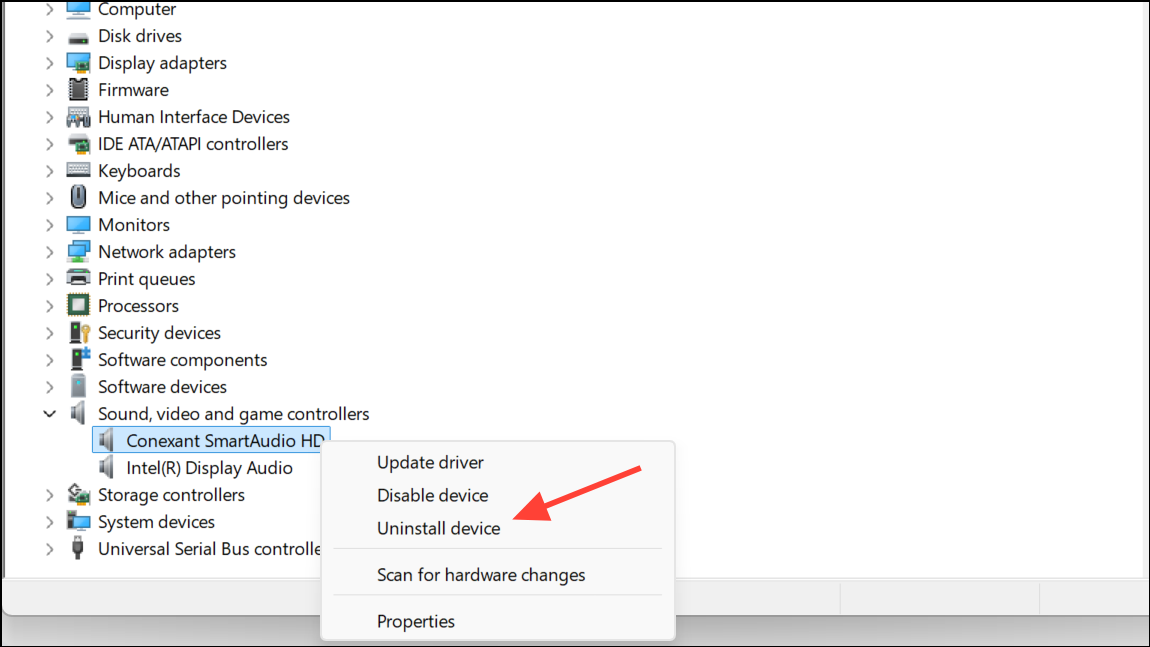
After installation, open the sound settings and set your preferred channel configuration. The updated driver should now preserve your choice across restarts.
Set and Confirm the Default Playback Device
Windows 11 sometimes reverts to a different output device when multiple audio options are present, causing configuration resets. Ensuring your preferred device is set as default helps lock in your channel selection.
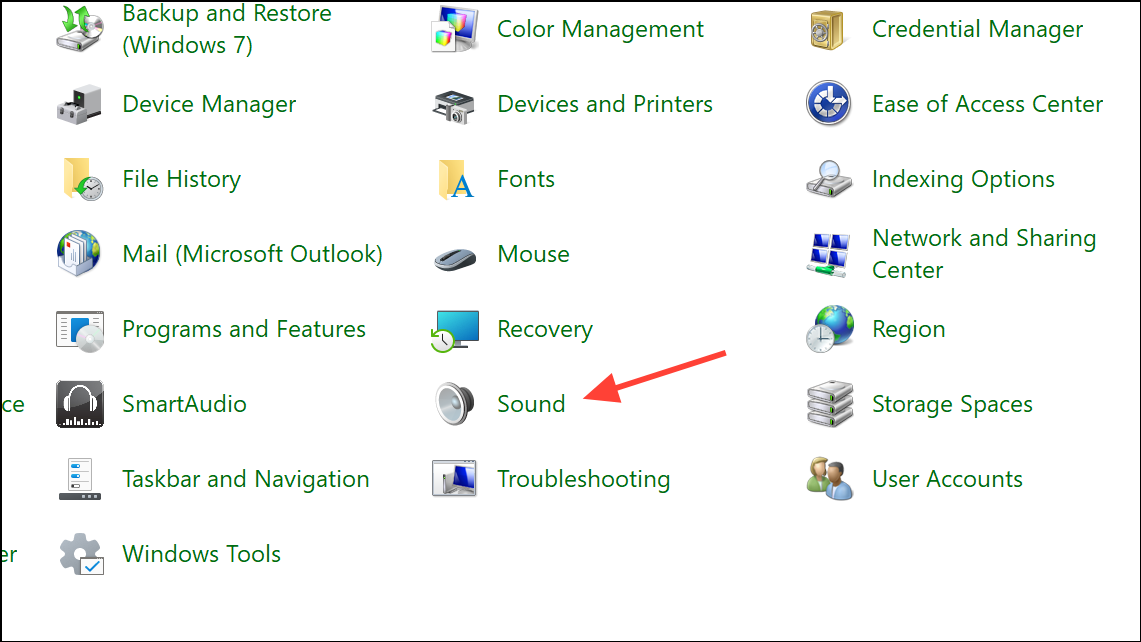
Playback tab, right-click your preferred speakers or home theater output and select Set as Default Device. If you see unused devices, such as HDMI monitors or virtual outputs, right-click and choose Disable to reduce conflicts.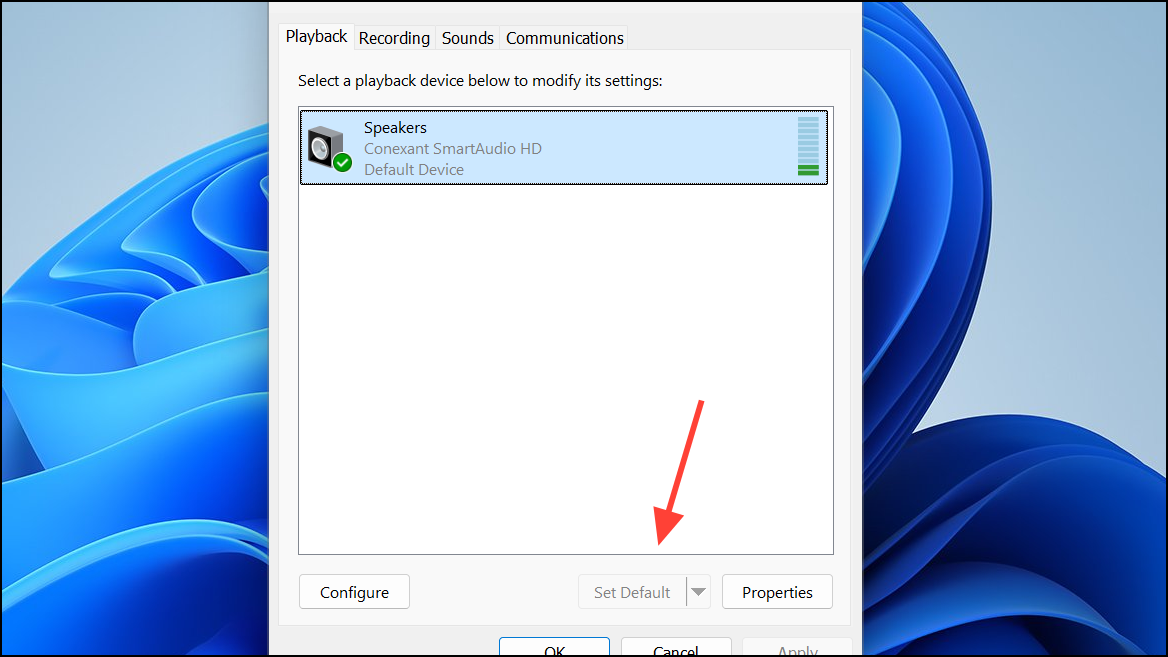
Configure with your default device selected, choose 5.1 Surround (or Stereo if you prefer), and complete the setup wizard. Click OK to save.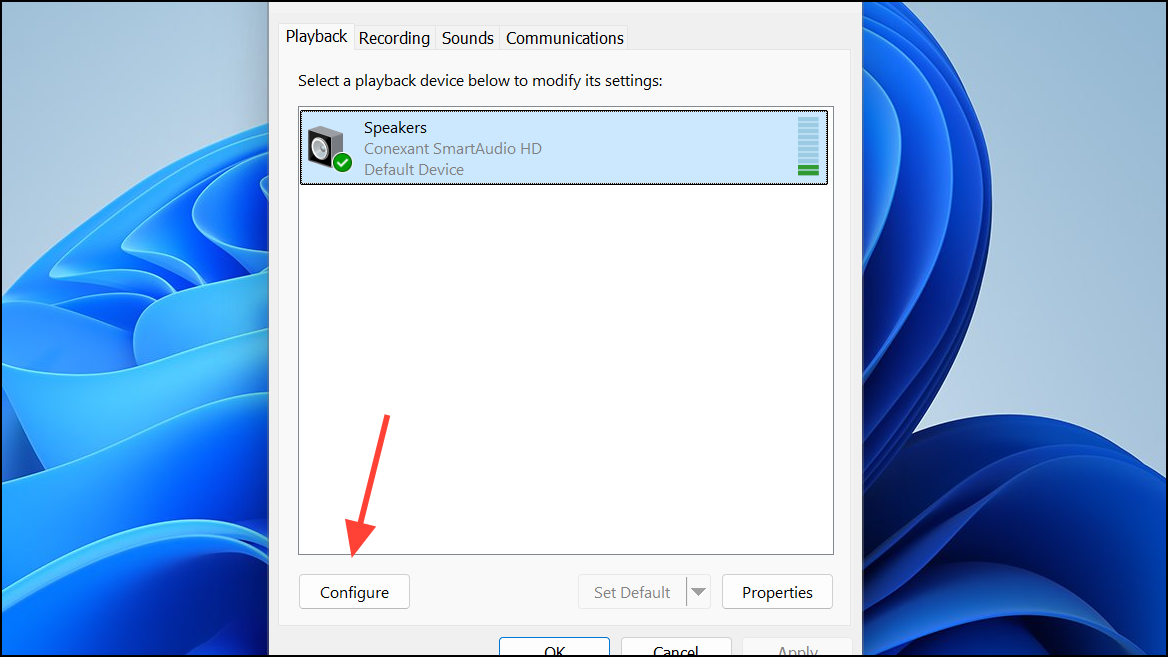
This process clarifies to Windows which device and channel layout to prioritize, minimizing unwanted changes after reboots or device reconnections.
Modify Registry Power Management Settings (Advanced)
Power management features in Windows 11 can reset audio configurations after sleep or restart. Adjusting specific registry values prevents the system from powering down or reinitializing your audio device, which often wipes out custom channel settings. Proceed cautiously—incorrect registry edits can destabilize your system.
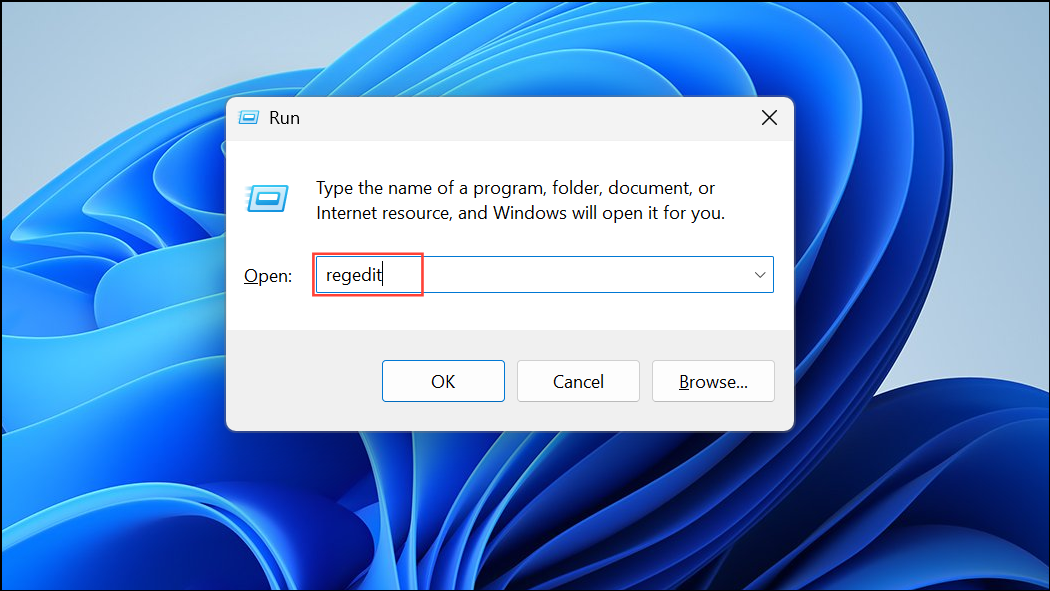
Device Manager, right-click your audio device, select Properties, go to the Details tab, and select Class GUID from the Property dropdown. Copy the value.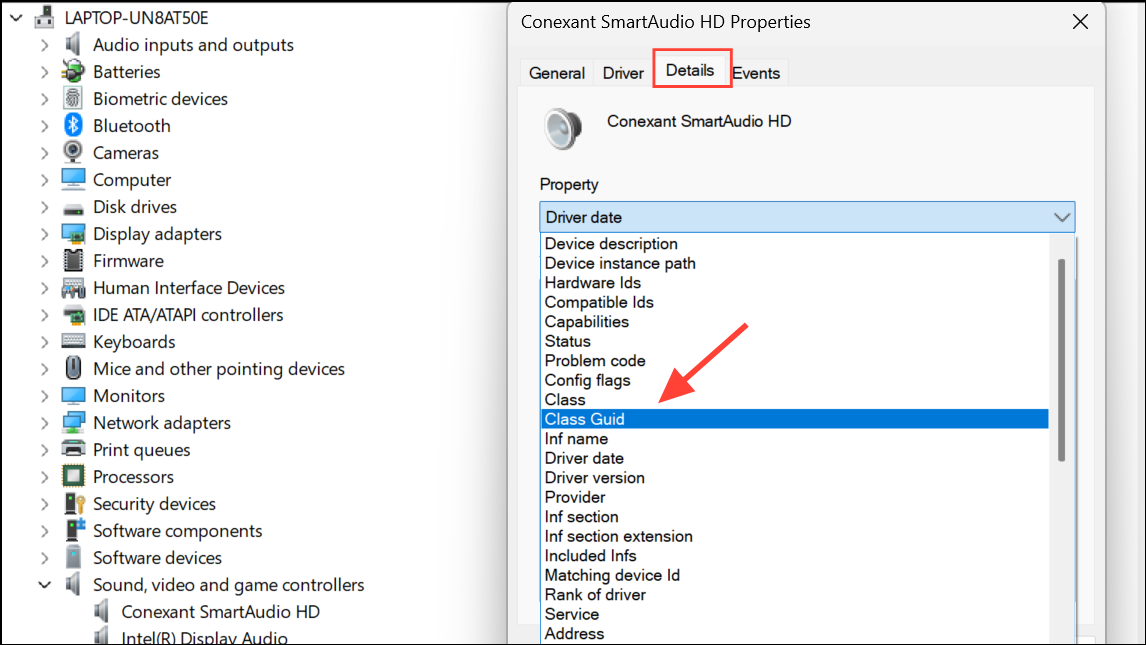
Computer\HKEY_LOCAL_MACHINE\SYSTEM\CurrentControlSet\Control\Class\<YourClassGUID>\0000\PowerSettings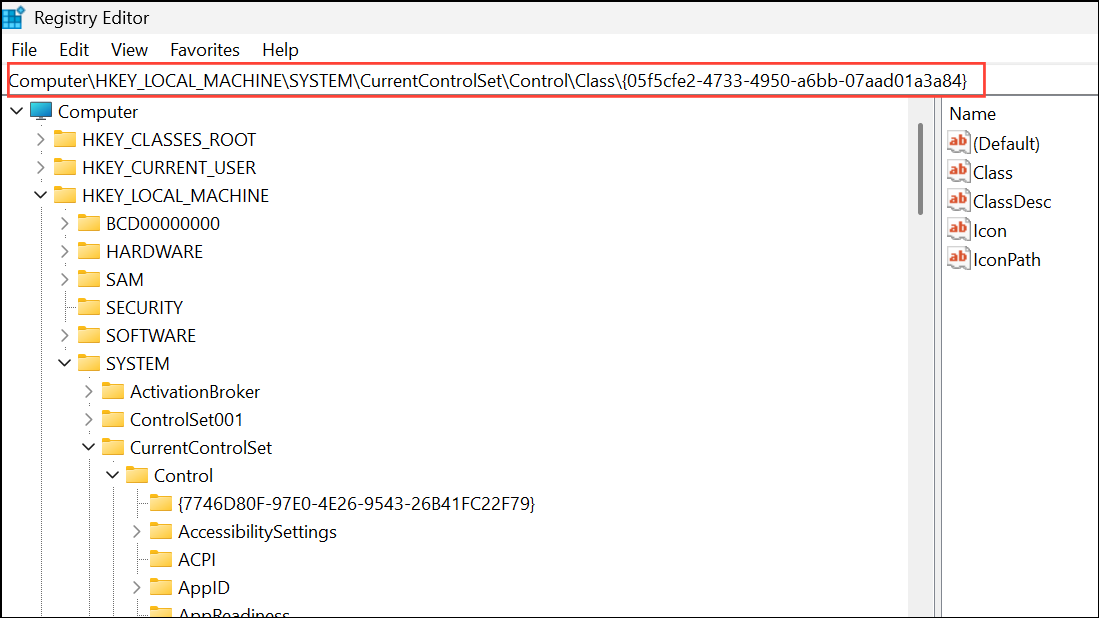
ConservationIdleTime, IdlePowerState, and PerformanceIdleTime—and set their data to 0. This disables aggressive power management for your audio device.Run the Windows Audio Troubleshooter
Microsoft’s built-in audio troubleshooter checks for common misconfigurations and missing drivers. While it may not resolve every channel-switching issue, it’s a quick way to identify obvious problems.
Settings, go to System > Troubleshoot > Other troubleshooters, and find Playing Audio. Click Run.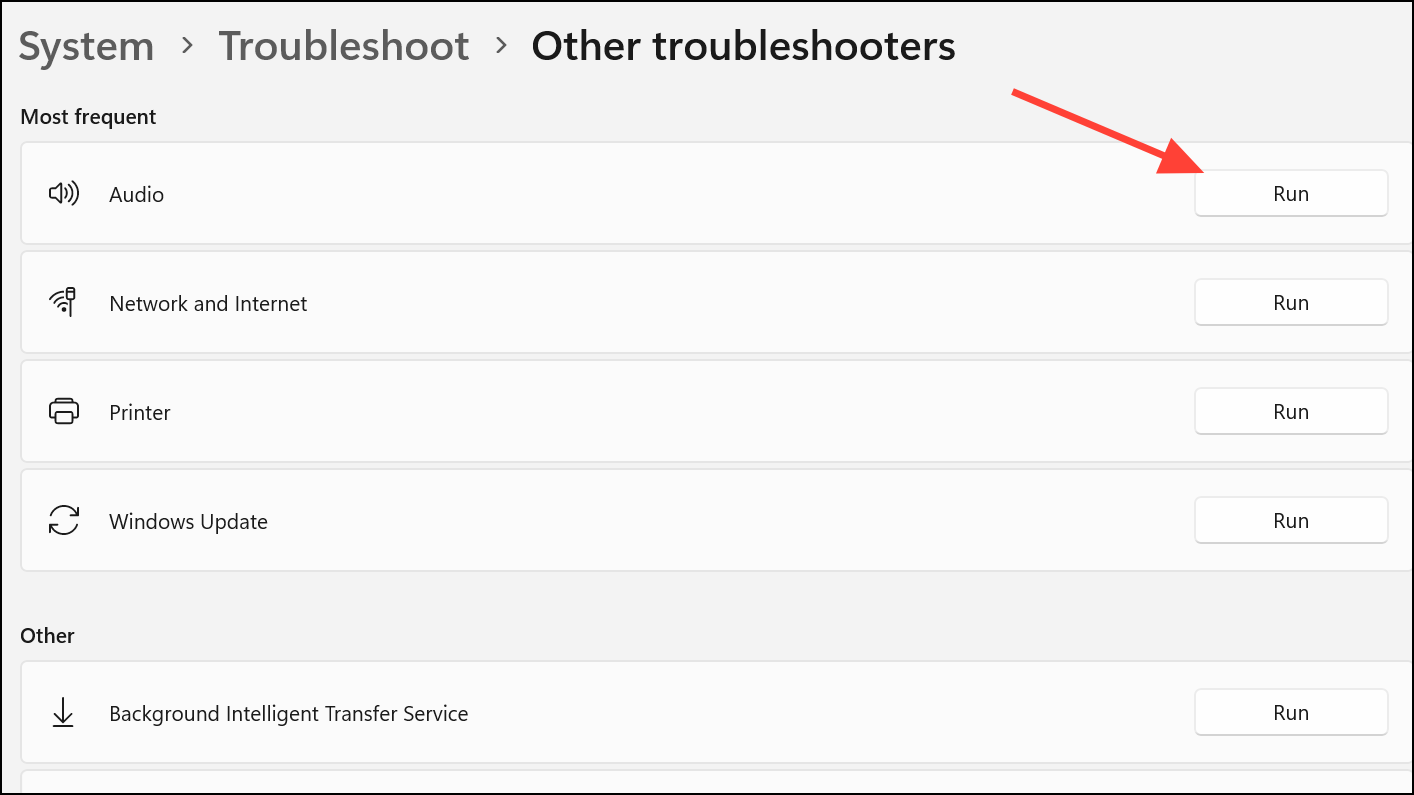
Manual Channel Switching as a Temporary Solution
If none of the above solutions provide a lasting fix, manually switching audio channels remains a practical workaround until Microsoft releases a permanent patch.
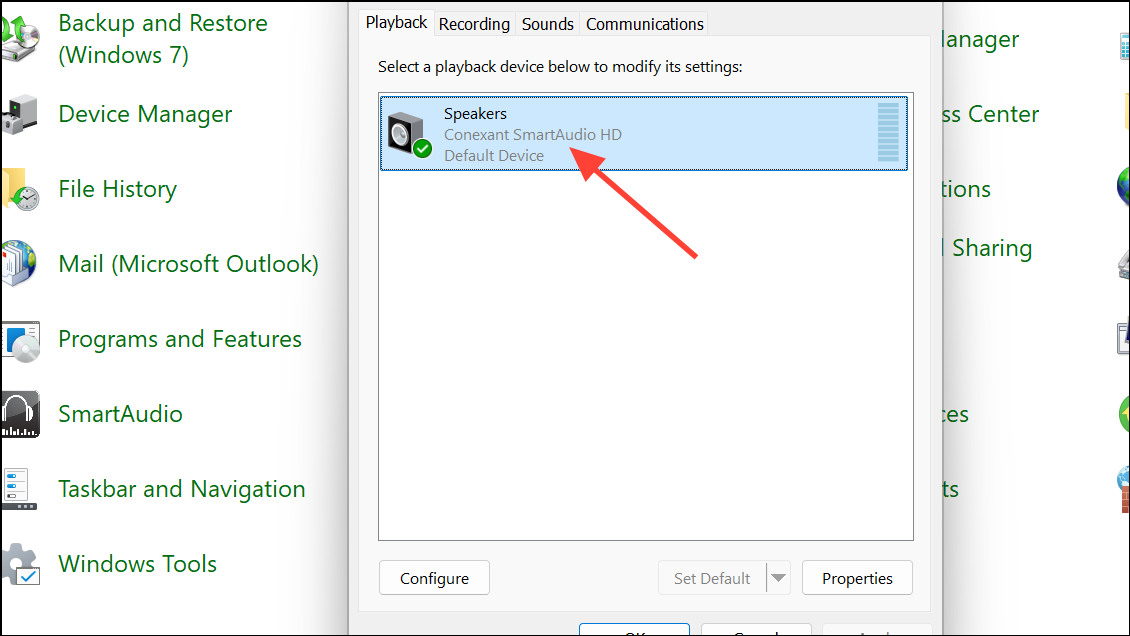
Configure, choose your desired channel layout (such as 5.1 Surround or Stereo), and complete the wizard.Staying current with Windows updates and checking your hardware manufacturer’s support site for new driver releases can further reduce the risk of recurring audio channel issues. With a systematic approach, you can restore consistent, reliable sound output on Windows 11.



