
After a Windows update, a dual-boot system with Ubuntu may suddenly boot straight into Windows, skip the GRUB menu, or fail to start Linux altogether. These problems often stem from changes in bootloader configuration, Secure Boot settings, or mismatched system clocks. Addressing these issues quickly restores access to both operating systems without data loss or a full reinstall.
Restoring GRUB and Dual-Boot Menu After Windows Updates
Windows updates, especially major version upgrades, can overwrite the bootloader settings, causing the system to bypass the GRUB menu and boot directly into Windows. To restore the dual-boot menu:
Command Prompt as an administrator. Right-click the Start menu, select Command Prompt (Admin) or Windows Terminal (Admin).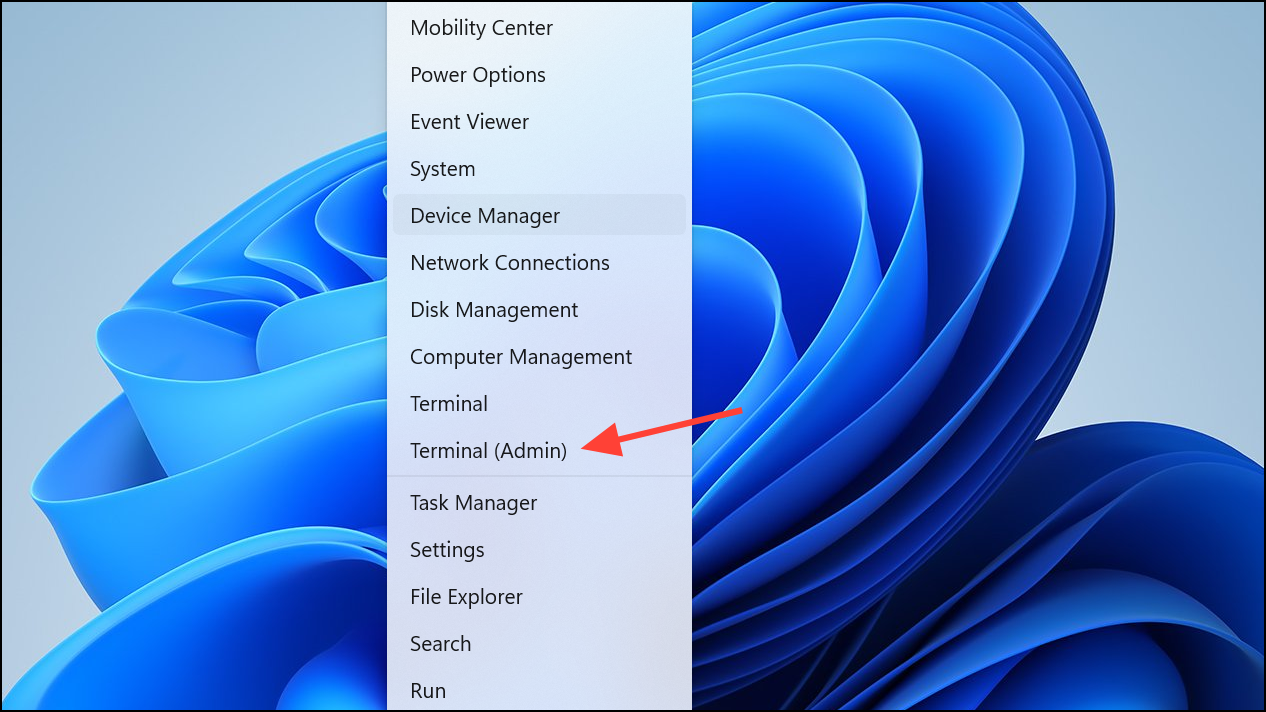
bcdedit /set {bootmgr} path \EFI\ubuntu\grubx64.efi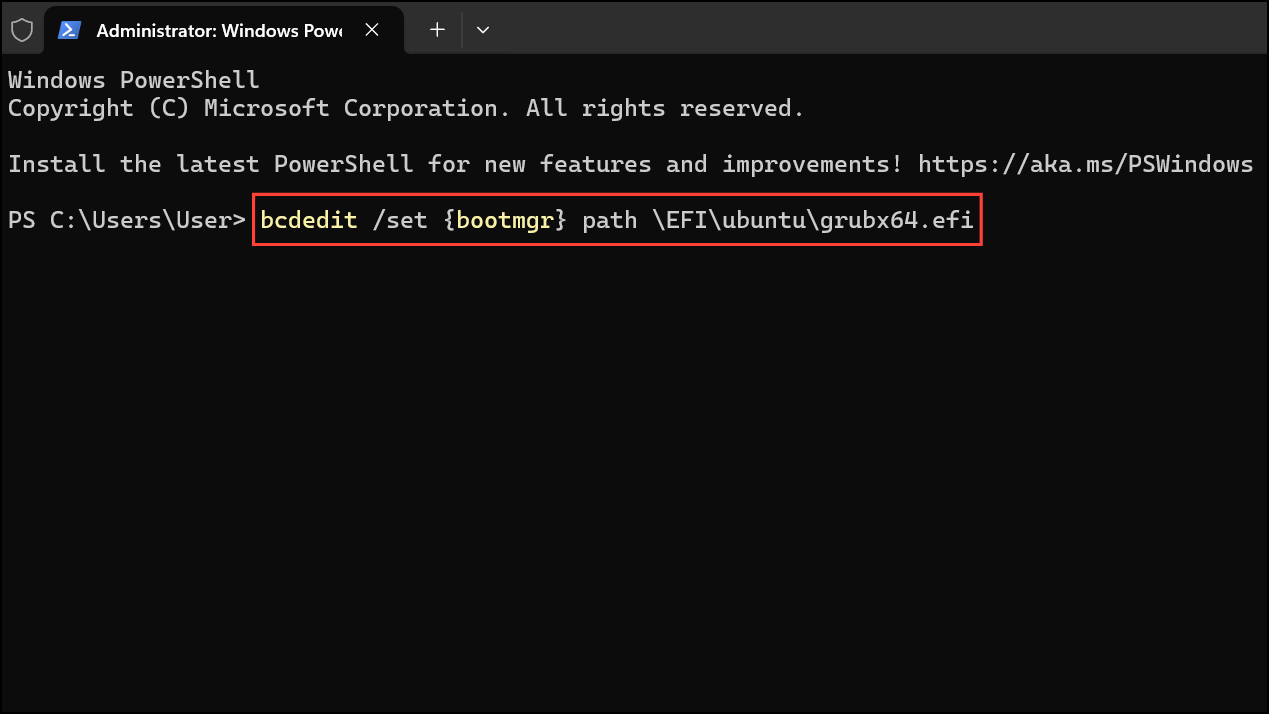
This step ensures that GRUB appears on reboot, allowing you to select either Ubuntu or Windows. If your system uses shimx64.efi (common on Secure Boot systems), adjust the path accordingly:
bcdedit /set {bootmgr} path \EFI\ubuntu\shimx64.efi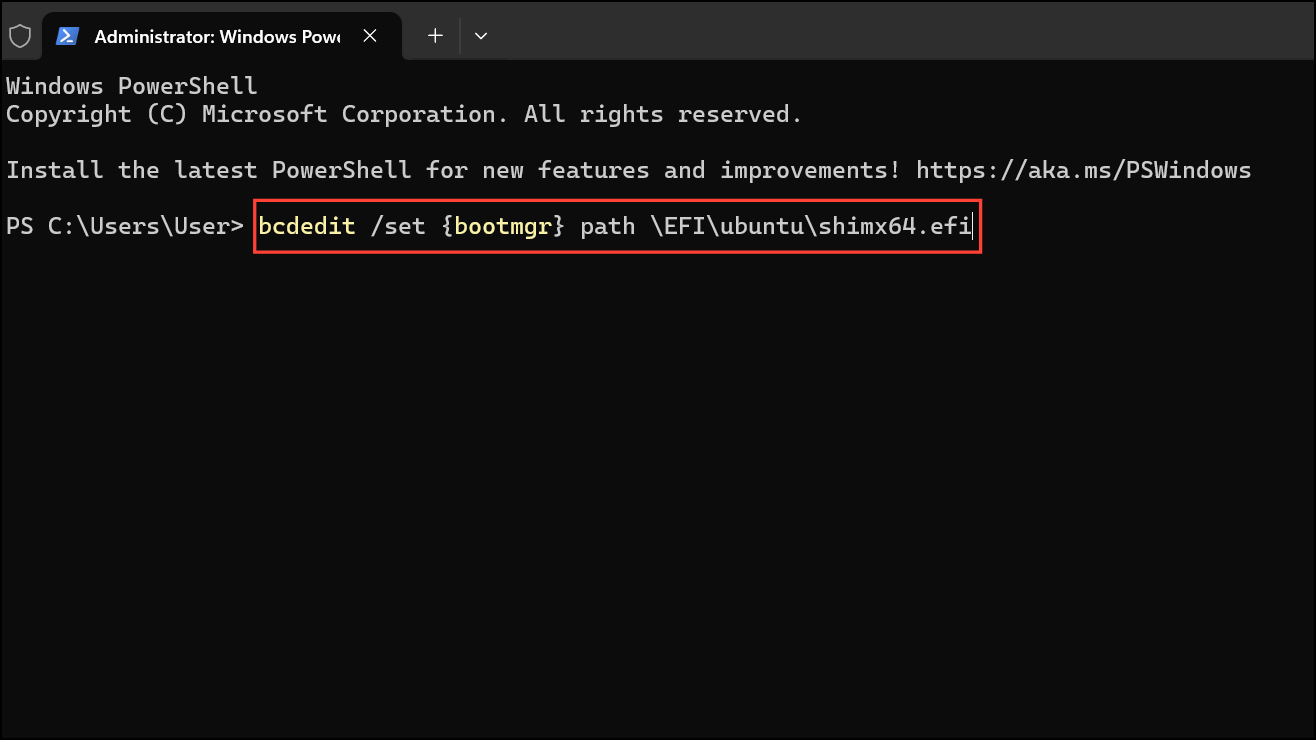
Repairing Bootloaders When GRUB or Windows Fails to Boot
Sometimes, the system may not recognize either Ubuntu or Windows after a bootloader repair or update. If GRUB fails to load or selecting Windows in GRUB produces errors such as “cannot load image”:
sudo add-apt-repository -y ppa:yannubuntu/boot-repair
sudo apt-get update
sudo apt-get install -y boot-repair && boot-repair
Fixing Windows Boot Issues After GRUB Repairs
On rare occasions, repairing GRUB or running update-grub can corrupt Windows boot files, resulting in errors when attempting to start Windows from GRUB or UEFI. If Windows fails to boot even when selected directly from the UEFI boot menu, a deeper repair is required:
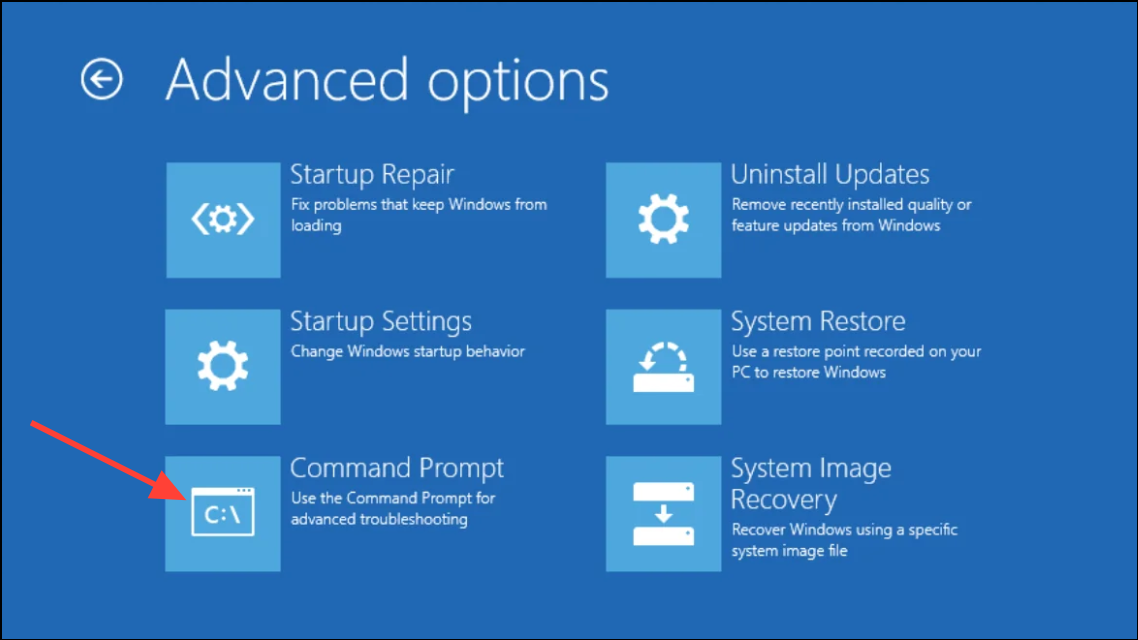
diskpart to identify and assign drive letters to your EFI (boot) and Windows partitions. For example:
diskpart
list disk
select disk #
list partition
select partition #   (choose EFI partition, usually 300-500MB)
assign letter=n:
select partition #   (choose Windows partition)
assign letter=c:
exit
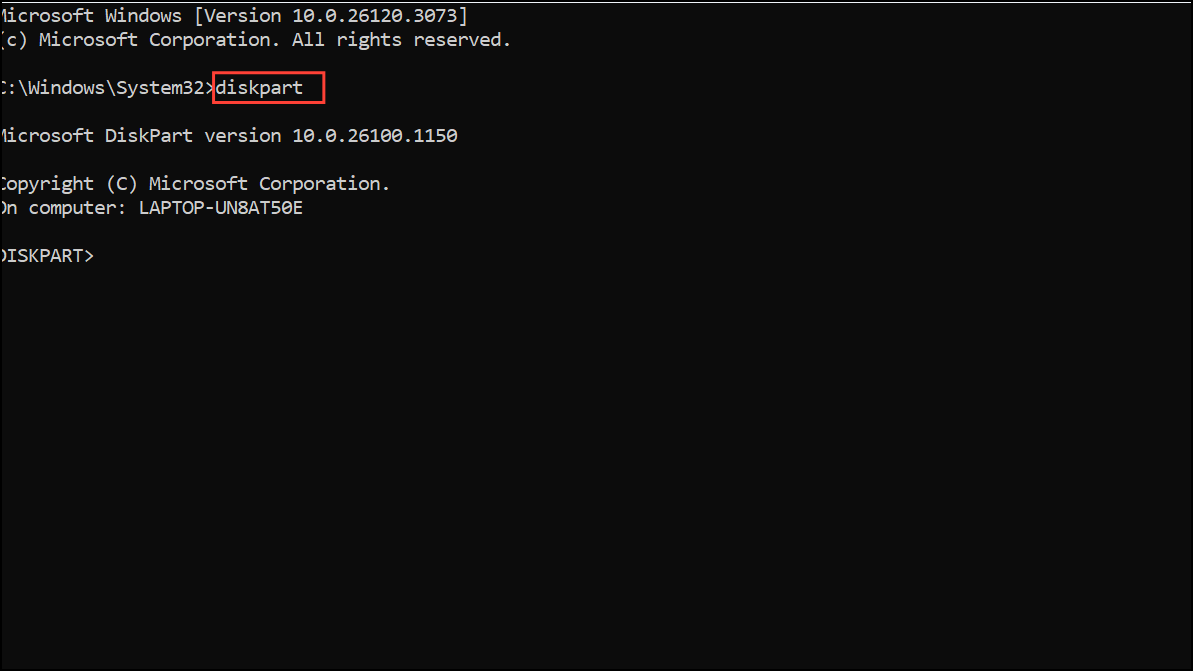
bootsect /nt60 all /force
c:
bcdboot c:\windows /s n: /f all
bootrec /scanos
bootrec /fixmbr
bootrec /fixboot   (skip if “access denied” appears)
bootrec /rebuildbcd
Resolving Secure Boot and SBAT Security Policy Errors
Recent Windows updates may activate Secure Boot Advanced Targeting (SBAT), which blocks older Linux bootloaders and prevents Ubuntu from starting. If you see errors like “Verifying shim SBAT data failed: Security Policy Violation,” follow these steps:
F2, Delete, or the designated key during startup.sudo mokutil --set-sbat-policy deleteThis command removes the problematic SBAT revocation, allowing Ubuntu to boot.
mokutil --list-sbat-revocationsIf the list is empty, the SBAT block is cleared.
Correcting Time Differences Between Windows and Ubuntu
Dual-boot setups often display incorrect time in one operating system due to different interpretations of the hardware clock. Windows treats the hardware clock as local time, while Linux assumes it is set to UTC. This mismatch causes a time drift after switching between systems.
sudo timedatectl set-local-rtc 1This command configures Ubuntu to read and write the hardware clock as local time, preventing time discrepancies when switching between OSes.
Adjusting Boot Order and GRUB Menu Settings
If the GRUB menu defaults to Ubuntu and you want Windows to appear first, or if Windows is missing from the GRUB menu:
sudo apt install grub-customizerIf Windows is missing from the GRUB menu after installing Ubuntu 22.04 or later, edit /etc/default/grub and add:
GRUB_DISABLE_OS_PROBER=falseThen update GRUB:
sudo update-grubApplying these targeted fixes restores full dual-boot functionality, resolves time issues, and ensures both Windows and Ubuntu remain accessible after updates or configuration changes.





