
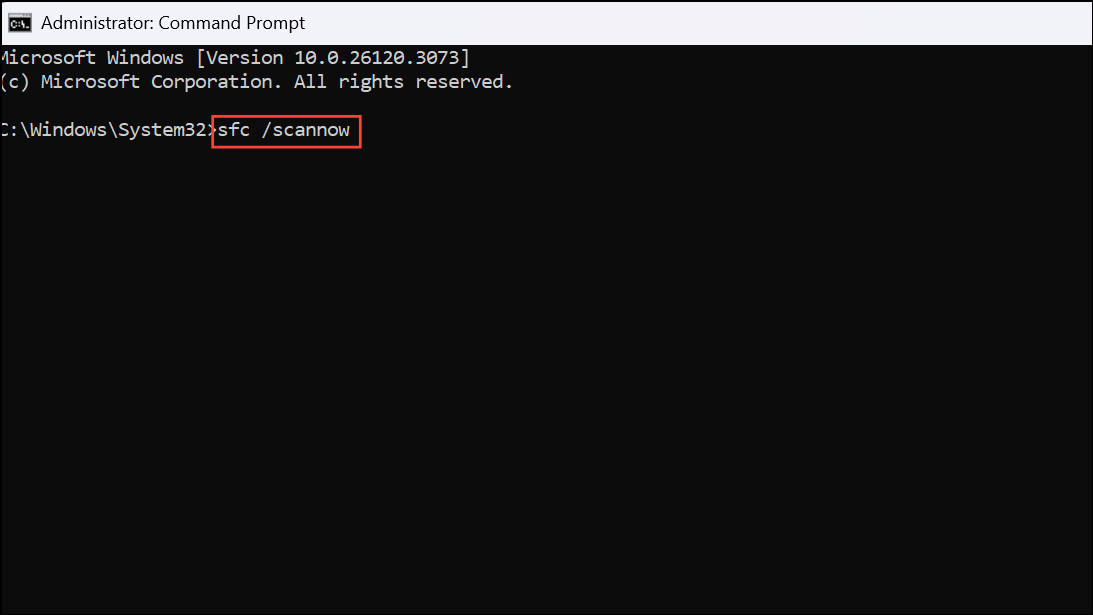
System File Checker (SFC) scans fail when Windows Resource Protection cannot start its repair service, blocking critical repairs and leaving system files unchecked. This issue is often caused by the Windows Modules Installer (TrustedInstaller) service being disabled or misconfigured, preventing SFC from accessing the components it needs to operate.
Enable the Windows Modules Installer Service
Press
Windows + R to open the Run dialog. Type services.msc and press Enter to open the Services window.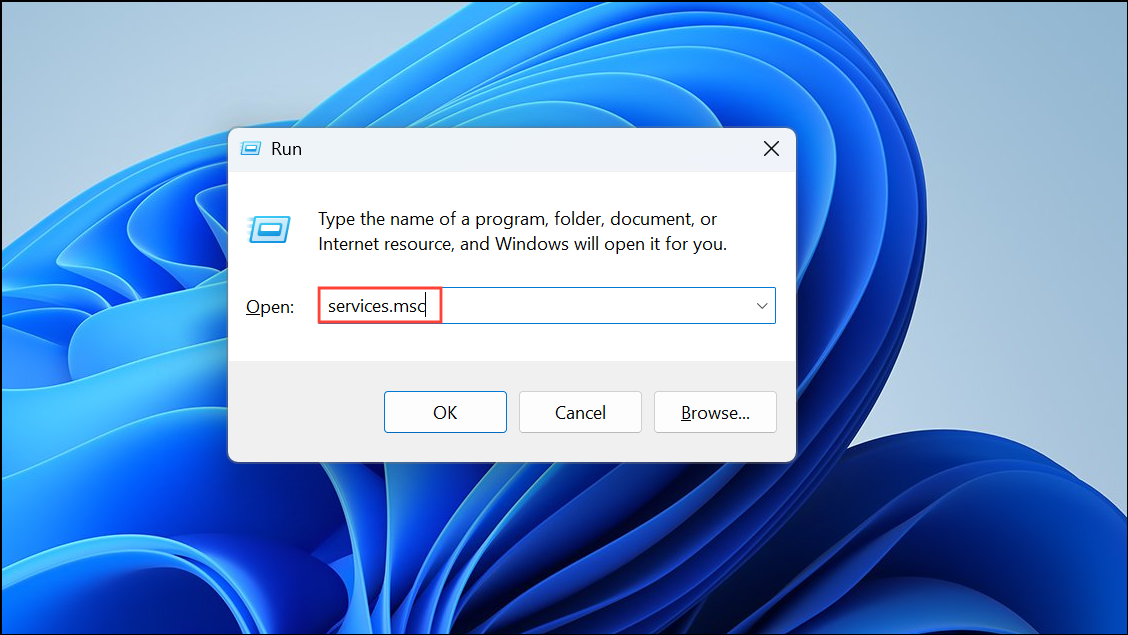
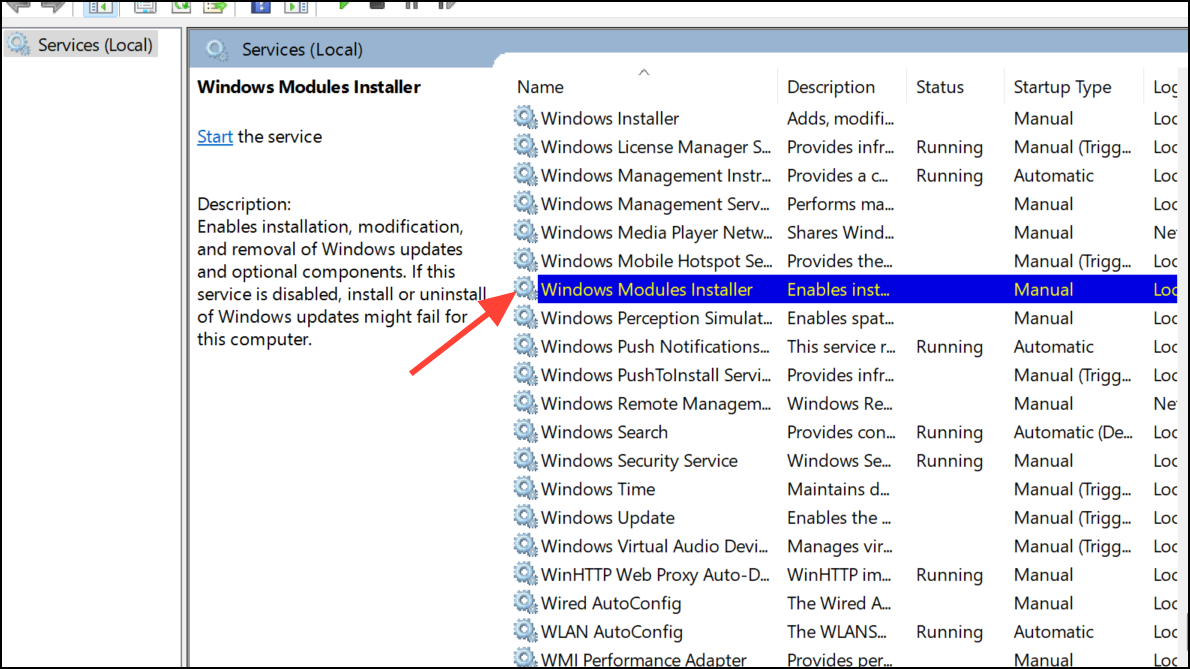
Scroll through the list and locate Windows Modules Installer. Double-click it to open its properties.
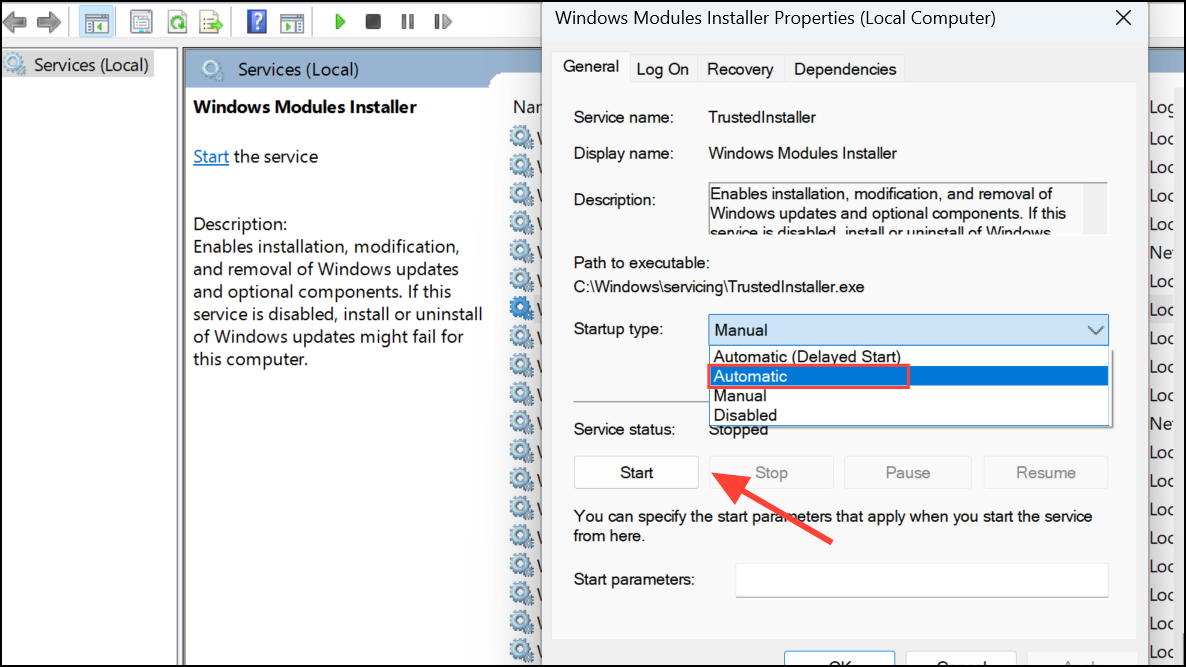
Set the Startup type to Manual or Automatic using the dropdown menu. If the service status is Stopped, click Start to run it.
Start TrustedInstaller Using Command Prompt
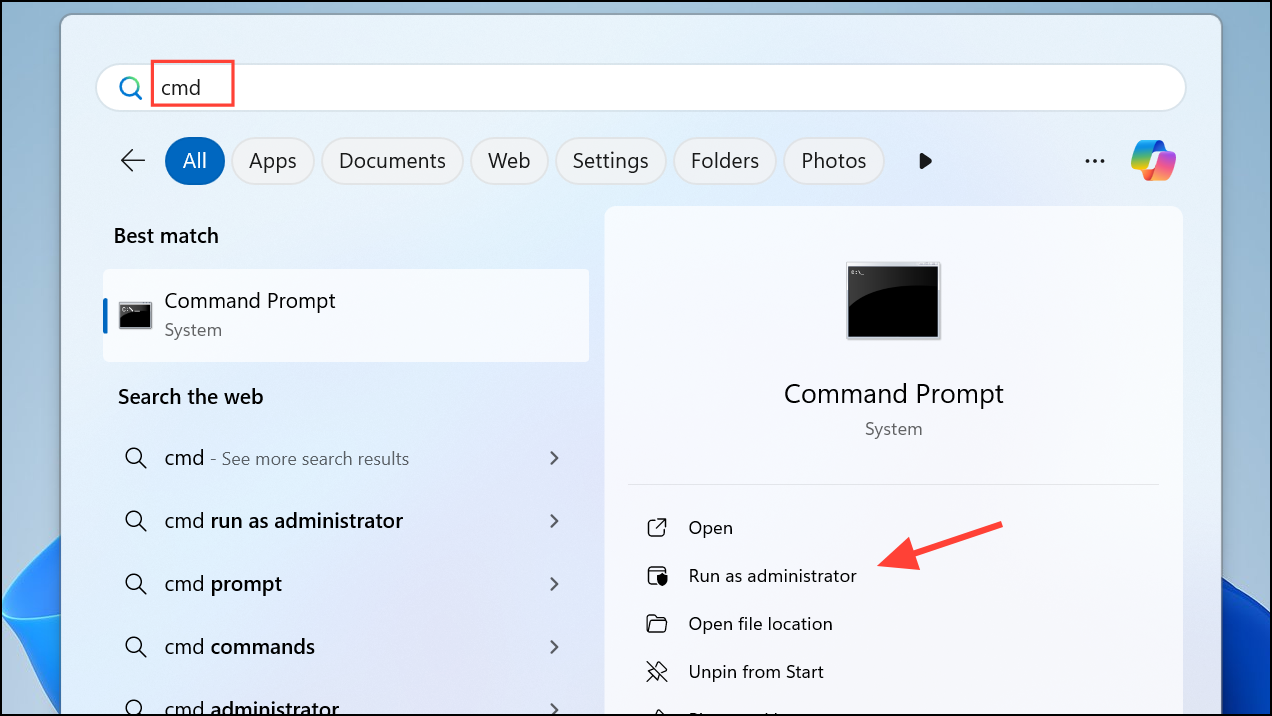
Open Command Prompt with administrative privileges. You can do this by searching for cmd in the Start menu, right-clicking Command Prompt, and selecting Run as administrator.
net start trustedinstaller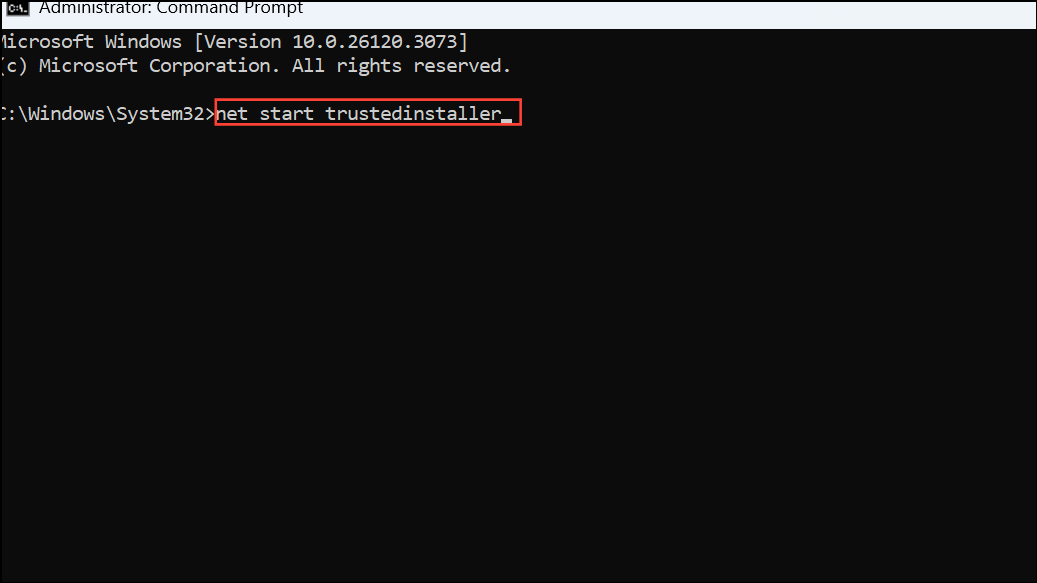
Wait for the confirmation message indicating the service has started. Then, run
sfc /scannow again to check if the error is resolved.Check Service Permissions in the Registry
Press
Windows + R, type regedit, and press Enter to open the Registry Editor. If prompted, allow the app to make changes.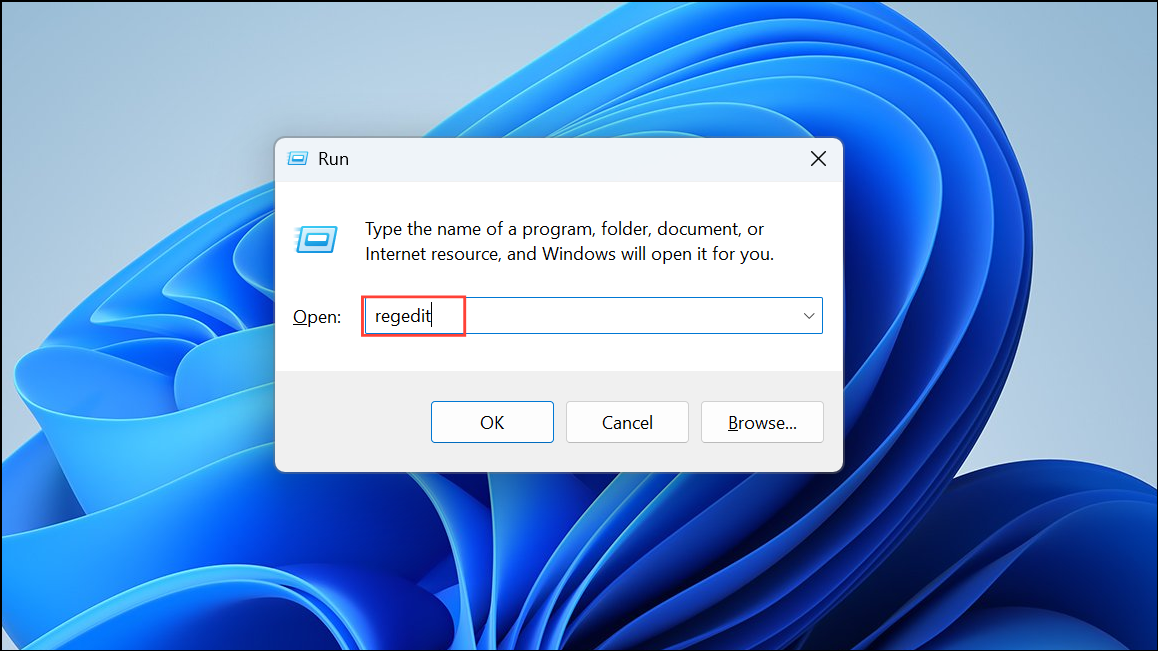
HKEY_LOCAL_MACHINE\SYSTEM\CurrentControlSet\Services\TrustedInstaller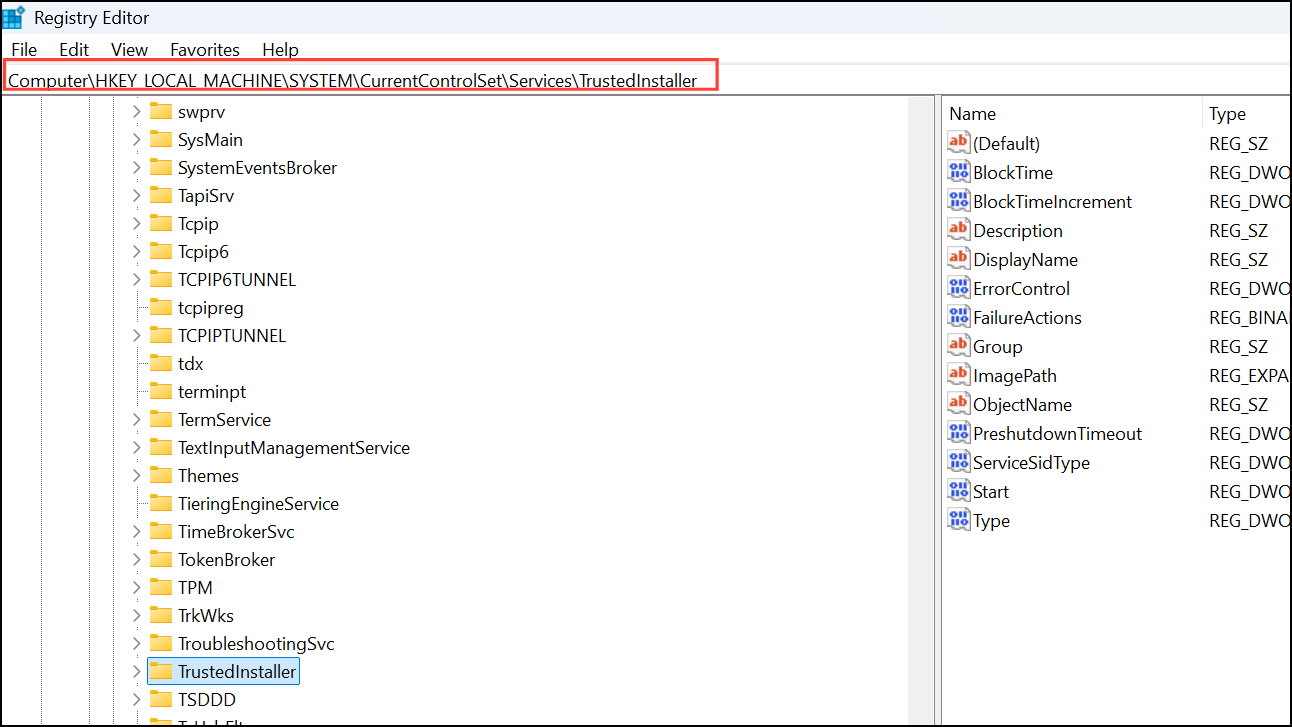
Make sure the Start value is set to
2 (Manual). If it’s set to 4 (Disabled), double-click the Start entry and change its value data to 2.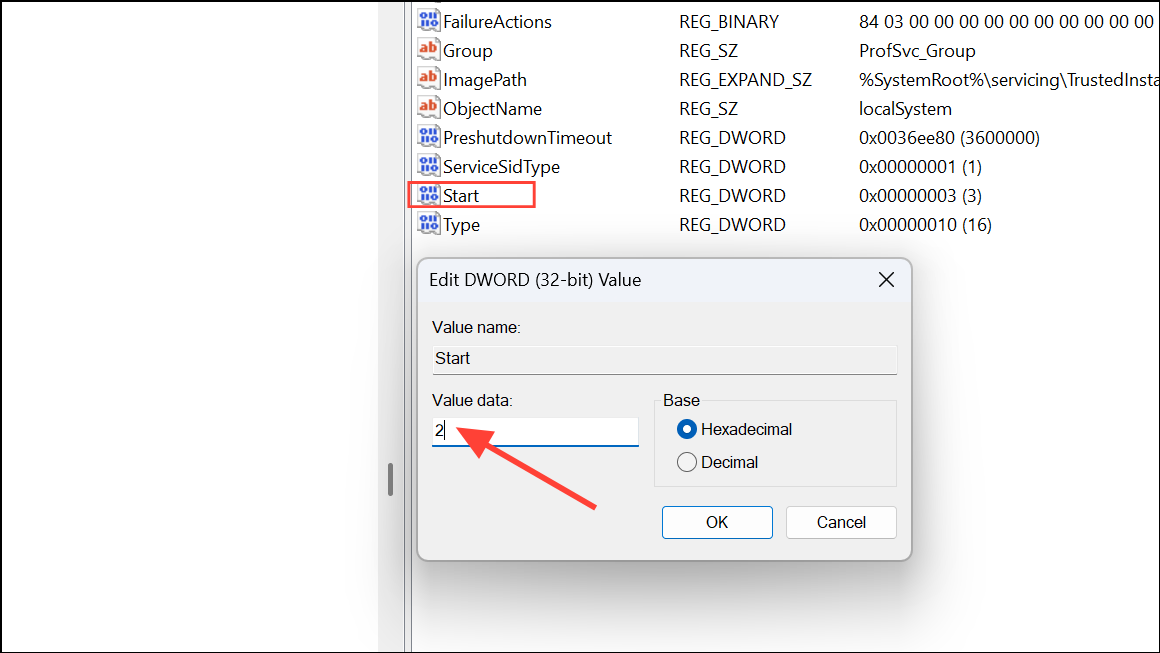
Run SFC in Safe Mode
Open the Start menu, click the power icon, hold
Shift, and select Restart to access the Windows Recovery Environment.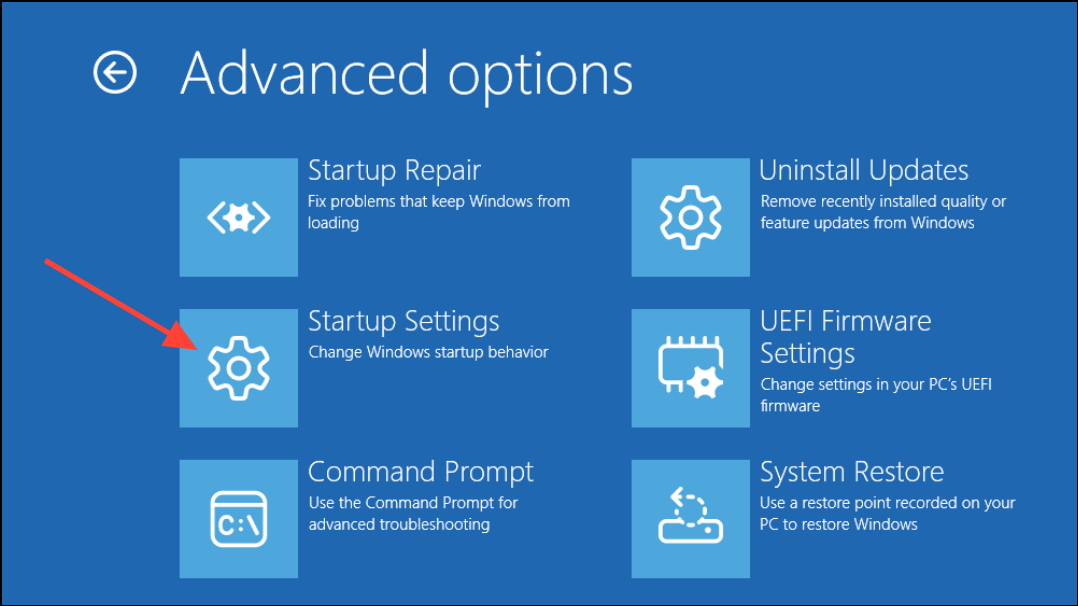
Addressing the TrustedInstaller service status and permissions typically resolves this SFC error, restoring your ability to repair system files efficiently. Keep the Windows Modules Installer set to Manual or Automatic to prevent future interruptions with system repairs.





